
Video formats in TrueConf meetings

The TrueConf client applications for desktops (Linux, Windows, macOS) support high quality video conferencing (up to Ultra HD). This article describes some factors that may affect the quality of your video meetings.
Before using the client application, make sure that your operating system and graphics card driver is up to date. Please note that we recommend downloading the drivers from the manufacturer's official website (Intel, Nvidia, AMD).
Video formats in TrueConf meetings
We support the following formats:
SD (standard definition) – 320x176;
HQ (high quality) – 640×360;
ED (enhanced definition) – 864×480;
HD (high definition) – 1280×720;
Full HD (widescreen video) – 1920x1080;
UltraHD 4K (ultra high definition) – total resolution up to 7680x4320.
What affects the quality of your video conferences?
During video call meetings you can notice that the video resolution automatically changes from lower to higher and vice versa (e.g. from ED to HD). This depends on the following factors:
- the quality and speed of the communication channel (with higher priority given to the audio stream so you won't miss any important phrases);
- your CPU power
your camera capabilities
- conferencing mode
- current video layout
screen resolution on the receiving side or the size of the application window with the layout (if the layout is displayed in a 800x600px window, there is no need to render video with a higher resolution; this approach is helpful for minimizing the use of system resources).
A bandwidth of only 32 kbps is sufficient for media streaming from the TrueConf client application to the video conferencing server, and this is the minimum limit that can be set in the application settings. Priority is given to audio, so if the connection deteriorates, the video quality automatically degrades and may freeze, freeing up bandwidth for sound. This is done automatically through SVC technology and the application's adaptation to connection conditions. Manual switching to an audio call is not required, but you can always manually turn off the camera to quickly adapt to poor connection conditions.
Besides, the administrator of your server can limit the bandwidth of inbound and outbound channels for each user. There may also be server-side restrictions on video quality for third-party protocols (SIP, H.323, RTSP). So, if video quality is degraded, and all probable causes are excluded, please contact the administrator of your TrueConf Server.
How to find out the quality of your current video meeting
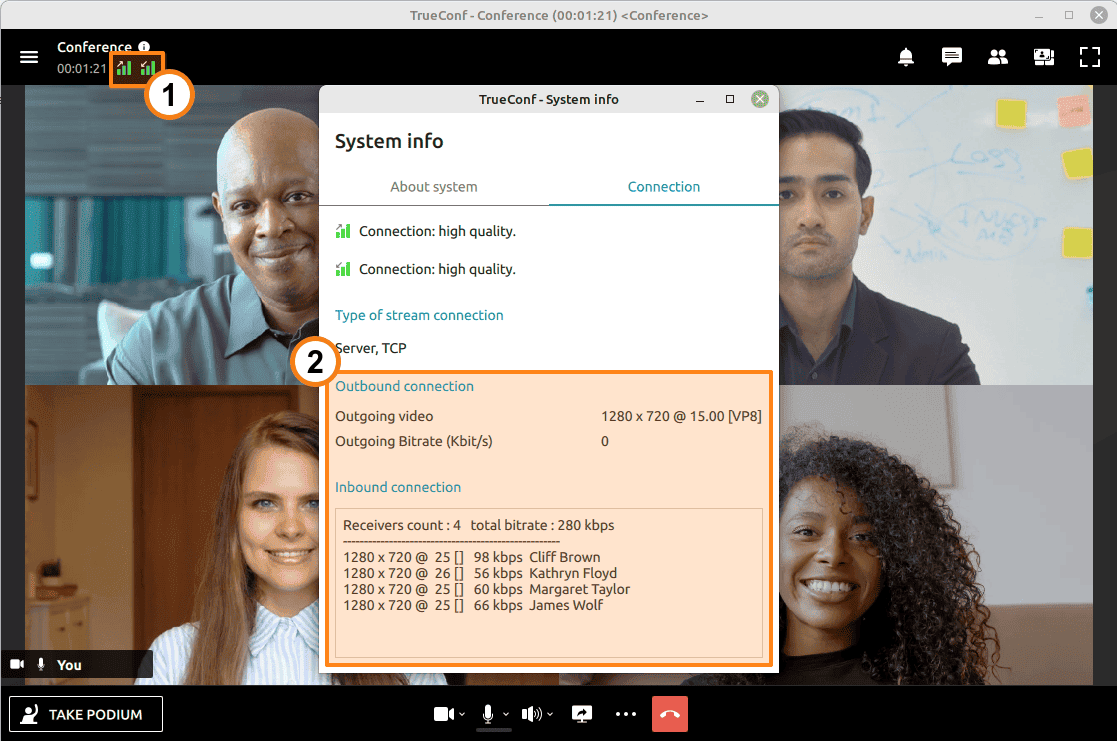
To check the parameters of inbound and outbound streams during a group conference or call, click on the button  in the upper control panel.

Is it possible to improve video quality manually?
Check out the Network row in the table specifying system requirements for client applications. Here, you can find out the bandwidth required for the maximum video quality during group conferences (depending on the size of the video layout) or one-on-one calls. If your bandwidth does not meet these requirements, video quality may degrade according to the logic underlying the work of SVC.
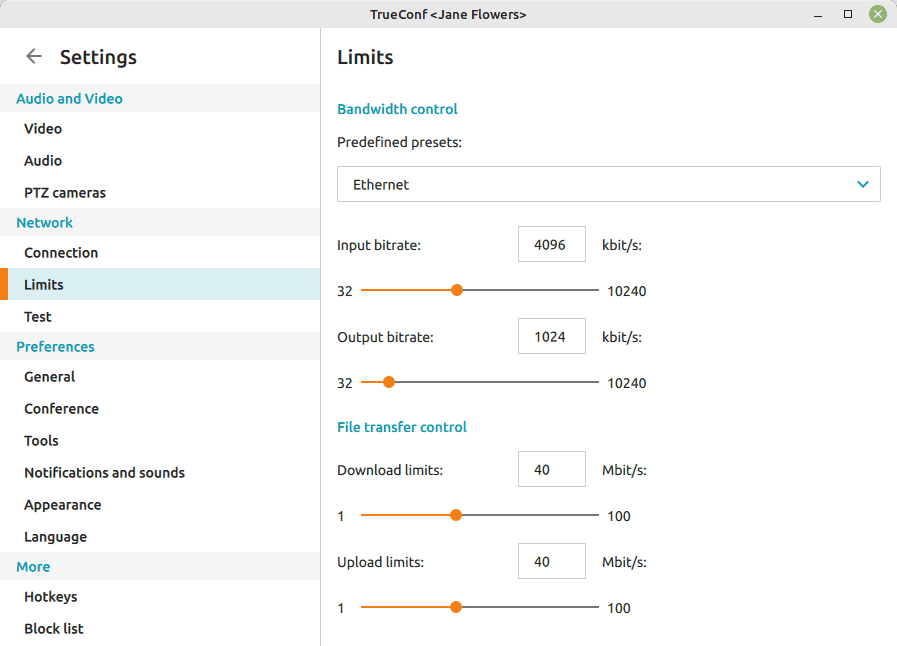
If you would like to improve your video quality, you could increase incoming and outgoing bitrate manually in the Settings → Limits section of TrueConf client application. This is only possible if your channel bandwidth with TrueConf Server and network hardware permit. These settings restrict every inbound or outbound stream, but they do not affect the entire channel bandwidth for the conference.
You can see available connection speed based on bandwidth test results (Settings → Test). This test simulates real network load and its results show actual loading and delay between the server and your client application. Please note that these figures may differ from what your provider claims. Recommended delay is up to 1000 ms. If it is higher, the conference participants will notice it.
The problem continues, what should I do?
If the problem persists, try the following steps:
use wired connection to your computer (through a network cable);
Close other applications that are using your network traffic or computer resources.
check your network hardware settings.
Sometimes when a legacy video card is used, one can observe some problems with TrueConf desktop applications, for example, the video in the layout is either not displayed or continuously interrupted. In such cases, you need to make screenshots of the application, create a configuration file and find application logs depending on the type of OS. Then, send all this information along with a ticket to our technical support.