

How HTTPS and WebRTC are connected
To enable users to participate in TrueConf Server conferences via WebRTC application, you need to set up an HTTPS connection on the server and open UDP ports beforehand.
If the connection is not safe (HTTP), your guests will see a warning upon opening TrueConf Server or conference webpage from their browser.
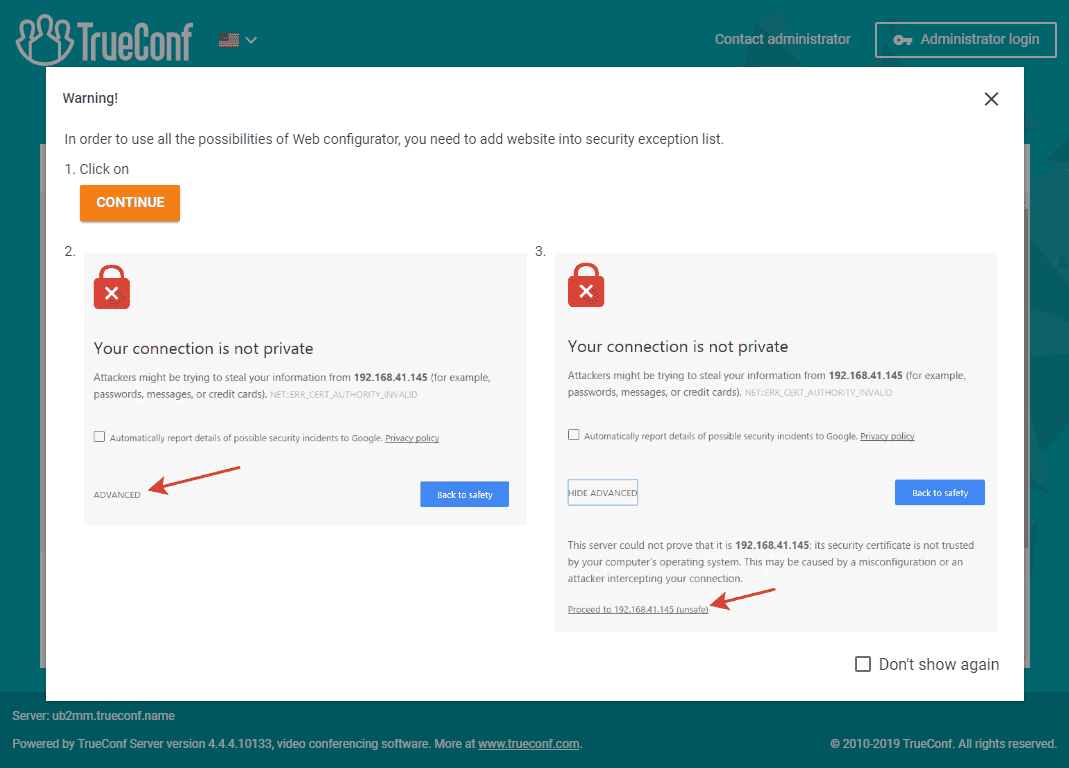
HTTPS connection is essential for syncing TrueConf Server when connecting to TrueConf Directory.
After configuring HTTPS, you need to update the external address of your server in the Web → Settings section and make sure that it starts with https. For example: https://video.company.com.
You may experience issues while joining TrueConf web conferences hosted on TrueConf Server 4.7.0 or earlier using Chromium-based browsers (e.g. Google Chrome 89+). For more details on this issue, please read our guide. We recommend you update your TrueConf Server instance to v.4.7.1 to ensure compatibility with the latest browser versions.
How to set up HTTPS connection
You will need SSL certificate file in X.509 (.crt) format and a corresponding private key (.key).
There are two types of certificates: commercial and self-signed.
Self-signed certificate is free. You can generate this certificate for TrueConf Server by yourself from the control panel. The certificate is valid for 365 days (and prolonged further without limits). It can be used for WebRTC application testing. However, each conference participant should manually add it to the trust list in their browser.
Trusted certificate is fully functional and secured. However, this certificate is paid. Here’s where you can get it:
- Active Directory local certification center;How to use trusted certificate in TrueConf Server
Before you buy SSL certificate make sure your TrueConf Server is accessible by its domain name (e.g. server.mycompany.com) from the internet. Domain name and server name given during TrueConf Server registration must be the same.
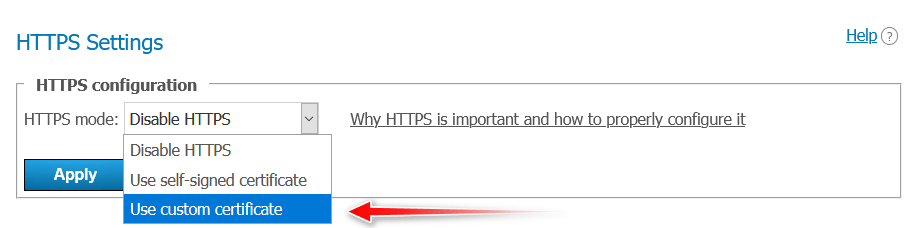
Open TrueConf Server control panel and choose Use custom certificate in Web→ HTTPS section (HTTPS configuration).
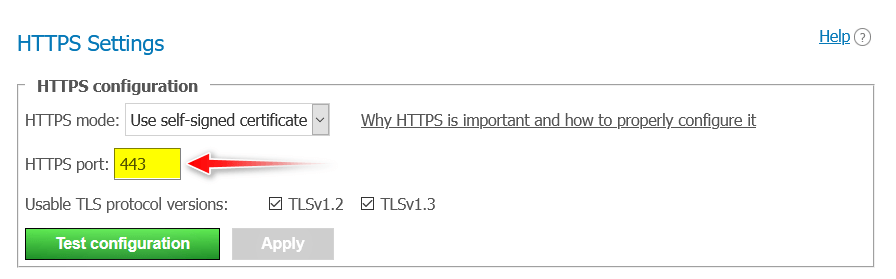
Enter the HTTPS port that can be accessed from the internet in the field that appears. By default standard TCP Port 443 is used.
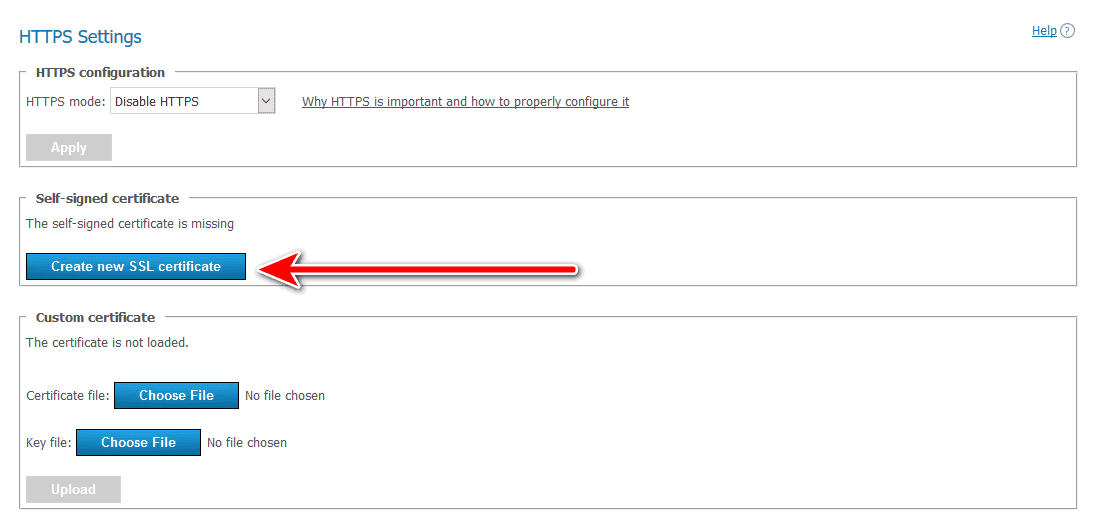
After that upload certificate and its key files to the corresponding fields of Custom certificate block.

During the download process, certificate format, key format and certificate/key correspondence are checked. If at least one check fails then added certificate and key files will not be saved.
After the files have been uploaded, added certificate notification will appear.

How to create self-signed certificate
Open TrueConf Server control panel, proceed to Web → HTTPS section and press Create new SSL certificate button.
When this certificate expires, you can generate a new one.
How to convert SSL certificate to .crt format to set up HTTPS connection
The TrueConf Server requires an SSL certificate for HTTPS connection. If the file extension is not .crt, you need to convert the certificate to this format. For this purpose, you can use open-source OpenSSL libraries pre-installed on Linux-based platforms. However, if you want to use the libraries on Windows, you can download them by following the link.
Depending on the certificate file extension, you may convert it in two steps:
conversion into the .pem format
change the file extension to .crt.
Converting the certificate file into a PEM file
from .der extension
openssl x509 -inform der -in certificate.cer -out certificate.pemfrom .p7b extension
openssl pkcs7 -print_certs -in certificate.p7b -out certificate.cerfrom .pfx extension
openssl pkcs12 -in certificate.pfx -out certificate.cer -nodes
To convert a .pfx file, you need to enter the password you have specified when exporting a .pfx certificate.
Change the file extension to .crt and add an intermediate certificate
Change the extension of the resulting .pem file to .crt. You should have a certificate.crt file.
Sometimes, browsers may show a warning that your HTTPS certificate is untrusted. To remove the warning, you need to add an intermediate certificate when configuring an HTTP server. It is needed for testing HTTPS connection established with the help of an SSL certificate.
Complete the following actions to add an intermediate certificate:
Open root, intermediate and end-entity server certificates in Notepad.
Copy the content of the intermediate certificate and paste it at the end of the end-entity server certificate.
Repeat step 2 for the root certificate.
Save changes in the root certificate.
If root and intermediate certificates were not in the package, you can download them from the official website of a certification authority.
Check TrueConf Server configuration once the certificate has been installed
Incorrect port data or certificate parameters may result in TrueConf Server launch issues next time, and your administrator might lose access to the server control panel.
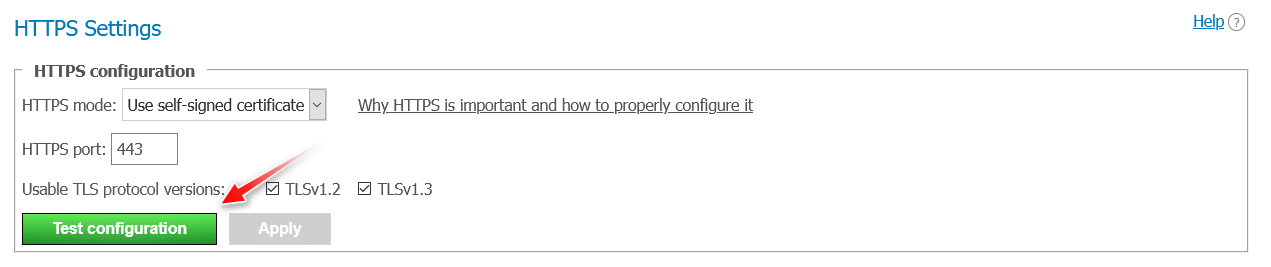
You can initiate HTTPS server configuration without restarting it by pressing Test Configuration button (Web→ HTTPS→HTTPS Configuration in TrueConf Server control panel).
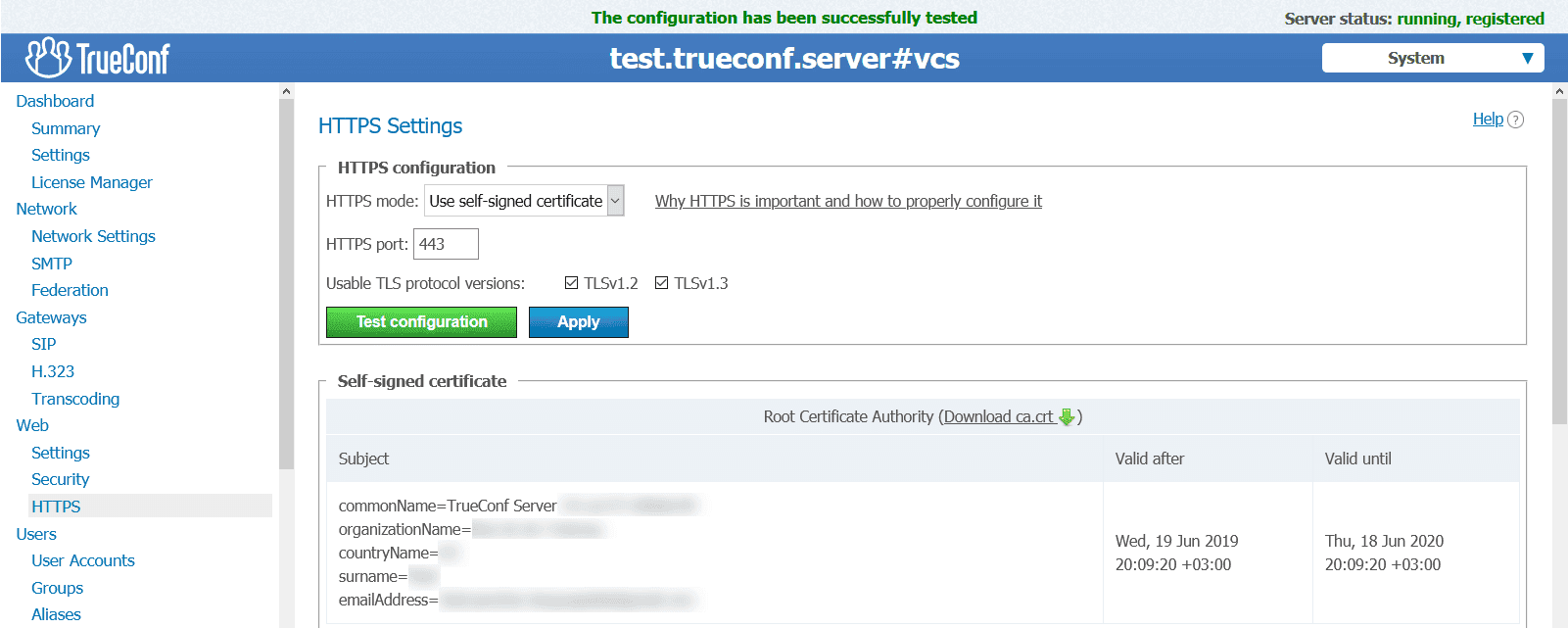
If your certificate is installed correctly (HTTPS port must also be accessible) you will see The configuration has been successfully tested string.
If you have problems with configuration testing, please contact our technical support.
If you don’t need to use HTTPS connection you can also disable it in the corresponding control panel section.
Troubleshooting HTTPS or WebRTC issues
Error with code 10000 when connecting to a conference via a browser
If a user encounters an error with code 10000 when trying to connect to an event on your TrueConf Server via a browser (using WebRTC), it is likely that the necessary ports are not open on the server side:
Port 443 (TCP). Used for transmitting service information between the server, client applications, and browsers. It is the standard HTTPS port, but another port can be configured in the server control panel, so you should verify your specific setup.
Port range 53000-55000 (TCP, UDP). Required for WebRTC operation between the server and the user's browser. Other ports can also be configured in the control panel, so be sure to check your specific settings.
Port 3478 (TCP, UDP) to STUN and TURN servers. Required for WebRTC operation.
When using a proxy server (SOCKS5 Proxy), it must allow the specified ports and support the websocket protocol. Additionally, it should be correctly configured for request tunneling through the websocket protocol. The websocket protocol is used as a signaling protocol when establishing a connection via WebRTC.
If any of the above conditions are not met, users connecting to the conference via a browser will encounter error 10000.