
Registration
Registration
Here are the minimum steps needed to set up a working corporate communication system:
Select a machine (PC, physical or virtual server) with suitable hardware.
Register the server. ◀️ You are here!
Configure HTTPS (it is used for many key features such as integration with the AI server, conference scheduling, etc.) and specify the external server address (the address of the guest page).
Configure access to the server for users within the corporate network and, if necessary, from an external network (outside the corporate network).
Create user accounts or integrate the server with a directory service via the LDAP/LDAPS protocol.
Install client applications for users and show them how to connect to your server (check the documentation for the desktop application).
What is the registration key and server ID?
Registration key – a unique secret combination of characters that uniquely identifies the licenses for your TrueConf Server instance. It is required to activate the video conferencing server after installation. You may have received it earlier when downloading the server from the TrueConf website or purchasing through company partners.
When contacting TrueConf technical support, employees may request you to provide your server ID (first five characters, e.g. EB2MM) but never the entire registration key.
Two servers cannot function simultaneously on two computers with the same registration key. If you try to register two servers on different computers with the same key, a hardware key error will occur.
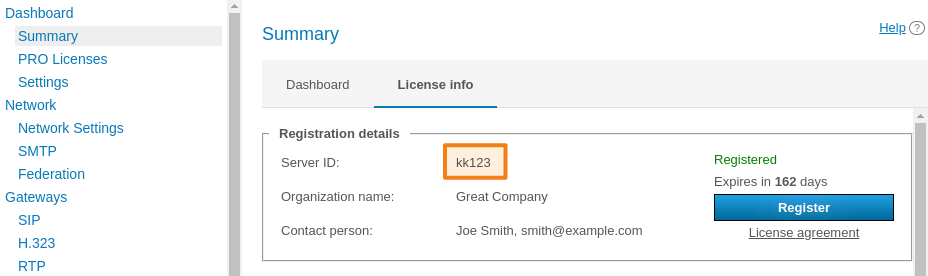
Server ID is a unique identifier for the video conferencing server TrueConf Server. The server ID includes a series of characters that match the beginning of the registration key (up to the first dash), for example, EB2MM. It is displayed in the TrueConf Server control panel in the section Summary:
If you don't have a key, you can use a free license by clicking the Download free version button on the page TrueConf Server Free.
Registration TrueConf Server is required in order to:
Make sure that your key is not used by anyone else, in other words, we need to protect your software license
Ensure that the ID of each server is unique which is needed for the correct work of federation.
A detailed comparison of the features of the free and paid versions is available on the pricing page.
A page with a form will open, which you need to fill out to receive TrueConf Server Free:
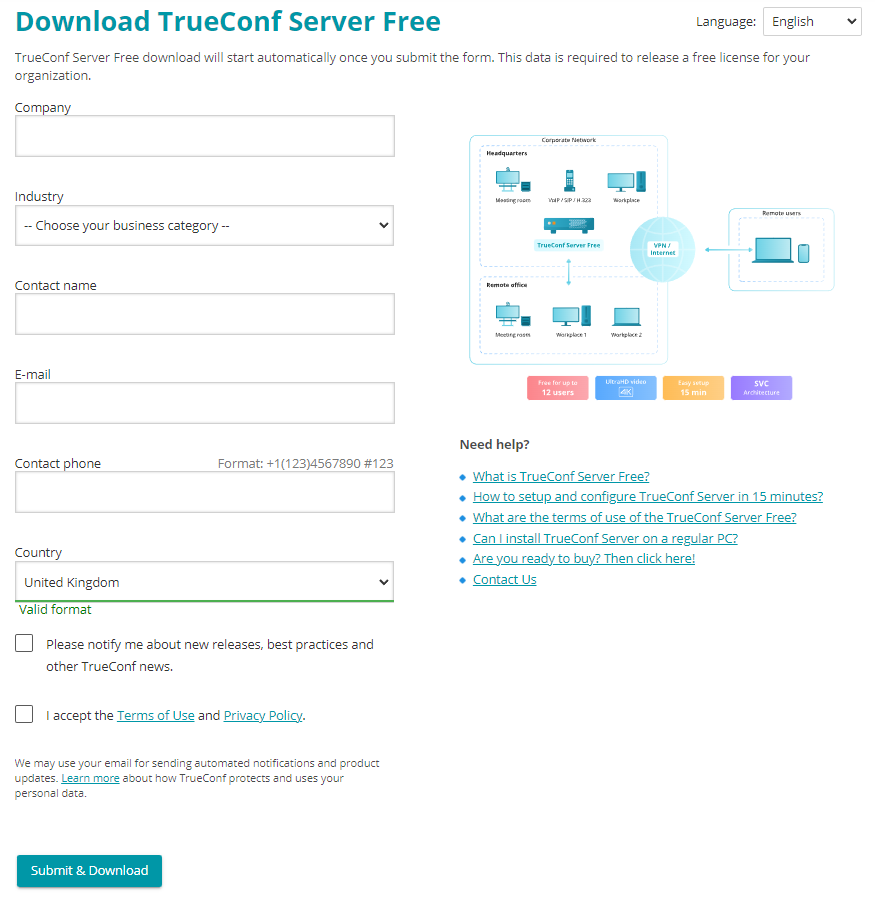
A registration key will be sent to the email address that you provided.
You will receive the key within 15 minutes
If you did not receive the key, please contact us in any way convenient to you or check your SPAM email folder.
After filling out the form, select your operating system to get access to the corresponding installation guide. When TrueConf Server is deployed, you can register it.
Server Name
Имя сервера TrueConf (Server Name) is the alphanumeric name used to identify TrueConf Server on the network. Knowing the server name is crucial for organizing conferences with external TrueConf Server via federation and for integration with SIP and H.323 devices, such as Polycom terminals or TrueConf Group.
Server name is generated automatically in the control panel upon TrueConf Server registration. Standard server name has the following format: <server_id>.trueconf.name#vcs, where <server_id> is server ID. Server name can be changed; instead, you can set domain name for your TrueConf Server instance.
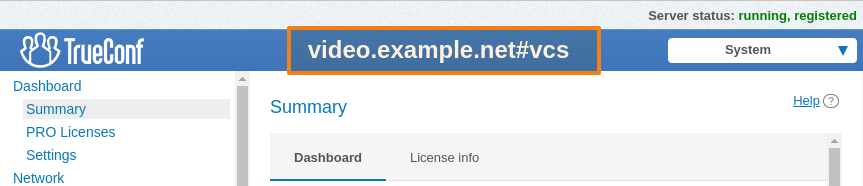
After successful registration, the server name will be displayed at the top of the TrueConf Server control panel window:
An IP address cannot be used as the server name.
You can change the server name only when re-registering it. Please note that all previous chat messages will become unavailable. So, we do not recommend doing it without consulting our technical support.
Online server registration
Register the server. To do this, you will need to enter the registration key you have received earlier.
Open your browser and go to the TrueConf Server settings page. By default, its address is identical to the address of the machine where the video conferencing server is deployed. If you do not know how to learn the address and port, check the installation guide.
Enter your key in the appropriate field and click the Registration button:
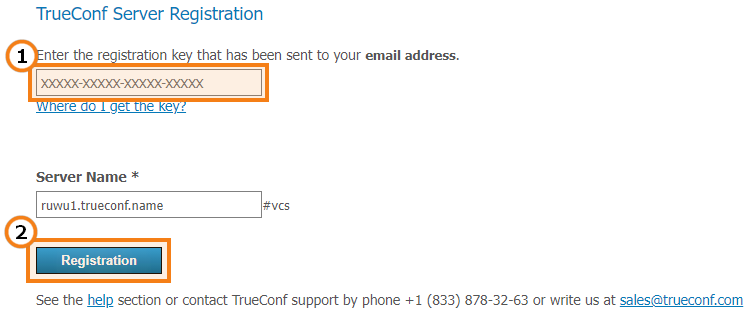
If you do not have a key, click the Where do I get the key? link on the server registration page and follow the instructions described above.
- Once the server is successfully registered, the corresponding message running, registered will appear in the upper right corner of the control panel window:

If the connection with the registration server (reg.trueconf.com via TCP port 4310) is lost, your TrueConf Server Free will be disconnected after 12 hours. The scheduled disconnection time will be displayed on the Summary tab. The full version of TrueConf Server does not have such limitations, regardless of the registration method (online or offline).
Offline registration
Offline registration is not available in a free license. It is supported only in premium licenses or in the servers with a temporary trial license provided by managers.
How to register a new server or re-register an existing server after clean reinstallation
To complete offline registration on a PC without an Internet connection, you'll need a device with access to an external network to get the registration key. Go to the form page on this device, and follow the instructions in the Server Registration section.
Once you receive an email with the registration key, enter it in the corresponding field Registration Key of the control panel on a PC that is not connected to the Internet, and click the Registration button:
In the registration window, the Create registration file button will appear. Click it to generate a file with the registration information.
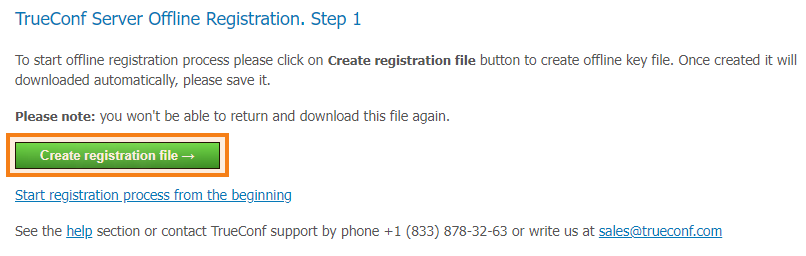
The created offlinereg.vrg file is automatically saved in the browser's Downloads folder. Send it to sales@trueconf.com. In return, you will receive a file that must be transferred to the PC where the server offline registration is being performed.
Please do not try to restart offline registration until your receive a respond to your request. If you restart offline registration, you will need to retry the whole process.
Click Select file and select the offline2.vrg file sent to your computer, then click the Continue button.
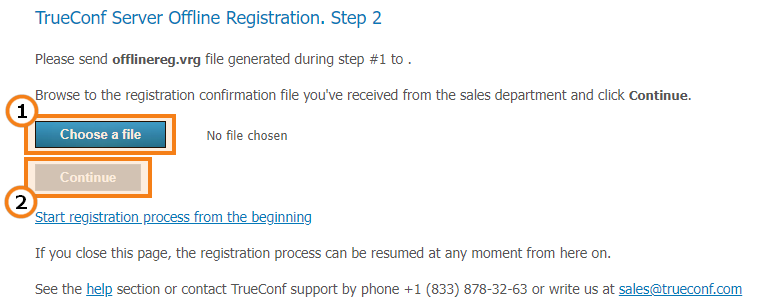
If the offline registration has been successful, you will be notified that TrueConf Server has been successfully registered in the control panel.
Re-registering the server in a private network
If the server previously worked in a private network and you want to change the license composition, or if the server was stopped due to the error CHECK CERT: HW key is failed!, you do not need to go through the full offline registration process again. Since you already have the registration key, there is no need to get a new key by filling out the installer download form.
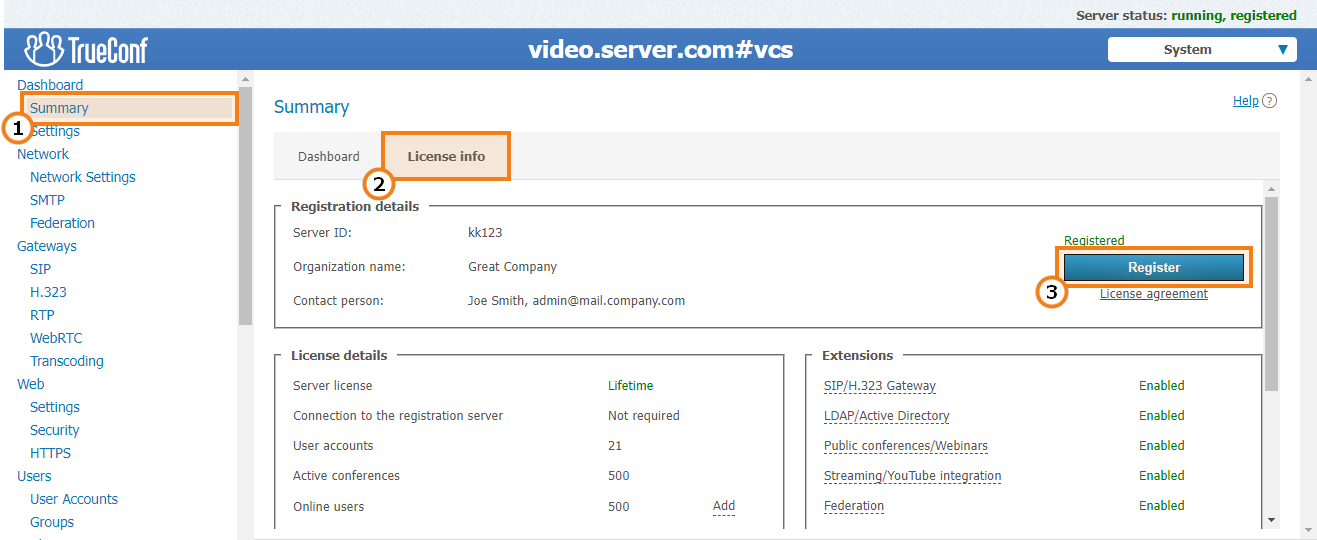
Go to the Summary → License info section in the server control panel and click the Register button:
Enter your existing registration key in the appropriate field and click Registration:
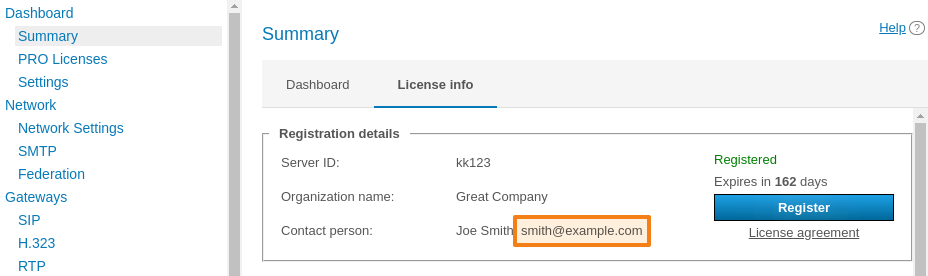
You can find your registration key in the email inbox you provided in the registration form when downloading the server. The email address is also displayed in the TrueConf Server control panel in the Contact person field:
If the email was accidentally deleted, you can request the key from your manager. If you don't have your manager's contact details, just contact us, provide your server ID, and we will help you.
However, this method will not work if you change the server hardware configuration: in this case, you will need to ask us to reset the hardware binding. Then, you will need to repeat the offline registration procedure described below.
How to re-register the server
To re-register TrueConf Server without changing the key (for example, to activate new features after purchase), simply go to the Dashboard → Summary section and enter your old key as previously shown.
To change the registration key TrueConf Server:
Log in to the control panel and navigate to section Dashboard → Summary.
Go to the License info tab.
Click the Register button and enter the new key as previously shown:
Re-registration with the server name which has already been used
Sometimes, it may be necessary to change the server name to the one which was previously used for a different registration key. For example, a trial version was used, and then, a new registration key for corporate use was obtained for TrueConf Server. In this case, you can use one of the two options:
Request your TrueConfmanager, who is assigned to your company, to release the selected domain name (please note that to release a name does not mean to reset the hardware binding).
First, register the server with the old (test) key using a different server name that has not been used yet. Then, register it with the new (production) key using the required server name.
Registration: Frequently Asked Questions
Is it possible to register the free version of the server without an Internet connection?
No, this feature is only available to users with an annual or perpetual license for the TrueConf Server product. If you need a trial version of TrueConf Server that operates without an Internet connection, just contact us.
What should I do if I get the message "Computer change is not available for this server code"?
This means that your key is "linked" to the computer where the server was installed. To remove this link, contact us using one of the available methods.
How to reset the binding?
You need to reset the binding for TrueConf Server if something has changed on the machine where it is installed and the HW key (binding key) is "broken." The list of parameters that affect the HW key is detailed in this article. Consequently, to reset the binding and restart TrueConf Server, please contact TrueConf using one of the methods provided.
What should I do if I get the message "The registered server doesn't have valid licenses"?
It means either that the key has expired or the time and date on your PC have busted. Make sure that time and date are specified correctly on your PC.
What should I do if I get the message "Server name is already registered"?
This notification means that the server name you specified during registration is already in use somewhere (by you or another organization) and is linked to a different key. Just specify a different name, or if you specify an external domain name in this field, and you are certain that you are the owner of this address, make sure that no other server with this name is registered in your company.