
Do I need a powerful computer to use background blurring and virtual backgrounds in TrueConf application?

Background blurring and virtual background are useful features that can help meeting participants focus on your presentation and ideas, rather than the place where you stay at the moment. These features can also come in handy if you need to hide your workspace that may not be suitable for a video meeting (e.g., when working or studying remotely).
However, these features have a limitation: they set rather high requirements for computer resources since they are using machine learning (AI) algorithms.
This article will focus on the use of background blurring/replacement in TrueConf client applications and discuss the computers needed for the correct work of these features.
How to configure background blurring and replacement in TrueConf application
Go to the Video section of application settings. Here, in the Virtual background subsection, you can find the buttons for blurring your background or replacing it with a default or custom image.
To learn more about the activation of these features, read the documentation for the client application.
System requirements for blurring/replacing the background
As it has been said before, the algorithms used for blurring and replacing the background are rather resource-intensive. This is why the application benchmarks the system characteristics of a user’s computer each time when it is started. Depending on this benchmark, the application estimates the quality of video that will be sent and received (see below for more details). The application will also determine if it will be possible to blur or replace the background. The following three options are possible:
Features will be available without any restrictions.
Background blurring and virtual background will be available; however, video quality will decrease.
Features will be unavailable, and the Virtual background section will be inactive in application settings.
For the sake of convenience, the application does not display the numeric value of the score. However, in the System info section of application settings, you can find the rating based on this score.
The rating consists of three parameters: send, receive and recieve group. Each of them is designated with the first letter: (s, r and rg). These parameters indicate the maximum quality of the video that a device can send (s), receive in a video call (r) and receive in a group conference (rg).
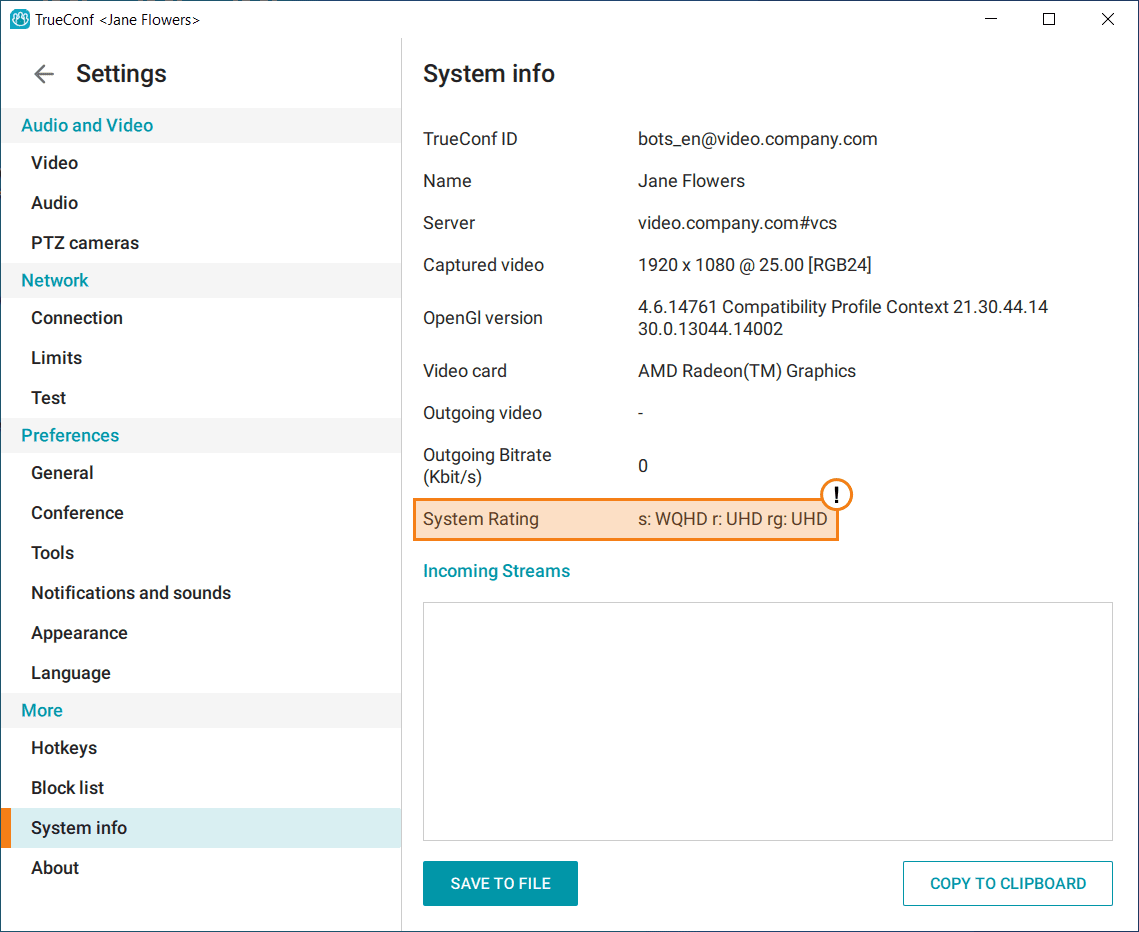
However, this rating cannot precisely determine how virtual backgrounds and background blurring will work. The rating algorithm is very complex and depends on multiple parameters. For example, if a browser is opened when the benchmark is carried out, the rating will be lower than it can be because the browser takes up a significant portion of computer resources. So, the rating may vary each time when the application is started even on the same computer.
Although it is impossible to distinguish specific system requirements, you can roughly determine if virtual backgrounds will work correctly on your machine. We created a table that sums up our research of how virtual backgrounds and blurring work on different devices. This table provides full information about system characteristics of each computer used for benchmarking. By comparing this data with your computer hardware and rating (received when running TrueConf application without any other significant load), you can determine if background blurring/replacement will be available.
For example, if you have a PC with Intel Core i7-700 CPU which is equal to Intel Core i3-10100 in terms of performance, you will, most likely, be able to use these features in full extent. The performance of CPUs can be compared with the help of the Passmark score.
| Device | System characteristics | Results | |||
|---|---|---|---|---|---|
| CPU | RAM | GPU | System rating | Quality | |
| Acer Veriton Z4670G series (All-in-one) | Intel(R) Core i3-10100 3.60 GHz | 32 GB | Intel(R) UHD Graphics 630 | s:UHD r:UHD rg:UHD | High |
| DELL INSPIRION 7520 | Intel(R) Core i5-3210M 2.50 GHz | 8 GB | AMD Radeon HD 7730M (Chelsea) | s:HD r:FHD rg:WQHD | High |
| Asus Vivobook M1402IA | AMD Ryzen 7 4800HS 2.9 GHz | 16 GB | AMD Radeon(TM) Graphics | s: WQHD r: UHD rg: UHD | High |
| Acer Nitro 5 AN515-43 | AMD Ryzen 5 3550H 2.1 GHz | 16 GB | GeForce GTX 1650 | s: FHD r: FHD rg: UHD | Video resolution may decrease |
| HP Pavilion Sleekbook 15 | Intel(R) Core i5-3337U 1.80 GHz | 6 GB | Intel HD Graphics 4000 | s: HD r: HD rg: FHD | FPS may decrease |
| Dell Latitude E6430 | Intel(R) Core i5-3320M 2.60 GHz | 6 GB | Intel(R) HD Graphics 4000 | s:HD r:FHD rg:WQHD | Video resolution may decrease |
| Dell Vostro 5471 | Intel(R) Core i5-8250U 1.60 GHz | 8 GB | Intel(R) UHD Graphics 620 | s:FHD r:UHD rg:FHD | Video resolution and FPS may decrease |
| HP elitebook 840 g4 | Intel(R) Core i5-7300U 2.60 GHz | 8 GB | Intel(R) UHD Graphics 620 | s:FHD r:UHD rg:WQHD | Video resolution may decrease |
| HP SpectreXT Pro 13-b000 PC | Intel(R) Core i5-3317U 1.70 GHz | 4 GB | Intel(R) HD Graphics 4000 | s:HD r:FHD rg:FHD | Video resolution may decrease |
| HP elitebook 840 g3 | Intel(R) Core i5-6300U 2.40 GHz | 16 GB | Intel(R) UHD Graphics 520 | s:WQHD r:WQHD rg:WQHD | Video resolution may decrease |
| Samsung NP-RF510 | Intel(R) Core i5-560M CPU 2.50 GHz | 4 GB | NVIDIA GeForce GT 330M | s:HD r:FHD rg:FHD | Video resolution may decrease |
| Apple MacBook Air 13” M1 | Apple M1 | 8 GB | Apple M1 7-core | s:UHD r:UHD rg:WQHD | FPS may decrease |
| Lenovo U430P | Intel(R) Core i3-4010U 1.70 GHz | 8 GB | NVIDIA GeForce GT 730M | s:ED r:HD rg:FHD | Doesn’t work |