
Centralized Management of TrueConf Plugin for Mozilla Thunderbird
If you need to centrally manage the settings of the TrueConf plugin for the Thunderbird mail client, this can be done by modifying the config.json configuration file on the TrueConf Server side. This file specifies the settings that the plugin receives after a user authenticates to a specific video conferencing server.
First, make sure that the plugin installed for Thunderbird is version 1.2.0.43 or higher. Users can download the latest version using the button below.
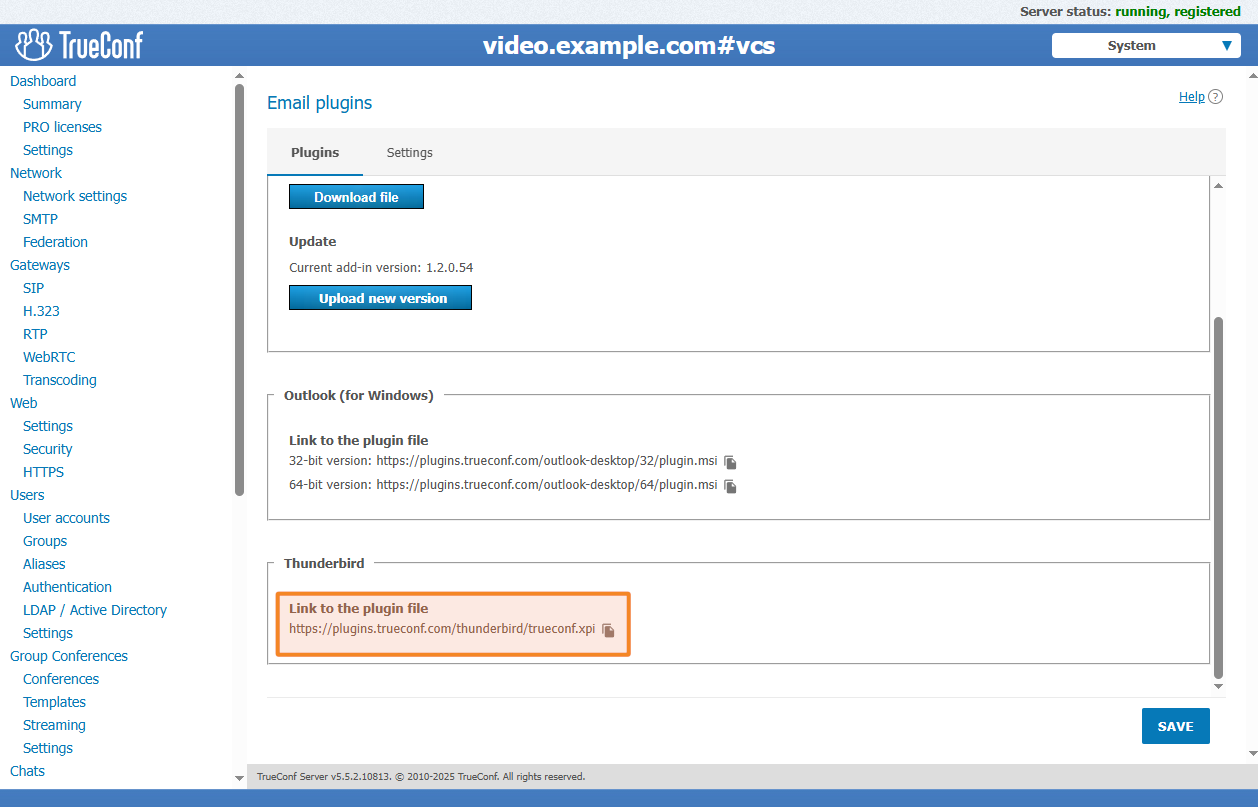
As an administrator, you can find this link in the server control panel and distribute it to your users. In the sidebar, navigate to Extensions → Mail Plugins. The download link is located in the Thunderbird section:
Configuration File Setup
To apply changes, the configuration file must be edited with administrator privileges for Windows OS and superuser rights for Linux OS.
The required config.json file is located in the directory:
-
C:\Program Files\TrueConf Server\httpconf\site\public\plugins\thunderbird\— for Windows OS; /opt/trueconf/server/srv/site/public/plugins/thunderbird/— for Linux OS.
We recommend backing up the config.json file before making any changes. The easiest way is to make a copy in the same directory and rename it with a slight variation, such as config1.json.
When updating the server, the configuration file and its directory remain unchanged.
The configuration file has three sections:
defaults – this is where parameters are set to be used by default. For example, you can set “pin”: 1, so now when creating a conference, the option Use PIN for conference entry will be enabled by default.
The valid values for all parameters in this section are listed in the table.
lock – sets parameters that become locked. Parameters in this section only accept false or true.
For example, you can set "pin": true, after which the user will see that the field for entering a PIN code is mandatory and cannot be disabled.
hidden – this section is responsible for visibility of parameters. All parameters in this section can be set to either false or true.
For example, if you set the parameter “pin” : true, the user will not see the option to enable/disable the PIN code when creating a conference.
You only need to make changes to the parameters you require and skip the rest; the TrueConf plugin will then use the default values for them.
At the very beginning of the configuration file, you can apply the remember_me parameter, which is responsible for the Remember Me option in the login window.
Available Options
For all options that can be enabled/disabled, the value true/1 sets the parameter to active, while the value false/0 sets it to inactive.
Below is a list of all parameters and their acceptable values. All of them can be used in the defaults section, with additional information on which are available for the lock and hidden sections.
Example of Parameter Configuration
As an example, let’s configure the configuration file according to the parameters (parameters in the defaults section):
- Maximum number of speakers for the moderated role-based conference mode — 6;
- Conference mode — moderated role-based conference;
- Use of a PIN code for entering the conference;
- Enable conference recording;
- Disable participant microphones and cameras upon joining the conference;
- Allow guests to send messages;
- Prohibit guests from sending audio and video;
- Conference without a schedule (virtual room);
- Increase the duration of each conference created through the plugin by 10 minutes relative to the event time it is linked to;
- Allow conference extension;
- Set to notify participants 10 minutes (600 seconds) before conference termination.
Now, we block the modification of the following parameters (lock section parameters):
- PIN code for entering the conference;
- conference recording;
- muting audio and video of participants upon entering the conference;
- permission for guests to send audio and video.
We hide the parameters (hidden section parameters):
- Internal conference type, now the user will only be able to create a Public conference;
- conference mode – Video lecture, Smart meeting, Everyone on screen;
- conference recording settings.
After that, we will get a config.json with the following content:
|
1 2 3 4 5 6 7 8 9 10 11 12 13 14 15 16 17 18 19 20 21 22 23 24 25 26 27 28 29 30 31 32 33 34 35 36 37 38 39 40 41 42 43 44 45 46 47 48 49 50 51 52 53 54 55 |
{ "remember_me": true, "defaults": { "conference": { "max_moderated_role_based_speakers": 6, "mode": "moderated_role_based", "pin": 1, "recording": 1, "on_join_mute_mic": 1, "on_join_mute_camera": 1, "guest_send_messages": 1, "guest_send_audio": 0, "guest_send_video": 0, "virtual_room": 1, "additional_conf_time": 10, "expiration_time_updating_allowed": 1, "expiration_time_alert": 600 } }, "lock": { "conference": { "pin": true, "recording": true, "on_join_mute_mic": true, "on_join_mute_camera": true, "disable_audio_remarks": false, "guest_send_messages": false, "guest_send_audio": true, "guest_send_video": true, "waiting_room": false } }, "hidden": { "conference": { "type": { "private": true, "public": false }, "mode": { "smart_meeting": true, "moderated_role_based": false, "all_on_screen": true, "video_lecture": true }, "pin": false, "recording": true, "on_join_mute_mic": false, "on_join_mute_camera": false, "disable_audio_remarks": false, "guest_send_messages": false, "guest_send_audio": false, "guest_send_video": false } } } |
The received text needs to be copied into an existing file. After that, the configuration file can be checked using one of the following methods:
- Verification by the server administrator by authorizing in the plugin with a TrueConf user account;
- Verification by the server user followed by feedback to the server administrator.
To check the configuration file:
- install the mail plugin as shown above;
- create an event in the Thunderbird mail client calendar as described in the article;
- note the changes in the conference creation parameters:
If you encounter any issues with the plugin, you can restore the settings file from a previously created backup.
The parameter table:
Key |
Value |
Purpose |
Available for |
|
|---|---|---|---|---|
| lock | hidden | |||
remember_me
|
true
|
status of the “Remember me” option on the login screen | ❌ | ❌ |
false*
|
||||
allow_server_change
|
true*
|
permission to connect to other TrueConf Server instances (only for plugin version 2.0) | ❌ | ❌ |
| false | ||||
guest_participants
|
0 = private conference* | type of access to the conference (only for plugin version 2.0) | ❌ | ✅ |
| 1 = public conference | ||||
type
|
public | type of access to the conference (only for plugin version 1.2) | ❌ | ✅ |
| private | ||||
mode
|
smart_meeting*
|
conference mode | ❌ | ✅ |
moderated_role_based
|
||||
all_on_screen
|
||||
video_lecture
|
||||
max_smart_meeting_speakers
|
from 4 to the value set on the server
|
maximum number of speakers for smart meeting mode | ❌ | ❌ |
max_moderated_role_based_speakers
|
from 1 to the value set on the server
|
maximum number of speakers for moderated role-based conference mode | ❌ | ❌ |
max_smart_meeting_participants
|
from 4 to the value set on the server
|
maximum number of participants for smart meeting mode | ❌ | ❌ |
max_moderated_role_based_participants
|
from 1 to the value set on the server
|
maximum number of participants for moderated role-based conference mode | ❌ | ❌ |
max_all_on_screen_participants
|
from 2 to the value set on the server
|
maximum number of participants for “All on screen” mode | ❌ | ❌ |
default_smart_meeting_speakers
|
from 4 to the value set on the server
|
default number of speakers selected for smart meeting mode | ❌ | ❌ |
default_moderated_role_based_speakers
|
from 1 to the value set on the server
|
default number of speakers selected in moderated role-based conference mode | ❌ | ❌ |
pin
|
0*
|
use PIN to join a conference | ✅ | ✅ |
1
|
||||
waiting_room
|
all – everyone except the owner and the moderator
|
send participants to the waiting room as soon as they join a conference (disabled by default) | ✅ | ✅ |
unplanned – unplanned participants
|
||||
strangers – unplanned participants from other servers
|
||||
guests – guests
|
||||
recording
|
0*
|
conference recording | ✅ | ✅ |
1
|
||||
transcription
|
0*
|
Activate conference transcription (only for plugin version 2.0) | ✅ | ✅ |
1
|
||||
on_join_mute_mic
|
0*
|
Mute participants’ microphones upon joining a conference | ✅ | ✅ |
1
|
||||
on_join_mute_camera
|
0*
|
Disable participants’ cameras upon joining a conference | ✅ | ✅ |
1
|
||||
disable_audio_remarks
|
0 – the default value for a private conference
|
disable audio remarks | ✅ | ✅ |
1 – the default value for a public conference
|
||||
guest_send_messages
|
0
|
allow guests to send messages | ✅ | ✅ |
1*
|
||||
guest_send_audio
|
0
|
allow guests to send audio | ✅ | ✅ |
1*
|
||||
guest_send_video
|
0
|
allow guests to send video | ✅ | ✅ |
1*
|
||||
* – default value

Alexey Arkatov
Date published: 25.11.2025