
How to solve problems with launching TrueConf desktop application
TrueConf continuously works on improving the quality, stability, and performance of its solutions. However, sometimes users may face problems when running their TrueConf desktop applications for the first time or updating them. In particular, on some occasions, the application either does not start or crashes with an error. There can be various reasons for this issue: from incompatibility with the operating system to missing dependencies or conflicts with antivirus software.
In this article we will show how to deal with typical problems when starting the application and discuss some of the proven methods for restoring the functionality of your desktop application.
Method 1. Update the Truconf app to the latest version
One of the reasons why your application may not be starting is that you are using an outdated version. In this case, you should update the app by taking these steps:
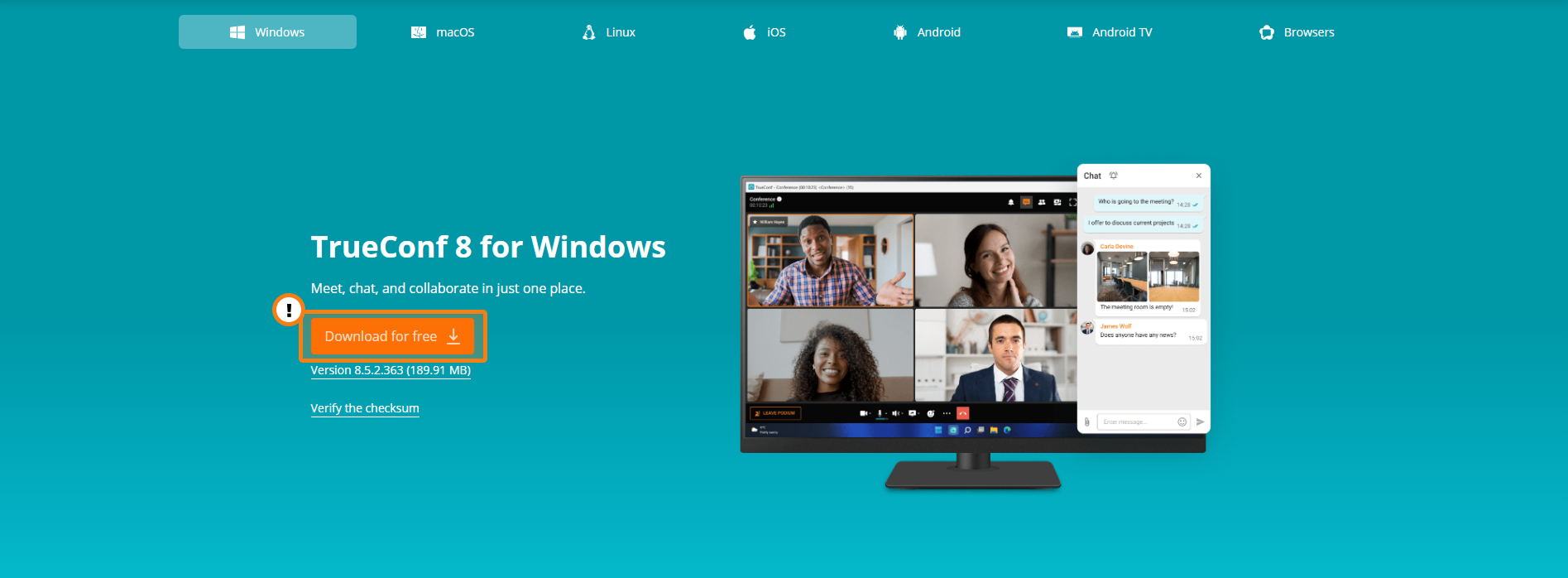
- Go to the website to download the TrueConf desktop application
- Download the app for your operating system. For example, for Windows, simply click the Download for free button.
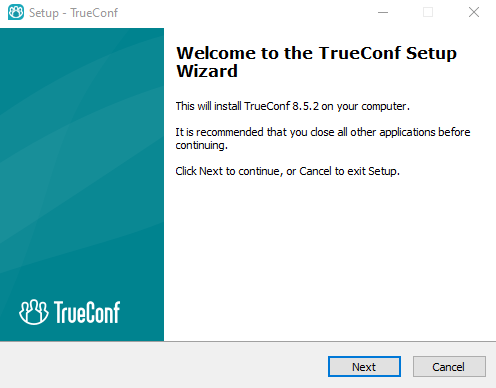
- After downloading the file, install the application on your operating system. For example, on Linux, select your OS distribution and, if necessary, follow the detailed installation guide. If you are using Windows, simply double-click the file to start the installation:
- After updating the application, try to run and use it.
Method 2. Update your graphics card driver
Since your Truconf application uses a video card for some operations, driver issues may affect the software performance.
To update your video card driver
- Identify the video card model:
- Windows
- Press Win + R, type dxdiag → press Enter → in the pop-up window, select the Display tab → Device.
- Linux
- Run
lspci | grep -i vgain the terminal. - Go to the manufacturer’s website:
- Select your graphics card model, operating system, and its version.
- Download the latest driver version.
- Install the driver according to the instructions for your operating system.
After updating the driver, try running your TruConfort application again.
Method 3. Launch the application with a different rendering method
One of the problems which often occurs on older video cards, is that an incorrect rendering method is selected automatically. To change the renderer type, you can use the command line parameters when launching the application.
On Windows:
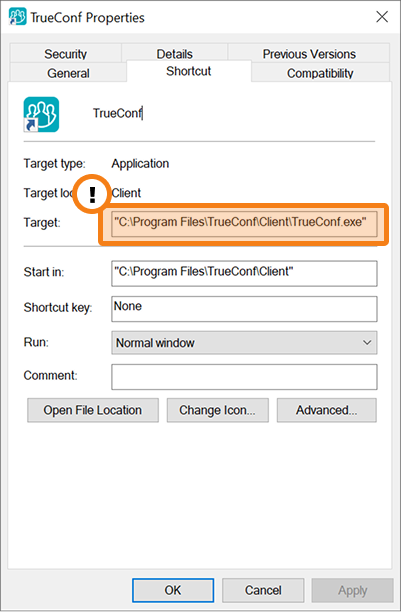
- Right-click on the TrueConf shortcut.
- Open the Shortcut tab and replace the contents in the Target field consecutively with one of the following lines until the application starts successfully, Apply changes each time when the field content is replaced:
"C:\Program Files\TrueConf\Client\TrueConf.exe" -r "opengl""C:\Program Files\TrueConf\Client\TrueConf.exe" -r "angle""C:\Program Files\TrueConf\Client\TrueConf.exe" -r "soft""C:\Program Files\TrueConf\Client\TrueConf.exe" --offhwenc
For Linux:
- Open your terminal (command line) and run the commands one by one until the app starts up successfully:
/opt/trueconf/bin/TrueConf -r "opengl"/opt/trueconf/bin/TrueConf -r "angle"/opt/trueconf/bin/TrueConf -r -r "soft"/opt/trueconf/bin/TrueConf --offhwenc
If the application still does not open, you can try other rendering settings described in this article.
Method 4. Clearing local application data
Clearing the local application data may also help sometimes.
Windows:
- Go to the folder
C:\Users\Username\AppData\Local\TrueConf - Delete the Client folder, then restart your TrueConf application (all application settings will be reset).
Linux:
- Open the
$HOME/.config/trueconfdirectory. - Delete the client folder, then restart your Trueconf application (all application settings will be reset).
What should I do if nothing helps?
If you have followed all the steps described above, but your TrueConf application still does not start, please contact our technical support. To help us assist you quickly, please have the following information ready:
- Operating system version.
- Description of what you tried to do and the results that you received.
- Log files, which can be found at:
- Windows:
C:\Users\Username\AppData\Local\TrueConf\Client\logsC:\Users\Username\AppData\Local\TrueConf\Client\crashlogs- Linux:
$HOME/.config/trueconf/client/logs$HOME/.config/trueconf/client/crashlogs
To submit a ticket, fill out the form on the website or write at the support email: support@trueconf.com.
Please add this subject line: “Problem with starting the desktop application” and attach all the information you have collected. This will help us understand the cause of the problem and find the best solution.

Bogdan Pivovarov
Date published: 08.12.2025