
Video Conferencing on Smart TV: Top 5 Ways to Make Calls on the Big Screen
Summarize article with AI




Updated May 2026
As remote work, hybrid education, and long-distance family calls become routine, the demand for seamless video conferencing experiences has moved beyond the laptop. More users are turning to their Smart TVs for large-screen, immersive video calls, especially seniors, families, and professionals who want to feel more “present” in the conversation.
Smart TVs, with their larger displays and smart capabilities, offer a more comfortable, natural conferencing experience than crowding around a tablet or small monitor.
This guide covers five practical methods to enable video conferencing on a Smart TV, from native apps to external devices, screen mirroring, and HDMI setups. It also explores how TrueConf’s Android TV app delivers a native, high-quality video conferencing experience directly on your television.
Quick Answer: What’s the Best Way to Do Video Conferencing on a Smart TV?
The best method depends on your use case, here is a quick decision matrix:
|
Your Situation |
Best Method |
Effort |
|---|---|---|
|
Android TV or Google TV |
Native app (TrueConf, Google Meet) |
Low |
|
Any TV and laptop nearby |
HDMI cable |
Very Low |
|
Apple household (iPhone/MacBook) |
AirPlay mirroring |
Low |
|
Business meeting room |
All-in-one bar (Logitech Rally, Yealink) |
Medium |
|
Amazon Fire TV Cube owner |
Zoom via Alexa |
Low |
|
Budget setup, any TV |
Chromecast + webcam |
Medium |
Smart Television in Simple Terms
The “Smart TV” concept implies an internet-connected television set that runs on an operating system and comes with its own app service. This state-of-the-art device differs from traditional counterparts in enhanced interactive capabilities, providing easy access to on-demand online content, video games, social media, music and media playback.
Moreover, you can host widescreen video meetings and communicate with your friends or family, collaborate on a common project, live stream video games, and more.
In short: TV + Internet + apps = Smart TV
Typically, a smart television connects wirelessly to your home network, as Wi-Fi is already built into its configuration. Using the supplied remote, you can call up the on-screen menu to view internet channels and content offerings available. They’re usually displayed in the form of apps, which are preinstalled or downloadable to the smart TV library.
However, setting up video conferencing on a Smart TV isn’t always intuitive. Many TVs don’t have native apps like Zoom or Microsoft Teams, and not all webcams are plug-and-play compatible.
This guide presents five practical ways to make video calls on a Smart TV, from native apps to external devices, screen mirroring, and HDMI setups, with updated information for 2025. Whether you’re hosting a meeting or catching up with relatives, this article will help you find the method that works best for your setup.
We also explore how TrueConf’s Android TV app delivers a powerful video conferencing experience directly on your TV.
Quick Comparison Table
|
Method |
Devices Needed |
Apps Supported |
Video/Audio Support |
Difficulty |
|---|---|---|---|---|
|
Built-in App |
Smart TV and webcam |
Google Meet, TrueConf |
Full |
Easy |
|
External Device |
Fire TV, Portal TV, Chromecast |
Zoom, Alexa Calls, Duo |
Full or partial |
Easy |
|
Casting |
Smartphone/PC and Chromecast/AirPlay |
Zoom, Skype, Teams, Meet |
Video only |
Medium |
|
HDMI |
Laptop and HDMI cable |
All apps |
Full |
Easy |
|
All-in-One Kits |
Conferencing bars and TV |
Zoom, Meet, Teams |
Full |
Medium |
Method 1: Use a Smart TV with Built-In Video Calling
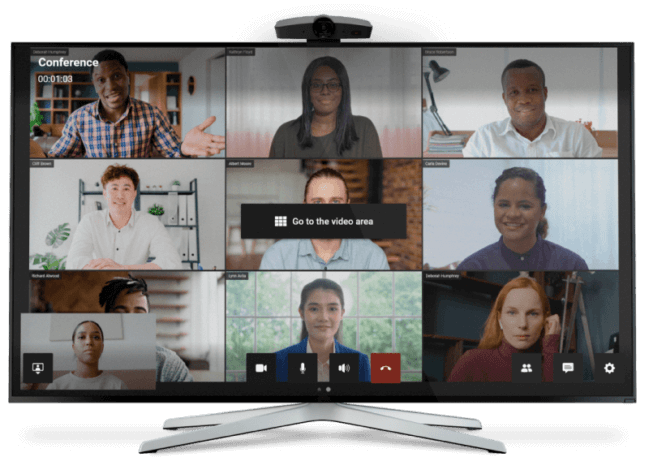
The most straightforward path to video conferencing on a Smart TV is through a native app installed directly on the television. Televisions running Android TV (version 8.0 and above) or Google TV natively support Google Meet and TrueConf from the Google Play Store. Samsung QLED and Neo QLED models offer a “Video Call” or “Virtual Meeting” hub built into the Tizen OS interface.
To use this method, you need a compatible USB webcam, such as the Logitech C920 or Logitech C930e, plugged into the TV’s USB port. Once the webcam is connected and the app is installed, you can join or host calls directly from the TV’s menu using the supplied remote.
No casting, no laptop, no cables other than the webcam.
Supported apps by platform:
|
Smart TV OS |
Supported Video Apps |
Webcam Required? |
|---|---|---|
|
Android TV / Google TV |
TrueConf, Google Meet |
Yes (USB) |
|
Samsung Tizen (2022+) |
Google Meet (via SmartThings) |
Yes (Samsung Slim Fit Cam) |
|
Amazon Fire TV |
Zoom, Alexa Video Calling |
Yes (USB via Fire TV Cube) |
|
LG webOS |
Google Meet (select 2022+ models) |
Yes |
Summary:
- Requires compatible Smart TV (Samsung, TCL, LG, etc.)
- Use Google Meet or TrueConf app directly on the TV
- Plug in a supported webcam (USB-based)
- No casting or external devices needed
TrueConf for Android TV
TrueConf for Android TV — a native app built for high-quality group meetings, 4K video calls, and easy remote control navigation.
Method 2: Use an External Streaming Device
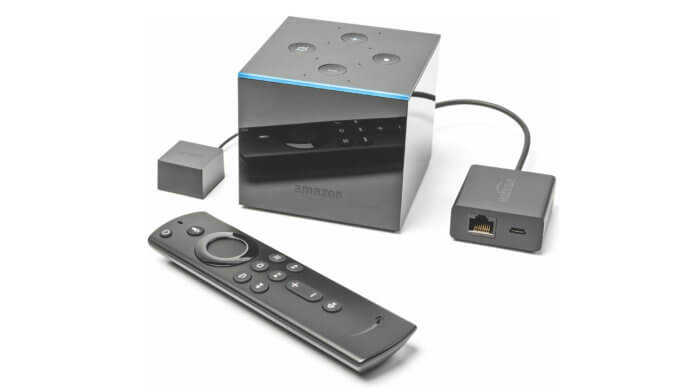
If your Smart TV doesn’t support video conferencing apps out of the box, an external streaming device can fill the gap…
If your Smart TV doesn’t support video conferencing apps out of the box, an external streaming device can fill the gap. Devices such as Amazon Fire TV Cube, Meta Portal TV, Chromecast with Google TV, and Apple TV allow you to install or cast video conferencing apps like Zoom, Duo, or FaceTime to your television. Among these, the Fire TV Cube stands out for its ability to natively run Zoom and Alexa video calls. By connecting a USB webcam using an OTG cable and installing the Zoom app from the Amazon Appstore, you can turn your TV into a functional meeting screen.
Similarly, Chromecast with Google TV supports sideloading apps like Google Meet or Duo and works with a USB hub that connects both a webcam and a power source. Apple TV users can mirror their iPhone or iPad using AirPlay and run FaceTime on the big screen.
Portal TV, although more limited in third-party app support, offers a camera-integrated solution designed for casual home video calls through Facebook Messenger and WhatsApp. For users exploring smart home app development, these platforms also illustrate how multimedia and communication tools can integrate seamlessly into connected living environments. While these devices vary in capability, each provides a viable path to big-screen conferencing with minimal setup.
Examples:
- Fire TV Cube + webcam = Zoom via TV
- Chromecast with Google TV + USB hub = Google Meet/Duo
- Apple TV = AirPlay FaceTime to TV
- Portal TV = Messenger/WhatsApp calls
Method 3: Cast or Mirror Calls to Your TV
Most smart television sets can interact with other video-enabled devices in ways that bring users a widescreen content-sharing experience. Several such technologies work differently depending on what you’re going to show on a TV screen and how. It’s about screencasting and mirroring, let’s go through these features.
With screen mirroring, you can project what is on your laptop, smartphone or tablet and broadcast this information to a TV display without the need to connect any cable. Unlike mirroring on glass, the image is not flipped horizontally, which is great for viewing local content such as photos, videos, documents, and slideshow. All actions performed on your mobile device are projected on the TV, whether it is making edits to a text, switching between apps or pressing the pause button while watching video.
A free and easy-to-use mirroring app is LetsView. This tool offers different viewing options and is compatible with any miracast-ready TVs.
Screencasting is similar to the above option, except that it is used to broadcast online content to a TV screen using a pre-installed app on your device. The difference is that you’re not sharing the screen of your smartphone or PC, but rather using them to initiate the cast via wireless network.
While casting TV shows or movies, playing music or video games, only the media is streamed, allowing you to continue using your phone or computer without interrupting the stream
Method 4: Connect a PC or Laptop via HDMI
One of the most universally compatible solutions is to connect your computer directly to your TV using an HDMI cable. This method effectively turns your television into a second monitor, allowing you to use any video conferencing platform (Zoom, Teams, Webex, Skype, etc.) as you normally would on your PC.
It’s especially useful for long calls or presentations where the larger display enhances comfort and visibility for participants.
To set it up, simply connect your laptop to the TV using an HDMI cable, select the appropriate input source on the TV, and position your laptop camera at a suitable angle. This approach maintains high video and audio quality since it relies on your laptop’s hardware.
You can also enhance the experience by using external speakers or a Bluetooth keyboard to control the call from a distance.
For users concerned about network privacy or accessing geo-restricted platforms, using a VPN for IPTV can add an extra layer of flexibility and security. Although less elegant than app-based solutions, this method is reliable, affordable, and doesn’t require smart TV features.
It’s ideal for home offices or ad-hoc conference room setups.
Benefits:
- Supports all conferencing apps (Zoom, Teams, Skype, etc.)
- No internet apps needed on the TV
- Simple HDMI setup; instant display mirroring
- Works with any laptop or PC
Method 5: Use All-in-One Conferencing Bars or Kits
For users seeking a high-end or business-grade setup, dedicated video conferencing kits or bars can provide an all-in-one solution. Products such as Logitech Rally Bar, Microsoft Teams Rooms on Android, or solutions from ONSCREEN are designed to turn any TV or meeting room screen into a professional video conferencing terminal.
These kits typically combine a high-quality camera, microphone array, and speakers, and connect via HDMI or USB to the TV. Some run Android-based conferencing apps directly, allowing standalone operation without a separate computer.
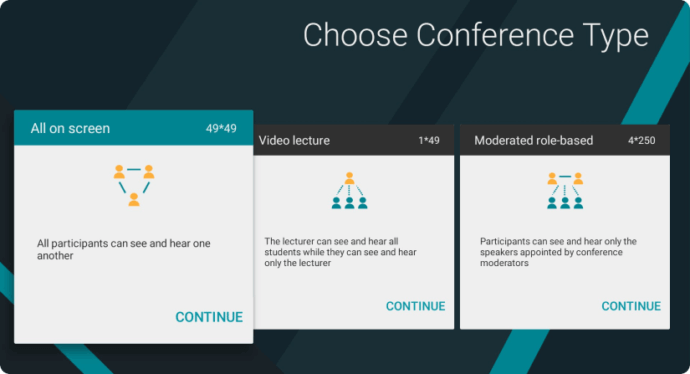
These setups are particularly useful for boardrooms, classrooms, or households that frequently host multi-person meetings. Though more expensive than casual alternatives, they offer superior video/audio quality, smart camera tracking, and advanced features like noise reduction and integration with corporate IT systems.
Setup involves mounting the device, connecting it to the TV, and signing into your preferred video conferencing platform. While overkill for casual use, these systems provide the most polished experience available for Smart TV video conferencing.
Top Picks:
- Logitech Rally Bar (Zoom Rooms, Teams)
- Microsoft Teams Rooms for Android (Logitech, Poly, Yealink)
- ONSCREEN Spark with mobile controller
Using TrueConf on Android TV: Step-by-Step
TrueConf for Android TV is one of the most complete native video conferencing solutions available for television-based meetings. It is purpose-built for the TV form factor: wide-angle camera support, remote-control navigation, and hardware-accelerated codec processing.
Setup in four steps:
- Open the Google Play Store on your Android TV.
- Search for “TrueConf” and install the app.
- Connect a compatible USB webcam to the TV’s USB port.
- Sign in with your TrueConf credentials or join via invitation link.
Key capabilities:
- Ultra HD (4K) video calls with hardware acceleration
- Group conferencing with up to 2,000 participants (server-dependent)
- Screen sharing directly from the TV
- Echo cancellation and background noise reduction
- Remote control navigation, no keyboard or mouse required
- On-premises deployment, calls stay within your private network, no cloud routing
Unlike casting or HDMI methods, everything runs natively on the TV hardware, providing better performance and eliminating the dependency on a nearby phone or laptop.
TrueConf for Android TV
TrueConf for Android TV — a native app built for high-quality group meetings, 4K video calls, and easy remote control navigation.
Webcam Compatibility: What to Know Before You Buy
Not all USB webcams work with all Smart TVs. The TV’s OS must recognize the webcam as a UVC (USB Video Class) device. Most Logitech webcams (C920, C930e, C925e, BRIO) and many NexiGo models (N990, N950P) are UVC-compatible and work reliably with Android TV. Samsung TVs require the Samsung Slim Fit Cam for native calling features.
Practical tips:
- Always check the TV manufacturer’s compatibility list before purchasing a webcam.
- If using a Chromecast with Google TV, connect the webcam through a powered USB-C hub, the Chromecast itself has limited USB power output.
- For conference room setups, consider webcams with a wide field of view (90°+) to capture multiple people in the frame.
- Webcams with fixed focus (rather than autofocus) perform better when multiple participants sit at varying distances from the camera.
Choosing the Right Screen Size for Conference Rooms
Screen size is not a cosmetic choice, it directly affects whether remote participants appear life-size or thumbnail-small. A widely used rule of thumb: choose a diagonal screen size in inches that equals approximately 1.5× the distance in feet to the furthest viewer.
|
Room Size / Furthest Viewer Distance |
Recommended TV Size |
|---|---|
|
Up to 8 ft (small office / home office) |
55″ |
|
8–12 ft (medium conference room) |
65–75″ |
|
12–16 ft (boardroom) |
75–85″ |
|
16+ ft (large auditorium or classroom) |
85″+ or dual displays |
For image quality, 4K (UHD) is the current standard for anything 55″ and above. Full HD (1080p) is acceptable for smaller screens (under 50″) or lower-budget setups. OLED panels (LG C4 series, Sony BRAVIA 8) offer superior contrast and color accuracy, which matters in mixed-lighting conference environments.
Final Thoughts
Smart TVs have evolved from passive entertainment screens into genuine collaboration hubs. Whether you’re running a weekly board meeting, attending a remote class, or catching up with family across the country, there’s a setup that fits your budget and technical comfort level.
For budget-conscious setups, consider free video conferencing software that works on Smart TVs without expensive subscriptions.
For the most reliable and feature-complete experience, especially in business or hybrid work environments, a native app like TrueConf for Android TV eliminates the complexity of casting, adapters, or secondary devices. For casual or ad-hoc use, an HDMI connection or casting solution covers the basics immediately.
Before investing in hardware, audit your current setup: which OS does your TV run, what webcam compatibility does it offer, and how often will you actually hold calls on it? The right answer is the one that requires the fewest workarounds and works reliably every time you press “Join.”
FAQ
Can I use Zoom on a Smart TV?
Zoom does not have a native Smart TV app for most platforms. The most reliable way to run Zoom on a TV is via the Amazon Fire TV Cube (which supports Zoom through Alexa), by casting from a smartphone or laptop, or by connecting a laptop via HDMI. Zoom Rooms hardware kits (e.g., Logitech Rally Bar) also support a full Zoom experience on a connected TV.
Does my Smart TV need a camera for video calls?
Yes, Smart TVs do not have built-in cameras. You need to connect a compatible USB webcam (such as a Logitech C920) to the TV’s USB port, or use a device-specific camera like the Samsung Slim Fit Cam. If you cast from a phone or laptop, that device’s camera is used instead.
What is the best app for video conferencing on Android TV?
TrueConf for Android TV is the most feature-complete native option, offering Ultra HD calls, group conferencing, screen sharing, and remote-control navigation. Google Meet is also natively available on Android TV and Google TV devices, and is a solid choice for personal and light business use.
Can I use Microsoft Teams on a Smart TV?
Microsoft Teams does not have a standalone app for consumer Smart TVs. The practical options are: connecting a laptop via HDMI and running Teams normally, casting your laptop screen to a Chromecast or AirPlay-compatible TV, or using a Microsoft Teams Rooms hardware kit (from Yealink, Logitech, or Poly) connected to the TV.
Is casting a video call to my TV the same as running it natively?
No, casting displays your device’s screen on the TV, but the camera and microphone remain on the source device (phone or laptop). Native TV apps run directly on the TV’s hardware and typically deliver lower latency, better stability, and access to TV-connected webcams. Casting is a simpler workaround, not a full replacement for a native app.
What internet speed do I need for video conferencing on a Smart TV?
For a standard HD (720p) video call, a stable connection of 3–5 Mbps upload/download is sufficient. For 1080p Full HD calls, plan for 5–10 Mbps. For Ultra HD/4K conferencing (e.g., TrueConf in 4K mode), 20–25 Mbps is recommended. A wired Ethernet connection to the TV is preferable over Wi-Fi for business or multi-person calls.
Can I use video conferencing on a non-Smart TV?
Yes, сonnect a laptop or PC via HDMI, this turns any TV with an HDMI input into a display for any conferencing platform. Alternatively, plug in an external device (Fire TV Cube, Chromecast with Google TV, Apple TV) to add smart capabilities and video calling support to a legacy television.
About the Author
Diana Shtapova is a product specialist and technology writer with three years of experience in the unified communications industry. At TrueConf, she leverages her deep product expertise to create clear and practical content on video conferencing platforms, collaboration tools, and enterprise communication solutions. With a strong background in product research and user-focused content development, Diana helps professionals and businesses understand core product features, adopt new technologies, and unlock the full potential of modern collaboration software.


Follow us on social networks