
Configuration of Keycloak integration with TrueConf Server
TrueConf Server is a corporate messenger providing video conferencing capabilities. This solution supports password-free Single Sign-On (SSO) authentication via Keycloak which is used as an authentication server.
To implement this scheme, you should first integrate Keycloak with an LDAP directory service (such as OpenLDAP or Active Directory).
Keycloak is an open identity and access management (IAM) platform that makes it easy to add authentication and authorization to web applications and services. It supports standards such as OpenID Connect, OAuth 2.0, and SAML. Moreover, this platform provides integration with LDAP directory services (such as Microsoft Active Directory) and social identity providers. For more details, go to the official website.
In this article, we will look at the basic installation of Keycloak. We will also show how you can connect the LDAP directory service, and configure integration with TrueConf Server.
To make sure that Keycloak works correctly with TrueConf Server, you need to follow these steps: install the Keycloak server, configure LDAP in Keycloak, create a client for integration, configure mapping, and configure SSO on the TrueConf Server side. LDAP/AD and SSO settings are available even in TrueConf Server Free.
Keycloak installation
Recommended system requirements:
- Operating system: Linux (with JDK 17+ support), Windows (version 10+ recommended)
- RAM: 2 GB
- Hard disk space: at least 3 GB
- Supported DBMS: PostgreSQL (recommended), MySQL/MariaDB, Microsoft SQL Server, Oracle
Installation is also possible in a Docker container. It is more convenient to install Keycloak on your LDAP/AD server. In this article, we will look at installing Keycloak natively on a physical machine.
To do it, you will first need to download and install the Java Development Kit (JDK).
Windows:
After installing JDK, launch PowerShell and declare the JAVA_HOME variable by running the command below (replace “path_to_JDK” with the full installation path of JDK):
|
1 |
[Environment]::SetEnvironmentVariable("JAVA_HOME", "path_to_JDK", "Machine") |
Download the Keycloak package via the link. Unzip the archive into a folder of your choice.
Restart PowerShell and start the Keycloak server with the command:
|
1 2 |
cd path_to_keycloak\keycloak\bin .\kc.bat start-dev |
Where path_to_keycloak is the full path to the kc.bat file.
Linux:
After installing JDK, launch the terminal, and declare the JAVA_HOME variable:
|
1 |
echo 'JAVA_HOME=""' | sudo tee /etc/default/keycloak-env |
Download the Keycloak package via the link. Unzip the archive into a folder of your choice.
Start the Keycloak server:
|
1 2 |
cd path_to_keycloak/keycloak/bin ./kc.sh start-dev |
Where path_to_keycloak is the full path to the Keycloak directory.
We are launching dev-mode, which is more convenient for initial trial configuration because there is no need to configure HTTPS and a domain name. For more information about Keycloak configuration, initial setup, and the use of production mode, please refer to the official server documentation.
Open the page http://<HOST>:<PORT> in your browser, where:
<HOST> — the server address (e.g., localhost)
<PORT> — the Keycloak port (8080 is used by default).
On the opened page, click Administration Console, then enter the administrator login and password (in Keycloak dev mode — admin / admin).
Integration of Keycloak with an LDAP directory service
To configure LDAP, go to the User federation sub-section of the Configure section and select LDAP in the Add new provider menu.
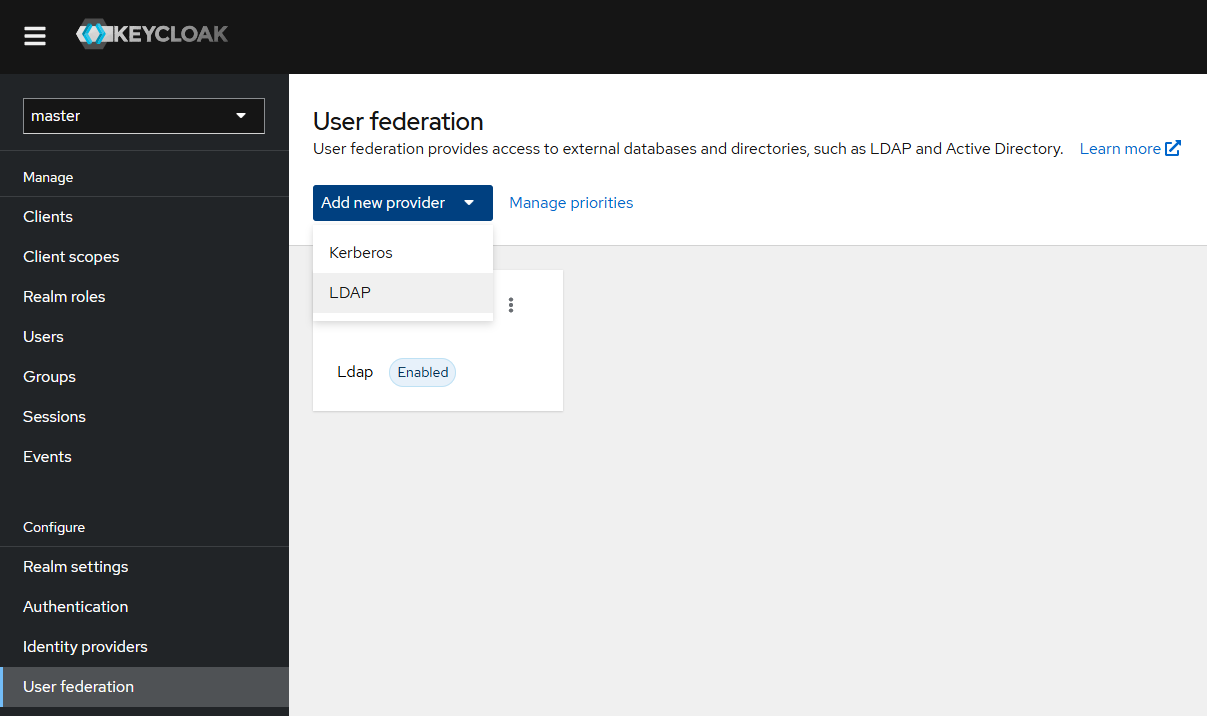
You will see the LDAP integration settings page. Enter the following mandatory integration data in the corresponding fields:
- UI display name — integration name
- Vendor — select the LDAP directory family (Active Directory, Red Hat Directory Server, Tivoli, Novell eDirectory, Other)
- Connection URL — the link to the LDAP directory
- Bind DN — the unique account name used for binding with the directory
- Bind credentials — password for the binding account
- Edit mode — the ability to make changes to the LDAP directory (we recommend using READ_ONLY for the initial setup)
- Users DN — the unique name of the container (or subtree) where user records are stored.
Use default values for remaining parameters (or enter your own if you previously modified your LDAP directory). After specifying the parameters, check the connection to the directory and authentication by clicking the Test connection and Test authentication buttons. Next, save changes by clicking Save.
Creating a Realm
A realm in Keycloak is an isolated space where you manage your users, clients, roles, policies, and authentication settings. To set up a correct integration with TrueConf Server, you need to create a trueconf realm in Keycloak:
- Click on the name of the selected realm (master is selected by default).
- Select Create realm.
- On the creation page, enter trueconf in the Realm name field.
- Click trueconf in the realm selection context menu.
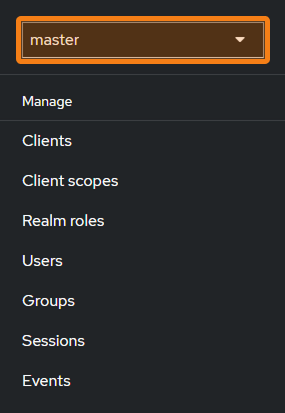
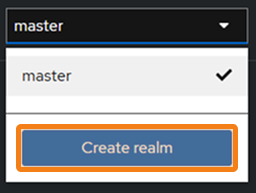
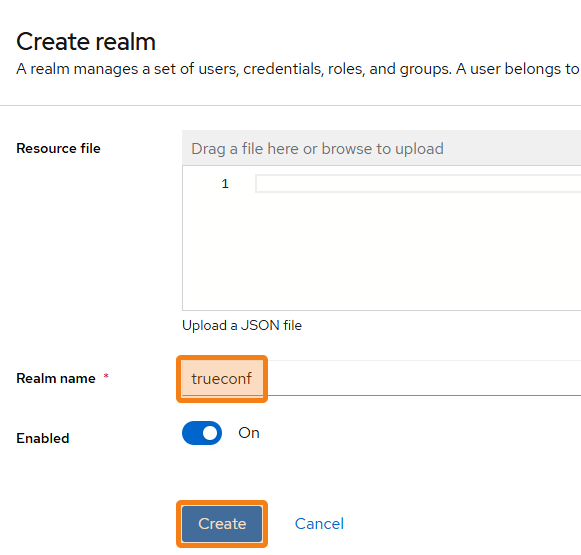
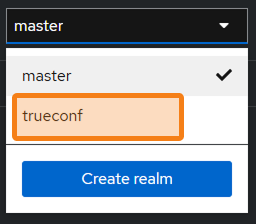
Setting up integration with TrueConf Server
In the control panel of your TrueConf Server, go to Users → Authentication, and in the Authentication Methods section, click the Add button.
In the pop-up window, select Keycloak, then enter the client name trueconf:
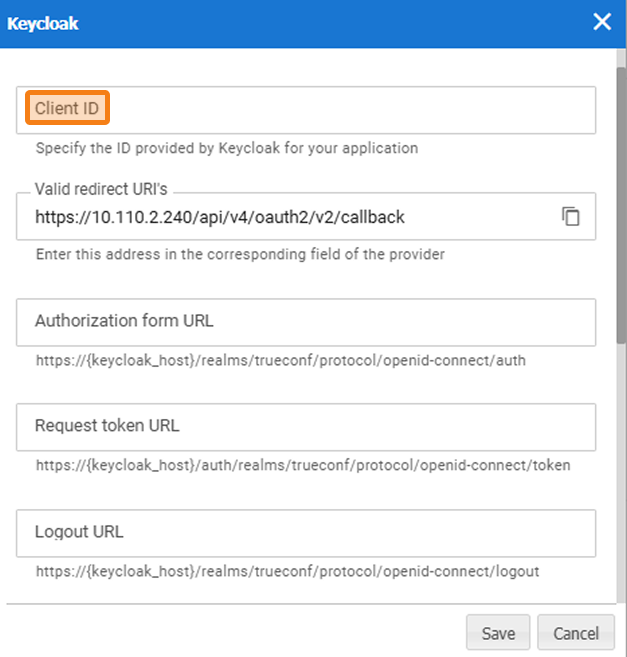
Then click Save.
Creating a client (connecting to the Keycloak server)
In the Manage → Clients section, create a new application by clicking the Create client button.
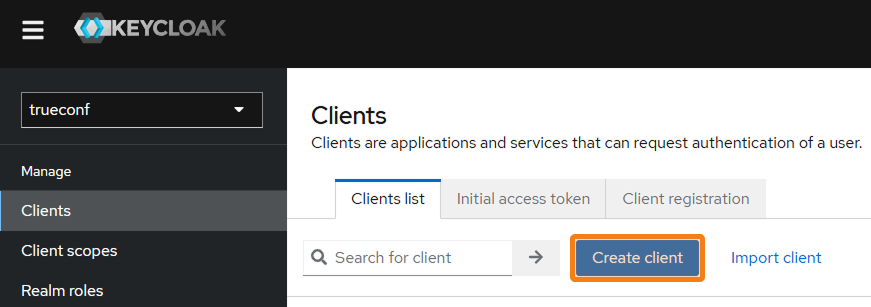
In the Client ID field, enter the name trueconf and then click the Next button.
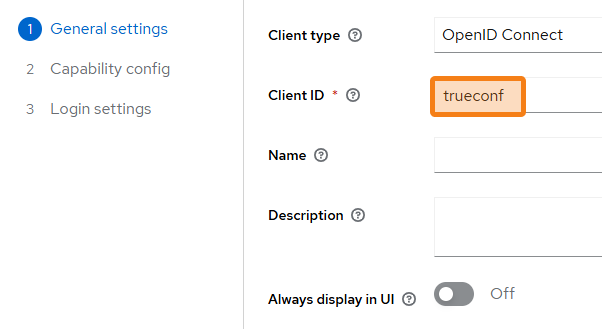
During the second step (Capability config) disable Client authentication (required) and Direct access grants (optional). For other parameters, you may use the default values.
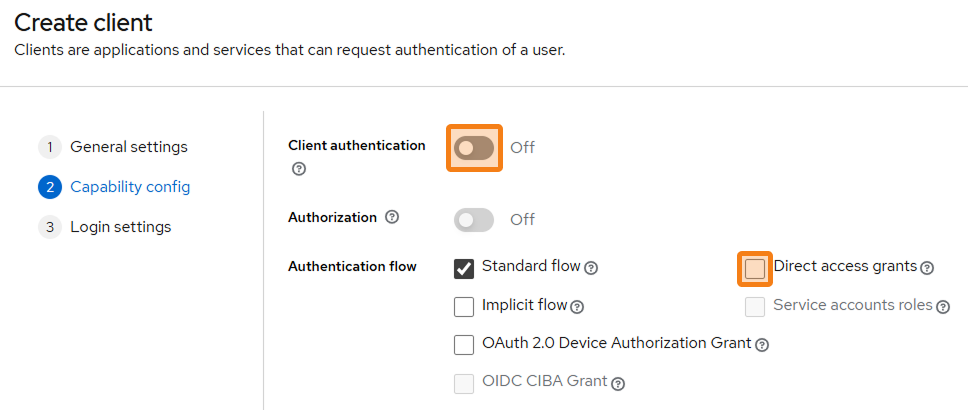
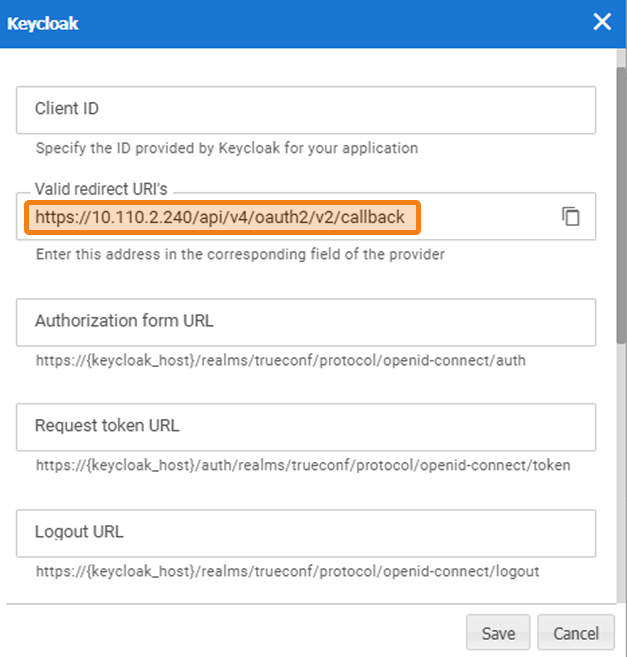
In the Login settings section, enter the link from the Redirect URI field (Keycloak integration settings on TrueConf Server) into the Valid redirect URIs field, and click Save.
Mapping configuration
Attribute mapping is a parameter used to determine which user data (attributes) from Keycloak (e.g., email, firstName, roles) should be passed to the token (ID or Access Token) or to HTTP headers during authentication.
Go to the Client scopes section and select a profile, then go to the Mappers tab, select Add mapper, and click From predefined mappers.
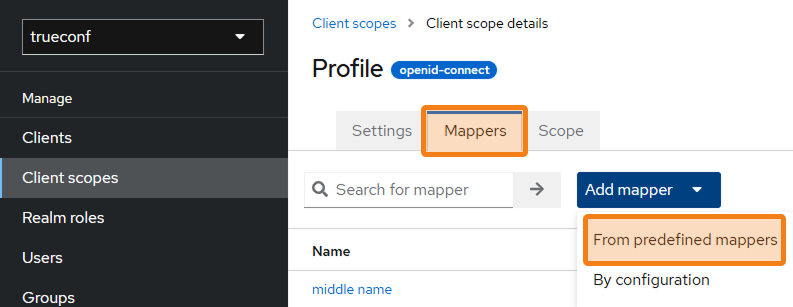
Select upn in the pop-up window and click Add.
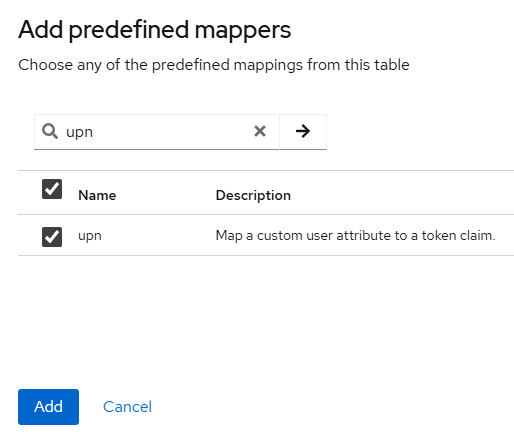
Go back to the User federation tab, then Mappers → Add mapper, set the upn name and select the type user-attribute-ldap-mapper from the list.
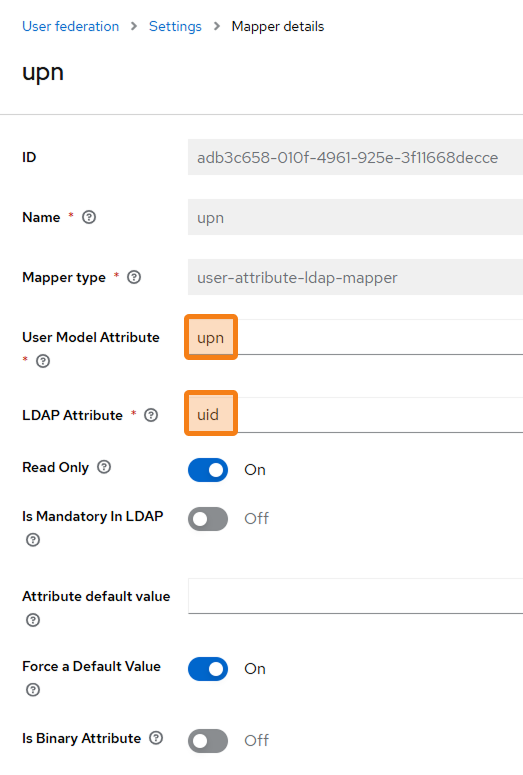
In the User Model Attribute field, enter upn, and in the LDAP Attribute field, enter the parameter used on your server (for example, uid, sAMAccountName; check the documentation provided by your LDAP vendor for more details).
SSO configuration in TrueConf Server
To further configure SSO, go to Configure → Realm settings → Endpoints → OpenID Endpoint Configuration.
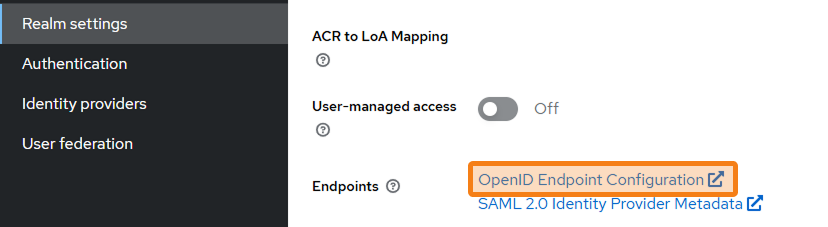
Find the following lines in the JSON file:
"authorization_endpoint"
"token_endpoint"
"end_session_endpoint"
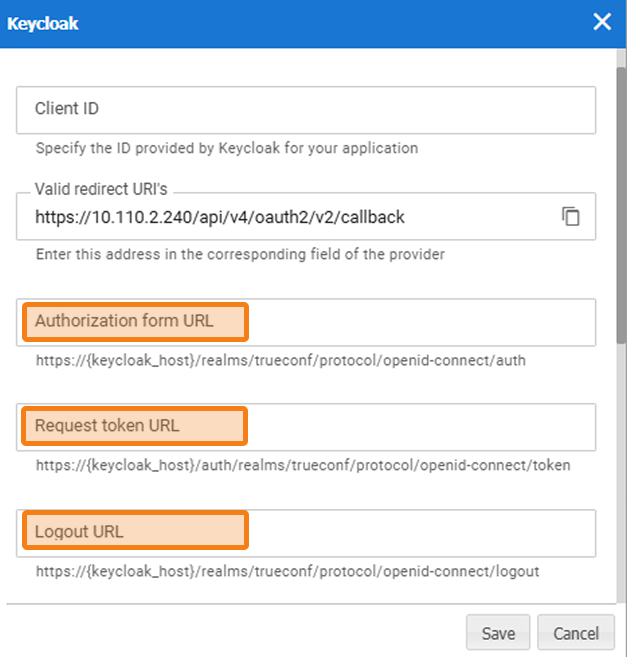
Paste the links you received into the corresponding fields in the integration settings:
"authorization_endpoint" — in the Authorization form URL
"token_endpoint" — in the Request token URL
"end_session_endpoint" — in the Logout URL
Finally, in the Authentication → Zones tab, configure the Keycloak authentication for the selected network segment: trusted and/or public.
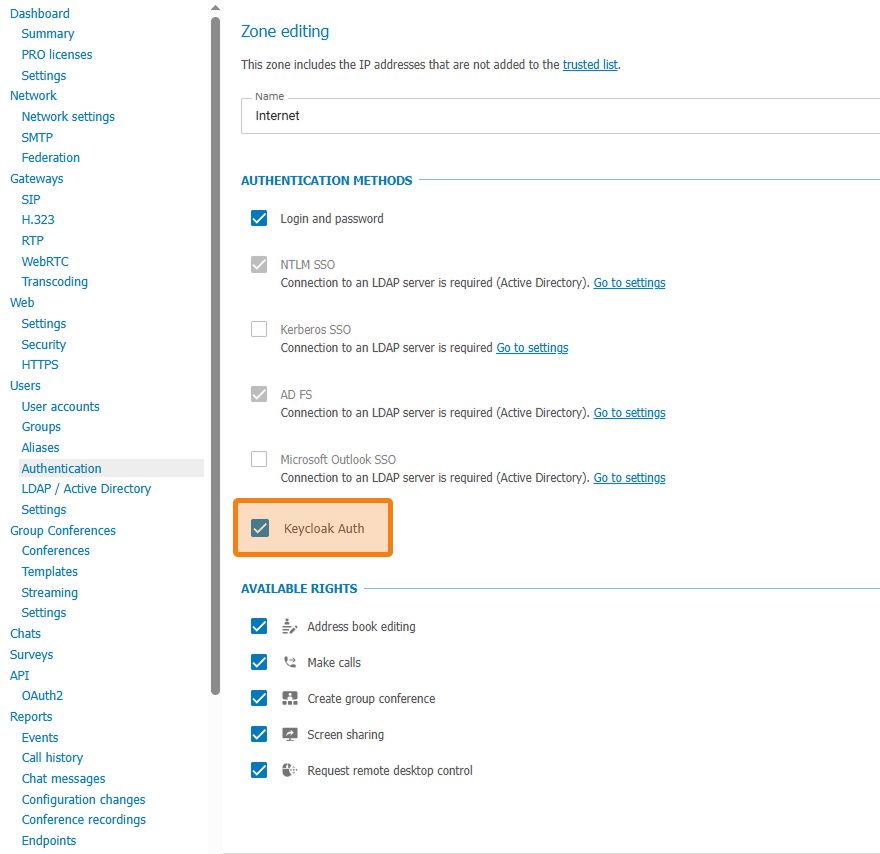
Done! Now your server users can use Keycloak to sign in to TrueConf Server. For further configuration, we recommend reading the official Keycloak documentation.

Bogdan Pivovarov
Date published: 20.01.2026