
How to encrypt a disk on the machine with TrueConf Server
Sometimes, when TrueConf Server is installed, additional data protection may be required to comply with the rules of the information security department. For example, the partition, where TrueConf Server is installed, has to be encrypted. In such cases, a person will be able to read information from the database or server settings only if he/she has physical access to the disk or has the encryption key. This security measure can be particularly helpful when TrueConf Server is deployed on the infrastructure that you do not control, e.g., a VPS.
We recommend using standard OS tools for disk encryption. Below, we will show how to configure disk encryption on all operating systems supported by TrueConf Server:
Please note that on Windows, you can change the path to the working directory, which includes the database among all other things. On Linux, this option is not available: the partition that has to be encrypted is always the system one (the server is installed at /opt/trueconf/server/), while on Windows it can be different if you previously moved the working directory and need to encrypt this particular folder.
Encryption on Windows Server OS
BitLocker is the standard tool used for disk encryption on Windows Server. However, it is not installed by default, to fix this issue:
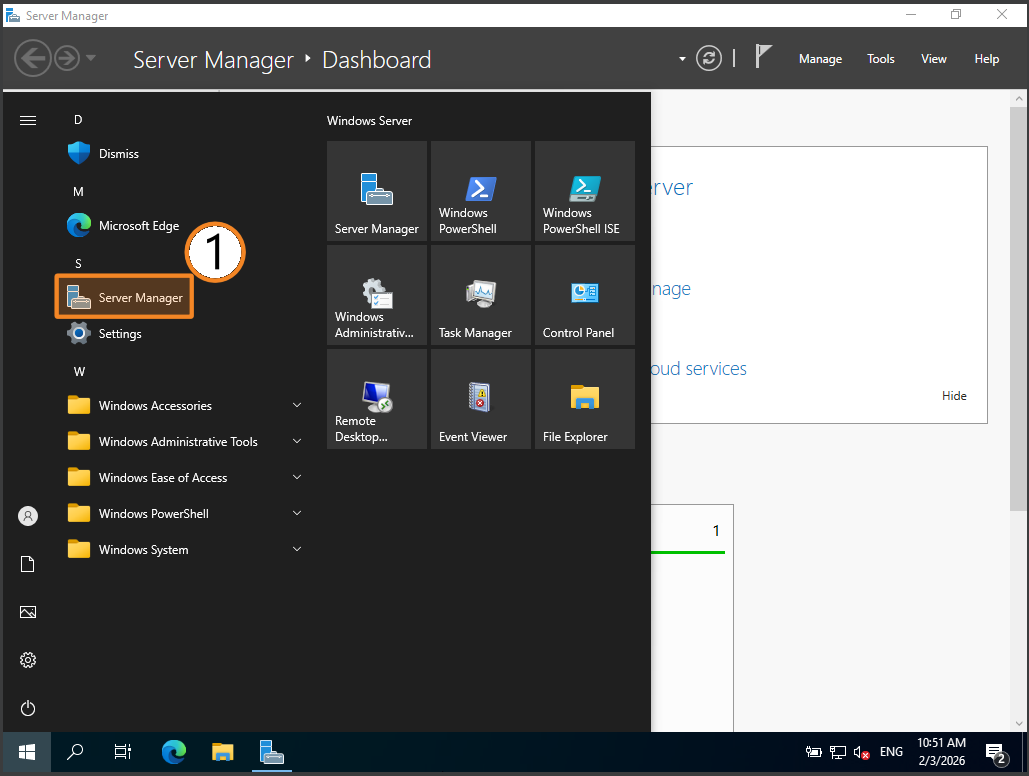
- Go to Server Manager, which usually opens automatically when the OS starts. If it does not, open the Start menu, then click on Server Manager:
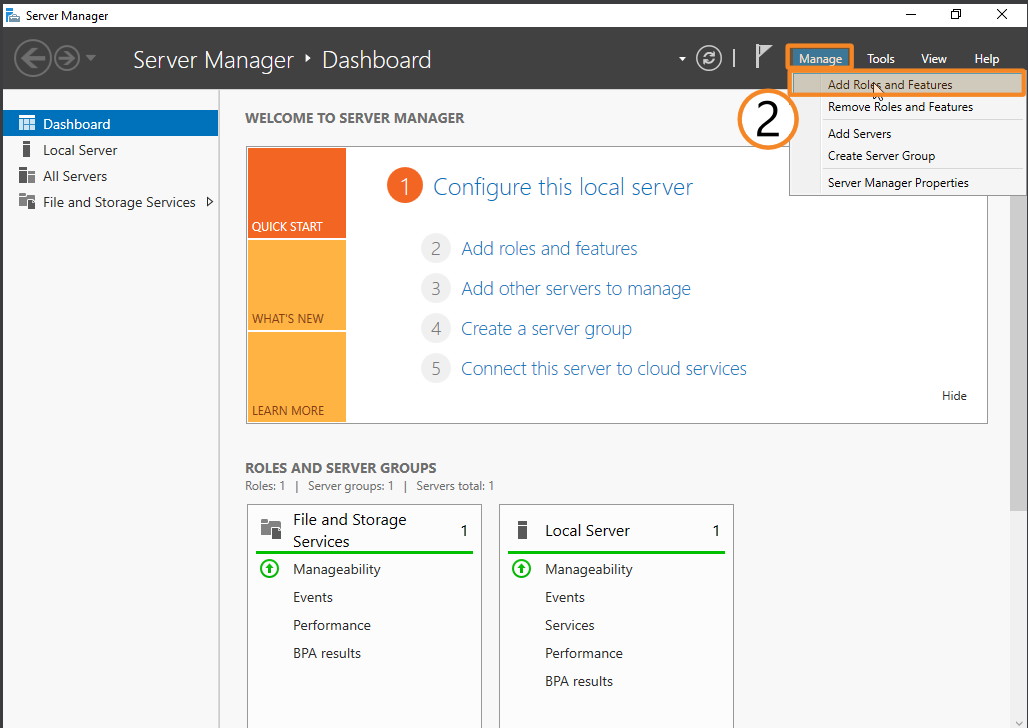
- In the top panel, select Manage → Add Roles and Features.
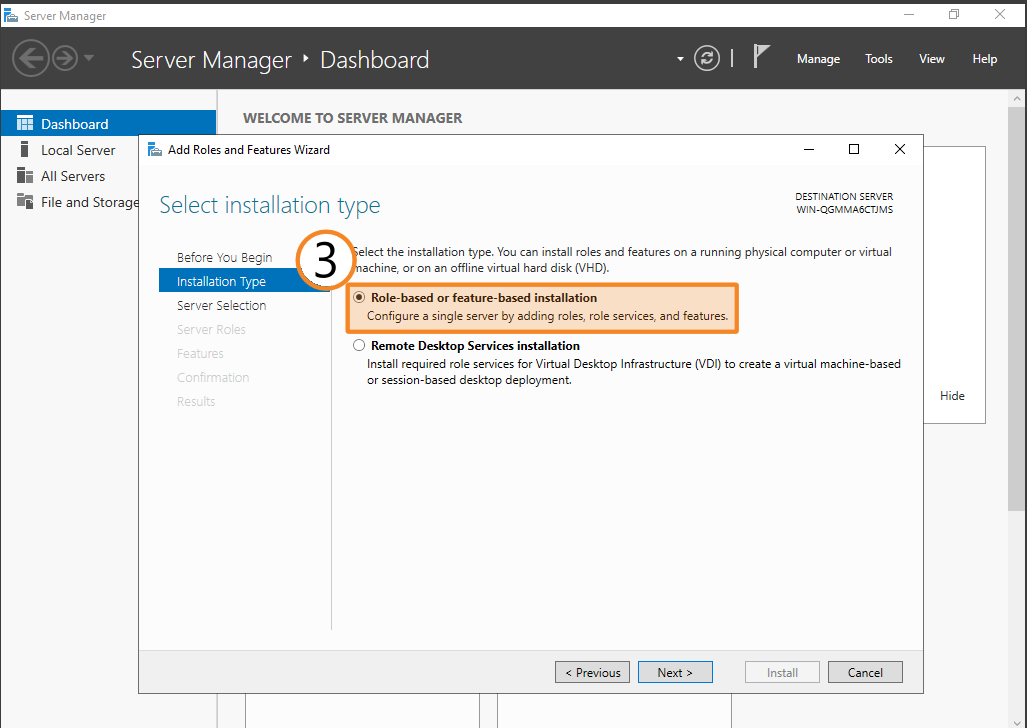
- Select the Role-based or feature-based installation option in the sidebar in the Installation Type section. Click Next.
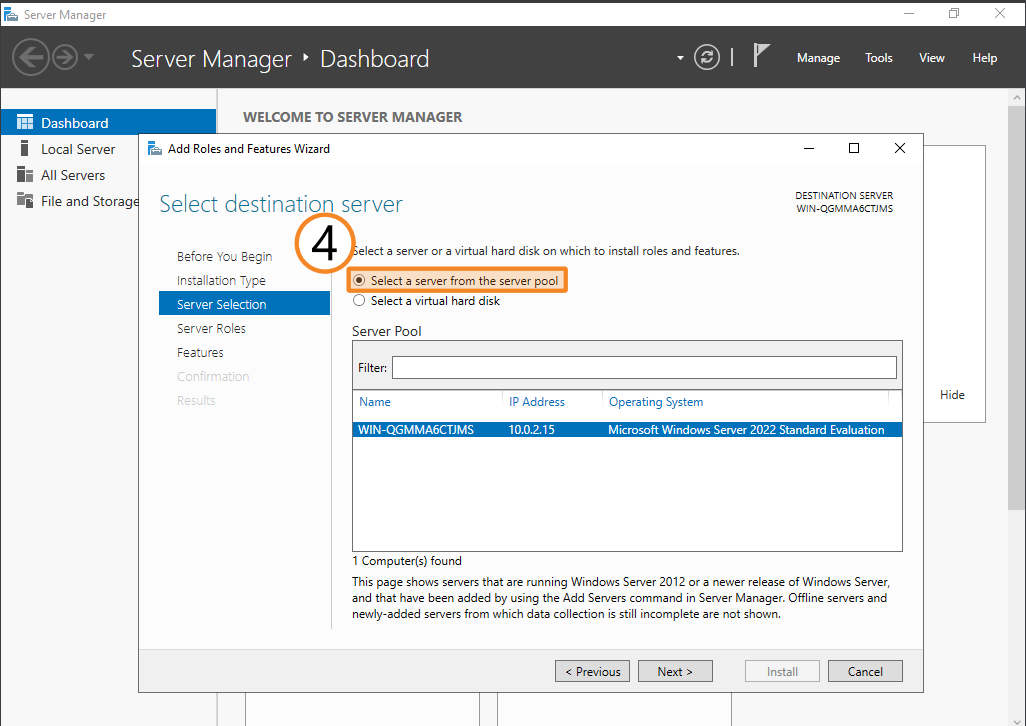
- In the Server Selection section, click Select a server from the server pool. Next, choose the required server and click Next.
- In the Features section, select the BitLocker Drive Encryption option.
- In the Confirmation section, click Install.
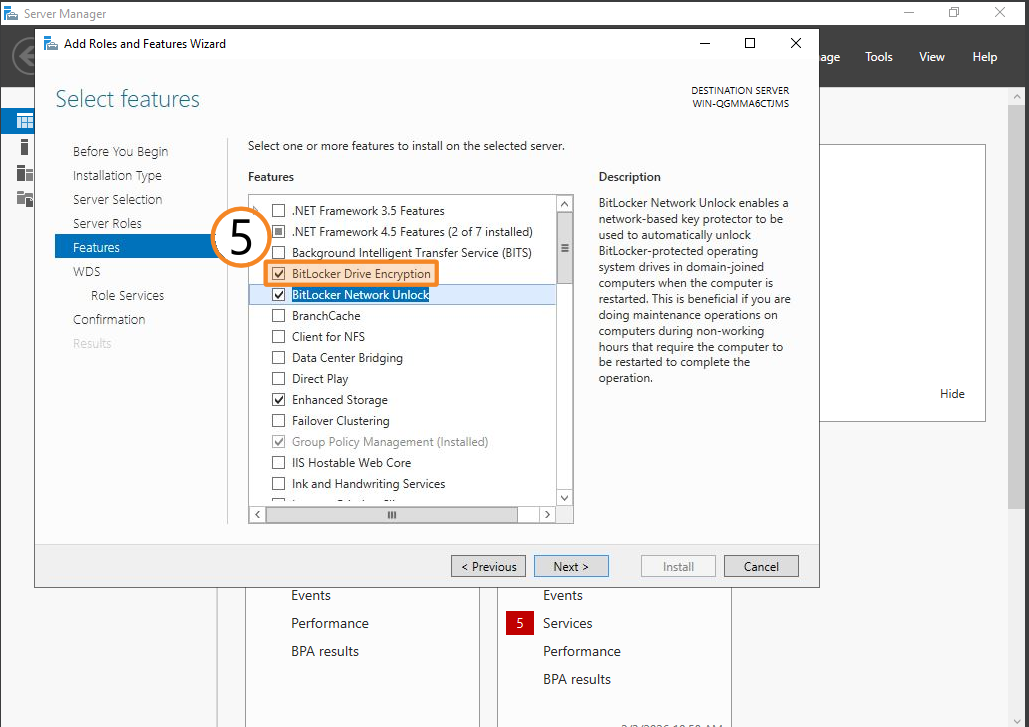
To complete BitLocker installation, you need to restart the system.
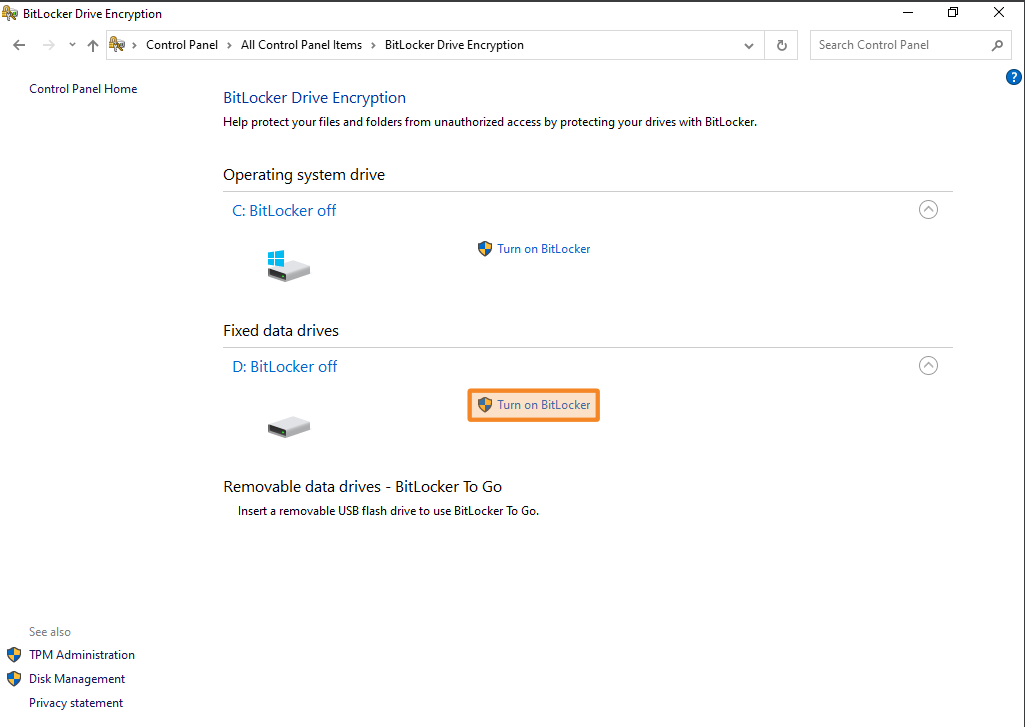
Now go to Control Panel → BitLocker Drive Encryption. In the pop-up window, select the disk where the TrueConf Server database is stored. If you did not change the path to the working directory, it will be the system drive. Click Turn on BitLocker:
You will see a pop-up window, here, you need to select the appropriate method for unlocking the disk:
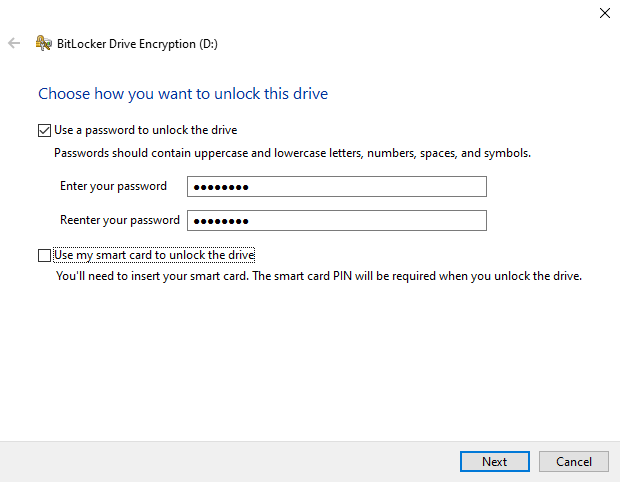
Select the option Use a password to unlock the drive, then enter and confirm the password in the corresponding fields. In case you lose the smart card or password, you will need a recovery key. In the next section, choose where to save the key:
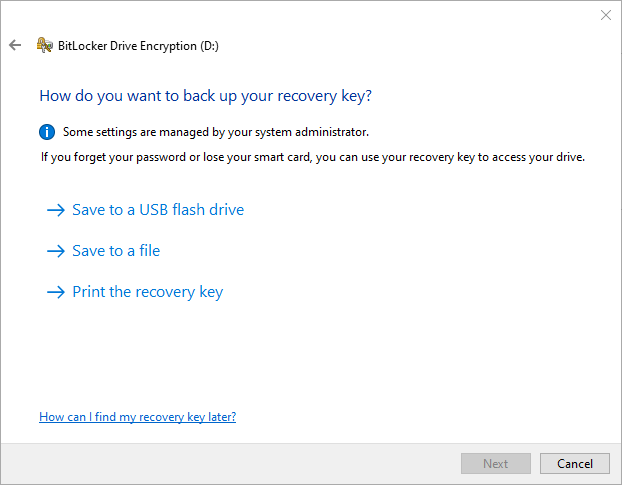
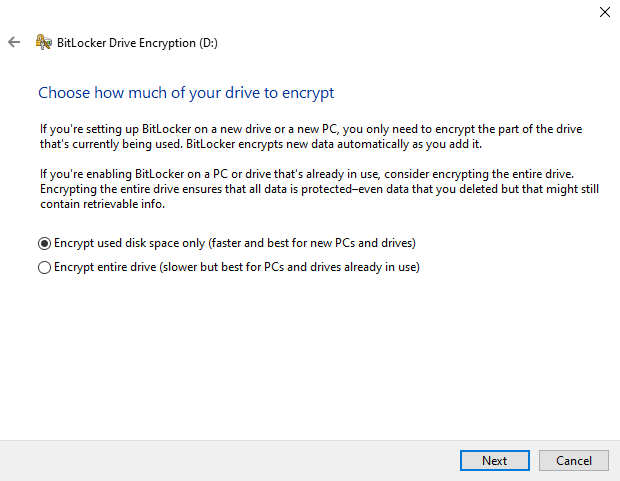
Choose one of the available options and follow the on-screen instructions to save the key. Next, select which part of the disk you need to encrypt:
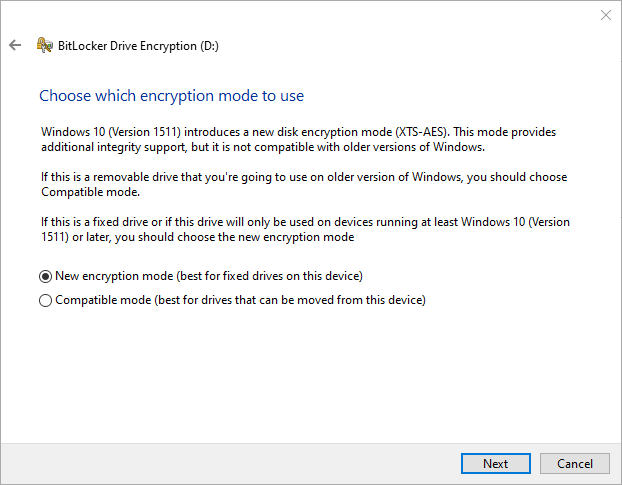
In the next section, select New Encryption Mode because the disk with the TrueConf Server database is stationary and will not be moved:
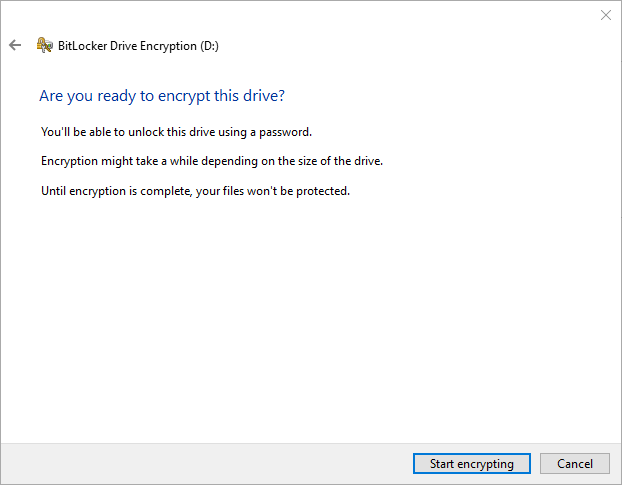
Read the instruction in the disk encryption window and click Start Encryption:
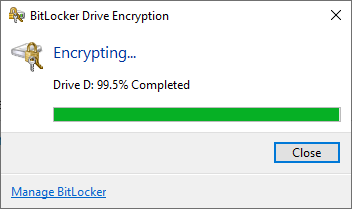
Encryption will start, and you will be able to track the progress in the corresponding window:
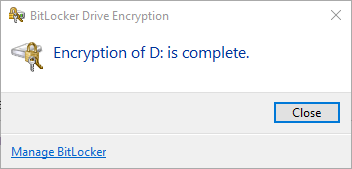
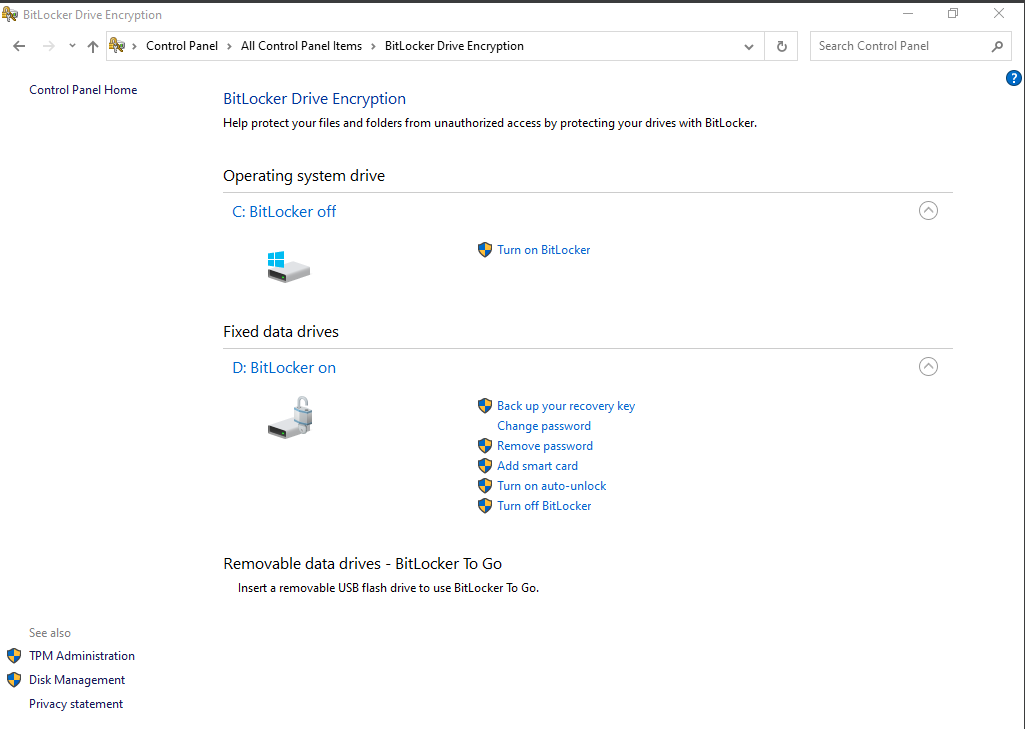
After successful encryption, new disk management actions will be available, for example, you will be able to change the password or archive the recovery key:
Encryption on Linux
During OS installation
Disk encryption can be activated in advance during installation of all Linux distributions supported by TrueConf Server:
- Debian
- CentOS
The configuration logic used by these operating systems is similar, but the installer interface and the sequence of actions may differ. So, in this article, we will closely describe the process of partition encryption for each operating system.
Debian
We will use Debian 13 as an example. During installation, pause at the Partitioning section, select the option Guided use entire disk with encrypted LVM, and click Continue:
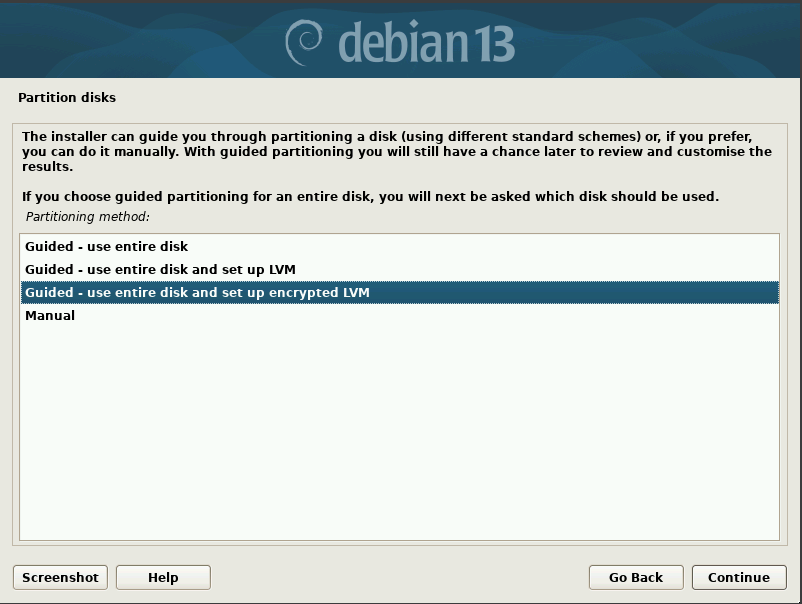
For the sake of simplicity, we will use automatic disk partitioning. If you choose manual partitioning, it will also be possible to activate encryption.
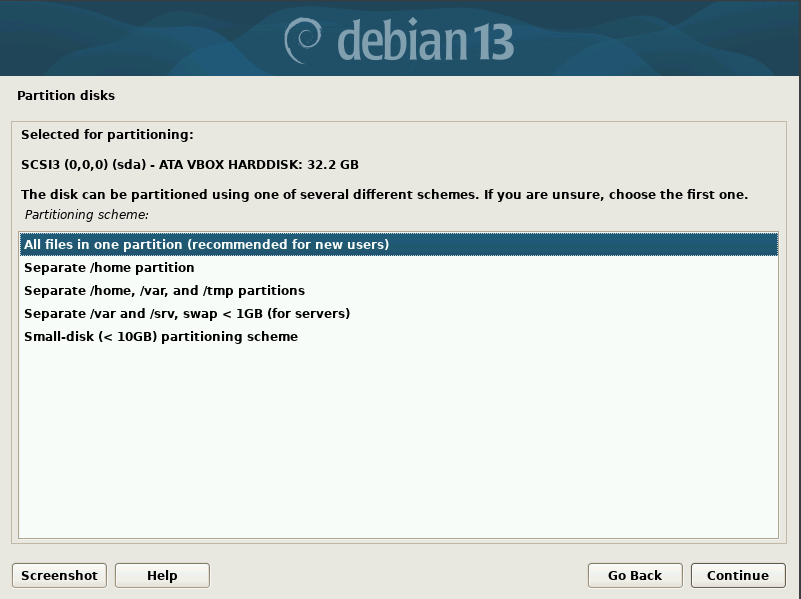
Choose the partitioning scheme in the pop-up window. If you do not have much experience in setting up partitions, select the recommended option All files in one partition, then click Continue.
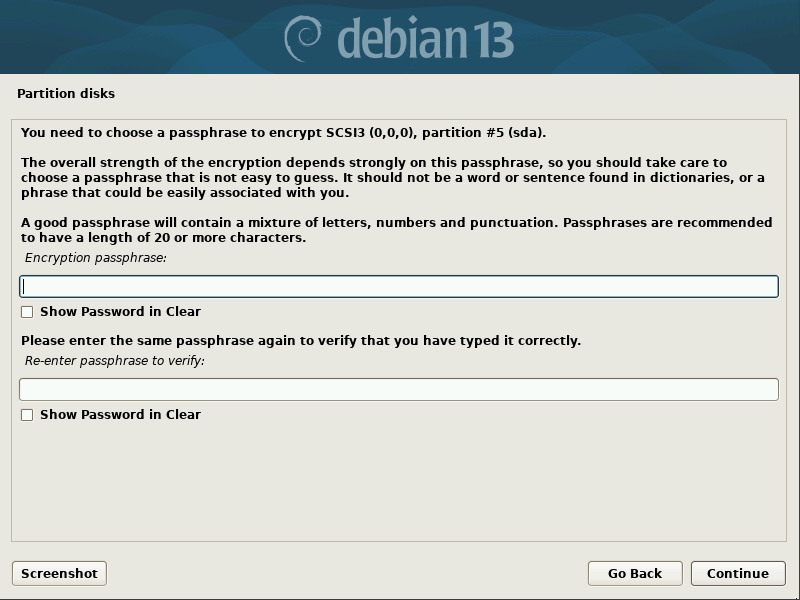
In the next window, enter the passphrase (password) and click Continue:
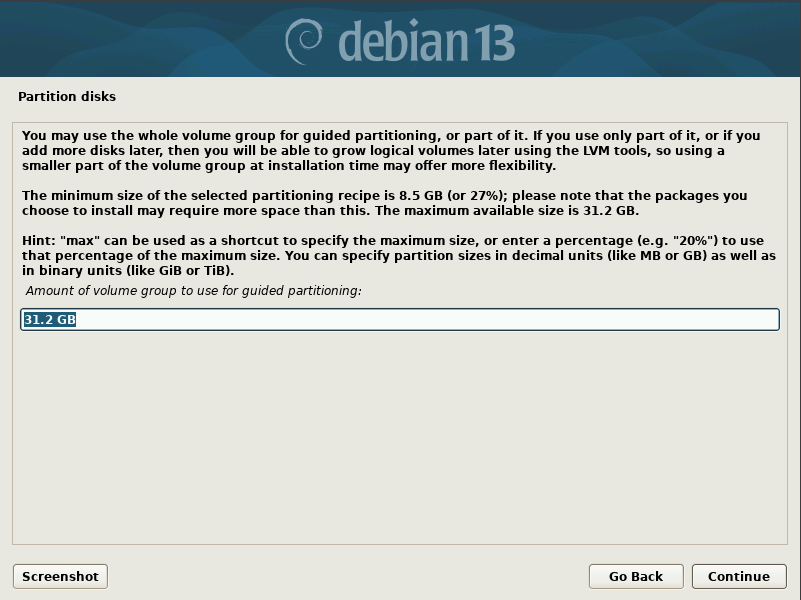
Read the hint in the next window and specify the amount of disk space required for installation, then click Continue:
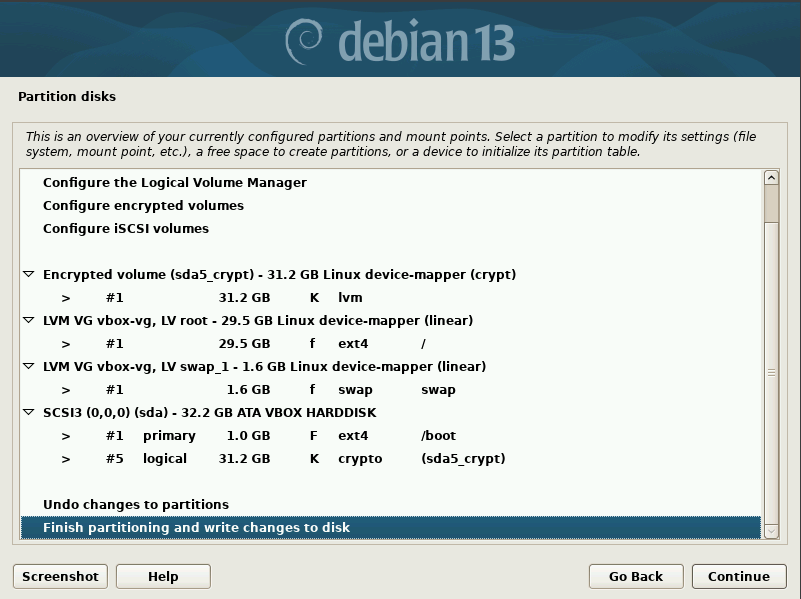
Next, you will be asked to verify the correctness of the partitioning; if everything is correct, select the option Finish partitioning and write changes to disk. Click Continue:
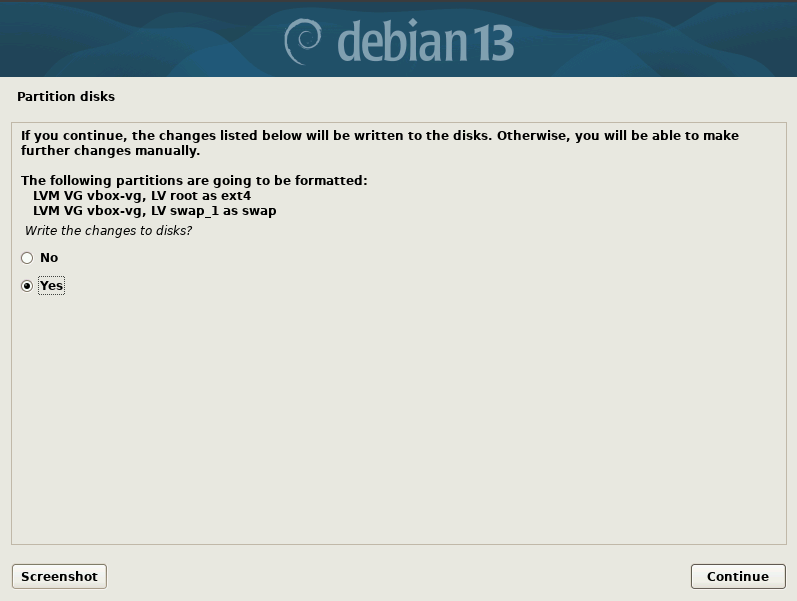
Here, click Yes, then Continue:
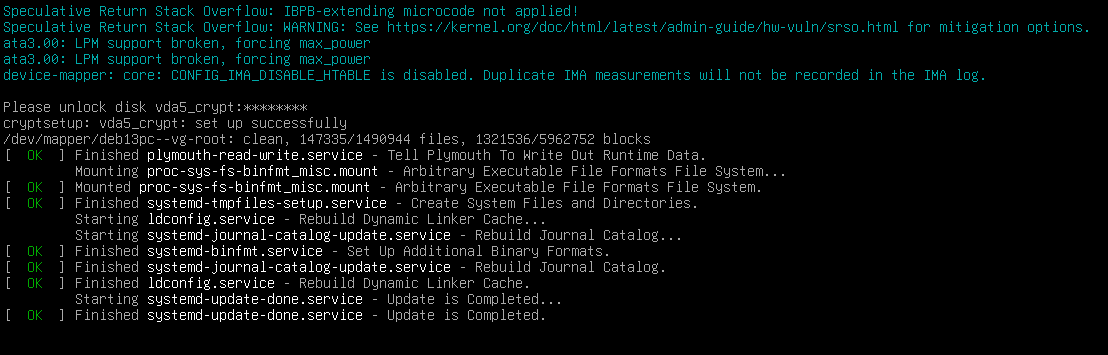
Follow the instructions in the installer and complete the OS installation. Before the OS starts, you will be asked to enter the passphrase: Please unlock disk disk_name:

When the correct passphrase is entered, you will see the following notification: cryptsetup: disk_name: set up successfully and the OS will start to load:
CentOS
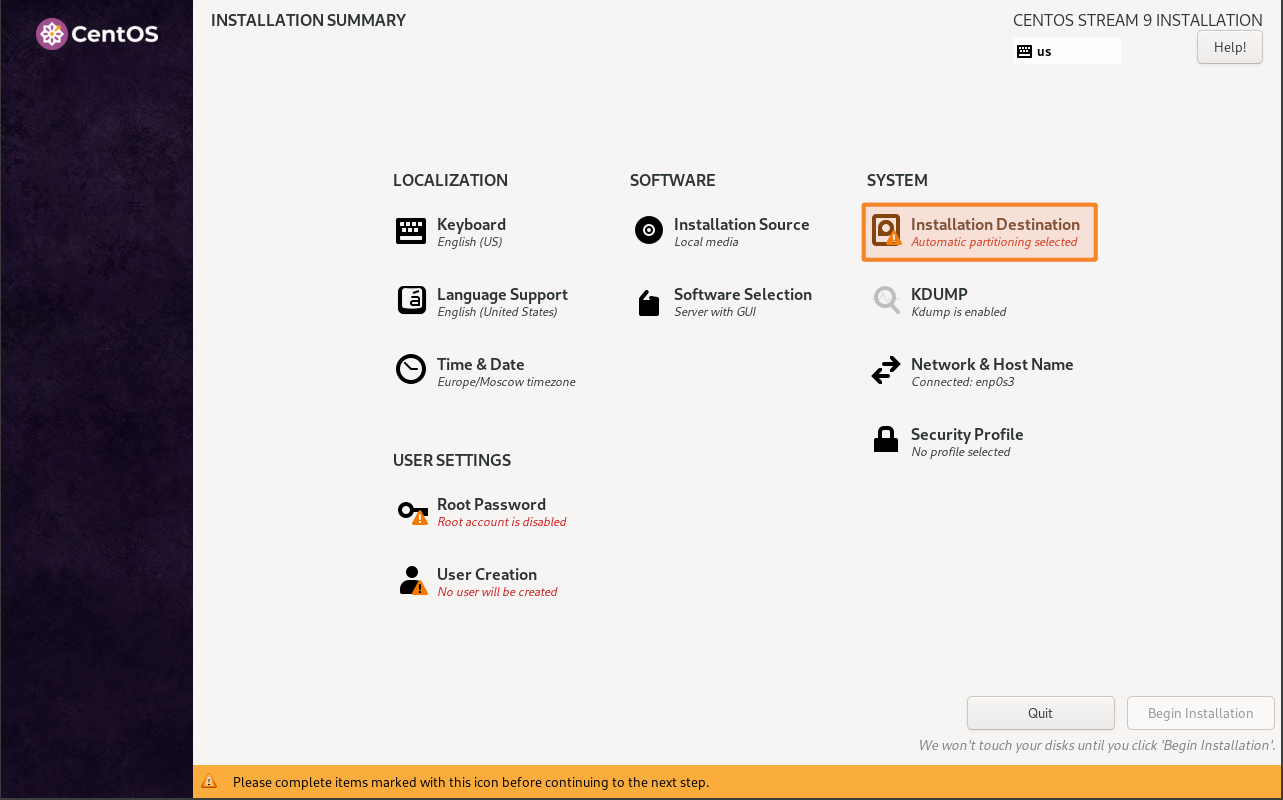
To encrypt a disk on CentOS 9, go to the Installation Destination section:
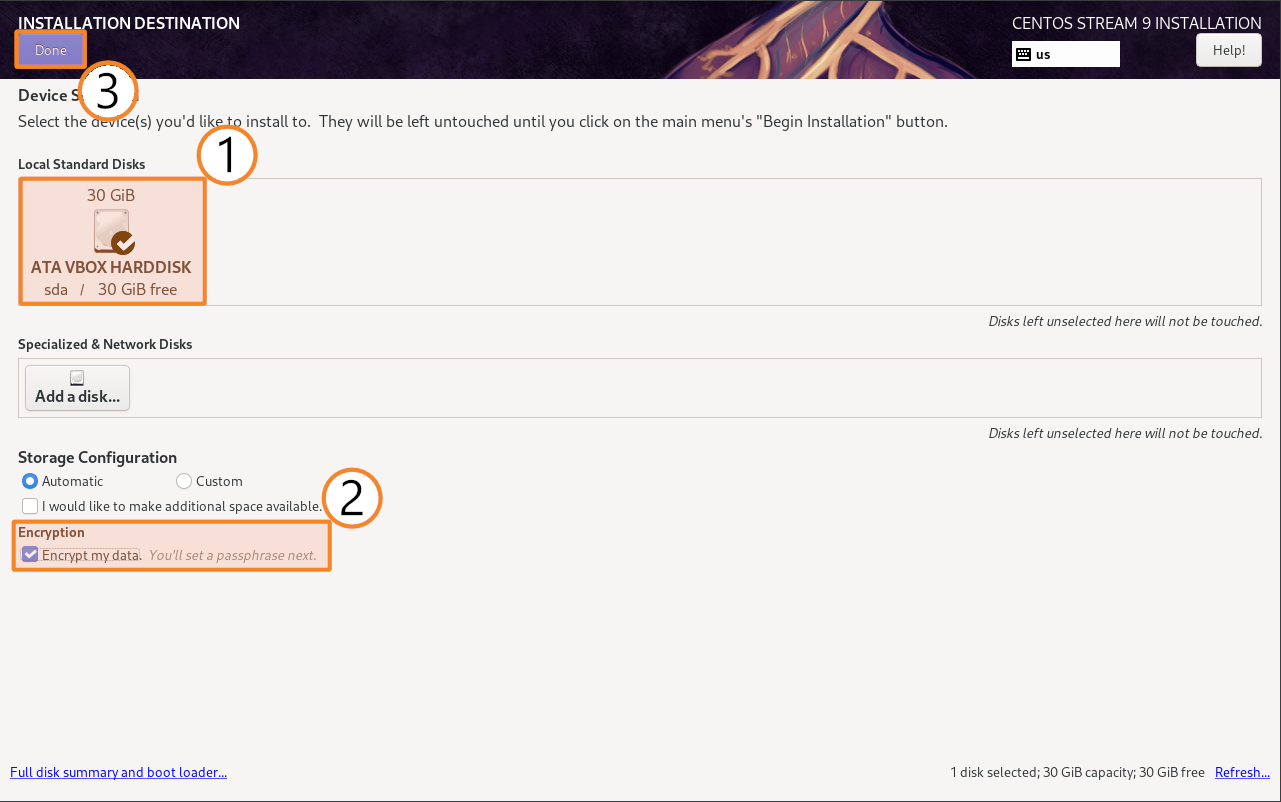
After selecting a disk, activate the Encrypt my data toggle:
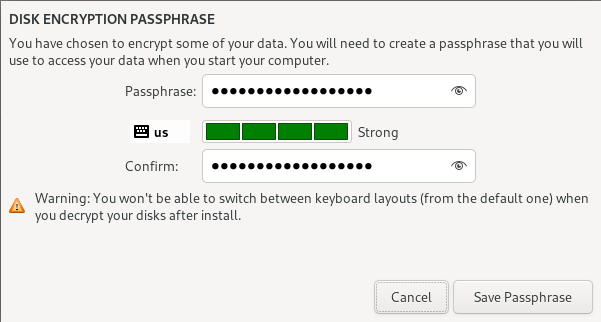
Enter and confirm the password (key) in the pop-up window, then click Save Passphrase:
Then go to the KDUMP section:
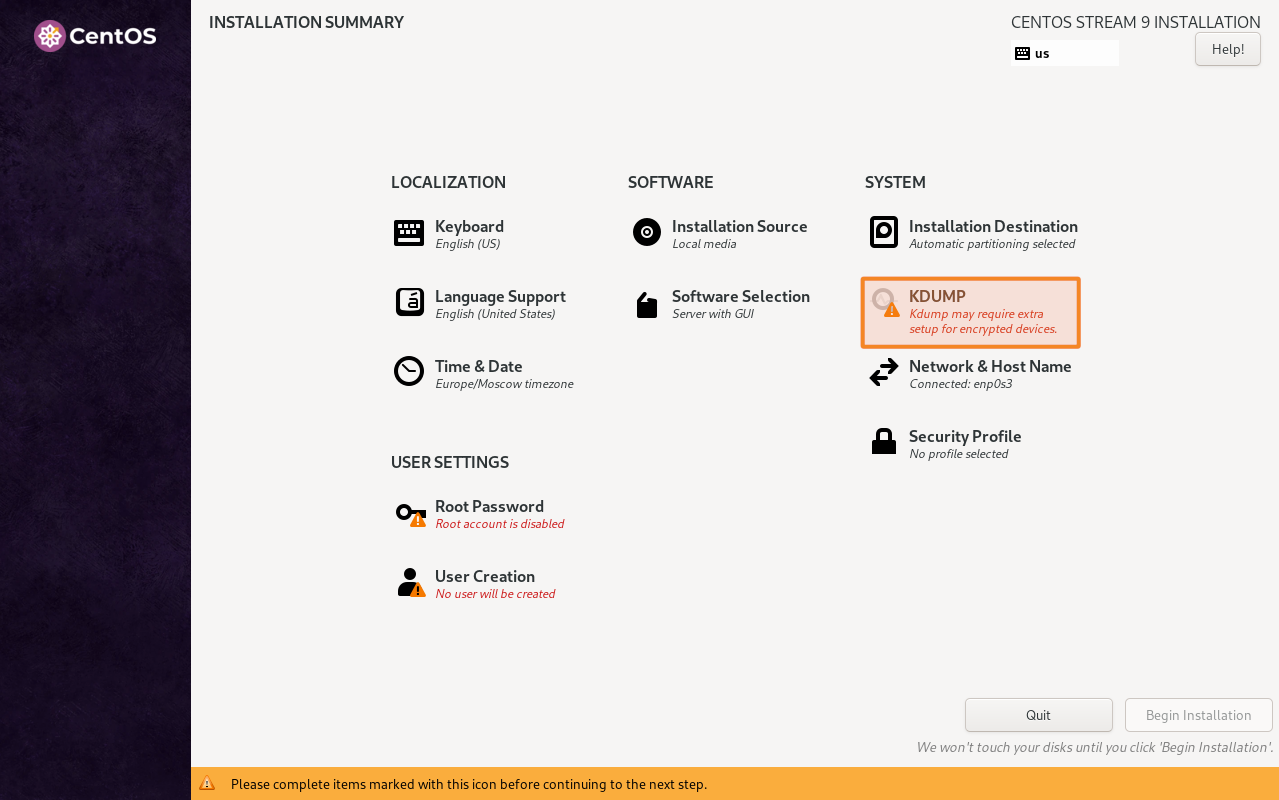
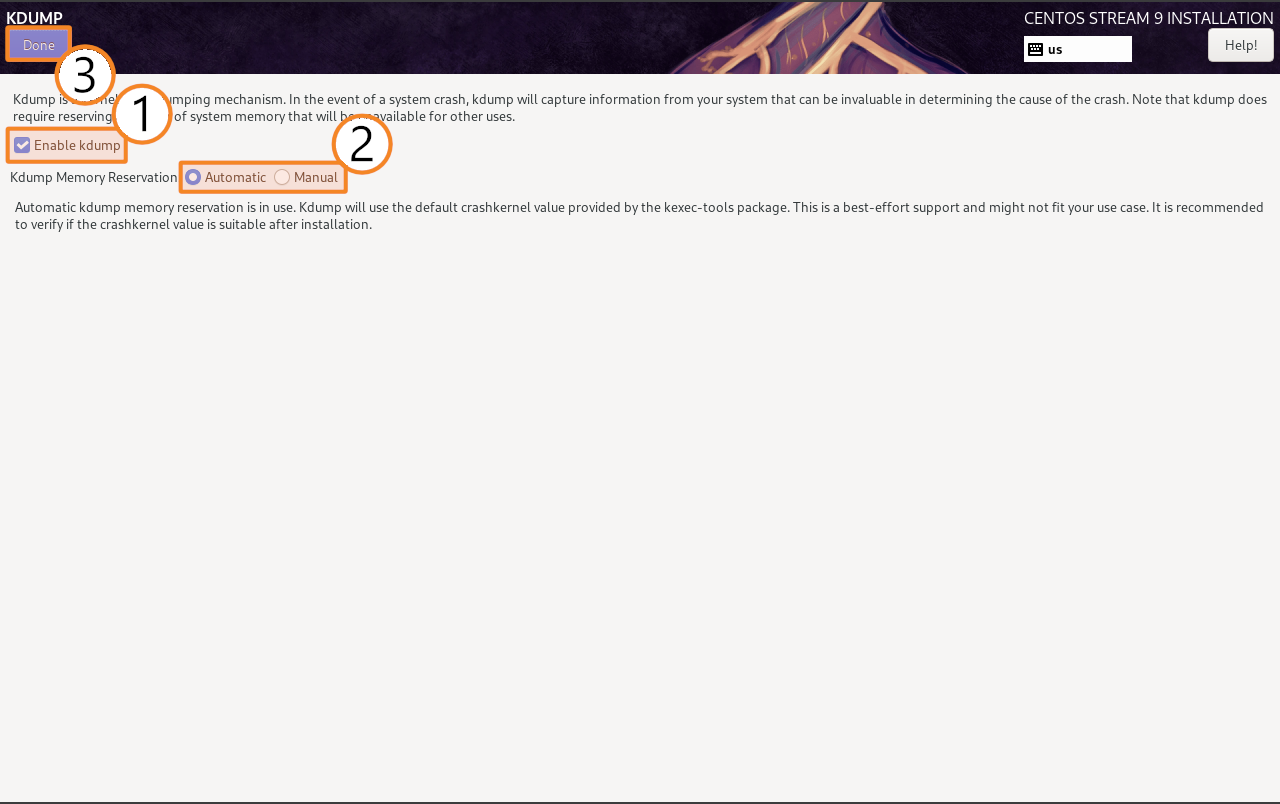
The installer will set the parameters automatically. If parameters are not set automatically, activate the Enable kdump switch, then select Automatically in the Kdump Memory Reservation section. Click Done.
Follow the installer instructions. After restarting the system, you will need to enter a passphrase to access the disk:
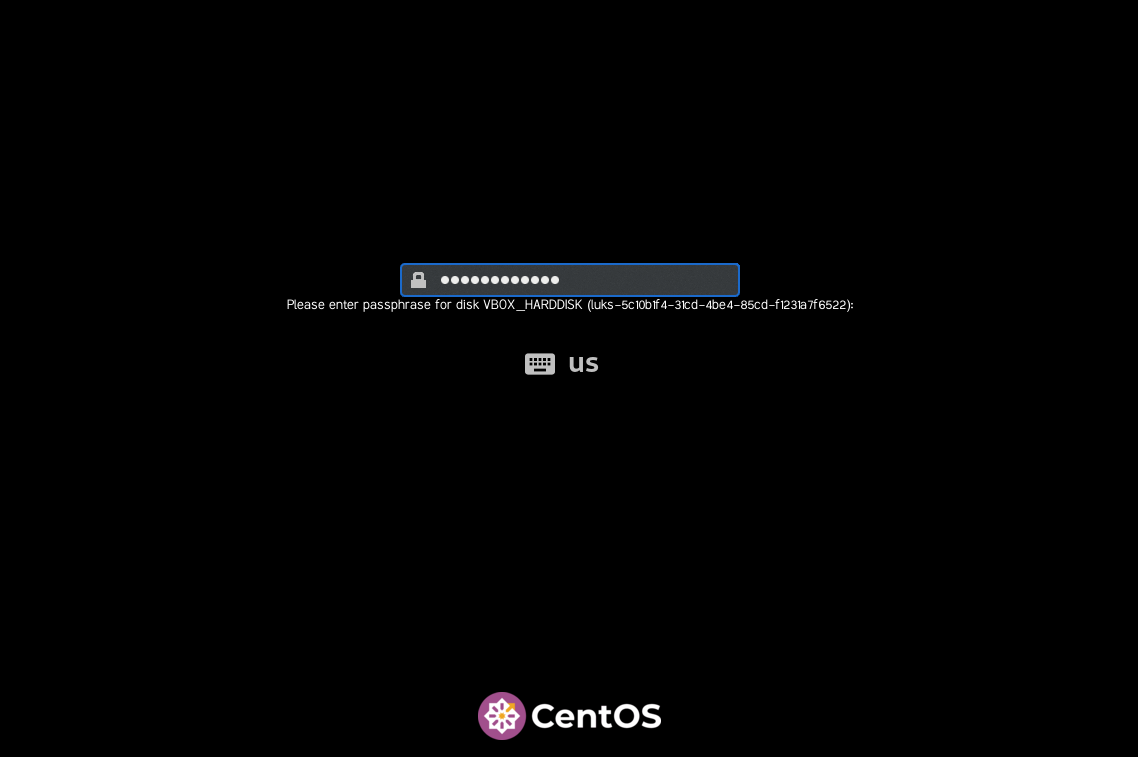
After entering the correct passphrase, you can log in to your account and use the operating system.
When OS is already installed
To encrypt partitions in an OS which has already been installed, you may use the open-source tool Cryptsetup. However, you should be careful since this tool formats partitions when encrypting them.
We generally do not recommend using third-party tools, so it is better to set up encryption with the help of standard methods. Moreover, it should be done in advance when installing Linux as shown above.

Alexey Arkatov
Date published: 03.02.2026