Joining and creating a conference
Joining and creating a conference
How to join a meeting
To join an event, log in to the control panel. Pay attention to the area on the left, where all conferences involving you are displayed (including those created using the TrueConf Calendar Connector extension). To connect to an ongoing conference, click the Join button (if there is a lack of available space, the button may appear differently  ).
).
When connecting to a server with TrueConf Calendar Connector integration configured, all events involving you will be displayed in the scheduled conferences list, just like when they are created through the client application or other available methods.
If you need to join the event using a different method, on the main screen of TrueConf Room, click the Join a meeting button.
Next, you will see the following options to join a meeting:
connecting by specifying the conference ID;
connecting to a virtual room or a scheduled conference (including one created using the TrueConf Calendar Connector extension);
Calling a conference previously added to the address book
Guest call
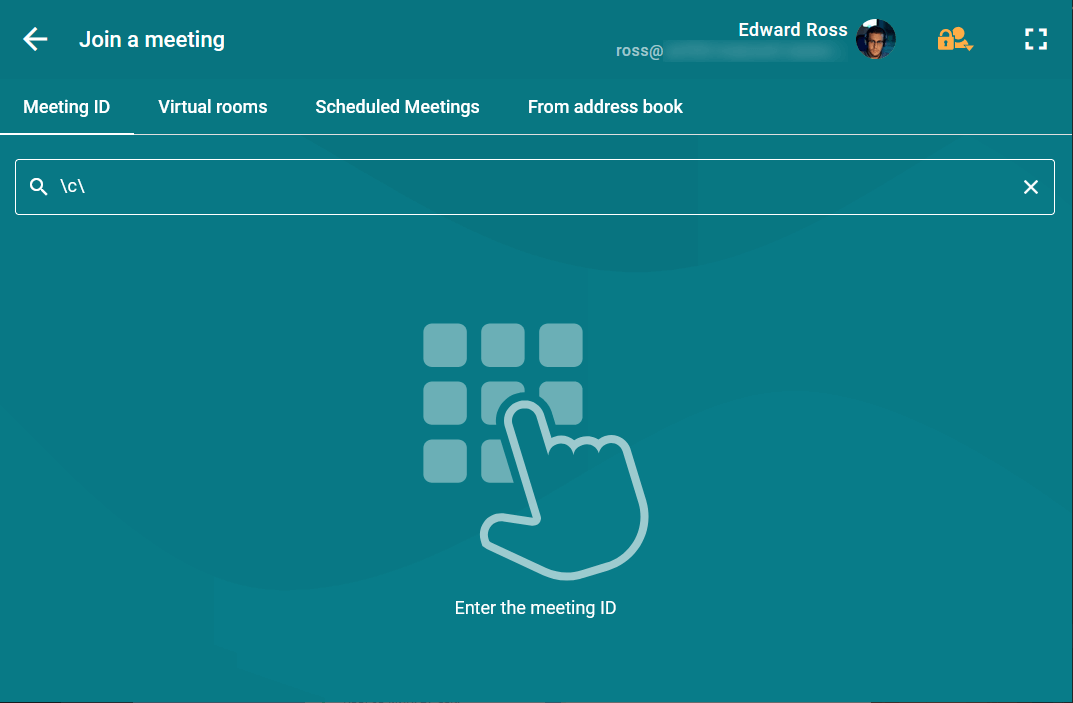
To join an event as a guest, log in to the control panel and click the Join a meeting button. Then navigate to the Meeting ID tab, paste the conference link into the input field, and click the  button.
If federation is configured between the servers, the terminal will connect using the authorized account instead of connecting as a guest.
With a QR code
For this feature to work, QR code scanning must be enabled.
Follow these instructions to join a conference with a QR code:
Open the conference page on your mobile device.
Click the QR code button.
Hold the screen with the image up to camera TrueConf Room.
Using a QR code, you can join public conferences (webinars) as a guest. This does not require user authentication in TrueConf Room. The display name for the guest connection will be Meeting-room name as specified in the settings.
How to create a conference
You have the option to create a conference with minimal settings "on the fly." Click the Ad-hoc meeting button, and you will immediately enter a new "all on screen" conference mode.
Creating conferences with additional settings, such as PIN code protection, is available in the user's personal area. To open it, go to Settings → Account and click the Go to personal area button.
You can also create a conference in advance from another location using the same account that is used for the terminal. When working with corporate calendars via TrueConf Calendar Connector, you should take into account the specifics of working with meeting room accounts (also known as MS Exchange resource accounts) as described here.
To create a conference in regular mode:
Click the Create a meeting button.
Enter a name.
Select the conference mode: smart meeting, moderated role-based conference, all on screen, or video lecture. For the Smart meeting and Moderated role-based modes, you can specify the maximum number of conference participants and speakers at the podium.
Select additional conference connection parameters:
Check the Automatically approve join requests box to allow new participants to join immediately when calling the conference owner without their approval.
check corresponding boxes to make sure that participants join the meeting with their devices (camera and microphone) turned off
Check the box Put participants in waiting room on entry to send all participants except moderators to the waiting room.
6. In section Conference participants, select the conference participants.
You can also add hardware video conferencing terminals, IP cameras, and other devices as conference participants.
7. Click Start in the bottom right corner.
You can save the settings of a conference as a template (e.g., you can save its mode, list of participants and settings for automatic join requests). Later, you can use this template to create a new conference. Conference history is displayed on the left.
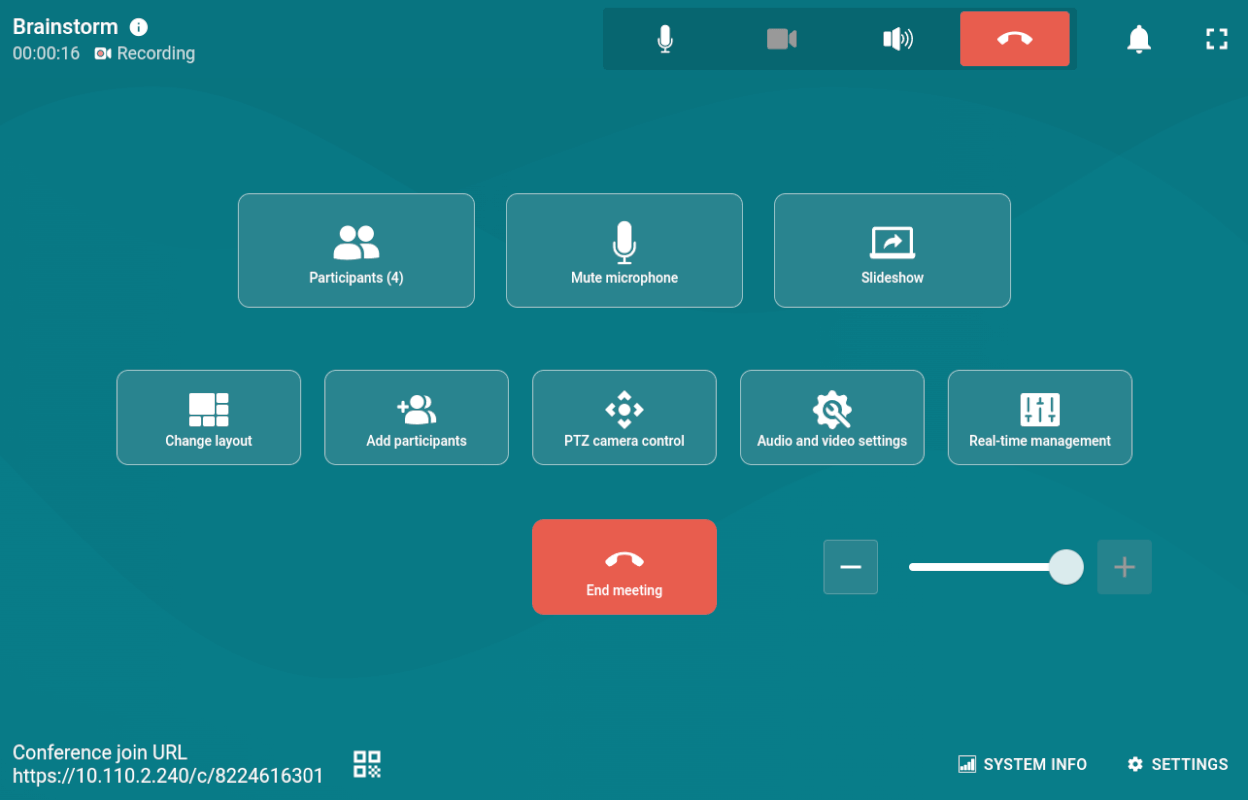
Done! In are now in the conference. In the control panel, you can see quick panel designed for managing your event. Just wait for the others to join it.