Working with the calendar
Working with the calendar
Scheduling an event in Outlook
Events are scheduled in your corporate calendar which can be a desktop application (such as Microsoft Outlook) or its browser-based version.
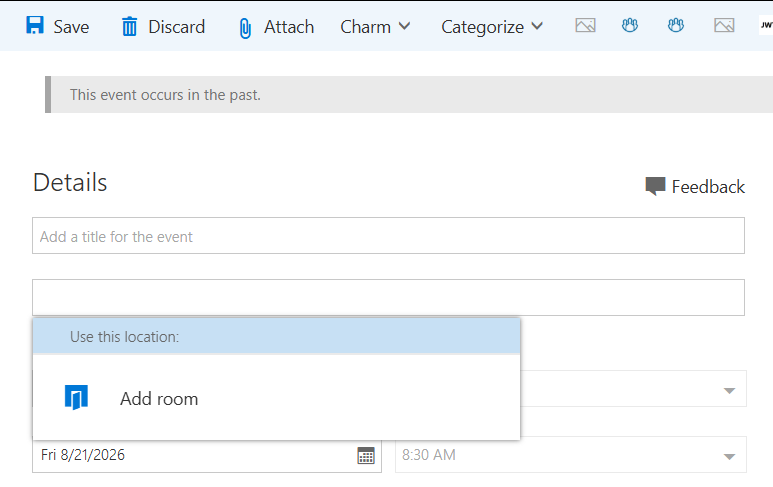
If you create an event in the web version of the plugin using resource accounts, please note that these accounts are removed from the participant lists once a conference is added to the event. You will then need to manually add them back to the participant list.
We recommend using the desktop version of the add-in, which you can download from the Microsoft Store or as an MSI installer here.
Click
 (in the web interface:
  → Calendar).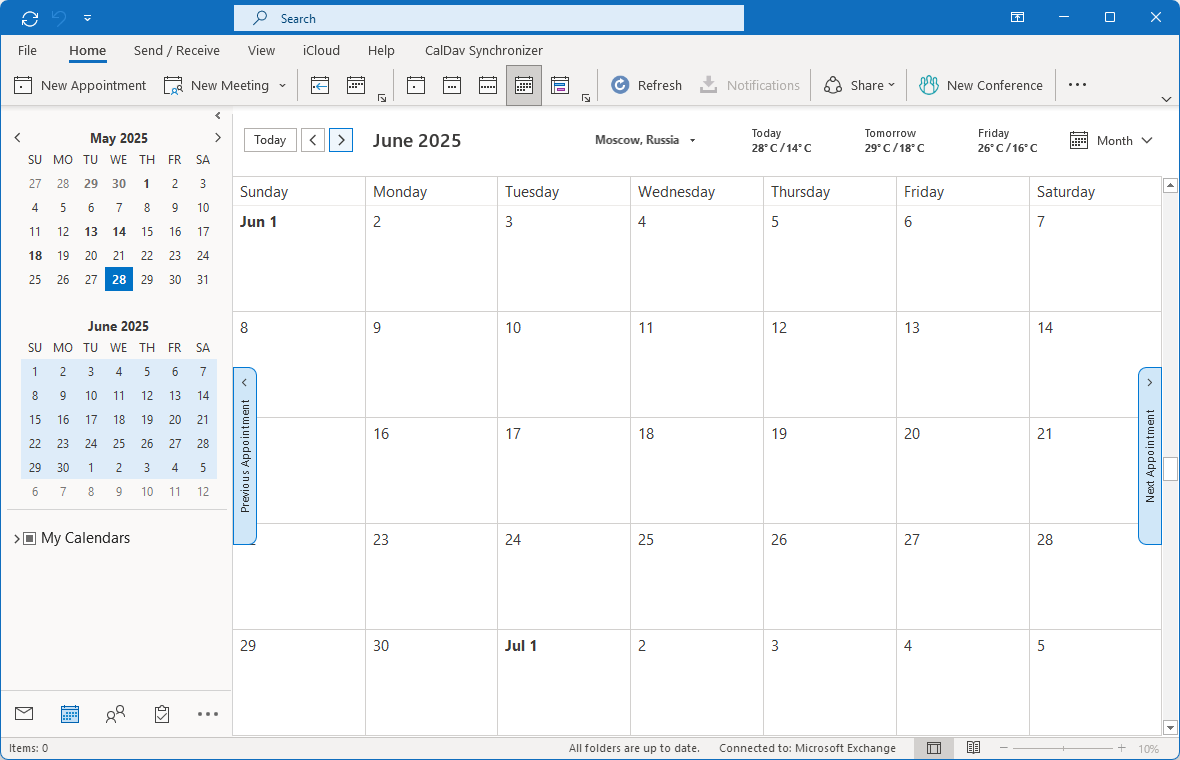
Right-click on the selected date and choose New Appointment.
You will see the UI for creating a meeting. Here, you can:
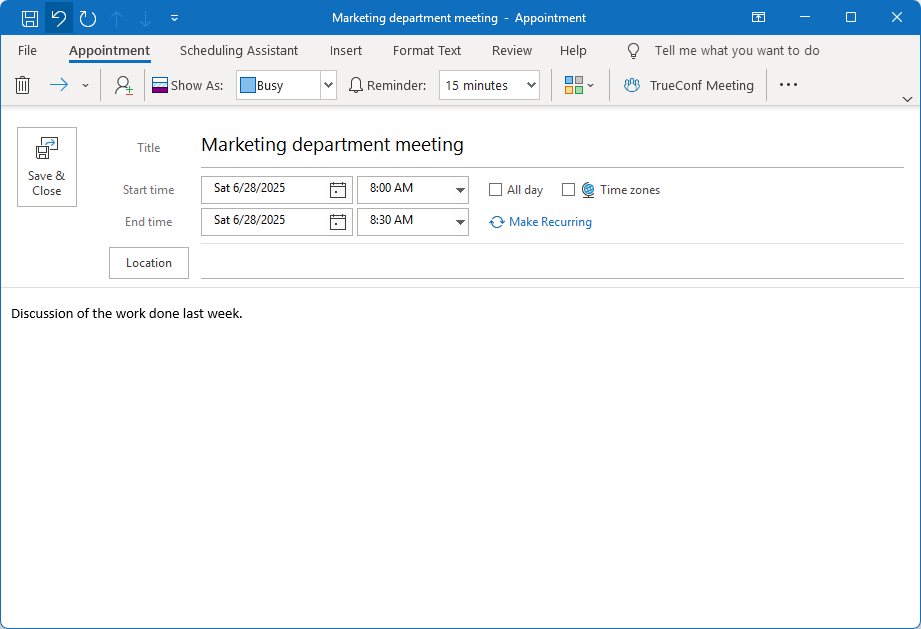
Set your status during the meeting which will be displayed to Microsoft Exchange users
Create a reminder
Enter the event name
Set the event time and configure its repetition
Provide additional information about the event.
You can also specify the event location, which may be linked to a physical room, by designating the meeting room equipment as a resource mailbox on the Microsoft Exchange side. Resource mailboxes are described in more detail on the official website.
Add event participants by clicking
 (in the web interface: People → Add people). In the Microsoft Outlook interface, users can be categorized by attendance as Required and Optional, and this information will be displayed in the client application TrueConf. These statuses are merely formal. The conference will automatically start regardless of whether the Required participants have joined or not.
To display the event in the TrueConf client application's calendar, the user specified in the “users” section must be either an invited attendee or the event creator.
Click Save & Close to create an event.
When the event is created, it will be immediately displayed in the calendar of participants’ client applications.
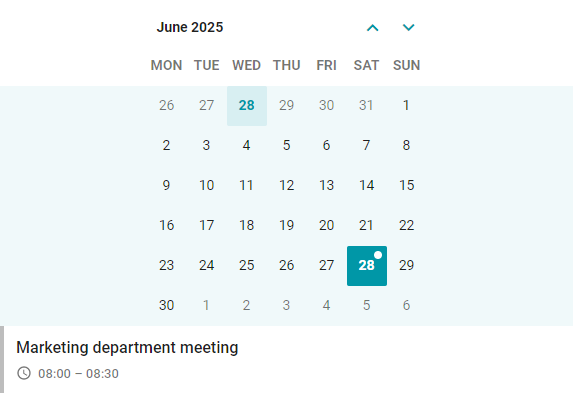
If a gray indicator is displayed on the left side of an event, there is no TrueConf conference scheduled for this event.
Click on the event name to view the details:
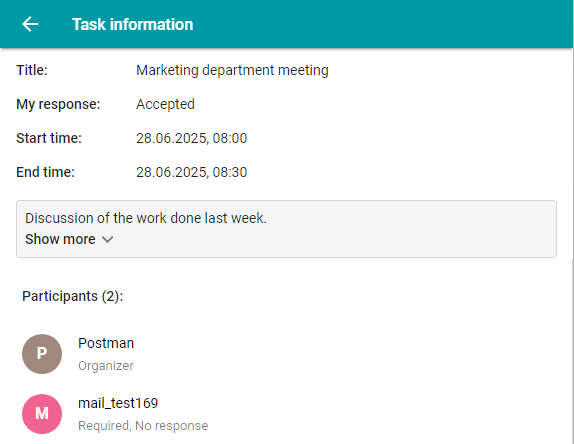
Event name
Your response to the event invitation
Time and date of the event
Additional information
List of participants with their responses to the event invitation.
Event with a conference
To create events with conferences, you need to install the TrueConfplugin for Outlook.
If you are a Microsoft Exchange administrator, please refer to the setup guide for configuring the plugin on the mail server side.
To link a calendar event to a conference, click the TrueConf Meeting button when creating the event. This will open the add-in menu for creating a conference:
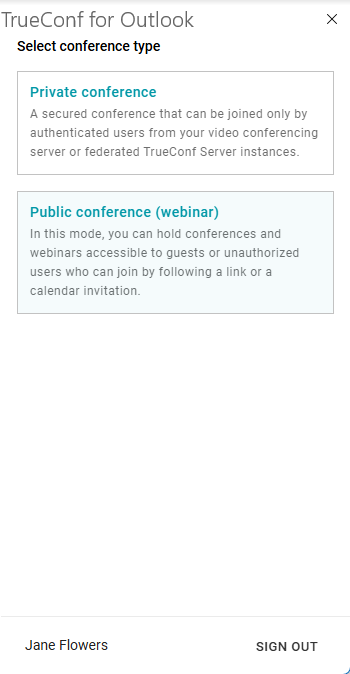
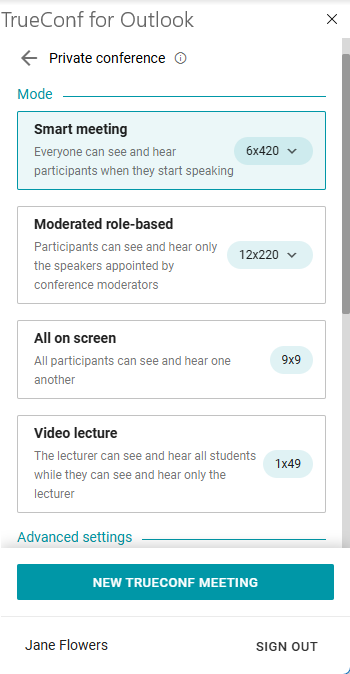
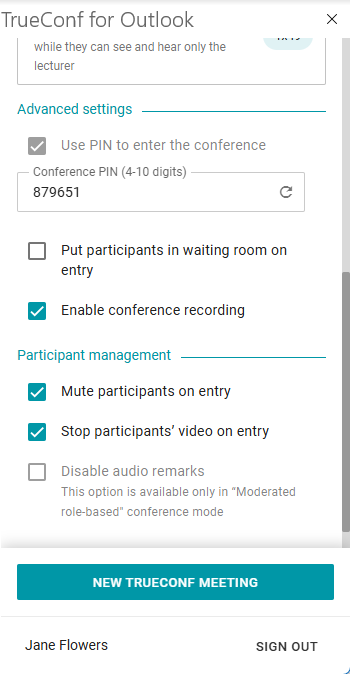
Specify the type – Private conference or Public conference (webinar);
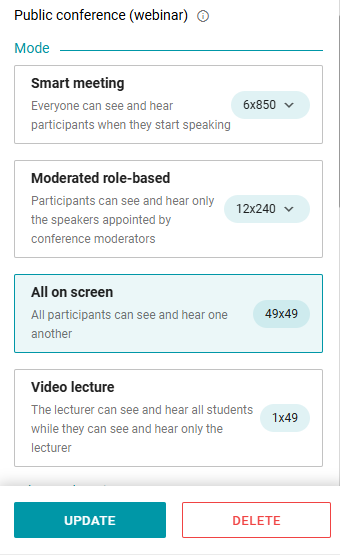
Select the conference mode:
- Smart meeting;
- Moderated role-based;
- All on screen;
- Video lecture.
If necessary, configure the settings in sections Advanced settings and Participant management.
Click New TrueConf Meeting, then the Microsoft Exchange event will be linked with the conference.
The event linked to a conference will be marked with a turquoise indicator.
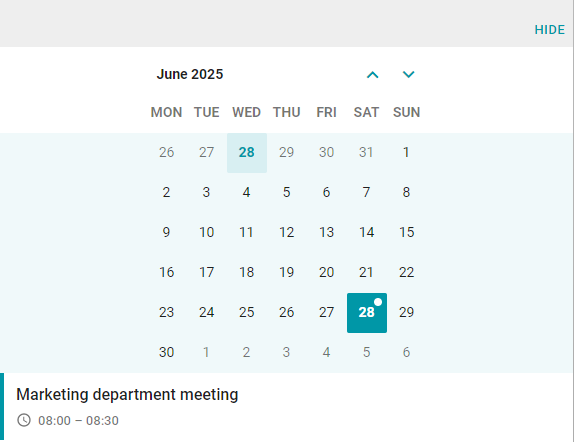
To the right of the name, the Join button will be available.
Editing conferences
You can edit a conference from the user's personal area if the participant has the rights to do so, such as being an owner, moderator, or operator. For more details on how to modify conference settings, refer to the user documentationTrueConf Server.
You can also edit the event settings directly in the TrueConf plugin for Outlook. After making changes, click the Update button.
Delegation of ownership rights
TrueConf Calendar Connector enables you to delegate ownership rights to a different user. In other words, someone else will be able to create events in Microsoft Exchange on your behalf. This role can be given to your secretary or assistant.The secretary creates an event in the Microsoft Exchange calendar, invites participants, and sets the date. All you need to do is to join the meeting. You will be listed as the organizer in the event details. Invited users will not know that the event was created by the secretary.
How to delegate access to your calendar in the web version of Microsoft Outlook:
Go to the Calendar tab;
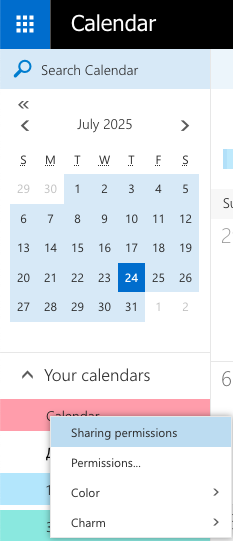
On the left side, in the sidebar menu, right-click your calendar and select Sharing permissions.
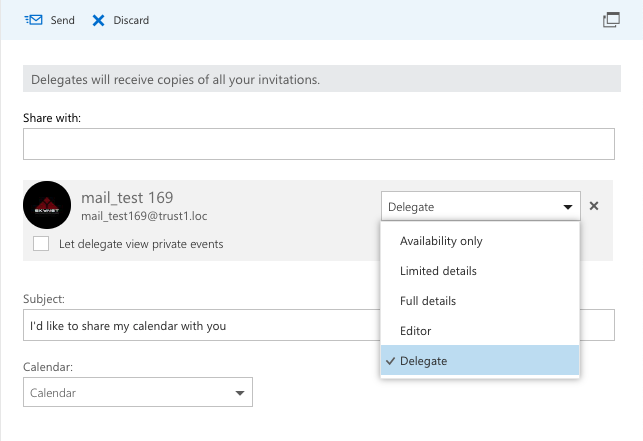
Enter the email address of the user who should be given access to the calendar.
In the list of permissions, select Delegate and click Send.
The delegated user now has access to your calendar and can create events on your behalf.
How to reschedule events
If you are the event organizer, you can quickly change the event date. In the corporate calendar, select the event and drag it to another date by holding the left mouse button.
Repeating event
You can configure repetition settings for frequently held events. To do it, click Make Recurring when creating or editing an event. You will see the menu with the following options:
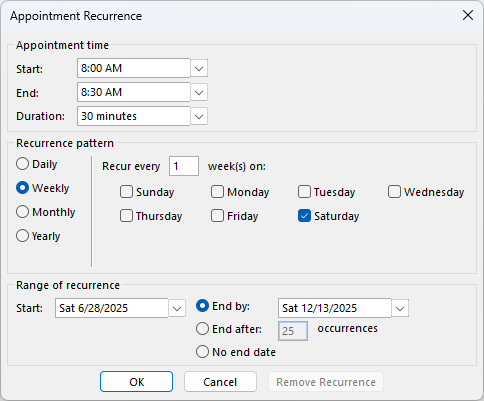
Repeat daily, weekly, monthly, and annually
Set the repetition pattern, for example: repeat every two weeks
Set the repetition limit: until a specific date, a certain number of repetitions, or no limit.
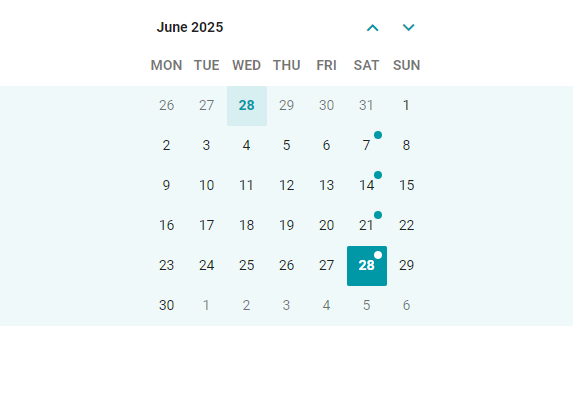
Below you can see the example of a repeating event: weekly on Mondays.
Event cancellation
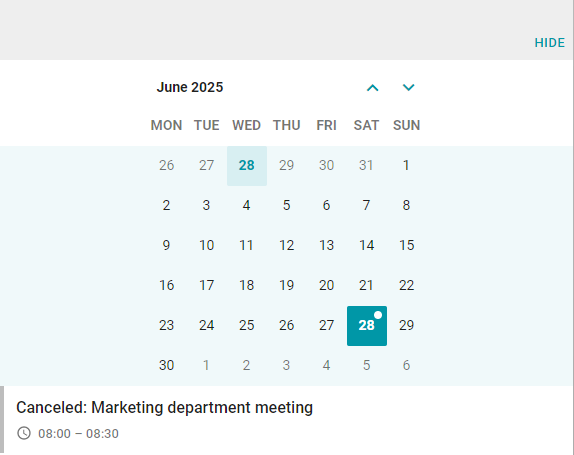
If an event is canceled in the corporate calendar where a user from the “users” section was among the invited participants, it will be marked as Canceled.
Working with events in the scheduler of TrueConf Server
After setting up integration with version 2.0+ of TrueConf Calendar Connector, the TrueConf Server user retains the ability to create, edit, and delete events directly from the TrueConf scheduler (calendar) interface. The scheduler is available both in client applications and in the personal area.
To create an event with a conference, click Create in the scheduler:
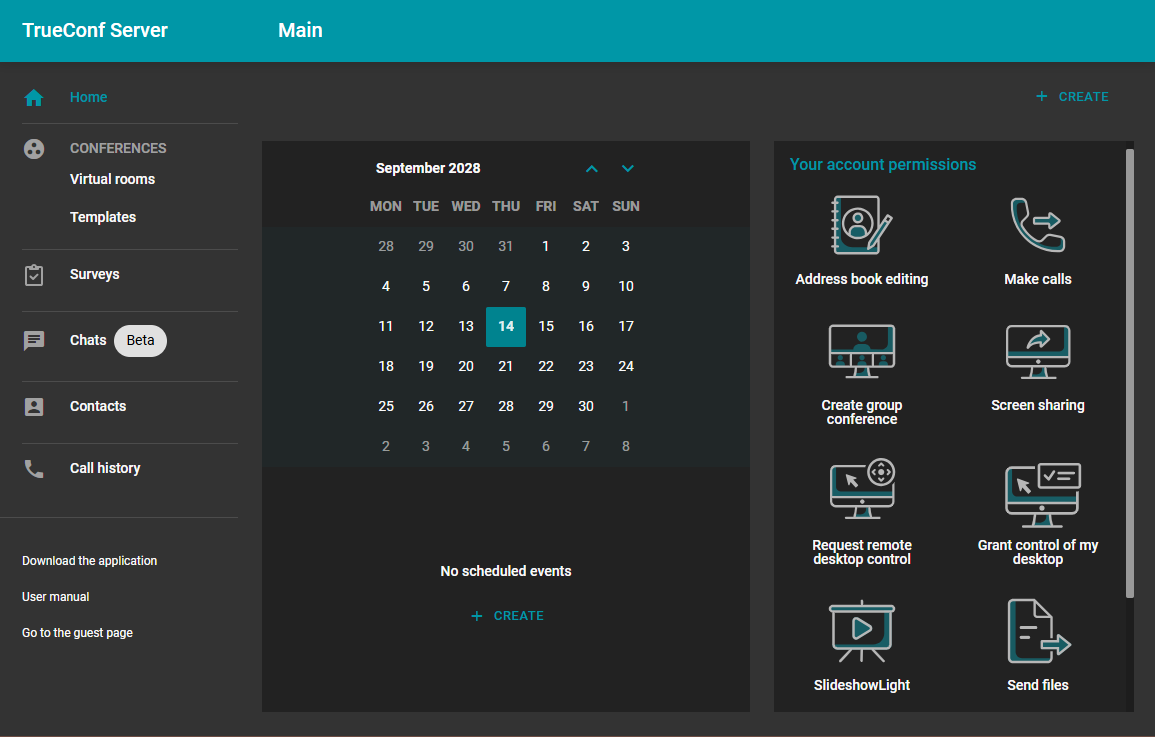
You will see a window with advanced conference settings for creating an event on the side of the Microsoft Exchange corporate calendar:
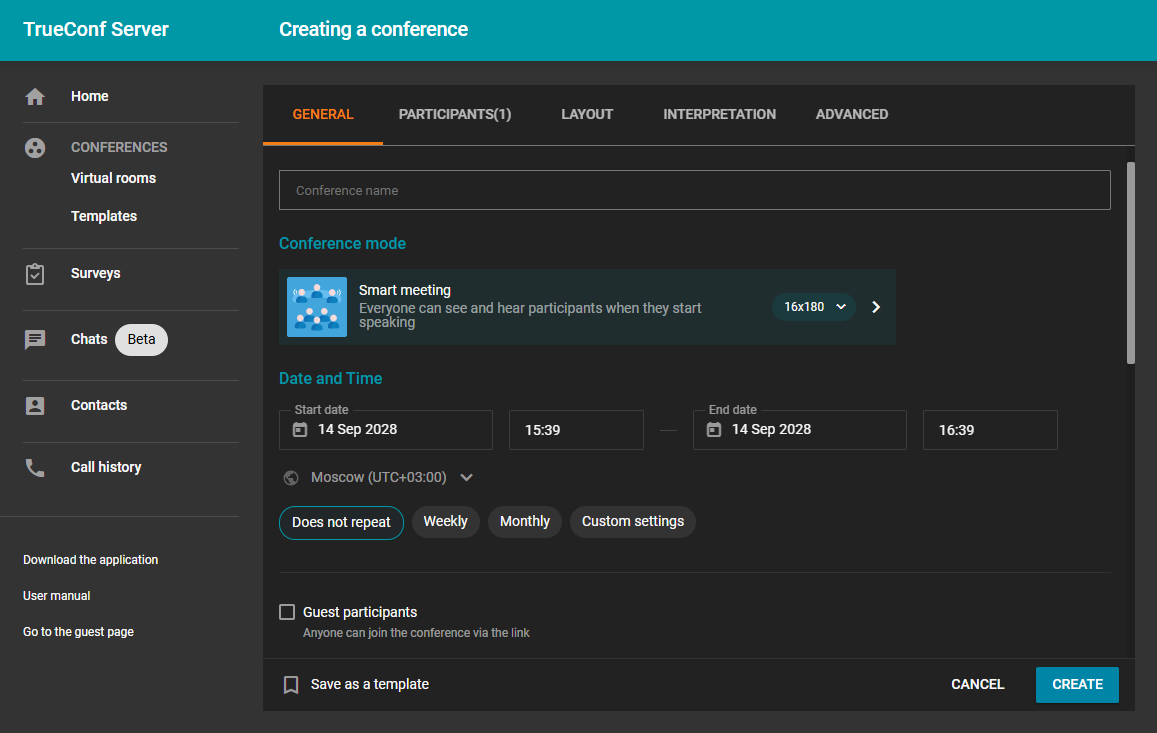
Specify all the necessary parameters and click the Create button in the lower right corner. Now all participants will see this event in their Outlook calendar or their TrueConf app.
When you delete a recurring event (chain of events) from the TrueConf calendar, the entire chain will be deleted. If you want to delete only a specific event, you have to use Outlook.
Working with VCS terminals
You can use the Microsoft Exchange resource account on the VCS terminals TrueConf Group and TrueConf Room to simplify room booking on the Exchange side while maintaining the ability to track events in the TrueConf Server scheduler.
Creating an Account for Video Conferencing Terminals
To operate a video conferencing terminal as a resource account, you need to connect a resource mailbox using one of the following methods:
Link the resource account to user TrueConf Server.
Enable direct login of a resource account using Active Directory.
To link a resource account with user TrueConf Server:
Open Exchange Management Shell on the Microsoft Exchange server.
Enter the following command to link the TrueConf Server account with your Microsoft Exchange account:
Get-Mailbox -RecipientTypeDetails RoomMailbox | Set-CalendarProcessing -RemovePrivateProperty $false -DeleteComments $false -DeleteAttachments $false -AddOrganizerToSubject $false -DeleteSubject $falseCreate a resource account by doing the following:
In the Exchange Admin Center, go to the recipients → resources section.
Click the Create
 button.
Select Room mailbox.
Fill in the details in the opened field.
Click Save.
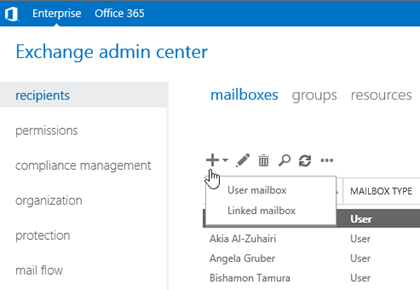
Go to the TrueConf Server control panel.
Go to the section Users → Accounts
Find the user TrueConf Group or TrueConf Room whose account you want to link.
Copy the user's email address.
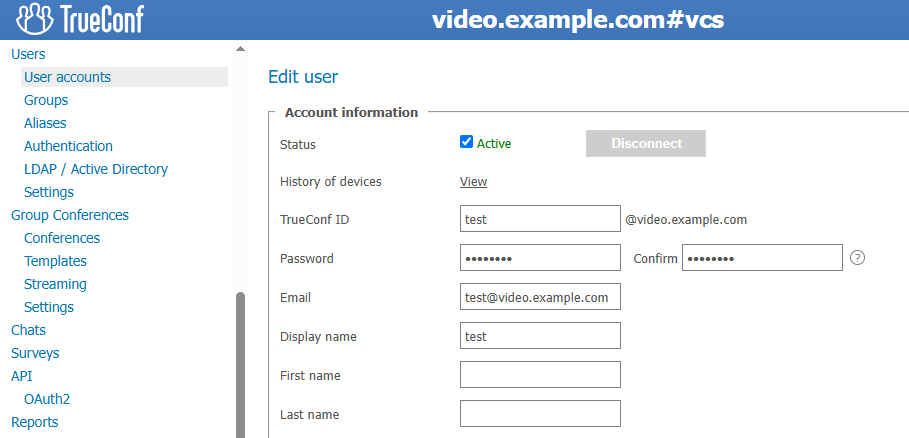
Go to Active Directory.
Go to the properties of the previously created resource account.
In the Email field, paste the previously copied address.
Click on Apply → Ok
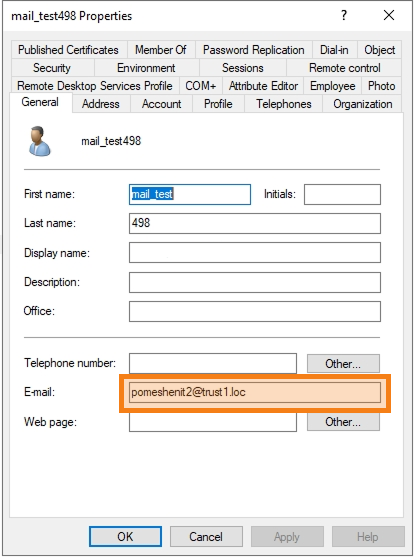
The user account TrueConf Server is now linked with Microsoft Exchange. When this resource account is specified in Microsoft Exchange calendar events, those events will be displayed in the TrueConf Server scheduler.
To allow the resource account to directly access TrueConf Server:
Create a resource account by doing the following:
In the Exchange Admin Center, go to the recipients → resources section.
Click the Create
button.Select Room mailbox.
Fill in the details in the opened field.
Click Save.
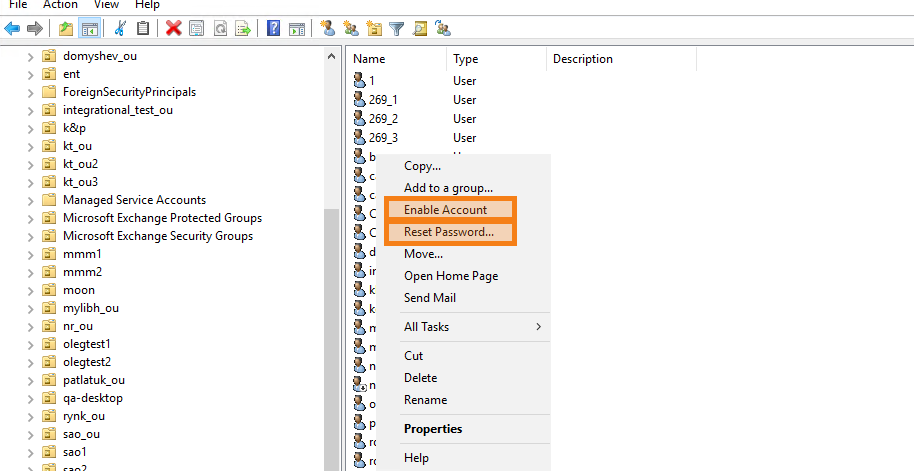
Go to Active Directory
Right-click to open the context menu of the created resource account.
Select item Reset password.
Enter a new password.
In the account context menu, select Enable account.
Now you can log in with this resource account information on TrueConf Server from the video conferencing terminals TrueConf Group and TrueConf Room.
Creating Events with a Video Conferencing Terminal
To create an event with a video conferencing terminal, add the terminal to the conference or select a resource account as the location in the Microsoft Exchange event.