
TrueConf Room deployment
TrueConf Room deployment
Server deployment
Any video conferencing system consists not only of user applications but also of a VC server that facilitates data exchange between these applications. Therefore, before configuring TrueConf Room, you need to set up the server part of the system.
TrueConf Room can use the TrueConf Online service or a corporate TrueConf Server as a video conferencing server (including its free version TrueConf Server Free).All TrueConf servers utilize the SVC architecture for video conferencing, which enables efficient video transcoding across different types of devices.
In addition to the meeting room, your conferences can be accessed from personal devices, including mobile applications.
Additionally, TrueConf Server includes gateways that allow real hardware video conferencing terminals (using SIP and H.323 protocols) and IP cameras (using the RTSP protocol) to connect to conferences.
If you plan to use the TrueConf Online service, you only need to register on our website and then log in to TrueConf Room using your credentials.
The rest of this section pertains only to corporate TrueConf Server.
Take the following steps to get started with TrueConf Server:
Download TrueConf Server or TrueConf Server Free. You can learn about the benefits of the paid version on our website.
Install and run the server by following the instructions in its documentation.
Create an account for each meeting room. If you plan to connect personal devices of participants (computers, phones) or share content during conferences, create accounts for each device. There is no limit to the number of accounts.
Check the connection with the server by connecting to it from the client application. If you want the server and TrueConf Room to be in different local networks or connect over the internet using a router or NAT, configure the appropriate addressing in the server's local network and verify the connection from outside the network.
Installing TrueConf Room on Windows
On page TrueConf Room, click the Download for free button and fill out the registration form. Then click the Download TrueConf Room button.
On the Windows tab, download the TrueConf Room installer using the appropriate button and run it:
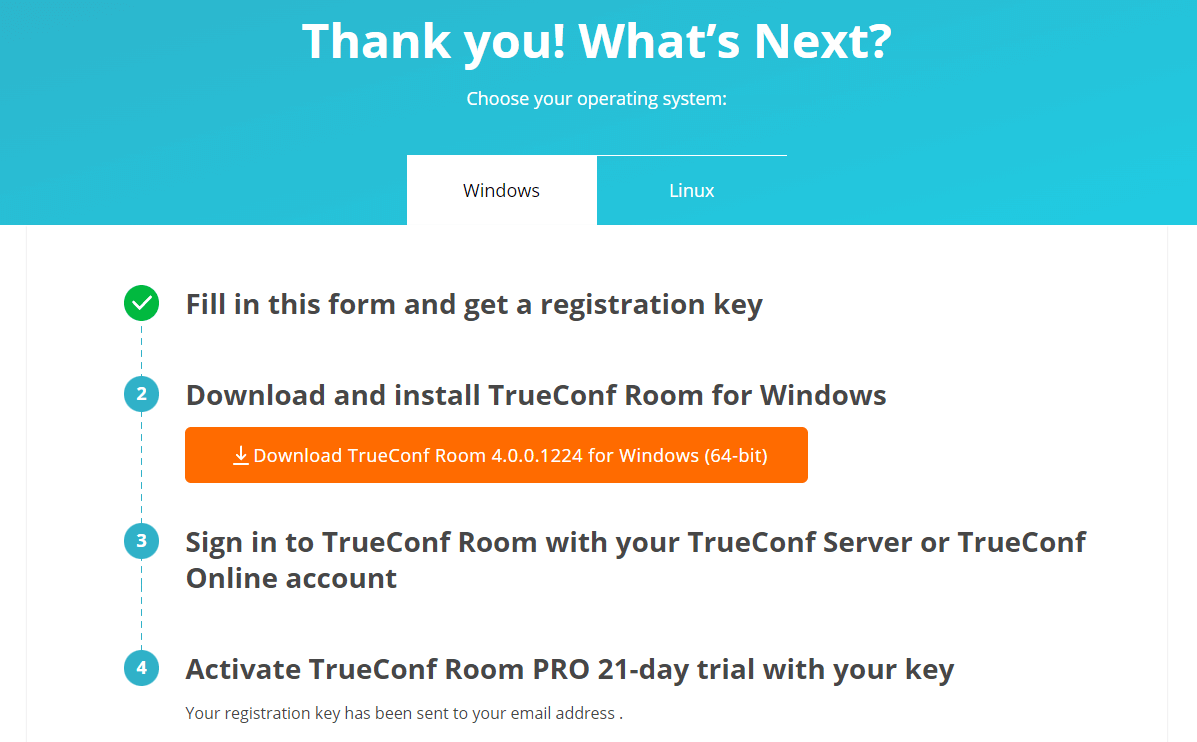
During the installation of TrueConf Room:
In the Autorun options window, check the Run automatically box if you want the service TrueConf Room Service to be added to the OS startup. This way, the service itself will start the TrueConf Room terminal.
Select the resolution of the background image to display in standby mode.
In the port selection window, you can specify a different port for accessing the control panel to avoid using one already occupied by other software. This won't be necessary if no third-party software is installed on the PC, apart from TrueConf Room (recommended usage).
In the final installer window, uncheck Launch TrueConf Room and click Finish. This way, the terminal window won't interfere with further configurations.
After installing the terminal, additional OS configuration may be required when using the control tablet.
If you are installing TrueConf Room under a Windows OS user account without administrator rights and leave the Launch TrueConf Room checkbox selected in the last installer window, the link on the main screen (which leads to the control panel) will be unclickable upon first launch. In this case, you simply need to restart TrueConf Room and the link will become clickable, or you can deselect the Launch TrueConf Room checkbox.
Installing TrueConf Room on Linux
Step 1
On the page that opens after filling out the form, go to the Linux tab for a description of the next steps.
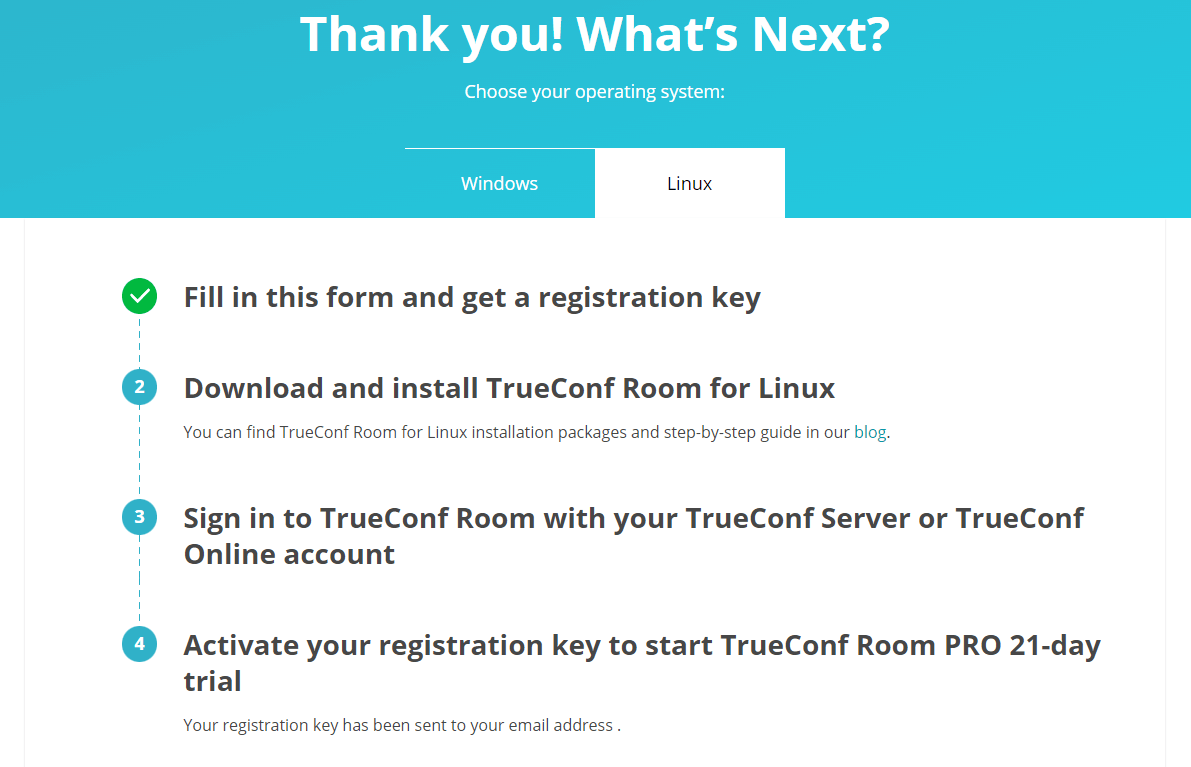
Click the link in the second point to access the detailed installation guide TrueConf Room for Linux on our blog. It covers installation from both the repository and manually from a file. The second method is discussed below.
Step 2
Download the distribution for your operating system.
Step 3
Go to the directory with the downloaded installation package and run the command as an administrator:
apt install -yq ./trueconf-room-name.debwhere trueconf-room-name is the file name.
During the installation you will be able to:
Specify a different port for accessing the control panel to avoid using the port that is already occupied by other software
Select a resolution for the video that will be displayed when the endpoint is in sleep mode
add TrueConf Room to startup.
Step 4
The trueconf-room-web web server will be added to the OS. It will start automatically after the installation.
From another computer on your local network, go to the TrueConf Room page via http://[ip]:[port], where [ip] is the IP address of the computer running Linux, and [port] is the port specified in the previous step.
To check the IP address in Linux, run the ip a command.
The port specified during installation is used to access the control panel. If it's not accessible, you will need to configure another port manually.
To view the address and port for accessing the control panel, you can also launch TrueConf Room and check its main screen.
Configuring the endpoint without a touch panel
If TrueConf Room is used on a PC without a connected touch panel for control, no special additional actions are required.
Immediately after installation you can use the control panel which is accessible:
via IP or QR code from any browser, including mobile;
from the application TrueConf Discovery for Android.
Setting up a terminal with a built-in or USB touch panel
The terminal TrueConf Room can be installed on a PC with either a USB-connected or built-in touch panel. For example, on a Lenovo ThinkSmart Hub PC. In this setup, the terminal control panel is configured to automatically launch on the touch panel, while the terminal windows appear on the large conference room screen.
In this case, in addition to a PC, you will need:
A touch panel connected to a PC via USB, such as Lenovo ThinkSmart Controller or Logitech Tap. The USB bus is also used to control the touch panel built into a PC, for example, on Lenovo ThinkSmart Hub. There are also panels that connect simultaneously to a USB port for control and to a video output for video display.
A monitor or TV panel connected to a video output (e.g., HDMI or DisplayPort) intended for displaying the main screen of the endpoint.
A keyboard and mouse are required for the setup and configuration of TrueConf Room. They can be disconnected afterward.
Carefully follow the steps listed below, otherwise the correct operation of TrueConf Room with automatic start and proper screen distribution cannot be guaranteed.
Configuration on Windows
OS configuration
Since the touch panel is recognized by the OS as a monitor, for TrueConf Room to function correctly:
Press Win + P to switch from dual-screen mode to extended display.
Select the touch panel as the primary monitor. To check:
right-click on the desktop
select Display settings;
To identify which monitor is which, press the Identify button—numbers 1 and 2 will be displayed on the monitors.
Make sure the touch panel is set as the primary monitor. For example, if the number 1 appears on the touch panel, select Display #1 and check the box Make this my main display if it is not already enabled.
On Windows 11, when the physical keyboard is detached, the touch keyboard will be automatically displayed, when you tap on a text field. On Windows 10, additional configuration is required to display the touch keyboard:
go to the Start → Settings → Devices menu;
select section Typing;
Activate the toggle switch Show the touch keyboard or handwriting panel when not in tablet mode and there's no keyboard attached.
Setting up TrueConf Room Service
After installation, go to the Start Windows menu and find the TrueConf Room Service folder in the list of installed programs. Launch the Settings settings program:
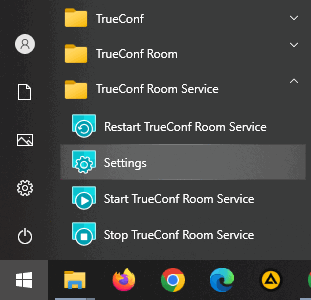
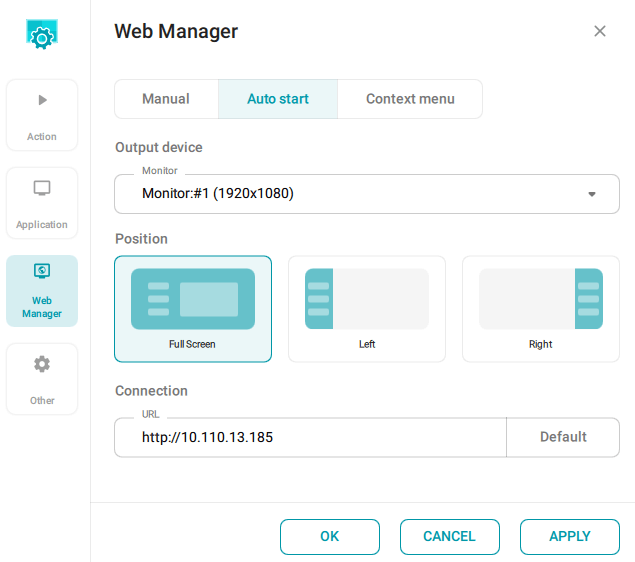
In the opened window, specify the following parameters:
To configure the launch of the TrueConf Room control panel, go to the Web Manager section and adjust the following settings:
mark Auto start;
In the dropdown list Output device, select the touch panel that you chose as the main monitor in the OS, for example, Monitor #1.
For parameter Position, select Full Screen.
Select the Application section and choose a different monitor for the Output device parameter from the dropdown list, for example, Monitor #2. You found out the number of the additional monitor while configuring the OS.
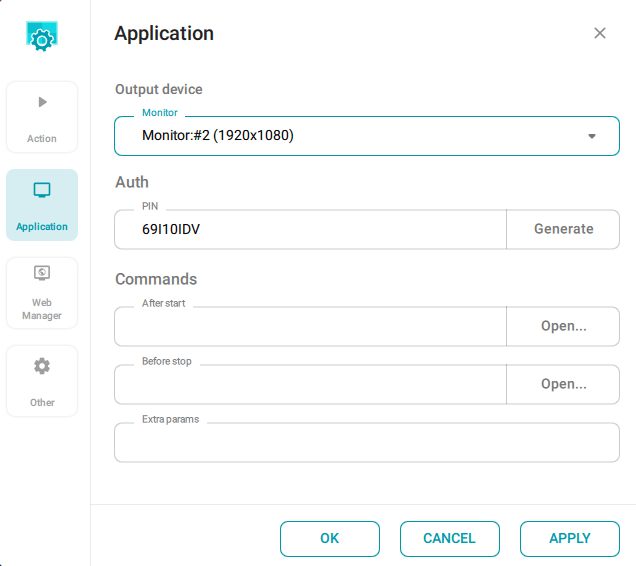
Click the OK button and restart your PC.
If everything is configured correctly, upon starting the PC, the terminal control panel will automatically launch on the touch panel, and the main TrueConf Room window will appear on the display, allowing you to begin its configuration.
Configuration on Linux
OS configuration
As an example, let's consider Ubuntu website.
Since the touch panel is recognized by the OS as a monitor, for TrueConf Room to function correctly:
Press Win + P to switch from dual-screen mode to extended display.
Select the touch panel as the primary monitor. To check:
right-click on the desktop
select Display settings;
Make sure that the upper panel with menu and clock (Dock panel) is displayed on the touchscreen. It indicates that the touchscreen is selected as the main monitor. Otherwise, select a different display in the drop-down list from the Primary Display option.
Add the command
trueconf-room-service installto the auto start using any convenient method. For example, create a file~/.config/autostart/start-room-service.desktopwith the following text:
[Desktop Entry]
Name=Start Room Service
Exec=trueconf-room-service install
Type=Application
Hidden=false
If your clicks on the touch panel are registered on a different display, you will need to set up a correct mapping between input and output devices:
To find out the ID of the input device (touchpad), run this command:
xinput --listMemorize the id of your device in the Virtual core pointer section. If you can't identify the touch panel by name in this list, execute the command twice: first when the touch panel is disconnected and second when it is connected. Pay attention to the new device displayed on the screen. For example, if you received two lists:
⎡ Virtual core pointer                	id=2	[master pointer  (3)]
⎜   ↳ Virtual core XTEST pointer         	id=4	[slave  pointer  (2)]
⎜   ↳ ELAN0504:01 04F3:312A Touchpad     	id=22	[slave  pointer  (2)]
and
⎡ Virtual core pointer                	id=2	[master pointer  (3)]
⎜   ↳ Virtual core XTEST pointer         	id=4	[slave  pointer  (2)]
⎜   ↳ ELAN0504:01 04F3:312A Touchpad     	id=22	[slave  pointer  (2)]
⎜   ↳ Touch Device pointer      	id=20	[slave  pointer  (2)]
then your device is Touch Device pointer. Memorize its id (in this example, id=20).
To find out the names of output devices, run the command:
xrandrIdentify your output device and remember the name of its corresponding interface (it will be one of the two marked with connected). If it's difficult to clearly identify the touch panel, follow the same procedure as in step 2: disconnect the touch panel, run the
xrandrcommand, reconnect the touch panel, and run the command again. The newly appearing device will be the result you are looking for.For instance, you received the output
Screen 0: minimum 320 x 200, current 1920 x 2160, maximum 16384 x 16384
HDMI-A-0 connected 1920x1080+0+0 (normal left inverted right x axis y axis) 344mm x 194mm
...
DP-1 connected primary 1920x1080+0+1080 (normal left inverted right x axis y axis) 527mm x 296mm
and judging by physical dimensions determined that the touch panel is connected to HDMI-A-0.
To configure the mapping between input and output areas, perform the following steps:
xinput --map-to-output <input_device_id> <output_device_name>where
<input_device_id>is the input device (see step 2), and<output_device_name>is the output device (see step 4).In our example, the command will look like this:
xinput --map-to-output 20 HDMI-A-0Ensure that the touch panel presses now correspond to controlling the image on the panel itself.
Configuring the virtual keyboard
Additional packages need to be installed on Linux to use the virtual keyboard in the control panel displayed on the touchscreen.
On Debian 10, the use of a virtual keyboard together with TrueConf Room is not available.
Install the
libqt5virtualkeyboard5package:Ubuntu, Debian 11/12
sudo apt-get install libqt5virtualkeyboard5Install the virtual keyboard:
Ubuntu, Debian 11/12
sudo apt install onboardSetting up TrueConf Room Service
Go to the list of installed programs on Ubuntu OS and launch the Settings TrueConf Room Service utility from there. In the window that opens, configure the settings exactly as shown above for Windows OS.
Android-based tablet
An Android-based tablet can also be used as a touch control panel connected to the same corporate network as the PC with the endpoint. To ensure better connection, we recommend specialized tablets with an RJ-45 port for a wired network connection, and not to use wireless Wi-Fi connection.
In this case, management is carried out over the network using the application TrueConf Discovery.
Install TrueConf Room on Windows or Linux without making any additional OS configurations.
Connect the tablet to the same corporate network as the PC with the installed endpoint.
Launch TrueConf Room on your PC.
On your tablet's browser, go to the terminal control panel. Use the address displayed on the terminal's main screen for this.
In the upper left corner of the control panel, click the
 button to access the settings, and install TrueConf Discovery from the APK file as shown in this section.
Start TrueConf Discovery and wait a few seconds until your instance appears in the list of terminals.
Tap on your endpoint in the list. You will be able to control it with the same control panel interface that is available in the browser.
Configuring the terminal's static address
You can install the TrueConf Room software on any PC with a supported operating system. Often, by default, the OS uses a dynamic IP (obtaining an IP via DHCP). The TrueConf Room itself can be configured to run in "always on top" mode and with automatic restart at the TrueConf Room Service level.
If you need to change network settings, such as using a static IP address, you should first properly close the TrueConf Room window:
Launch the terminal with the keyboard connected.
Please stop the TrueConf Room Service:
press the Win key on your keyboard;
Close the application window or right-click on
 in the system tray and select Exit.

Go to the system settings - you can access them through the system menu..
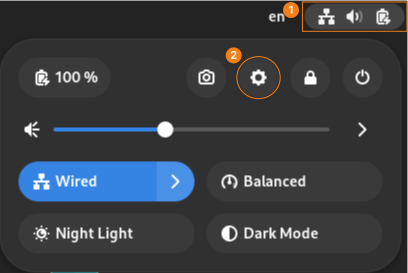
In the Network section, find the row with the network card name, then click
 → IPv4.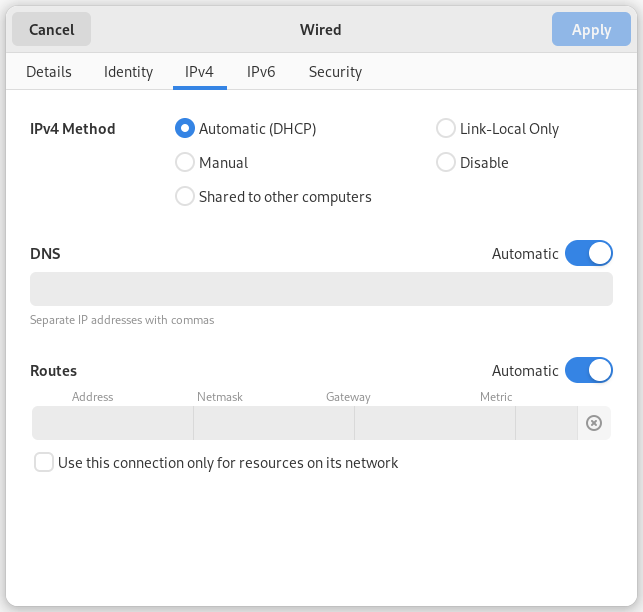
In section IPv4 Method, select Manual to configure a static IP address. You can then specify Address, Netmask, and Gateway. To save the settings, click Apply.
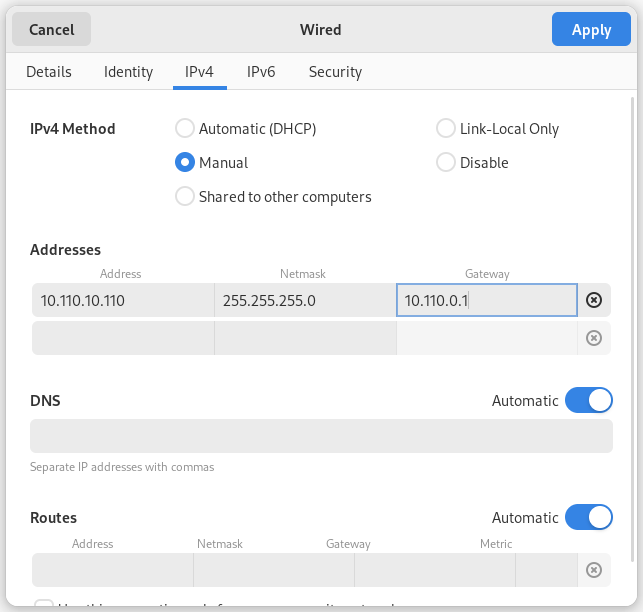
If necessary, you can specify a DNS server. Uncheck item Automatic and enter the corporate DNS server address. Click Apply to save.
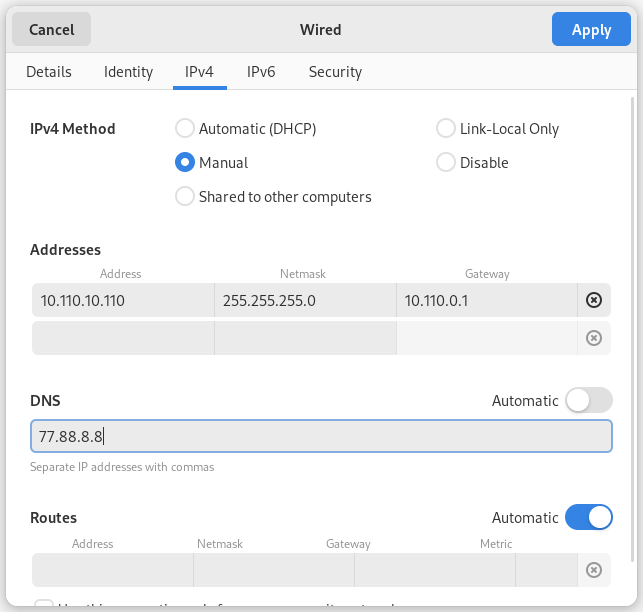
To verify the network settings:
Open the terminal and enter the command:
ip aCheck if the
inetline displays an IP address for the required network card.
Configuring a Static IP Address for a Desktop Tablet
A special desktop tablet with the TrueConf Discovery application installed can be used as the control interface for TrueConf Room. If the tablet is already connected to the TrueConf Discovery control panel, press and hold any area of the screen for 5 seconds, then press TrueConf Room.
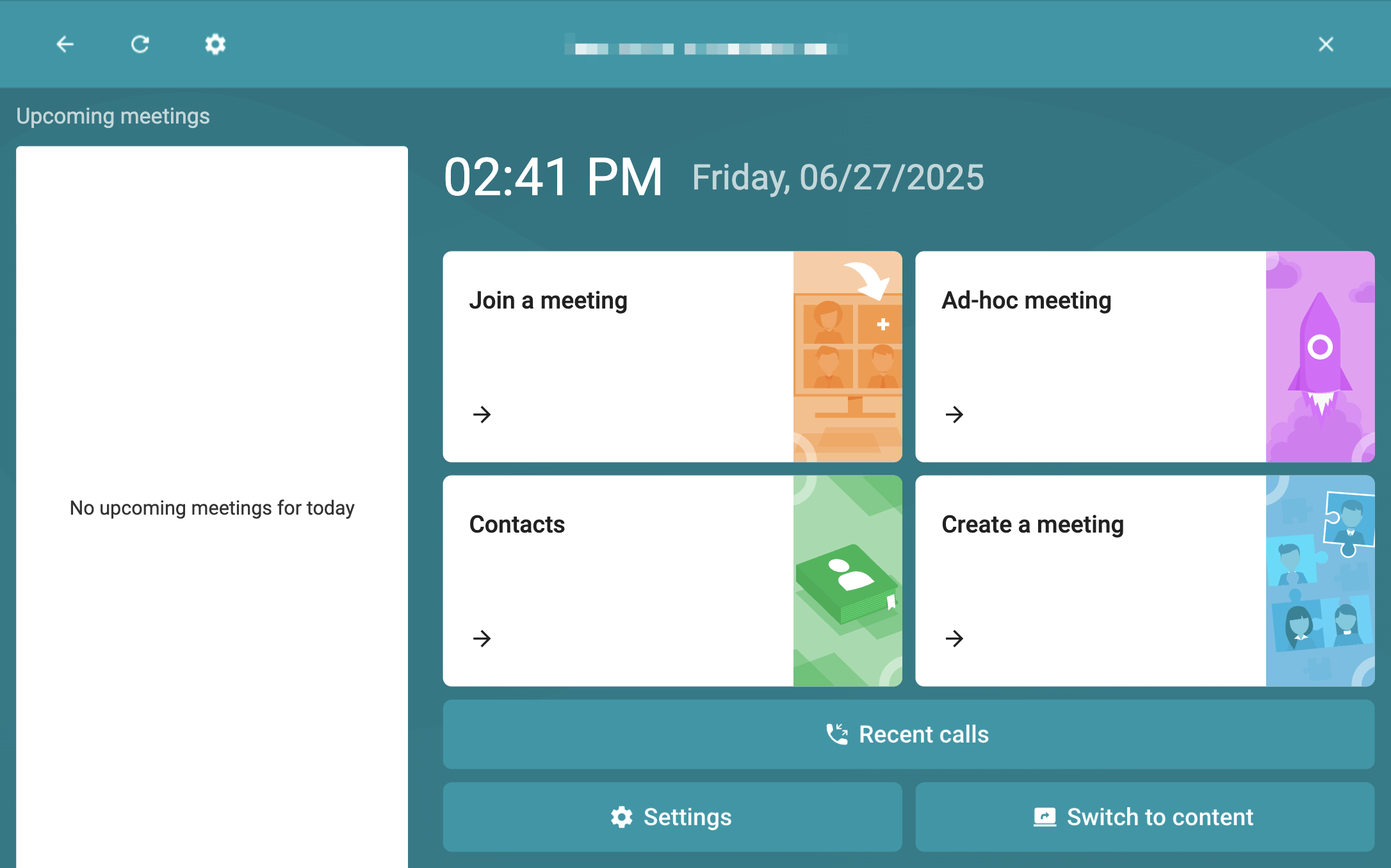
In the pop-up window, click Exit.
The TrueConf Discovery interface will appear on the screen. To configure a static IP address:
Tap
→ Device settings to access the Android OS settings.Go to Network and Internet → Ethernet. In the Ethernet Ip mode section, select static.
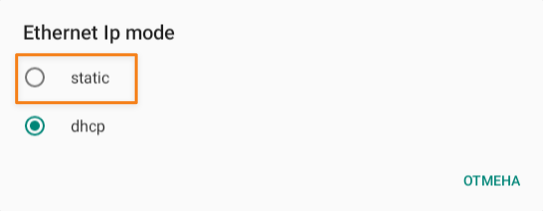
3. Specify the static IP parameters.
4. Click Connect. If the specified network settings are correct, the entered address will be displayed in the IP address field.
Changing the port
If you need to change the port for accessing the TrueConf Room control panel after installation, please follow these instructions.
For Windows
Go to the
C:\Program Files\TrueConf\Room\httpconf\conf\folder and open the listen.conf file with any text editor (you have to open the file as the administrator).Change the port number in the
Listen <port number>parameter, e.g.,Listen 8888. Then, save the changes.Restart the TrueConf Room Web Manager service or reboot the PC where the software terminal is installed.
For Linux
Go to the
/opt/trueconf/room/etc/webmanager/conf/directory as the superuser and open the listen.conf file with any text editor.Change the port number in the
Listen <port number>parameter, e.g.,Listen 8888. Then, save the changes.Restart the web server by running this command:
systemctl restart trueconf-room-web