Room Discovery
Room Discovery
Purpose
TrueConf Discovery This is an application for the Android OS designed for quick access to the TrueConf Room control panel. TrueConf Discovery automatically detects deployed instances of TrueConf Room on the local network, making it easier to find and interact with them.Note that TrueConf Discovery also detects hardware endpoints TrueConf Group and adds them to the list.
Installation
Take the following steps to download the APK file:
Go to the TrueConf Room control panel. The easiest way to do this is by scanning the QR code on the main screen with your smartphone or tablet.
Go to Settings → About and click the Download button at the bottom.
The installation file will be downloaded on your device.
Allow installation from unknown sources, learn how to do this in our blog, and install TrueConf Discovery.
Use
Main screen
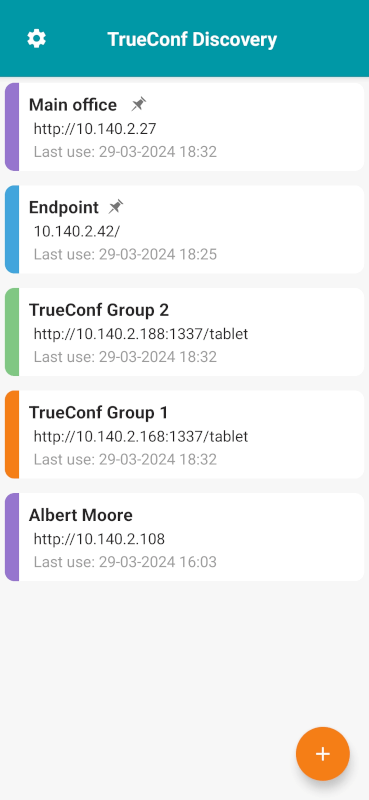
When you open the application, a list of TrueConf Room and TrueConf Group instances found on the local network will be displayed (hereafter referred to simply as "terminals"). For each terminal, you will see:
Instance name. For TrueConf Room, it matches the display name of the user who was last authorized.
The IP address and port needed for accessing the instance.
The date of its last use with TrueConf Discovery.
At the top of the list, several pinned terminals may be displayed. They will be marked with the icon
 . You can pin any terminal from the action list by long-tapping.
Editing the list of endpoints
If, for any reason, your instance was not found automatically, you can add it manually. To do this, click the  button, enter the Room Web URL (the access address to the control panel), the display name, and then click the Add button.
With a long tap on any endpoint from the list, you can:
Edit information about it
Remove the endpoint from the list (e.g., if you want to hide the endpoint which was used previously and is no longer in the network)
Pin (or unpin) the selected item at the top of the list.
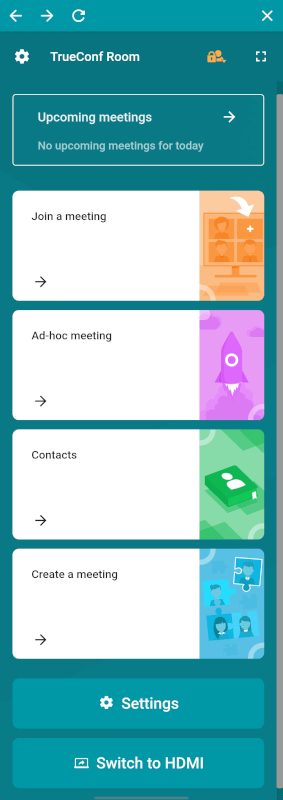
Control panel
To access the control panel, select the desired instance from the list on the main screen TrueConf Discovery. It looks the same and has similar functionality to the control panel available through the browser.