
Control Panel and Console Settings
Control Panel and Console Settings
You can find the pre-configuration instructions for TrueConf Room in the sections above.
The following describes the use of an already installed, connected to the server and authorized application. Remember that the main screen TrueConf Room is displayed in this case.
Logging in to the control panel
To use TrueConf Room, open the control panel on your device:
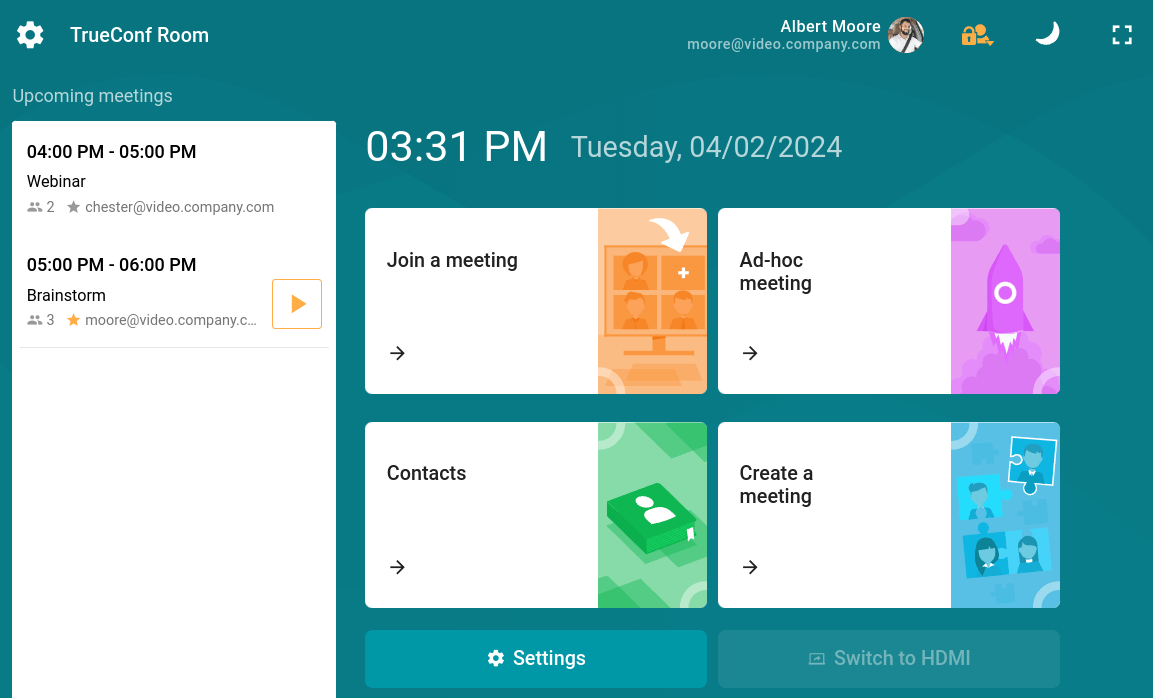
In the control panel, you have access to:
a list of upcoming and ongoing conferences (including conferences created using the TrueConf Calendar Connector extension);
How to join a meeting
list of contacts;
list of recent calls;
Switch to shared content.
When you access the control panel, the PC monitor with TrueConf Room installed will exit sleep mode.
If there is no link to access the control panel on the screen, request it from the administrator of TrueConf Room.
Displaying content from a capture card outside of a call
If your device with TrueConf Room installed is equipped with a capture card, you can stream content from an external device (for example, a laptop via an HDMI interface). HDMI content sharing is available both during a conference and from the main screen when not on a call. To display content on a large screen outside of a call:
Connect the device that will be used to display content to the capture card TrueConf Room.
Go to the control panel and click the Switch to content button. If multiple capture cards are used in the system, a dialog box will appear to select the desired one.
Similarly, you can stream content during the conference.
Using command line parameters
TrueConf Room supports the use of command-line launch parameters similar to the client application:read more about this feature in our article;
The list of command line parameters with their descriptions can be found in the API TrueConf Roomdocumentation.