
Additional settings and sleep mode
Additional settings and sleep mode
Preferences settings
In the Settings → Preferences menu section, you can configure various call and conference settings.
In the Settings → Preferences → General section, the following options are available:
enable automatic call and conference invitation acceptance – all incoming calls will be accepted immediately without any operator intervention;
enable receiving calls only from contacts in the address book; other calls will be automatically rejected;
Display the main application screen over all other windows for incoming calls;
Enable the ability to manage audio and video equipment for the User role. By default, only the software administrator can control the camera's on/off state and PTZ camera settings (see detailed role description).
In the Settings → Preferences → Conferences and calls section, the following options are available:
for the moderated role-based conferences created on TrueConf Room – automatic promotion of another participant to the podium upon request;
the ability to hide participants without video in the video layout (if their camera is turned off), while enabling a widget that collects all such participants;
automatic acceptance of an invitation to speak from the moderator in a moderated role-based conference;
a place to display participant names in the video layout: in one of the corners of the video window, at the bottom, at the top;
always display self-view on top of the overall video layout;
- If self-view display is enabled, you can set it to automatically collapse at the start of a conference to avoid covering part of the video layout.
whether to highlight speaking participants (speakers) with a border in the video layout;
appearance of the video layout (frame color, spacing between windows);
The default video layout is displayed as equal-sized windows, with a prioritized window, or with a single window.
Parameters for automatic video layout adjustment to suit the conference: algorithm for switching the priority window based on participants' voice activity, automatic window enlargement when receiving content.
Tools
In the Settings → Tools menu section, you can:
Set permissions for video recording
Enable NDI protocol
configure AirPlay;
pre-upload slides for presentation display.
QR code to join the conference
To join a conference using a QR code, enable the checkbox Enable QR code scanning in Settings → Tools → General → More.
You will see a notification in the upper part of the main screen:

System information
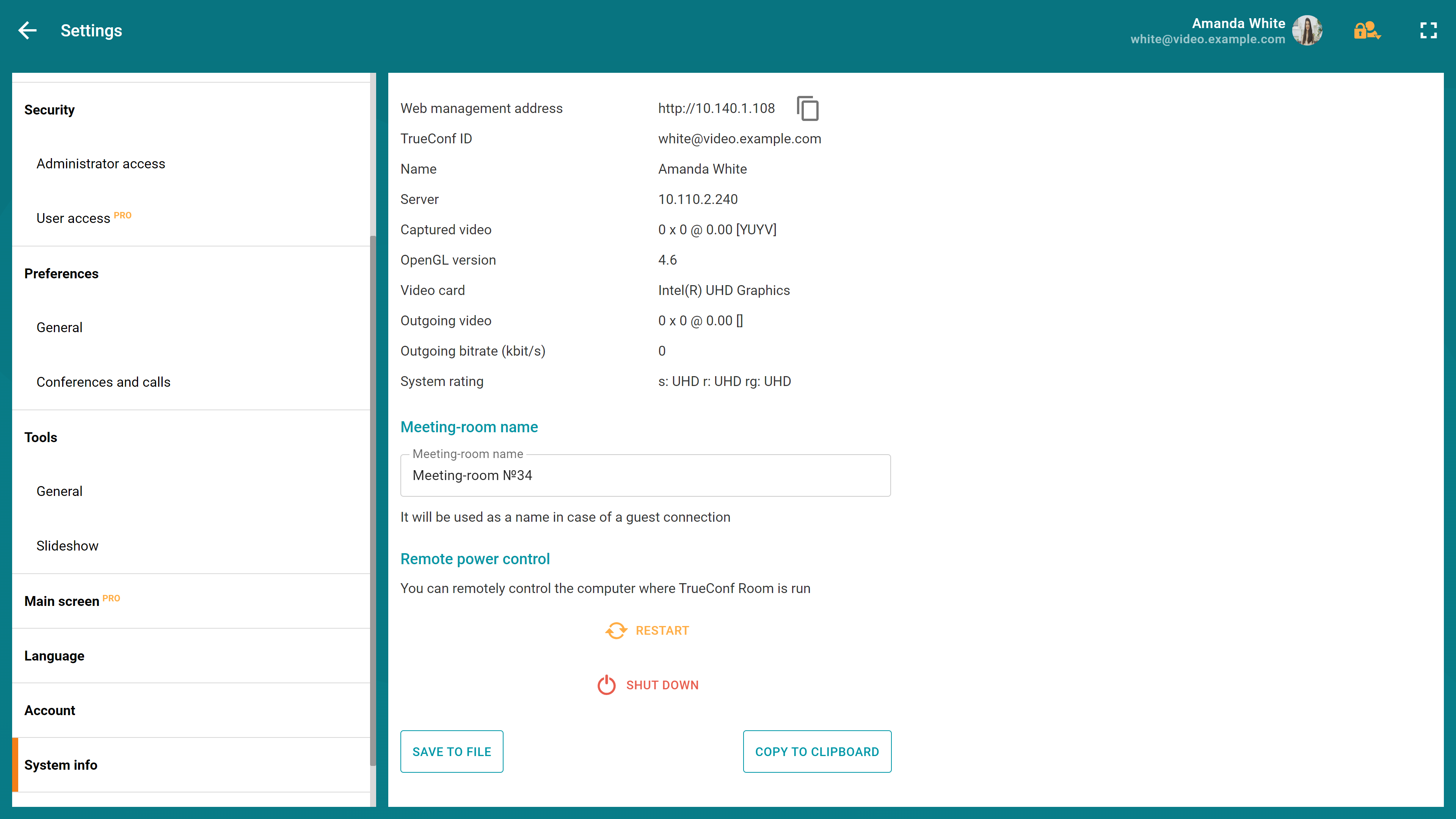
You can check the technical specifications of the device running TrueConf Room, including monitoring data for an active connection or conference, in the Settings → System info section.
Meeting room name
In the System info section, you can change the name displayed when a guest connects to a public conference.
This name will also be displayed when searching for terminals in TrueConf Discovery.
If the Meeting-room name field is left empty, when joining as a guest, the username will default to the OS account name used during the TrueConf Room deployment.
Device control
In this section, you can also remotely control the computer running TrueConf Room:
Restart the device
Disable it
Main screen view
In certain cases, the primary monitor may stop functioning temporarily for some reason. During this time, the operating system will move the main screen TrueConf Room to the second monitor. To ensure that TrueConf Room automatically switches back to the primary monitor once it becomes available again, enable the checkbox Pin Main Screen on the current display.
With the full version of TrueConf Room, you can customize the appearance of the home screen to suit your preferences and brand.
The main screen settings can be configured in the Main screen section of the settings menu.
Here you can set a custom background for the video area. To do this, select the Custom option in the Video area background block and click the Upload an image button.
When setting a custom background, please pay attention to the pixel size of your image. It should match the resolution of the display that shows the application’s main screen.
You can enable or disable:
- Logo
Select option Custom and click the Upload an image button to use your logo. The supported image format is svg.
Date and time
Connection details
The checkbox Connection details enables the display of the QR code and the link to the control panel. If you uncheck it, you will need to manually provide the link to the control panel to the meeting room users.
List of upcoming meetings
Information about the current user
Notifications about incoming calls and conference invitations.
If the checkbox Incoming calls, conference invitations and join requests is selected, a bar with caller information and corresponding buttons will appear on the main screen during calls.
Sleep mode
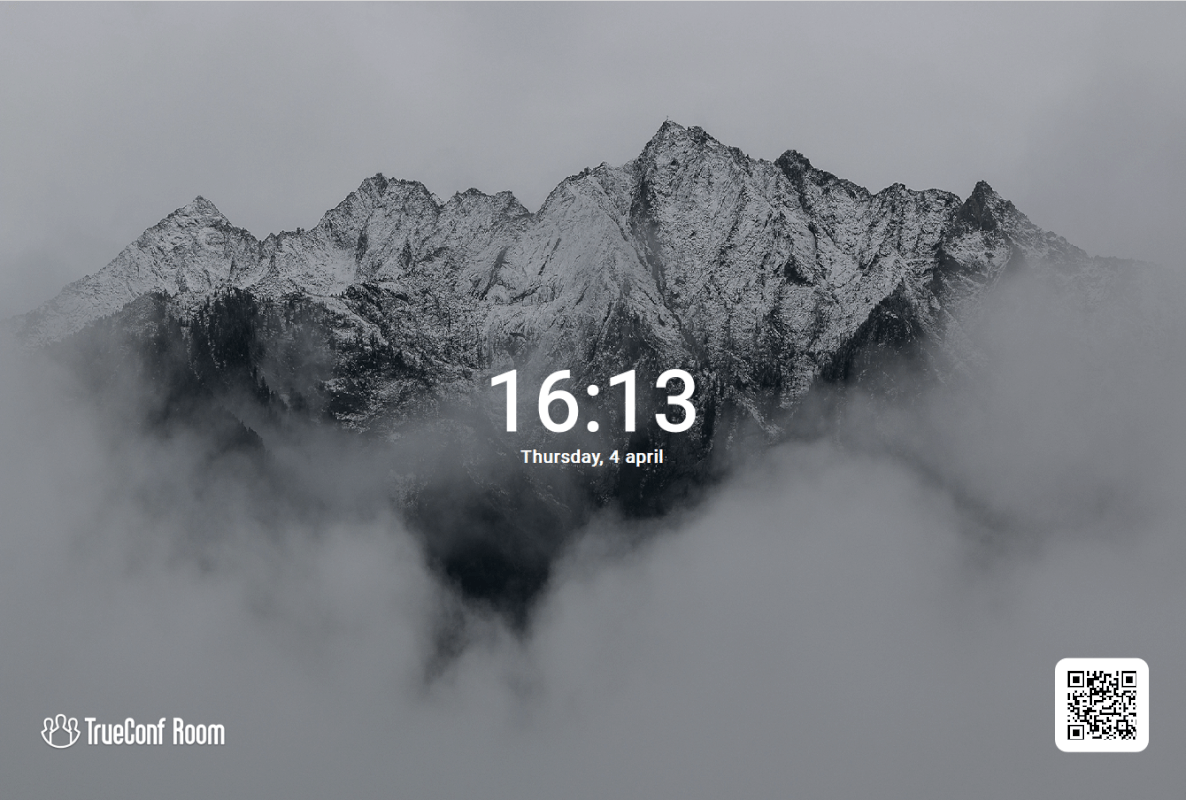
TrueConf Room supports standby mode. In this mode, the microphone and camera connected to the terminal are turned off, and the authorized account is set to "Away" status .
.Instead of the main screen, a background image with a clock and a QR code linking to the control panel will be displayed if TrueConf Room was launched using TrueConf Room Service:
Activation
Sleep mode can be activated in three ways:
automatically after TrueConf Room of inactivity, the timeout is set in the settings TrueConf Room Service;
When the operating system, where the endpoint is installed, enters sleep mode
manually from the control panel using the
 button.
Standby mode is activated on all displays except for the monitors specified at startup with the --ignore_monitor parameter (see the section "Using command line parameters").
Exiting sleep mode
Terminal TrueConf Room exits standby mode in the following cases:
When you start using the mouse (movement, click) or keyboard connected to the PC where the endpoint is installed
When an incoming call is received
If a call is made from the endpoint, including the cases when it is initiated via API
When the OS, where the endpoint is installed, exits sleep mode
by clicking the mouse on the control panel page;
If the terminal is installed on special Lenovo meeting room PCs with a presence detector, the system will also exit standby mode when an operator approaches.