
Contact list and making a call
Contact list and making a call
Contacts
The terminal TrueConf Room allows you to work with the address book through the control panel. To do this, click the Contacts button on the main screen of the control panel, and you will be directed to your address book:
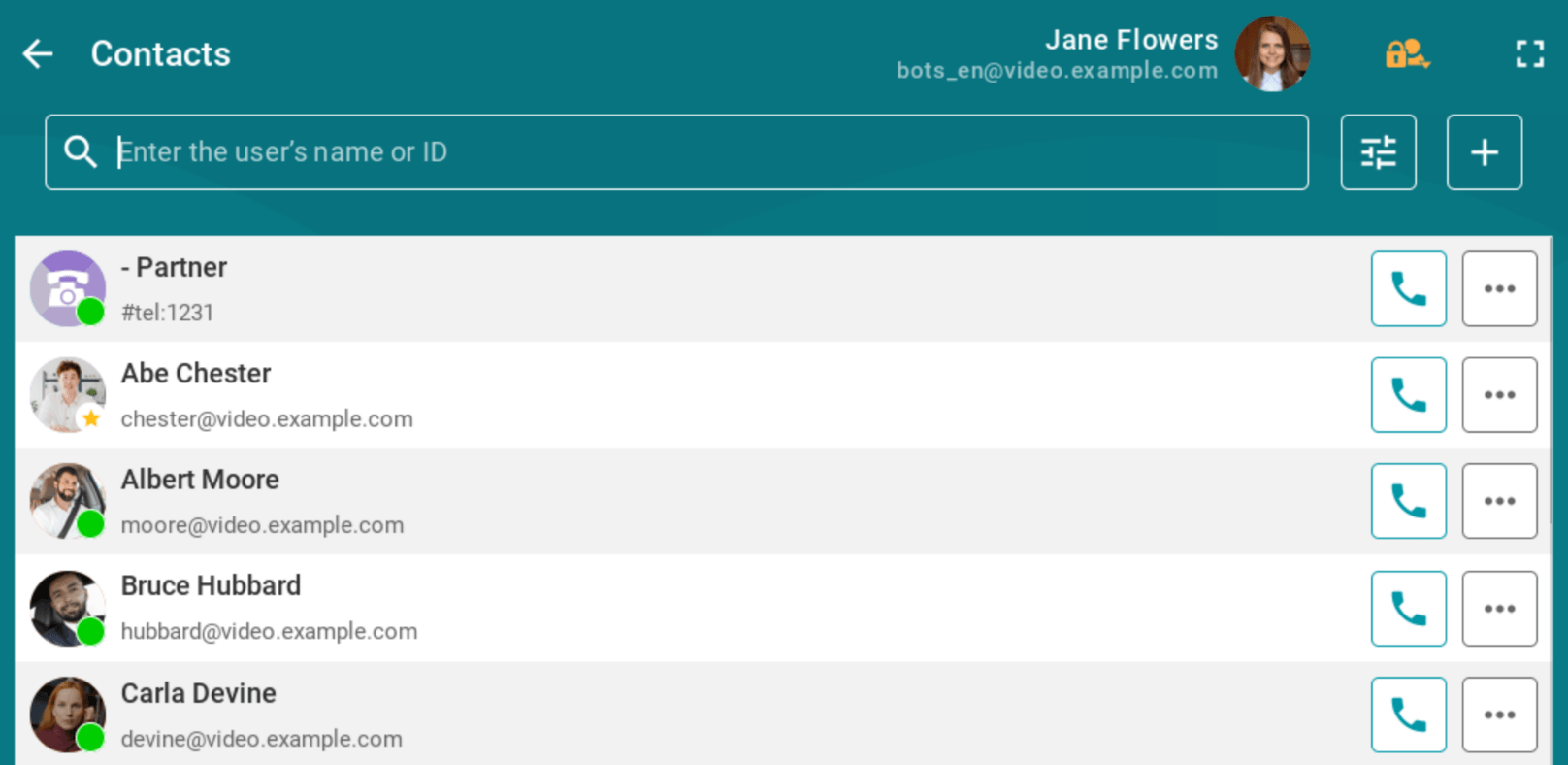
In the contact list, you will see the statuses of subscribers (the same as in the client application), a field for quick search by name and TrueConf ID (login).
Available actions:
 quick filtering of the list by type (SIP/H.323 endpoints, phone numbers, RTSP streams, conferences);
 add contact;
 making a call (more details below);
 navigate to additional actions: rename, view information, delete, block.
Please note that deleting and renaming contacts may not be available if the server administrator has created an address book for you and has restricted its editing.
Call History
To access call history, click the Recent calls control panel button. The list of recent calls can also be opened by clicking on the missed call notification (if any):
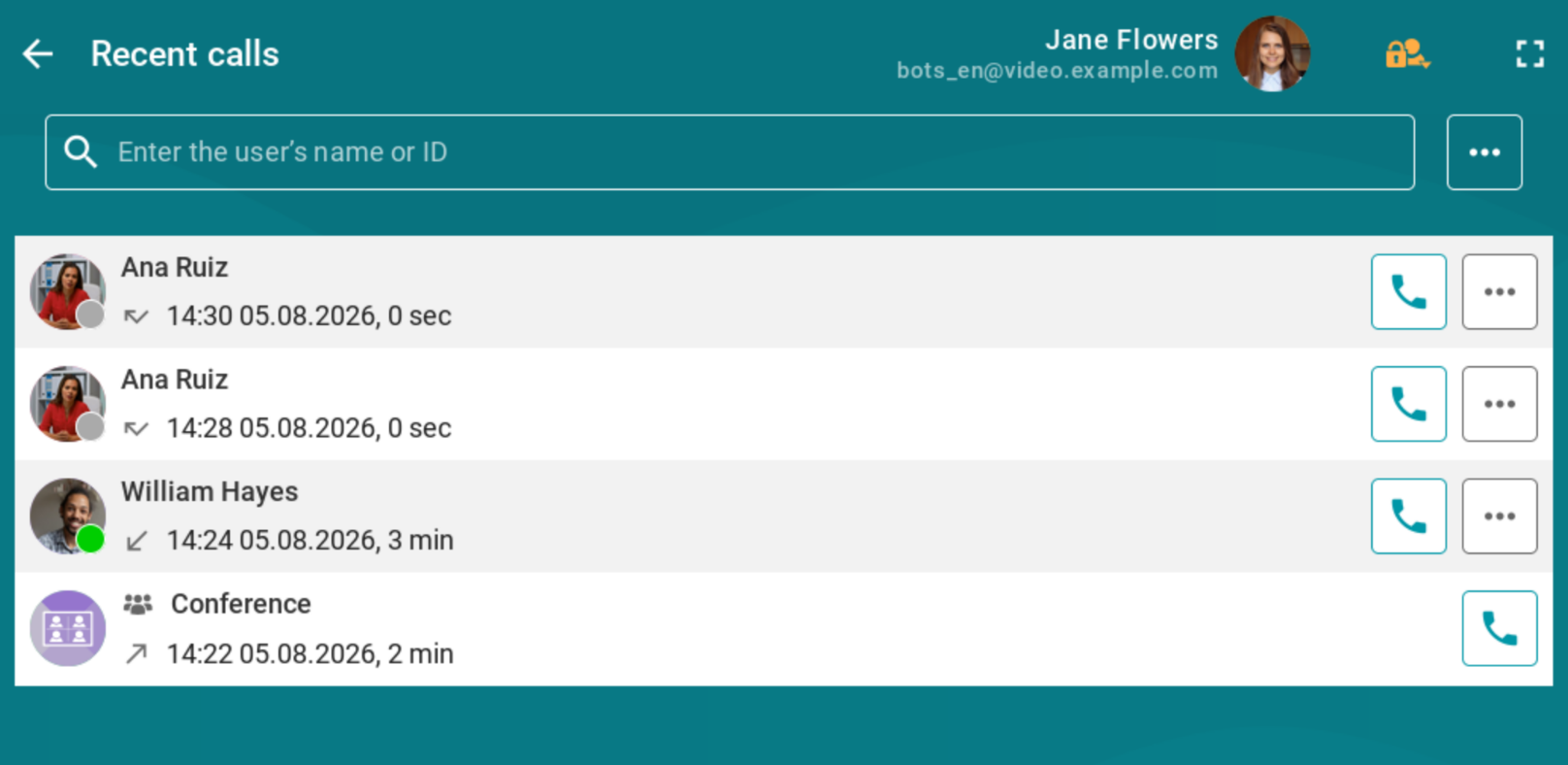
From this list, you can call back a subscriber or a past conference (if it is still available). You can also add the subscriber to your contact list.
Call history is stored locally on the device, meaning if you log in with the TrueConf Room account on another PC, the call list will be empty.
How to make calls
How to make a video call:
Click the Contacts button. The address book displays the same subscriber statuses as in the client applications.
Select a user from the address book or enter their TrueConf ID, and then press the call button.
When the call starts, you will be able to use a number of features available during a conference:
manage devices, including a PTZ camera;
Add one or more users to a call. In this case the call will be automatically transformed into a conference in “all-on-screen” mode.
Read more about calling phones and third-party devices below.
How to call a device by IP/number
When selecting a contact for a call or adding participants to a conference, tabs for selecting different types of devices will be available to you in addition to the address book.
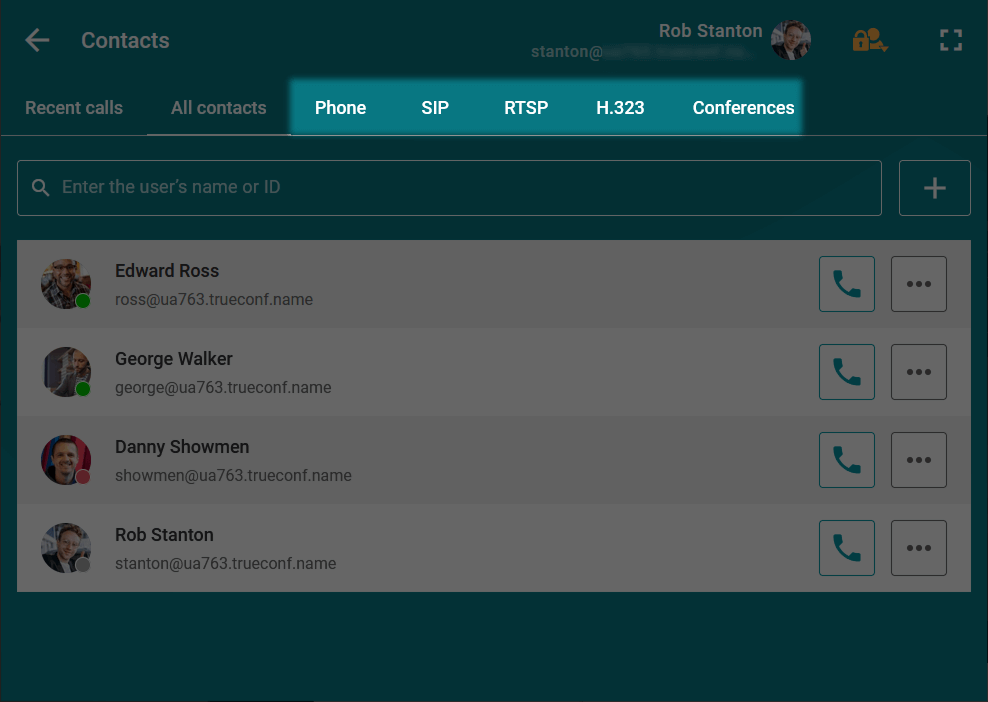
When you switch between tabs in the search field, the prefix of the string identifying the user will change, and you will only need to enter the number and/or IP. The major examples of these strings are presented below.
If you are unable to reach the subscriber, first verify with the administrator TrueConf Room or in the documentation TrueConf Server the correctness of the call string format. Aside from what is described in this section, the correct format may have nuances or depend on the server settings.
Video conferencing endpoints
You can call VCS endpoints using an IP address or by specifying the subscriber's number (if an alias is added on the server). Additionally, if you set the default SIP/H.323 servers in the gateway TrueConf Server settings, entering an IP address will not be necessary.
In a particular case, call string formats can be the following:
#sip:[user_id]@[server_ip]#h323:[user_id]@[server_ip]
For more details, refer to the documentationTrueConf Server.
Phones
If you want to call phones, just enter a user number after the prefix, e.g., #tel:332.
Phone calls are possible only if the server is configured with the appropriate settings.
IP cameras and RTSP streams
If you want to call IP cameras (via RTSP), just enter the link to the camera after the prefix, e.g. #rtsp://10.100.123.100/axis-media/media.amp.
In the same way, you can connect any other RTSP stream (for example, a broadcast of another event) to the conference by specifying the full RTSP link with # at the beginning.