
TrueConf Room introduction
TrueConf Room introduction
Main screen
During a video conference, participant images are displayed on the screen connected to the computer with TrueConf Room installed.

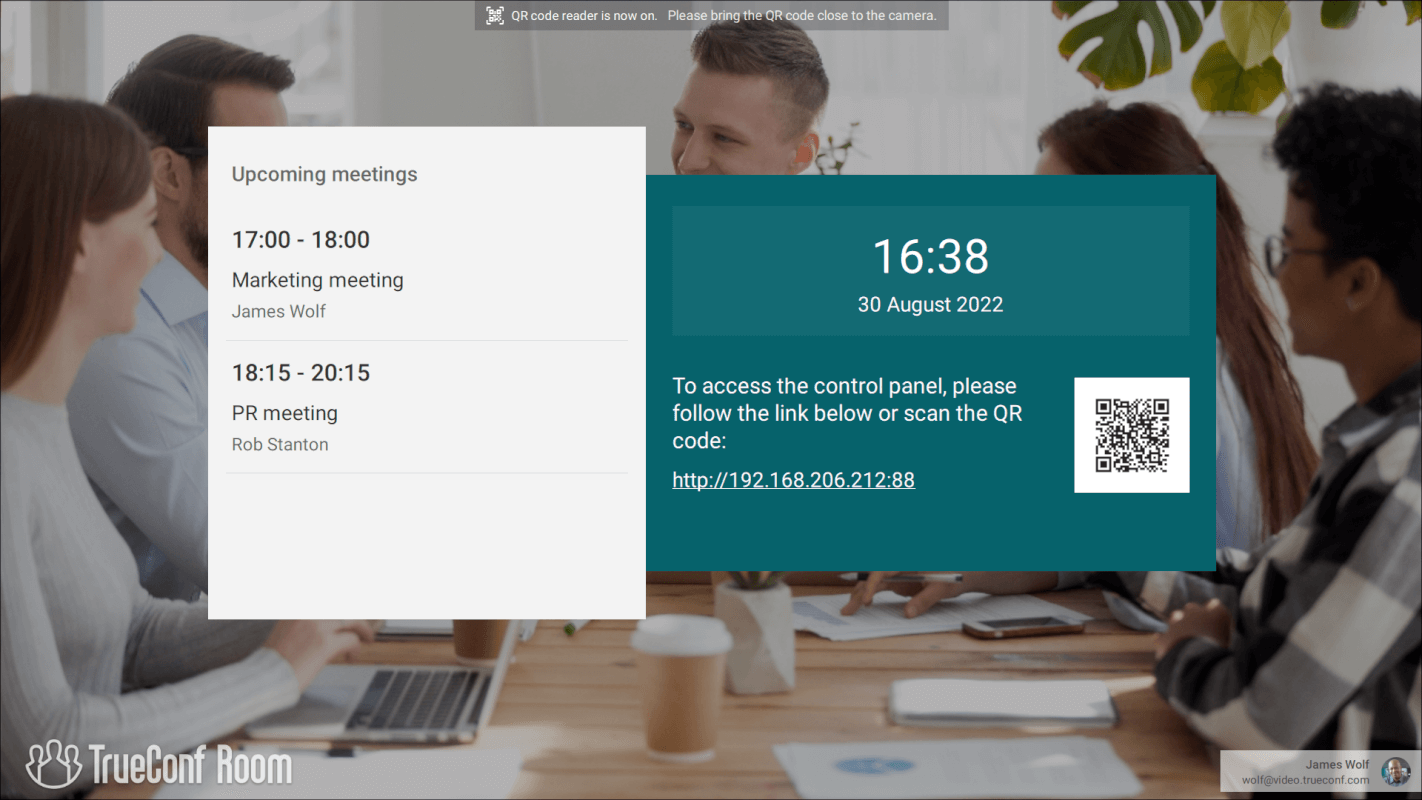
When there are no ongoing conferences, the following elements are displayed on the main screen:
an image from the camera connected to TrueConf Room, or an NDI stream selected in its place;
List of upcoming meetings for the next 24 hours
Date and time
QR code with a link to access the control panel;
Information about the current authorized user
Design elements
The overall appearance of the TrueConf Room screen in this case is called the main screen. Its configuration is described in the relevant section.
Control panel
The management interface of TrueConf Room is not tied to any specific device and is implemented through a web interface accessible from any device with a web browser. The web interface operates on a local server launched by TrueConf Room and does not require an internet connection. This part of TrueConf Room is called the control panel.
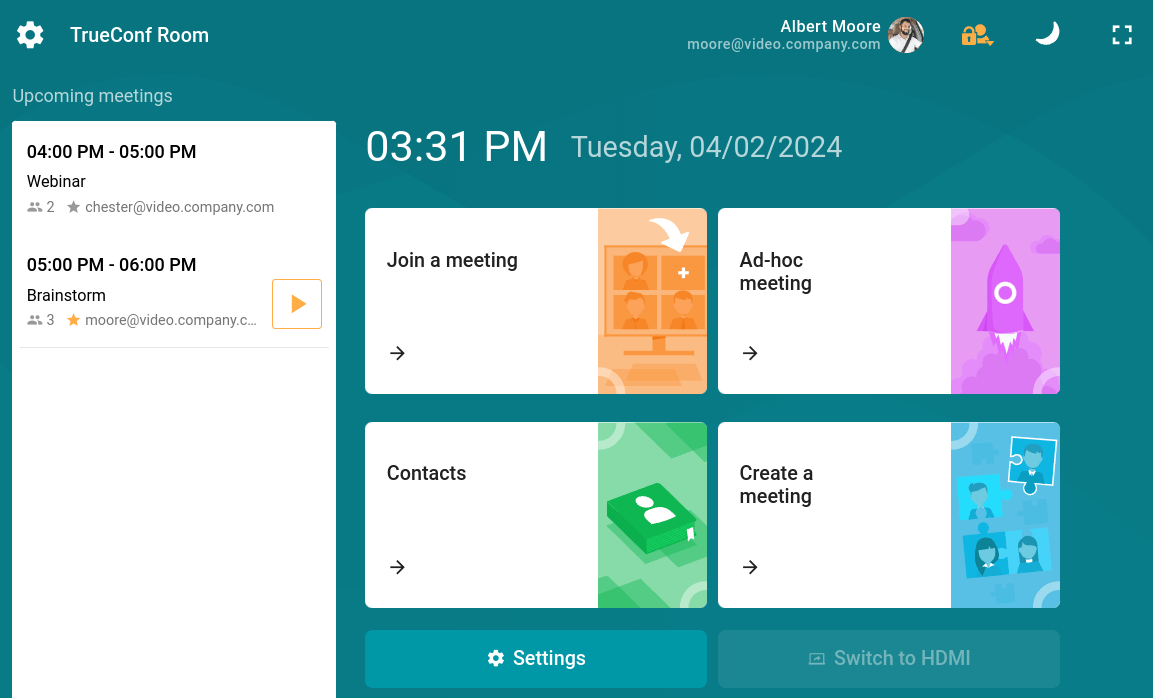
The main screen of the control panel displays:
a list of upcoming scheduled conferences to which the terminal account is invited;
current date and time;
if available, information about missed calls can be accessed by clicking this line to view the detailed list;
buttons for accessing the contact list, call history, and creating a conference.
Access the control panel via a link or QR code on the main screen.
Roles and permissions
To prevent regular users from accidentally disrupting the settings that ensure the functionality of TrueConf Room during management, the control panel is divided into two access levels for settings:
User mode
Administrator mode.
Only administrators will be able to:
change the address TrueConf Server to which TrueConf Room is connected;
switch the user on behalf of whom TrueConf Room is authorized to TrueConf Server;
Set up network parameters
change the view of the main screen;
Change security settings.
For more information on setting up secure login for TrueConf Room, refer to the relevant section.
Set up additional audio parameters (enable echo cancellation and choose devices to play app notifications)
camera control: enable/disable video and manage PTZ camera settings (these features can also be enabled for user mode, see more details);
Set up preferences, i.e., application’s behavior in standby mode and during video calls and conferences.
In the user mode, you will be able to:
Change audio and video settings
Create video conferences
Call other users
editing the address book (contacts), if this permission has been granted to your account by your messenger administrator TrueConf Server;
Upload slides
Capture and broadcast NDI streams
User mode access is available only in the full version of TrueConf Room.