
Quick Guide for Meeting Room Users
Quick Guide for Meeting Room Users
The address of your terminal TrueConf Room:
TrueConf ID:Enabling the terminal
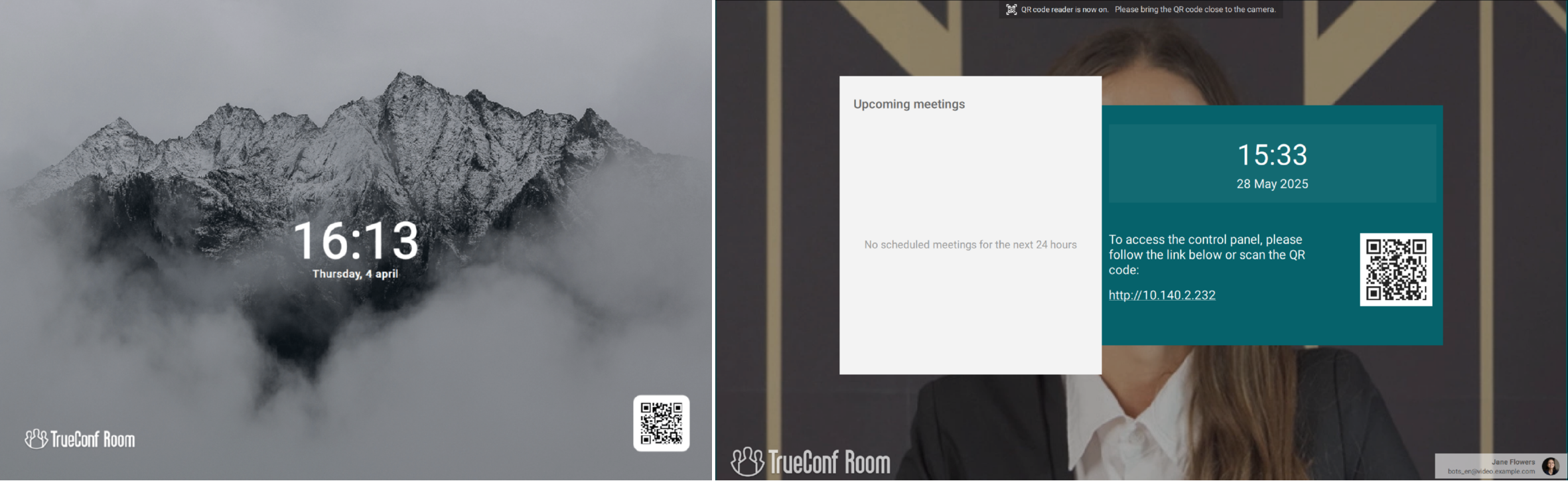
To get started, you need to turn on the computer. The terminal is ready for operation when the splash screen is displayed:
Incoming call
When you receive an incoming call, you will see a notification in the control panel:
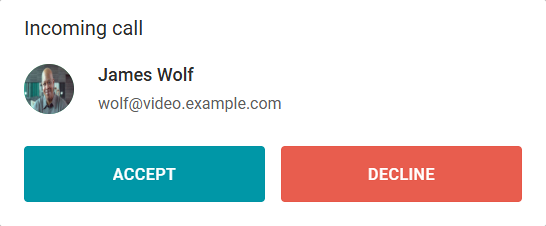
as well as on the display of the terminal:

Making a call
Go to the control panel by scanning the QR code with your smartphone camera, or by using a tablet installed in the meeting room. The control panel contains the following buttons:
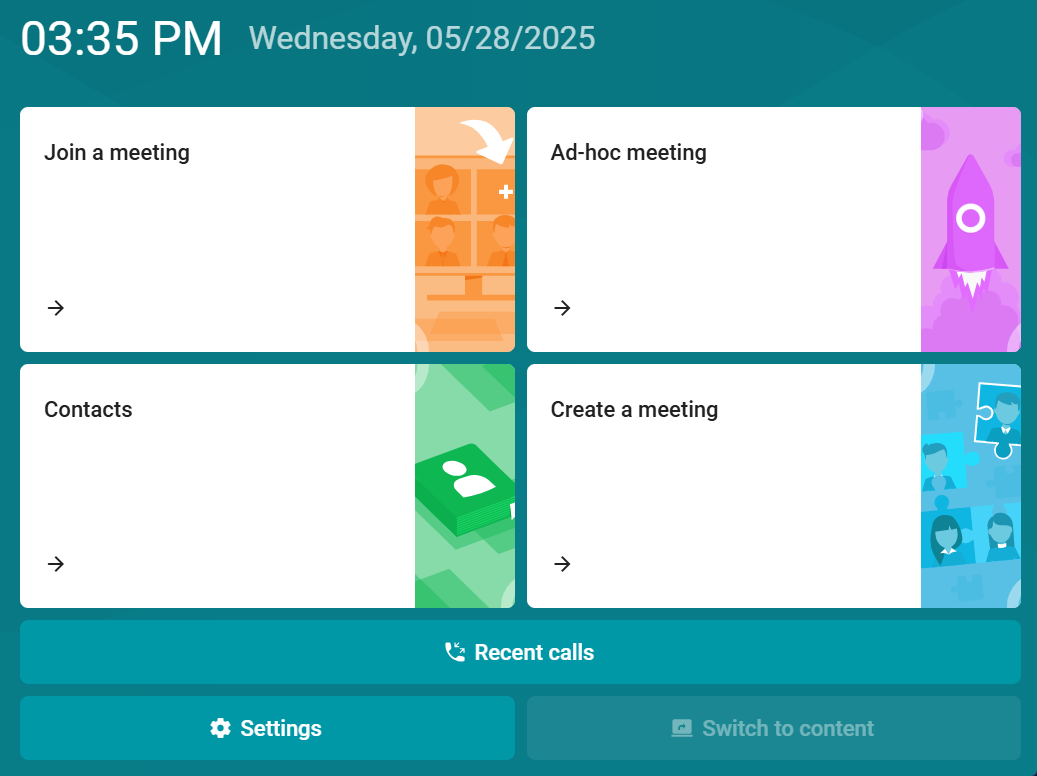
- Join a meeting — to call into an active event, enter the conference ID and press
 ;
; - Contacts — call saved contacts, which may include conferences, endpoints, and users. Select the desired contact from the address book and press
 .
. - Ad-hoc meeting — one-click launch of a "everyone on screen" mode conference, you just need to add participants;
- Create a meeting — Enter the event name, select the conference mode, add participants, and click the Start button.
During the call
During a call or conference, the control panel will display a console with the following buttons:
 — enable/disable the microphone;
 — turn on/off the camera;
 - enable/disable speaker sound;
 — speaker volume adjustment;
 — a menu with a list of participants where you can:
add participant to meeting
 ;
;disable the camera and microphone of participant
 ;
;remove from the meeting
 .
. — broadcast a presentation:
from a laptop or another source selected by default in the settings (Settings → Video → Default content source). If using a laptop, connect it to the terminal and press Switch to content;
show pre-uploaded slides. Click Slide management to upload slides directly during the conference from the presenter's device used as a control panel (tablet, smartphone, laptop).
 — changing the video layout displayed on the screen;
 — your PTZ camera control menu;
 - selecting equipment: cameras, microphones, speakers.