
Managing Participants and Waiting Room
Managing Participants and Waiting Room
View the list of participants
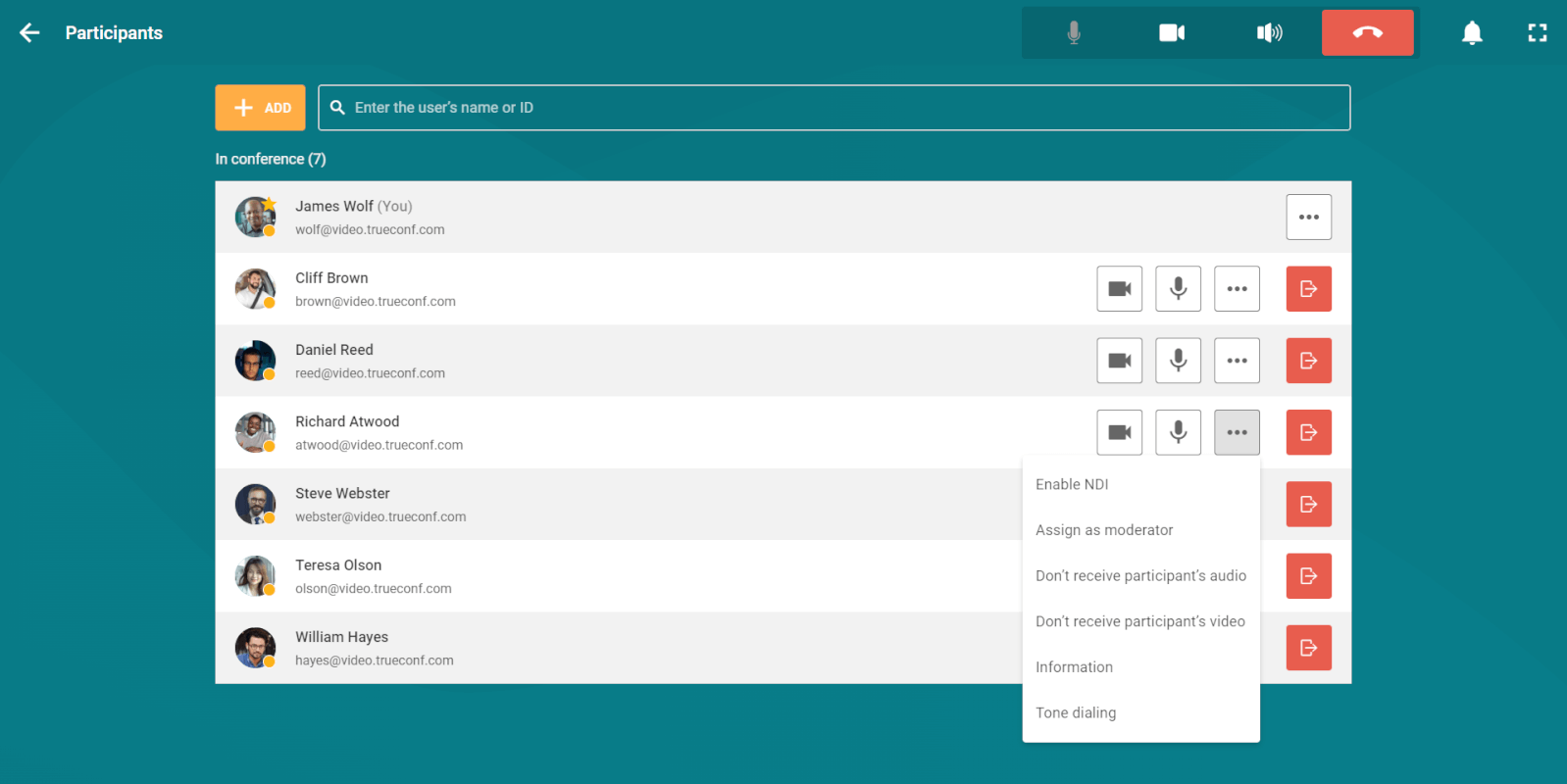
To open the list of all conference participants during the event, press the Participants button. Options available in the participant list:
Viewing a list.
The conference moderator can: use buttons
 and
and  to turn the camera and microphone on/off, respectively. By clicking button
  , they can enable the participant's video stream broadcast as an NDI stream, view subscriber information, assign them as a moderator, send DTMF commands, and use button
  to remove the participant from the conference.
Adding participants
To add new participants, take the following steps:
In the conference control panel, click the Add participants button.
In the window that opens, several tabs will become available to you for adding a participant or device to the conference.
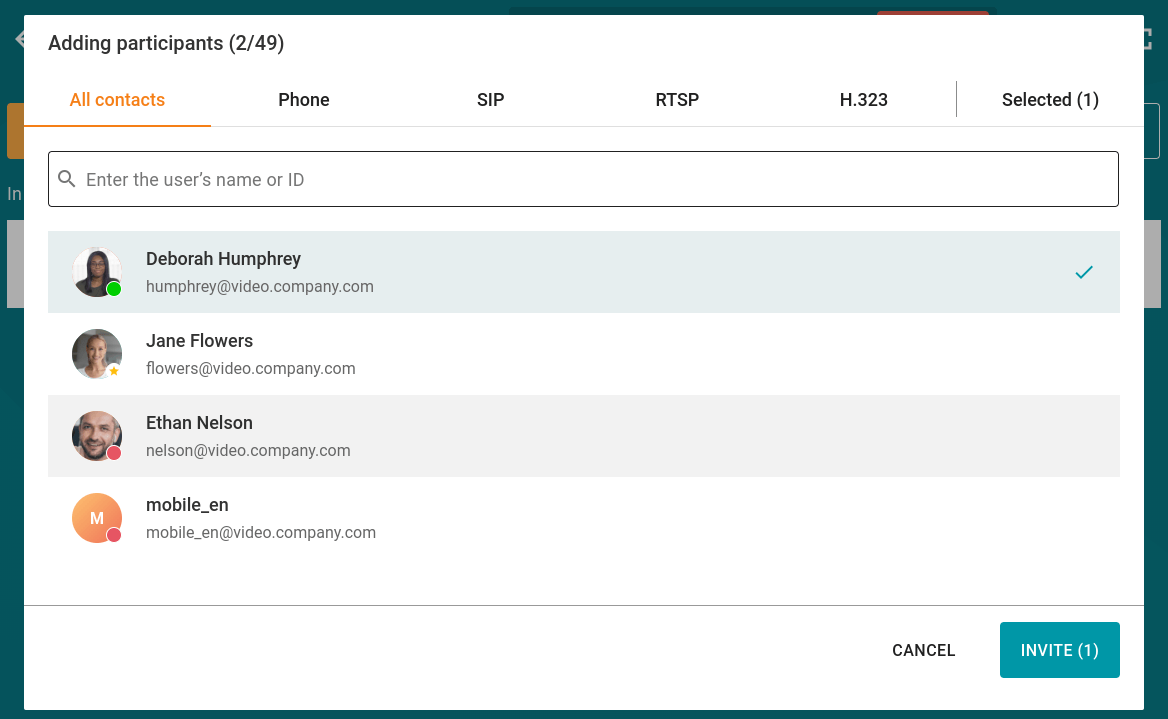
You can also invite users to the conference by going to the participant list and clicking the Add button.
You can search for users by TrueConf ID, first name, last name, nickname, and display name.
Waiting room management
During the event, moderators can manage the waiting room:
activate it using either the conference information window or real-time meeting management;
transfer participants to the waiting room using the
button (participants with the moderator or operator role cannot be transferred), and also return them to active participation in the conference:
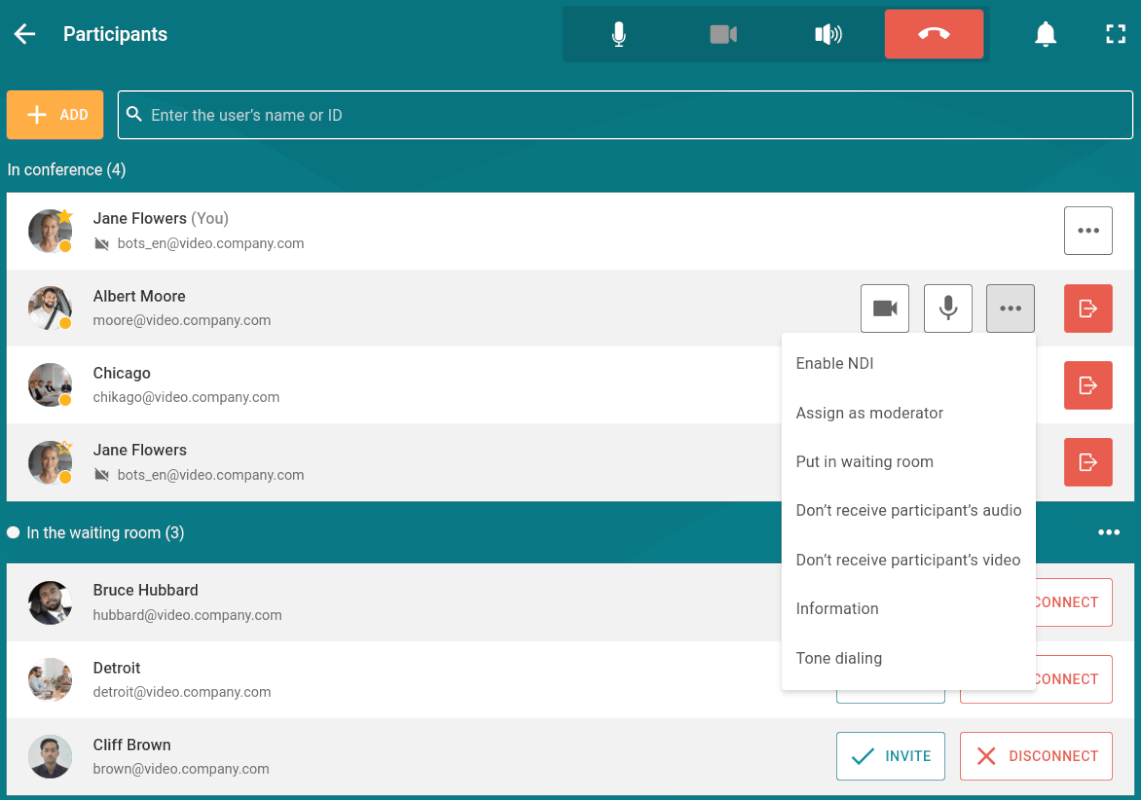
Please note that in the example above, there are participants marked with a "star" icon. This means they are moderators or operators and cannot be moved to the waiting room.
Send DTMF command
In TrueConf Room, you can send DTMF commands to supported devices directly from the conference control panel using RTP EVENT and SIP INFO modes. For more detailed information on transmitting these signals, refer to the documentation provided by the manufacturer for the specific model.
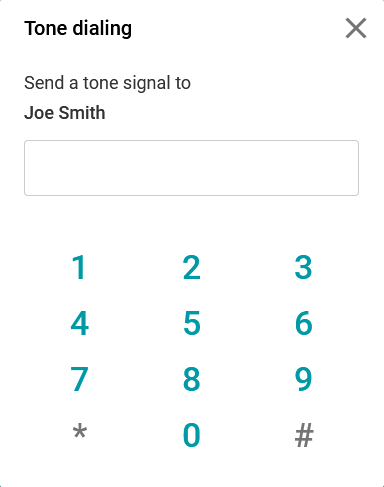
There are two options to send DTMF commands:
Option 1
Open section Participants by clicking the corresponding button.
Click the
button next to the desired participant's name and select Tone dialing.
Option 2
Open section Change layout by clicking the corresponding button.
Click on the participant's video window to whom you want to send a DTMF command, and select option Tone dial.
Managing and changing participants’ audio and video devices
During the conference, moderators (including the owner and operator) can remotely manage participants' devices. To do this, click the Real-time management button in the conference control panel.
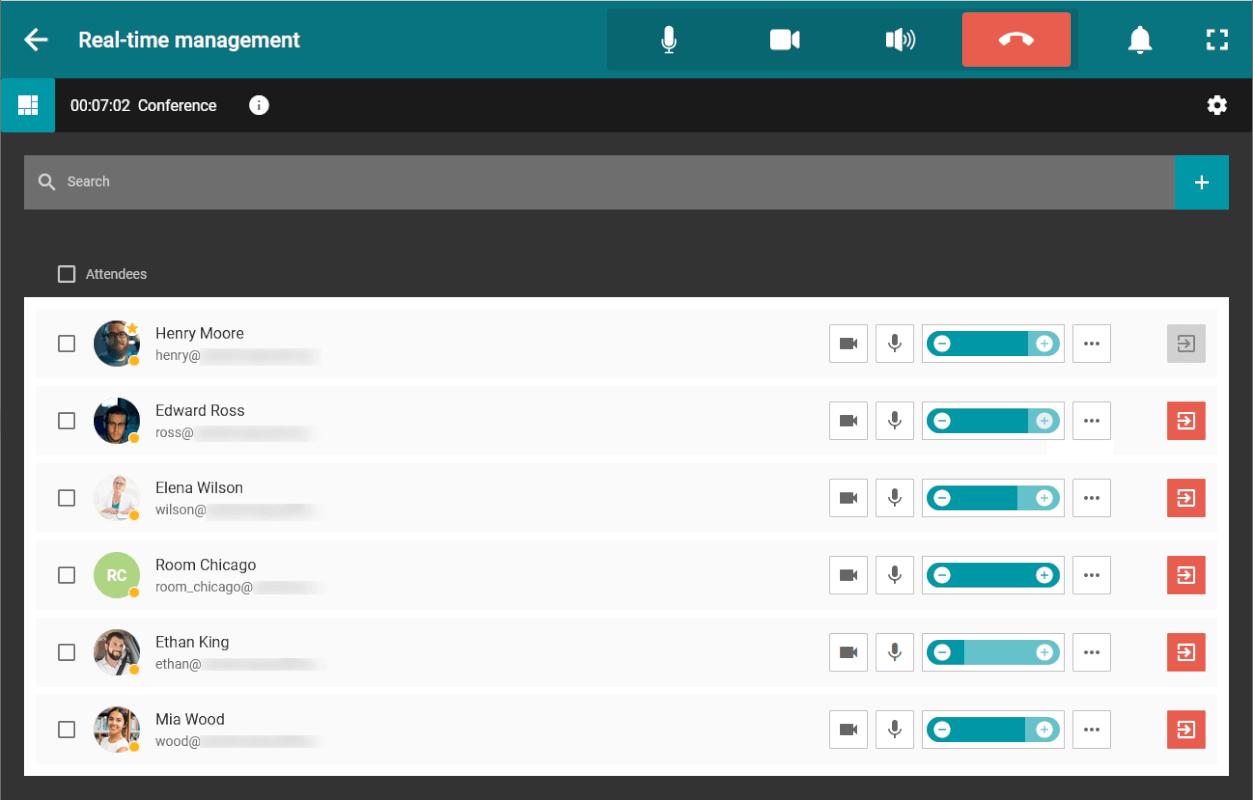
For more details on how to interact with the real-time meeting management panel, please refer to our documentation.