
Content and presentation sharing, AirPlay
Content and presentation sharing, AirPlay
Sharing media content
With TrueConf Room, you can share content from the selected source in the settings, which can be:
content from Apple devices (AirPlay technology for displaying content or screen sharing);
Capture card (via HDMI)
Any of the cameras connected to the device (including a PTZ camera)
NDI stream.
For AirPlay to function, several conditions must be met:
Content/screen sharing is available from Apple devices with iOS 11.0 or later, or macOS High Sierra or later;
On a PC with TrueConf Room, additional software needs to be installed: Bonjour on Windows or Avahi on Linux;
The PC with TrueConf Room and the Apple device must be on the same local network (preferably the same subnet) and must be accessible to each other by device name using mDNS technology;
Consequently, if you have different subnets for wired and Wi-Fi connections, the router must be configured with an mDNS relay (proxy) to transmit broadcast discovery requests.
In the local network, UDP and TCP ports 49152–65535 must be open; UDP 5353 (for mDNS); TCP 80, 443, 554, 3689, 5000, 6000, 7000, 7100 - for screen sharing. More details can be found in Apple documentation.
The display device is selected in the settings via the path Settings → Video → Default content source.
To display content during a session in the event control panel, click the Slideshow button and select Switch to content.
To display content on the main screen of the meeting room instead of the camera's self-view picture when not in a call or conference, simply press the Switch to content button on the main page of the control panel.
Screen sharing via AirPlay
You can wirelessly share your macOS device screen (such as a MacBook or Mac Mini) using AirPlay technology. The Screen Mirroring feature will be useful if the required application does not support native streaming via AirPlay.
Go to the TrueConf Room control panel and select the Settings → Audio & video → Content section.
Activate item AirPlay:
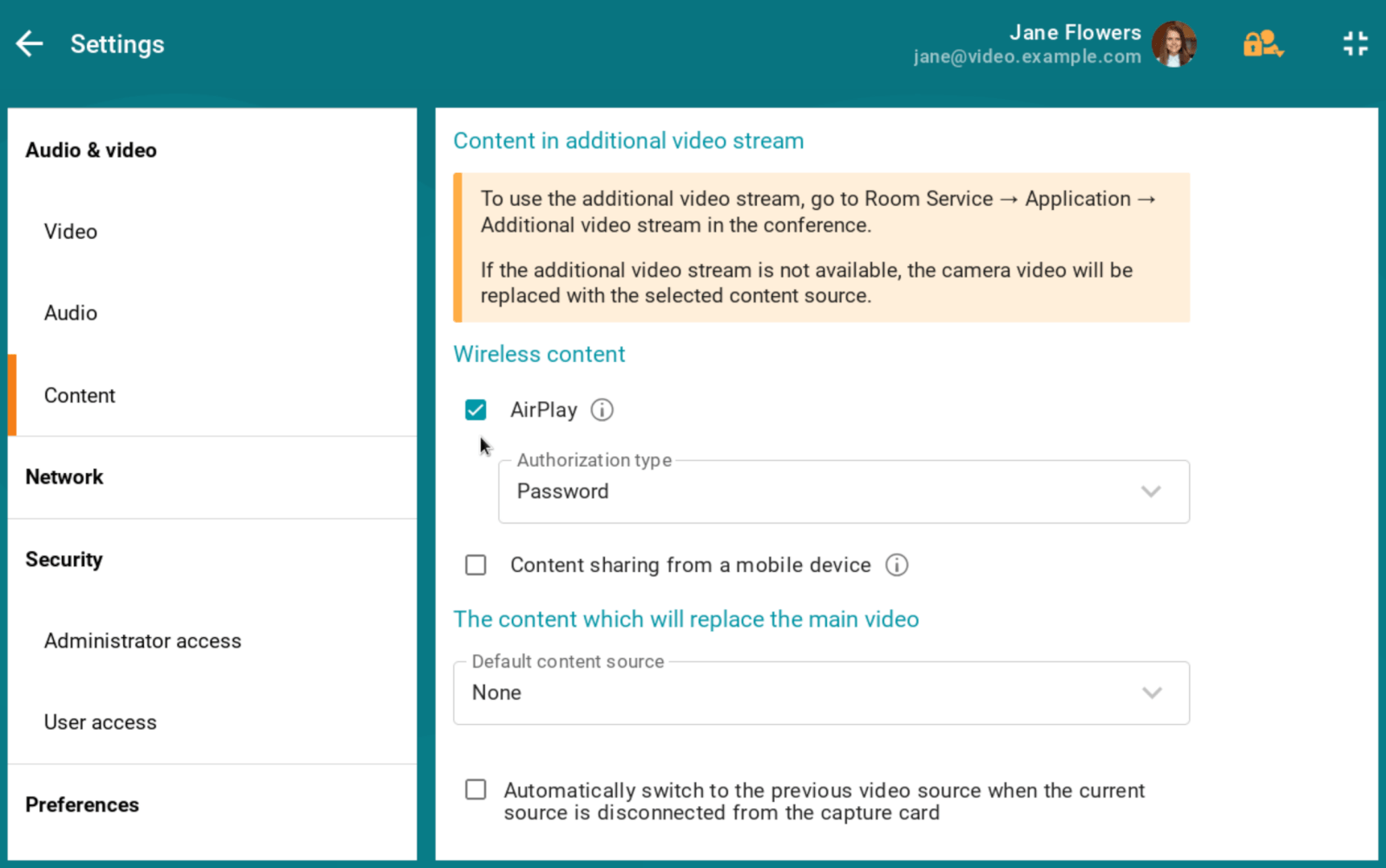
(Additional) you can protect terminal TrueConf Room from unauthorized connections: in section Authorization type, select item Password. Then, when connecting via AirPlay, a 4-digit code will be displayed on the terminal screen, which must be entered on the device:

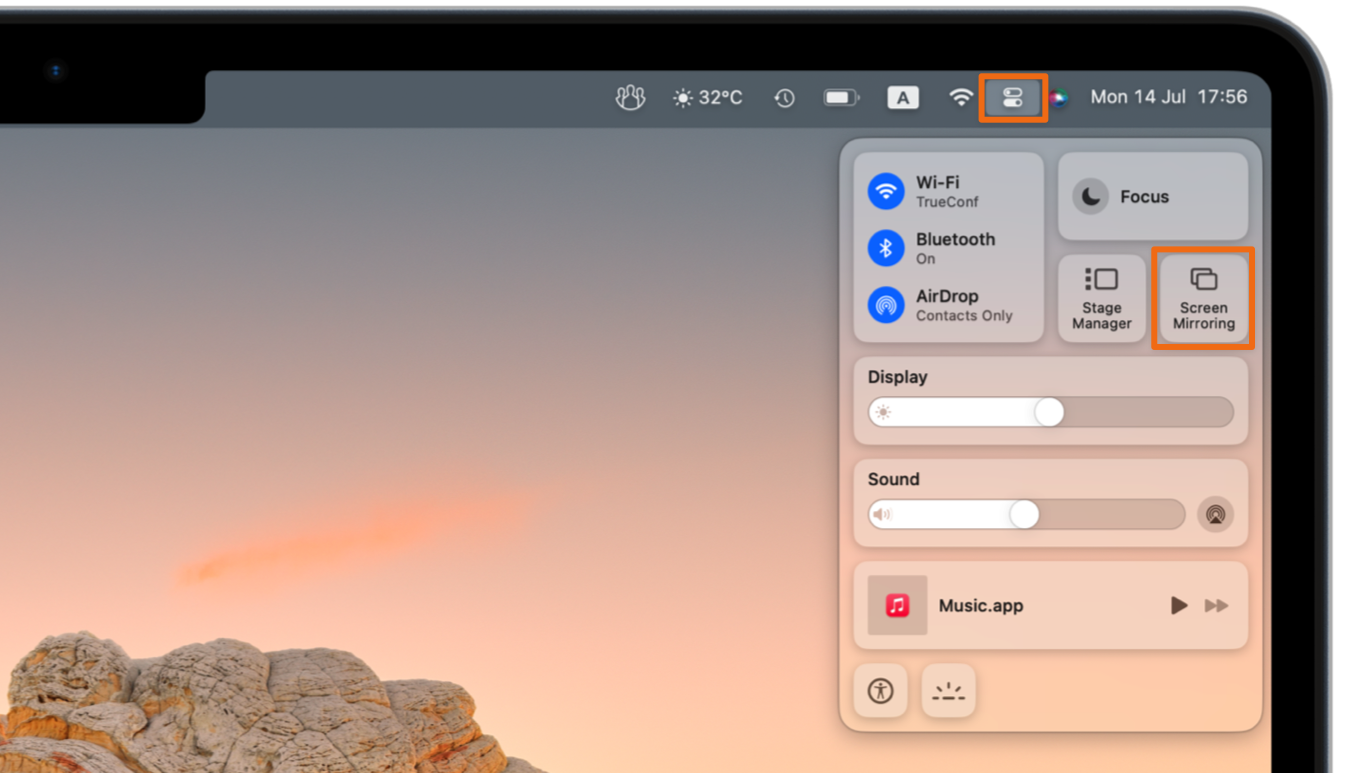
On a Mac computer, open the Control Center section and select Screen Mirroring:
After connecting to the terminal, a settings window will open:
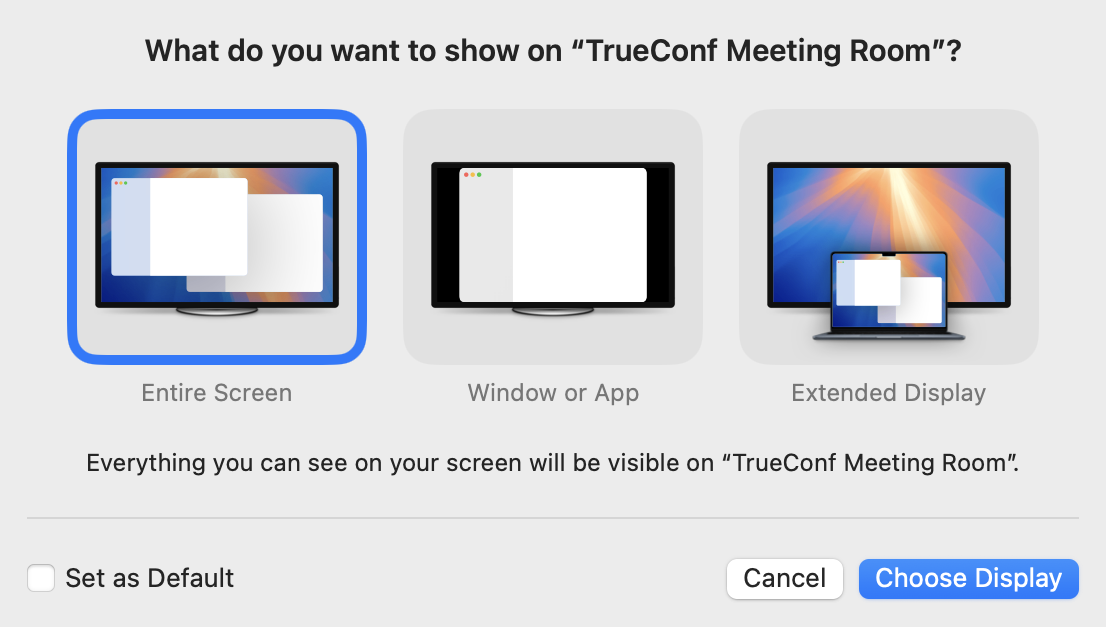
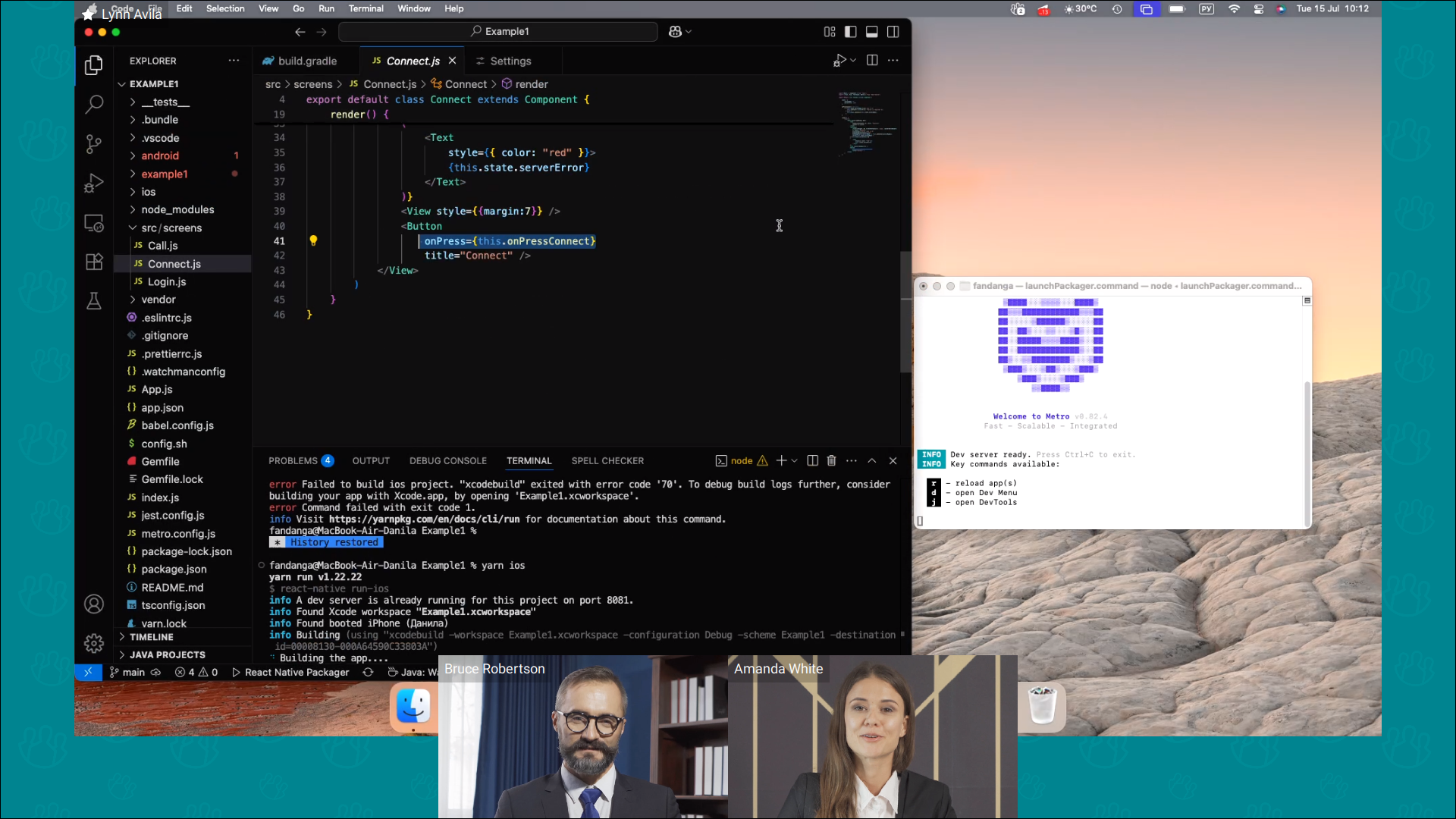
Select the display type (e.g., full screen), after which the conference participants will see the content you have chosen:
Streaming media content via AirPlay
Supports AirPlay technology, making it easy to stream content from Apple devices directly to the terminal screen. You can display images, videos, audio, presentations, and any other media content from compatible applications.
Make sure that the AirPlay option is enabled in the TrueConf Room Settings → Audio & video → Content section. Additionally, you can protect the TrueConf Room terminal from unauthorized connections by selecting the Password option in the Authorization type section. After that, when connecting via AirPlay, a 4-digit code will be displayed on the terminal screen, which must be entered on the device.
To start streaming content from your device, press the AirPlay  button in the application interface. For example, in the Photos app for iPhone, follow these steps:
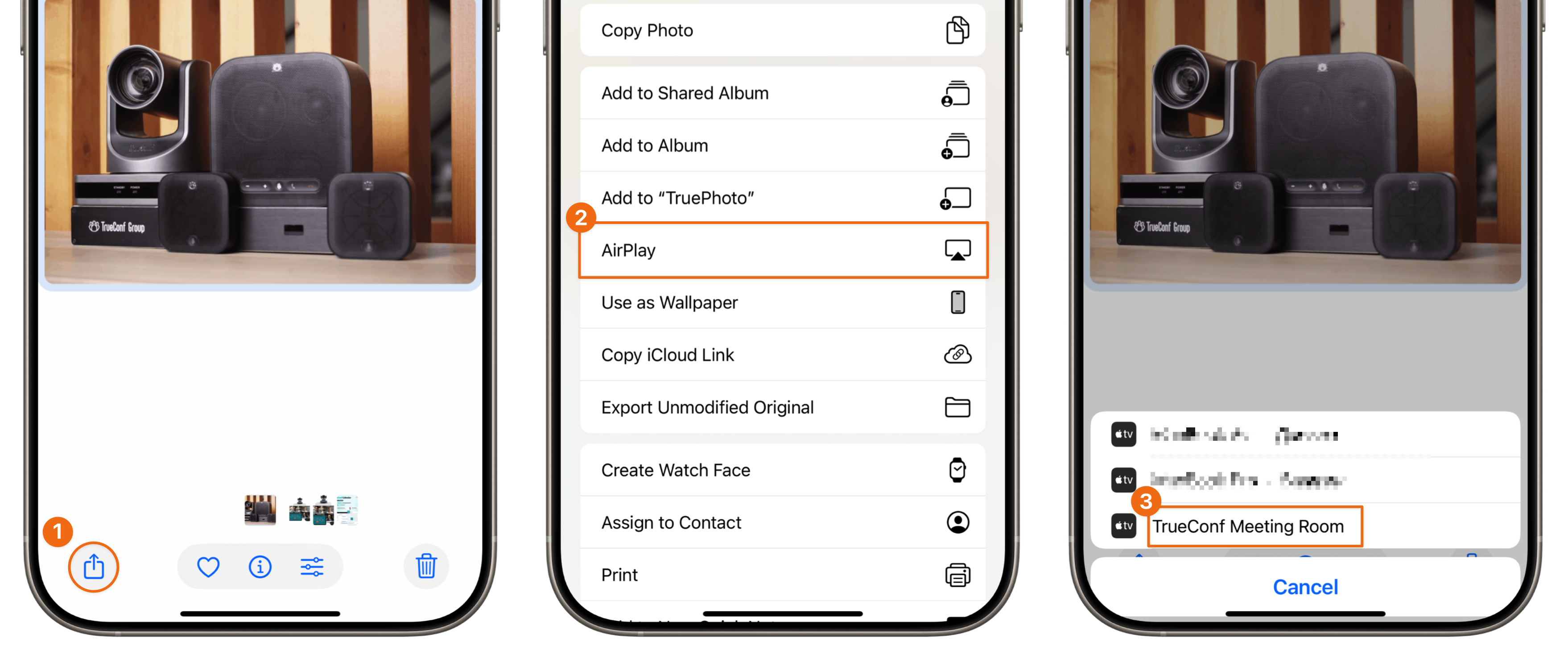
Please note that the terminal name TrueConf Room in the AirPlay menu will match the item Meeting-room name.
Content can be streamed from any AirPlay-compatible application, such as VLC player, YouTube, or PowerPoint.
Showing slides and documents
TrueConf Room allows you to present a slideshow during video conferences.TrueConf Room supports importing the following image formats for slide shows: .jpg, .jpeg, .jpe, .jif, .jfif, .jfi, .png, .gif (single frame), .webp. It also supports importing ppt and pptx presentations (Windows only), slides from pdf and .odt, and files in the special slides format saved in the client application TrueConf.
Please note that to display slides in .ppt/.pptx format, the PC with TrueConf Room installed must have PowerPoint installed. If it's not present, follow the installation instructions below:
Subscribe to Microsoft 365 (or purchase PowerPoint separately) on the official website.
Sign in to your Microsoft account (the same one you used for the purchase).
Go to Install Office → Apps → and download the Office installer.
Run the installer and PowerPoint will be installed along with other Office applications.
Importing presentations in .odp format requires LibreOffice version 7.5.0.1 or later to be installed on your computer.
The Office suite must be installed in the default location specified by the installer.
Due to a known bug in LibreOffice, the import does not work with versions higher than 25.2.6. Therefore, the last working version of LibreOffice is 25.2.6. We recommend not updating the office suite until the issue is resolved on their side!
You can upload an image or a slideshow in several ways:
before the video conference — in the settings menu TrueConf Room under section Tools → Slideshow;
During a video conference, the Slideshow → Slide management → Add slides button is located on the conference control panel.
After that, you will see a window with the added slides:
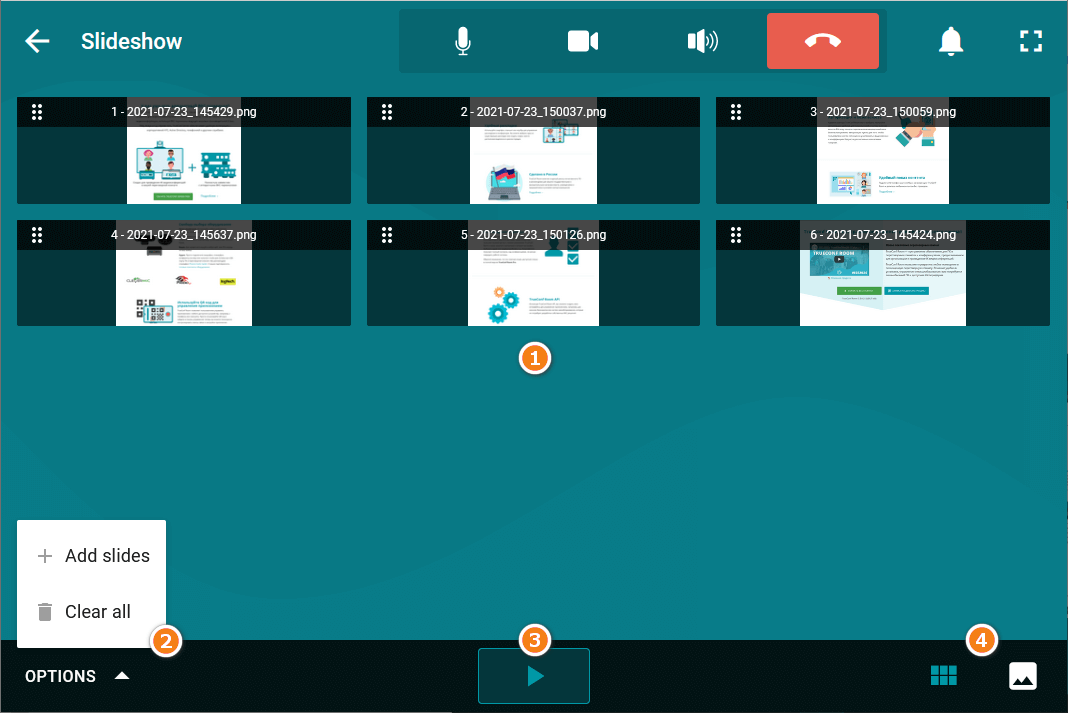
List of slides
Actions: Add slides and Clear all.
Button Start slideshow.
Buttons to change the slide displayed: thumbnails and one full-screen slide
You can change the order of uploaded slides by dragging them.
To start the slideshow, click the  button at the bottom of the screen. The broadcast image will expand to full screen:
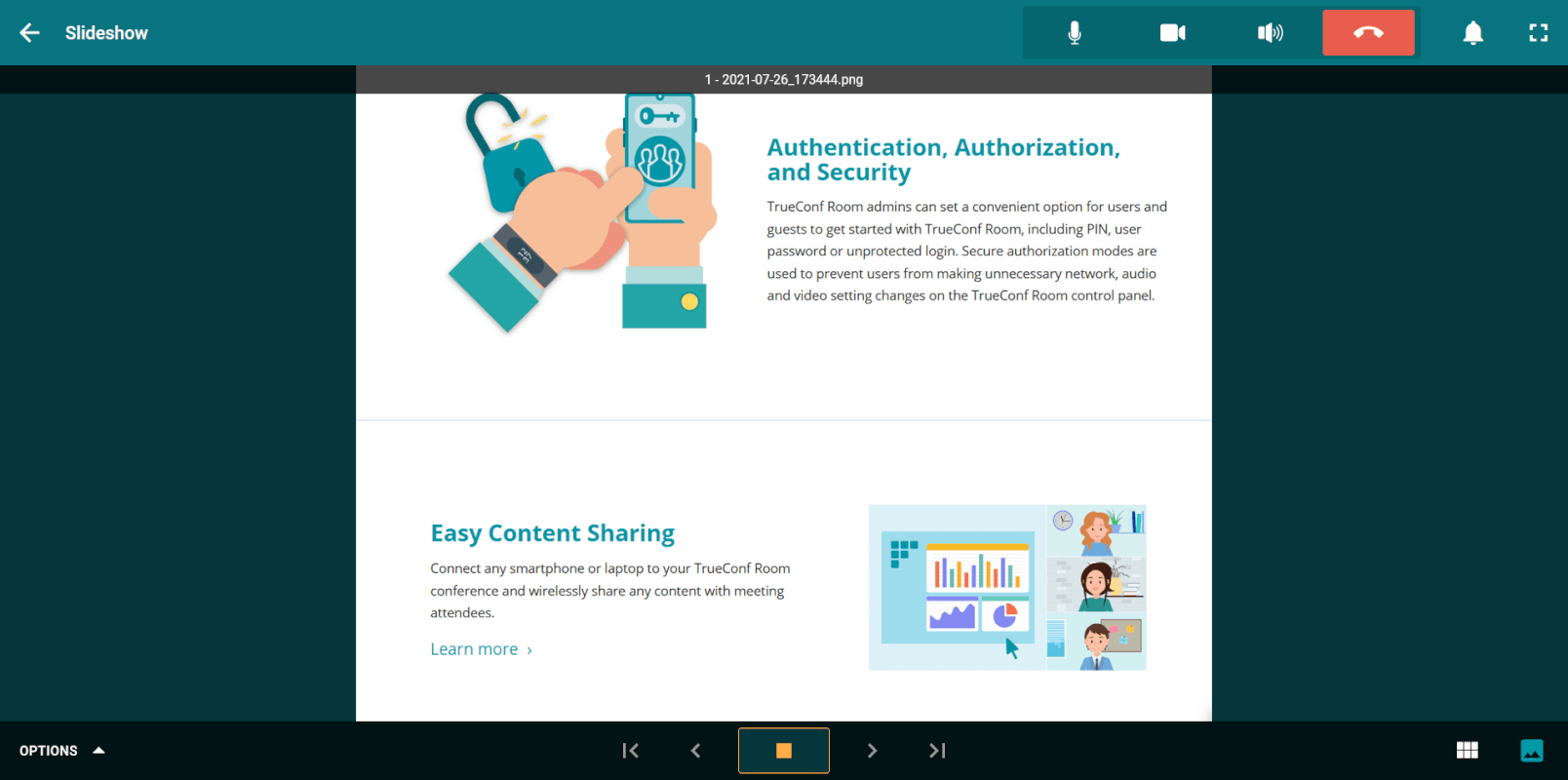
When viewing thumbnails, an icon  is displayed in the upper right corner of the broadcasted slide. If you return to the conference control panel, a similar icon will blink on the Slideshow button.