
Conference layout management
Conference layout management
Changing video layout
To select a video layout, you need to:
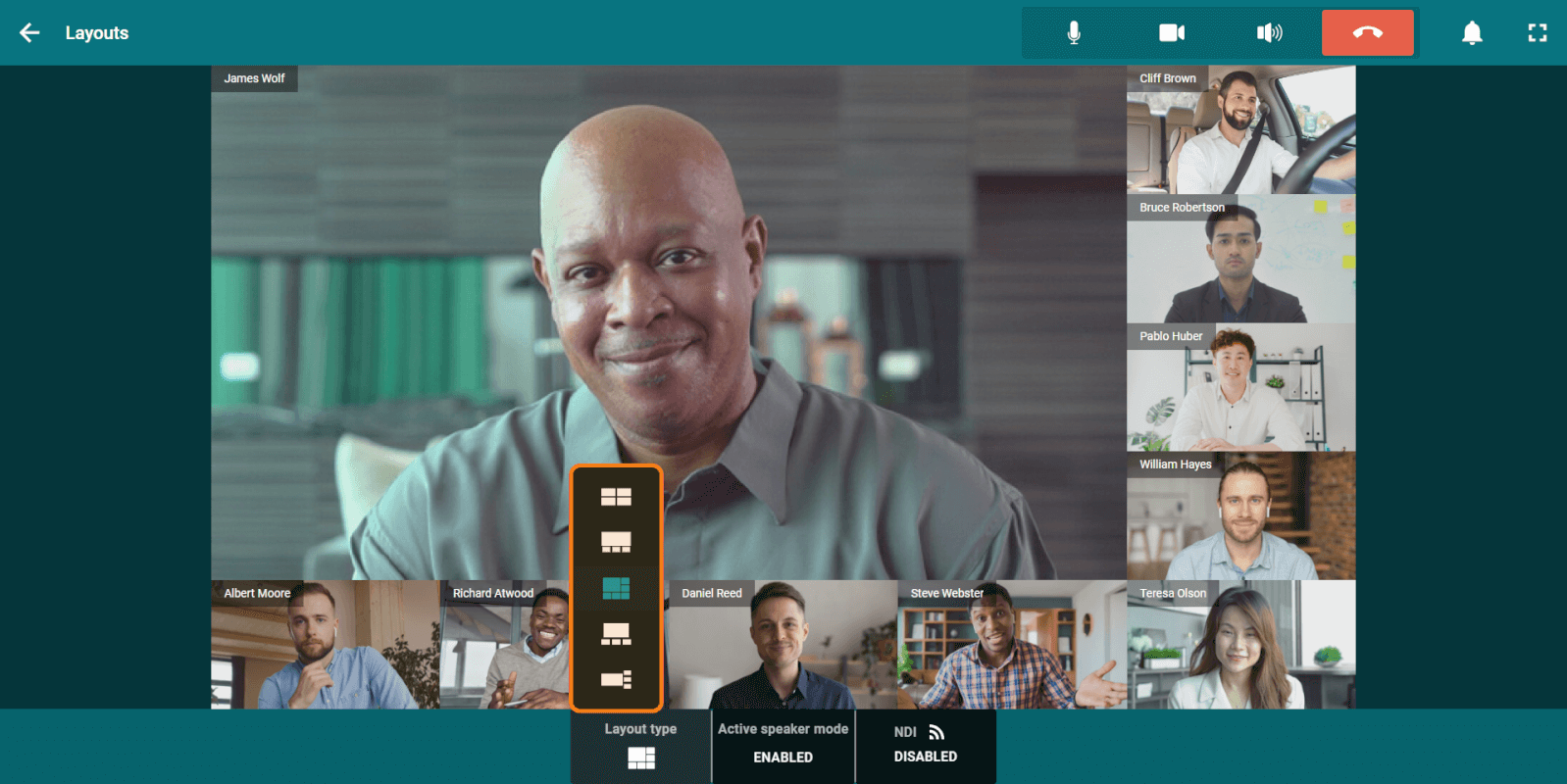
In the conference control panel, click the Change layout button.
On the bottom panel, click the Layout type button, then select the video layout for participants that suits you.
You can also broadcast the conference video layout to the local network as an NDI stream.
If you are one of the moderators of the conference (including the owner or operator), you can configure the video layout for the participants as described in the personal area section of the user guideTrueConf Server. To do this, click the Real-time management button in the conference control panel.
Transmission of additional (second) stream
This feature is in beta testing.
In TrueConf Room, the capability to use two video streams during active participation in a conference is implemented. This feature allows for flexible combination of various content for conference participants. A second camera, content from a capture card, or a presentation can be used as an additional stream (activation in settings is required TrueConf Room Service).
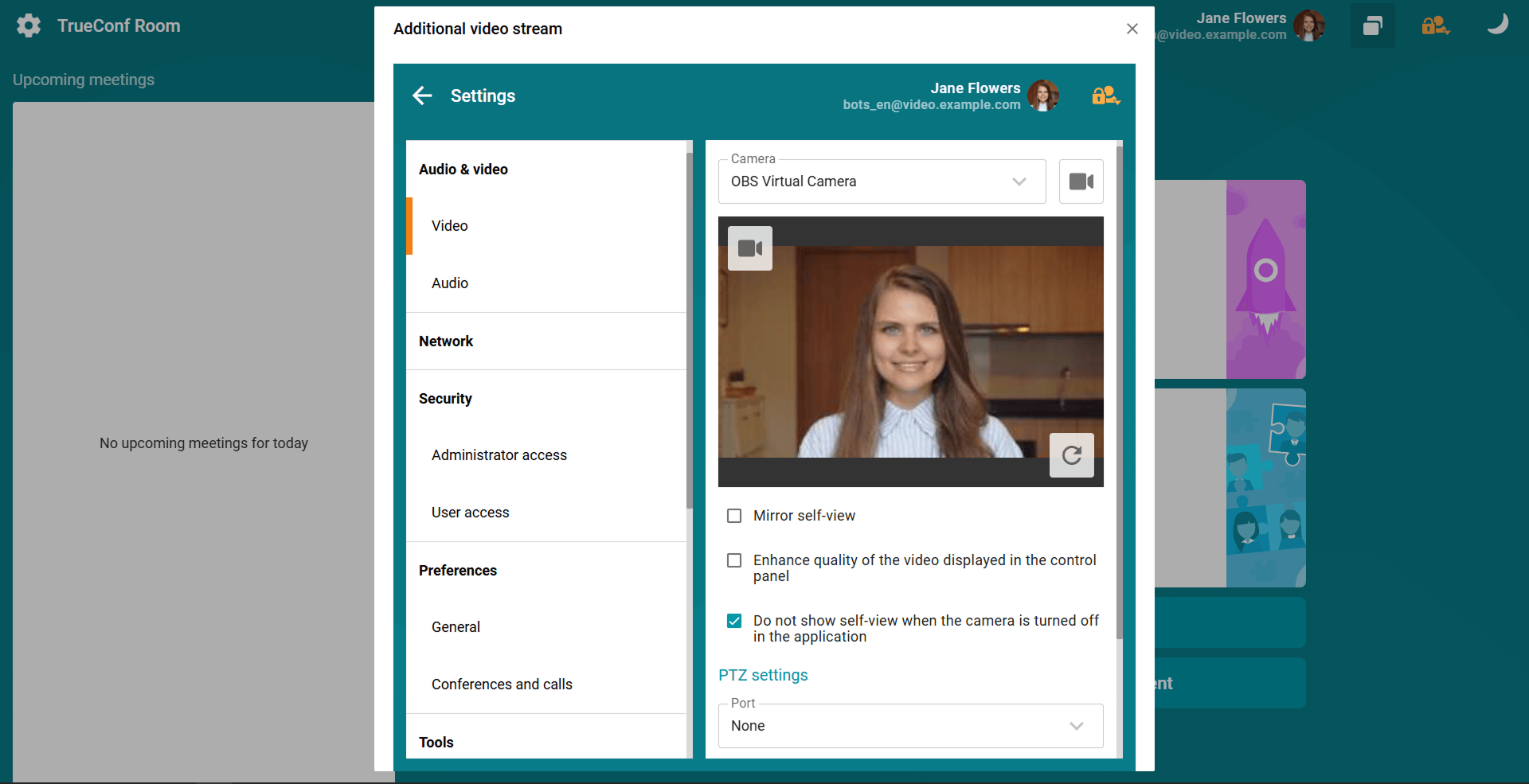
For this functionality to work, TrueConf Room creates a copy of the main application, which you can find in the list of active programs. In the terminal settings section, you can select a secondary camera to be used for capturing video in an additional video stream.
In the copy of the open application, there is a link and a QR code to access the control panel, allowing you to configure the second video stream separately.
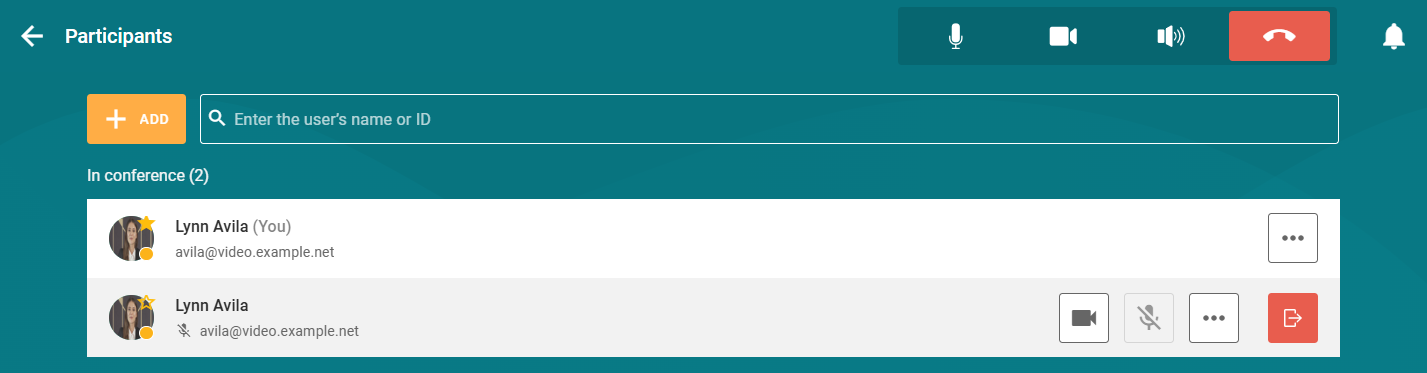
Now in all conferences of TrueConf Room, the second stream will be broadcast automatically, and two participants will appear in the participants list on behalf of the terminal.
Changing the priority window
To select a priority window, go to the layout settings and double-click on the conference participant's video window. It will be displayed larger than the other windows. You can also enable automatic switching of the priority window. To do this, click the Active speaker mode button and select Enable.
Please note that the Active speaker mode feature is unavailable when selecting the Gallery view video layout type.
Dragging video windows to a different screen
TrueConf Room может работать с несколькими экранами.
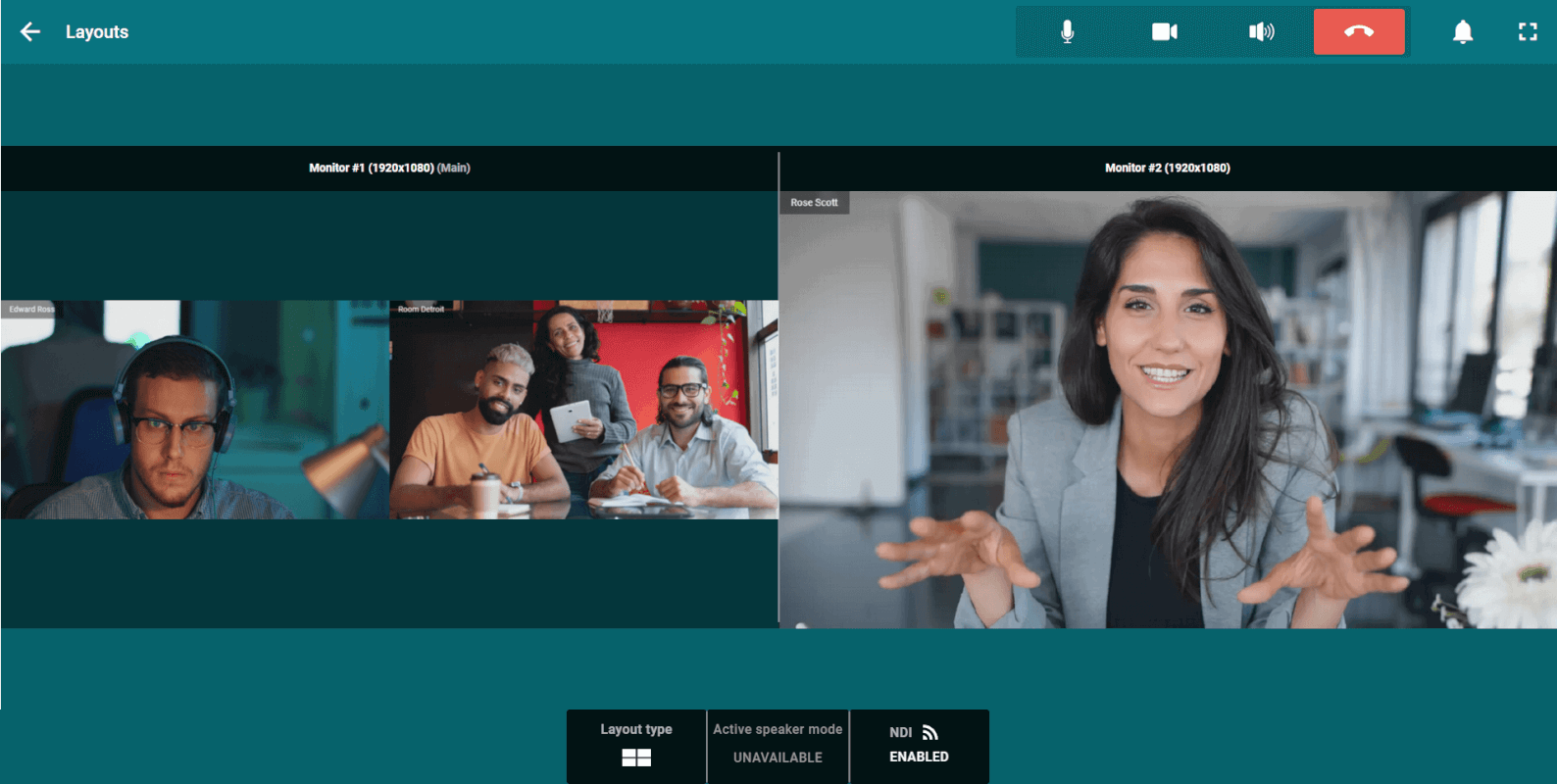
If the computer running the software terminal has multiple monitors and some of them should not be displayed when selected, you can hide the unnecessary ones using the launch parameter --ignore_monitor [monitor_number], where monitor_number is the monitor's number in the OS. For example, use this key when opening the application via the console:
"C:\Program Files\TrueConf\Room\TrueConfRoom.exe" --ignore_monitor 2This will be useful when connecting control tablets to work with the TrueConf Room control panel.
To show one of the conference participants or shared content on a separate display, you can use one of the following options.
Option 1
In the conference control panel, click the Change layout button.
Drag a separate window to your second display.
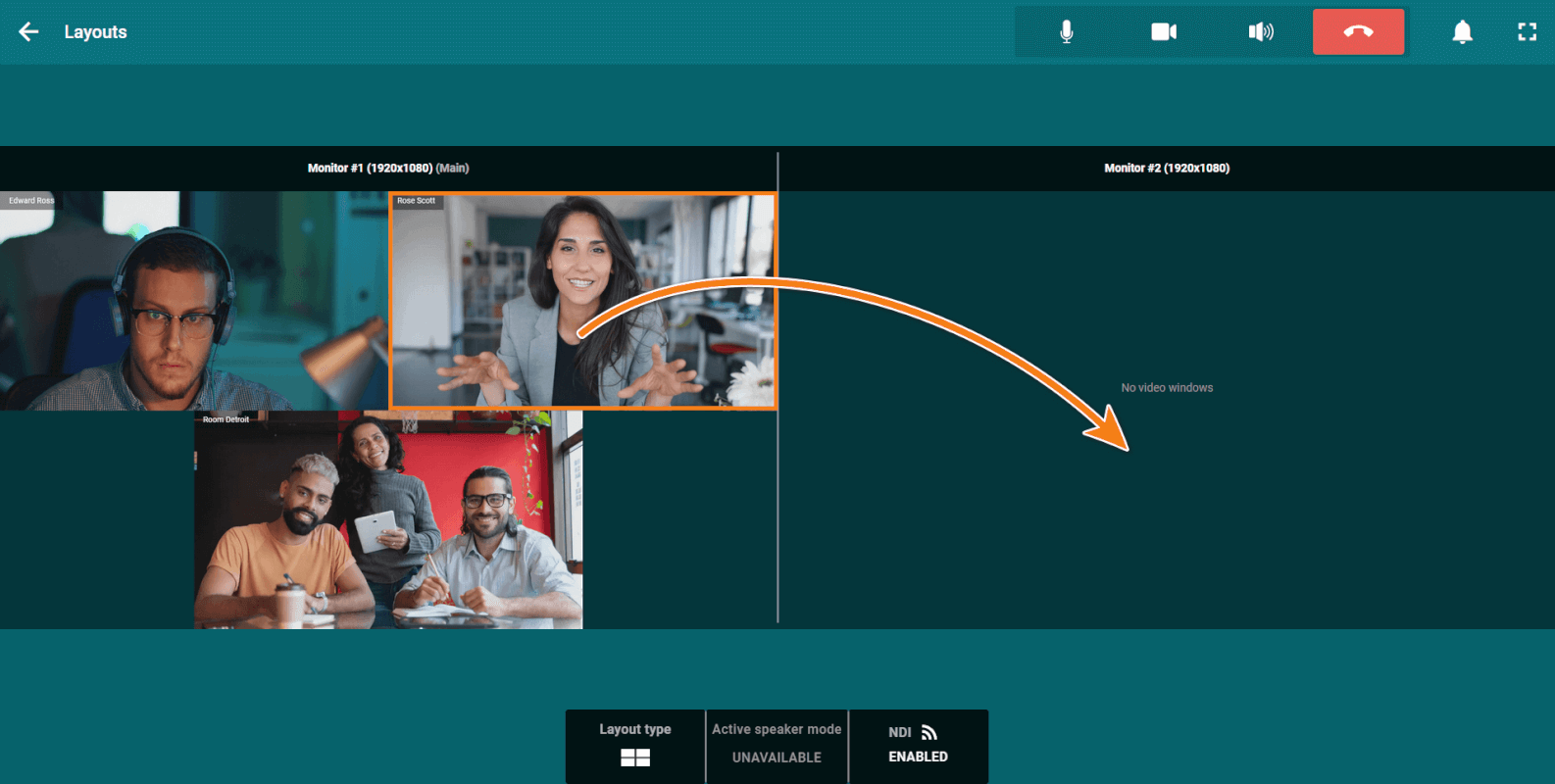
To return the video window to the main monitor, drag the window back to the main layout area.
Option 2
In the conference control panel, click the Change layout button.
In the pop-up window, click the participant’s video window you want to drag to a separate display.
You will see a pop-up menu with a list of available monitors. Select the item that matches the required display.