
Hardware and Network Settings
Hardware and Network Settings
Settings sidebar
Log in to the control panel TrueConf Room.
In the top left corner of the control panel, click the
 button.
To select a language, use section Settings → Language.
Setting Up Audio and Video Equipment
Video
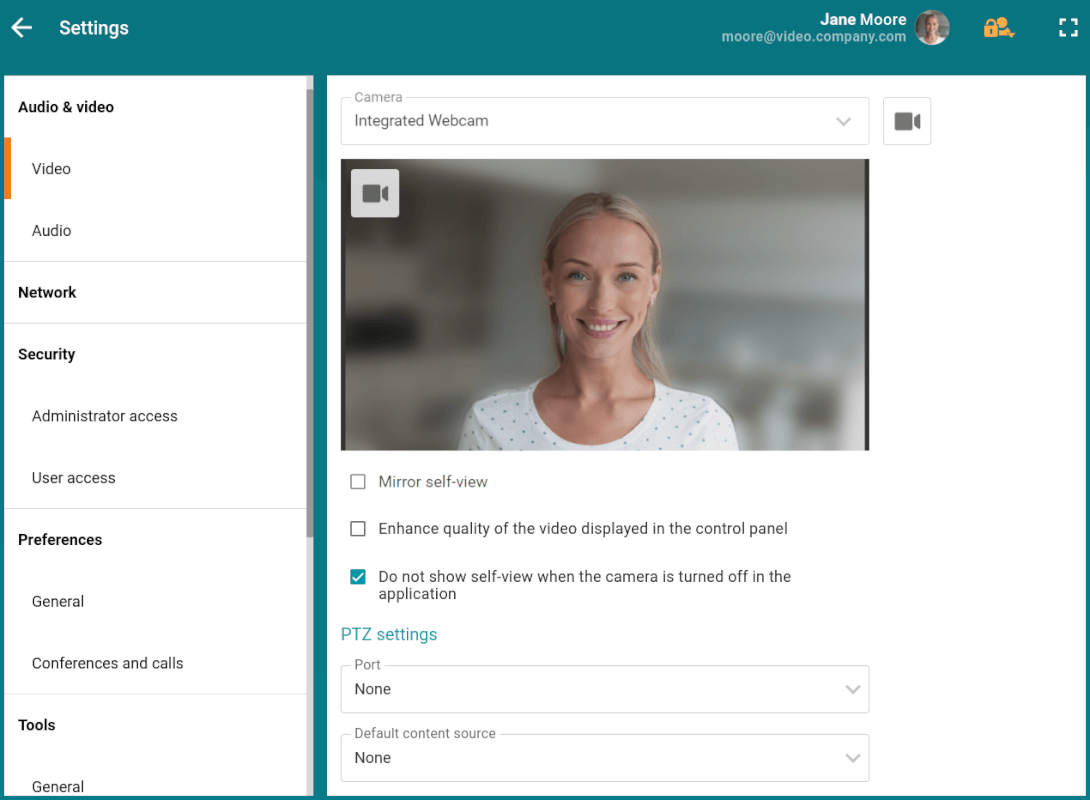
In the settings menu, go to the Audio & video → Video section. Here you can:
Select the video devices that will be used by the application
Enable increased frame rate for video layout preview in the control panel (disabled by default)
Disable camera feed when the camera is turned off at the software level
Configure connection parameters needed for PTZ camera control
select the default content source; all available video sources for TrueConf Room are supported: webcam, capture card, NDI stream;
Activate automatic source switching based on their availability. If the capture card is disabled, the camera will be broadcasted, and vice versa.
You can select an NDI stream available on the local network as the camera if the option to work with this protocol is enabled in the menu Settings → Tools → Main.
Face tracking
TrueConf Room allows to crop the image from the camera to ensure all participants in the meeting room are visible.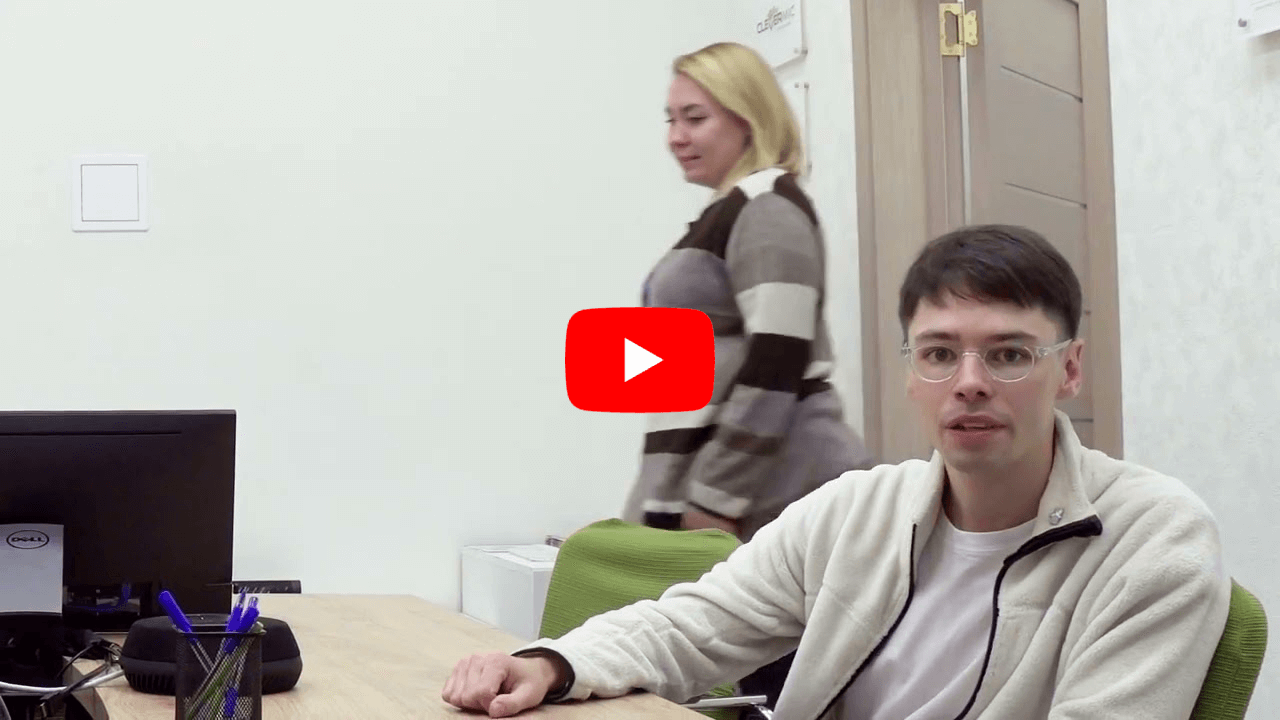
To enable the functionality, go to Settings → Tools → General and check the box Face tracking.
Audio
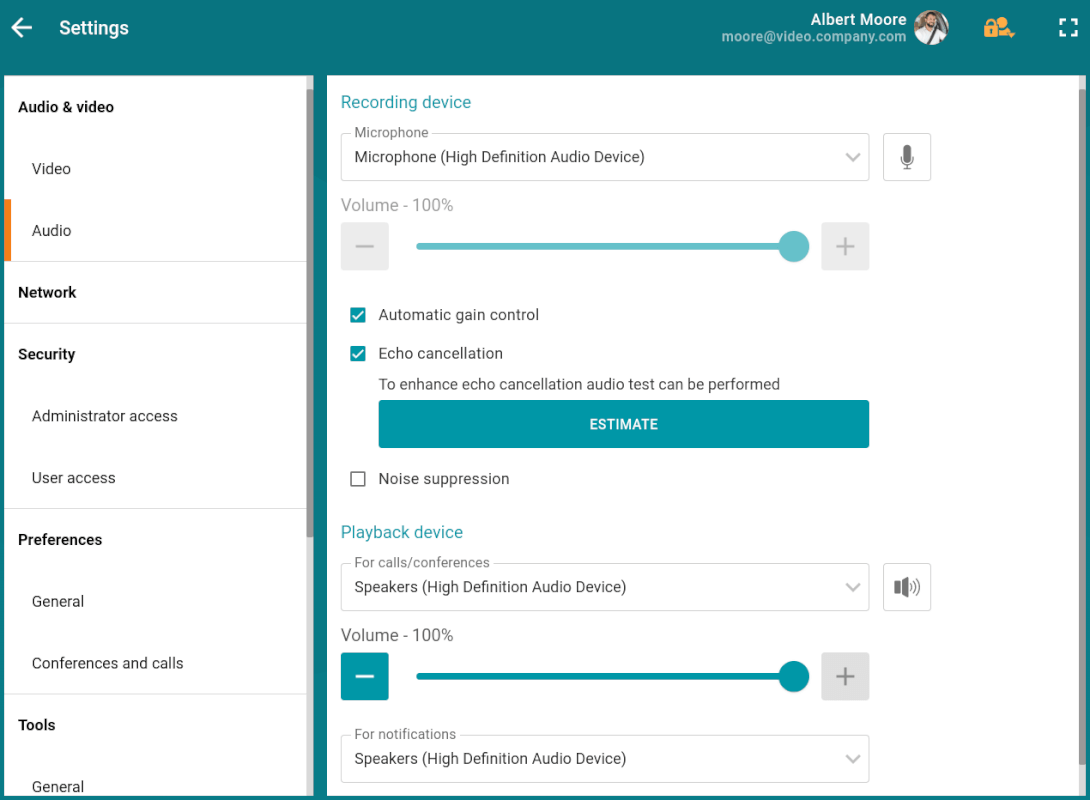
In the settings menu, go to the Audio & video → Audio section. Here you can:
Select a device to play back application sounds, e.g., an incoming call
Set up echo cancellation (enabled by default)
enable AI-based noise cancellation (machine learning algorithms). The result will be exactly the same as for desktop applications TrueConf.
However, if you use a recording device with integrated echo cancellation/AGC mechanisms, we recommend disabling these options in the application to avoid conflicts between the algorithms.
For the echo cancellation algorithm to function correctly, you can perform an audio test to measure your device's latency level. To do this, click the Estimate button.
During the testing, you will hear several audio signals from the selected playback device. When the test is successfully completed, the time of delay will be displayed.
You can retake the audio test by clicking the Restart button, which will appear after the test is successfully completed for the first time, replacing the Estimate button.
When selecting equipment for 4K video conferencing, we recommend checking the review on our blog.
Virtual background and background blurring
When cropping is enabled, the background blur or replacement feature is automatically disabled.
For convenience, you can specify the launch parameters in the TrueConf Room Service settings so that you don't have to continually start TrueConf Room with a command line parameter.
Background blurring
TrueConf Room supports background blur in the camera image.Since this is rarely needed in meeting rooms, this parameter has been removed from the interface.
To blur the background, launch the terminal TrueConf Room with the command line option --blur.
Windows:
"C:\Program Files\TrueConf\Room\TrueConfRoom.exe" --blurLinux:
trueconf-room --blur
Virtual background
If you need to hide your background, you can replace it with a virtual one. This can also be done using the command line (console). Run TrueConf Room with the command line parameter --background {path-to-image}. For example:
"C:\Program Files\TrueConf\Room\TrueConfRoom.exe" --background C:/image.pngLinux:
trueconf-room --background /home/$USER/image.png$USER is a special environment variable in Linux OS, which, when specified in console commands, is replaced with the user's login.

Connection settings
The server connection settings are configured in the Network settings menu. There, you can change the server in use TrueConf or TrueConf Online and set a bitrate limit for incoming and outgoing streams (default is 10 Mbps).
Additionally, by clicking the  button, you can display a list of servers available for connection.
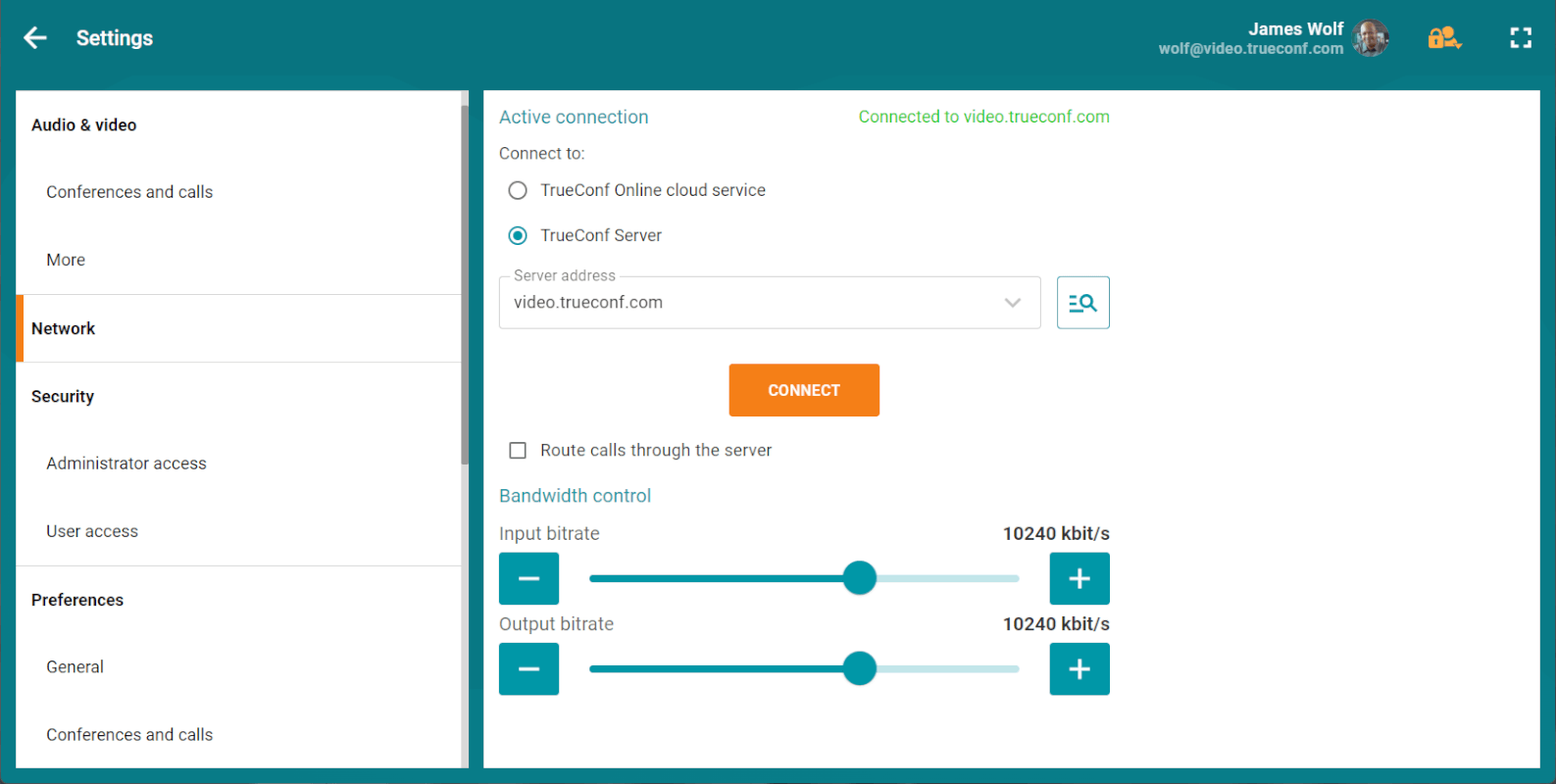
When the checkbox in field Suppress direct connection is selected (it is cleared by default), the connection during a one-on-one video call will be routed through the server.