
Getting Ready
Setting up
The client application TrueConf for Android TV enables participation in group conferences and video calls on popular devices running Android TV. For instance, video conferencing from TrueConf is available to owners of NVIDIA SHIELD TV and Xiaomi Mi Box set-top boxes.
For the full list of supported devices and recommended peripherals, please visit our website.
App features
Enjoy 4K (Ultra HD) video calls and conferences
Conferences with up to 2000 participants.
Ability to create conferences on the main page.
The list of active and scheduled conferences is displayed for the next 2 days.
Configuration of devices on the main page.
Page-by-page display of video windows in the conference layout
Video conferencing modes: one-on-one call (point-to-point) and support for four types of conferences – all on screen, moderated role-based conference, smart meeting, and video lecture.
Ability to pin a participant in the video layout during a smart meeting.
Private meetings for registered users and public webinars with guest connection
Point-to-point video calls can be run directly between the users bypassing the server
In a moderated role-based conference, attendees can request the podium or make an audio reply without taking the podium while moderators can invite participants to the podium or remove them from the podium.
Making calls to mobile and landline numbers using the built-in dialer
Making calls to SIP/H.323 and RTSP devices
Exchange messages and share files in personal and group chats. Your messages will be delivered even if your partner is currently offline
Chat history, including group chats of the meetings that have already finished
Add and remove participants while the conference is in progress
Local address book (adding and deleting contacts and groups, editing contact information, searching and blocking contacts) and global address space via LDAP
Call history
Built-in echo cancellation algorithms
The ability to synchronize the address book when using with the cloud service TrueConf Online.
Block incoming calls from users who aren’t in the address book
Block messages from users who aren’t in the address book
Take incoming calls automatically
Disable recording your video window during a call or a group conference
Performance mode settings in a conference
Ability to restrict the speed of network connection manually.
Installation
Read a user manual for your set-top box to connect a TV, webcam, microphone (if your camera doesn’t have a built-in mic), power cable, and Ethernet cable in case a wired Internet connection is used.
To make sure you enjoy the best audio and video quality, your communication channel should meet our bandwidth requirements. We recommend using a wired connection if possible.
You can now enable the device and install TrueConf for Android TV completely free of charge from Google Play Store.
If necessary, you can download the .APK file to install the application on your device.
Once installed, the app can be launched. You can use your device’s standard control tools to run the app.
Make sure a compatible camera and microphone (or a camera with a built-in microphone) is connected to your device before launching the app. If you connect them after the app launches, you may need to restart your device to find these devices.
Authorization
Like other client applications, TrueConf for Android TV supports connection to the cloud service TrueConf Online (by default) or to the enterprise server TrueConf Server.
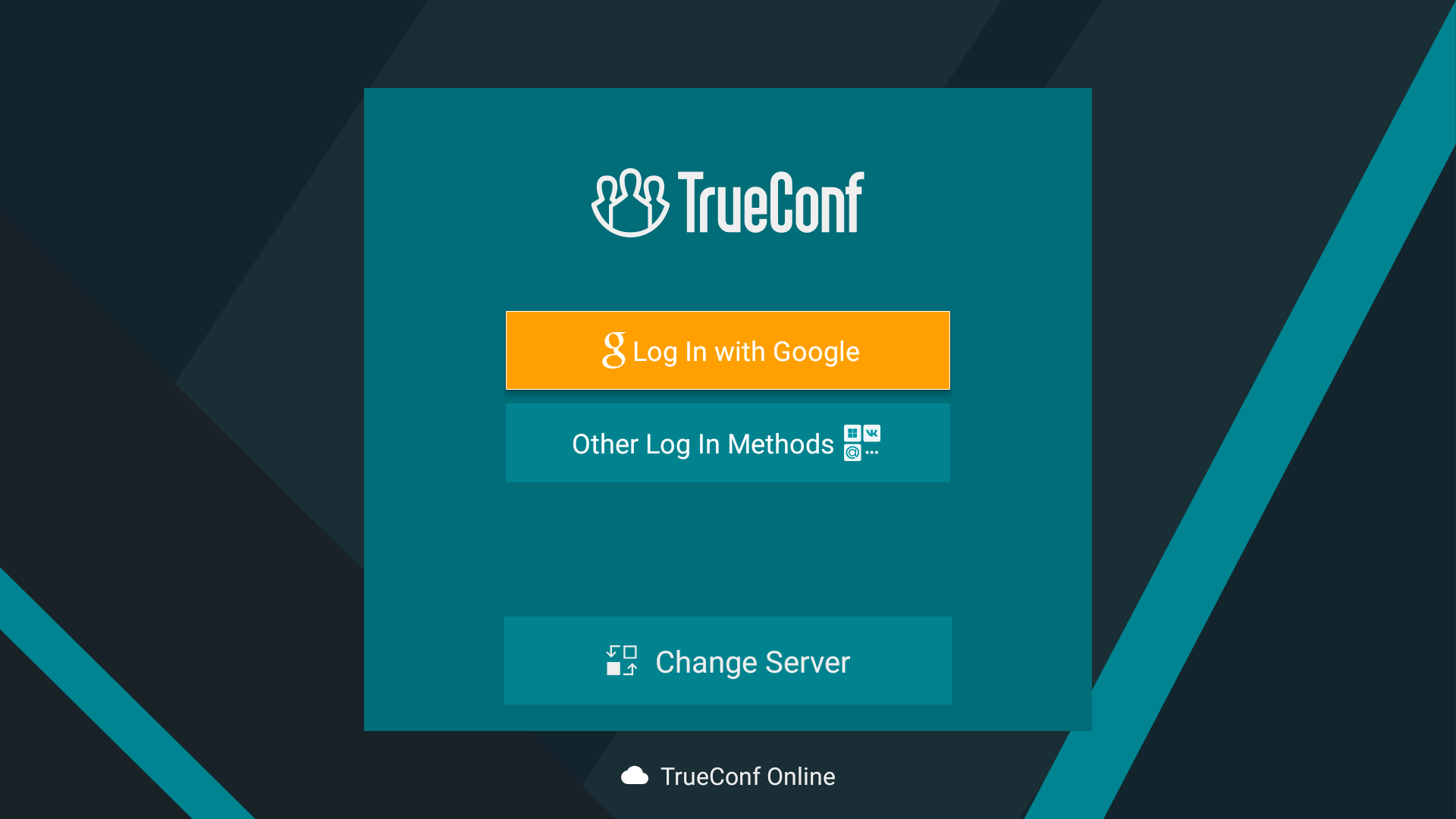
You can log in to the cloud service either with a account that can be created on our official website, or with your existing social network account.
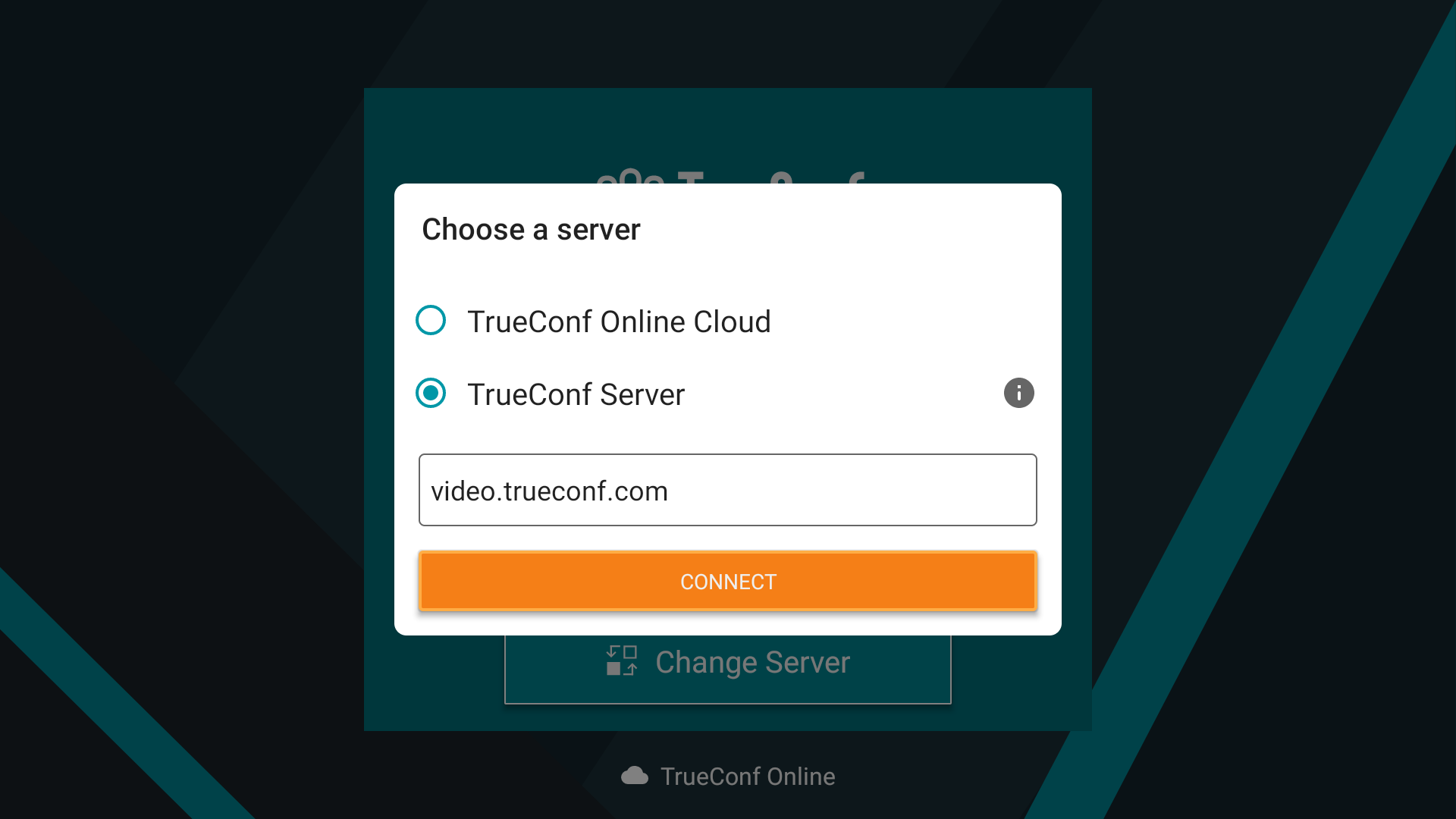
To connect to your corporate server, click the Change Server button.
In the window that appears, select the option TrueConf Server and enter the IP address or domain name of the server (for example, server.company.com). Click the Connect button:
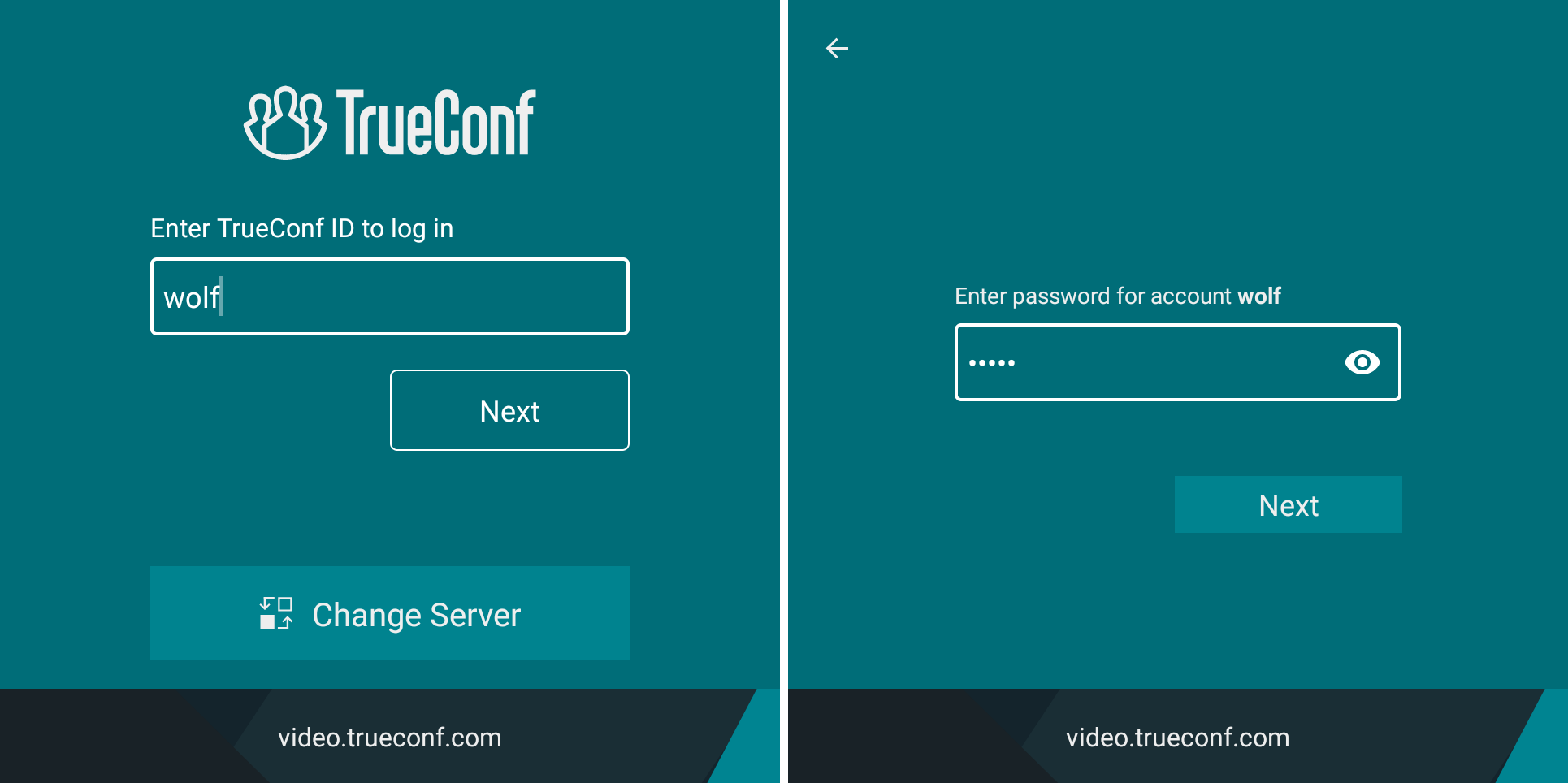
Next, enter your server credentials: login (TrueConf ID) and password:
AV device settings
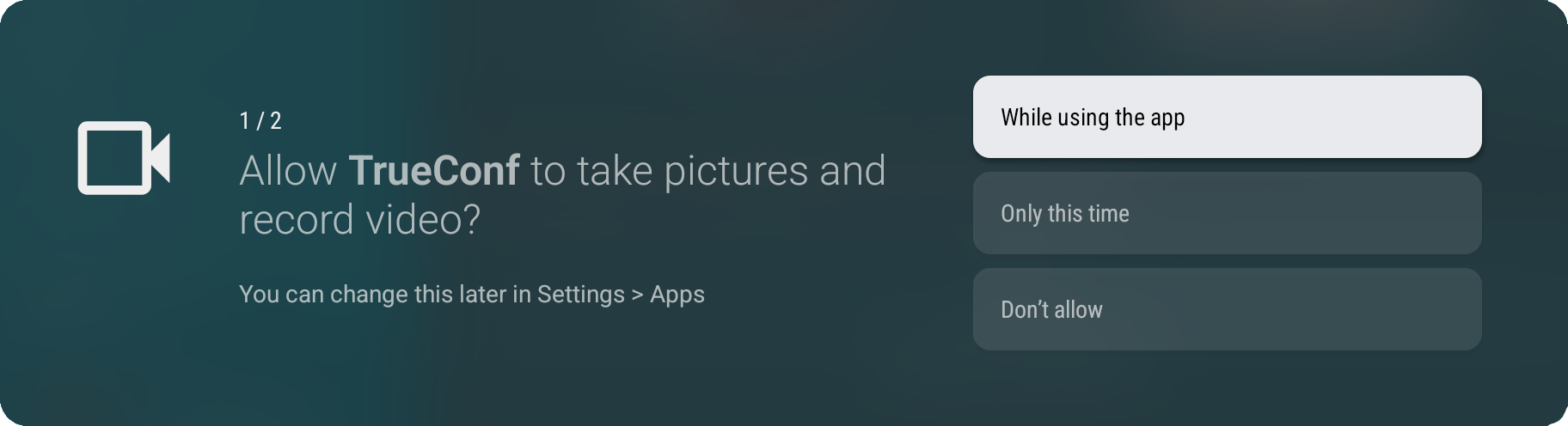
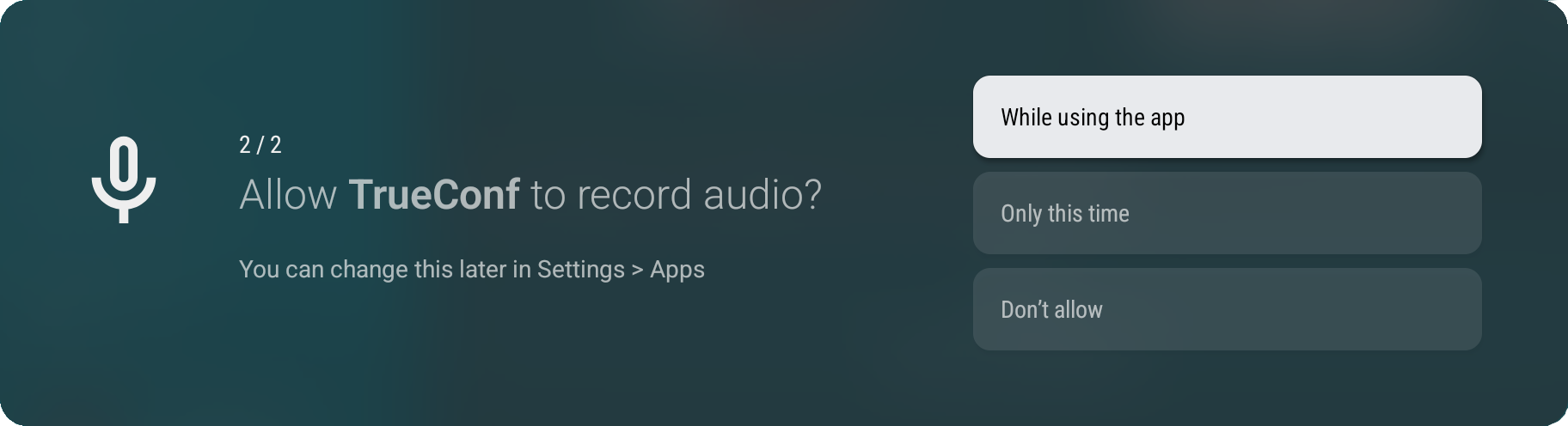
When you launch the application for the first time after authorization, you will need to grant the application access to your camera and microphone. To do this, click While using the app :
After that, the application homepage will open.