
Password Management in TrueConf
When using TrueConf solutions, you will often need to access your personal profile and account as a user, or the server software admin panel as an administrator. This article explains how to set or change passwords, as well as the reasons why the password configuration option may be unavailable.
User Passwords
Changing a TrueConf Server User Password
If you need to change your password, follow these steps:
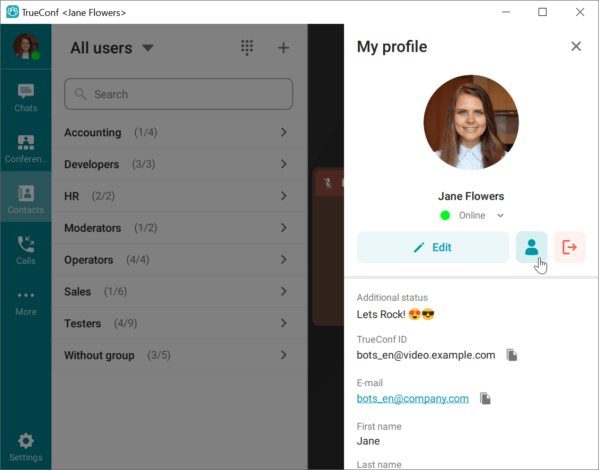
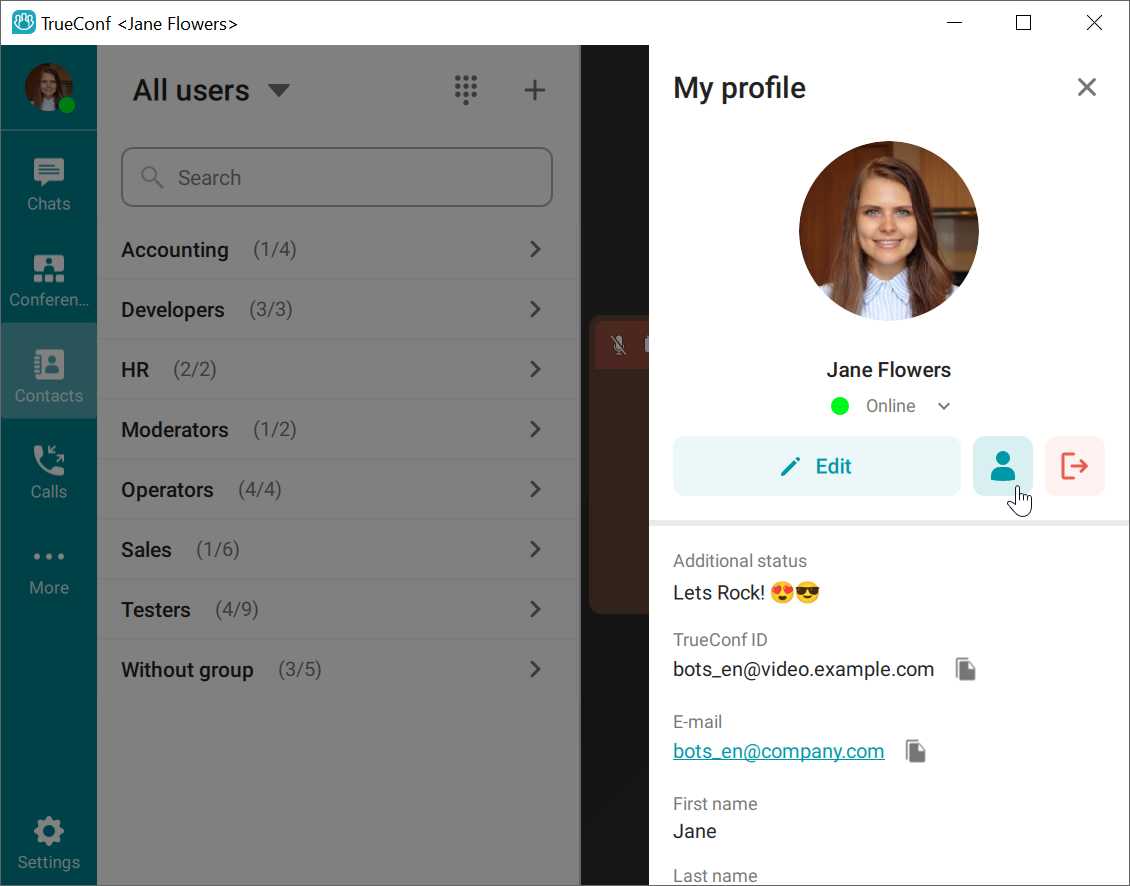
- In the client application, open the My Profile tab and click the following button
 :
:
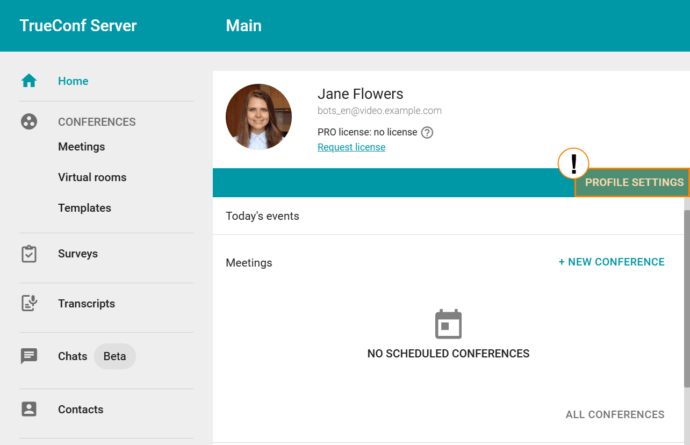
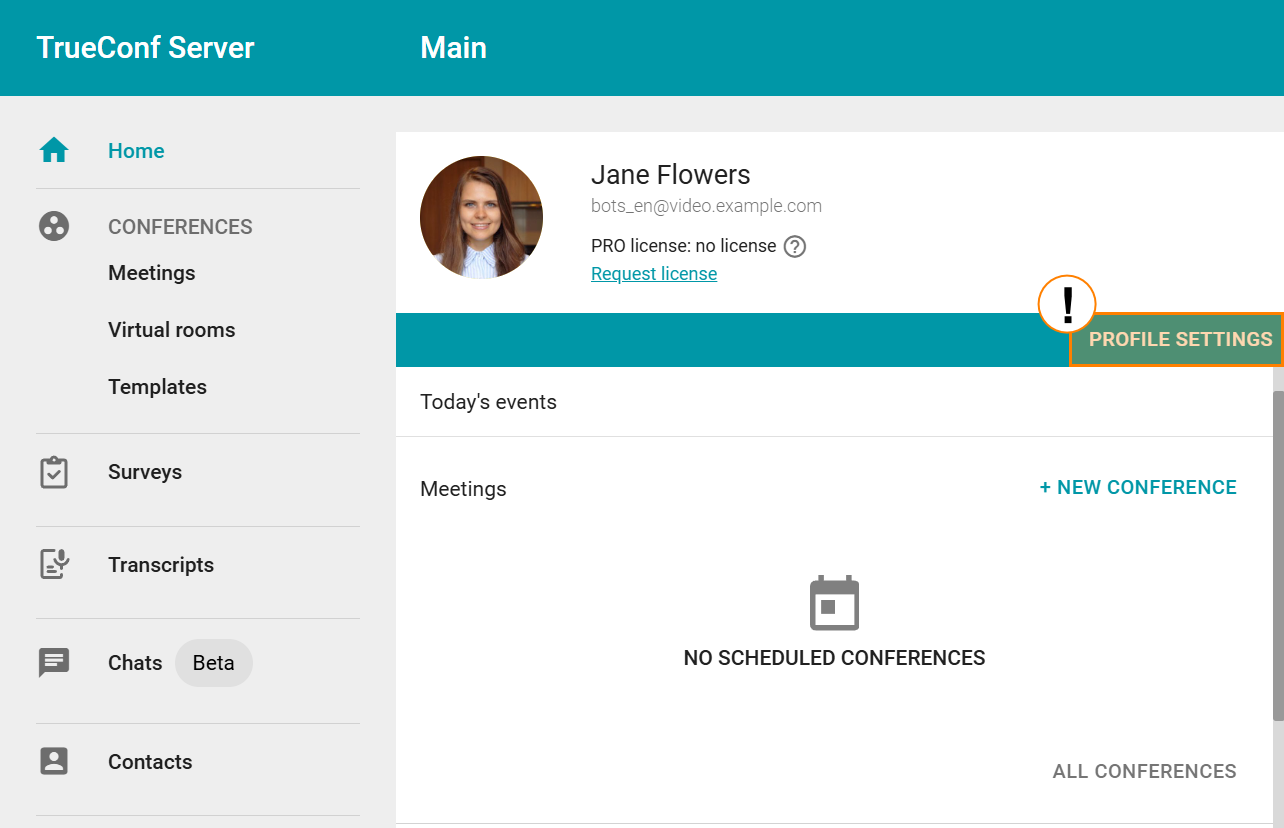
- Your browser will open, showing your personal account window. Click the Profile Settings option:
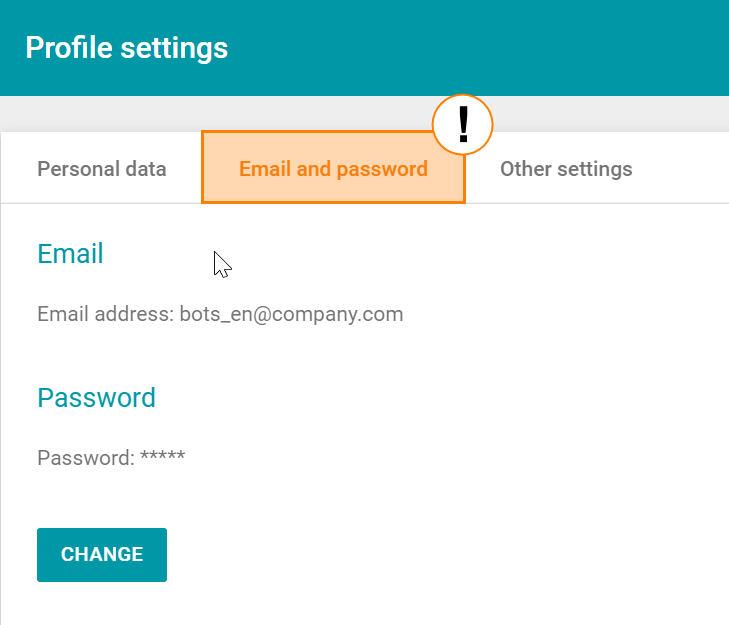
- In the settings window that opens, navigate to the Email and password tab:
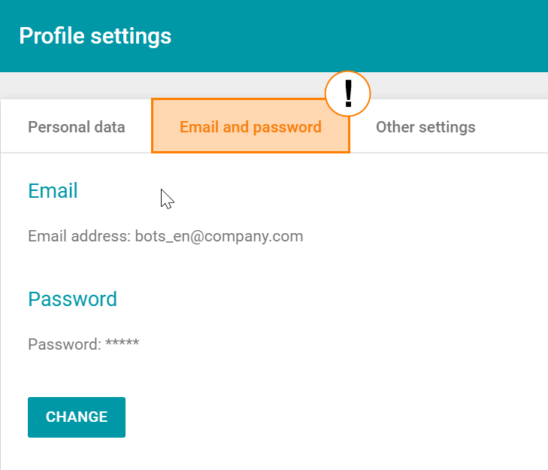
- In the Password field, click the Change button.
- Enter your new password in the first field and confirm it in the second field. Then click Save.
No further confirmation will be required. Your password has been changed!
The password change function may not always be available—for example, if your administrator has configured integration with Active Directory (or another directory service). If you have forgotten your old password or wish to change it, you will need to contact your system administrator. Their contact details can usually be found on your video conferencing server’s guest page.
Personal Data Security – Can the Administrator See Your Password?
An important question regarding user data security is whether passwords could be leaked.
Regardless of the credential storage mode (Registry or LDAP), passwords on the TrueConf Server side always remain inaccessible to the server administrator. Therefore, if you forget your password, it cannot be retrieved—only reset, allowing you to set a new one. Additionally, when using local passwords, an administrator may set a temporary password for your initial account login, which you will be required to change upon first authentication. When accounts are synchronized from LDAP/AD, passwords are managed entirely by the directory service.
TrueConf Server Administrator Passwords
In addition to user passwords, there are also passwords for administrators to access the server panel.
The administrator password is the same as that used for user accounts belonging to the designated administrator group. For more details, please refer to our documentation.
On Linux operating systems, you can change your password using the passwd command. Let’s consider two possible scenarios:
- If you are logged into the OS under the account for which you want to change the password, simply run:
- If you are logged into the OS under one account but want to change the password for another:
passwd
sudo passwd [user]
After entering the command, you will be prompted to enter your current password and then set a new one.
Note: When changing passwords on CentOS, there are specific considerations related to extended file access control lists (ACLs). After changing a user account password in the OS, the following command must be executed (as an administrator):
sudo setfacl -m u:trueconf:r /etc/shadow
Administrator and Operator Passwords in TrueConf MCU
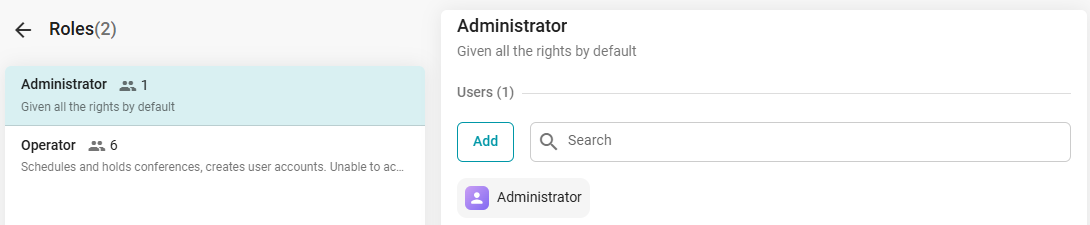
TrueConf MCU has two roles for accessing its management panel: Administrator and Operator. To learn about the permissions associated with these roles, please refer to our documentation.
By default, immediately after deploying TrueConf MCU, the administrator credentials are as follows:
- Username: admin
- Password: admin
You can change your own login credentials, as well as those for users with the Operator role, after completing the registration procedure. This can be done in the Contact Card menu under the Account section:

Theodor Lazarev
Date published: 06.05.2026