Installation and getting started
Installation and getting started
This guide is intended for Windows, macOS, and Linux users because TrueConf client applications for desktops are cross-platform and have the same features and UI.
If you are just starting to get acquainted with video communication from TrueConf, it is recommended to familiarize yourself with brief instructions on how to start working with the application. Afterwards, you will be able to supplement your knowledge from this documentation as you work more actively with video communication.
Application features
Please note that below is a complete list of features available when connecting to the latest versions of TrueConf Server or TrueConf Enterprise. If you are connecting to older versions of the video conferencing server or to the TrueConf Online cloud solution, some of the features listed below may not be available.
For more details, see the comparison table for TrueConf Server and TrueConf Online.
Single Sign-On/Active Directory Federation Services (SSO/AD FS) authorization in the application
Ability to set up connection via proxy, including the use of system settings and manual configuration
Automatic discovery of available servers
Enjoy 4K (Ultra HD) video calls and conferences with a frame rate of 60 fps
Call VoIP users, landline and mobile phone numbers and send DTMF commands
Call SIP/H.323 and RTSP devices
Point-to-point video calls can be run directly between the users bypassing the server
Conferences with up to 2000 participants
Video communication modes: one-on-one call (point-to-point) and different types of conferences – all on screen, video lecture, smart meeting, moderated role-based conference
Ability to organize events with simultaneous interpretation which makes it possible for users to select one of the audio tracks with the required language
Hold both private video conferences and public webinars that can be joined by guest participants
Schedule conferences, create virtual rooms, and send email invitations to meeting participants
Quick call-to-conference escalation
Create conferences protected from unauthorized connections with a PIN
Change the PIN or identifier of an ongoing conference if you are the owner
Start meetings instantly and save their templates
Add and remove participants while the conference is in progress
Control participants’ cameras and microphones, change devices or adjust microphone sensitivity
Mute microphones for all participants except the selected one
The owner can lock an ongoing conference from new participants
Select and manage multiple conference participants
Move participants to the waiting room to manage access to a conference
Set mandatory registration for webinar guests
View detailed analytics about a conference (available only to the owner)
Highlight active speakers in the video window layout with a customizable color frame and set up microphone sensitivity level
Conference moderators can set a mandatory video layout for all participants, as well as individual layouts for each user, including SIP/H.323 endpoints and browsers
Configure your own video layout
Set the background and watermark for the video layout
Automatically enlarge speakers in a meeting
Ability to recognize a document or whiteboard in the transmitted video (it is possible to cut out people out of the frame)
Remote desktop control
PTZ camera control: both your local camera (via UDP/RTP/Q.922/H.224/H.281 protocols) and remote cameras of other participants
Meet both with guests and users registered on TrueConf Server
Join conferences without signing in to the application
Attendees can push to talk or send a request to become a speaker in role-based conferences, while moderators can appoint or remove speakers from the podium
Switch between a smart meeting and moderated role-based mode without interrupting the conference
Take polls or share reactions in conferences
Show slides and images in a separate media stream to all participants, including in-browser connections and SIP/H.323 endpoints over H.239/BFCP protocols
Share your desktop or application windows (the self-view can be displayed right next to content so that it could be visible in video recordings, streams and on the devices that do not support H.239/BFCP protocols)
Flexible customization of the content sharing scene: background removal (only the speaker will be displayed), it is possible to select the position and size of the self-view
Annotate over the shared screen
Stream audio when sharing content or showing slides
Stream video files to a conference
Stay focused on your meeting when sharing your content or switching to other windows thanks to a customizable widget with quick conference controls
Control how the recording of an ongoing conference will be saved on the server and download the video file when this meeting is over (available only to the owner)
Video recording of calls and conferences (it is possible to select the video format, resolution and the folder where the file should be saved)
Ability to select which of the users will be allowed to record your video
Built-in player for video recordings
Full address book support (adding and deleting contacts and groups, editing contact information, searching and blocking contacts)
Exchange messages and share files in personal and group chats. Your messages will be delivered even if your partner is currently offline
Pin important chats
Archive and chat folders: store outdated conversations in the archive without deleting them and organize chats into separate folders
Configuration of automatic file downloading
Built-in tool for viewing videos, images and PDF files in a text chat
View ODP, ODT, ODG, ODS, ODF files directly in the application (the corresponding office suite has to be installed)
Create group chats that can be escalated into a group conference with all chat participants in one click.
Chat history, including group chats of the meetings that have already finished
Appoint chat moderator
Transfer chat ownership to another participant
Configure display settings for chat notifications
Show/hide previous chat history from new participants
Disable notifications from private and group chats
Compress images sent to a chat if necessary
Text formatting in chats
Built-in spell check
Ability to check which of chat participants have read your message
Ability to share a contact in a private or group chat
Enjoy built-in algorithms of echo/noise cancellation and automatic gain control (AGC)
Automatic reconnection of call or conference participants in the event of a brief interruption and restoration of the connection, eliminating the need to redial manually.
User status tracking (it is possible to enable notifications that will be displayed when certain contacts change their status to online)
Set a virtual background (select one of the default backgrounds or add a custom one)
Blur the background
Use face tracking during meetings (available for one and multiple participants)
Optional network speed limitation templates or manual settings
Try built-in tools for testing the quality of server connection
Change app notification settings
Configure the main menu: choose the elements to be displayed and select how they should be displayed during calls and conferences
A wide variety of hotkeys for managing app features (hotkeys can be remapped if necessary)
Power-saving mode with two options available: balanced and maximum resource saving
Special features for administrators include mass deployment of client applications across multiple computers within the corporate network with the help of the .msi package. You can also set additional application parameters in a JSON file. Besides, it is possible to select the version of the client application which can be downloaded from the server, and configure features for working via Virtual Desktop Infrastructure (VDI).
Installing the application
Before installation, make sure that your computer and network connection meet our system requirements (these requirements depend on the expected video quality)
Even though Windows 7 / 8 are no longer supported by Microsoft, TrueConf applications are still available for these operating systems. However, you can only install the x86 (32-bit) version of the application, you should download this version from the official website. Some features related to the built-in AI, such as background removal/replacement, noise suppression, and whiteboard recognition, will not be available.
To get started with the TrueConf client application, download it from the guest page of your TrueConf Server (you can ask your administrator for the address) or from the page on our official website:
Before using the client application, ensure that all updates are installed on the operating system and that the video driver for the graphics adapter is updated to the latest version. Drivers should only be downloaded from the manufacturer's official website: Intel, Nvidia, AMD.
Application features in a VDI environment
TrueConf application can work on thin clients within virtual desktop environments, or VDI (virtual desktop infrastructure). However, certain optimizations are used because interactions in virtual desktop environments do not directly involve the hardware. In particular, the application forcefully switches to the specified power-saving mode according to the recommendations below (if this does not occur automatically, we suggest manually selecting the appropriate mode in the settings).| VM specifications | Recommended application mode | Expected restrictions |
|---|---|---|
| Balanced Mode |
|
| Maximum power saving |
|
Signing in
Depending on the settings of the video conferencing server to which you will connect and your location (e.g., the corporate network or the Internet), you may have to use one of the following authorization options:
When connecting to the corporate video conferencing server TrueConf Server or TrueConf Enterprise, multiple authorization is available, allowing you to log in from multiple devices simultaneously (such as a laptop and a smartphone).
If a user account is disabled on the side of TrueConf Server, the authorization will not be completed, and the corresponding message will be displayed. In case of such problems, please contact your server administrator.
Authentication with the login and password.
To log in using your username and password, click the Sign in button:
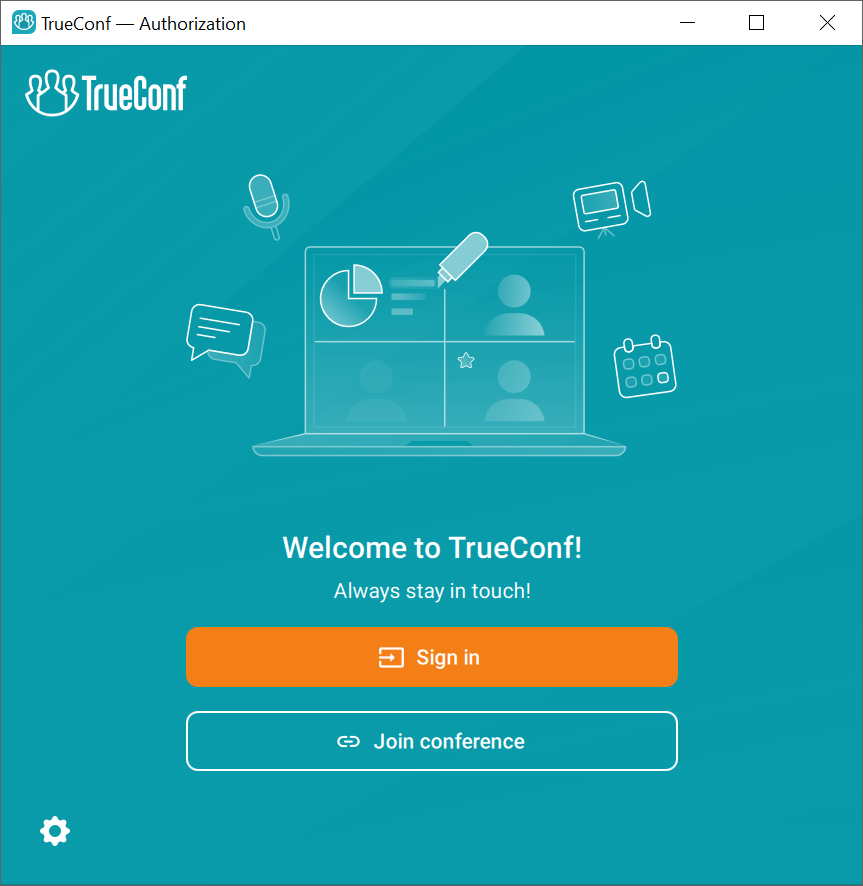
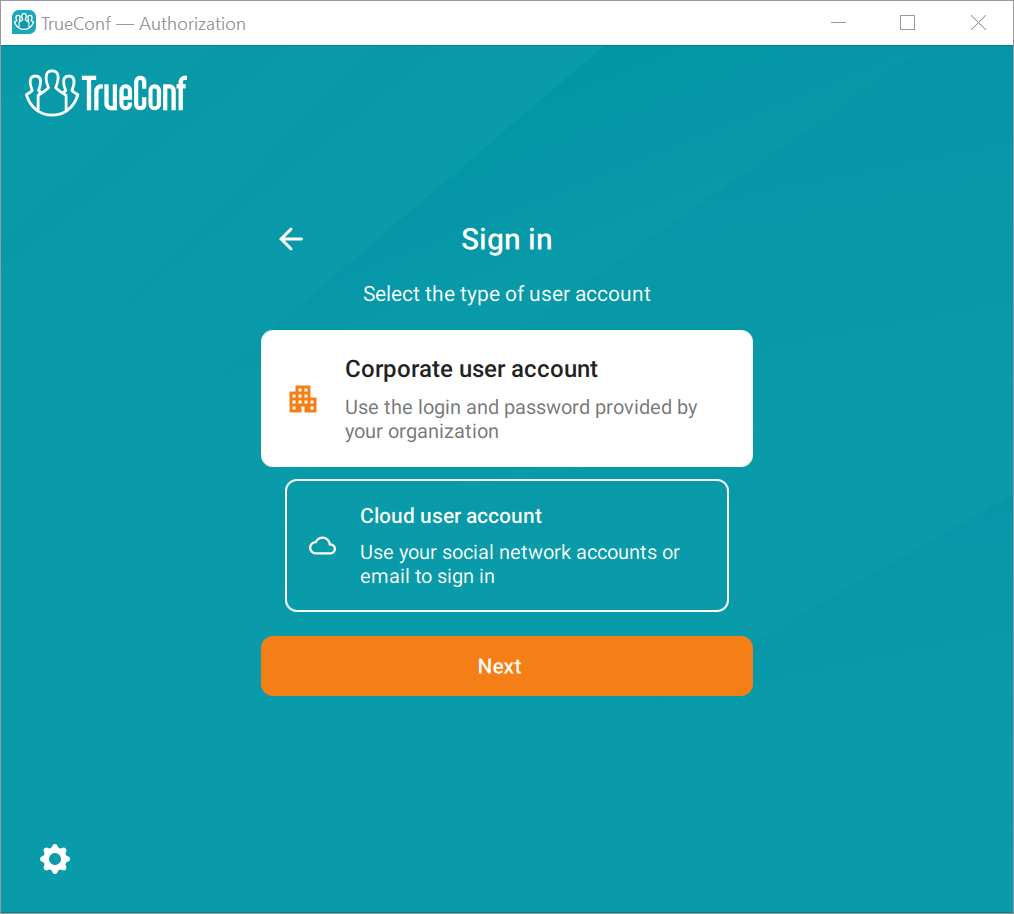
Choose the login option in the pop-up window:
- Corporate user account for authentication on the corporate server.
- Cloud user account for authentication in the TrueConf Online cloud service without connecting to the corporate server.
In this case, we will discuss authentication using the Corporate user account option.
Enter your corporate email. Click the Next button so that the application could try to automatically detect the server and connect to it.
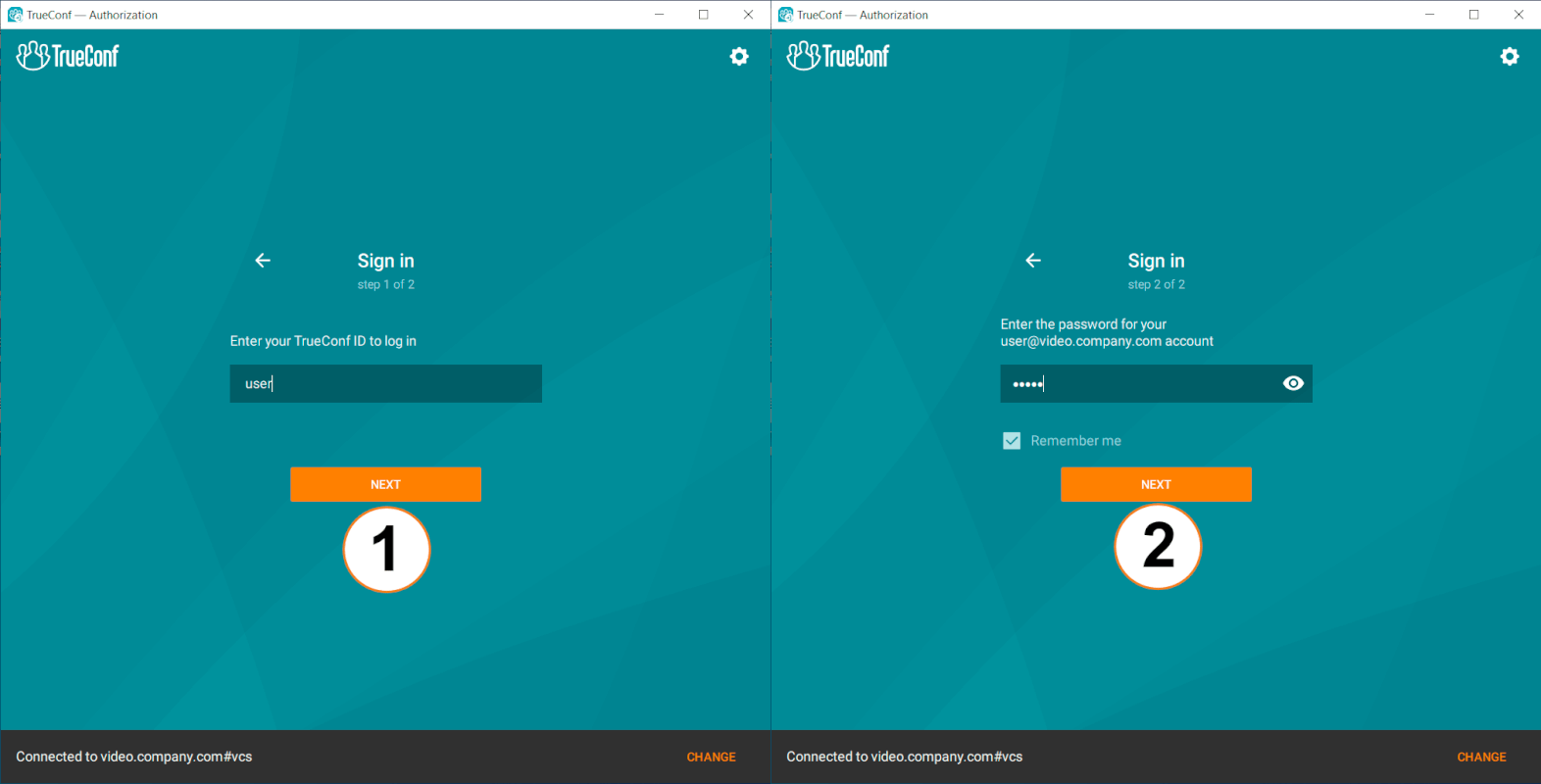
If you choose to sign in to the cloud service, after entering your email or TrueConf ID, you will need to check your mail box for the authentication code.
If the application cannot automatically connect to the selected server, you will be asked to double-check your email or enter the server address manually. Click the button Enter server address manually which will open the menu where you can enter the address in the corresponding field or select one of the detected servers. The list of detected servers will also include the servers you previously connected to:
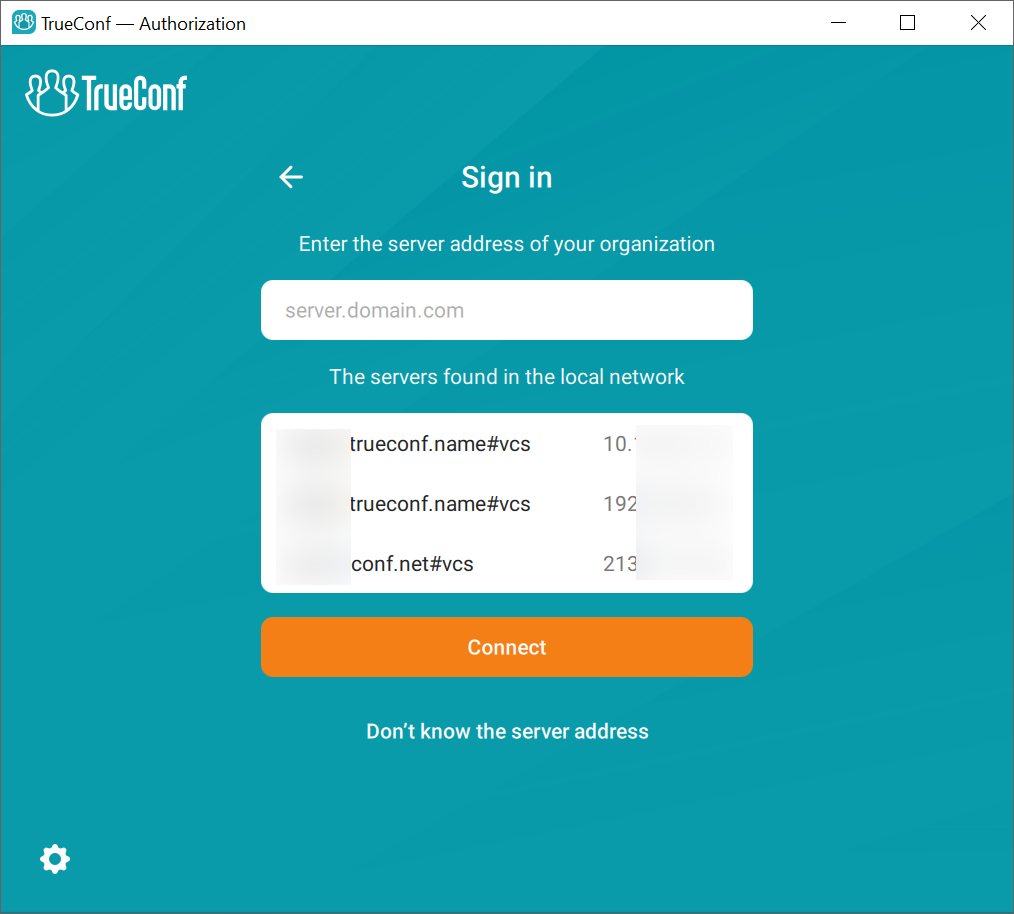
Select the required server from the list or enter its address in the line, then click Connect.
Next, enter your login (TrueConf ID) and password, which you received from the administrator.
SSO authorization
SSO (Single Sign-On) is a technology that allows a user to sign in to multiple applications or web services with the same login information.
In this case it will enable users to sign in to TrueConf client application without entering the login and password if they have already signed in to the operating system. However, two requirements have to be met:
You will need to be authorized in the OS with the domain account (specified on the LDAP server).
The TrueConf Server you are connected to must be configured for integration with the LDAP server from step 1.
This feature is available not only on Windows (where Active Directory is used as the directory service), but also on Linux.
If these conditions are met, you will be automatically signed in to TrueConf application once it is started.
Two-factor authentication via AD FS, Keycloak, etc.
On the application's home page, click the Sign in button:

Click the Corporate user account button:
Next, either enter the server address manually, as we showed earlier, or the application will automatically connect to the required server, if this feature is enabled by the administrator.
Select the
 button to proceed with AD FS authentication.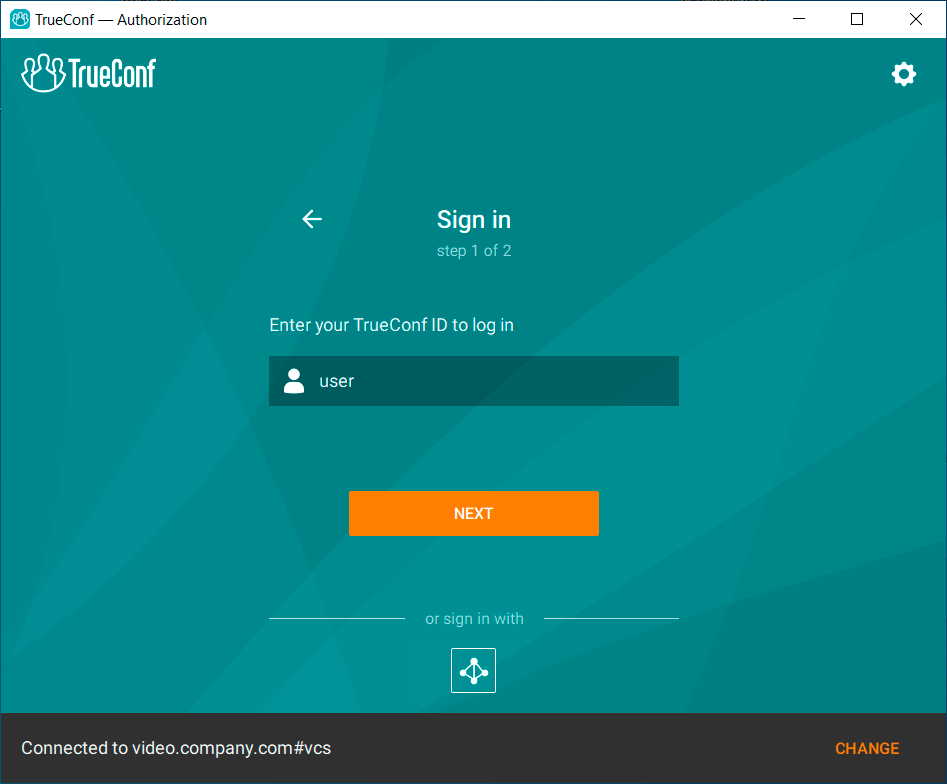
The AD FS authorization window will be displayed on the screen. Type your domain login and password (contact the server administrator to receive them). Next, click Sign in.
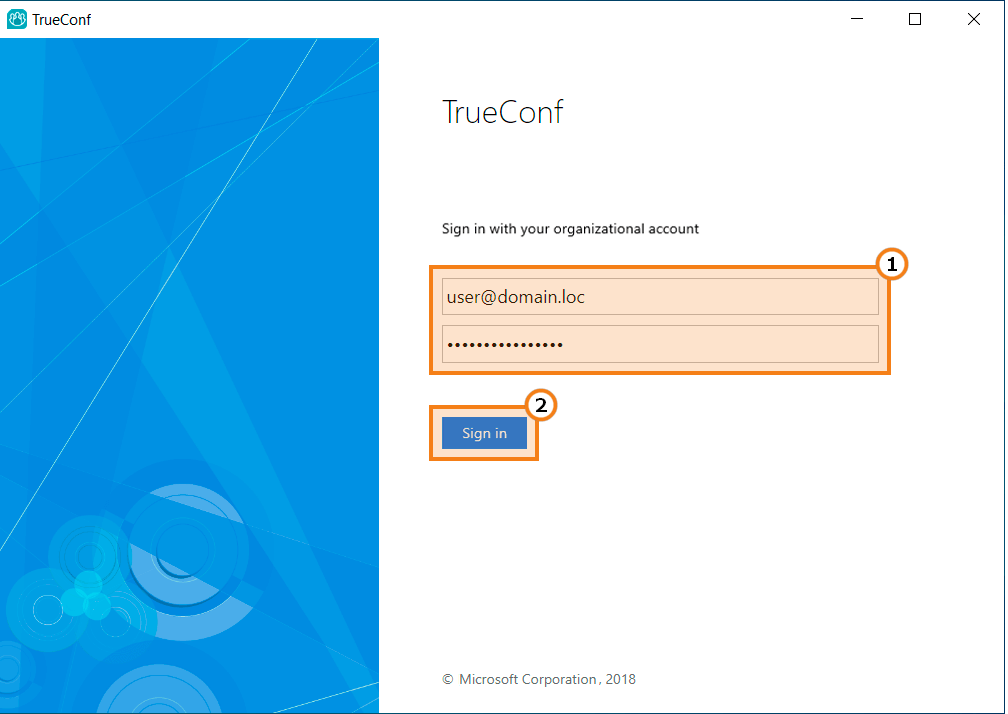
After a successful login, your account will open in the TrueConf application window.
In addition to AD FS, your company may use another provider for implementing two-factor authentication, such as Keycloak.
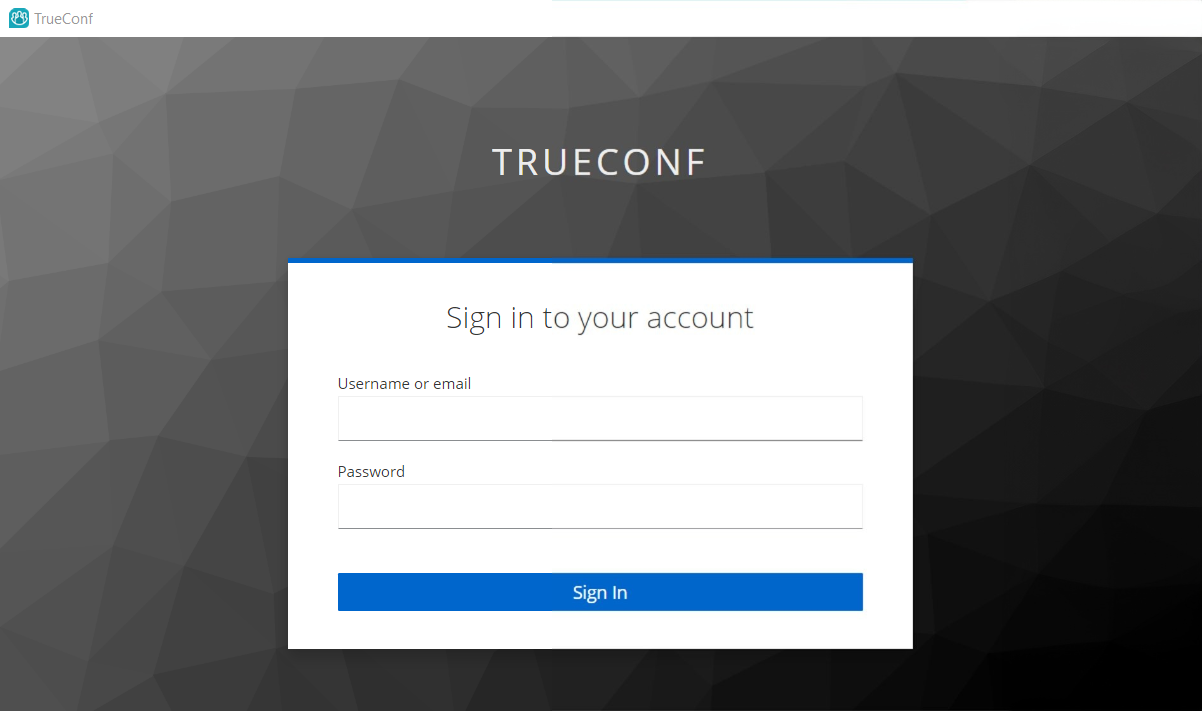
The general application login scheme described for AD FS will remain the same when using another provider.
Offline mode
You will be able to sign in and use some of the application features in offline mode.
If connection with the server is lost and you have signed into the client application before, you can still use some application features in offline mode. For example, you can view the history of received messages or write a message that will be sent as soon as connection is restored. In offline mode, you will be unable to make calls, exchange messages, and upload or download files.
When connection to the server is restored, you will be able to continue working in online mode.
Multi-login
You will be able to sign on multiple devices with the same account. In this case:
When using the application on multiple devices, you won't have to sign out from your profile on the second device
Make calls/participate in different conferences from different devices at the same time
Reconnection to calls will be available simultaneously on all devices.
Multiple login is supported on all platforms, including mobile devices (iOS, iPadOS, Android), PCs running Windows, macOS, and Linux, smart TVs (Android TV), and browsers.
Joining a conference as a guest
When you first start, you will see a window like this, offering you a choice between two buttons: Sign in or Join conference.
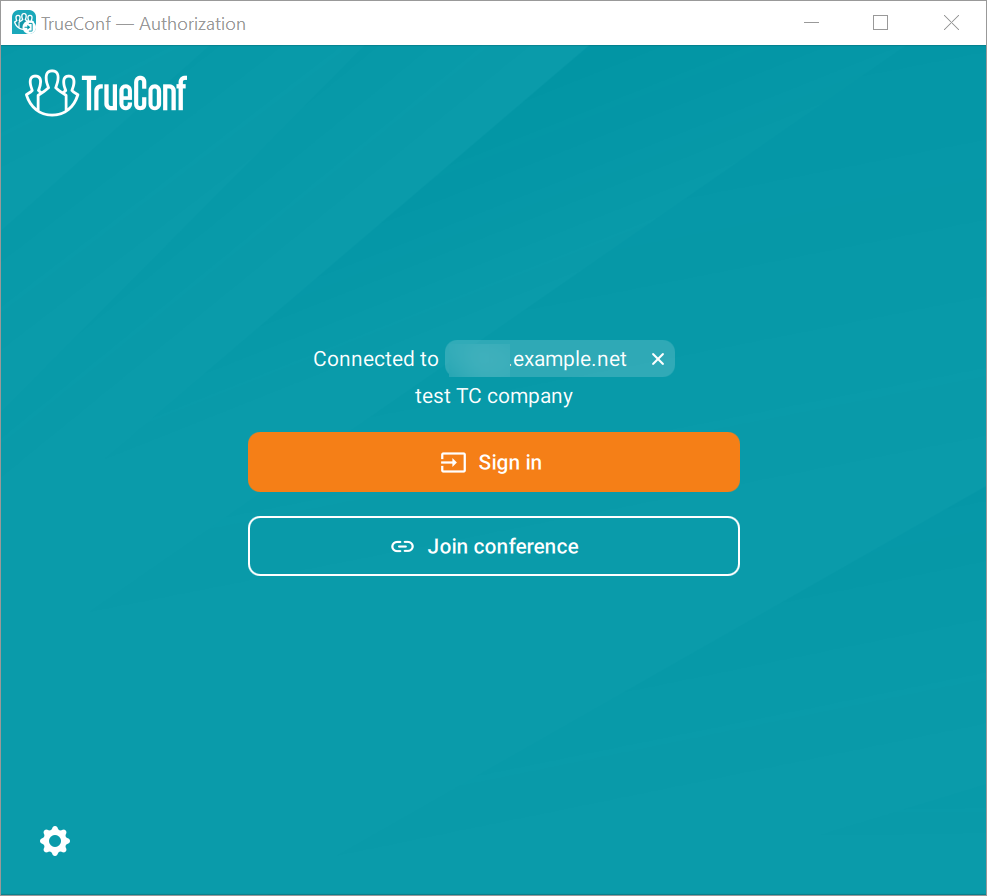
You can join a public conference (webinar) without logging into the video communication server. To do this, click the Join conference button and enter your name, which will be displayed in the participants list:
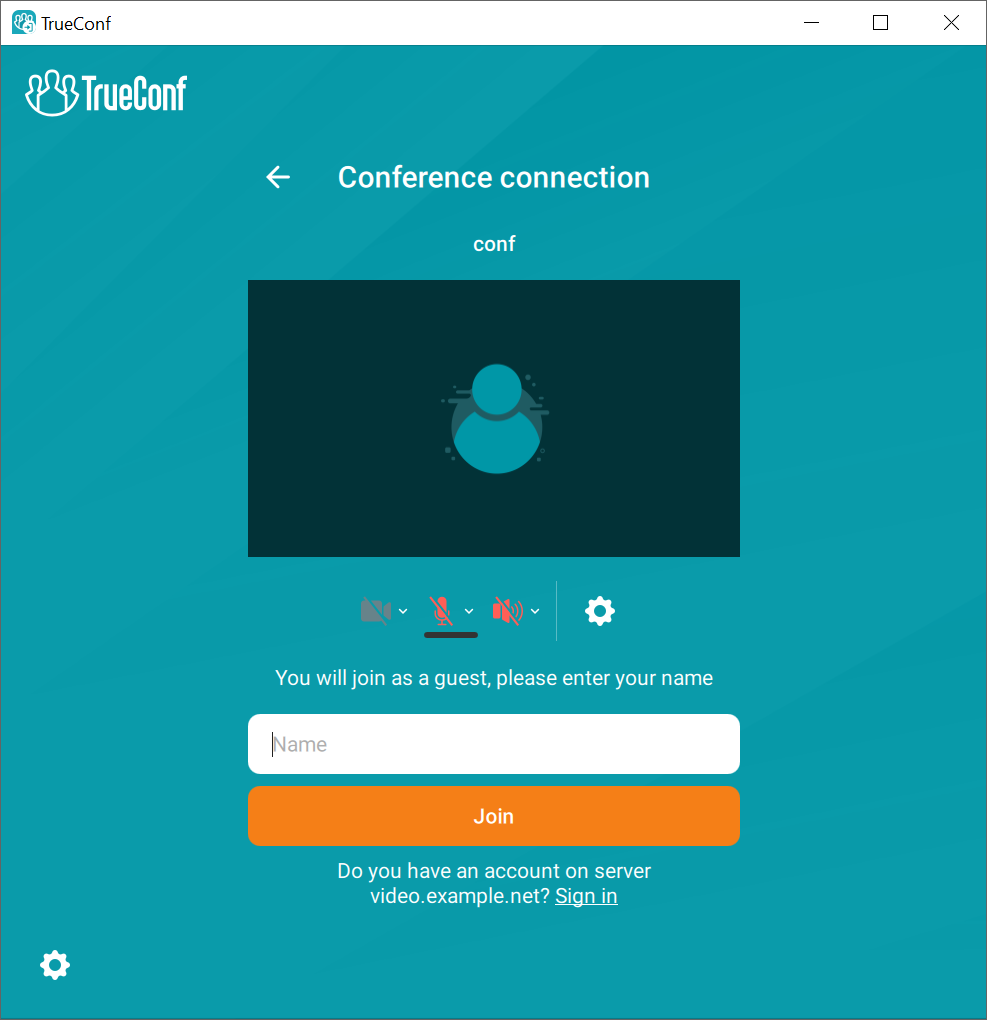
In this window, you can also choose:
Your microphone
Audio output device (headphones or speakers)
Video camera.
More advanced application settings are available after clicking the  button. You can read about the Settings menu in the relevant chapter of this documentation.
Exiting the application
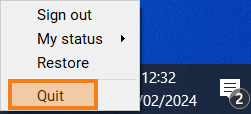
By default, when you press  (the close button), the application minimizes to the system tray. You can change this behavior in the Settings → Preferences → General menu. To completely close the application, you need to:
Right-click on the application icon in the system tray (bottom right corner of the desktop).
Select item Exit.