
Conference management
Conference management
Inviting users to the conference
You can add participants from your address book immediately when creating a conference, as shown in the relevant section.
Moreover, if you are the moderator of an ongoing conference, you can invite participants to join it. There are three options to do so.
Go to the participant list using the
 button and click Add participants.
If you call any user during a conference, this user will be invited to join your current conference.
If you are the conference owner or have moderator rights, you can access real-time meeting management by clicking the button on the bottom panel. In the window that opens, click the button to trigger the dropdown menu (1), go to the Participants tab, and then click the
 button on that tab.

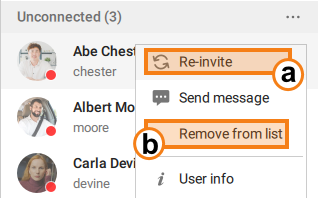
The participants, who have not joined the conference, will be displayed in the separate Unconnected group. You will be able to re-invite them (a) or remove (b) any of them from the meeting by selecting the corresponding option in the context menu; to open the menu right-click on a participant:
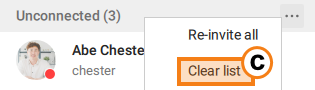
You can also clear the entire list at once (c) by selecting the appropriate item in the menu accessed by clicking the  button:
Inviting a user group to the conference
To create a video conference with a group of users, go to the group list view mode and select Invite to conference in the group's context menu. You will enter the conference creation menu.
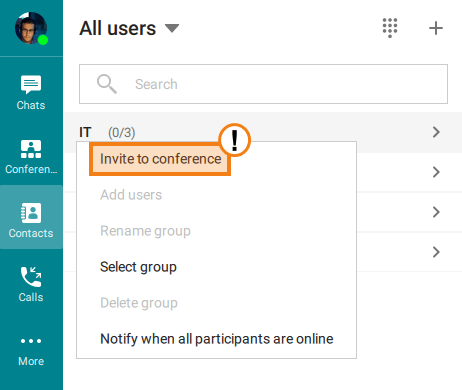
Similarly, you can invite a group to an active video conference if you are its moderator.
To add a new participant or group without leaving the conference window, go to the conference participant list and click Add participants.
User group actions
Click the  button to select the action to be performed on the conference participants.
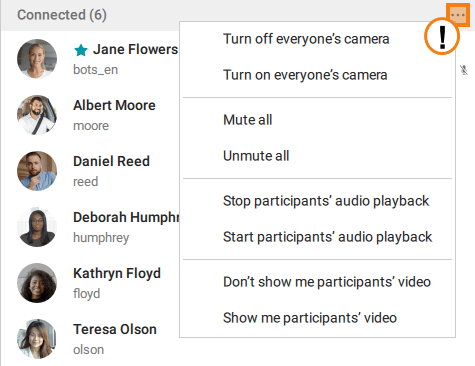
The same button is available for the list of users who did not join the conference. It will allow you to re-invite all them to the meeting.
You can also select the participants to whom an action should be applied. To select a participant, right-click on this user’s avatar in the list.
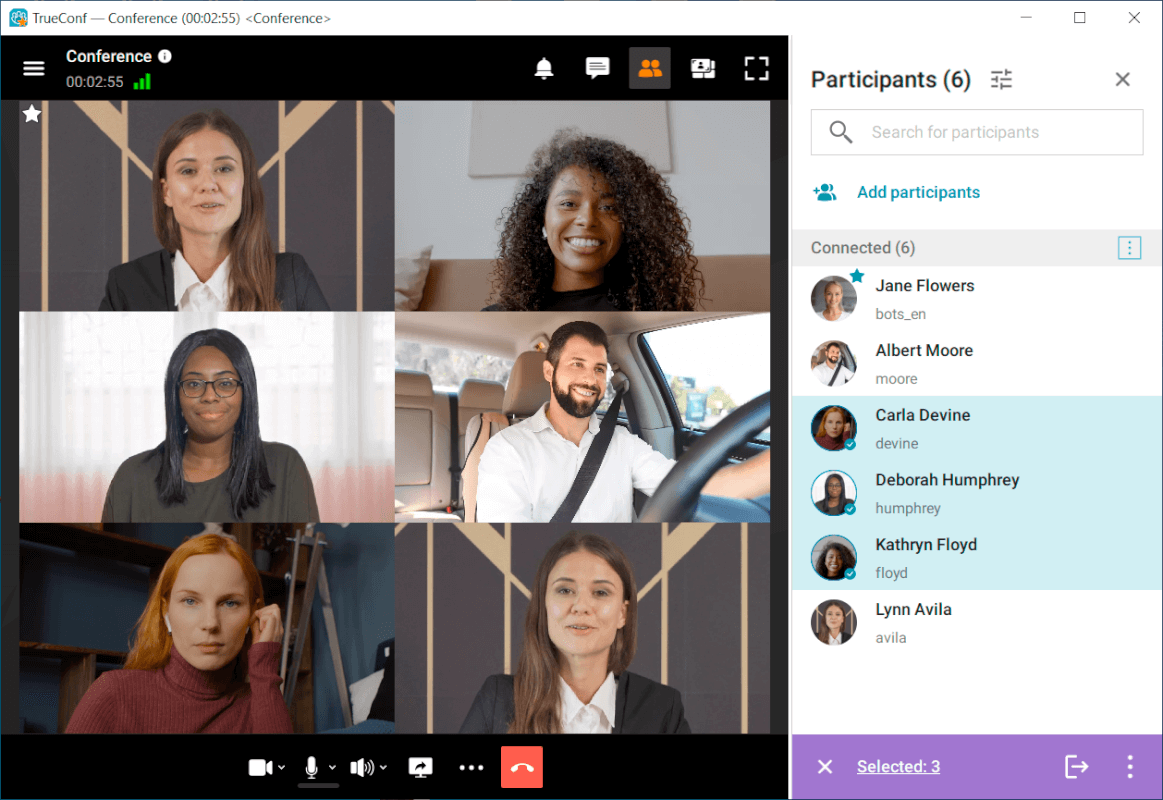
You can sort conference participants using the  button by:
Alphabetically. There are two options: ascending order (A-Z) and descending order (Z-A).
By role. The conference owner is displayed first, followed by appointed moderators and ultimately by users without a role (attendees).
By position in the layout. In this case, the order of participants in the list will be linked to the position of their video windows. If the window position changes, the participant will be moved in the list.
By microphone status. In this case, the participants, whose microphone is unmuted, will be displayed above others. Each sub-group will be sorted alphabetically.
Additionally, you can check Track participant activities. This will further sort participants based on their activities during the conference, such as speaking or sharing content.
Disconnecting participants
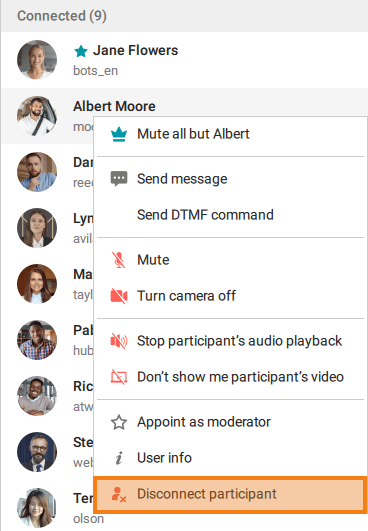
The moderator can disconnect a participant or another moderator during a meeting (removing the conference owner is unavailable). To this end, right click on the user name and select Disconnect participant in the list of conference participants (don't forget to go to the list of participants rather than the address book).
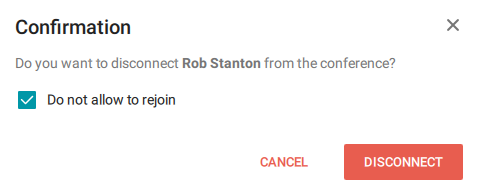
You will need to confirm the removal of a participant by clicking on the corresponding button. Please note that if you check the box Do not allow to rejoin, the user will no longer be able to join this conference session. After the end of the session, the user will be able to make calls to this conference (if he/she is allowed to access this event according to conference settings).
Appointing a single speaker
During the conference, you can make a participant the sole speaker. To do this, right-click on them in the conference participant list, and in the menu that appears, select Mute all but [name], where [name] is the selected participant.
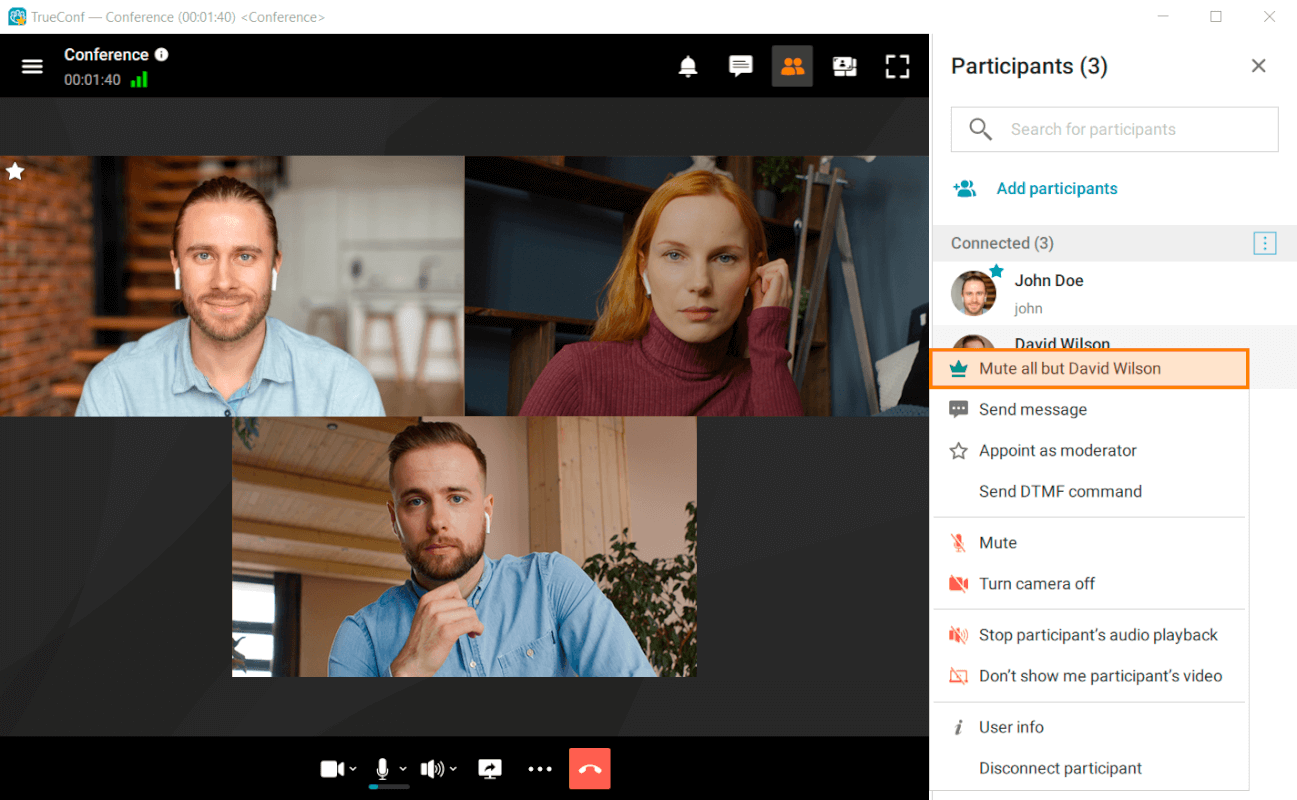
This command will unmute the microphone of the selected participant, while other participants’ microphones will be muted.
Conference analytics
The conference owner can check detailed information about participants and their activity during the event. To do it, you will need to:
Press the
 button in the application menu to navigate to the Conferences section.
Select the desired list based on the launch type: Scheduled conferences or Virtual rooms.
Click on the conference for which you want to check the analytics.
In the opened conference card, click the Analytics button.
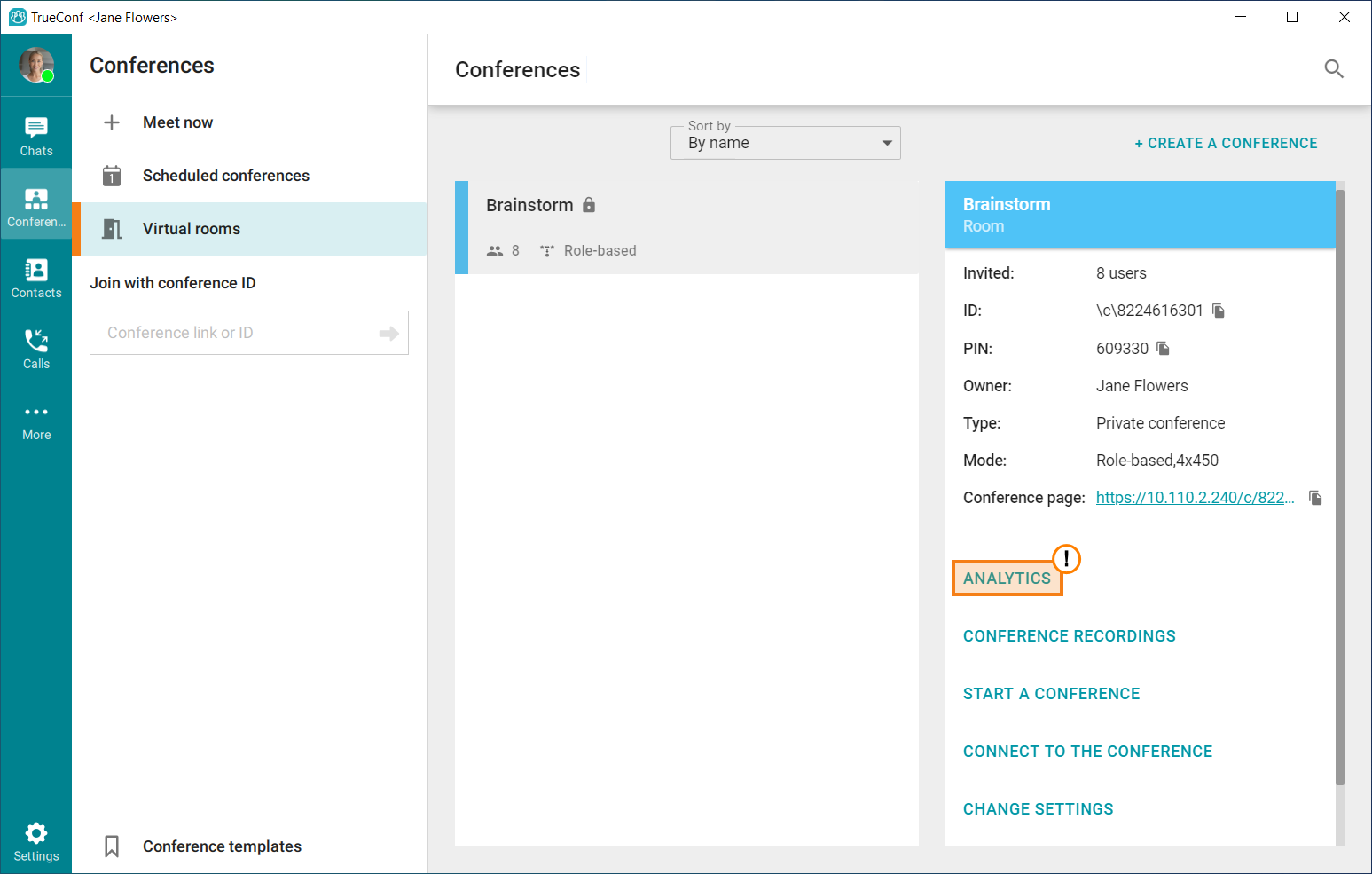
In the analytics section, you will be able to check the following data:
Information about participants
Connection history
Messages sent to the common chat.
Please note that the chat history in analytics will be available even if all participants delete the conference chat.
You can also search through this data and apply various filtering methods. If desired, any list can be saved to a CSV file by clicking the  button.
Managing participants' AV devices
During a conference a moderator can control participants’ audio and video devices. To do it, take these steps:
Click the
button in the top right corner of the conference window.You will open the list of participants. Right-click on the selected user.
The context menu will include multiple options for controlling the participant’s devices.
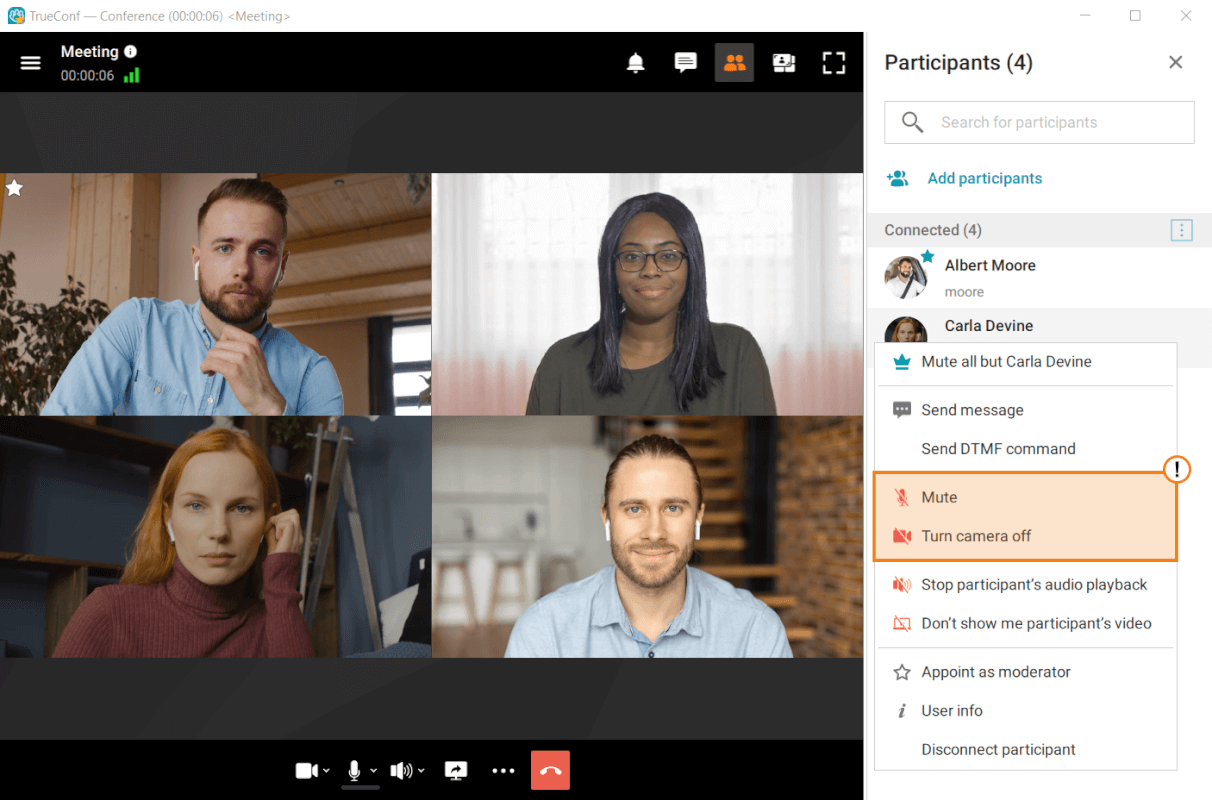
It is also possible to control the devices of all participants. Click on the button in the upper right corner of the list and select the required option in the context menu:
You can also fine-tune the participants' equipment (select appropriate cameras and microphones from the list available on their devices, adjust microphone sensitivity). To do this, go to real-time meeting management and follow the steps outlined in the user guideTrueConf Server.
Management of conference participants’ desktop sharing
A moderator can also end screen sharing by other participants at any time. To do it, the moderator has to right-click on the window with the shared content and select the End content sharing option.
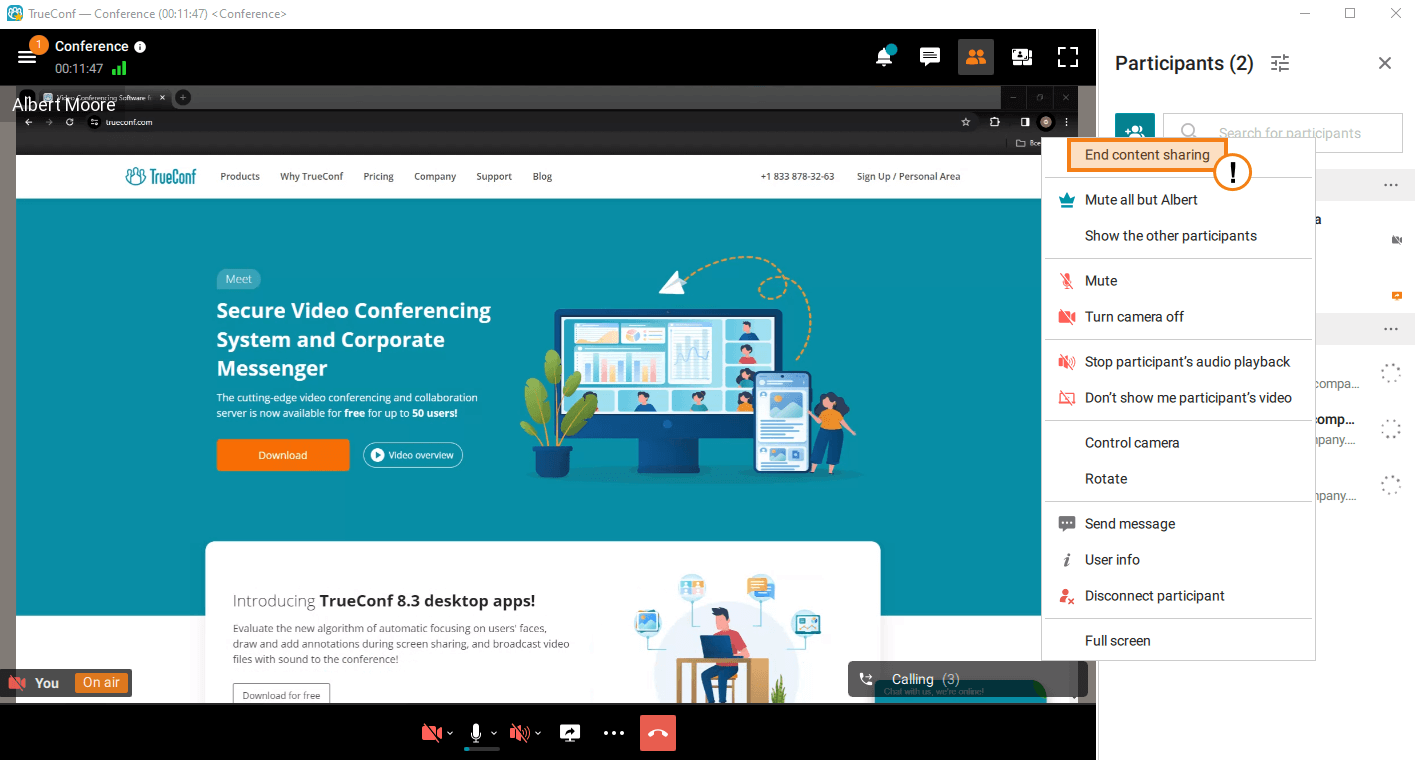
The participant whose content sharing was ended will receive the notification "The moderator has ended the broadcast of your content".
Changing the conference PIN and ID on the fly
Please note that the administrator can prohibit ID change for all conferences in the server settings.
During a conference, a moderator can change its PIN and ID (unique identifier). This precaution be useful to further secure the conference against unauthorized access when all invited participants have already joined the conference. One can do it in two ways:
First:
Go to real-time meeting management by clicking the Manage button.
Click the
 button.
Select the required option and specify the new PIN or ID. It is possible to automatically generate a PIN and set a new one if it was not specified before. Additionally, you can delete the PIN.
The owner can change the PIN of a conference even without joining it (without being included in the list of participants). The corresponding option will be available in the conference card when selecting this event in the list of meetings either in the client application scheduler or in the personal area.
Second:
During the conference, click Conference settings
 .
.In the window that opens, click the Edit button.
Replace the existing data with the required information and click Save.
Extending a conference
Please note: if you did not check the box End the conference automatically according to the schedule when creating a scheduled conference, you will not be able to extend it, but you can receive notifications about the upcoming end of the conference (this is controlled by a separate setting).
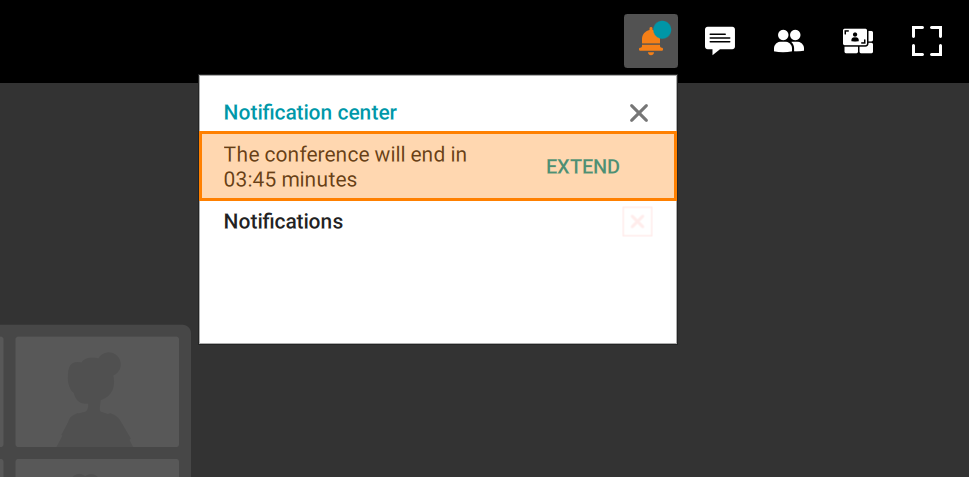
The conference moderator can extend the conference using one of two methods:
Click the Extend button in the pop-up notification (the notification will be displayed if you enabled notifications about the upcoming conference end when creating this event):
In the real-time meeting management window, click
and select the appropriate item from the dropdown menu.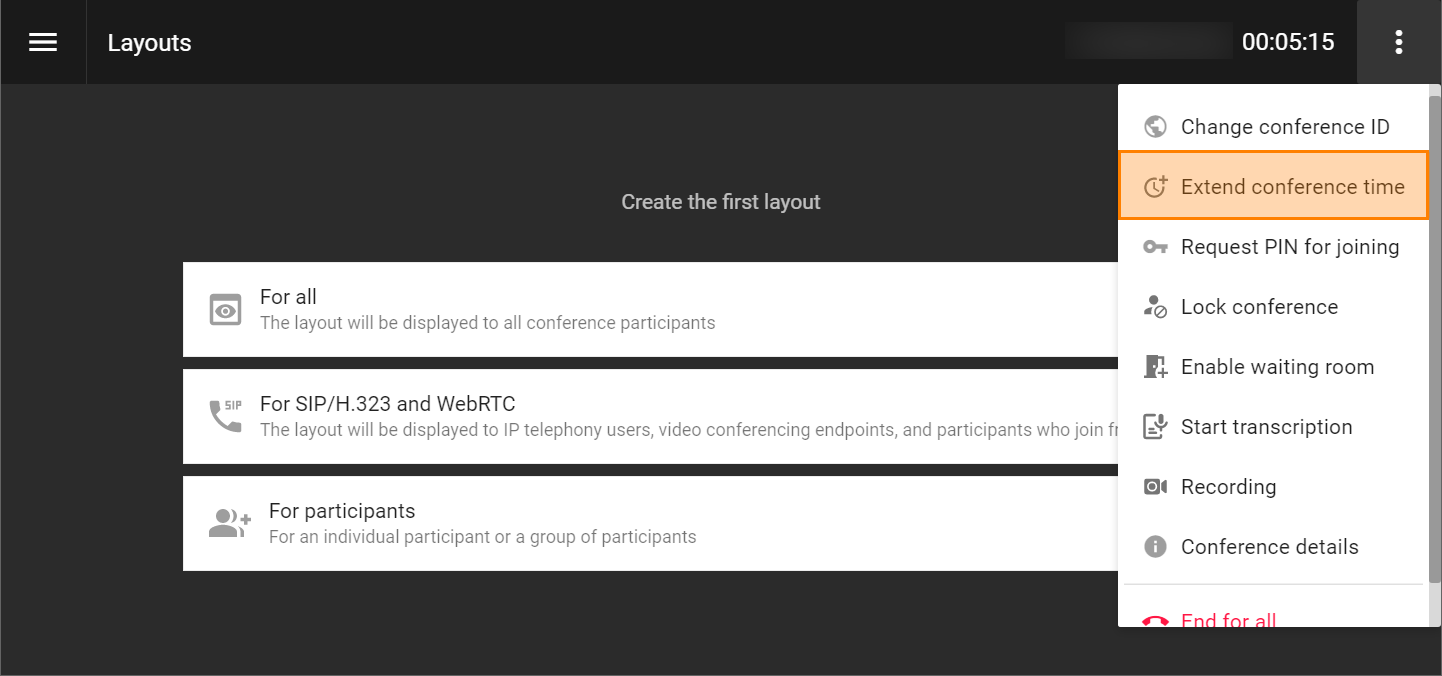
When renewing, you can choose how much time to add:
15 minutes
30 minutes (default)
1 hour (displayed as 60 min)
2 hours (displayed as 120 min).
Locking the conference
A moderator can lock the conference for new participants at any moment. This meeting will be unavailable to new participants either temporarily until it is unlocked or up to its ending.
You can lock a meeting in one of these ways:
Select the ongoing conference in the list in the scheduler and click on its card Lock conference.
Go to real-time meeting management, click on the
button, and select Lock conference.
When a conference is locked
it can be joined by:
moderators (including the owner)
operators
users who will be explicitly added by the moderator (including those users who were invited to the meeting, but did not join it).
it cannot be joined by:
authorized server users who were not explicitly added to the list of participants after the conference was locked
users who were added to the list of invited participants before the conference started, but did not connect before the conference was locked
guests (in case of a public conference).
Each time when a conference ends, its access status is automatically set to the default value unlocked.
The ability to reconnect is restored in the same place where it was restricted: using the Unlock conference option in the conference card or through real-time meeting management.
Waiting room management
If you are one of the moderators (or the owner) of the conference, you can manage the waiting room on the fly and move participants to this room or back to the conference. For more details, refer to the section on working with the waiting room.
Ending the conference
If you are the conference moderator, when you leave the conference (by pressing  ) you will be asked whether you want to leave the conference or end the conference for all participants.
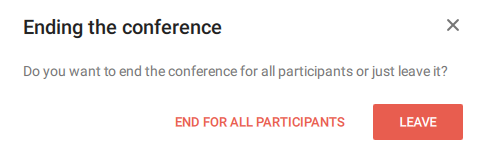
If you choose option Leave (without ending for everyone), you can return to it in one of the following ways:
- call via its ID or page address;
Find the event in the call history and join it
Go to the scheduler (menu section Conferences → Scheduled conferences), select the desired event, and click Connect to the conference.