
Address book
Address book
When you sign in, the pinned main menu and address book will be displayed in the left part of the window:
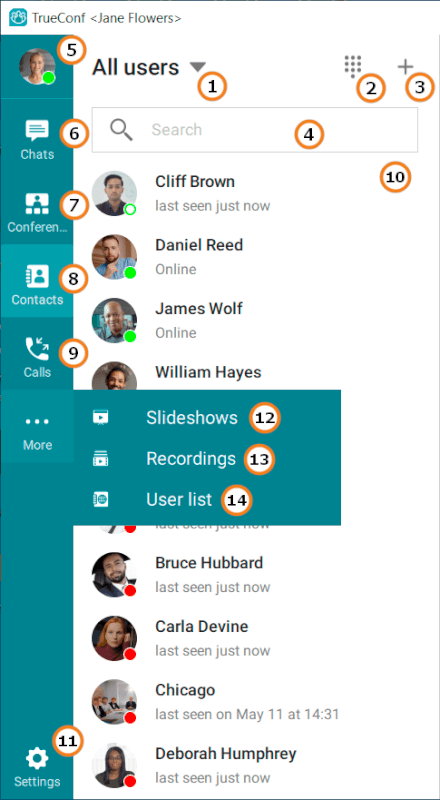
Go to your profile.
Address book
Call history
List of users and their statuses
You can change the width of the displayed contact list by dragging its right border. Similarly, you can change the size of other sections and panels displayed on the right side.
User statuses
Each user in the address book is assigned with one of the following statuses:
 — онлайн;
 — онлайн со смартфона или планшета;
 — онлайн с аппаратного или программного SIP/H.323 терминала;
 — недавняя активность: сетевой статус для пользователей, которые ранее авторизовались в мобильном приложении, но в данный момент не в сети;
 — участвует в конференции в качестве её владельца.
 — занят в видеозвонке или конференции;
 — отошёл (не у компьютера некоторое время, по умолчанию 15 минут);
When the computer screen is locked, the status is automatically set for the user logged into the TrueConf application. In this scenario, the timeout settings for this status are ignored.
Please note that statuses on different devices have different priorities. For example, if a user is logged in simultaneously from an SIP/323 endpoint and a client application, the endpoint status will take precedence. In other words, the connection status "From endpoint" will be displayed in the address book and chat list. However, if a user is connected from both mobile and desktop applications, the standard status (such as online or in a call) will be shown, rather than the mobile status.
 — не беспокоить (выставляется вручную в профиле). Обратите внимание на то, что этот статус будет отображаться всё время, даже при блокировке ПК, пока вы не измените его вручную;
 — не в сети.
Notifications about user status change
TrueConf client application supports notifications about user status changes.If you need to be promptly informed about the transition to status Online from any other:
Find the user in the address book.
Right-click on this contact.
In the context menu that appears, click on Notify when user goes online.
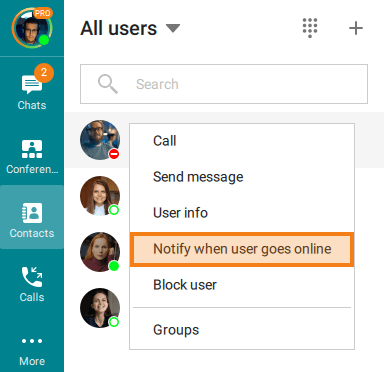
If you wish to disable the notification before the subscriber's status changes, right-click on it and select Don't notify when user goes online.
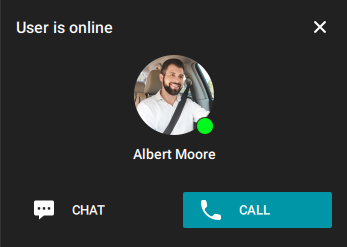
As soon as the user's status changes, you will receive a notification with an option to make a call or send a message.
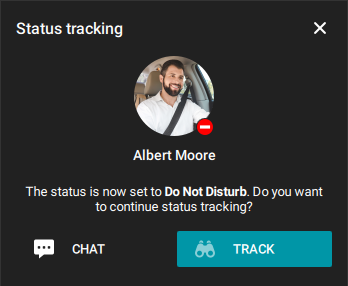
If you miss the notification and the status of the selected user changes again, the corresponding alert will be displayed. You can either continue status tracking or go to the chat.
Searching for users
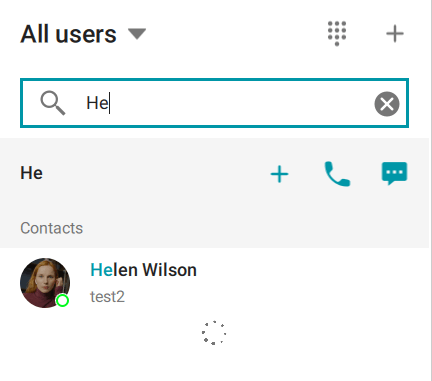
Enter the user's TrueConf ID or the initial characters of his/her name in the search field above the address book. The application will filter the contact list according to your query and it will be easier for you to find the contact.
If the user is not yet in your contact list and there is no restriction on editing your address book, a "plus" icon for adding this user will be displayed as shown below.
Adding contacts
Enter the user's TrueConf ID in the search field and click the  button.
Similarly, you can add third-party SIP/H.323 and RTSP devices to the address book by specifying a call string instead of a user ID in the appropriate format. You can also save users by email in the format #mailto:user@example.com which makes it easy to invite them to public conferences (webinars).
Examples of call strings (addresses) that can be added to the address book:
user@example.com— a server user (including a user from a federated server) with the loginuserand server addressexample.com.sip:number@example.com— an SIP device, such as an endpoint in a meeting room. For more information on SIP addresses, check here.#h323:number@example.com— an H.323 device, such as an endpoint in a meeting room. To learn more about H.323 addresses, check here.#tel:123— the phone number for calling a contact, which can be either a mobile number or an extension number on your PBX.rtsp://192.168.1.100/axis-media/media.amp— an RTSP stream, for example, a stream captured from an IP camera or another conference with external streaming enabled.#mailto:user@mail.example.com— an email address of a user who does not have an account on your TrueConf server, but can participate in a conference as a guest (this option is available only for public conferences).
After adding a contact, you can create a new group for this user or add him/her to an existing one:
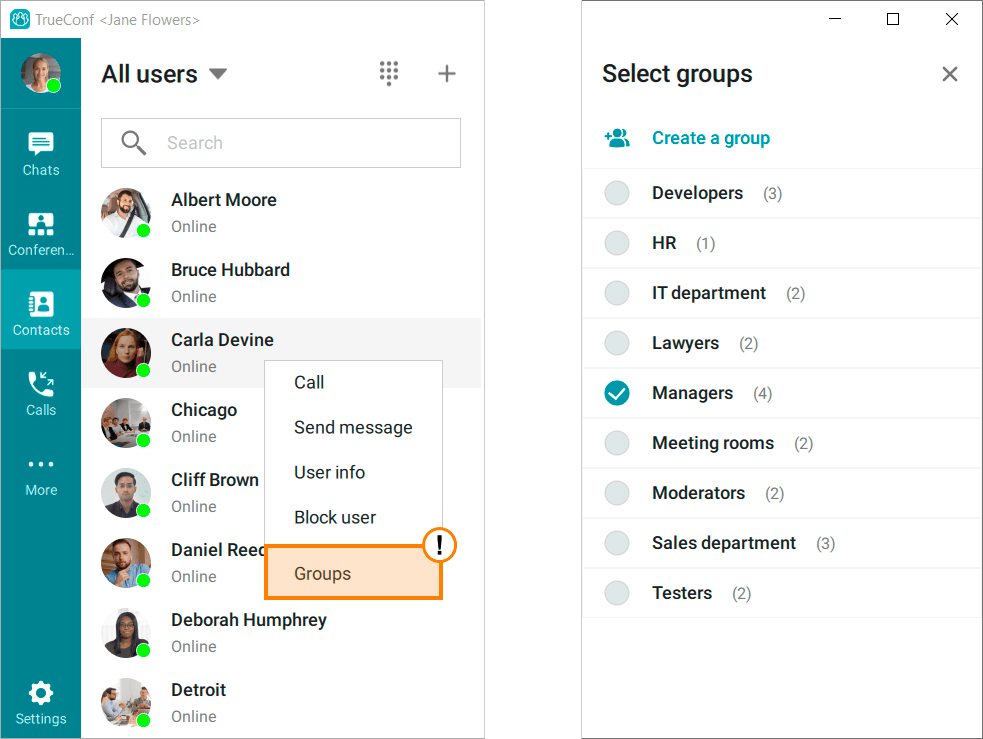
TrueConf administrator can add contacts to your address book and set group display automatically to save you from manual settings.
Adding conferences to the address book
When adding a contact to the contact list, you can use conference addresses as a call string. This allows you to quickly find and join a recurring conference or virtual room.
To add a conference, you can use the following types of addresses (call strings, URIs). In our examples, [cid] represents the conference ID:
https://example.com/c/[cid]— a webpage address for a conference with ID[cid](you may have received such a link in invitation emails).\c\[cid]@example.com#vcs— a conference address, including a conference on a different serverexample.com.\c\[cid]@example.com— a conference address, including a conference on a different serverexample.com.\c\[cid]— a conference address on your server (so, the server name is not specified).
Viewing and editing user profiles
To view a user's profile, click on their name with the left mouse button or use the User info option in the context menu.
The following options are available in the user profile:
Сall the user or send a personal message
Share the user contact
quickly copy individual profile items (such as phone number, TrueConf ID, etc.) using a dedicated button
 ;
;Open the additional settings menu where you can:
view/edit user information
disable/enable notifications about messages from the user
delete or block the user
set a notification for changes in the user's status to Online.
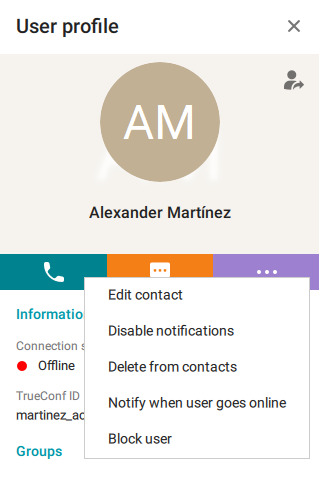
If a user has been added to your address book by your TrueConf administrator, you will not be able to delete or edit the user profile.
To share a contact, click the Share contact button, select the recipient in the window that opens, and confirm the sending with the Share button. You can also do this in the group chat window using the  button.
Deleting users
Find a user/device by its display name in the address book. In its context menu, select the option Delete from contacts:
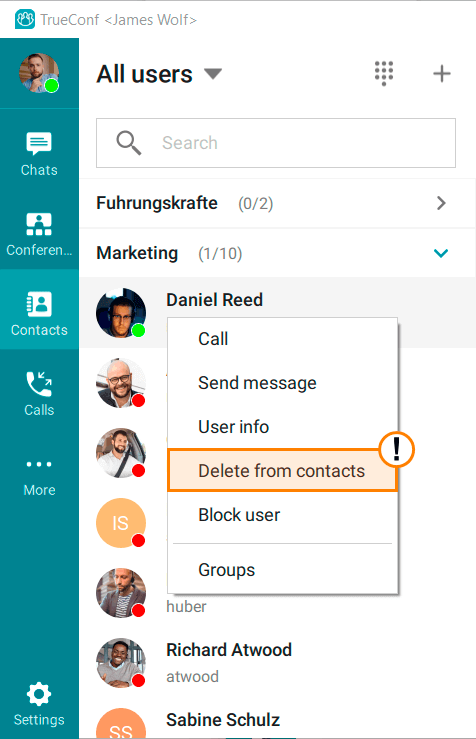
This button is available only for users and devices manually added by you.
Blocking users
You can block any user via the context menu.
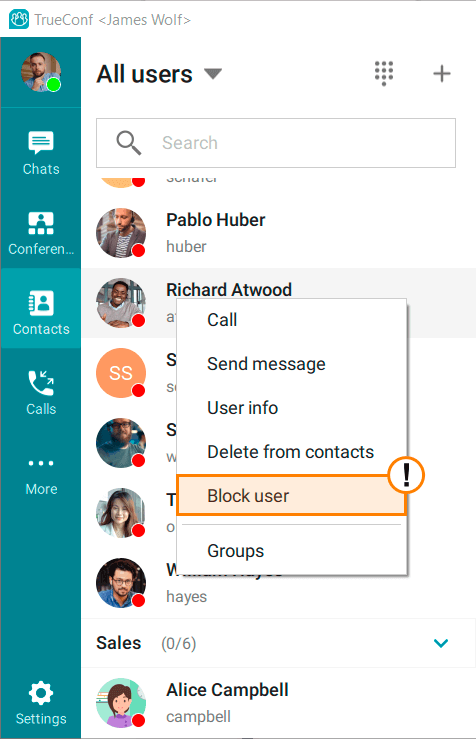
Similarly, you can unblock users.
When a user is blocked, they will not be able to:
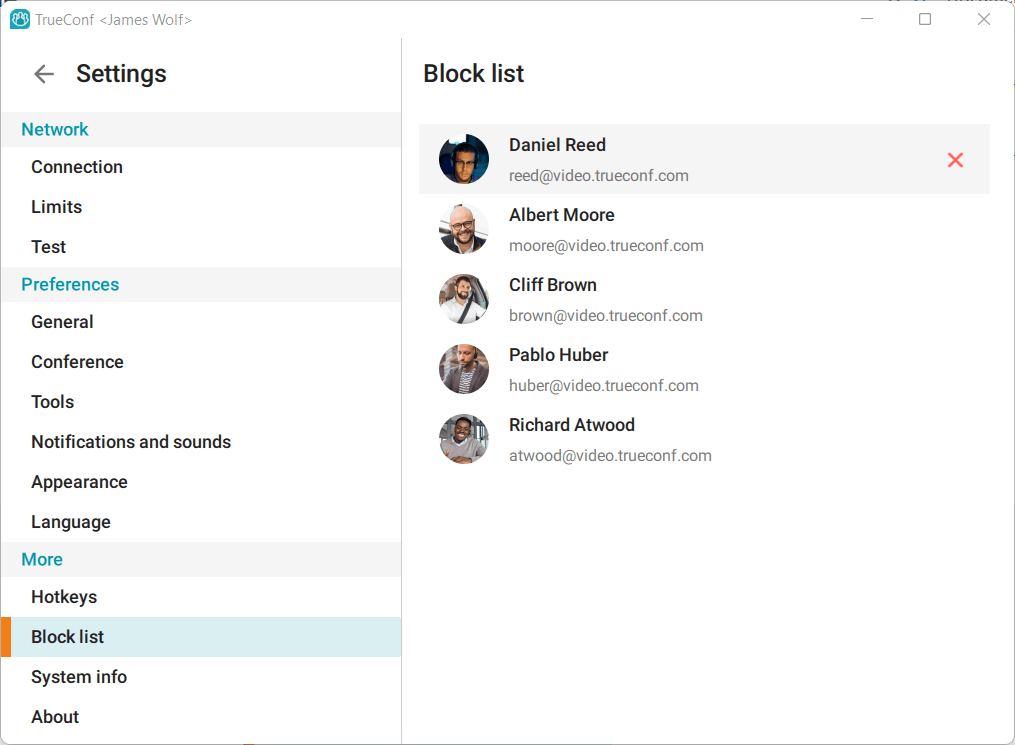
The list of blocked users is displayed in the Settings → More → Block list section of the client application:
Global user list
If your company uses TrueConf Enterprise, you will see the User list option in the menu to view the directory of TrueConf Server server users synchronized with yours.
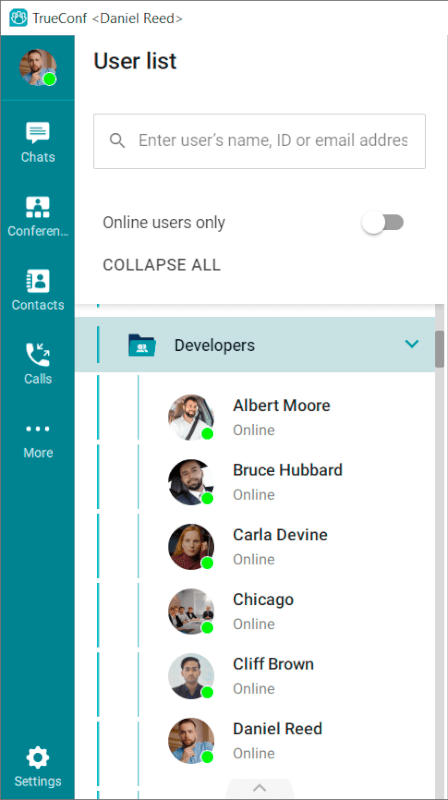
This menu item will be unavailable if integration with TrueConf Directory is not configured on the server. For more details, refer to the description of the solution TrueConf Enterprise.
Configuring your address book
Setting up your address book view
The buttons to change the address book view open when you click the arrow  above the search field. Here you can specify which users to display — all/online/group.
To display only users from a specific group in the address book, click Show one group and select the desired group from the dropdown list.
A list of all your groups will be displayed when you select Show groups.
[Adding user groups]{1}
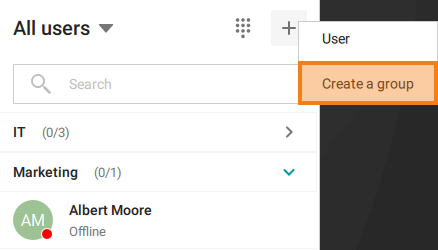
At the top of the address book, click the  button above the search field and select Create a group from the dropdown menu. This will open the group creation menu. Enter the group name and confirm the creation by clicking the appropriate button.
Editing or deleting groups
To delete or edit a group:
Go to the group list of the address book.
Find the desired group and in its context menu, select either Rename group or Delete group accordingly:
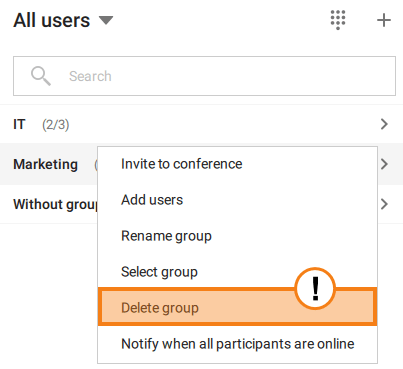
In this menu, you can also add new users to the group with the corresponding button.
Bulk actions
You can also select multiple users for popular bulk actions, such as:
Create a conference
Create a group chat
Create a group
Open the menu for managing groups.