Audio and video settings
Audio and video settings
Video
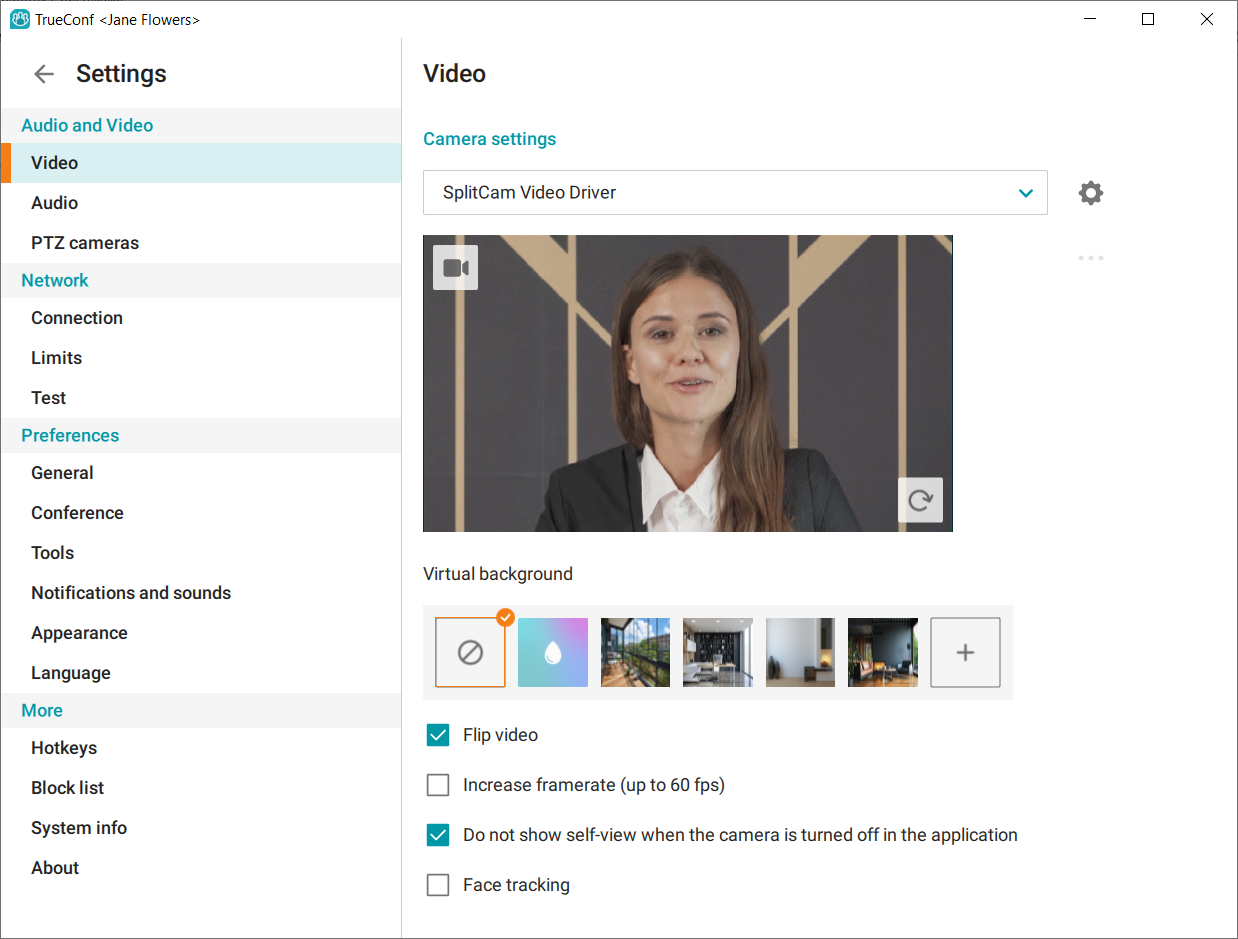
In the application window, navigate to the Settings menu by clicking on the corresponding  button. Then, in the Audio and Video section under the Video block, select the camera.
Please note: You can disable the selected camera for all previews and active use at once by clicking the  button. The application will then completely stop capturing images.
If the Face tracking feature is enabled, the built-in AI module will crop the video so that your face would always remain in the center while the background on both sides would be mostly cut out. The resulting frame will be scaled to fit the available video area. If there are two or more persons in the frame, the video will be adjusted to fit all of them. Your face will be tracked even when you are moving.
Face tracking Available for cameras with a resolution of 1280x720 (720p) and higher.
Document or whiteboard recognition
This feature allows you to highlight and enlarge a specific area in the video from your camera, e.g., a board during online lessons. The highlighted area will be sent in an "expanded view" in the form of a rectangle. In other words, when showing a board during your online class, you can spend less time adjusting the camera directly in front of the board. Even if the board is tilted at an angle, other participants in the conference will see it "straight," as if it were directly in front of the camera.
To enable this feature:
Navigate to Settings → Video and locate the Camera settings section.
Click the
 button in the bottom right corner of the camera image: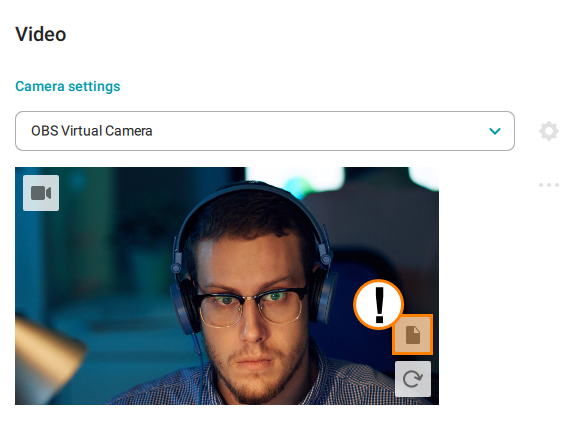
Select the recognition area by positioning the frame points in the required places. In this same window, you can rotate (
 ) or mirror (
 ) the transmitted image: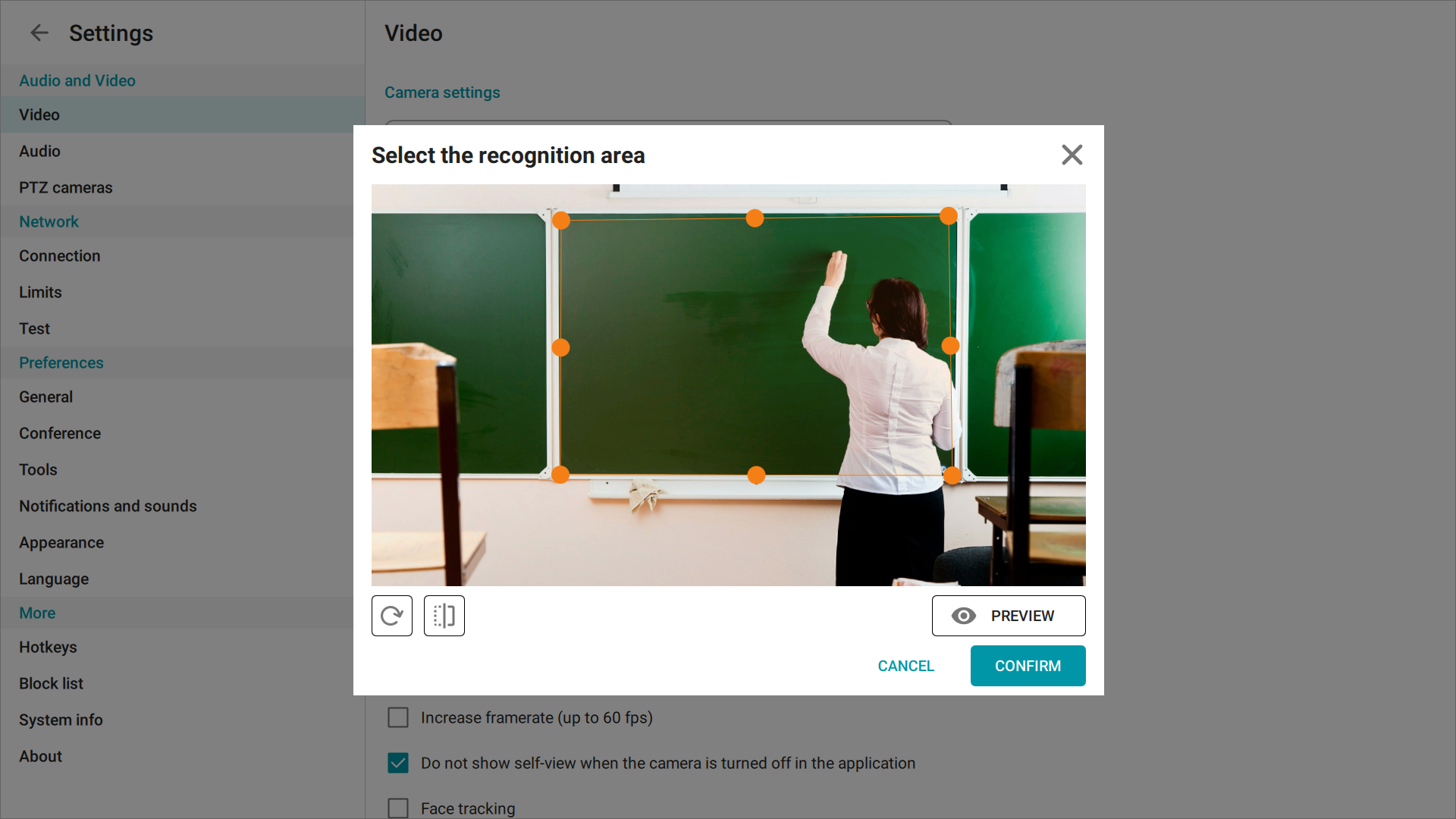
Go to the Preview menu by clicking the corresponding button. Adjust the aspect ratio if you need to narrow or stretch the transmitted image:
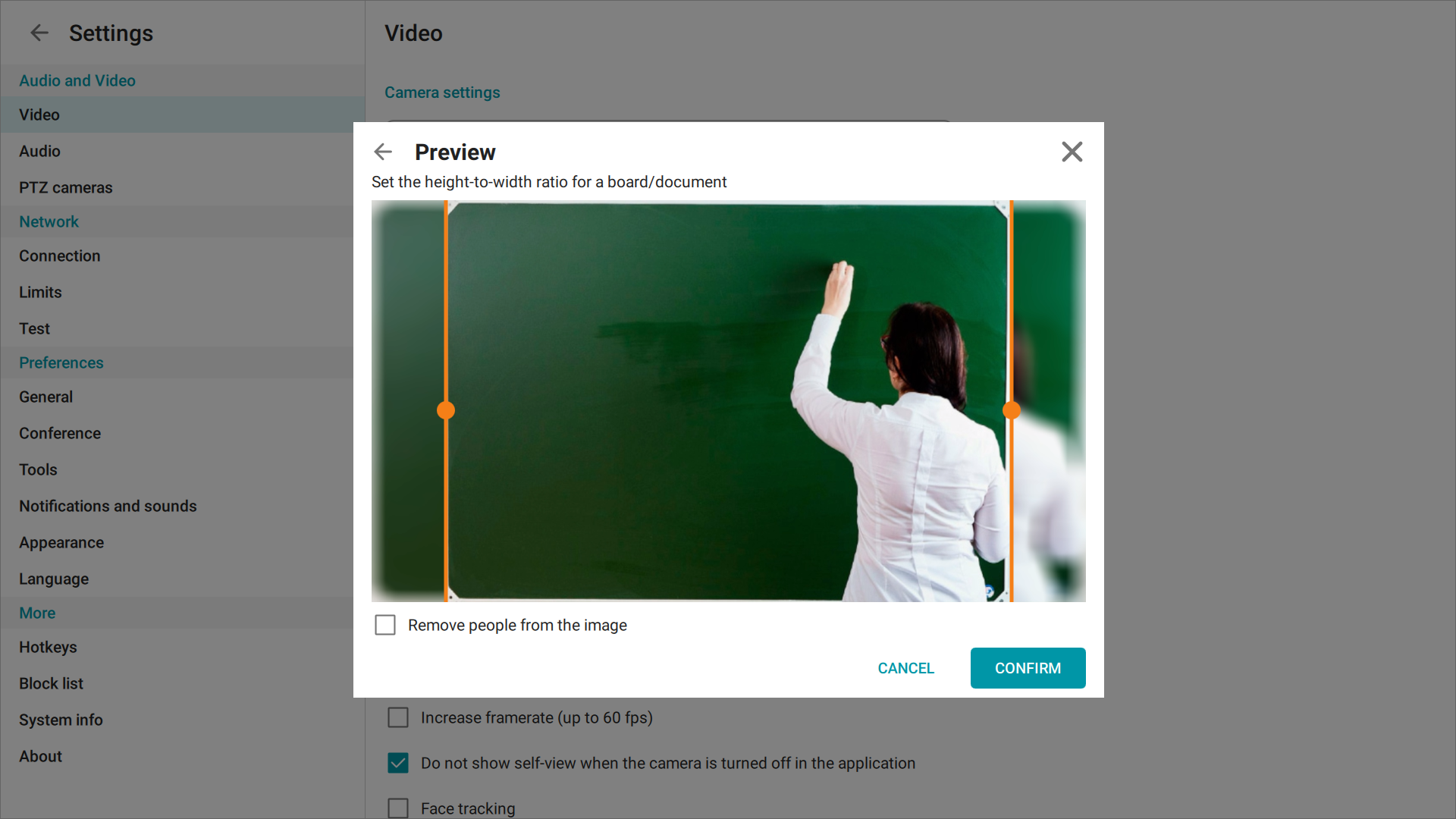
In the same window, you will find the checkbox Remove people from the image. When this feature is enabled, the neural network will automatically remove all people from the frame.
To complete the configuration of the recognition area, click the Confirm button.
Please note that after clicking the Confirm button, you will no longer be able to return to the previous menu and modify the recognition area. To do it, you will need to start configuring the board area once again.
If necessary, you can adjust the settings of the specified recognition area by clicking on , which will bring up the context menu:
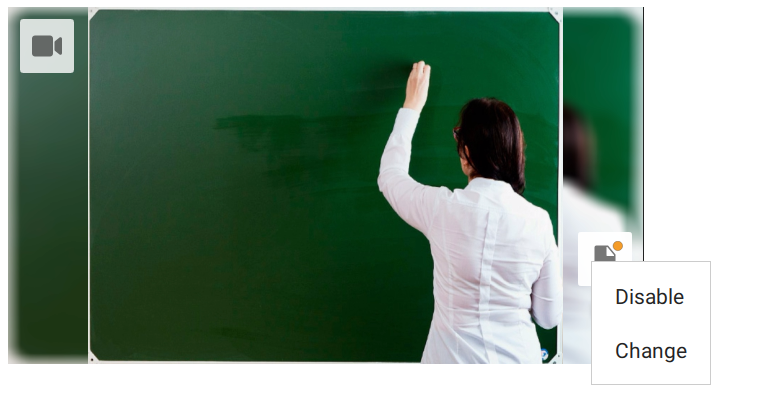
In settings editing mode, one cannot select a different recognition area or flip the image. If you need to configure these settings, click Disable and change required parameters once again.
Background blurring
TrueConf provides background blurring feature. It is available for any computer that meets the general system requirements and can be used for both one-on-one video calls and group video conferences.
The blurred background feature can be useful in a slew of situations, e.g., if you need to focus on the task at hand during meetings. Even if you don't work remotely, office distractions can be a problem.
This feature is also useful for remote learning since children's rooms may look disorderly due to clutter or very bright posters. Background blurring will help them feel more comfortable during the lesson.
The background blurring feature may be unavailable if your system does not meet the required performance parameters or is overloaded with CPU consuming processes.
To blur the background, take the following steps:
Go to the Settings → Audio and Video → Video section.
Click the
 button. Immediately after, you will see the result in the preview window of your video image.
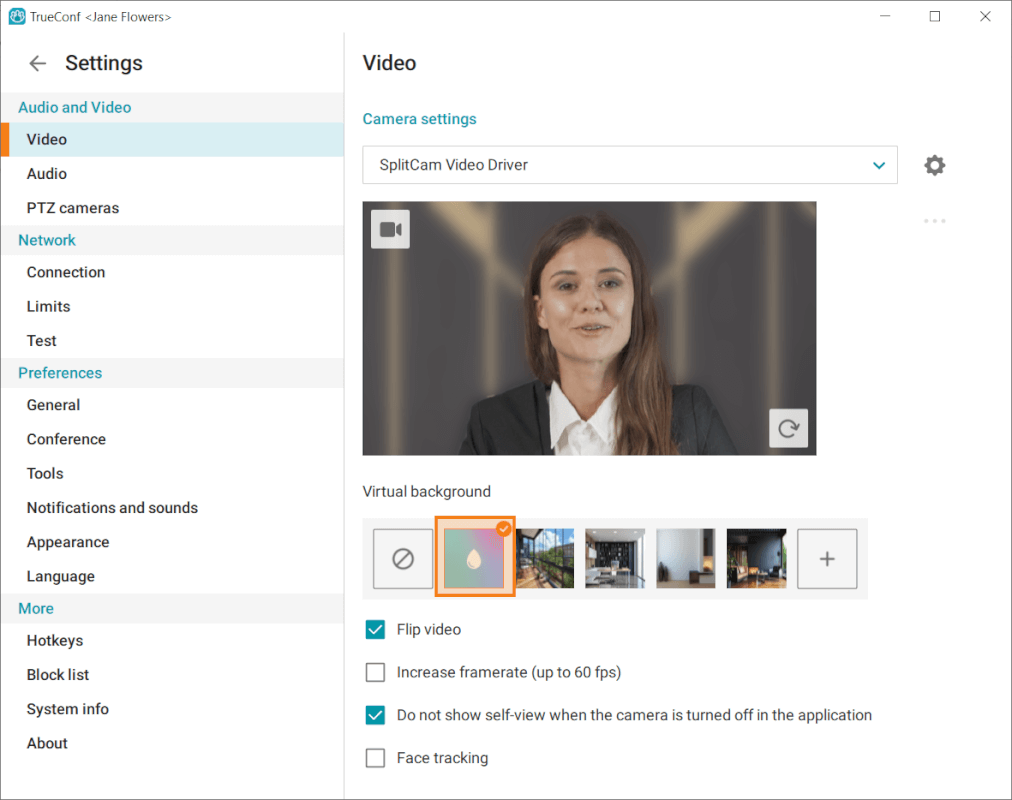
To disable background blur, click the  button.
Virtual background
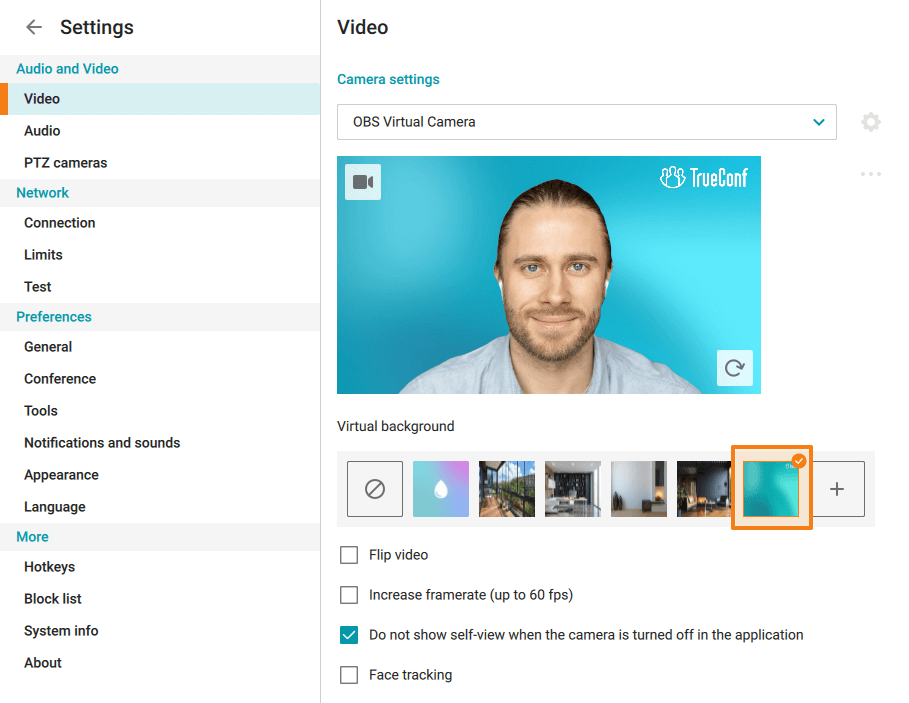
If you need to hide your background, you can replace it with a virtual one. To do this, go to the Settings → Audio and Video → Video section and select any of the available images in the Virtual background block.
In addition to using a virtual background, users can also blur their real background. Check the corresponding sub-section for more details.
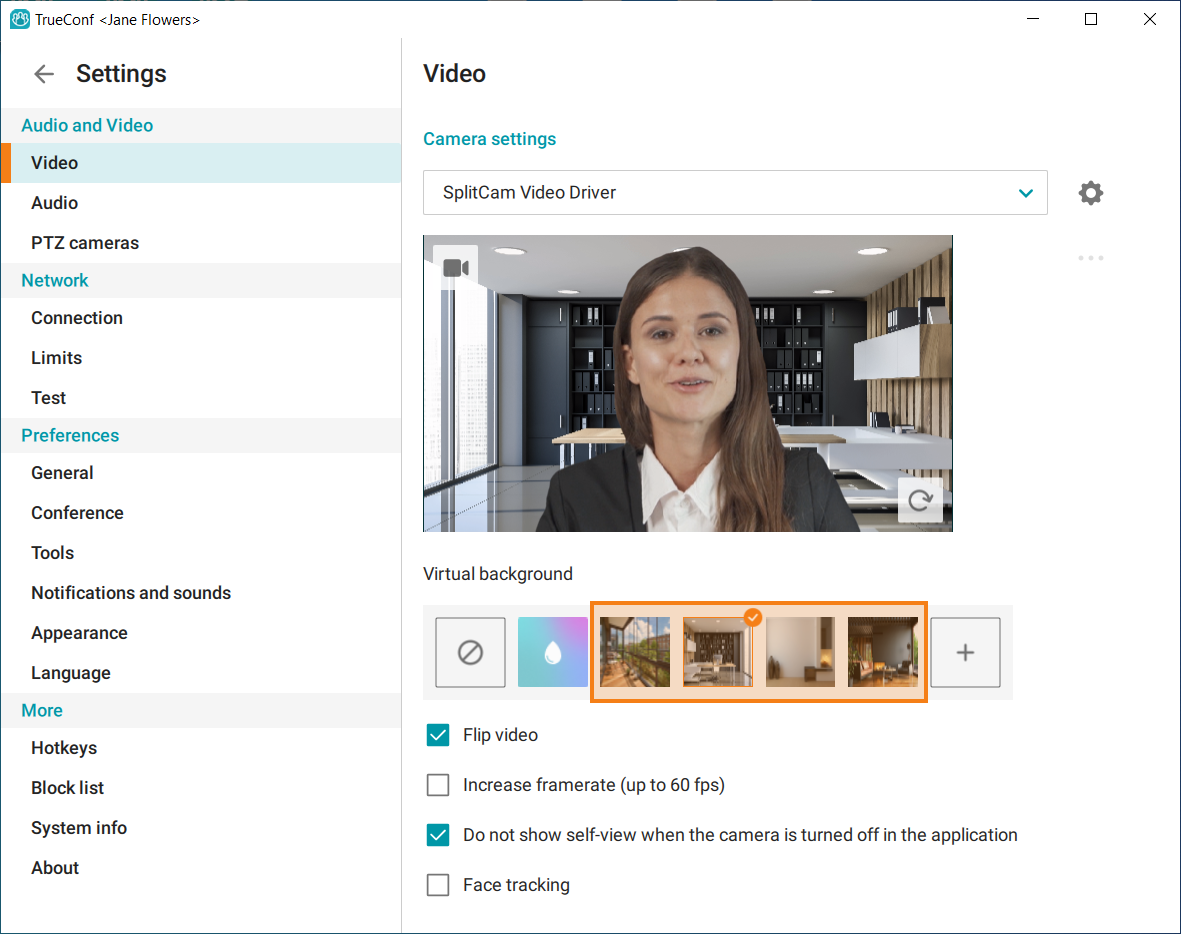
If none of the default images suits you, it is possible to upload a custom image. In order to do it:
Click the
 button in the Virtual background section.
In the file manager of your operating system, select an image (supported formats: .jpg, .png, .svg, .jpeg, .gif, .jpe, .jif, .jfif, .jfi, .bmp, .webp) or video (supported formats: .mp4, .avi, .mov, .webm, .mkv).
If the .gif format is used as a background, only the first frame will be used, but not the entire animation.
The image that has been added will be displayed in the list and you will be able to set it as a virtual background.
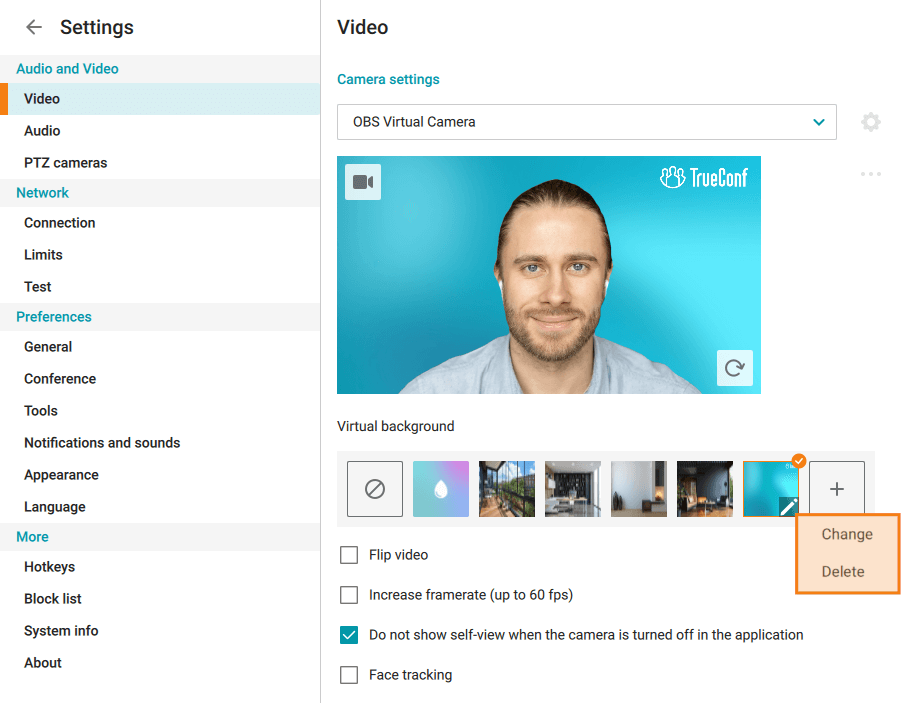
When a virtual background has been added, you can change or delete it. In order to do it:
Hover the mouse cursor over the image added to the list of virtual backgrounds.
Click the
 button that appears.
A context menu will open, providing you with the Change and Delete commands to replace or remove the background, respectively.
To disable the virtual background, click the button.
Audio
To configure audio devices, go to the Audio section of Audio and Video. Here, you can select playback and recording devices and adjust their volume. Note that you can choose different playback devices for conferences and notification sounds.
In the Recording device section (below the microphone selection), additional settings are available:
- Echo cancellation;
- Automatic gain control;
- Noise suppression;
- Enable diagnostics audio dump, which can be useful when sending log files in case you need to contact our technical support.
Audio dump files, like other application log files, are not automatically deleted. Therefore, if the checkbox Enable diagnostics audio dump is not unchecked, the audio dump folder will gradually consume more space over time.
These options are automatically enabled, and they are helpful in most cases. However, if you use a recording device with integrated echo cancellation/AGC mechanisms, we recommend disabling these options in the application to avoid conflicts between algorithms.
Noise cancellation
Starting from the version 8.5 of the client application, you will be able to choose the noise suppression mode.
In earlier versions, noise suppression mode was selected depending on the rating of your device: advanced noise suppression mechanisms were available on high-performance devices, while on less powerful devices, only balanced mode was used to save resources.
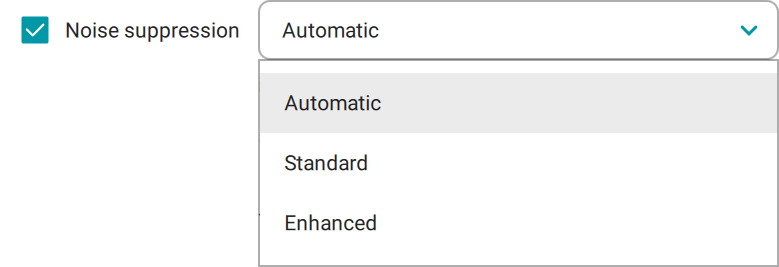
To enable mode selection, you need to check the checkbox Noise suppression, and then choose one of the four options from the dropdown menu:
- AutomaticWhen this option is selected, the active noise suppression mechanism will be chosen based on your device's performance level – Enhanced will be enabled for relatively powerful devices, while Standard will be used for less powerful ones.
- Basic. A moderate noise suppression level suitable for low-performance devices. This mode can eliminate less intense noises such as the sound of a passing car or a distant dog barking, or it can suppress loud noises like construction work from neighbors.
- Enhanced. The most effective mode of noise suppression, however, it will put a slightly higher load on the device CPU. In this mode, any noise, such as the sound of a drill, can be suppressed.
- OptimalA sufficiently effective noise suppression with lower resource consumption. If, when manually attempting to switch from mode Basic to Enhanced, the noise suppression application detects that your device lacks the necessary resources, mode Optimal will be enabled instead.
Echo сancellation
To enable echo cancellation, check the box with the same name.
For the echo cancellation algorithm to work properly, you can run an audio test and identify a possible delay. To do this, click Estimate at the bottom of the window.
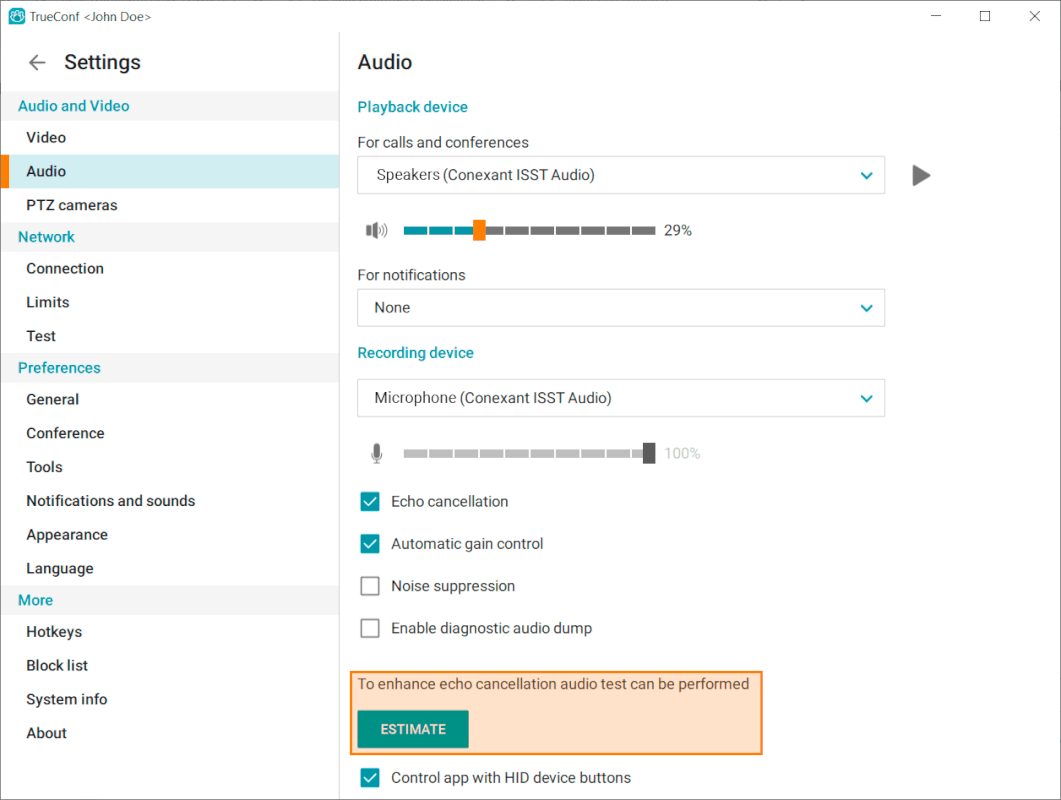
During the testing, you will hear several audio signals from the selected playback device. When the test is successfully completed, the time of delay will be displayed.
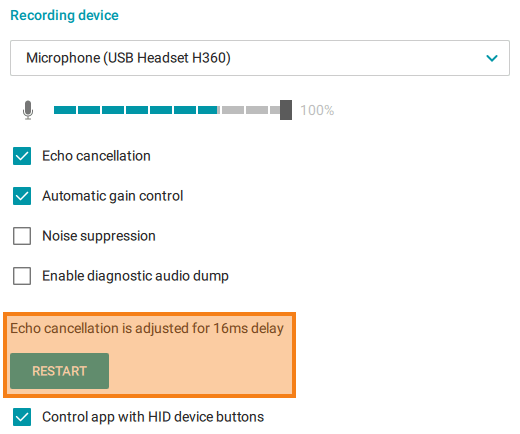
You can retake the audio test by clicking the Restart button, which will appear after successfully completing the test the first time, replacing the Estimate button.
The checkbox Control app with HID device buttons controls the ability to manage the application using the buttons on a speakerphone or headset.
Quick audio and video settings
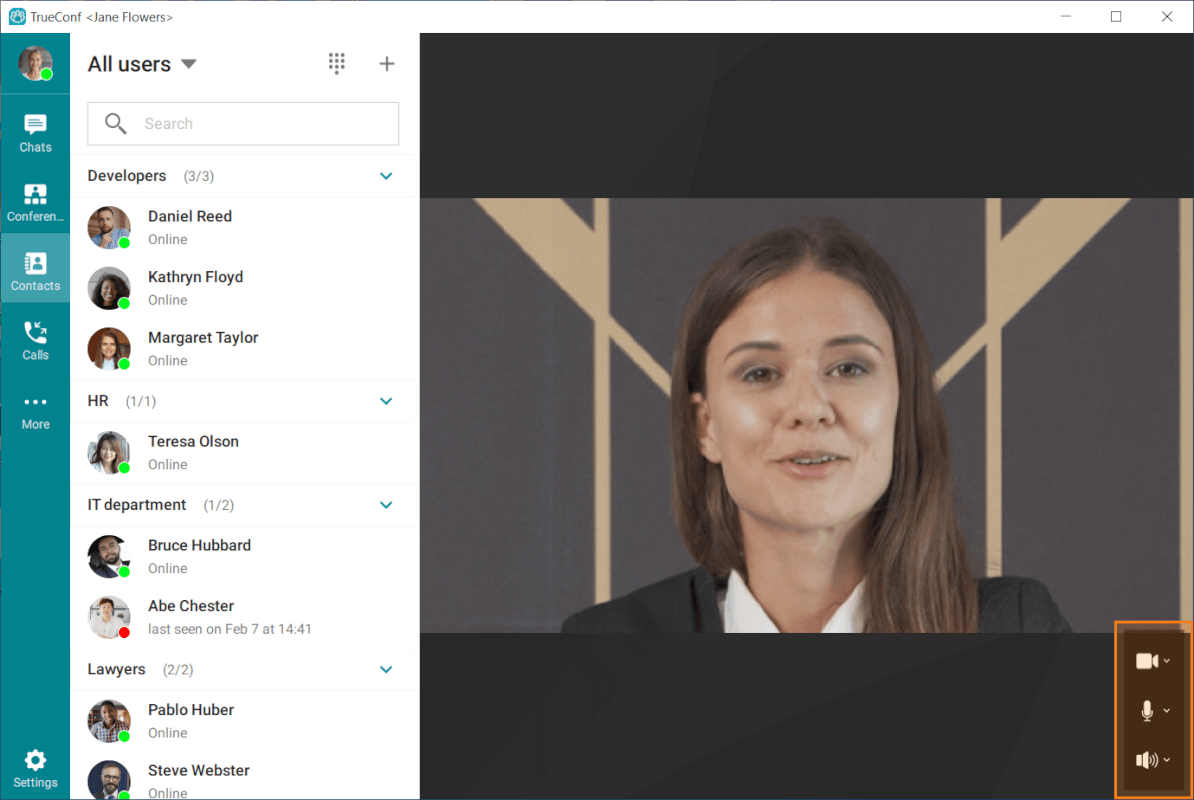
You can also configure video devices in the Contacts section (where the video from your camera is displayed). The settings menu can be found in the lower right corner of your video area.