
Surveys
Surveys
If you want to examine your colleagues’ opinions on a specific topic, you can always hold a survey with the help of the corresponding feature.
To do this, select the Surveys option in the main menu:
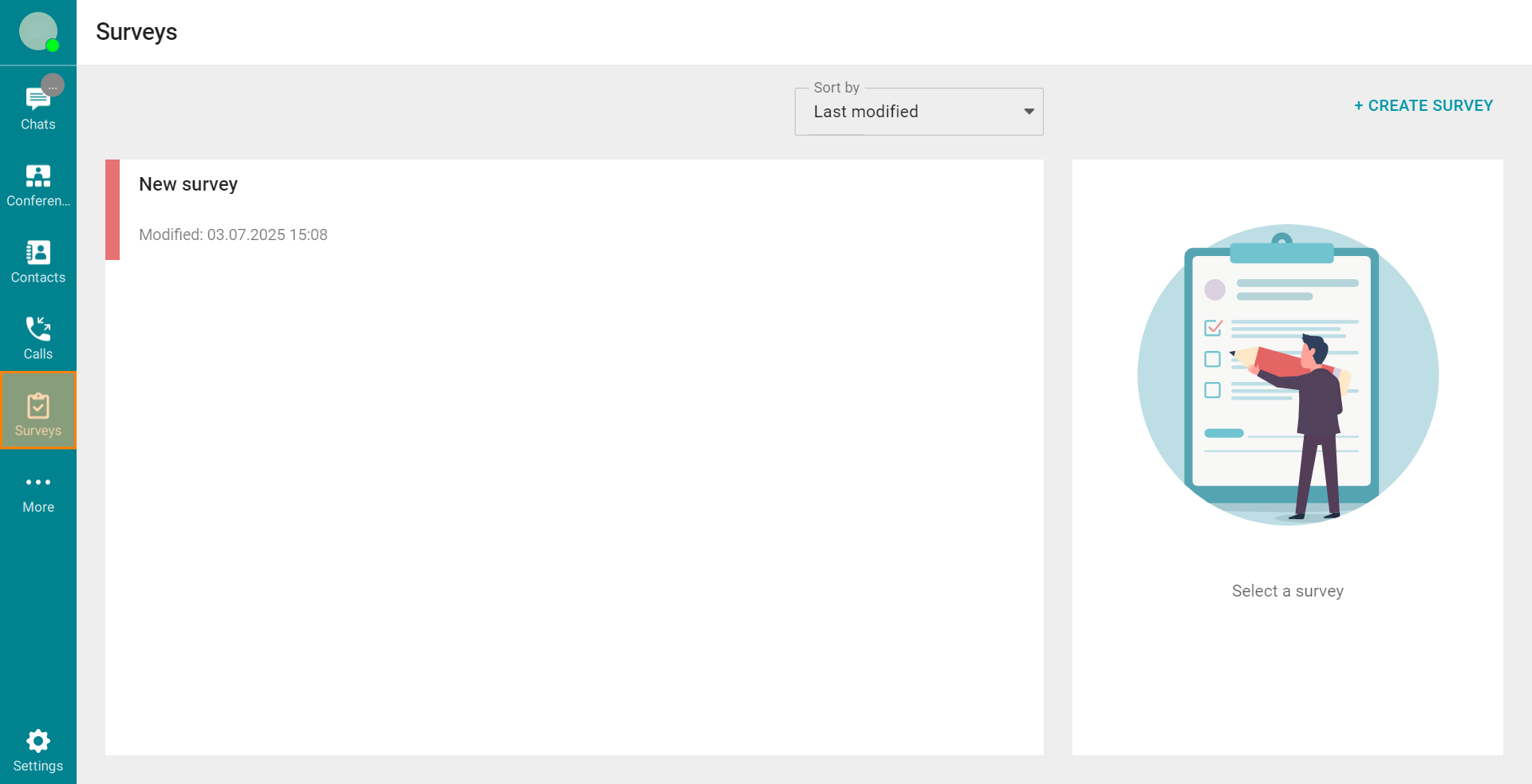
Here, you will see all the surveys created previously, they will be sorted by name or the last modification date. Here, you can also start your own survey.
Creating surveys
To create your own survey, click the button in the upper right corner.
By clicking the button, you will open the window where a user can:
Enter the survey name
Add a description for the survey
Create a question with the corresponding button.
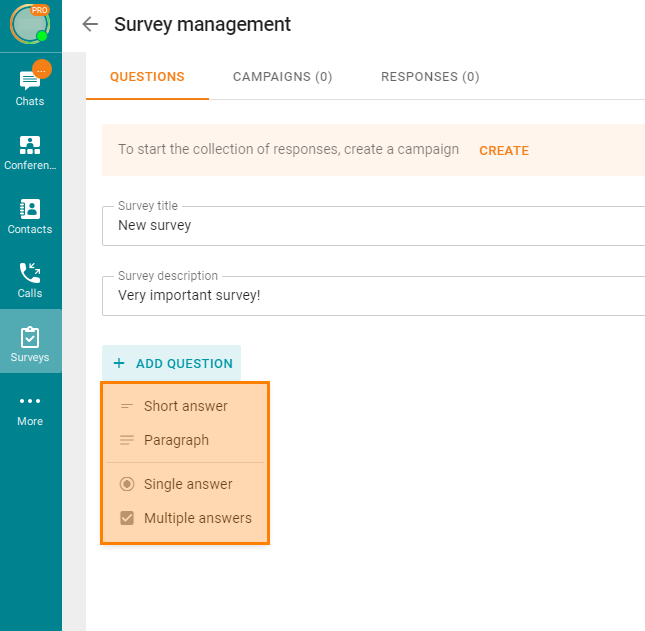
When you click the Add question button in the dropdown menu, you will be prompted to choose the specific format required for the responses:
- Short answer;
- Paragraph;
- Single answer;
- Multiple answers. When creating questions with this type of response and Single answer, an additional Add the 'Other' option button will be available to you.
You can either add a text description of the question or attach additional materials (such as an image) by clicking the  button.
Images can also be attached as answer options for formats Single answer and Multiple answers. You can attach images in JPEG, PNG, and GIF formats.
If necessary, switch Required to the active position.
All questions added to the survey will be saved automatically, even if you go to a different tab when creating it. When you return to the Surveys tab, you will see the survey created previously. You can select this survey and click the Edit survey button in the right-hand menu.
Campaign launch
After creating your own survey, you need to launch it to start collecting responses from users. To do this, go to the Survey management menu, navigate to the Campaigns tab, and click the Create campaign button. In the Creating a campaign window that appears, set the necessary parameters:
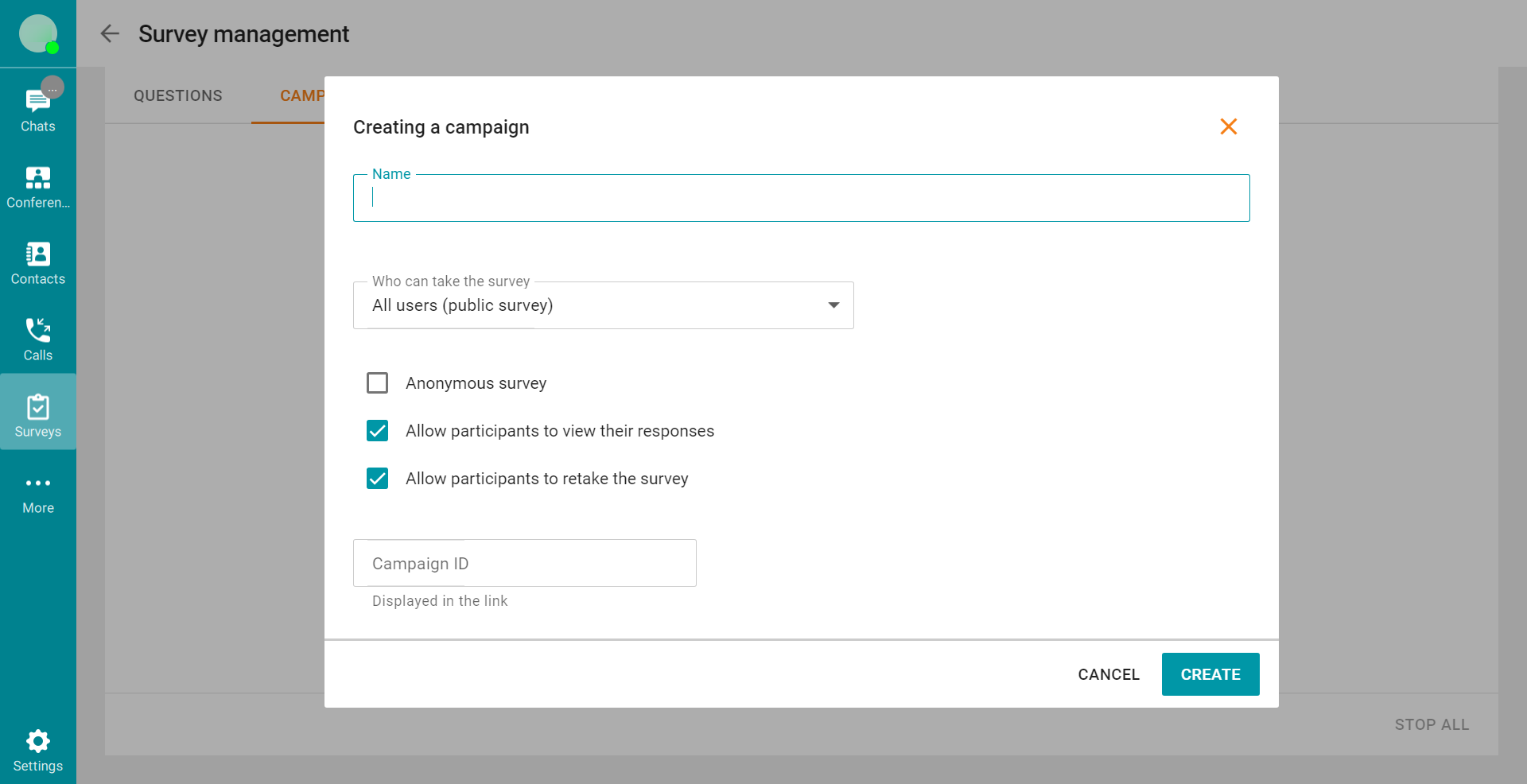
Campaign name
Who can participate in the survey (anyone with the survey link or only server users)
Additional options (whether the survey will be anonymous, whether users can see responses, whether they can retake the survey and change their answers)
The ID of the current campaign (it will be used for creating a hyperlink) which will help you to distinguish between different campaigns.
After setting all parameters, click Create. The campaign will be displayed in the list. In this list, you can view the number of responses received at any time, copy the link to the campaign, check its status, and quickly start or pause the campaign with corresponding buttons ( — start and
  — pause). You can launch several separate campaigns for one survey, for example, a survey for the general audience and the survey intended only for server users.
If you need to change the campaign settings or view the current responses, click the  button and select the required option in the drop-down menu.
Responses
You can view the current responses in the Survey management menu under the Responses tab.
To review the overall results, refer to section Summary.
You will also see:
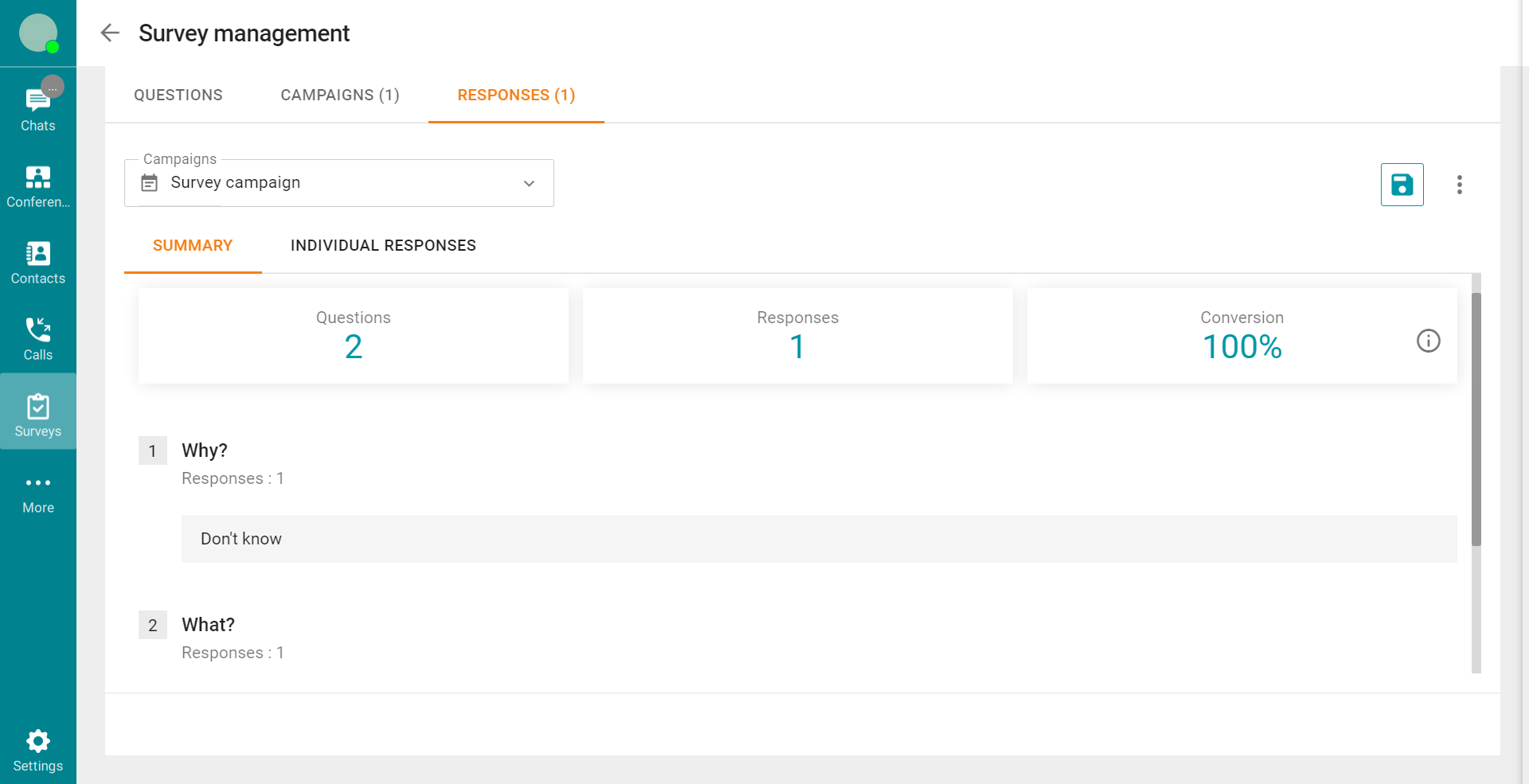
Total number of questions
The number of people who submitted responses
The percentage of respondents who completed the entire survey form.
For further analysis, refer to the rows below, where you will find how many times each individual response option was selected in your survey.
You can view the results for a single campaign or multiple campaigns simultaneously. To do this, refer to the dropdown list Campaigns and select the campaigns you want to include. Click Apply, and the displayed results will adjust according to the selected campaigns. Click Throw off to stop considering all campaigns from the list.
In the Individual responses tab, you can review the results of each individual respondent, along with the list of their answers, and see how much time it took to complete the survey.
You can delete any user's responses by clicking the  button. If you want to delete responses from all users, click
  and then press the Delete all responses button.
To export the entire survey results in the .csv format, for instance, if you need to share the results with a user who does not have access to the results, click the  button.