
Main conference window
Main conference window
The ongoing conference window consists of three main panels:
Go to:
List of participants
Layout settings
Full-screen mode
3. Meeting controls.
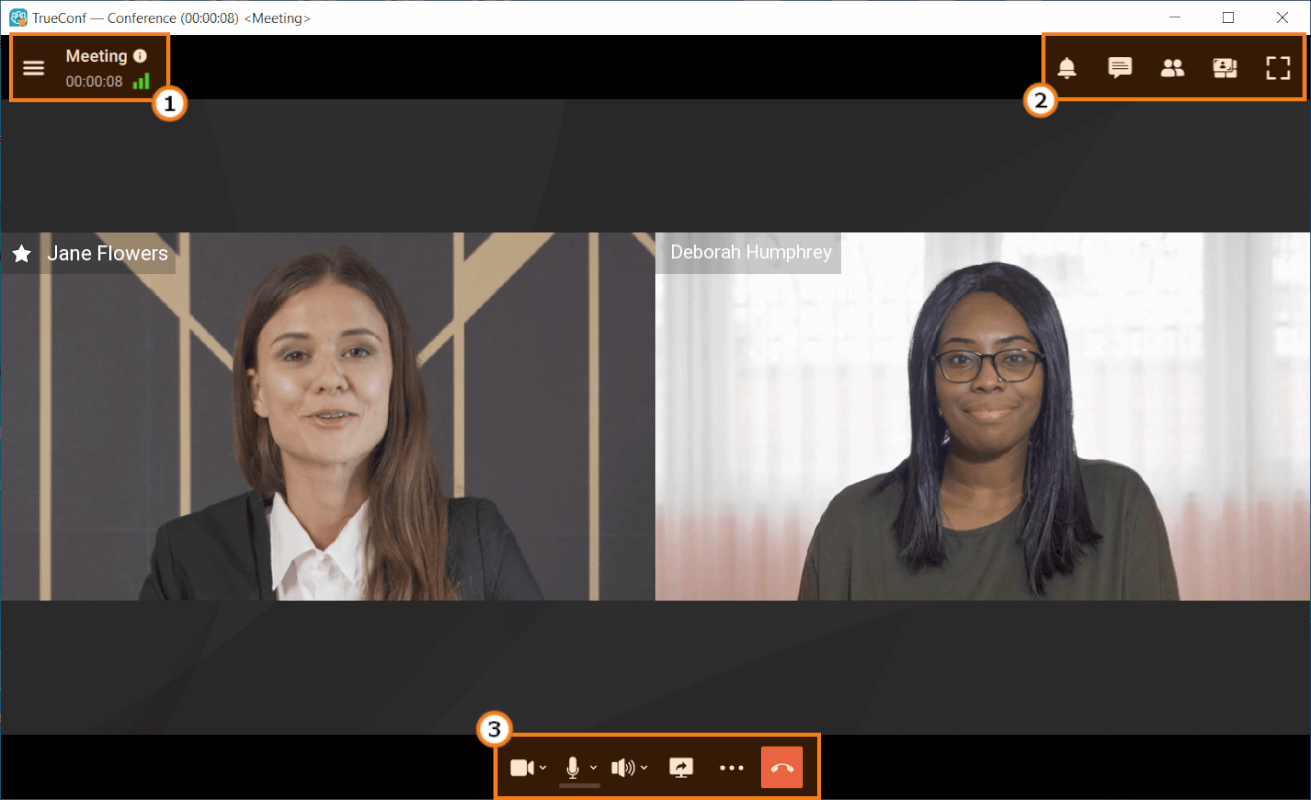
In the central part of the window the conference layout will be displayed.
In the application settings, the Display the conference widget when the application window is minimized option is enabled by default. In this case, it will appear in the upper right corner during the event if:
Go to any application section where the conference layout is not displayed (e.g., to the settings section)
Minimize main application window
Go to another program window (if this window covers more than 50% of the conference window).
The widget provides quick control buttons to manage your meeting and a hidden area to preview the selected video stream (speaker's video or your video).
Learn more about all capabilities available during the meetings below.
Video layout
Video layout is the arrangement of users’ video windows during a group video conference.
Video window refers to the area of the screen where the image or streamed content of one of the participants is displayed during a video call or conference. This area may also display the participant's name and informative icons.
In the TrueConf client applications during a video conference, users adjust the video layout themselves. Additionally, moderators can change the positioning of participants (individually for each, for SIP/H.323 devices, or for those connected via a browser) in the layout using the real-time meeting management tool.
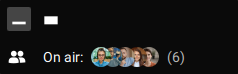
The list of users who have joined the video conference, but are not added to the layout, will be displayed in the On air widget.
Conference info
Click the  button on the information panel to view the conference settings.
In the Conference info window, you will find:
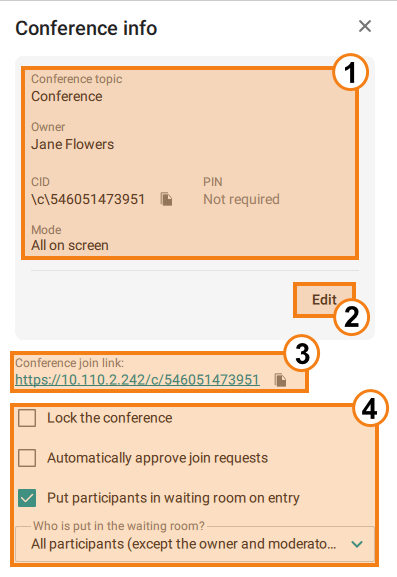
The primary information about the ongoing conference includes: Conference topic, Owner, conference ID (CID), conference PIN (with quick copy option), and Mode.
Start editing the information listed above.
The string Conference join link allows you to quickly copy the link to your conference for sharing. To copy the conference connection link to the clipboard, for example, to send it via email, use the button
 .
.The checkboxes that enable you to restrict access to the conference, allow users to join the conference without asking your permission, or direct new participants to the waiting room. If the last checkbox is activated, you will be asked to select the group of participants who will be put in the waiting room.
Click the  button. A window with two tabs will appear. The first tab, About system, contains detailed information about your equipment. The second tab, Connection, displays data on incoming and outgoing connections.
If necessary, you can save the connection quality report with one of the two buttons:
- Save to file for exporting in .txt format.
- Copy to clipboard for independent sending by any convenient method.
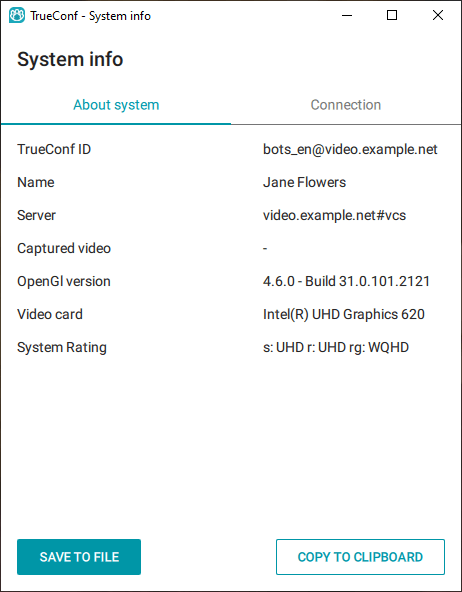
Additionally, information about the software and hardware is available in Settings → More → System info.
System rating
The system rating indicates the maximum resolution for the following video streams: the video you send to a conference (s:, e.g., FullHD), incoming video (r:) and the maximum resolution of the video layout during a conference (rg: e.g., WQHD or 2560×1440).
Changing the conference mode on the fly
A conference in Smart meeting mode can be switched on the fly to Moderated role-based. Conversely, a moderated role-based conference can also be changed to a smart meeting during the conference.
A moderated role-based conference with less than 4 spots on the podium cannot be switched to a smart meeting.
To do it, take these steps:
Click the
button located in the top left corner of the conference window.In the window that appears, click on Edit.
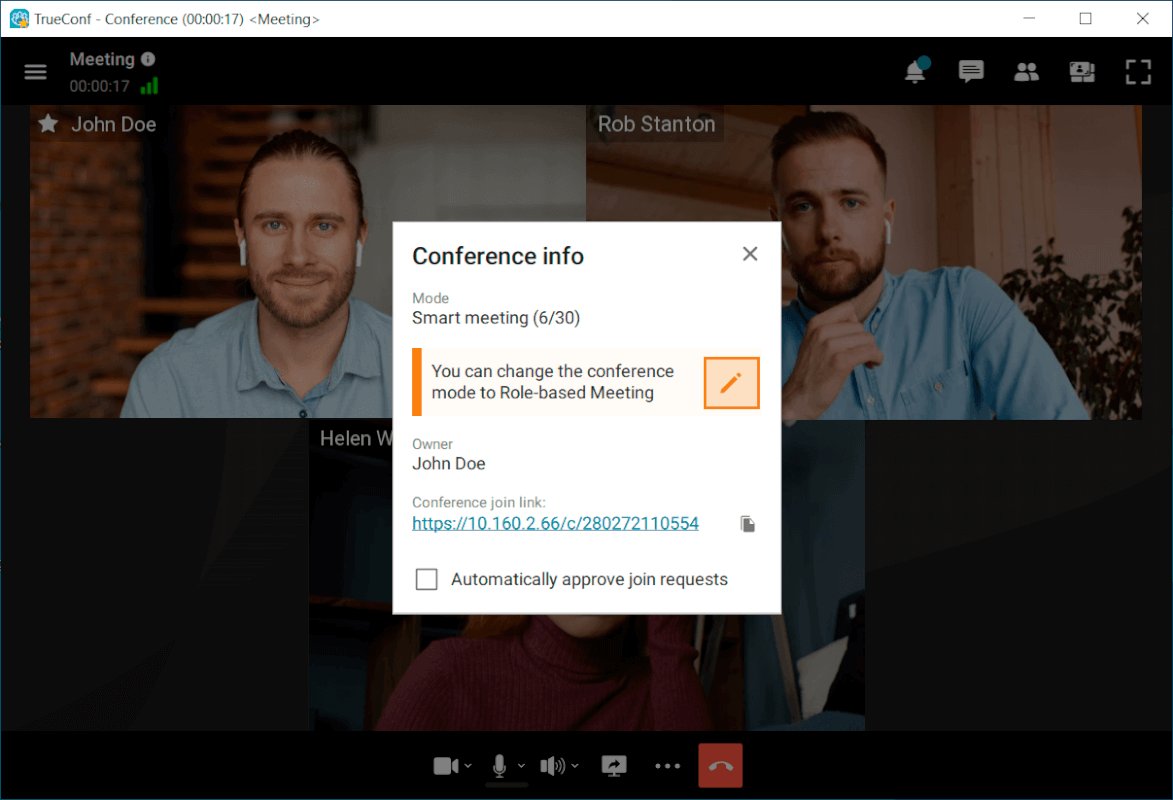
You will be able to change the required parameter.
Notification center
Certain types of requests and notifications will be displayed in the notification center. The button will have a counter indicating the total number of unread notifications:  . Requests and notifications are grouped by their type and sorted by priority.
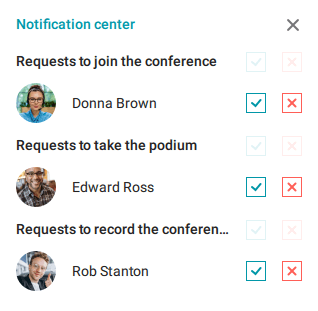
Notifications display in order of importance to the meeting moderator:
- Requests to join the conference;
- Requests to take the podium;
- Requests to control the camera;
- Requests for remote desktop control;
- Requests to take the podium;
- Notifications (unavailability of the user, rejection of the podium invitation, etc.).
Notifications display in order of importance to a meeting participant:
- Invitation to the podium;
- Requests to control the camera;
- Requests for remote desktop control;
- Requests to record the conference;
- Notifications (rejecting a call, request to speak at the podium, etc.).
Within groups, notifications are sorted by the time of receipt.
For requests, the ones that arrived earlier are at the top. For notifications, the ones that arrived later are at the top. Each group displays up to two events. If there are more, a dropdown list More requests or More notifications is displayed under the first notification, which, when clicked, will show the remaining events of the corresponding type.
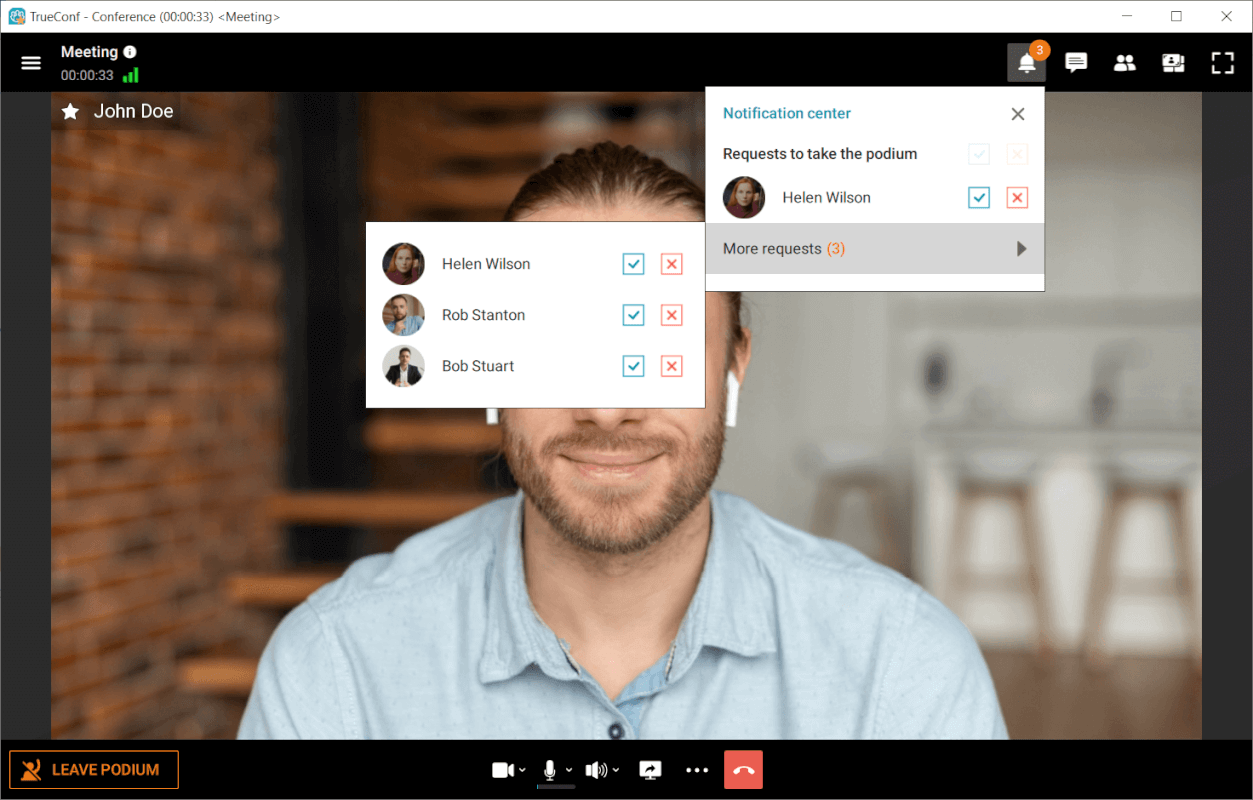
There are certain rules for hiding the request in the notification center.
Automatically:
In 100 seconds after the alert has been received
The request will be hidden if another moderator replies to it or if it is resolved automatically as a result of a counter request.
Manually:
response to a request via buttons Accept or Decline.
response to a group of requests via buttons Accept all or Reject all.
You can hide notifications only manually.
Managing devices during a conference
Audio and video settings
During a conference, you can not only turn on/off the participant's camera or microphone but also select the AV peripherals from the list of user's available devices.
If your microphone is muted, you can still send an audio remark at any time (except the cases when you are in a video call or a smart meeting) with the Push to talk button available in the conference control panel (and with shortcuts CTRL + T or Space) as it is shown in the example for a moderated role-based conference.
To change the camera, speakers, or microphone during an event, you need to press the  button next to each device's icon and select the desired option, or press the
  button in the conference control panel and go to Audio and video settings.
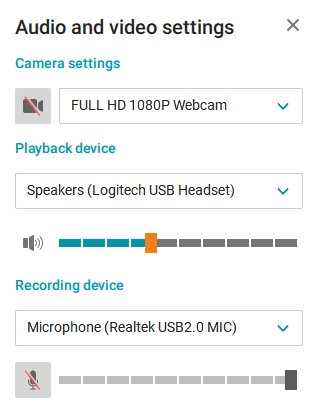
You can also switch the camera using the  button, which is available in your video window within the conference video layout. Additionally, you will find the
  button there for quick background blur activation.
If other participants cannot see or hear you during a conference, check whether your camera and microphone are on. In case if the microphone is off, you will see a corresponding message at the bottom of your conference window.

To enable the camera or microphone, click the corresponding buttons  and
and  in the bottom conference menu.
You can also change some of the camera parameters by right-clicking on your self-view or video window during a conference. It is possible to configure background blurring, virtual backgrounds, face tracking, and the camera which is being used at the moment.
Noise cancellation
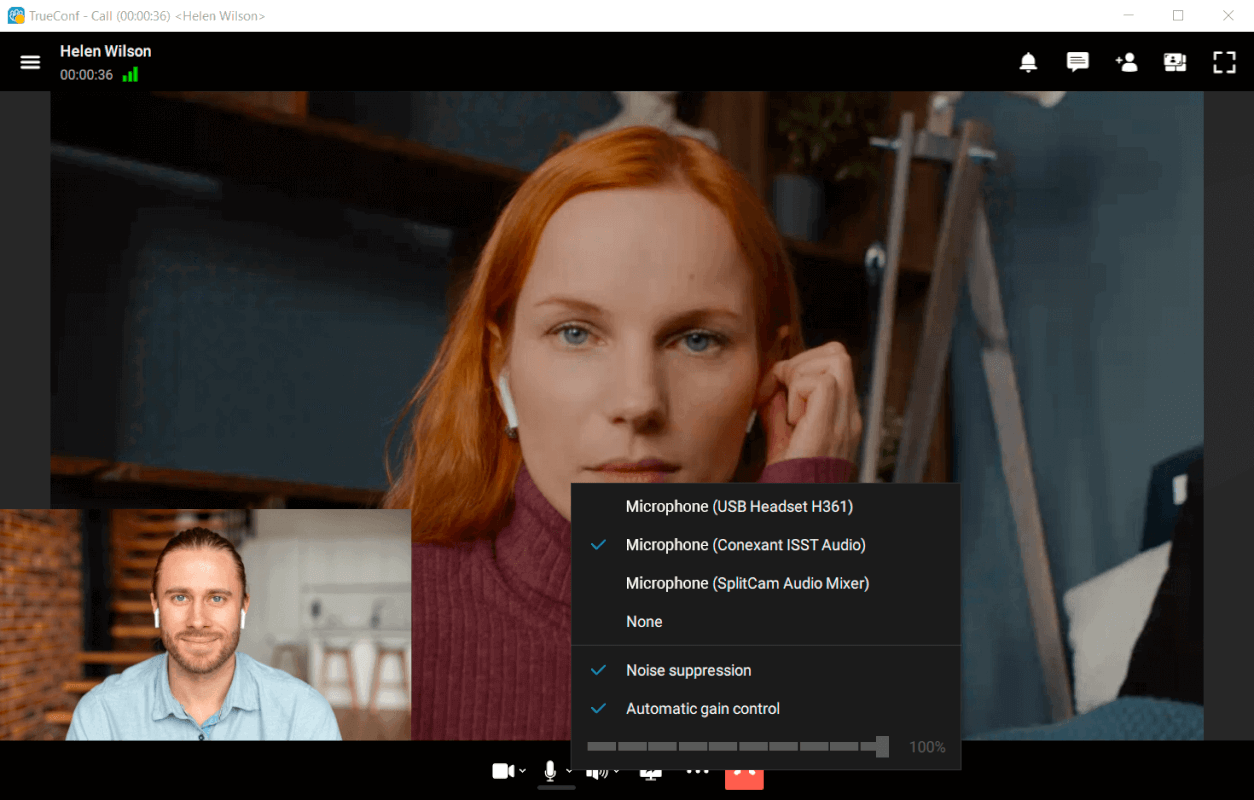
The client application TrueConf includes built-in AI-based noise suppression algorithms, ensuring that your conversation partners are less distracted by background noise around you. All extraneous sounds are blocked, regardless of volume, even those from tools or fan noise. To activate this option, click the button next to the microphone icon in the conference control panel and select the Noise suppression option in the menu that appears. You can also enable this setting in the Settings → Audio and Video → Audio menu.
Reactions and polling
During conferences you can ask participants to take and participate in polls using reactions:

Reactions and polling do not directly affect conferences. Instead, they serve only as an additional means of sharing information between participants. This mechanism can be used to express your opinion during a video conference without making audio reply.
Reactions are available to every participant from the start of the conference. To open the polling menu, click the  button.
Next to the list of possible reactions, there is a counter Reacted showing the number of participants who voted.
Please note that “Yes” and “No” statistics is calculated taking into account all conference participants (not only those who voted). For example, if one attendee votes “Yes” and other attendees do not vote, then “Yes” will still have only 20% in a conference for 5 users.
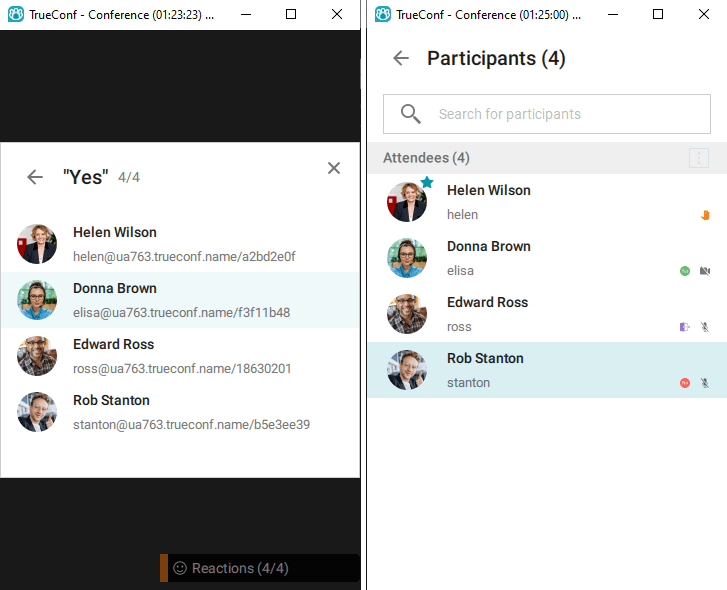
You can view the reactions of each conference participant. These reactions are displayed in the participant list. You can also view them in a pop-up panel which will be displayed in the conference window as soon as the first reactions are posted:
Ведущий конференции может аннулировать все реакции, проставленные другими участниками. Для этого достаточно нажать кнопку Clear reactions, которая отображается внизу меню реакций.
In this menu, the moderator also has the option to save reaction statistics. To do this, press Share results → Copy text.
Uncheck Anonymous results to export detailed statistics with the distribution of votes by participant.
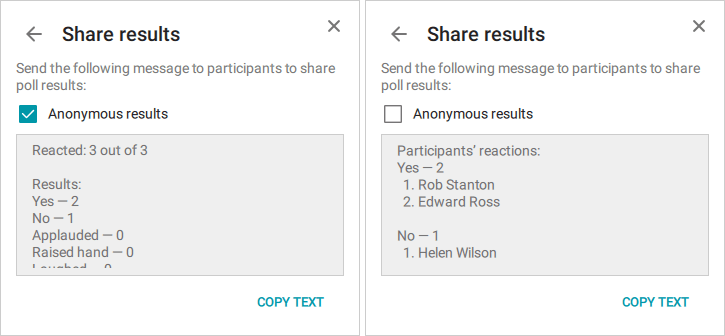
You can also share the statistics directly in the conference chat. To do this, click Share in conference chat. The voting statistics will appear in the group chat.