
Text Chat
Chat
Instant messaging (or chat) allows users to exchange text messages or files during video calls or group video conferences. You can use chat not only during video calls or conferences, but every time you need to send a message to other users.
When a user is signed in on multiple devices, the chat history will be synchronized across these devices.
When connected to TrueConf Server version below 5.0, messaging between devices is not synchronized.

With this messaging platform, you can:
Send text messages
Edit, forward, and delete text messages
Please note that your server administrator can restrict the time during which users can edit messages which have already been sent. If you are participating in a public conference (webinar) as a guest, the availability of editing is determined by the settings of the server where the event is hosted.
use the message search;
create a quick conference with all chat participants or just some of them.
You can enter up to 20,000 characters In a message input window. If a single message contains more than 4,096 characters, it will be sent as multiple messages, each up to 4,096 characters long.
Editing and deleting messages
All chat messages can be edited. To do it, right-click on a message and select the Edit option. An edited message will be marked as edited (the date of editing will also be specified).

If you want to delete a message, select the corresponding option in the same drop-down menu. You can delete your own message either just for yourself or for the other participant as well. To do it, check the box in the pop-up displayed when you attempt to delete the message:
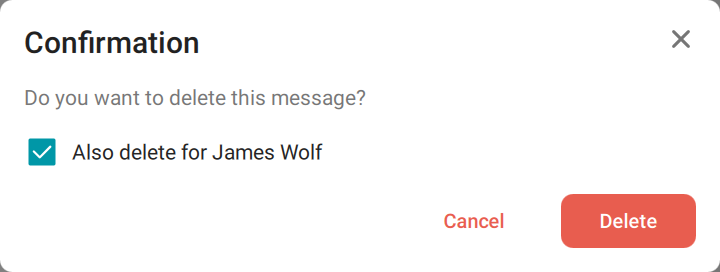
Please note that this checkbox is displayed only when you delete your own messages. If you select multiple messages for deletion, including both your messages and the other person’s messages, you will be given the option to delete only your messages for both parties. The rest of the messages will be deleted only for you.
Message formatting
To format text in the input field, highlight the desired fragment, right-click, and choose the required format in the Formatting menu: bold, italic, underlined, strikethrough, or use the Markdown markup language. The following special characters are supported:
**text**— bold
__text__ — italic
~~text~~ — strike-through.
Additionally, you can use the Insert link option which allows a user to attach a link to a specific part of the text. Please note that if you had copied a hyperlink to the clipboard before using this feature, this link will be automatically pasted into the input field.
You can also format the selected text via the context menu which can be opened up by right-clicking on the chat line:
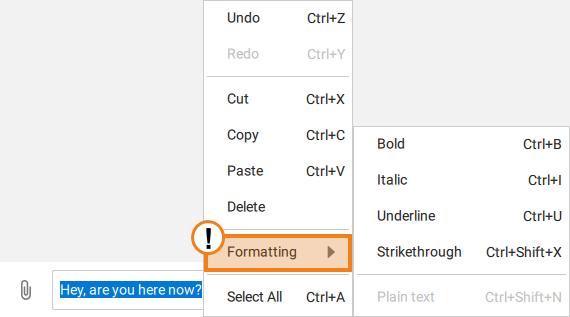
If you need to reset all previously applied changes, use the function Plain text
Additionally, for quick formatting, hotkeys are supported in the chat. You can view them to the right of the option name in the menu, or in the Settings menu → Hotkeys
Built-in spell check
Spellcheck is enabled by default in TrueConf client applications. As you type a message, the text will be checked against the internal application dictionary, and misspelt or unrecognized words will be highlighted in red.
You can expand your application's dictionary by right-clicking on the highlighted word and then selecting the Add to dictionary button from the context menu:
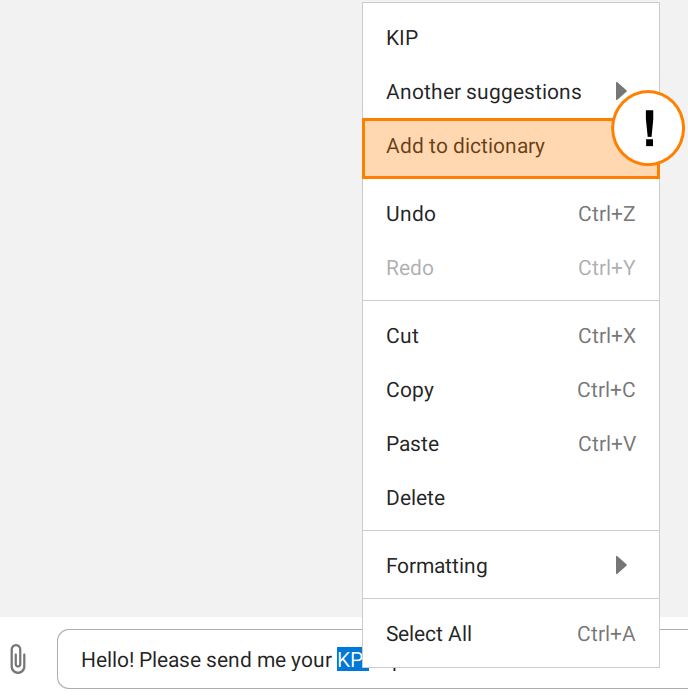
Keep in mind that the dictionary is linked to a specific application. If you log into your account on another device or a different copy of the application, you will need to add required words to the dictionary once again.
To correct a word, right-click on it. After clicking, you will see a suggestion which you can apply by left-clicking.
Status "typing"
If your contact is typing a message in a personal or group chat, you will see a notification at the top of the message list.
In a group chat, the typing status will be displayed only if there are no more than 100 participants in the chat. If more than 2 people are typing at the same time, the names of the 2 contacts, who started typing first, will be shown, along with the count of other users who are typing at the moment.
Searching for messages
To find a message in the chat history, click the  button and enter the desired text in the field that appears. As you type, the search will be conducted, and the messages will be highlighted in a specific color.
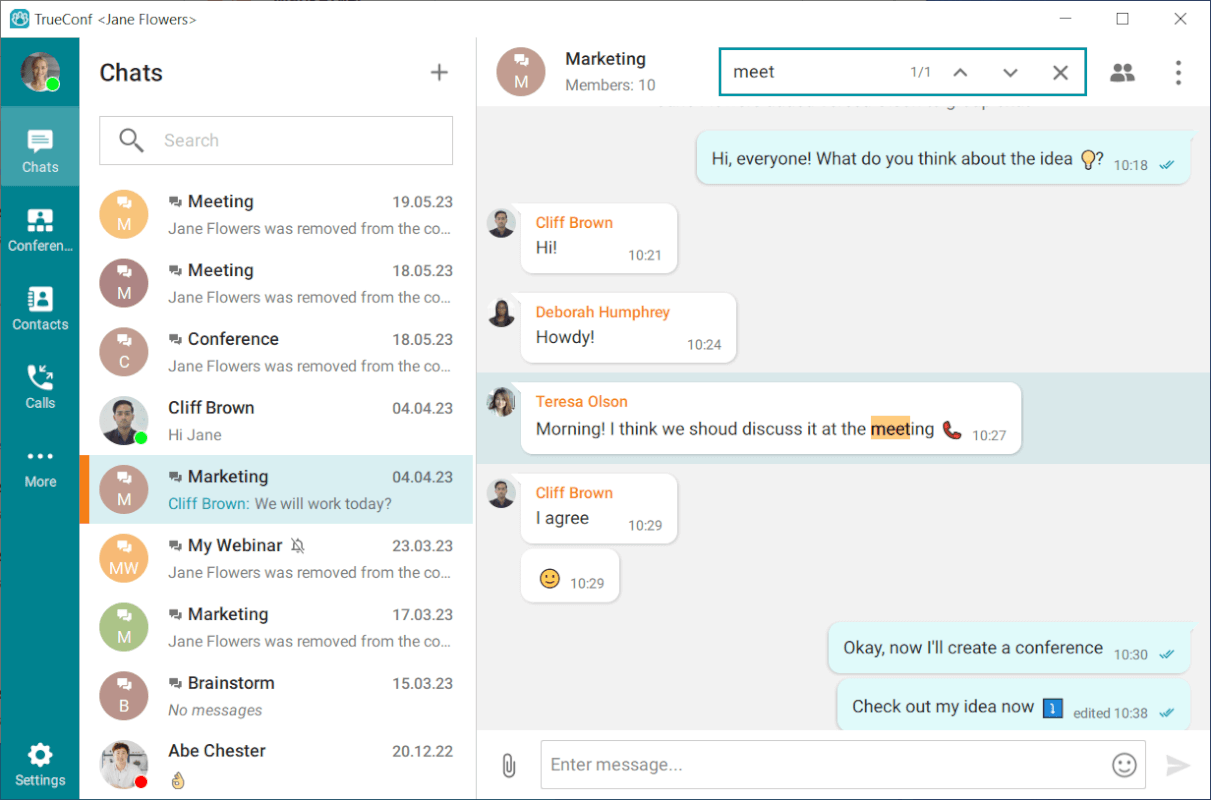
If multiple messages are found, you can navigate between them using the  and
and  buttons, with the number of matches displayed to their left.
If you double-click on a chat in the list, it will be scrolled down to the very bottom.
Sending files to a chat
To send files, just drag and drop them into the chat window, or use the paperclip icon to the left of the message input field.

You can select multiple files by pressing CTRL or clicking on the Add button in the preview window.
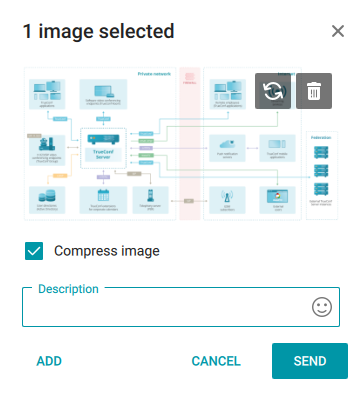
When sending multiple files at once, you can:
Remove the unnecessary image from the group (1)
Replace the image (2) with any other image from your device
Send all images as a single group or as separate messages. Please note that by default, the checkbox (3) which activates this feature is enabled.
Compress the image (also enabled by default). If you want to send uncompressed files, then uncheck the box (4).
You can also send video files in the chat. When such files are opened, the built-in media viewer is used. Supported formats include .mp4, .avi, .mkv, and .webm.
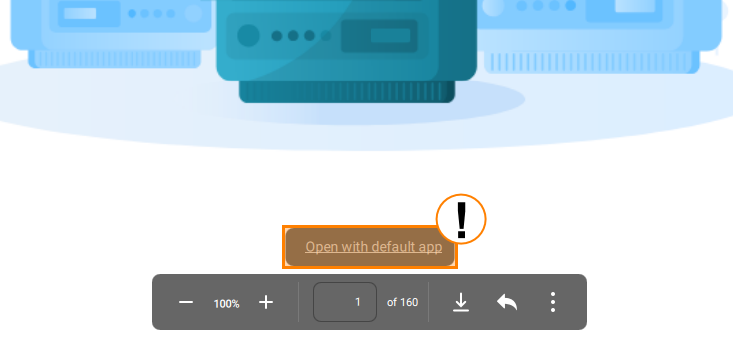
Important! If a video file of an unsupported format is sent in the chat, it will be opened in the default media viewer installed on the device.
Please note that you can open all files sent in the chat either with the built-in file viewer or with the default viewer installed on your device. Right-click on a file in the chat and select the option Open with default app.
You can also write an additional message in the Description field, which will be sent along with the files.
Documents in certain formats can be viewed directly in the chat (but not edited). Supported file formats include .pdf, .odp, .odt, .odg, .ods, and .odf. For all these formats, except pdf, you need to have LibreOffice version 7.5.0.1 or later installed on your PC. If you want to check whether the office suite is available, or you need to set the path to the office suite, check the description of how presentations can be imported.
Even if a user is currently offline, you can send him/her an "offline" message: the contact will receive it as soon as he/she signs in.
Please note that when viewing .pdf files, you can quickly open them with the default system program by clicking on the corresponding link above the content control panel.
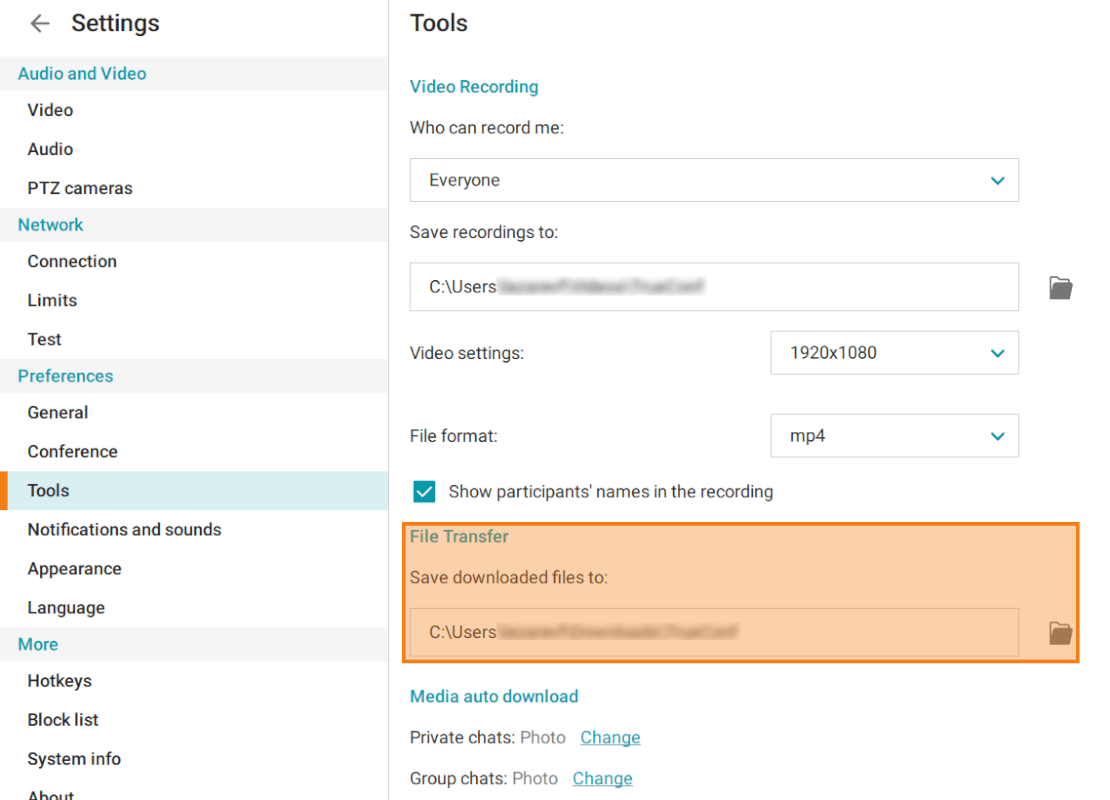
The default location of downloaded files is:
%USERPROFILE%/Downloadsfor Windows/home/$USER/Downloadsfor Linux~/Downloads/for macOS
To change the download folder, go to Settings → Preferences → Tools in the application window. Then, in the File Transfer section, click the  button and select the desired folder.
A subfolder named TrueConf, which will store all chat attachments, will be automatically created in the folder selected for downloaded files.
To access the list of all files sent in the chat, click on  and select Files.
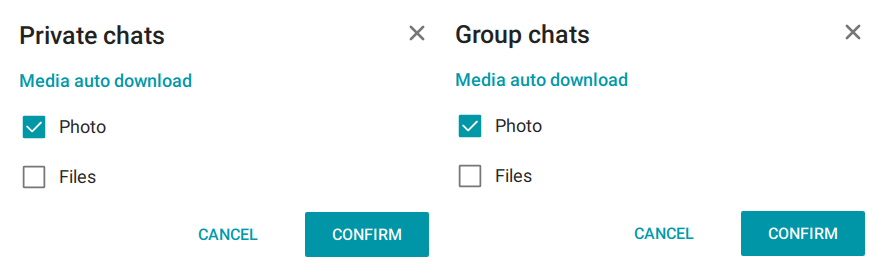
If necessary, you can configure the automatic download of files in the chat or disable it. To do this, go to section Tools and find block Media auto download. Here, you can adjust the automatic downloading of files for personal and group chats by clicking the Change button and selecting the required options.
"Favorites" chat and message forwarding
If you need to save any messages and files from private or group chats, you can use the Favorites chat.
To forward messages to this chat:
Right-click on the message you want to save.
In the context menu, select the Forward option.
In the recipient list, select Favorites—it will always be at the top of the list.
You can also send any messages or upload files to the chat Favorites to keep them as your notes.
To quickly switch to the Favorites chat, click the  button above the chat list.
In addition to simply viewing messages or files, from your Favorites chat, you can quickly navigate to the moment it was sent from the original chat. To do this, click the  button to the right of the message.
Please note that when a message is forwarded from the Favorites chat to another user, your name will not be displayed; moreover, there will be no indication that the message was forwarded,
How to disable notifications
You can disable notifications about chat messages (for both group and private chats). To do it, right-click on a chat and select the Disable notifications option in the context menu.
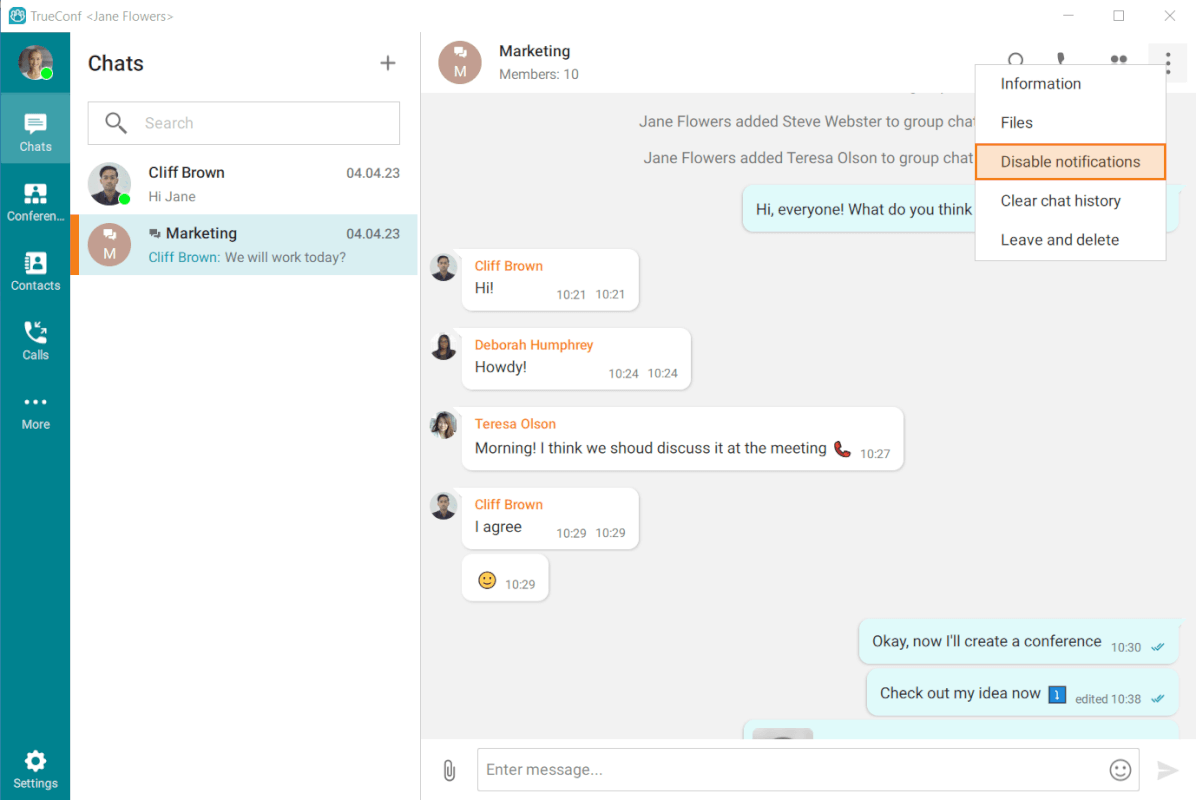
You can also activate this option by clicking the button in the upper right corner of the chat window and selecting the corresponding item from the menu that appears.
The notifications from the selected chat will no longer be displayed. You can enable these notifications in a similar way.
In addition to permanently disabling notifications for individual chats (both private and group chats), the client application allows a user to disable all notifications at once. To do it, go to the system tray, find the icon of the running TrueConf application, and right-click on the icon to open the context menu:
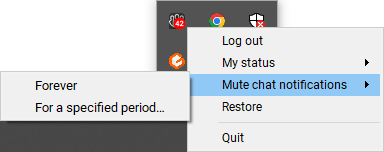
In section Mute chat notifications, you will have two options to choose from: Forever or For a specified period. If you select the second option, an additional window will appear, allowing you to either use one of the suggested notification disable periods or specify your own:
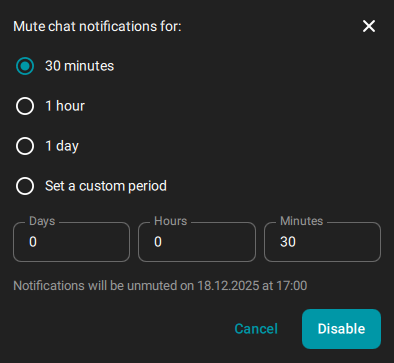
If you are on a call or in a conference while selecting the option, an additional item - During the current conference - will appear, allowing you not to set the interval manually.
Drafts
Keep in mind that drafts are also automatically saved on the server side and synchronized between devices. For example, you can start writing your message in the TrueConf mobile app and then continue on your laptop.
Mark as unread
If you accidentally open a chat that you intend to read later or just want to return to the conversation at a more convenient time, you can mark the chat as unread. To do it, right-click on the selected chat in the list to open the context menu and select Mark as unread.
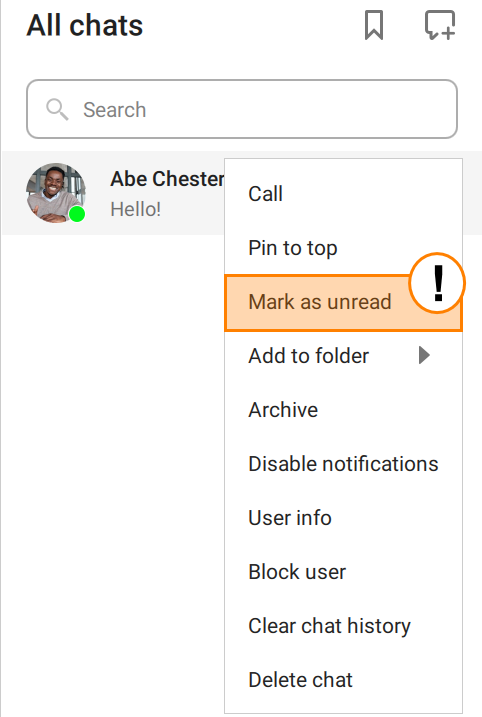
If this feature is used, the chat will be marked similarly to any unread chat, but without the message counter. The mark which is set manually will increase the overall counter of unread messages: the displayed number will be increased by 1.
Pin the chat
Among other things, you can pin an important chat. To do it, right-click on the chat and select the corresponding option in the context menu. Pinned chats will not move down the chat list even when new messages are sent to other chats.
You can sort pinned chats in any order by dragging them with the mouse.
Chat archive
If you need to hide any of the chats for a while, for example, an inactive chat from a recurring conference, you can use the Archive button. When this button is clicked, an additional item will be displayed in the list of chat categories — Archive:

This item is hidden if there are no archived chats.
In the chat, right-click on a message to:
Reply
Edit
Forward
Copy
Delete
Select, for example, choose multiple messages to delete, copy, or forward them all at once.
Multiple messages can be selected in the same way the text is selected. To do it, left-click on a message and drag the mouse up or down.
Click on in the upper right corner of the application to access additional features:
View additional information about a user or a group chat
Check the list of all sent files
Clear chat history
Delete a chat (you can also delete it for the other user by marking the corresponding checkbox)
Block a contact.
Please be careful when clearing chat history or deleting a chat. This action cannot be reversed. Even if you are added to this chat afterwards, you will not be able to view previous messages because all chat history has been removed.
The same group chat will be used for a virtual room or a recurring conference. It will be synced with the conference.
Group chats
To create a group chat, select Chats from the application menu. Then click the  button, specify the chat name and optionally its image, and click the Create a group chat button. A window will open where you can select and add participants from the address book to the newly created chat.
The group chat owner can change its title by clicking the  button to edit the group information (1) or click at the bottom of the avatar area to add an image (2). To do this, press the button and go to the Information menu.
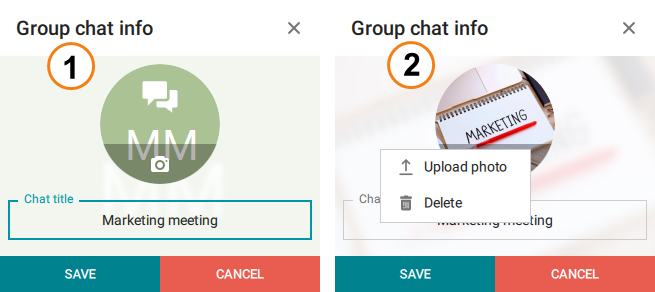
Additionally, in the Information menu, you can make further chat settings. After pressing , you can enable the Display chat history for new participants feature, or by pressing  , you can turn group chat notifications on or off.
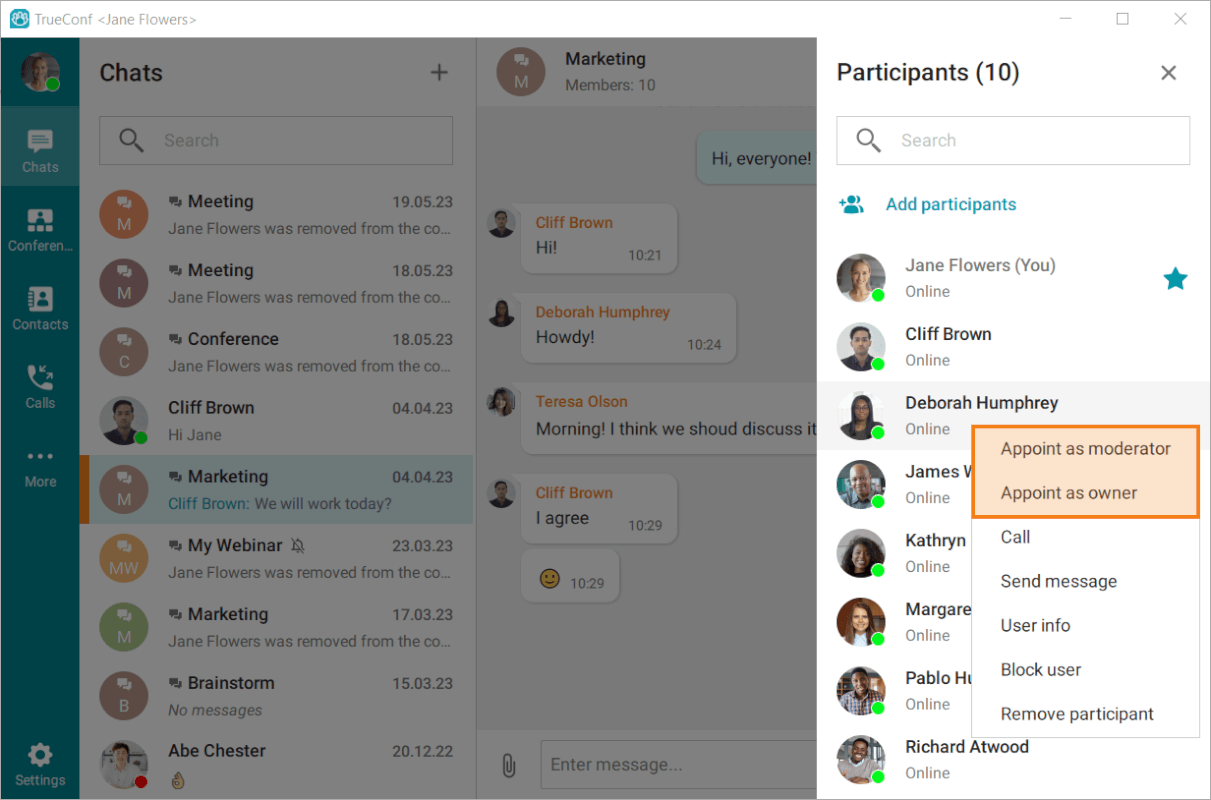
The group chat owner has the ability to grant other participants moderator rights or fully transfer ownership rights. To do this, click the  button, and in the opened list of chat participants, right-click on the desired one. In the menu that appears, select either Appoint as moderator or Appoint as owner according to your needs. A moderator can add/remove participants, appoint other moderators, delete messages, and change the chat name and avatar. The chat owner is marked with a
  in the participant list, and moderators, if present, are indicated by the
  icon.
icon.
Only the owner can delete a group chat for all its participants.
Mentioning a contact in a chat and adding links
You can mention a user in a message by specifying their TrueConf ID prefixed with the @ character. As a result, the user's name, which links to their profile, will be displayed in the message.
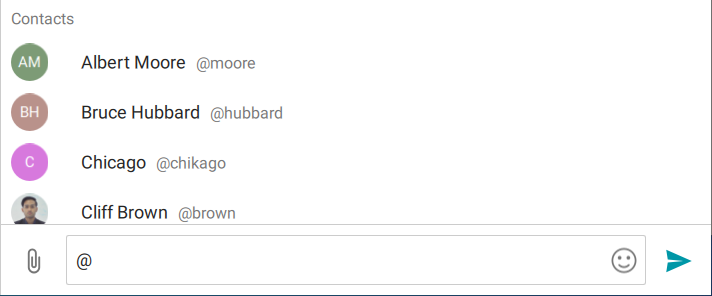
In the same way, you can select all participants with the @all tag.
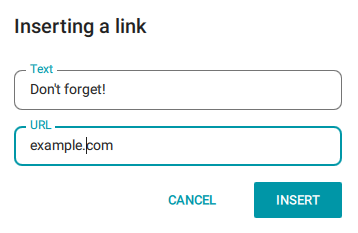
You can also change the contact's mentioned name while keeping the link to the user's page unchanged. This can be done in one of two ways:
Select a part of the text with the left mouse button and press the Ctrl+K shortcut (used by default).
Right-click on the pre-selected text and choose Formatting → Insert link.
By clicking, you will open the pop-up window where one can type the name of the link:
For your convenience, any links inserted into a message are instantly recognized and become active, meaning you can click on them to automatically navigate to the specified address. Any URL is considered a link; however, certain conditions have to be met:
Any text beginning with
http://orhttps://will be treated as a link.When the protocol is not specified, URL links are automatically recognized if the top-level domain is included in the list of allowed domains. For instance,
example.comis recognized, whereasexample.someis not.A link should not end with the following characters: :
\ ? # [ ] @ ! $ & ' ( ) * + , ; . { } ^, as they won't be included in the link. This rule does not affect the characters- _ ~ % =. If an allowed character is followed by a prohibited one, the link will end at the last allowed character, ignoring everything that follows.If the link ends not with a single closing parenthesis, but with one that matches an opening parenthesis, such a parenthesis will be taken into account.
Examples of correctly formatted links:
http://examplehttp://example.exampleexample.comhttps://example.net/blogvideo.example.com/#anchor
List of users who have read the message
A user can check which participants of the group chat have already read his/her message.
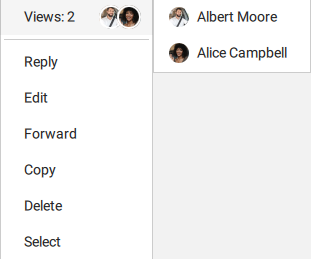
This feature has a number of specific restrictions:
It is applicable for chats with up to 20 participants.
A message cannot be older than 7 days.
Chatbots
In addition to chatting with other users, the client application allows you to communicate with chatbots that were pre-integrated into your server. The list of commands that a bot can "understand" is determined by its developer. Commands are sent as text messages. You can immediately find out the list of available commands by entering the / character in the message input fields during a conversation with the bot.
Please note that your system administrator is responsible for integrating bots on the server. If you want to learn about all the capabilities of these bots, you can refer to our guide on migrating chats from other platforms or explore the Python library for creating other types of integration.
Chat folders
To organize your current chats, you can use chat folders. The list of these folders can be found in the Chats tab, on the left to the list of chats and groups.
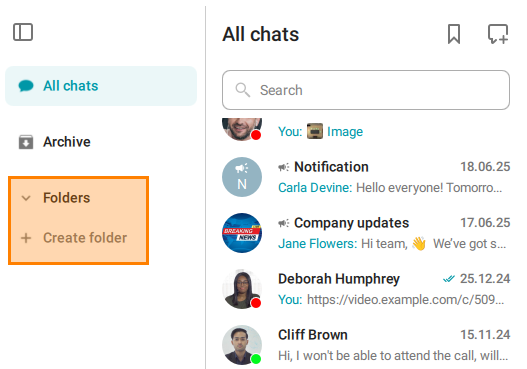
To create a folder, select the corresponding option in the menu. By clicking, you will open the pop-up window where one can enter the folder name and add selected chats (both private and group chats).
Please note that the folder name cannot exceed 20 characters. For convenience and brevity, you can use emojis.
You can add new chats to an existing folder at any time. To do it, right-click on the selected folder and choose Folder settings from the context menu. In this menu, you can also select the Delete button. Deletion of a folder will not delete the chats stored in this folder.
Among other things, you can mark all the chats stored in the same folder as read at once.
A user can sort the list of folders in any order by dragging them.
Hotkeys
These hotkeys are only functional in the Chats window. You can find other hotkeys that work in the application in the settings.
Up and down arrows will later be referred to as ↓ and ↑.
If you are using macOS, press ⌘ (Command) instead of Ctrl .
Formatting selected text
Ctrl + B— boldCtrl + I— italicCtrl + U— underlineCtrl + Shift + X— strike-throughCtrl + Shift + N— clear formatting
For chats
Alt + ↓,Ctrl + Tab,Ctrl + PageDown— switch to the previous chatAlt + ↑,Ctrl + Shift + Tab,Ctrl + PageUp— switch to the next chatEsc— leave the chat or undo the current action.
For messages
Ctrl + ↑andCtrl + ↓— select a message for a quick replyCtrl + ↓— cancel the reply↑— edit the last messageDel— delete selected messages.
In the chat list
These hotkeys work only if no chats are opened.
↑and↓— navigationEnter— open the selected chat.