Remote desktop control
Remote desktop control
This feature is not available when participating in a conference created on the TrueConf Online cloud service.
During video meetings, you can take control over the desktop of the participant who is sharing content. Please note that desktop control is impossible if a meeting participant is not sharing the entire screen. For example, this user may be sharing:
applications,
Presentation (slideshow)
Content in a separate stream.
To do this, click the mouse icon  on the right edge of their video window.
After you have been allowed to control the desktop, the control panel will appear in the upper-right corner of the video window:

Collapse / expand the panel
End the desktop control session. You can also end the session by pressing the keyboard shortcut Alt + Shift + K (used by default).
Keyboard input emulation
Display remote desktop control window in full screen.
The remote control of a participant desktop may be unavailable if this feature was disabled for this participant on the side of TrueConf Server.
Configuring access to your remote desktop
You can set up remote desktop control policies in the client application settings: enable all users in your address book to access your remote desktop, disable users to access your remote desktop, or enable users to access your remote desktop on request.
To do this, in the Settings → Preferences → Tools menu, select the option that suits you in the Who can access my desktop field.
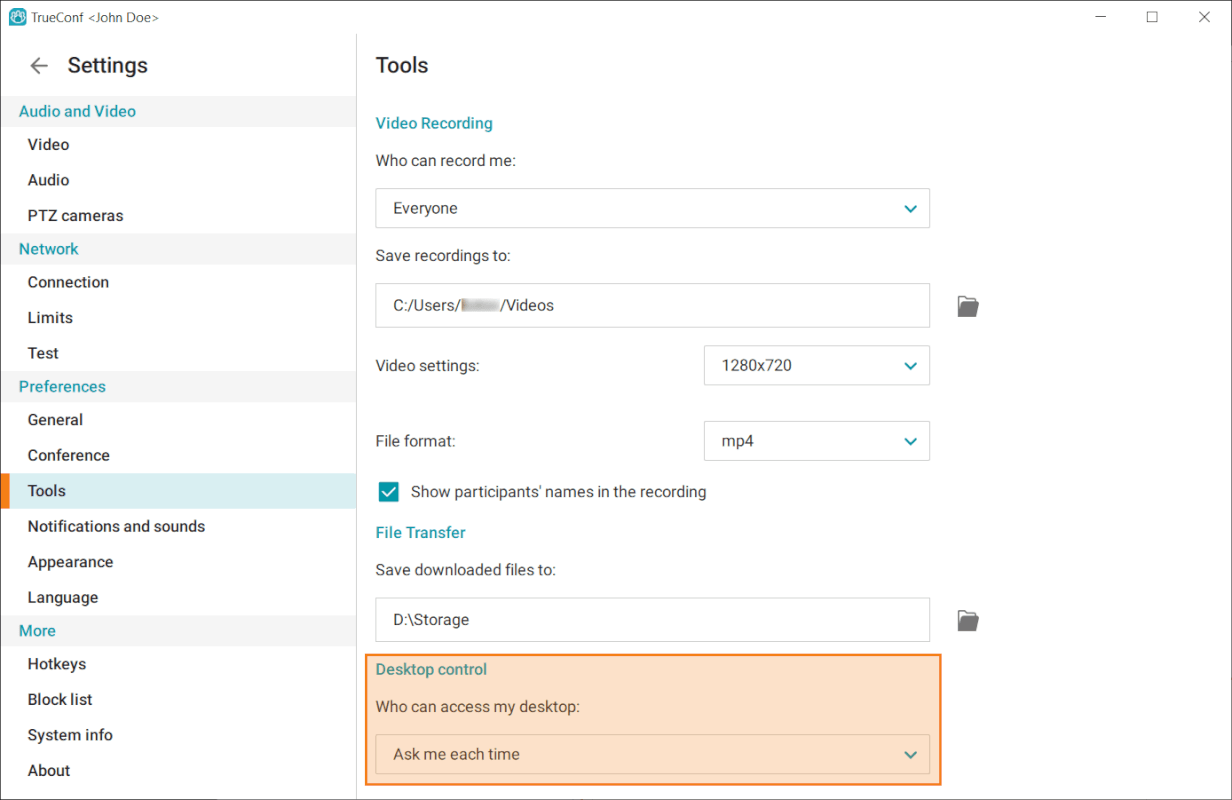
When you select Ask me each time (the default setting), you will receive a notification if someone attempts to access control of your desktop:
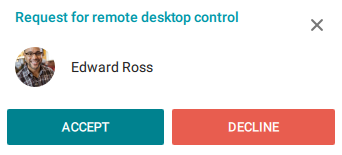
The notification will be visible for 100 seconds after which the user who has requested access will see the following message:

Can multiple meeting participants take control over your desktop simultaneously?
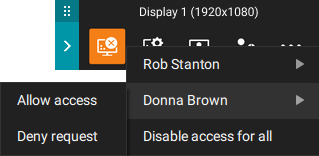
Several conference participants can request access to control your desktop. In this case, the button  will become active in the content control window.
Click on this button to grant access to one or several participants, or deny requests: