
Surveys
Surveys
Users of TrueConf video conferencing systems can create surveys to collect people's responses and examine their opinions. This feature does not require a separate license and is available even in TrueConf Server Free.
What features does the built-in polling (survey) module offer:
Ability to configure survey access ( available only to the users of your server or to everyone)
Anonymous surveys
Configuration of respondents’ permissions to view the survey results
Ability to retake the survey
Permission to change responses
Ability to use images as one of the response options for a multiple-choice question
Add images to a question
Ability to mark any questions as required which ensures that a user cannot skip these questions when completing the survey
Сreate survey campaigns which will allow you to easily segment results by respondent groups
Export results as a CSV file.
The server administrator can manage all surveys. The users, who were given the right to create surveys at the group level, can also manage them; however, such users can manage only the surveys that they created (in other words, they are the owners of these surveys). However, users cannot manage all surveys.
In addition to large surveys with multiple questions, TrueConf Server messenger users in client applications can send a quick poll in a group chat or channel. The difference is that it contains only one question and has fewer settings. Quick polls are convenient for gathering opinions on a single issue without spending time on detailed configurations. For more information on using quick polls, refer to the TrueConf application documentation.
Types of questions and limits
Each survey may include questions of the following types:
- Short answer — a free-form response that is explicitly written by the user and not chosen from options (up to 255 characters);
- Paragraph — a variation of an open-ended response where you can write more text (up to 4096 characters);
- Single answer - a multiple-choice question where only one option can be selected; when creating the question, it's possible to add one answer option Other.
- Multiple answers — a multiple-choice question that allows the selection of several options; you can add one answer option Other when creating the question.
The following limitations also apply to polls TrueConf:
Maximum number of surveys — unlimited.
Maximum number of questions in one survey — 5000.
The maximum number of answer options for each question — 20.
The maximum length of a single response option — 255 characters.
The maximum length of a question — 255 characters.
Allowed formats for an image that may be uploaded for a survey — JPEG, PNG, GIF, BMP.
Creating and editing a survey
To manage polls, go to the Surveys section of the control panel TrueConf Server.
You will see the list of surveys (by default, it is empty):
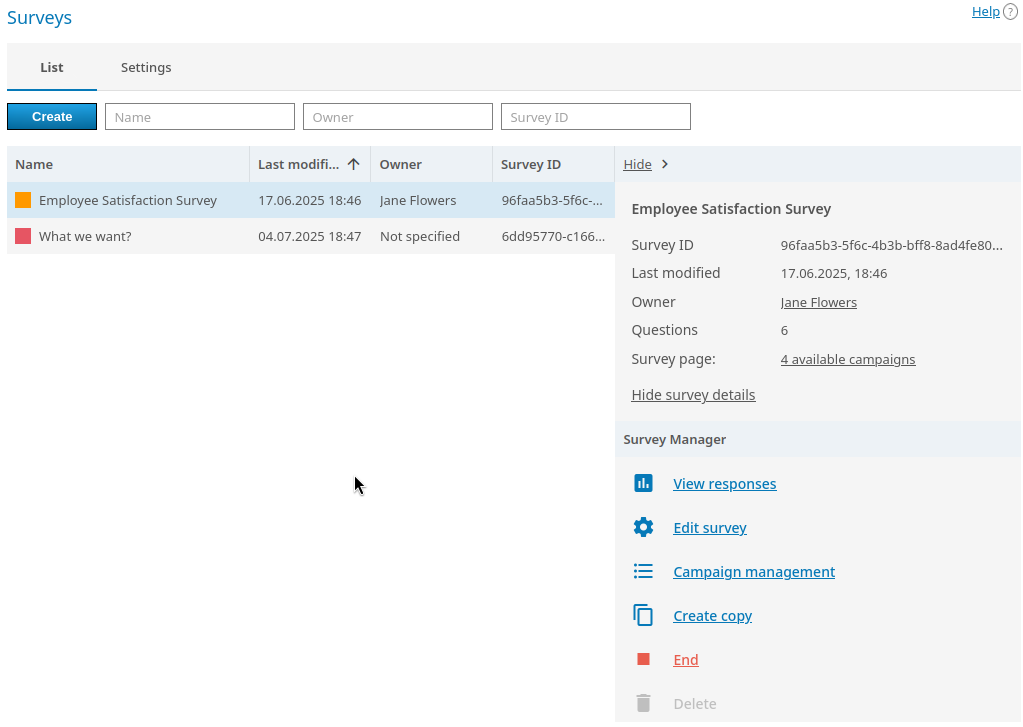
By clicking on a survey, you will open the card with general information about it: survey ID (which may be helpful when you need to find its change history in the logs), the last modified time, the owner’s name, the number of questions, and a direct link to the campaign (if it was created).
Survey owner is a user of your TrueConf Server who has full access to manage the survey and its campaigns. A survey can be held even without the owner; however, in this case, it has to be created by the administrator. Moreover, only the administrator will be able to manage the survey and view its results.
A campaign is a specific survey session that allows you to segment participants for analyzing results across different groups. At least one campaign is required* for holding a survey since users essentially participate in a survey campaign. Each campaign includes all the questions created for the survey and differs only in terms of its link and access settings (see below). Multiple campaigns can be created for a single survey, and there are no restrictions on the number of active campaigns that can be held at the same time.
How to create a survey
To create a survey, click the Create button in the general list. The Questions tab will be opened. Here, you should specify the survey name (required), description (optional, will be displayed to participants on the survey page). Plus, below you need to add survey questions:
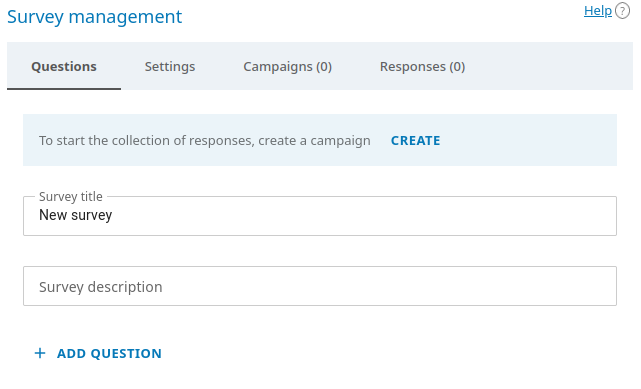
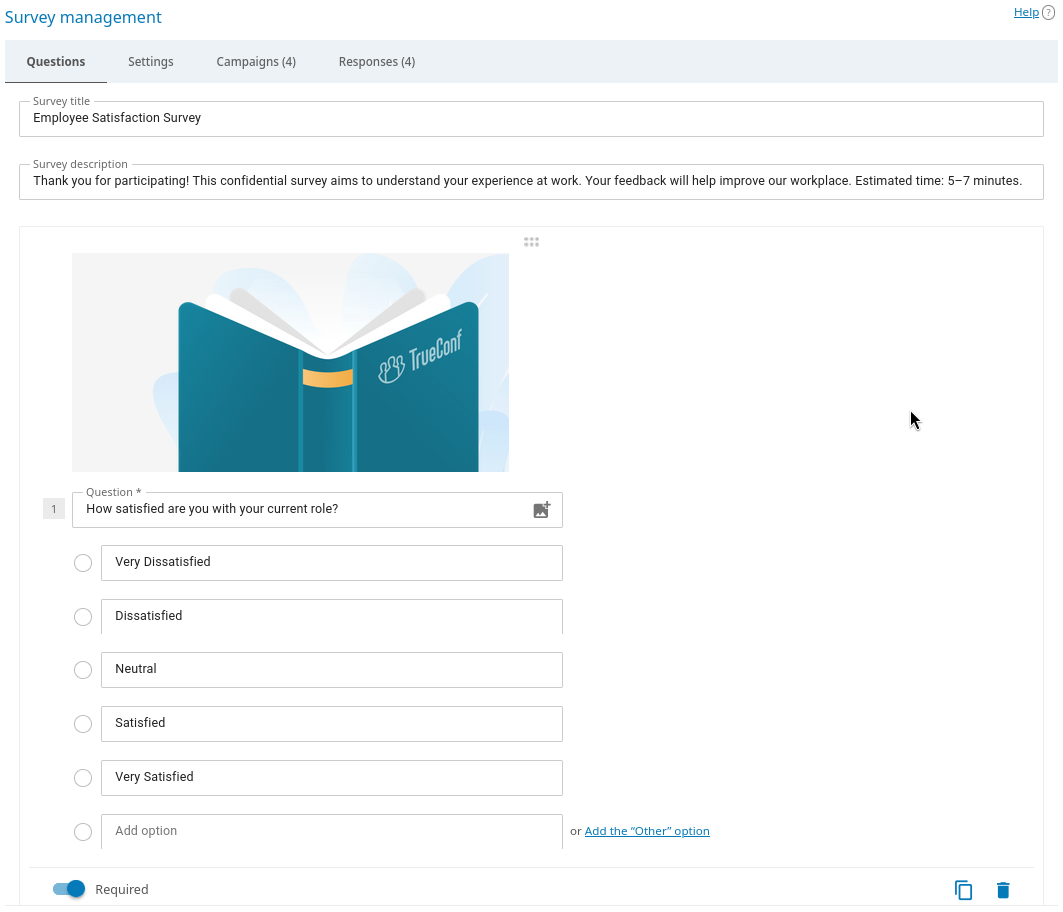
To create a question, click the Add question button and select its type. Next, enter the question text and fill in the answer options, depending on the question type. If necessary, you can add an image to the question text and to any of the answer options. It may be necessary to give a better illustration of the question or to use images as answer options. Changes to the list of questions are saved automatically, so you don't accidentally lose your work when creating a survey with a large number of questions.
Below is an example of an added question of type Single answer:
Settings
In the Settings tab, you can assign the owner to a survey. To do it, just click the Select button and choose one of the users on your video conferencing server. Other types of users such as guests or federated users cannot be selected as the survey owner. The user, who creates a survey in the personal area, automatically becomes its owner.
After adding the owner, you will be able to select a new one at any time (even when a survey campaign is running). However, you cannot remove the owner.
Survey campaigns
To hold a survey, you need to create and start at least one survey campaign. Go to the Campaigns tab to do it. By default, no campaigns are added, and they have to be created manually. If campaigns already exist, you will see the list of campaigns.
How to create a campaign
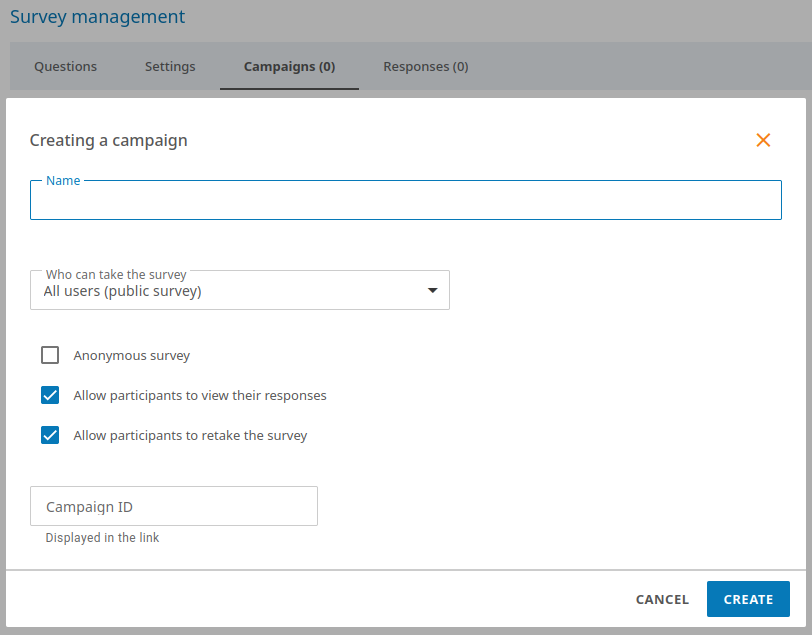
Click the Create campaign button.
Enter the campaign name in the Name field. It is not visible to participants and is used only for quickly finding campaigns in the list.
In the dropdown list Who can take the survey, select the campaign availability level for participants: everyone can follow the link and complete the survey (public campaign) or only users of your TrueConf Server.
Check the Anonymous survey box if you need to collect anonymized responses without participants’ names. The results of an anonymous campaign will be displayed for each response option in each question, but without participants’ names. No hidden analytics will be saved in the server database.
The checkbox Allow participants to view their responses will allow participants to review their answers once more after submitting the completed data.
Check the Allow participants to retake the survey option to allow participants to submit their responses again.
To provide participants with a neat campaign hyperlink, enter its suffix (the last part of the link added to your server address) in the Campaign ID field. For example, if you specify
office, the link will look in this way:https://example.com/s/office. The ID must be unique within your server.
List of campaigns
If multiple campaigns have been created, they are displayed as a list with several available actions (public campaigns are marked with the  icon):
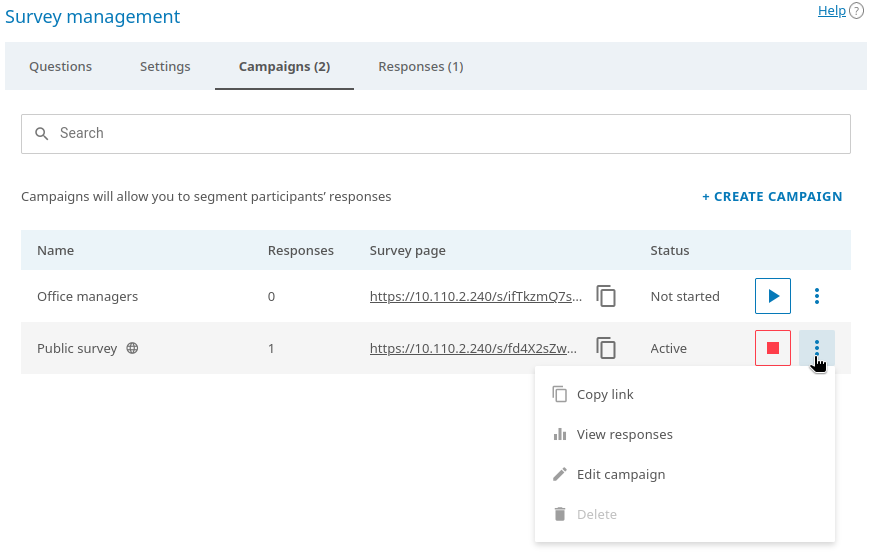
To copy the campaign link, click the
 button.
To launch an inactive campaign, click the
 button.
To stop the campaign, click the
 button. The survey will be paused and can be resumed later if desired.
To navigate to the tab Responses with the results of the desired survey campaign, click the
 button in its row and select View responses.
Regardless of the campaign status (active or stopped), you can change its settings, for instance, to make it anonymous. To do this, click the
button and select the Edit campaign option.You can delete a stopped campaign, and all responses left specifically for this campaign will also be removed. To do this, click the
button and select the Delete option.
Results of survey campaigns
To view the survey campaign results, go to the Responses tab while editing the survey, or click the View responses link in its card in the general list. The opened tab will display the total number of responses for all campaigns:
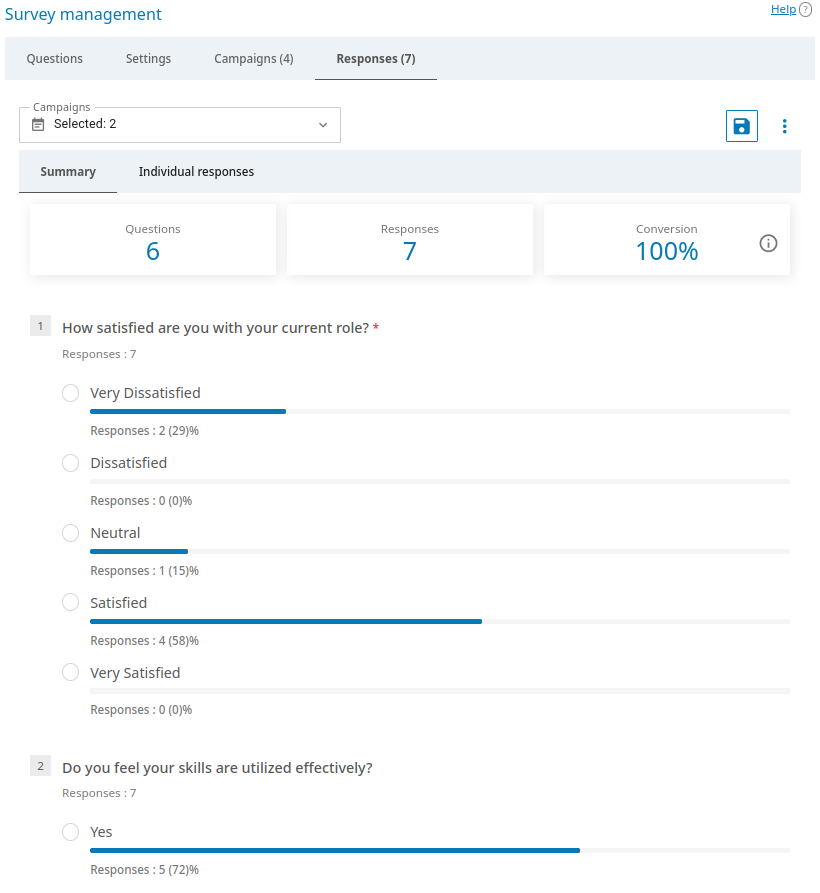
In the dropdown list Campaigns, select the campaign you want to view the summary for and click Apply. You can select multiple campaigns at once to see their combined statistics.
The summary of results shows the number of responses, in other words, it shows how many users filled out the form and submitted responses. The conversion rate is also useful since it indicates the percentage of respondents who filled out the form after accessing the survey page.
To save responses for one or more campaigns selected in the list Campaigns to a .csv file, click the
 button.
To clear the results of the selected survey campaigns, click the
button and select Delete all responses. This will delete all responses collected for the specified campaigns.
By default, results are displayed in the Summary tab, but you can switch to the Individual responses view, where you can select a participant to view their specific responses and test completion time:
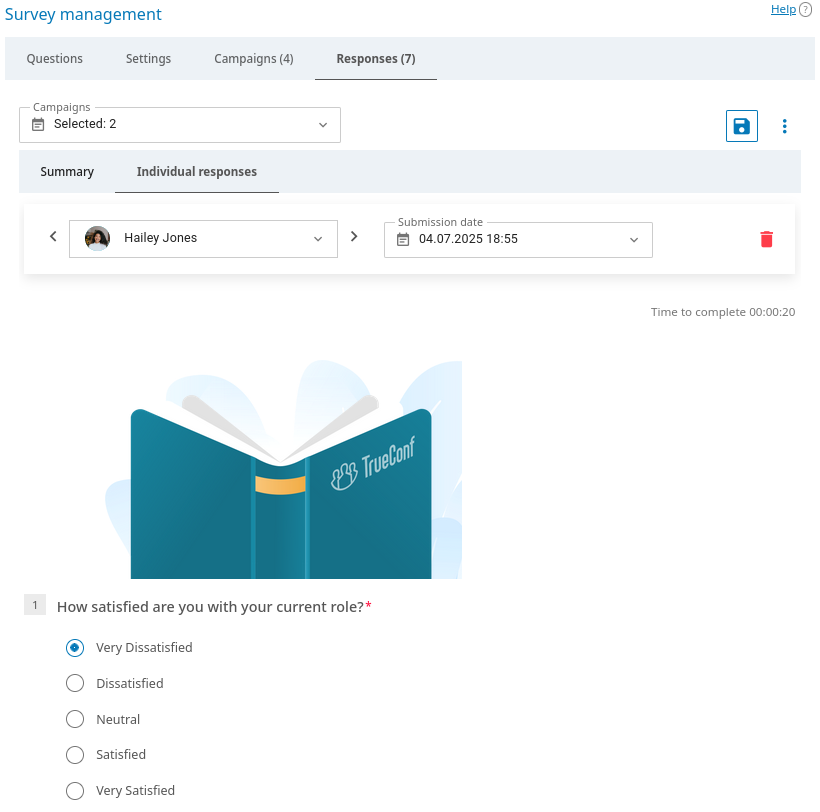
If the campaign was launched as anonymous (see campaign settings), Anonymous user will be displayed instead of names in the participant list for option Individual responses.