
Integration with AI server
Integration with AI server
Let us discuss separately how to add AI capabilities for meeting transcription and summarization to your video conferencing server.
To integrate AI features into the video conferencing system, you need to use the stand-alone solution TrueConf AI Server. A transcript is a text generated when the audio recording of a conference is recognized. If transcription is enabled for a conference, its audio is recorded during the video conferencing session and sent to the AI server according to the settings specified below.
To achieve integration, configure settings on both sides:
in the TrueConf Server control panel under the Manage add-ons → TrueConf AI Server section (as explained later);
in the control panelTrueConf AI Server.
This integration offers the following features:
Transcription (writing meeting minutes) of a past conference
Access configuration for a transcript
Send notifications when a transcript is ready and when a user is allowed access to a transcript
Ability to start transcription automatically or manually.
To configure the integration of TrueConf Server with the installed TrueConf AI Server, go to the Manage add-ons → TrueConf AI Server section.
When the software begins to record the audio that will be sent to the AI server, participants will see the indicator in their TrueConf client applications (it will be displayed next to the duration timer):

This indicator is not displayed in browsers (for WebRTC participants) and for SIP/H.323 endpoints, but you can contact our technical support to activate this indicator by using a special parameter.
General data transmission and storage scheme for integration with an AI server
Data transmission occurs in the following way:
The user enabled conference recognition either during creation or "on the fly" through real-time meeting management.
On a machine with TrueConf Server installed, an .mp4 file containing audio but no video is created and starts recording in a separate folder for the conference. If the user starts and stops recording multiple times for a single session, multiple files will be generated.
Recording of the audio file that will be sent to the AI server does not depend on the video recording feature. Separate files are created for transcription purposes and stored in a separate directory on the server.
After the recording is completed (either by stopping the transcription or ending the conference), the file is sent to TrueConf AI Server.
Once the file transfer is complete (the file is fully uploaded to the AI server), recognition begins according to the settings: either general or at the conference level (see the General tab). This means that text creation may not start immediately, and the recording will wait until the user enables recognition.
Until the transcript is created, the user will not be able to download the original audio in the personal area or in the transcript section of the TrueConf application.
If the AI server has the capability to create meeting summaries, they can only be generated after the transcript is completed.
If a recording is deleted on the TrueConf Server side before it is sent to the AI server, a transcript cannot be generated (since the AI will not have the recording to work with). However, if a transcript has already been generated, deleting the recording from the server does not affect the transcript. On the TrueConf AI Server side, there are specific settings for storing audio recordings (storage space limits). Transcripts (text) are not cleared when the audio is deleted.
Levels of access to conference transcripts
You can connect only one instance of TrueConf AI Server to the video conferencing server with full access and an unlimited number of instances in read-only mode.
Reading is the integration mode of TrueConf Server with TrueConf AI Server, where users of the video conferencing server can have maximum access to viewing and downloading transcripts.
Full access — in this mode, all users of the video conferencing server can get all permissions for working with transcripts. In addition to viewing and downloading these files, they can grant other users access to them, start transcription, and delete the recording.
Access to each transcript can be configured individually and can override the default settings (see below).
AI server connection settings
The connection parameters with the AI server are set in tab Connection.
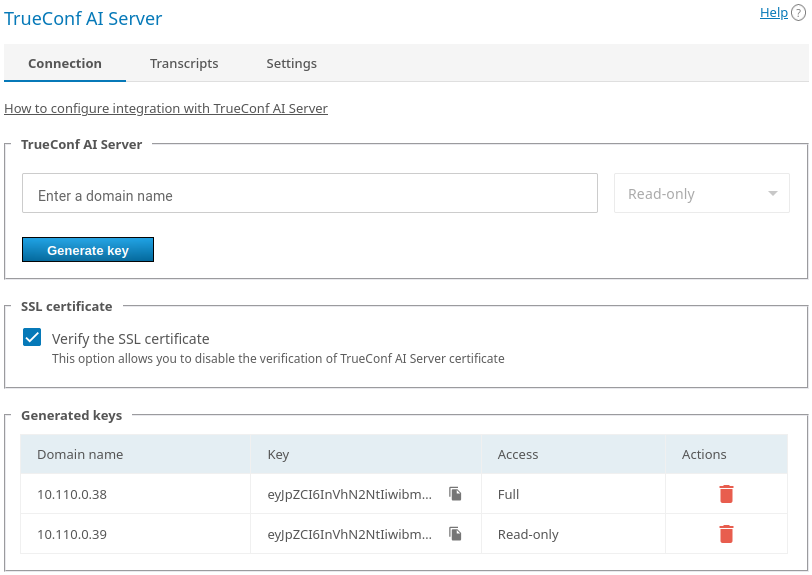
Enter the domain name of the AI server in the corresponding field (without the
http:/https:prefix).In the drop-down list, select the maximum access level for your users when they will be connecting to the AI server.
Click the Generate key button to obtain the integration key, which you will need to specify later on the AI server side.
If you do not need to verify the authenticity of the SSL certificate (for testing purposes or due to issues with using a self-signed certificate on the TrueConf AI Server side), then uncheck the Verify the SSL certificate box.
Below you will see the list of added AI servers, their keys, and buttons for deleting unnecessary configurations. It is impossible to edit the settings of the servers which were added previously. They can only be deleted and added once again.
After generating the key, you (or another administrator) will need to configure the integration on the TrueConf AI Server side.
Viewing the list of completed and pending transcripts
On the Transcripts tab, you can see the list of transcripts for all conferences held on your server, where transcription was enabled:
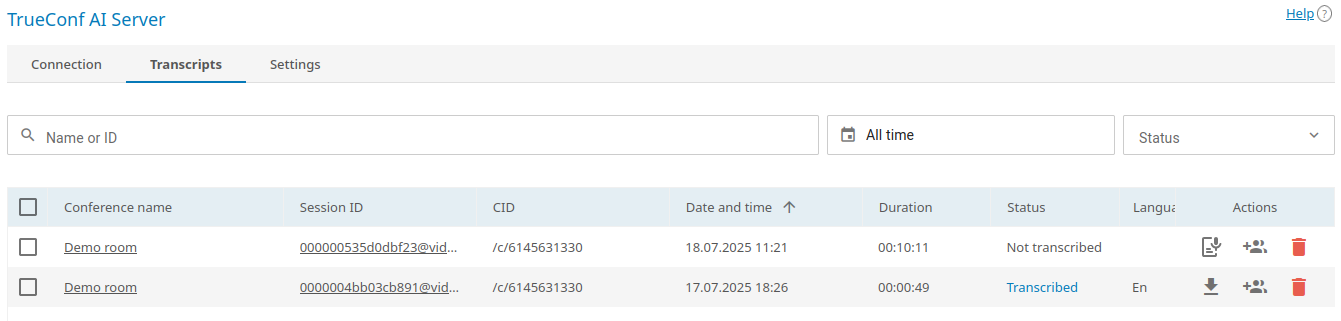
For the sake of confidentiality, the server administrator cannot download transcripts or configure access permissions for them. The security admin, however, can view the content of transcripts and is allowed to configure access for them.
In each entry, there is a link that leads to the respective conference and even to the page of a specific session (call session). Please note that a single conference may have multiple sessions if it was launched more than once.
Column Status shows the current status of each transcript and can have the following values:
- Added to queue — The audio recording has been sent to TrueConf AI Server and is awaiting decryption.
- Not transcribed — the recording was not sent to the AI server and, accordingly, was not decrypted (for example, manual recognition On request is activated and has not yet started);
- Transcribed - The audio recording was successfully sent to the AI server and transcribed;
- Transcribing - Audio recording in progress (an approximate completion percentage will be displayed).
To quickly find required transcripts, filter the list by name or conference ID, as well as by event time and the status of the transcript.
To start recording recognition, press the  button (available if it has not yet been started).
You can delete the transcript by clicking  . This will remove both the transcription and the original corresponding audio track of the conference.
You can select multiple transcripts with checkboxes and delete them all at once.
Conference transcription settings
In the Settings tab, you can specify the general rules for audio transmission for recognition and sending notifications.
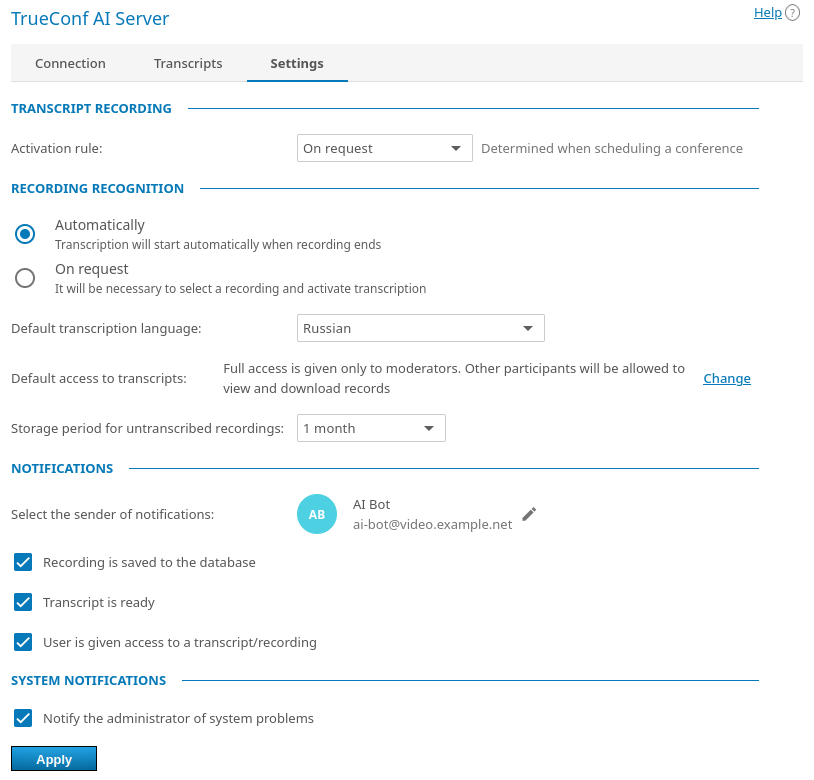
Select the audio recording activation logic from the dropdown list Activation rule: record all conferences, only those specified on the tab Advanced, or disable recording altogether.
After the conference ends, the recorded audio is sent to TrueConf AI Server, but the recognition process must be started separately. If the switch Automatically is activated in block Recording recognition, transcription will automatically start for all conferences (in queue order on the AI server side). If option On request is selected, the recognition process will need to be manually started for the required recording from either the personal area of the video conferencing server or the AI server.
Choose the default language that will be used when transcribing all conferences. Please note that the AI server can detect when conference participants switch to a different language. Moreover, it will correctly recognize different languages spoken by event participants. However, by selecting the main language spoken by participants, you can make transcription more accurate.
In parameter Default access to transcripts, specify which event participants will have access to the transcript. These are not final settings, and for each conference, those with full access can override permissions for other users from the personal area of the VCS server or AI server. The following default access options are available: full access for moderators and read-only for other participants; full access open to all participants; recordings available only to moderators and the server administrator, and not accessible to others; recordings available only to the server administrator, who can configure access for participants if necessary. In all cases except option Records are available only to TrueConf Server administrators, the conference owner always has access to the transcript.
The parameter Storage period for untranscribed recordings specifies the time period each audio recording will wait for recognition before being automatically deleted to reduce the space occupied on the video conferencing server. Deletion occurs only on the TrueConf Server side and only for those recordings that have not been sent to the AI server.
In the Notifications section, you can select the account on whose behalf notifications about transcription events will be sent to users. This step is optional but it will help users to work with transcripts because all involved participants will receive relevant notifications. You can send notifications about the following events: an audio recording is added to the database of the AI server, a transcript is ready, and a user is given access to a recording or transcript.
Additionally, you can check the Notify the administrator of system problems box to send emails to the administrator (specified in the main server settings) regarding integration issues. For example, if the storage space allocated for audio files of this video conferencing server instance is running low on TrueConf AI Server.
There is no need for a continuously running chatbot to send notifications; so, no additional online licenses are used. You just need to create a separate account for notifications.