
Configuration of email notifications (SMTP)
Configuration of email notifications (SMTP)
Integration with mail servers via the SMTP protocol.
TrueConf Server TrueConf Server does not include a built-in mail system and can only use an external SMTP server or service to deliver email notifications to users. In the Network → SMTP section, you can select the SMTP server that should be used. It is also possible to edit the templates of emails that will be sent to users.The email address that has already been used or may be used in a user profile should not be specified in the settings of the mail server for sending notifications from TrueConf Server. A separate mailbox should be created for the server.
To configure an SMTP connection:
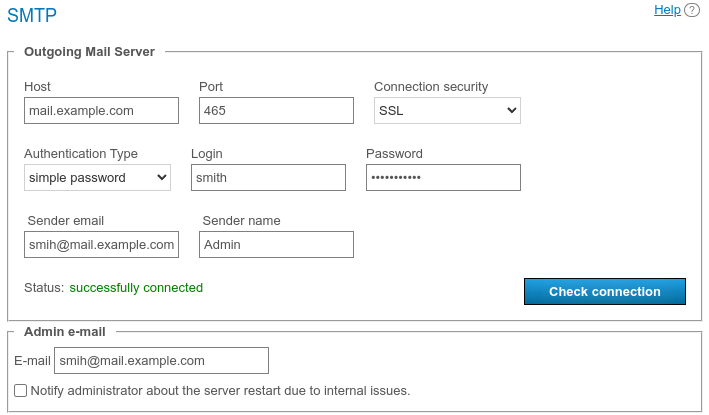
Specify the host (the address of the mail server).
Select a secure connection type: SSL, STARTTLS, or none.
Specify the port for your connection type if it is not default.
Select the authentication type (no authorization or simple password), and in the second case, specify the username and password to connect TrueConf Server to the SMTP server.
Fill in the email address fields (full mailbox address, including login, @ and domain) and sender's name in the SMTP From field. In this case, the address should match the login and host specified above.
Verify the settings using the Check connection button. The Status: field shows the current connection status with the mail server: successfully connected if the connection to the SMTP server is successful and invalid server if there is a connection error.
Enter your TrueConf Server administrator email to be displayed in the outgoing emails. Enable the checkbox below the input field so that the administrator is notified when TrueConf Server restarts due to internal errors.
Click Apply at the bottom of the page to save the changes.
Email template settings
Below the parameters for connecting to an SMTP server, you can set the templates for different email notifications.
To restore the default templates for all emails, click the Set default button in the User mails section. This will apply the templates in the language selected in the preferences by the administrator.
Notifications about missed calls
To receive missed call notifications, check Notify users about missed calls. If users are offline during a call or conference call, TrueConf Server will attempt to send a notification to the address specified in the E-mail field in the user profile settings or in the corresponding field imported via LDAP.
Notifications about missed calls will be sent to unregistered users, if a user from your video conferencing server did not know their TrueConf ID and tried to call them by email. Such calls have to be made with the #mailto: prefix, for example, #mailto:user123@example.com. This prefix has to be included, because the format of TrueConf ID is identical to that one of an email address; so, a special prefix in the call string is needed to distinguish between them.
When participants are added to a public conference (webinar) by email , the #mailto: prefix will be included automatically; no additional actions will be needed.
Conference invitations
To enable invitation sending for all newly created conferences, check the Send invitations to participants of the group conference box. In this case, when scheduling a conference, all invited participants will receive notifications with the date and time of the event (if specified).
You can enable or disable sending invitations for each conference individually on the Advanced tab when creating or editing it.
Confirmations of registration for a public conference
To send confirmations of successful webinar registration (if the appropriate settings are configured), use a separate template Conference registration notification.
Reminders about the upcoming conference
You can set up email reminders for upcoming events. All participants added to a scheduled conference will receive an email reminder before it begins. The reminder template can be customized in section Reminder about upcoming conference below.
Select the time period before the event starts for which you want to receive a reminder from the Reminders list:
If the Send users reminders about upcoming conference checkbox is not selected, you will not be able to enable reminders for conferences
If the checkbox is selected but nothing is selected in the list, then when creating any scheduled conference, the administrator or owner can enable reminders on the Advanced tab by manually specifying the desired time period
If, for example, you select “1 day” and “5 minutes,” the event will already be set up to send reminders at those intervals when you schedule it. However, you'll still be able to add your own reminder intervals.
If the administrator checks Send users reminders about upcoming conference and selects periods from the list Reminders, then notifications with these periods will be automatically added to previously scheduled conferences without reminders.
Notifications about conference rescheduling
To notify participants of a scheduled event about a change in its start time, check the box Notification of start time change for scheduled conference.
An email notification will also be sent if the repetition type of a scheduled conference is changed, for example, a one-time conference becomes a recurring conference or the other way around.
If a new start time is set for a one-time scheduled conference which has already ended so that this event can be started once again, this email will not be sent. Instead, users will receive an invitation to the new event.
Notifications about the cancellation of a conference
To notify participants of a scheduled event that it has been canceled, check the box Notification of conference cancellation. This notification will be sent if:
A scheduled conference was deleted before its start time.
The launch type of a conference was changed to a virtual room.
Notifications about removal from a conference
To enable notification for participants about their removal from the invitation list, select the checkbox Notify users if they are removed from the participant list. This setting applies to all conference modes. For webinars with registration enabled, notifications will be sent to both self-registered participants and those invited during the event creation.
Parameters used in email templates
Use the following syntactic structures to customize the templates of emails sent by TrueConf Server:
For notifying users about missed calls:
%caller_display_name— display name of the caller%сaller_call_id— ID of the user who made the call (e.g.user@server.trueconf.name)%recipient_display_name— display name of the caller (the user who missed the call)%missed_call_time— time and date of the call.
additional variables for missed call notifications sent to unregistered users:
%recipient_call_id` is the ID of a user who missed the call.
%tcs_guest_page_url— link to the guest page of your TrueConf Server.
For inviting to a conference:
%conf_name— name of the conference%conf_id— ID of the conference, e.g.\c\df0a2adebe%owner_name— display name of the conference owner;%owner_email— contact email of the conference owner%owner_mobile_phone— mobile phone number of the conference owner%owner_work_phone— the work phone number of the conference owner%owner_home_phone— the home phone number of the conference owner%owner_sip_number— the conference owner's SIP number%user_display_name— display name of the user who is invited to the conference%start_timeis the time and date of the conference start. The time corresponds to the server time zone which will be specified in the email. Participants should take into account time zone differences to join the conference at the correct time.%conf_description— a description of the conference that is set in section Advanced → Description during its creation;%conf_url— link to the conference page, for example:
https://example.com/c/CID%conf_url_app_join— a link for quick one-click connection via a client application without having to open the conference page. It works as follows: if the link is clicked, when the conference has already started and connection via client applications is allowed, the application installed on the user's device will be launched, and an attempt will be made to connect to the conference. Essentially, it is similar to visiting the conference web page and clicking the button for joining the meeting from a client application. The link looks in the following way:
https://[server_address]/c/CID#app=1The anchor
#app=1triggers the JS script that initiates the connection from the installed application.
A link like https://[server_address]/c/CID#app=1 can be used not only in emails from TrueConf Server but also in other emails or messages to simplify user connection to a conference.
For notifications about webinar registration:
%conf_unique_link— the unique conference link provided to each participant.
Server administrator contacts parameters:
%admin_name— display name%admin_email— email address%admin_phone— phone number.