
Configuration of extensions
Configuration of extensions
TrueConf Directory
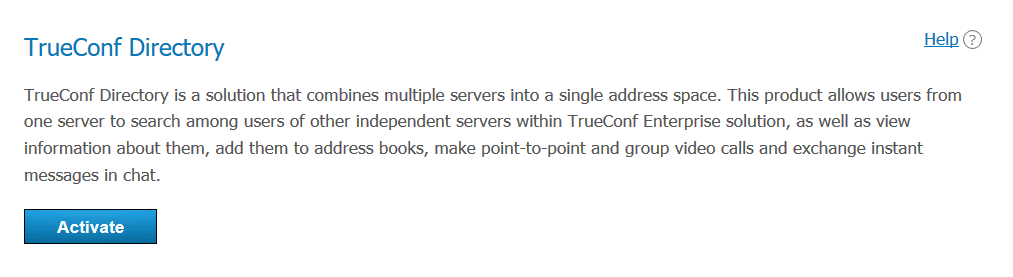
In section Extensions → TrueConf Directory, you can configure the integration of the TrueConf Server instance, which is part of the comprehensive solution TrueConf Enterprise, with the TrueConf Directory solution.
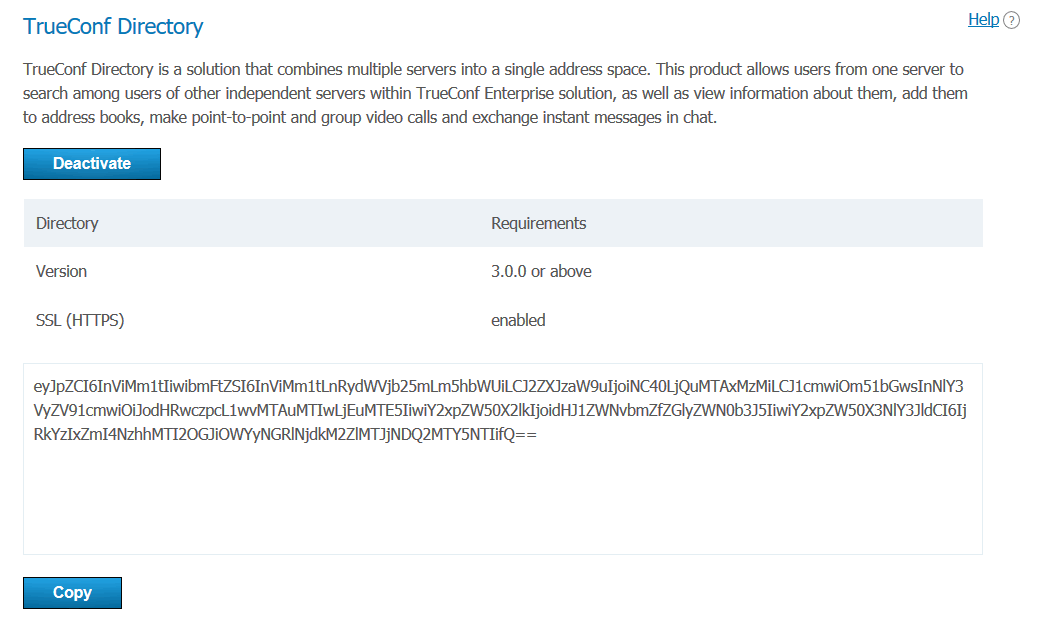
To do this, click the Activate button. To disable the integration, click the Deactivate button.
In the large box below the table, the secret key will be generated.
For more information on configuring the TrueConf Directory extension and purchasing it, please contact us in the way that is most convenient for you.
Integration with DLP
If your TrueConf Server license has the extension Integration with DLP activated, in this section you will be able to configure the connection to such a system and actions to be taken when attempts to breach security rules are detected.
DLP system connection settings
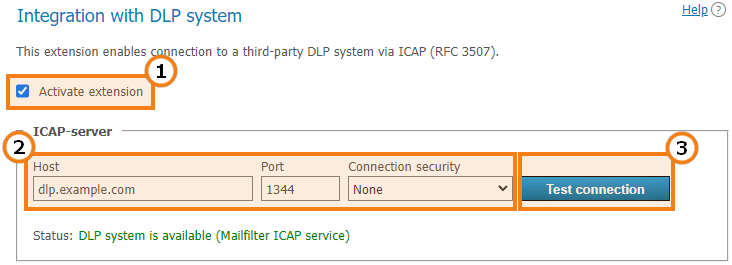
Before you start using the DLP system, you need to check the box Activate extension. Until the box is checked and settings are saved with the Apply button at the bottom of the page, no checks will be active.
In section ICAP-server, configure the connection settings to the DLP system: host (IP or FQDN without the
http: / https:prefix), port, and connection type (standard or secure via TLS).Click the Test connection button to check the system's availability. You will see the result of the check in the status bar below.
Message verification settings
In section Text message checking, set the parameters for handling regular messages:
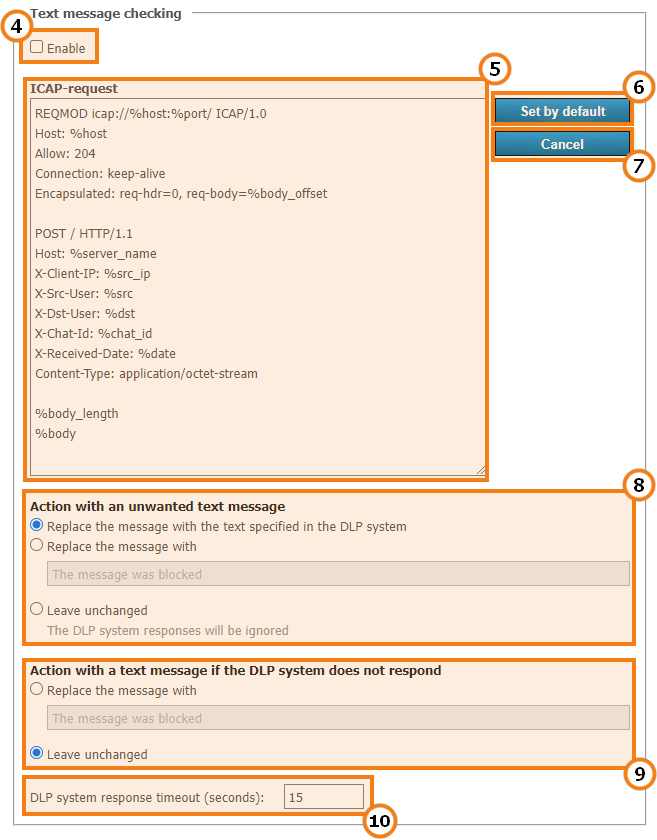
Activate the checkbox Enable. Until the checkbox is selected and the settings are saved using the Apply button at the bottom of the page, the verification will not work.
In field ICAP-request, specify the fields to be transferred to the DLP system. The request format depends on the specific system, and below are listed the variables used in the template, which are replaced with actual values when transferring data for analysis.
To reset the ICAP request settings, click the Set by default button.
The Cancel button allows you to undo the latest changes to the query text that were not saved using the Apply button.
In section Action with an unwanted text message, specify what to do if a message fails the DLP check. You can replace the message with the text selected in the DLP system, specify your own version, or leave it unchanged. In the latter case, users will receive all messages, but the DLP system logs will record the sending of unwanted messages.
In section Action with a text message if the DLP system does not respond, specify what to do if there is no connection with the DLP system. For example, you could specify the text No connection with the security system to prevent any messages from being delivered to recipients until the integration issue is resolved.
The parameter DLP system response timeout (seconds) is used to set the timeout for applying the settings from the previous sections. If the connection to the DLP system is disrupted, the time specified here will pass before the response selected in block Action with a text message if the DLP system does not respond is triggered (as attempts to restore the connection will be made). Subsequently, the connection check is performed in the background, and the transmission or blocking of messages will occur almost instantly.
Checking the files sent in chats
In section File checking, set the parameters for handling the transferred files:
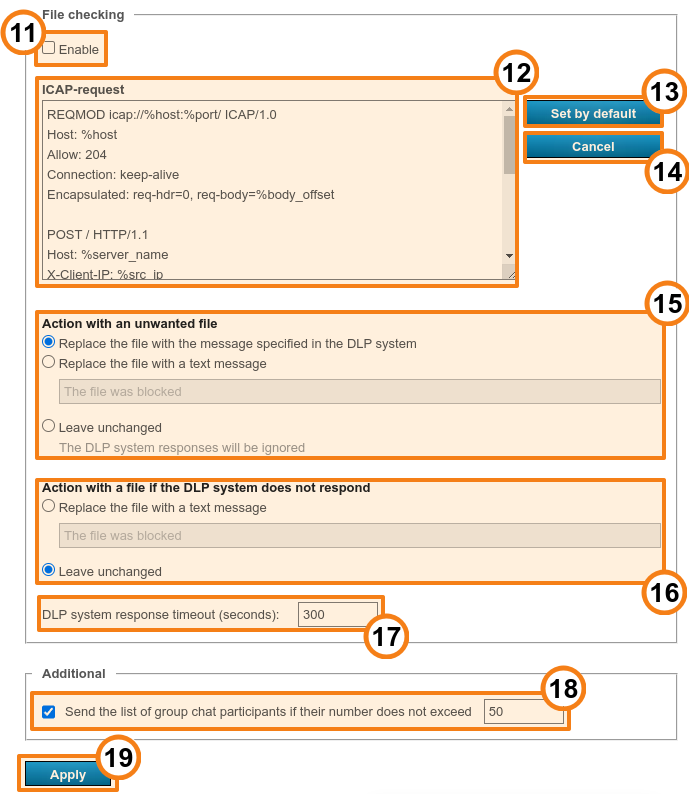
The list of settings is similar to those ones for message checking, but an extra parameter was added for selecting the request body type which improved compatibility with various DLP systems.
Don't forget to press the Apply button to save changes.
Trusted servers and advanced configuration for sending the list of chat participants
In the White-listed servers section, you can add addresses (FQDNs only, not IP addresses) of the video conferencing servers from which incoming messages and files do not need to be verified. This will speed up verification when multiple servers are integrated with the same DLP system, but be careful when using this feature. To edit an address, just click on it in the list:
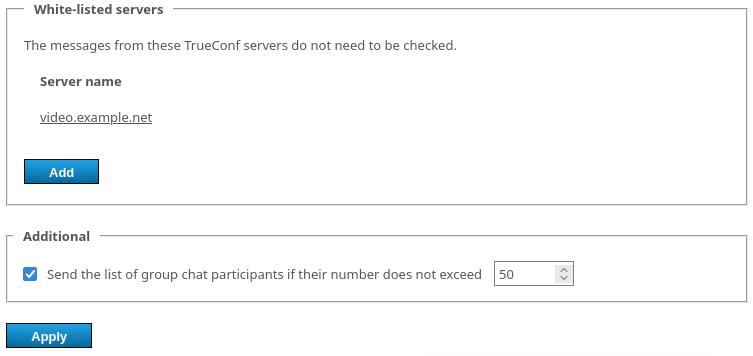
How whitelist verification works:
Let us suppose that you have the servers
example1.comandexample2.com; besides, federation is configured between them.You want to use a single DLP system to check files in chats, including those ones sent between users of these servers, not just within a single server.
If the same DLP system is configured on two federated servers without a whitelist, the same message/file will be checked twice when sent in a federated chat. For instance, it will be checked as outgoing for the user registered on
example1.comand as incoming for the user fromexample2.com, and vice versa.To avoid double-checking the same message, you can whitelist the address of the other server on both servers. For instance, in the control panel of
example1.com, add the addressexample2.com, and in the settings ofexample2.com, add the addressexample1.com.Example of the activated Send the list of group chat participants if their number does not exceed parameter in action:
Let us suppose that the template includes the
%dstand%dst_userparameters.A limit of 30 participants is set for group chats.
For each chat with 30 users or less, the list of full TrueConf IDs and the list of logins will be sent in this format
domain\user.If the number of chat participants exceeds the limit, the list will not be generated (an empty list will be sent to the DLP system).
If the checkbox Send the list of group chat participants if their number does not exceed is unchecked, but the template contains the
%dstparameter, the full TrueConf ID of the interlocutor will be transmitted for personal chats on DLP, while the participant list will not be transmitted for group chats.
Variables in the templates of ICAP requests
%body— request content (text message from the chat)%body_length— request content length (measured in bytes)%body_offset— request content offset in the encapsulated section (measured in bytes)%bot_buttons_base64— used to verify the content (text) of the buttons utilized for sending commands to chatbots%chat_id— unique GUID of the chat%chat_id_origin—%chat_idfrom which a message is forwarded (this field is empty if the message is not forwarded)%chat_title— chat name%chat_title_base64—%chat_titlein base64 format%content_length— the content length of the request (decimal, in bytes)%date— date in ISO 8601 format%dstis the recipient's full TrueConf ID in the formatuser@server. For a group chat, a list of all participants will be passed if the restriction from parameter Send the list of group chat participants if their number does not exceed does not apply. This holds true for all parameters of the form%dst_YYYexcept for%dst_size.%dst_size— the number of participants in the group chat. If the participant limit is triggered (see parameter Send the list of group chat participants if their number does not exceed at the bottom of the page) and the complete list of recipients is NOT transmitted, this number can be used to estimate the size of the data leak.%dst_base64—%dstin base64 format%dst_user— the recipient’s login (part of TrueConf ID up to the@character) with the domain specified asdomain\user%dst_user_at_domain— the recipient’s login in theuser@domainformat (@domainmay be omitted if the recipient is in the main domain)%dst_user_at_domain_base64—%dst_user_at_domainin base64 format%dst_user_base64—%dst_userin base64 format%dst_user_no_domain— recipient’s login%dst_user_no_domain_base64—%dst_user_no_domainin base64 format%host— the value is taken from the field Host%message_id— unique message identifier%multipart_boundary— the value of theboundaryparameter in the message header (intended to be used in the following way:Content-Type: multipart/form-data; boundary=%multipart_boundary)%port— the value is taken from the field Port%server_name— domain name TrueConf Server%src— complete TrueConf ID of the sender%src_base64—%srcin base64%src_user— sender’s login (part of TrueConf ID up to the@character) with the domain specified asdomain\user%src_user_at_domain— the sender’s login in theuser@domainformat (@domainmay be omitted if the sender is in the main domain)%src_user_at_domain_base64—%src_user_at_domainin base64 format%src_user_base64—%src_userin base64 format%src_user_no_domain— sender’s login%src_user_no_domain_base64—%src_user_no_domainin base64 format%src_ip— sender’s IP address
Additional information is available for files:
%filename— name of the file being sent%filename_base64—%filenamein base64 format
Mail plugins
The Email plugins extension provides access to TrueConf's plugin settings for integration with popular email applications. Learn more about them in the dedicated section on corporate calendars and email applications.