
Network and Federation Settings, STUN/TURN Servers
Network and Federation Settings, STUN/TURN Servers
Here are the minimum steps needed to set up a working corporate communication system:
Select a machine (PC, physical or virtual server) with suitable hardware.
Configure HTTPS (it is used for many key features such as integration with the AI server, conference scheduling, etc.) and specify the external server address (the address of the guest page).
Configure the server availability for the users within the corporate network and, if necessary, for the users from an external network (outside the secure corporate network). ◀️ You are here!
Create user accounts or integrate the server with a directory service via the LDAP/LDAPS protocol.
Install client applications for users and show them how to connect to your server (check the documentation for the desktop application).
In section Network, you can configure certain TrueConf Server settings related to the network:
connecting client applications and third-party devices (SIP, H.323, etc.)
sending email notifications for users and administrator
connection with other instances of TrueConf Server.
Network Settings
In section Network → Network settings, you can specify the IP addresses and ports that the client applications downloaded from TrueConf Server will use to try to connect. By default, only the IP address of the machine where TrueConf Server is installed is used for this purpose.
Client applications always connect to TrueConf Server over the only TCP port (4307is used by default). It is the only port used for signalling, sending authentification data and audio or video streams. An HTTPS port (443 selected by default) is used for displaying the scheduler, accessing real-time meeting management and for API calls. To learn more about this topic, check out the article in our knowledge base.
You can specify a different port when editing the list of IP addresses.
No UDP port can be used for communication between TrueConf Server and a client application.
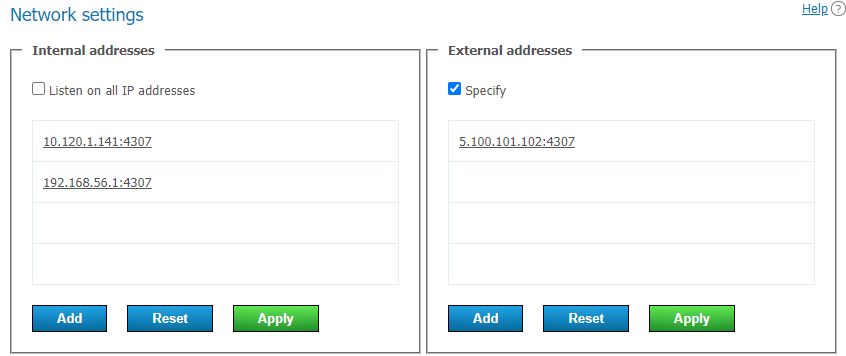
Internal addrresses
The Internal addresses list contains the addresses and ports that the server is listening to. These should be the addresses of the network interfaces of the machine on which TrueConf Server is installed, or its internal DNS name that resolves to one of the network interfaces by IP. If the Listen on all IP addresses checkbox is selected (it is selected by default), the list is automatically compiled from all available network interface addresses in the OS, including virtual ones. In the case of configuring external addresses, these (internal) addresses should be translated (address resolution) via DNS as described below.
To edit the Internal addresses list:
Clear the checkbox Listen on all IP addresses.
To change the parameters for the specific connection, just click on the line with the selected address.
Use the buttons at the end of the list to add a new address and to save or discard changes.
External addresses
Addresses from the External addresses list are used for a variety of purposes:
are added in encrypted form to the name of the installer TrueConf for Windows, which is downloaded from the server's guest page (see application settings), and are used during its first launch. Users of your server and guests who join a webinar through the application will not be able to connect to the server immediately if the external address is unavailable to them—they will need to manually enter the correct address in the application settings;
Files are transferred through external addresses in chats (if the list of external addresses is not empty);
the remaining traffic is transmitted between the application and the server.
Therefore, we recommend specifying a single address - the server's domain name (FQDN) - for external addresses. Configure the DNS so that this address is resolved to the appropriate IP (internal/external) based on the user's address (connecting application/terminal). If your DNS resolves the domain name to multiple addresses simultaneously, ensure that all of them are accessible to the user, otherwise, there may be connectivity stability issues. It is better to resolve to one target IP for each connection source.
If configuring DNS is not possible, you should specify addresses in the External addresses list that are accessible to all users both inside the corporate network and outside. This means the list must include at least one address that is accessible to any category of users connecting to your server (internal, external via federation, guests). This list can include addresses from which redirection to internal addresses is set up, your NAT IP address, DNS name, or addresses to which TrueConf Server is planned to be moved in the future (so that previously downloaded client applications can connect to the server through the new IP address). Note that if you specify multiple different addresses available to the user (for example, from the CSPS), they may connect to any of them, and this is not determined on the server. Which leads us to the point that it is better/more reliable to configure exactly FQDN with DNS.
If the server is intended only for local network use, the list of external addresses should be left empty. All connections will then occur using the list of internal addresses.
If you plan to migrate the server to another IP address, all you need to do is to add the new IP address to the External addresses list beforehand. This will help client apps to store the new address right after the next connection to the server in advance.
To edit the External addresses list, check the Specify checkbox.
After you have changed the address to an external one, go to the section Web → Settings of the server control panel and change the external website address to the public IP (which you specified in the list External addresses). Then, restart the server to allow external users to connect from outside.
This guide does not cover TCP port forwarding or DNS names. You can learn more about these topics in your network equipment manuals.
Federation
Federation mode enables users TrueConf Server to make calls and join conferences with users from other TrueConf Server, as well as exchange chat messages. Federation is available only in the full version of TrueConf Server (for example, when purchasing additional licenses of any type). There is no limit to the number of servers that can be federated. The limitations on conducting group conferences will correspond to the limitations of the TrueConf Server initiating the connection.
Requirements for the correct work of federation:
The server has to be registered with an existing DNS name or you have to specify the real server address with the help of DNS SRV records.
Each federated server has to be accessible to another server by its DNS (FQDN) name, specified during registration, via the main port for the TrueConf protocol (4307 is selected by default). Moreover, it has to be accessible via an HTTPS port (443 is used by default). If a different HTTPS port is configured on one of the servers or a different port is selected for the communication protocol, access to this server should be configured via the selected port instead of the standard one.
Each federated server has to be available to all users of both servers (whose participation in calls and conferences is expected). Each server has to be accessible via an HTTPS port (443 is selected by default) by its domain name which should match the external server name specified during the registration.
IMPORTANT! If you are using a server which is below 5.4.0, it also has to be accessible to all federated users via the main port for the TrueConf protocol (4307 is used by default).
For more details on how the client application can locate the server, refer to the section on configuring automatic connection.
Federation has to be configured on both servers to ensure that they are accessible to each other according to the rules mentioned above. To do it:
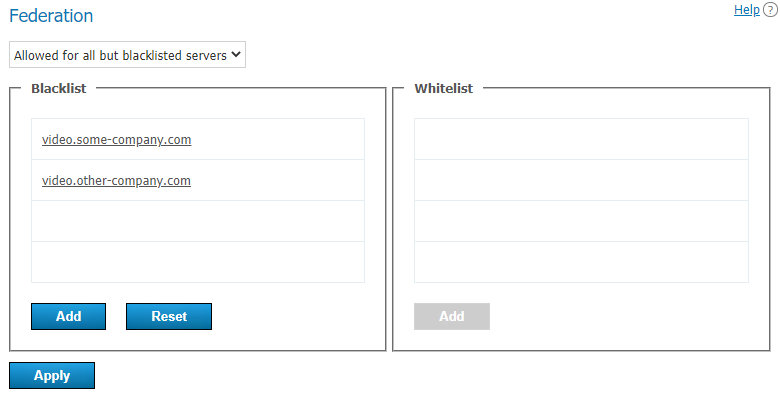
In the drop-down list, select the federation mode:
- Disabled;
- Allowed for whitelisted servers – meaning federation is available to all servers specified in the list, and only to them;
- Allowed for all but blacklisted servers – Federation with the server is available to any servers not listed here.
Enter the IP addresses or domain names (FQDNs) of the required servers into one of the lists (depending on the federation mode) and click Add.
IP addresses do not have to be specified for federation; only DNS (FQDN) names are needed. Besides, the masks containing an asterisk * are supported, for example, *.example.com, v*.example.com, example.*, *.example.*.
- Click the Apply button to restart TrueConf Server and save the changes.
Federation use cases
Federated users can access the chat of a virtual room if they were added as participants when the room was created or edited, but not if they were added "on the fly" after the event had already started.
Let us take a look at some examples.
Case 1
To configure federation with a different TrueConf Server instance, e.g., videoserver.example.com, you will need to:
Add
videoserver.example.comto the white listActivate federation on the side of
videoserver.example.comin one of the following ways:Add the domain name of your server to the its white list
Allow federation with all the servers that have not been added to the black list (make sure that your server is not added to the black list).
Make sure that both servers and client applications connected to them, are accessible to each other by domain names.
Case 2
If the server videoserver.example.com is added to the blacklist, you will block all calls between users of your server and all users whose ID takes this form id@videoserver.example.com.
Connection to a conference in federation mode
Connection to a conference (including the cases when federation is used) is fully described in the "Conference page" section.
TURN/STUN servers settings
If needed, specify the addresses of the STUN/TURN servers in section Network → TURN/STUN for fine-tuning NAT traversal.
You can find more information about how WebRTC works in the article on the website.
When adding STUN/TURN, one should consider how this mechanism works:
- TrueConf Server acts both as an authorization server and a WebRTC client (a conference participant) at the same time.
For a STUN or TURN server, different parameters can be set for Assigned for: for TrueConf Server, for the browser (WebRTC client), and for client applications TrueConf.
Depending on the role of STUN/TURN, its use will yield different results:
If STUN/TURN is assigned for TrueConf Server, it will allow TrueConf Server to obtain an external IP address;
If STUN/TURN is assigned for a WebRTC client, participants using browsers will be able to get an external IP address.
If STUN/TURN is assigned for the native TrueConf application, then participants using desktop applications, mobile applications, TrueConf Room software terminal, and TrueConf Kiosk application will be able to obtain an external IP address.
STUN/TURN can be assigned simultaneously for TrueConf Server and for the WebRTC client (both options are selected in the Assigned for dropdown list).
Only one configuration can be added with assignment to TrueConf Server.
There is no limit on the number of STUN/TURN servers assigned to a browser and TrueConf client applications.
If the STUN/TURN server role is assigned to users (a browser or a native application), these users will connect to the server in the following way:
Initially, an attempt is made to connect using local addresses TrueConf Server.
If the attempt is unsuccessful, the browser client or native app tries to use external addresses obtained with the help of STUN servers.
If Step 2 also fails, the browser client attempts to establish a connection using TURN servers to proxy secure DTLS traffic.