
Conference recordings and logs (reports)
The Reports section stores all information about user connections, calls, messages, as well as video recordings of conferences. The data can be filtered by various parameters and downloaded in CSV format. The time in the tables is displayed according to the time zone selected in the preferences settings menu.
We remind you that the main log TrueConf Server can be viewed in the log, accessible from the System → Server log menu in the upper right corner of the control panel page.
On the right side of some tables you can find a dashboard containing detailed information about any event that is selected in the table.
Report tables share common functionality:

Filter entries.
Saving the table in CSV format (the export format can be configured in the preferences section). This saves the selection obtained after setting the filters and clicking the Search button.
Delete the entries selected through filtering. Please note that you will delete only the entries that have been selected in the input fields, but not the ones that are currently displayed.
Sort entries by field values (click on any column name to change sorting order).
Differences between a session and a conference
Before describing the logs, we need to show what a session is.
Session is a specific communication instance of a conference. Each time the same conference is started, a new session (communication instance) is initiated with its own identifier. For example, this term can apply to scheduled events that are repeated multiple times, as well as to virtual rooms. Such conferences will have multiple sessions, one for each start event. The session ID should not be confused with the conference ID, which can be changed by a moderator or server administrator.
Events
The event log includes consecutive records of:
All changes in the user status (authorization, offline, and others) and changes in the server state (start, shutdown, connection to AD/LDAP)
Results of the actions taken by OAuth applications (refer to the server API description for more details)
Revocation of a user's PRO licenses due to one of these reasons:
No PRO licenses were available when a user tried to join a group conference.
Revocation of a user’s PRO license (either permanent or temporary) as a result of license redistribution after server restart or automatic revocation by timeout.
revocation of a temporary PRO license by the administrator from the user (in the section Dashboard → PRO Licenses).
deleting video recordings using the
 button from the control panel;
removal of entries from logs in section Reports, where the event type from column Event indicates the corresponding subsection (see description below).
If you click on an event in the table, you will be able to check several details, for example, what client application or IP was used to authorize. Besides, you can track changes in the user status.
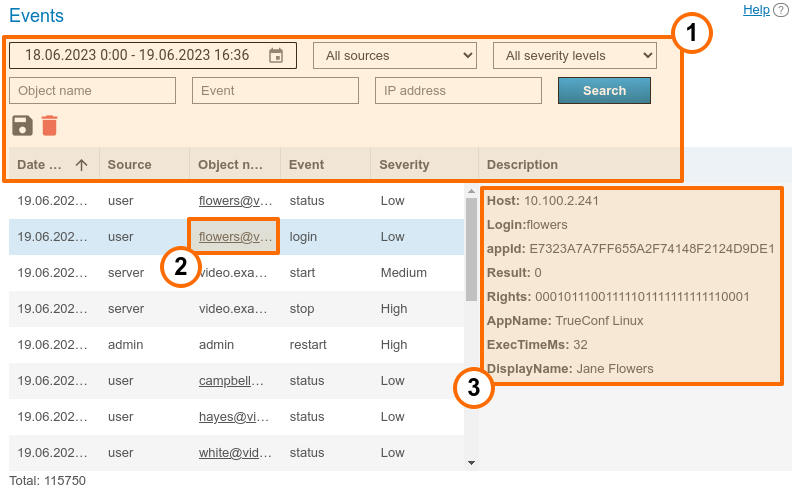
General UI for working with the table (check the description above). The Event drop-down list can be used to select one or multiple event types for more flexible search and analysis.
Link to the user profile who performed the action.
Event details. Contains detailed information required for the technical support department to solve possible issues you may face. The most common event details:
- Users: list of TrueConf ID users (displayed, for instance, during an event of insufficient PRO licenses after distribution);
- IP address: IP address of the connected user;
- Entered login: The information specified during the authorization attempt TrueConf ID can help identify if the user made a mistake in the login details when the sign-in is unsuccessful.
- Real user ID: existing TrueConf ID of the user under which authorization or another event occurred;
- Endpoint ID: unique connection ID, reference it from the section Endpoints;
- Application name: the name of the application used to authenticate on the server;
- Authentication method: authentication method, such as login and password in Registry mode, and with SSO login (NTLM, Kerberos), the relevant method will be displayed;
- User rights: A binary sequence in which user rights are encrypted;
- Display name: display name of the user;
- Previous status: status of the user before the transition to the new value, takes one of the values:
-2- inactive,0- offline,1- online,2- (busy) participating in a conference or video call,5- connected to the conference as its owner - New status: the status the user transitioned to as a result of the event takes the same values as Previous status:;
- Description: Detailed event description;
- Administrator type: The administrator access level when performing events on their behalf can be sysadmin (full access to the control panel) or security (restricted access, see description TrueConf Server Security Admin).
When an administrator deletes entries from report tables, additional fields will be displayed showing the number of deleted entries and additional details about the deleted rows (depending on the table type).
- User agent: is the part of the HTTP request that includes information about the web application and the OS of the device which is being used to connect to the server.
Description of event types
Below is a list of all event types that are recorded during the operation of TrueConf Server (some events can be either successful or unsuccessful, such as login authorization):
| Event type | Explanation |
|---|---|
| authorize | User TrueConf Server authentication via SSO provider |
| login | Authorization:
|
| logout | Deauthorization (logout) of a user or server administrator |
| lock | User account lockout upon entering an incorrect password |
| unlock | Unlocking a user's account by the server administrator or after the timeout specified in the lock settings. |
| activation | User account activation (see the checkbox in the profile description) |
| deactivation | Deactivation of a user account (see checkbox in profile description) |
| status | Changing the user status (online/offline, busy, owner, numerical values see details above) |
| connect | Connecting your TrueConf Server to an LDAP server |
| disconnect | Loss of connection between your TrueConf Server and the LDAP server |
| delete_conferences | Deleting records from the Call History table |
| delete_connections | Deleting records from the Endpoints table |
| delete_events | Deleting records from the Events table |
| delete_logs | Deleting records from the Configuration Changes table |
| delete_video_recording | Deleting records from the Conference Recordings table |
| delete_video_recordings | Automatic deletion of entries from the table Conference Recordings after the timeout specified in the section Group Conferences → Settings. |
| start | Start TrueConf Server |
| stop | Stop TrueConf Server |
| restart | Restart TrueConf Server |
| pro_license_limit | Revocation of a user`s PRO licenses due to one of these reasons:|
|
| pro_license_revocation | Revocation of a temporary PRO license by the administrator from a user (in the section Dashboard → PRO Licenses) |
Call History
This section contains history of video calls and conferences hold on the server.
Please note that each time you start the same conference, a new conferencing session with its own identifier is initiated. This is relevant for scheduled recurring events or for virtual rooms. For this reason, there will be several entries in the call history table with details of each independent conferencing session.
Call list
On the main page of the section you can see the table where you can select a particular meeting. Besides the call history, the list also contains information about active sessions. The End field remains blank for current conferences.
When deleting data, the following records will be ignored and remain in the table:
sessions that have not yet ended;
communication sessions for which server-side recordings are available.
The remaining rows will be successfully excluded from the table.
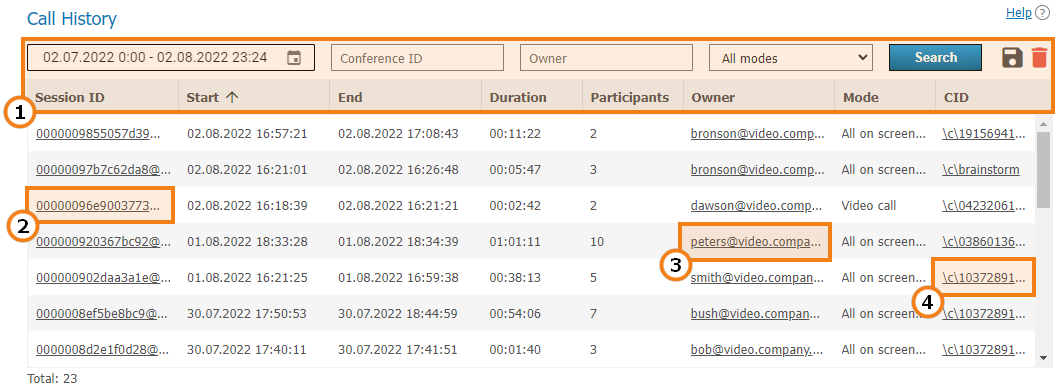
General table interface (see the description above).
Link to the page with detailed information about the communication session.
Link to the profile of the conference owner or call initiator.
If this session has a parent server-side conference (not created ad hoc in the client application), you can find it in the general list.
Session information
Click on the session ID in the general table to view information about the selected conferencing session, including:
information about time and owner of the conference
list of what time the participant was attending the conference
general media streams quality technical data
history of conference invitations and accepted/rejected video calls
Sending files.
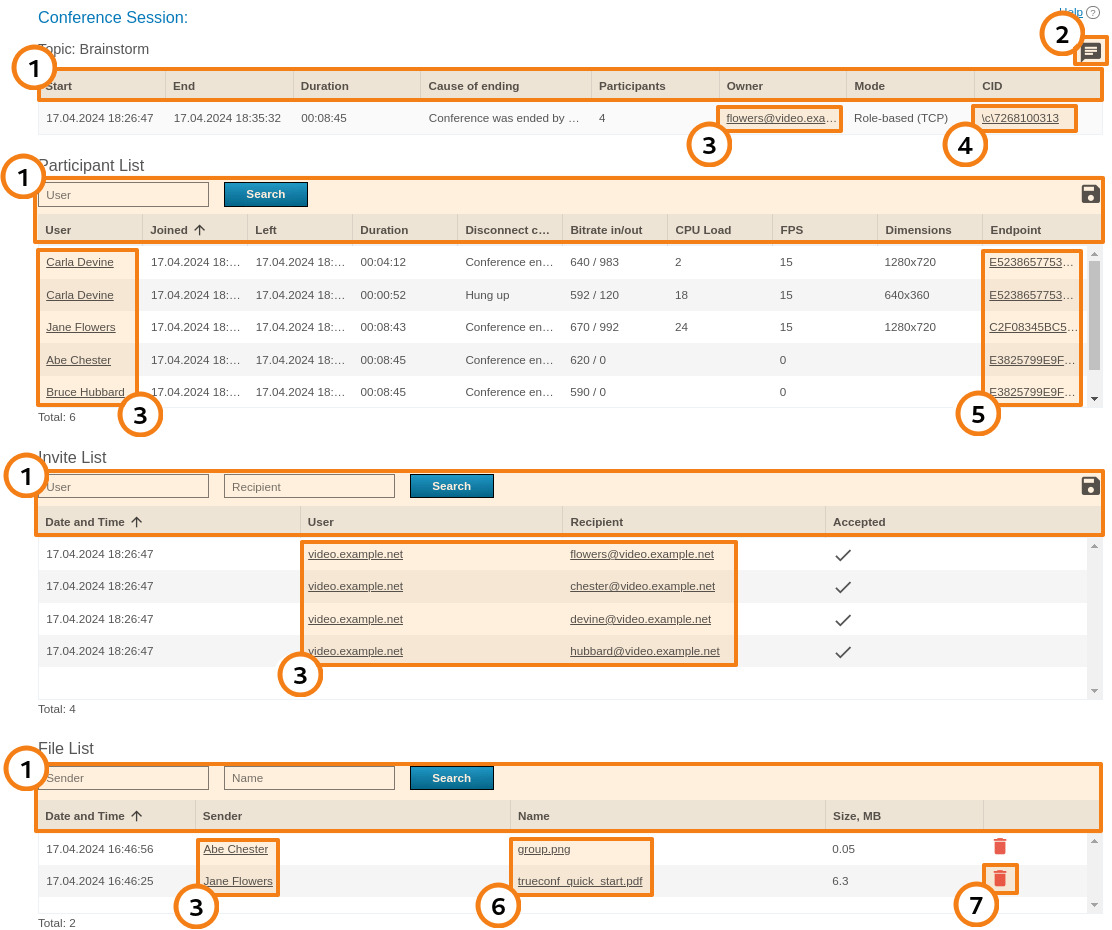
General table interface (see the description above).
Link to user profiles of participants and invited users.
If this session has a parent server-side conference (not created ad hoc in the client application), you can find it in the general list.
Links to pages with information about connection details for each conference participant.
The list of files sent to the conference chat. When any of the files is clicked, the download page will open.
The button for deleting a file from the server.
Please note that the column Mode indicates in brackets whether UDP Multicast is used in this communication session (in the example above, it is not used).
The number in column Participants of the first table represents the count of distinct participants (including those from different devices). Meanwhile, the number in the second table titled Participant List (see row Total) and the list itself correspond to all connection events to the conference. These numbers may differ. In the example above, we can see that at least one user Carla Devine connected twice.
A guest who reconnects to a webinar from the same application or browser will not be counted again, even if a different display name is entered. For more details, refer to the description of guest ID. However, the history of name changes will be displayed along with the recorded events of reconnection to the conference.
In the Invite List table, a server address may be listed as a user in the rows. It means that users in the Recipient column were called by the server at the start of the conference. If a TrueConf Server user is the inviting party, it means that he/she invited the participant after the conference start. If participants joined the conference on their own, there will be no inviting user for them (no row in the table).
Connection properties
Here you can view all connection details to a given conferencing session for each user (e.g., the client application version, operating system and CPU). The example below shows some of these parts:
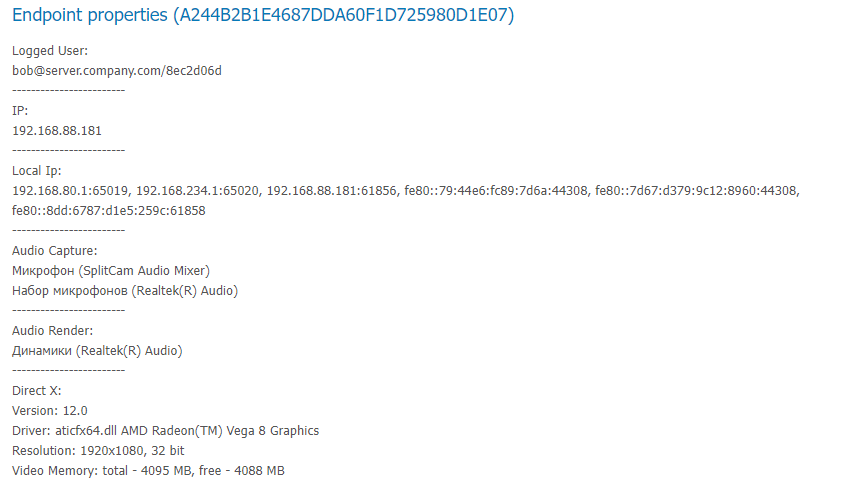
Configuration Changes
In this section, one can view the log of the following changes:
settings TrueConf Server;
the list of conferences stored on it and their parameters;
list of users and groups;
changes to the parameters from section Dashboard → PRO Licenses, including the manual reassignment of perpetual PRO licenses by the administrator;
Modification of external systems integration settings (LDAP, DLP, corporate email)
the history of creation and modification of polls and campaigns, including deleting respondent questionnaires and starting/stopping specific campaigns;
settings TrueConf AI Server, with which integration is configured in full access mode;
Settings of user groups and separate user accounts (available only in Registry storage mode).
Every entry in the table corresponds to a certain change. If you click on an entry, the panel on the right will display the server settings before and after this change.
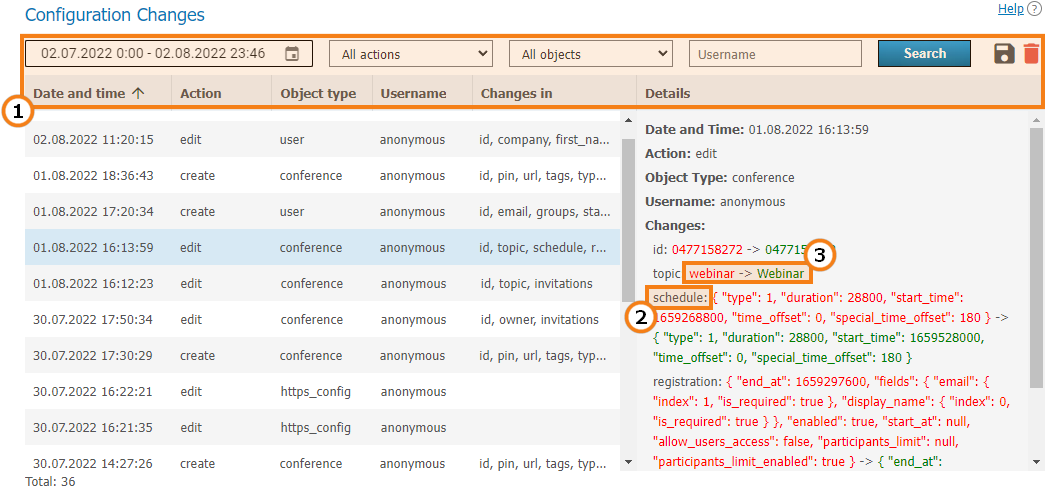
General interface for interacting with the table (see description above). Data filtering is available:
by type of change (action): creation, editing, deletion;
by object type, meaning a specific server settings section;
by the user's login (TrueConf ID) or the administrator's login who might have triggered the event.
For example, to view all conference creation events during a specific period by an administrator with the login
adminon the OS where the server is installed, select action CREATE, object CONFERENCE, and username admin.Name of the modified parameter.
Parameter values: previous (before change) -> new (after change).
For example, the picture above illustrates an event involving some changes in the conference settings. The following parameters were changed:
Name (
topicparameter )Schedule settings (
scheduleparameter)Conference registration settings (
registrationparameter).
Conference Recordings
This section contains a list of recorded conferences. Here you can playback, download or delete their records.
The recording storage settings are specified in another section Recordings.
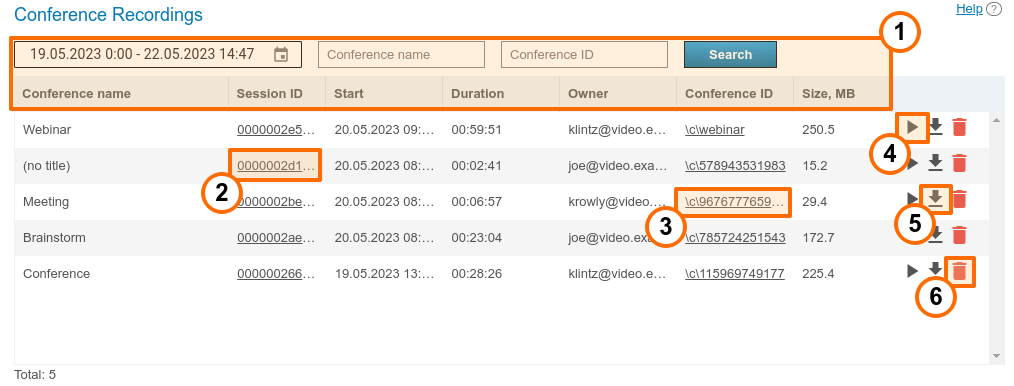
General table interface (see the description above).
Link to the page with detailed information about the communication session.
Go to the conference card in the general list.
Playback button
Recording download button
Delete button.
For point-to-point video calls, the name will be specified as (no title).
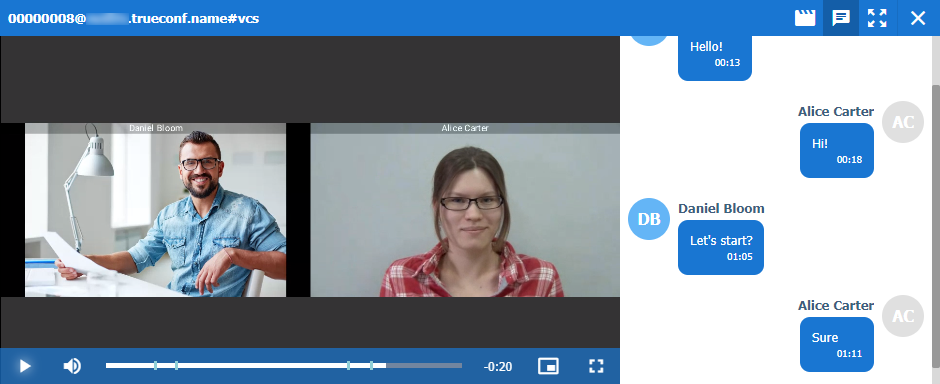
You can use the  button to play recorded conferences:
If the administrator deletes the recording file from this section or during auto-cleanup (see more details here), the entry line for such a recording will still remain. In this case:
the buttons for actions on the remote recording become unavailable;
the size stops displaying.
Can I play a video recorded in TrueConf Server using third-party programs?
Yes, it can. In order to do it you will need to download and install a media player with VP8 video codec support, e.g. VLC.
You can also upload any of your recordings to YouTube to share with your colleagues.
Endpoints
This section provides information about user endpoints. This information can be useful for real time technical support.
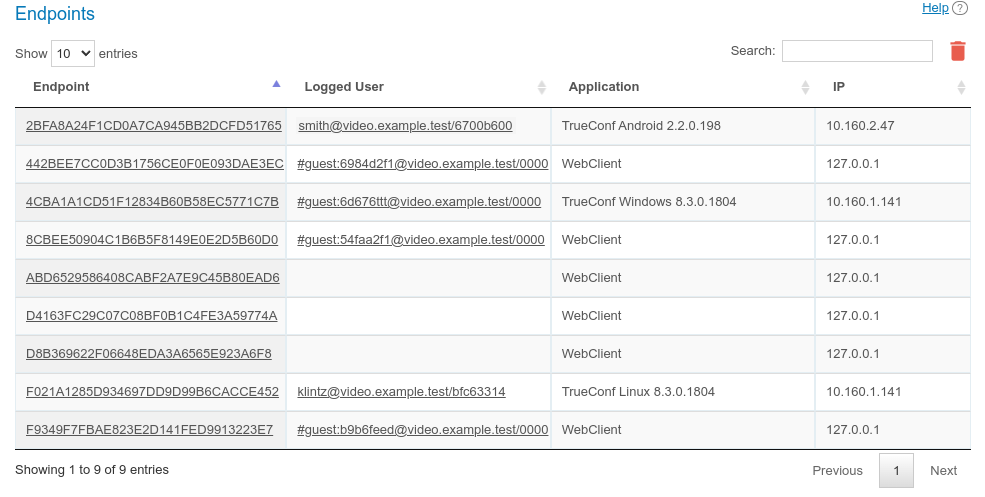
Use the quick search field to filter records by any of the parameters. The search is case-insensitive and can be performed for all fields (the table is filtered and you can see only those records that have at least one field with the entered string). It is possible to combine multiple searches. For example, to display only guest connections from the browser, search for webclient guest.
The Application column shows the application version, which can also be helpful for assisting users (for example, connections from mobile devices may be affected by the quality of the wireless connection or background operation settings in the OS). If a person connects from a browser, TrueConf WebClient will be displayed.
Authentication from a browser is logged only in two specific cases:
The user, who connects from a browser, participates in a conference
The user opens the Chats section in the personal area, if a person only signs in to the personal area, a new entry will not be created in the logs.
When you click on an entry in column Endpoint, the previously mentioned user-specific connection details page will open. Additionally, clicking on a field in column Logged User containing the user's TrueConf ID of this TrueConf Server will take you to the corresponding profile page.
The absence of data about the authenticated user in the connection string indicates that this user has already left the meeting (e.g., if a guest participated in the conference from a browser and then closed the conference page).
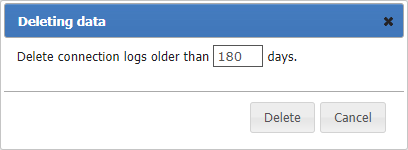
It is possible to delete the entries older than a specified date. To do it, click the button and specify the number of days beyond which data should be deleted (the default range is 180 days):
Events that update device information
| Event | Editable fields |
|---|---|
Connecting a device to the server or restoring the connection |
|
| Ending the conference | Last Conf Name |
| Performing a network test (by pressing the corresponding button in the client application) | Network Test |
| Server Authentication | System information |