
Transcripts
Transcripts
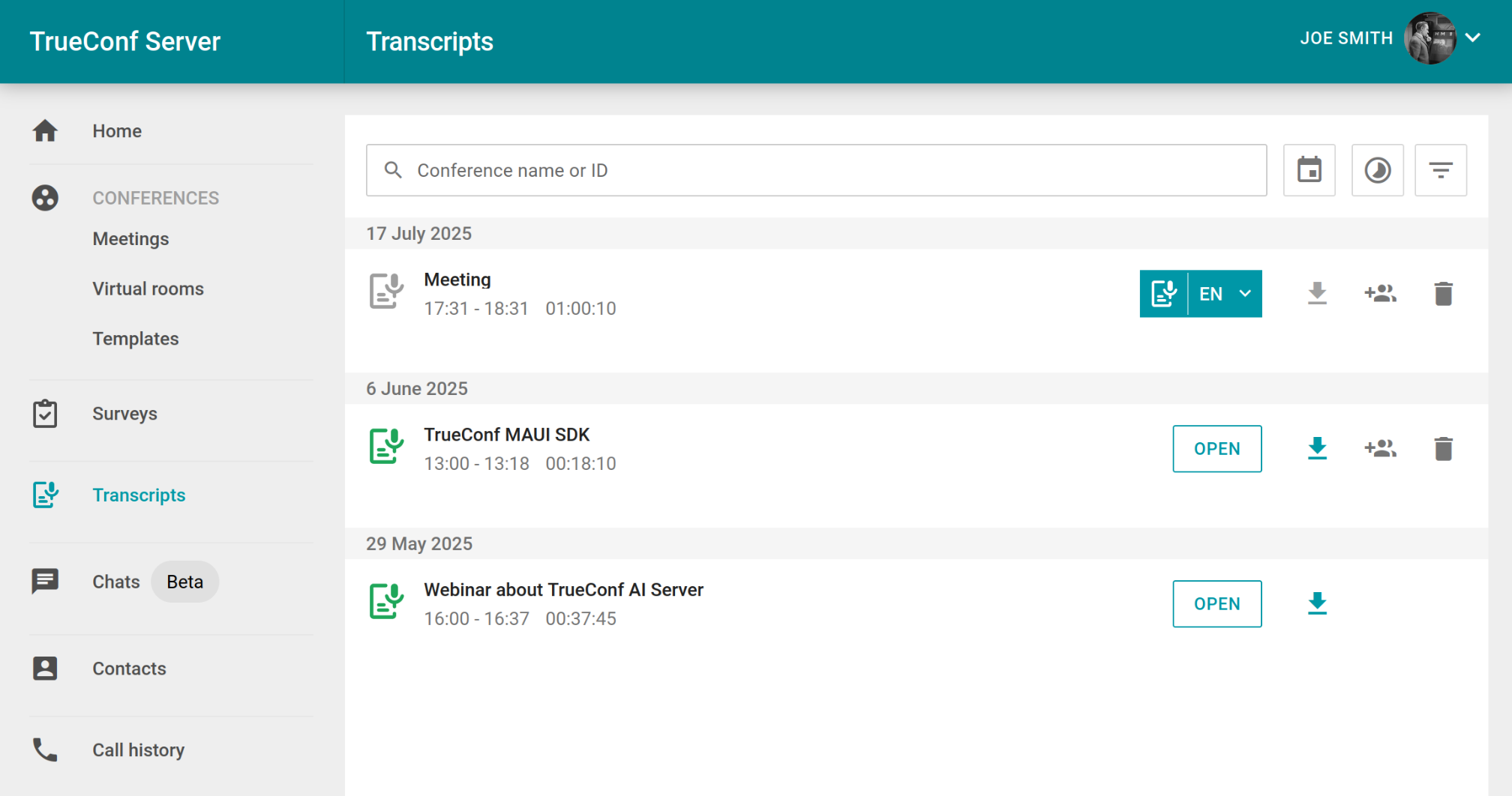
If your company has implemented the use of TrueConf AI Server, you will see the Transcripts menu item in your personal area. This section displays a list of recognized and ready-to-be-recognized conferences:
Working with transcripts
For quick transcript searches, you can use the Name, ID or transcript content input field to find a transcript by its title, ID, or spoken words. Filters are also available by clicking on:
 - by the time period of record creation, you can select the desired date and time range;
 - by recording duration;
 - by status (Transcribed, Not transcribed, All) and access (Full access, All).
You have the option to upload your own file with an audio track for recognition; this is discussed in more detail below.
Recognized conferences are distinguished by the presence of an icon  and a button Open for accessing the transcript text and downloading the audio of the corresponding conference. While the transcription is in progress, an icon
  and a label Added to queue are displayed. If the event has not yet been transcribed, you will instead see a button to start recognition with a language selection option
  (available if it has not been initiated yet).
To download the transcript text, click the  button. You can select the export format for the transcript: as a csv table, a txt text file, or a pdf document. Additionally, you can download the transcript as an archive with the original conference audio recording included.
You can delete the transcript by clicking  . This will remove both the transcription and the original corresponding conference audio track.
When the  button is clicked, the conference owner will see the access management window, where they can add new users and assign read or full access rights to the recording for individual users.
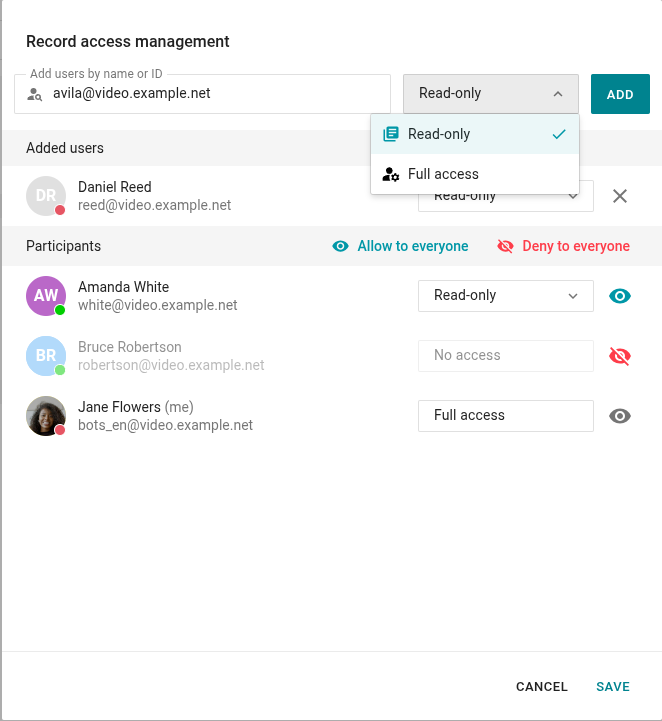
To add a user, enter their name or ID in the Add users by name or ID field, then select the access type (Read-only or Full access) from the dropdown list and click the Add button. The user will appear in the Added users list. If you need to remove the added user, click on  .
.
Access management to the recording among event participants is handled in the Participants list. For quick management, use the Allow to everyone button to grant access to all participants and the Deny to everyone button to restrict access to all participants except for the event owner (yourself).
For more flexible management, use the dropdown list to grant either full access or read-only access. Clicking the  button will completely revoke the participant's access, while clicking
  will reopen access with read-only permissions. You can then grant full access to the participant using the dropdown list.
Upload file for transcription (recognition)
In addition to native integration with your messenger TrueConf, you can upload any file with an audio track for transcription. For instance, you can upload a video recording of a past conference where transcription was not activated. The number of speakers will be automatically determined by voice differences, and remarks will be attributed to the corresponding participants of the event.
The following file formats are supported for upload:
audio files: wav, mp3, flac, ogg, aac
video files: mp4, avi, mov, mkv, webm.
Maximum file upload size: 5 GB.
The process of automatically identifying multiple different speakers in a single audio stream and segmenting the speech according to these participants is called diarization.
To upload a file, click the  button in the general list of transcripts. A window will open to select a file:
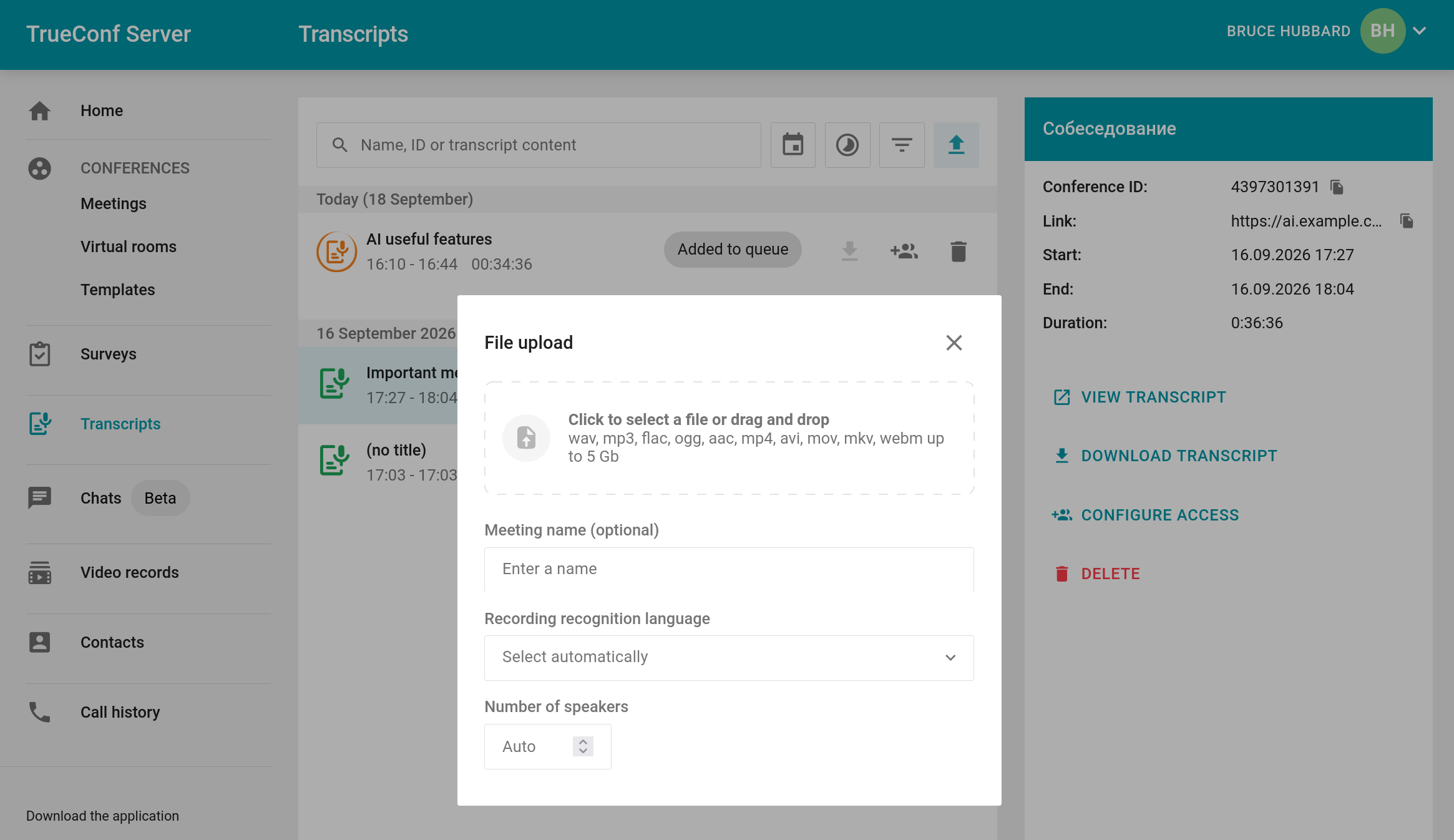
You can specify the following parameters:
Delete the event.
Select the primary language for recognition (the AI model can choose it automatically, but explicit indication can sometimes be helpful).
If you know the number of presenters in the recording in advance, you can specify them - this will help distribute the cues more accurately.
After specifying all the parameters, click the Start button.
Transcription will start, just like for a regular conference. Once the recognition process is complete, you will be able to work with this recording in the same way as with others, as shown above. There is a difference: you can specify the correct names of the speakers. By default, the system assigns names such as Speaker 1, Speaker 2, etc.
To proceed to setting up speaker names:
Click on the received transcript and then click the Open button next to its title or select View transcript on its card to the right. A list of remarks will open:
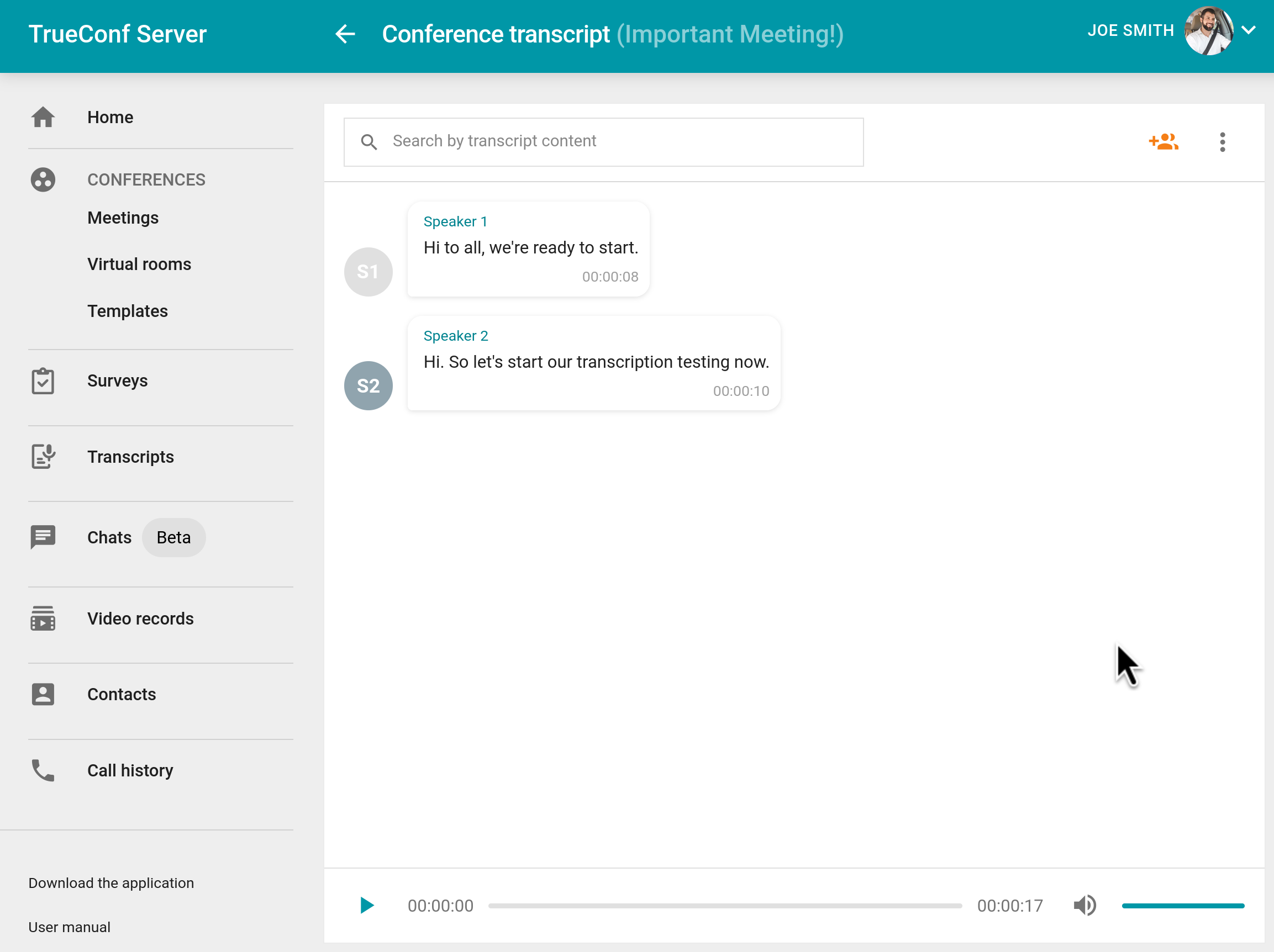
Click the
 button above the transcript to open speaker settings: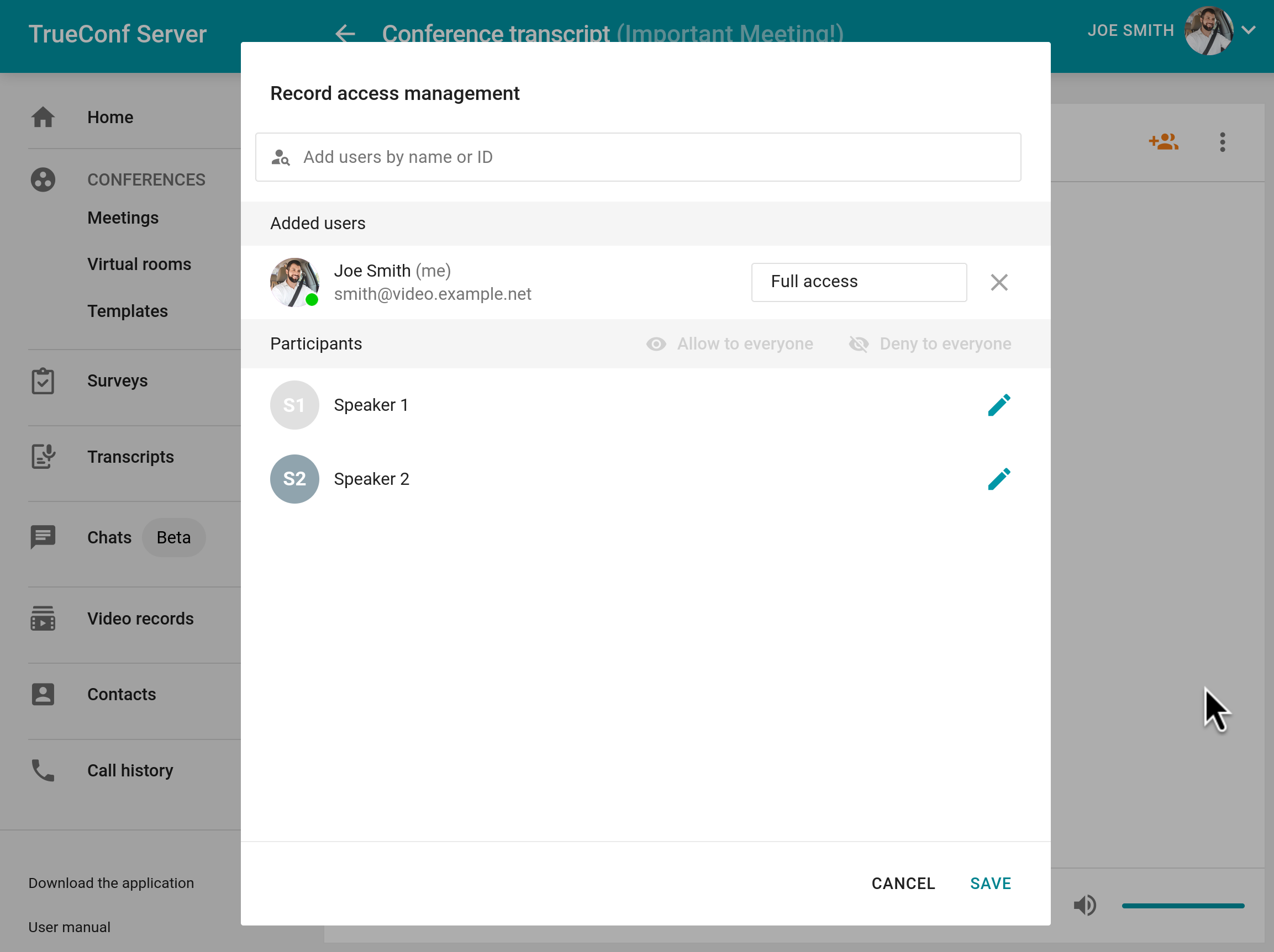
Click the
 button next to the desired speaker and enter the required name, then press the Enter key or click anywhere on the screen—the changes will be applied immediately. Configuring speaker names does not affect access permissions; you'll need to configure everyone who should have text editing capabilities in the list above.
If for some reason a single person appears as two speakers in the transcript (for example, if the voice changed due to switching microphones), you can assign the same name more than once in the list so that the captions reflect a single participant. In other words, unique captions are not a mandatory requirement.
It's important to remember that renaming speakers is only possible for transcripts generated from files, and only after accessing the transcript itself.