
Network configuration
In the Administration → Network section, you can:
Network diagnostics
TrueConf MCU is capable of performing network diagnostics using the commands: ping and traceroute. To do this, go to Administration → Network → Diagnostics.With ping
You can check the availability of network resources using the ping command. To execute it, enter the IP address or DNS name of the resource in the input field with a text prompt and press Validate. The output field will display the result of the check, which cannot be modified.
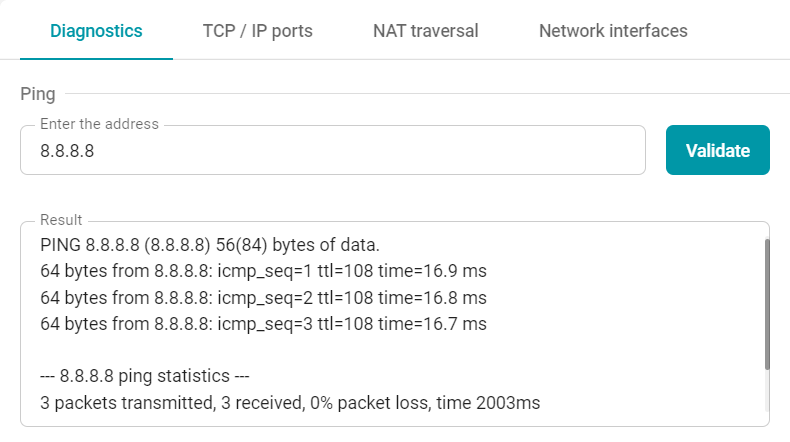
If you enter an incorrect address in the input field, the output field will display an error from the server.
With traceroute
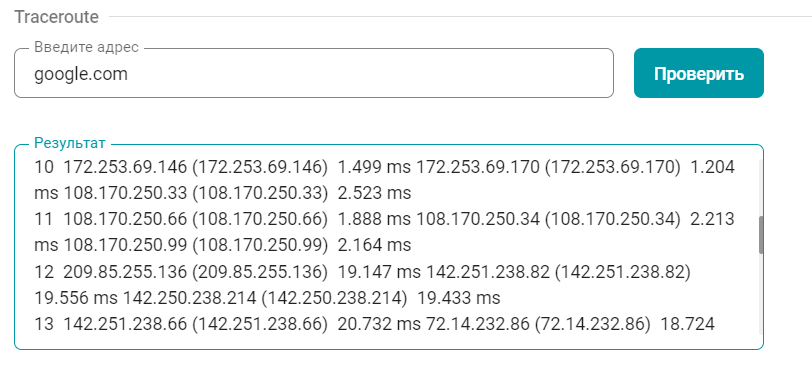
To determine the route of data packets in TCP/IP networks and the path length, you can use the traceroute command. To do this, follow the steps described in the previous section.
Traffic capture
TrueConf MCU It is also equipped with a network analysis tool. This tool allows you to log all incoming and outgoing data packets and save the data in .pcap format for further analysis. To start data collection, select the desired network interface from the dropdown list and press the Capture button. To capture traffic from all interfaces, choose Capture all. During the traffic recording, a table will be displayed below showing the list of files, the collection time, and their size.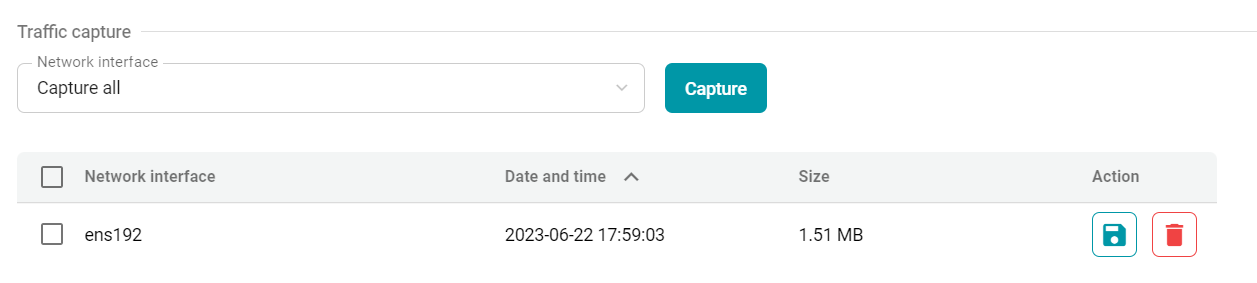
Press the  button to save the file to your device or the
  button to delete it from the server.
TCP/IP ports
Port range configuration
To configure the audio and video stream transmission protocols, go to Administration → Network → TCP/IP ports. You can set port ranges for the following protocols:
BFCP
H.245
RTP.
MTU and QoS
Here you can also specify the size of RTP packets or configure data stream transmission priorities according to the DSCP protocol:
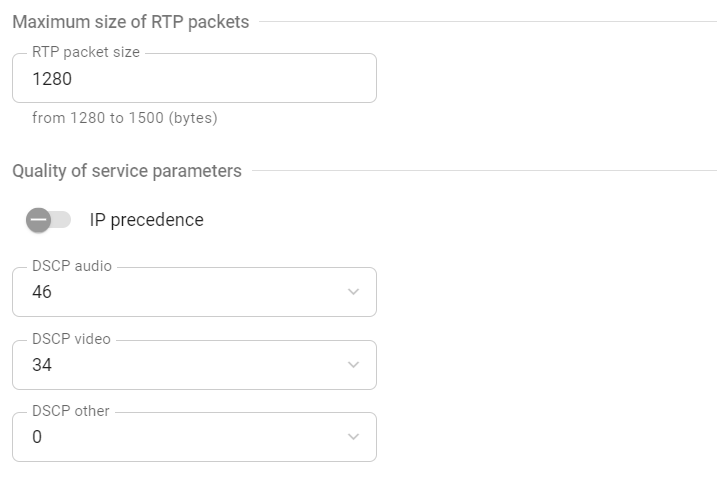
- DSCP audio - for audio traffic;
- DSCP video - for video traffic;
- DSCP other - for other traffic (e.g., remote camera control).
The higher the number, the higher priority will be given to the selected type of transmitted packets.
NAT Traversal
To configure NAT, go to Administration → Network → NAT traversal.
Public IP Address
If your server is behind NAT, you can set a public IPv4 address (WAN) to enable remote access to the control panel.
Use of ICE
When SIP clients are behind NAT or a firewall, there are usually issues with establishing direct connections for audio and video transmission. ICE solves this problem by allowing clients to find available communication paths and select the ones that are most effective for establishing connections.
To enable this protocol, activate the switch Use ICE.
Use of H.460.1
H.460.1 is a standard that facilitates data transmission (audio, video, etc.) by providing a solution for establishing direct connection between H.323 clients located behind NAT or a firewall.
H.460.18 defines the protocols and mechanisms like RTP and RTCP that are used for establishing direct media sessions via NAT devices so that clients could exchange media data.
H.460.19 uses protocols such as HTTP and HTTPS for data transmission between clients. It helps to bypass firewall restrictions and allows clients to exchange information and establish connection to ensure reliable and secure communication.
To use these features, enable checkboxes H.460.18 and H.460.19 in Administration → Network → NAT traversal.
H.460.1 requires enabling gatekeeper registration in the server settings.
TURN Settings
The TURN server works as a traffic relay between devices when a direct connection cannot be established due to NAT or other network restrictions. To traverse NAT with the help of the TURN server, you need to specify hostname, login, and password.
SMTP
To send invitations for a scheduled conference, you need to set up integration with the outgoing mail server. To do this, go to Administration → Network → SMTP, enter the required information, and click the Test and save connection button.
Network interfaces
Go to Administration → Network → Network interfaces to view the system name, MAC address of the network card (interface), or set the IP addressing mode (static or DHCP). If the static mode is selected, you must also set the following:
IP address
Subnet mask
Gateway
Primary DNS server
Secondary DNS server.
HTTPS
To upload the certificate and security key, as well as to configure the HTTPS port, go to section Administration → Network → HTTPS.
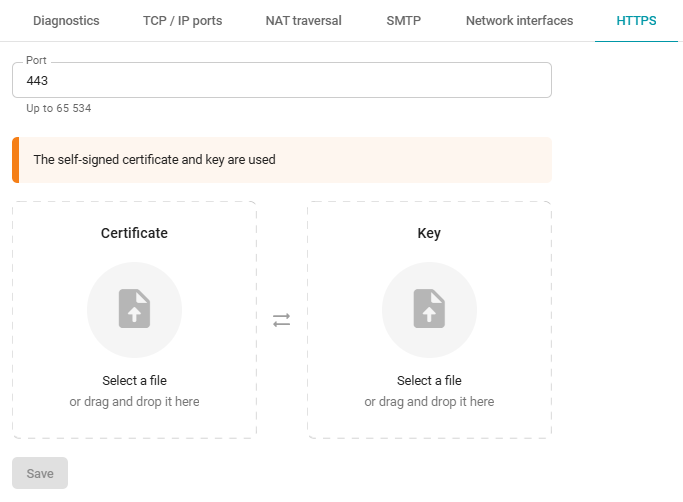
Security certificates are supported in .crt and .pem formats, and keys in .key and .pem formats.