
Video communication formats
Video communication formats
TrueConf MCU supports various types of video conferencing that you can use depending on your current business needs.Voice activity detection mode
Voice activity detection mode is a special mechanism that automatically creates an optimal video layout from all the participants who are speaking at the moment.
Voice activation can be enabled both during the conference and when scheduling it, but only in mode General.
To enable or disable this feature, use the  and
and  buttons located in the "conference header". Once enabled, the focus will automatically shift to the active speaker.
Conference modes
TrueConf MCU supports the following video conference modes:General
This is the basic conference mode without restrictions or presets. It allows for highlighting the speaking participant manually, using the "crown", and in automatic mode.
Crown
Crown management is available both during the conference and when scheduling it.
The crown and voice activity detection mode cannot be used simultaneously.
In the conference participant list, click the  button next to the user's name to display them in an enlarged window.
If a participant is marked with the crown, this person will be highlighted in the list:

Lecture
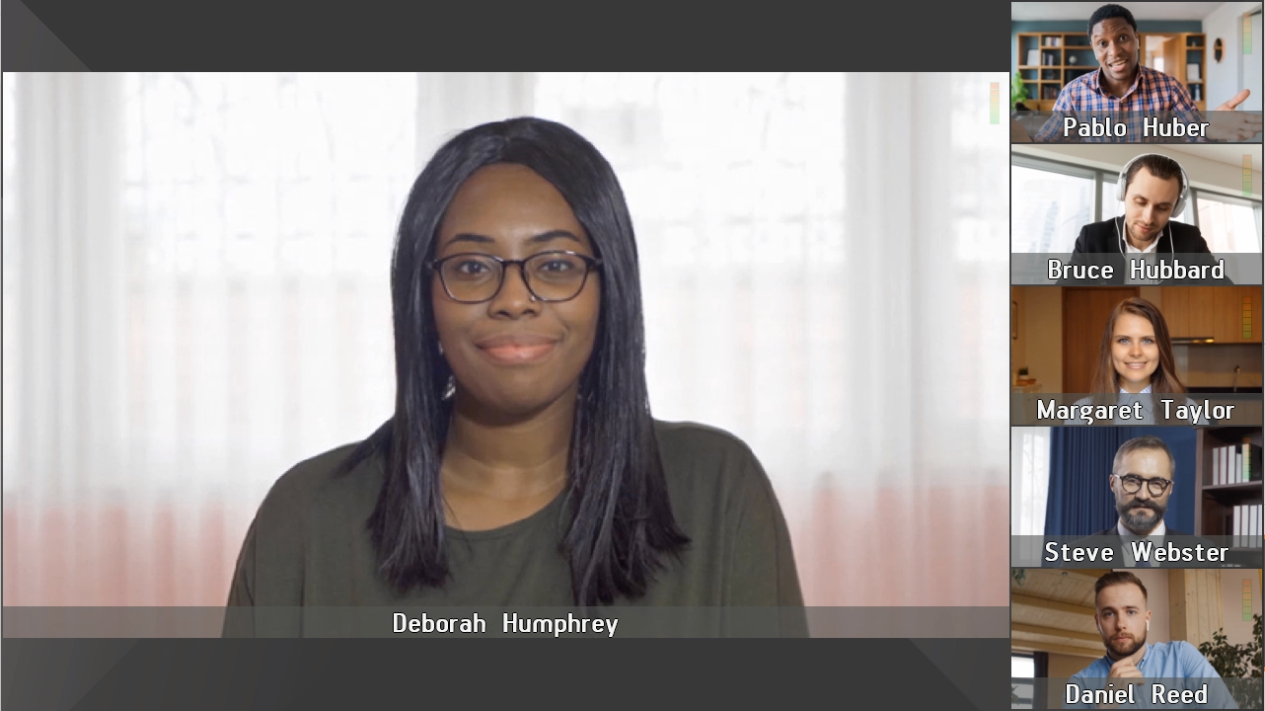
Lecture — a mode where the designated participant (lecturer) is always displayed full-screen in the video layout of other participants, while the lecturer sees the video windows of all participants.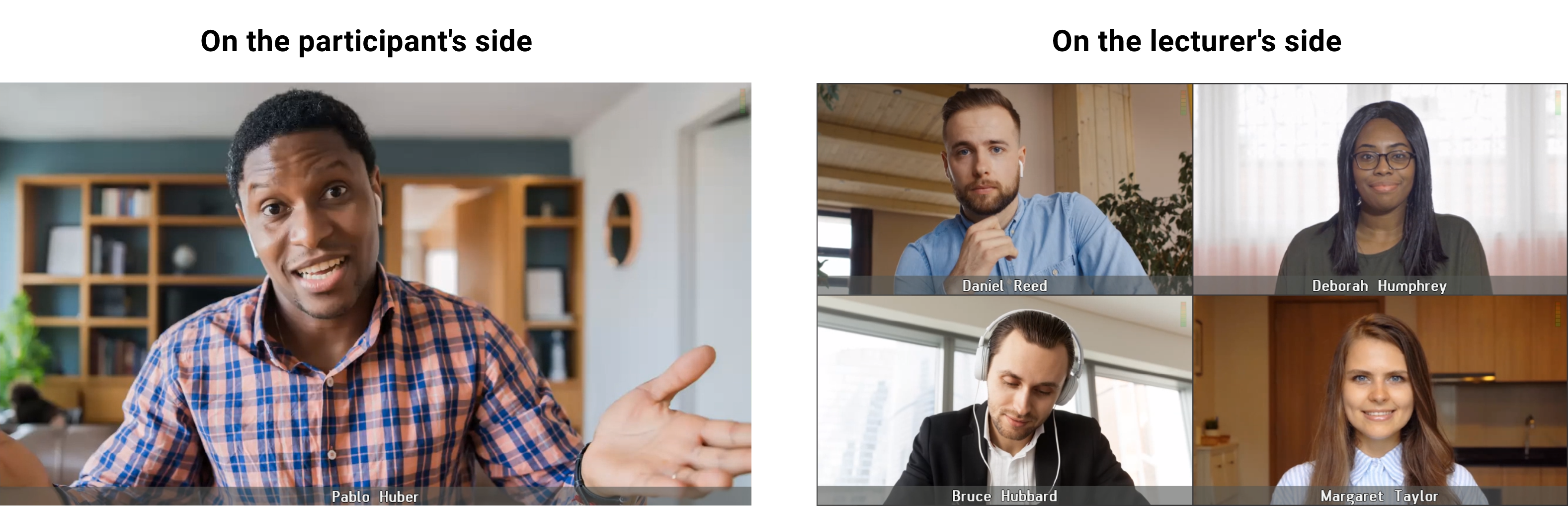
The lecturer status is not automatically assigned to anyone in the conference. Assigning or changing the lecturer is available only to the operator. To assign a lecturer, click the  button next to the user's name in the participant list. Once activated, the user will be highlighted with a border in the list:

To fully understand how this mode works, let us consider an example of a student audience:
The moderator is absent. Until a moderator is assigned to the conference, all participants can see each other, similar to a regular classroom setting. Meanwhile, VAD is enabled, and participants in the video layout change automatically.
The moderator is present. When the moderator is assigned (connected), the VAD mode is disabled, and both participants and the presenter receive the video layout as shown above.
Speaker
Speaker — In this mode, the presenter is always displayed fullscreen in the video layout for the audience. There can be only one presenter, determined by the voice activity detection feature. This feature is enabled by default and cannot be disabled. Everyone receives their assigned layouts depending on the presence of the presenter.The active speaker in the participant list is marked with the  icon (presenter):

Switching modes
Different settings are applied when switching conference modes. When switching back to General:
voice activity detection enabled;
The lecturer or the last presenter (active speaker) becomes a regular participant without any additional privileges
the crown is not automatically assigned to anyone;
voice activity tracking management is available;
everyone receives their assigned video layouts.
This logic applies to both scheduled and active conferences, regardless of whether voice activity tracking is enabled in general mode or not.