
Additional MCU settings
In the Administration section, you can configure the remaining settings of the TrueConf MCU server: set up users and access rights, view operational statistics, manage backups, and more.
Real-time monitoring
To view the server resource usage statistics and overall system status, navigate to the Real-time monitoring menu item:
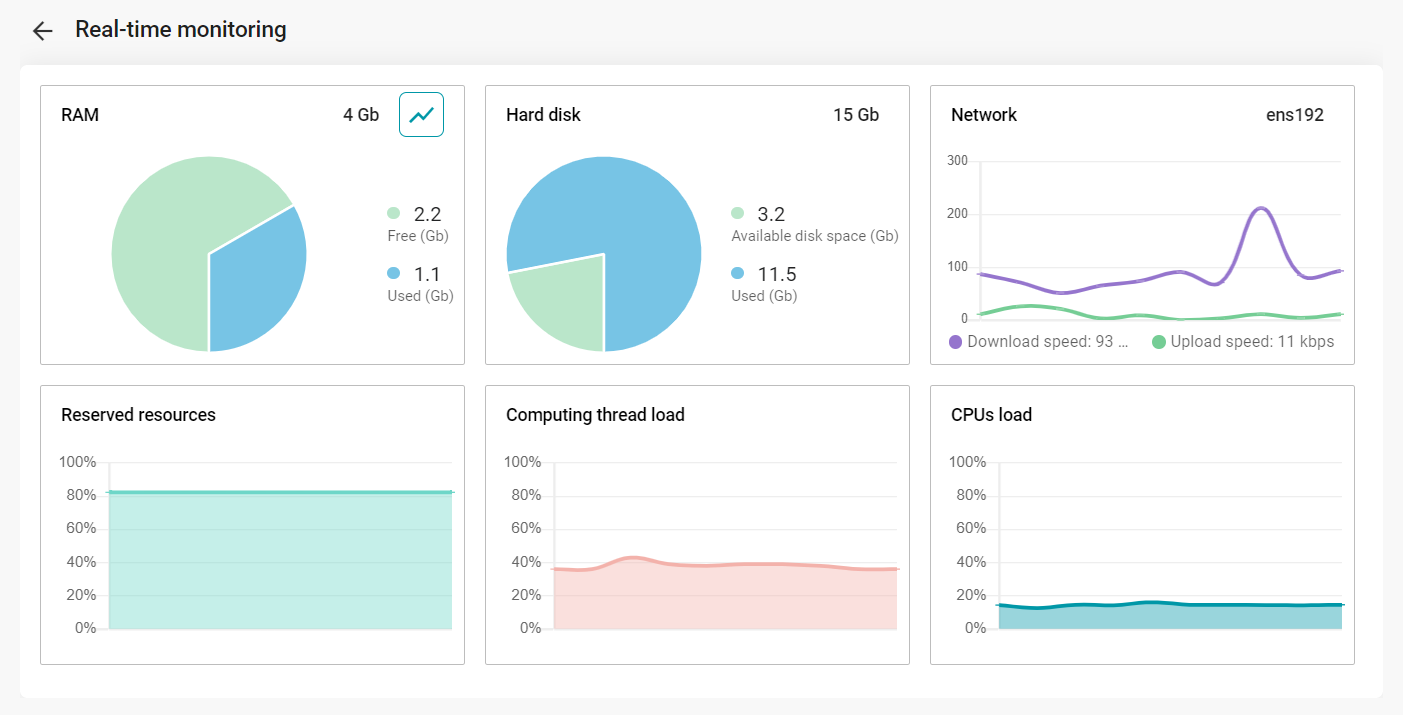
The Reserved resources chart shows the overall resource usage of the machine, taking into account memory operations and multiprocessor interaction. The amount of reserved resources is a dynamically changing parameter that considers all currently running tasks: transcoding, mixing, recording, broadcasting, video layouts, etc. For more details, see the relevant section. Displaying information on the chart is available after calibration.
Media files
Uploaded files
In this menu, one can view images, videos, and PDF files uploaded on the server, for example, here, you can set up content that will later be shared during a conference.
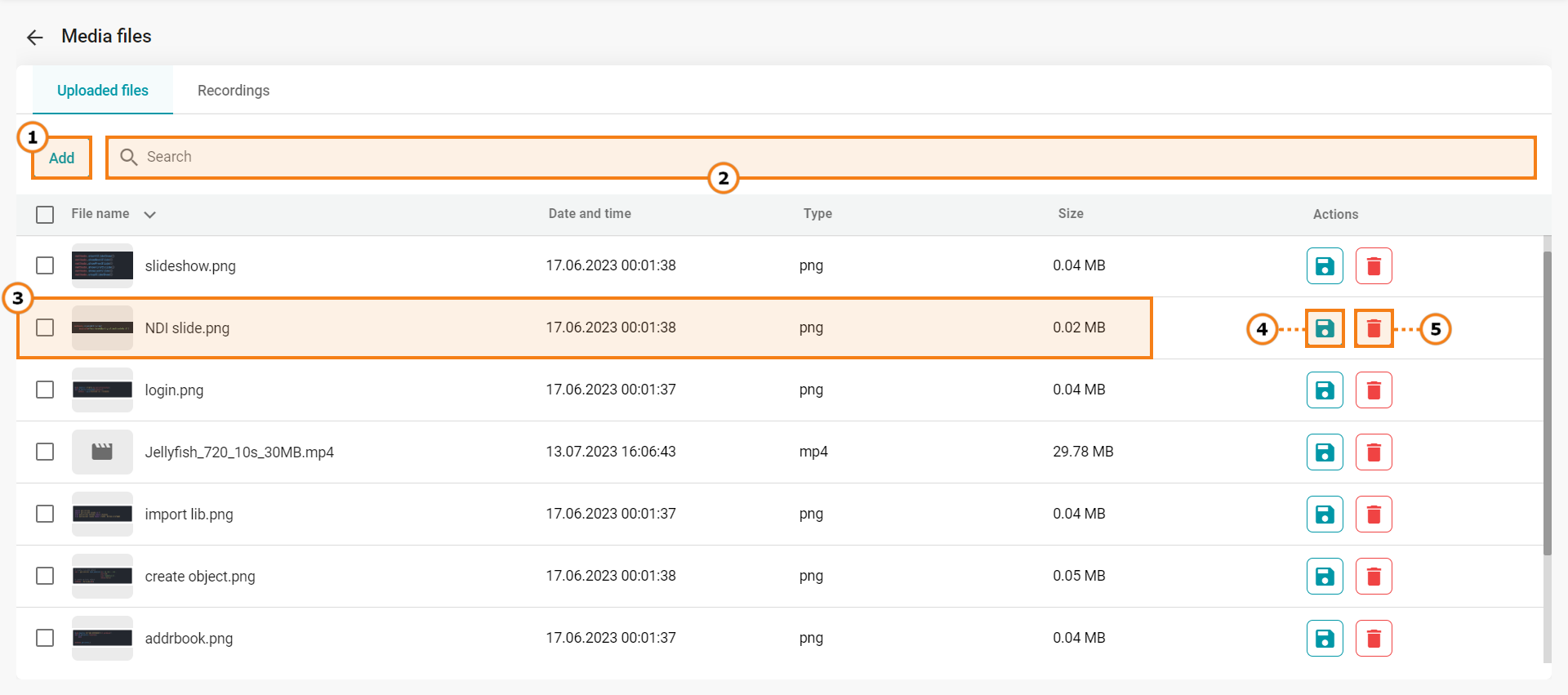
Upload a new file
Search by uploaded files
Check file info: title, upload date, format, and size
Download a file
Delete file
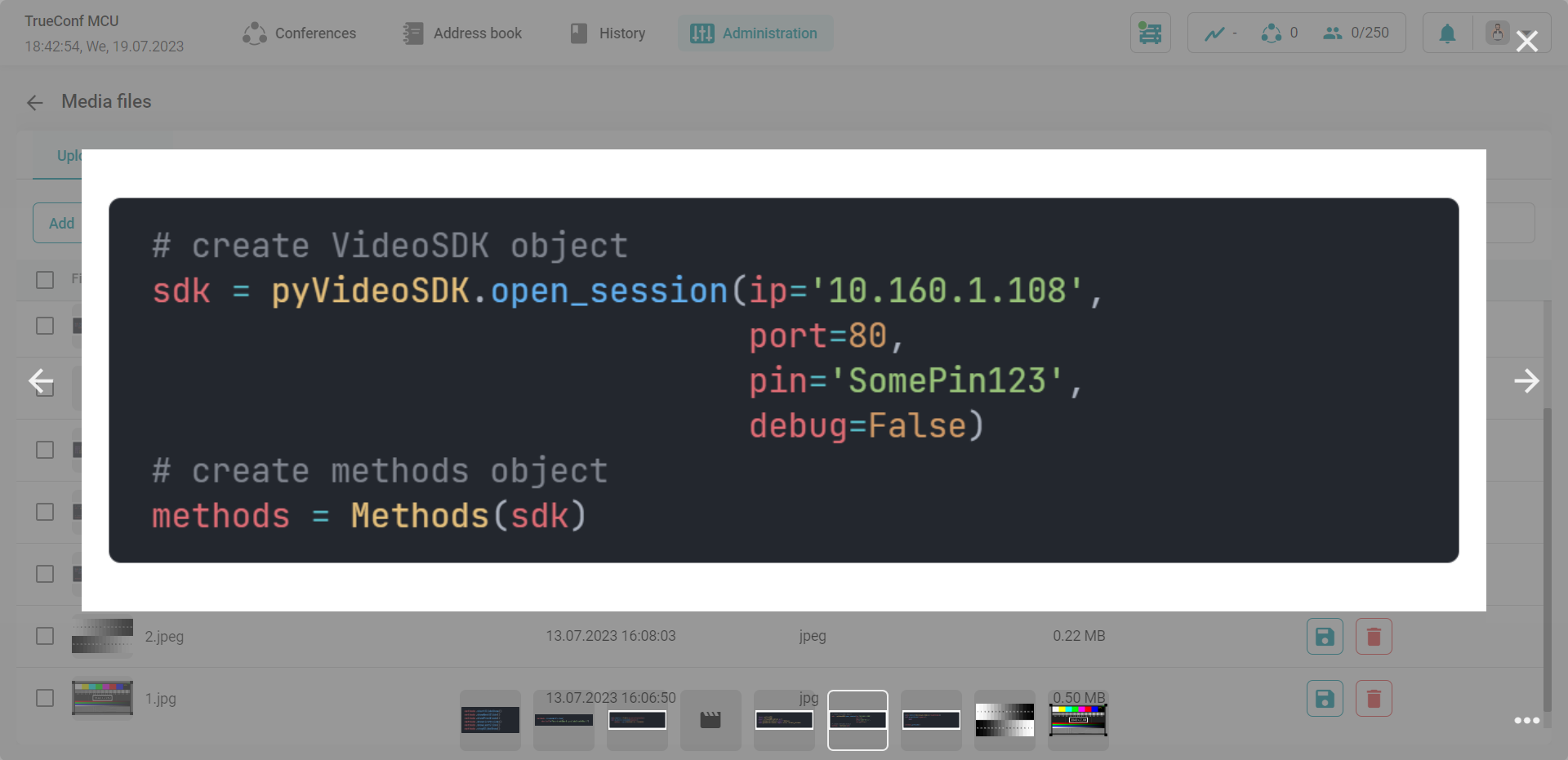
Uploaded files can be previewed in the pop-up window:
Recordings
All conference recordings are saved in the .mp4 format.
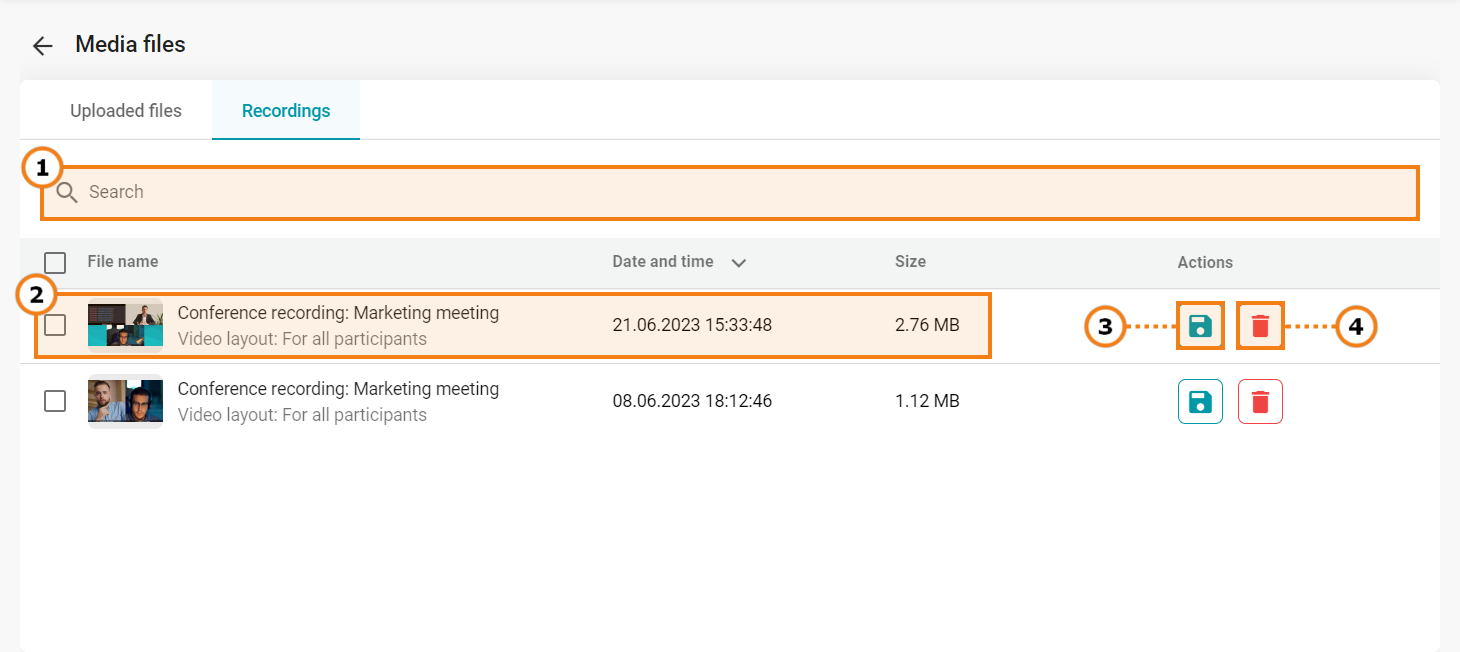
Search for recorded conferences
Check file info: title, upload date, format, and size
Download a recording
Delete a recording
When you click on a recorded conference, just like with uploaded media files, a preview window will open.
Power
On the power tab, you can reboot TrueConf MCU, restart the operating system, or shut down the hardware server.
Import/Export
To create, restore a backup, or save logs, go to Administration → Import/Export.
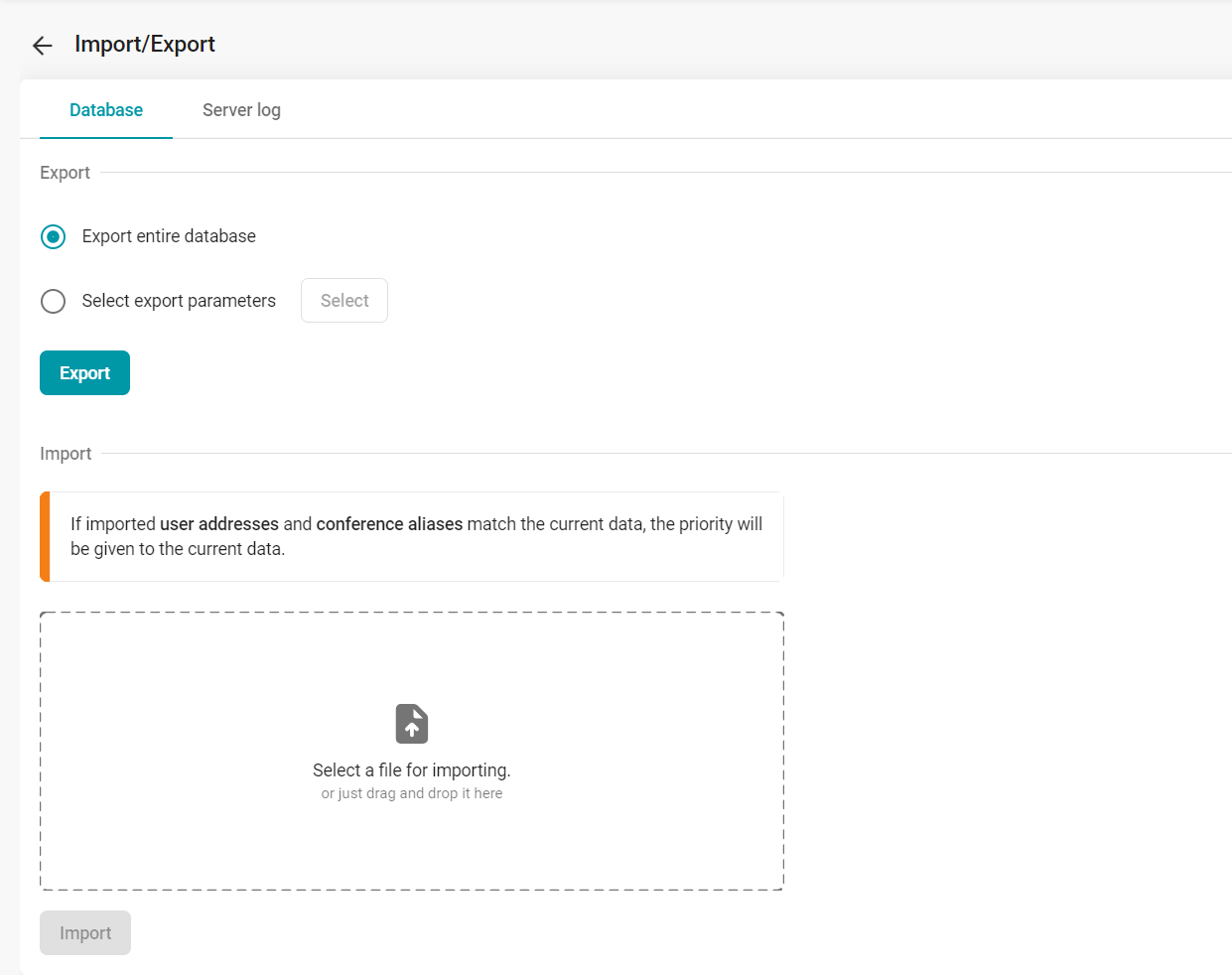
Database
Export
To export all data, select Export entire database and click the Export button.
If you need to export only a portion of the data, check Select export parameters, select the required data in the window that opens, click the Save button, and then confirm by clicking the Export button.
Import
If imported user addresses and conference aliases match the current data, priority will be given to the current data.
To restore data from a backup in .7z format, select the file to import and click the Import button.
Server logs
Here you can export logs to contact technical support.
Return to default settings
To delete all data, go to the Administration → Data deletion menu and click Set to default.
Return to default settings will result in the complete loss of all data, conferences, users, and information on the server. Besides, all ongoing conferences will end.
Date and time
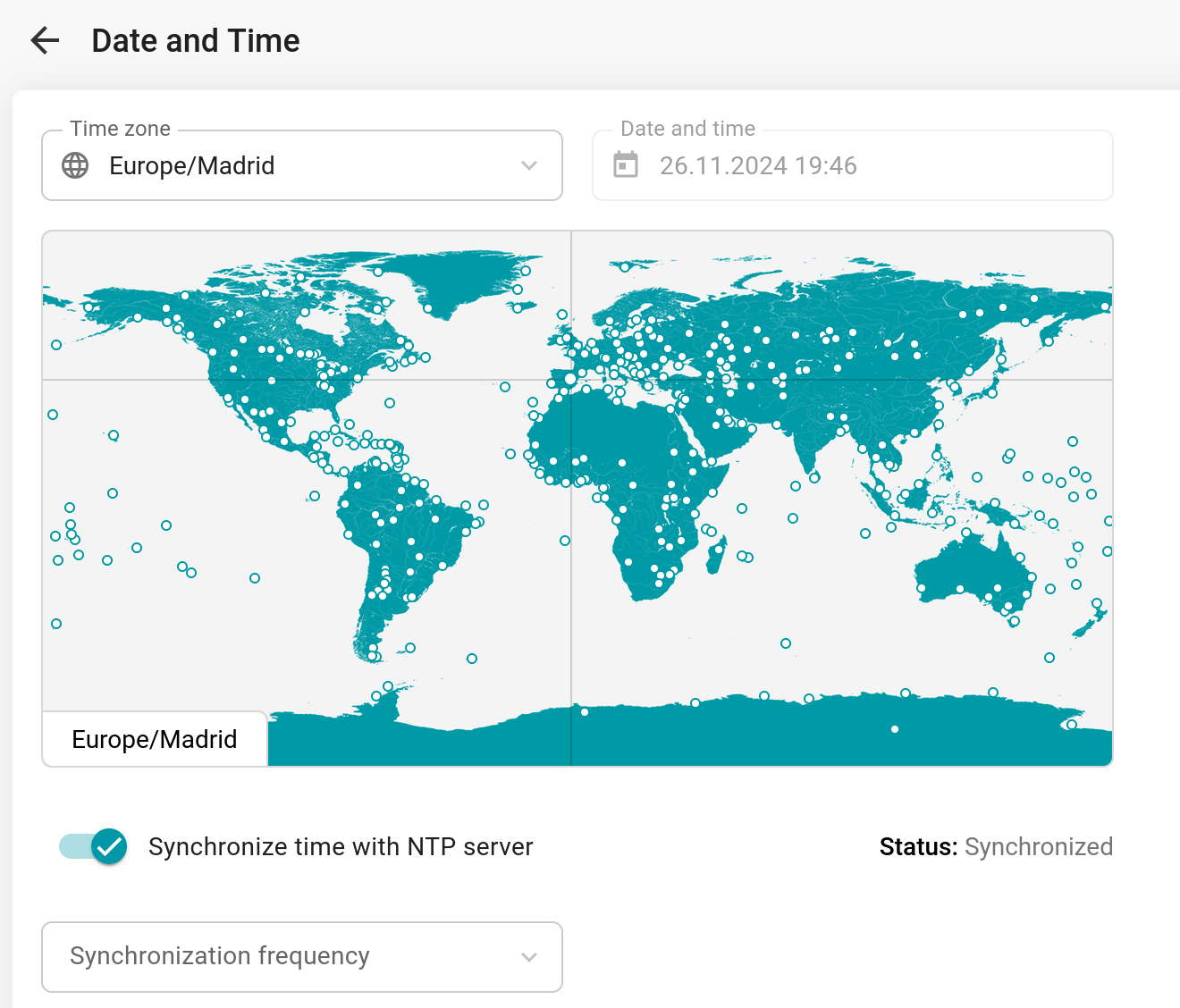
To set the time, go to Administration → Date and Time. Here you can:
manually set the date and time
select a time zone from the list or on the map
synchronize time with an NTP server: it is possible to specify the synchronization frequency and select multiple NTP servers.
About the program
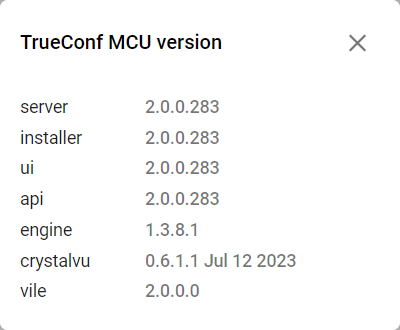
You can check the version of the installed TrueConf MCU server in the About menu. For more detailed information about the versions of installed components, click the  button next to the TrueConf MCU version line.
The following window with detailed information will open:
Here you can perform the update of TrueConf MCU, which is detailed in the relevant section.