
Call settings
Call settings
To configure call settings, go to Administration → Calls.
SIP/H.323
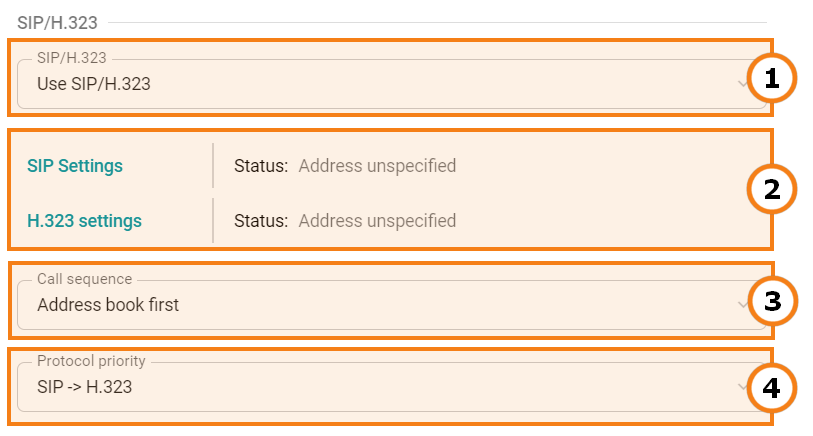
You can select the protocol used for making calls to the video conferencing server: SIP/H.323, SIP only, or H.323.
Set parameters and view protocol status.
Specify the order of user calls:
- Address book first;
- Gatekeeper first.
Set the priority for using SIP/H.323 protocols for dialing users (if both protocols were specified in the address book).
SIP gateway settings
To set up a SIP gateway, please complete the following steps:
In Administration → Calls, click SIP Settings.
In the pop-up window, check the box Registration.
To make sure that SIP calls are always routed through the registration server, check the corresponding box.
The Block spam calls option analyzes incoming calls via the SIP protocol. If invalid connection requests are detected, the MCU automatically rejects the call.
Select SIP encryption — stream encryption via SRTP:
- No encryption - not used;
- Encrypt when possible – using encryption is preferable but not mandatory; if the subscriber does not have it enabled, the connection will still be established;
- Encrypt all – TrueConf MCU will not connect with subscribers who do not support SRTP.
Enter the IP address of the gateway in the Server address field.
Enter your login credentials in fields Username and Password.
Select Transport protocol for the main stream and BFCP transport protocol.
Close the window and save the changes.
After successful registration, Registered will be displayed in the Status: field.
H.323 gateway settings
To set up an H.323 gateway, complete the following steps:
In Administration → Calls, click H.323 settings.
In the pop-up window, check the box Use the gatekeeper.
To make sure that H.323 calls are always routed through the gatekeeper, check the corresponding box.
Select H.235 encryption:
- No encryption - not used;
- Encrypt when possible – using encryption is preferable but not mandatory; if the subscriber does not have it enabled, the connection will still be established;
- Encrypt all – TrueConf MCU will not connect with users who do not support H.235.
Enter H.323 Alias and H.323 Extension in the corresponding fields.
Please specify Gatekeeper address.
Close the window and save the changes.
If registration is successful, Registered will be displayed in the Status: field.
Server
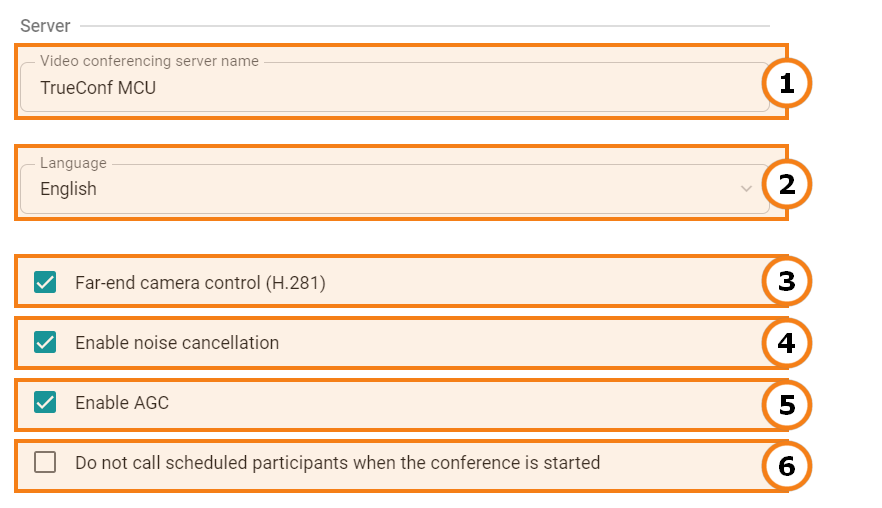
The server name that will be displayed in the top left corner of the control panel and on the screens of conference participants.
Selecting the dialog language for entering the conference ID when connecting by calling TrueConf MCU via its IP or DNS name. This does not affect the display language of the control panel interface.
Enable remote control of connected participants' cameras (if this feature is supported by users’ devices).
Enable noise suppression for all conferences.
Enable automatic gain control (AGC) for all conferences.
Disable automatic dialing of participants at the start of conferences.
Management of audio calls and setting the time period available for entering the conference ID
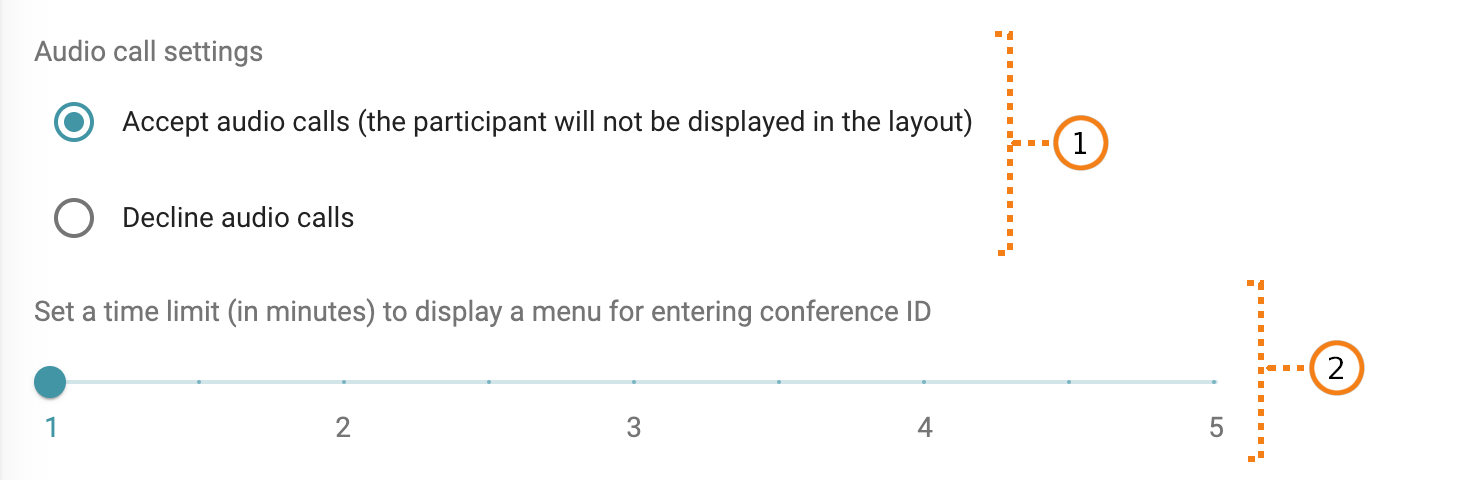
In TrueConf MCU, audio call management is available. For instance, you can accept them without displaying the participant in the video layout or decline them altogether.
Indicating the time to display the screen for entering the conference ID, after which the connection with an endpoint will reset
Codec settings
In this section, you can configure the global settings for audio and video codecs:
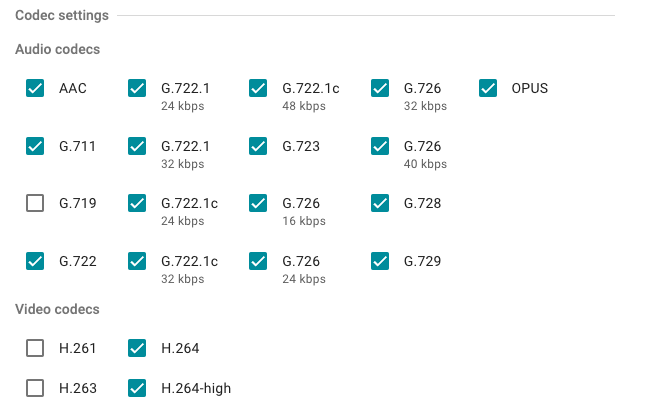
Important! If available codecs are disabled, audio and video transmission may be turned off when a specific endpoint is connected.