
Control panel
Control panel
The user list panel is displayed only when the browser window is more than 1600 pixels wide and the zoom level is set at 100%.
After logging in, you will be directed to the main page of the web interface:
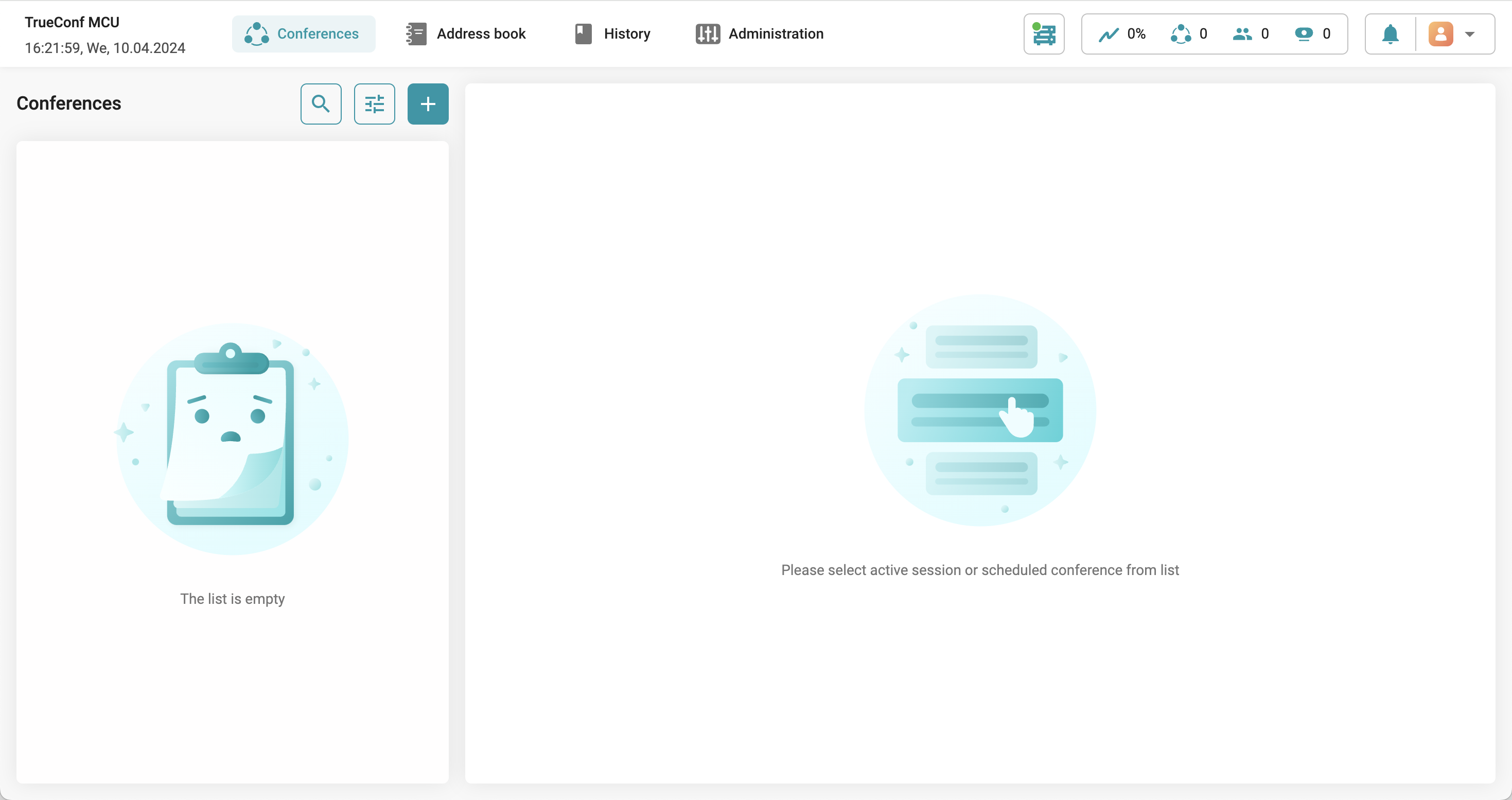
On the left of the control panel, the date and time are displayed, which can be adjusted in settings and synchronized with an NTP server.
The main menu TrueConf MCU is located in the center. Each item is described in detail in the corresponding section of the documentation.
The following widgets are displayed on the right side:
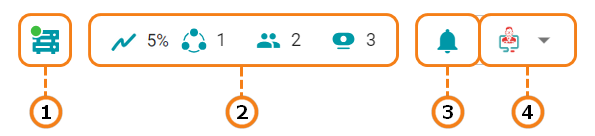
Server status. Clicking this item opens a page with buttons to restart and stop TrueConf MCU, as well as reboot the operating system on which it is installed.
System information widget that displays the level of computer resource usage, the number of ongoing conferences, the total number of connected participants (SIP/H.323), devices (VNC/RTSP), and media files.
Notification Center. Notifications appear here, for example, when a user is placed in the waiting room.
The user currently logged into the control panel. Here, you can also change the navigation, switch the language, and log out. When you switch to the new navigation, all tabs will be hidden in the side menu.
Waiting room
When a user makes a call to TrueConf MCU without specifying a conference ID (in the format #h323:@<server_name> or #sip:@<server_name>), they will be placed in a waiting room. In this case, a notification will be sent to the notification center of the TrueConf MCU control panel, and the counter on the  button will increase. Click on it to display the list of users waiting to connect:
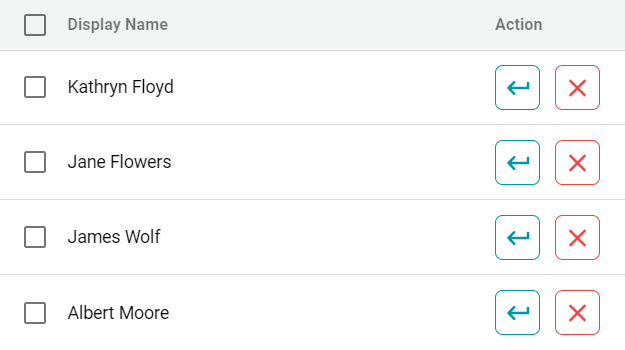
A user will remain in the waiting room until he/she enters the ID or the administrator moves this person to one of the conferences. After 60 seconds, waiting time will expire and the user will be disconnected.
To add a user, click the  button, find the desired conference in the list, and click the Move button.