
General conference settings
General conference settings
Video
To configure the general video settings, go to Administration → Video.
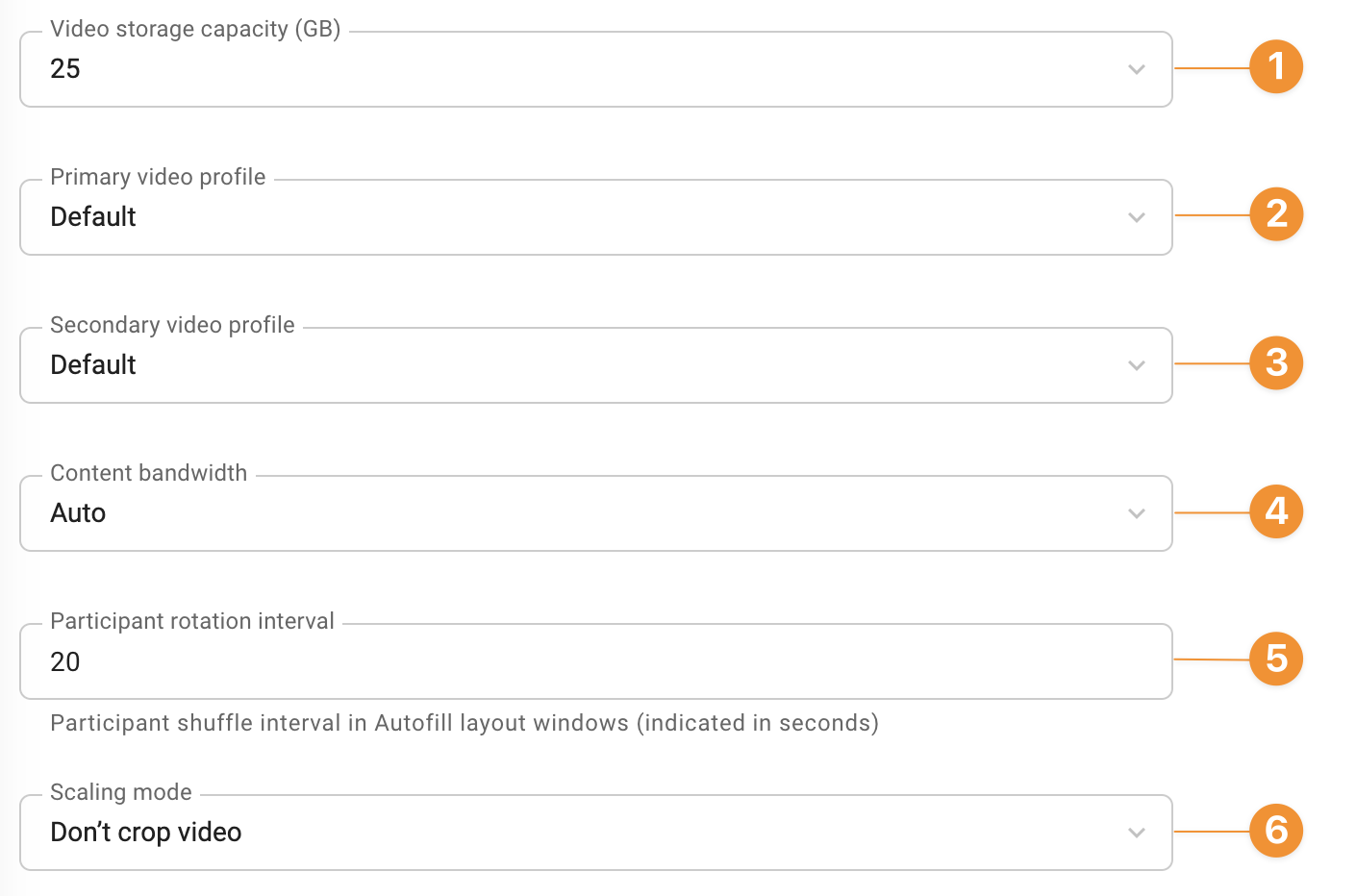
Here you can:
Set a storage limit for video recordings.
Select the main video stream encoding profile:
- Default — at the system's discretion;
- Balanced — a universal mode for various types of content, a compromise option;
- Resolution — preference is given to video stream resolution;
- Motion - optimization for participants with active roles;
- Narrator — prioritize image clarity in the video with the speaker.
Select the encoding profile for the additional video stream:
- Default — at the system's discretion;
- Balanced — a universal mode for various types of content, a compromise option;
- Slideshow - focus on clear slide display;
- Movies — preference for video streaming;
- Documents — special attention to the detail of text documents.
Set the bandwidth for the secondary channel, which is the percentage that the additional video stream will occupy within the overall video stream.
Set the time interval allocated for each speaker when selecting a video layout with alternating windows.
Select the window scaling mode in the video layout.
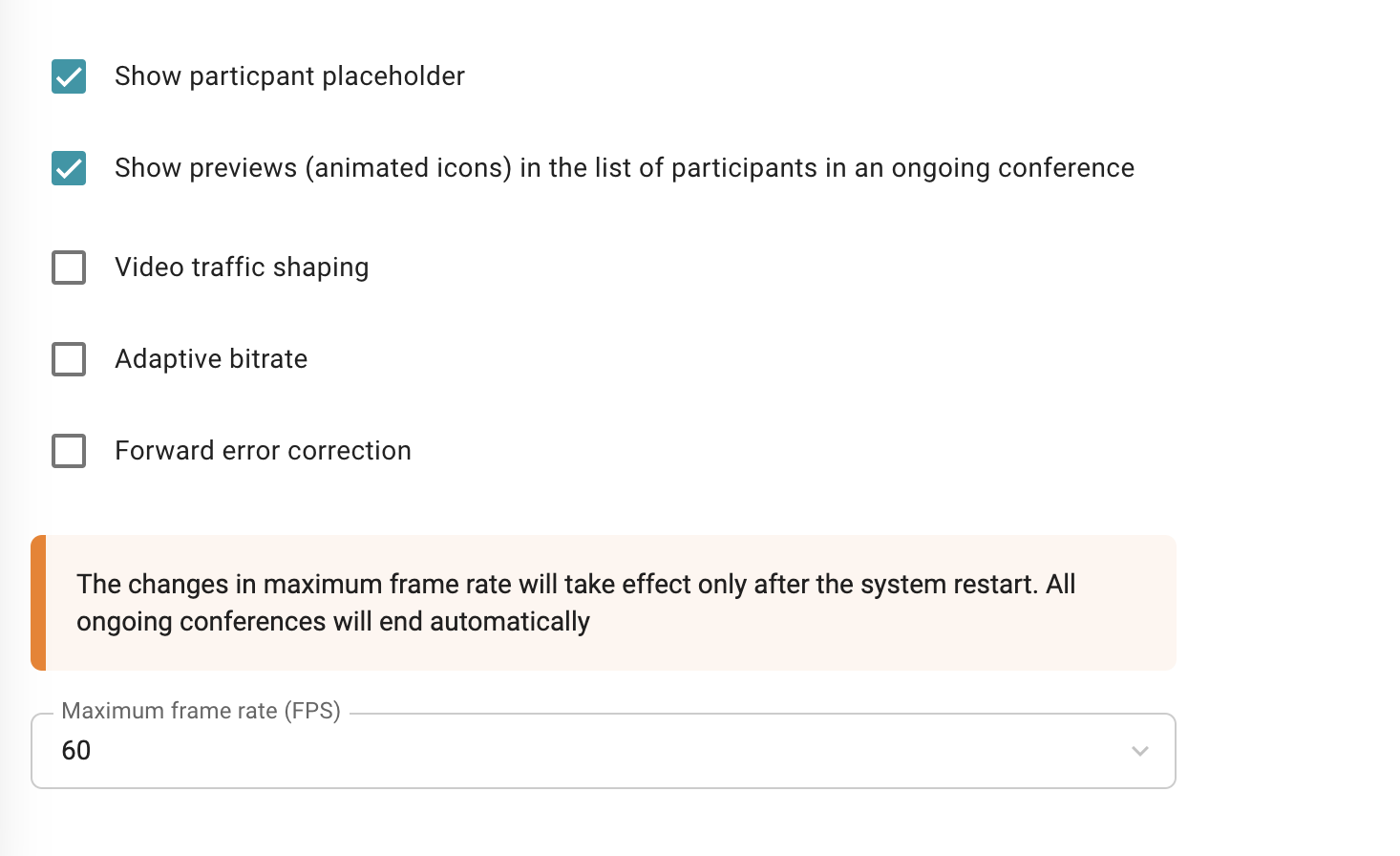
Below, you can activate avatar and preview display settings, optimize your events by monitoring network channel status (traffic prioritization, QoS), and configure the maximum frame rate (FPS):
Customization
You can use different color schemes for the video layout design. To do this, go to Administration → Skin styles:
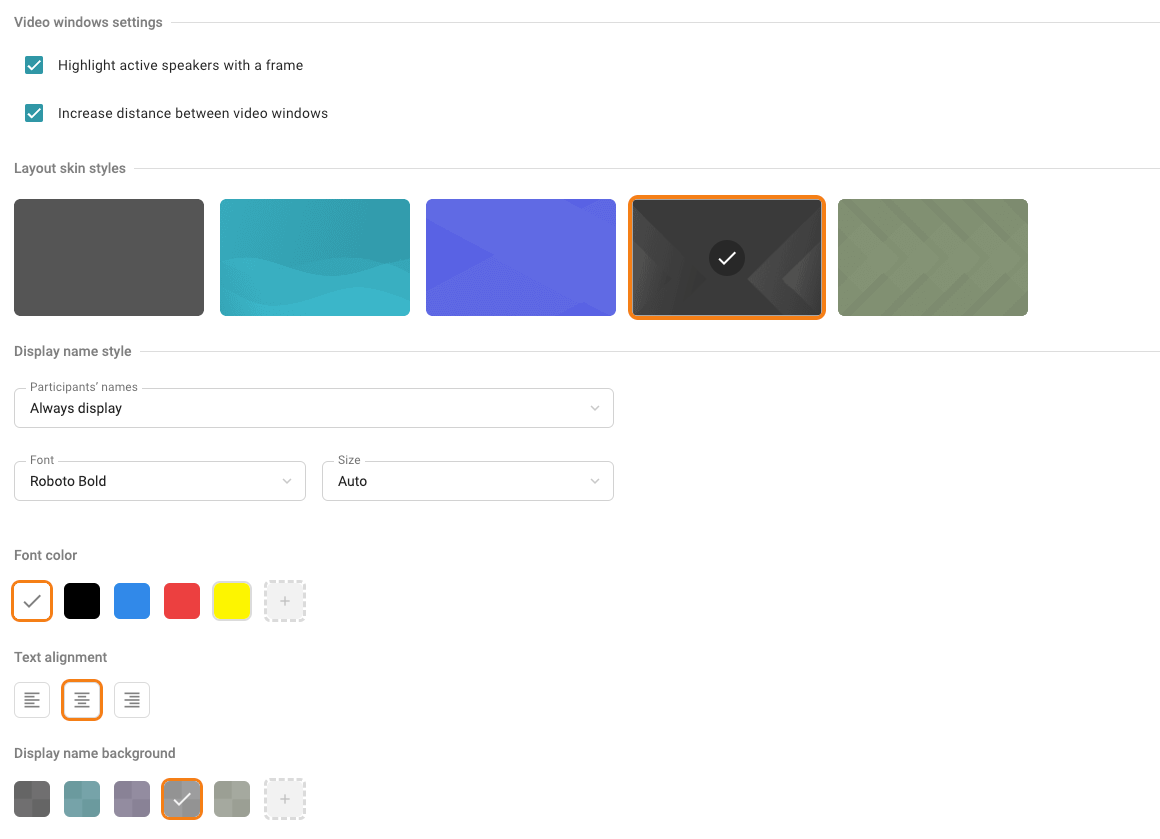
It is also possible to customize a participants' display name in the video layout. For example, you can edit:
Font type, its size, and color
Text alignment
Background color
Display name position in the video window.
All the changes will be displayed in the preview window.

Conference settings
Go to Administration → Conference settings to set up rules for automatically ending all conferences and enable voice activity detection.
Automatic сonference ending
To facilitate monitoring of empty conferences in TrueConf MCU, you can set up automatic termination. The following rules are available:
If no one joined the conference after it started.
When all participants were disconnected from the meeting.
If only one participant remains in the conference.
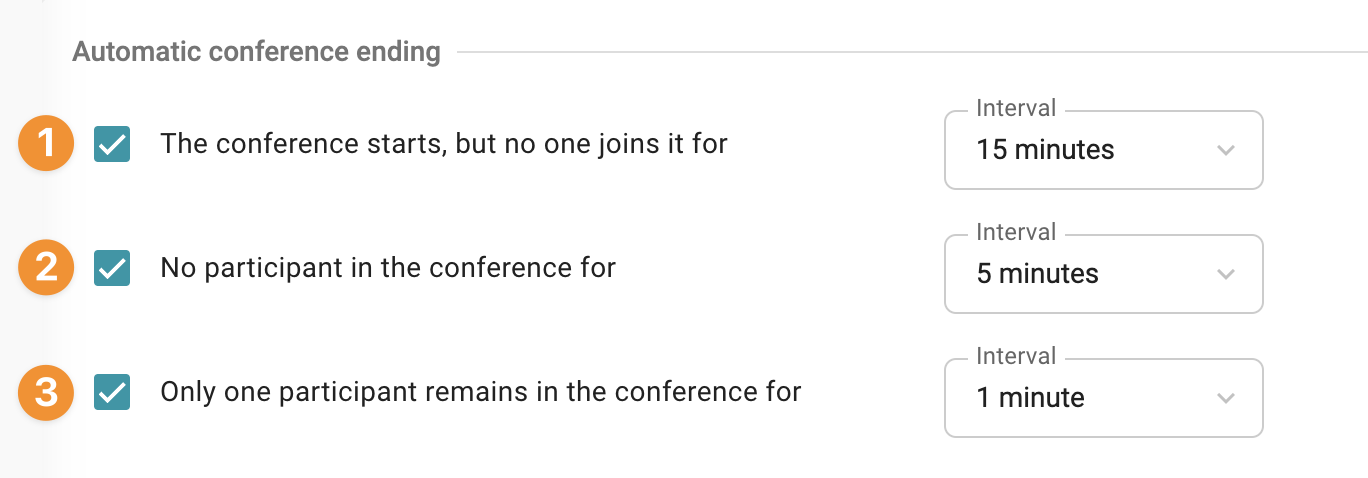
After configuring the settings, click the Save button.
You can override these settings for a specific conference during the creation stage.
Voice activity tracking
By default, voice activity detection is enabled for all conferences:
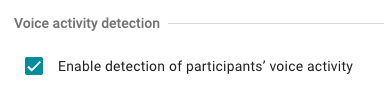
Please note that If this parameter is disabled, this configuration will apply only to new conferences and will not affect those which were created previously.