# Configuration of email notifications (SMTP)
# Integration with a mail server via the SMTP protocol
TrueConf Server does not include a built-in mail system and can only use an external SMTP server or service to deliver email notifications to users. In the Network → SMTP section, you can select the SMTP server that should be used. It is also possible to edit the templates of emails that will be sent to users.
The email address that has already been used or may be used in a user profile should not be specified in the settings of the mail server for sending notifications from TrueConf Server. A separate mailbox should be created for the server.
To configure an SMTP connection:
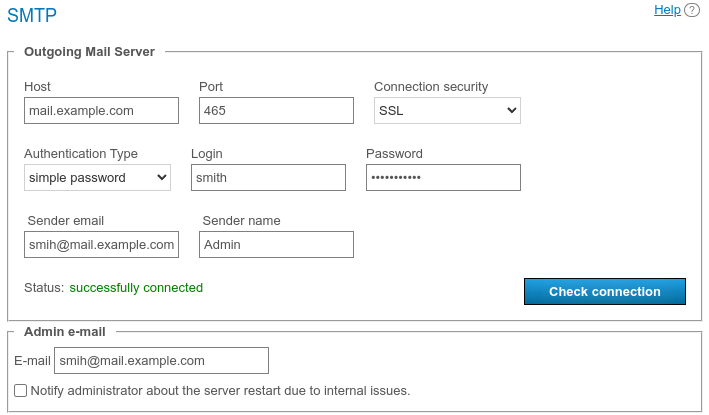
Specify the host (the address of the mail server).
Select a secure connection type: SSL, STARTTLS, or none.
Specify the port for your connection type if it is not default.
Select authentication mode (simple password or no authorization). If you have chosen password-protected authentication mode, please enter login and password to connect your TrueConf Server instance to the SMTP server.
Fill in the email address fields (full mailbox address, including login, @ and domain) and sender's name in the SMTP From field. In this case, the address should match the login and host specified above.
Check your settings using the Check connection button. The current status of your connection to the mail server is displayed in the Status: field: successfully connected in case of successful connection to the SMTP server and invalid server if the connection can not be established.
Enter your TrueConf Server administrator email to be displayed in the outgoing emails. Enable the checkbox below the input field so that the administrator is notified when TrueConf Server restarts due to internal errors.
Click Apply at the bottom of the page to save changes.
# Email template settings
Below the parameters for connecting to an SMTP server, you can set the templates for different email notifications.
To restore default templates for all emails, click the Set default button in the User mails section. In this case, the language of the templates will match the language selected in the preferences by the current administrator.
# Notifications about missed calls
To receive missed call notifications, enable the Notify users about missed calls checkbox. If any of the users is offline during the call or conference invitation, TrueConf Server will send an email notification at the email address specified in the E-mail field in the user account settings or in the corresponding field imported via LDAP synchronization.
Notifications about missed calls will be sent to unregistered users, if a user from your video conferencing server did not know their TrueConf ID and tried to call them by email. Such calls have to be made with the #mailto: prefix, for example, #mailto:user123@example.com. This prefix has to be included, because the format of TrueConf ID is identical to that one of an email address; so, a special prefix in the call string is needed to distinguish between them.
When participants are added to a public conference (webinar) by email , the #mailto: prefix will be included automatically; no additional actions will be needed.
# Conference invitations
To enable email invitations for all new scheduled conferences, enable the Send invitations to participants of the group conference checkbox. In this case, when scheduling a meeting, all invited users will receive email invitations where date and time of the meeting (if any) is specified.
You can enable or disable email invitations for each meeting individually in the Advanced tab when creating or editing the conference.
# Confirmations of registration for a public conference
To send notifications about a participant’s successful registration for a webinar (this option is available if the corresponding parameter is enabled), use the separate template Conference registration notification.
# Reminders about the upcoming conference
You can send automatic reminders about upcoming events. In this case all participants added to a scheduled conference will receive an email reminder before the start of this meeting. The reminder template can be set below in the Reminder about upcoming conference section.
In the Reminders list one can select when email reminders should be sent to participants. If the box is checked, but no option is selected in the list, the administrator or owner can manually select the period when scheduling a meeting. If a period has already been selected, for example, 1 day and 5 minutes before the meeting, email reminders will be sent according to the existing settings if a conference is created.
If the administrator checks the box Send users reminders about upcoming conference and selects a period in the Reminders section, automatic reminders with the specified time periods will be added for the scheduled conferences that were initially created without reminders.
# Notifications about conference rescheduling
To notify the participants of a scheduled conference when the start date of this event is changed, check the box Notification of start time change for scheduled conference.
An email notification will also be sent if the repetition type of a scheduled conference is changed, for example, a one-time conference becomes a recurring conference or the other way around.
If a new start time is set for a one-time scheduled conference which has already ended so that this event can be started once again, this email will not be sent. Instead, users will receive an invitation to the new event.
# Notifications about the cancellation of a conference
If you want to notify the participants of a scheduled conference that this event was cancelled, check the box Notification of conference cancellation. This notification will be sent if:
A scheduled conference was deleted before its start time.
The launch type of a conference was changed to a virtual room.
# Notifications about removal from a conference
To notify users when they are removed from the list of invited participants, mark the Notify users if they are removed from the participant list checkbox. These settings will be applied to all conference modes. If registration settings have been configured for the webinar, the notification will be received by the participants who signed up for the webinar and those users who were invited to the list of participants when the conference was created.
# Parameters used in email templates
Use the following syntactic structures to customize the templates of emails sent by TrueConf Server:
For notifying users about missed calls:
%caller_display_name— display name of the caller%сaller_call_id— ID of the user who made the call (e.g.user@server.trueconf.name)%recipient_display_name— display name of the caller (the user who missed the call)%missed_call_time— time and date of the call.
additional variables for missed call notifications sent to unregistered users:
%recipient_call_id` is the ID of a user who missed the call.
%tcs_guest_page_urlis the guest page URL of your TrueConf Server.
For inviting to a conference:
%conf_name— name of the conference%conf_id— ID of the conference, e.g.\c\df0a2adebe%owner_name— display name of the conference owner%owner_email— contact email of the conference owner%owner_mobile_phone— mobile phone number of the conference owner%owner_work_phone— the work phone number of the conference owner%owner_home_phone— the home phone number of the conference owner%owner_sip_number— the conference owner's SIP number%user_display_name— display name of the user who is invited to the conference%start_timeis the time and date of the conference start. The time corresponds to the server time zone which will be specified in the email. Participants should take into account time zone differences to join the conference at the correct time.%conf_description— conference description specified in the Advanced → Description section when the conference is being created.%conf_url— the link to the conference page, e.g.,:https://example.com/c/CID%conf_url_app_join— a link for quick one-click connection via a client application without having to open the conference page. It works as follows: if the link is clicked, when the conference has already started and connection via client applications is allowed, the application installed on the user's device will be launched, and an attempt will be made to connect to the conference. Essentially, it is similar to visiting the conference web page and clicking the button for joining the meeting from a client application. The link looks in the following way:https://[server_address]/c/CID#app=1
The anchor
#app=1triggers the JS script that initiates the connection from the installed application.
A link like https://[server_address]/c/CID#app=1 can be used not only in emails from TrueConf Server but also in other emails or messages to simplify user connection to a conference.
For notifications about webinar registration:
%conf_unique_link— the unique conference link provided to each participant.
Server administrator contacts parameters:
%admin_name— display name%admin_email— email address%admin_phone— phone number.