
TrueConf Group 2.1 Major Update: AI, New Interface, Tablet Control, and Much More
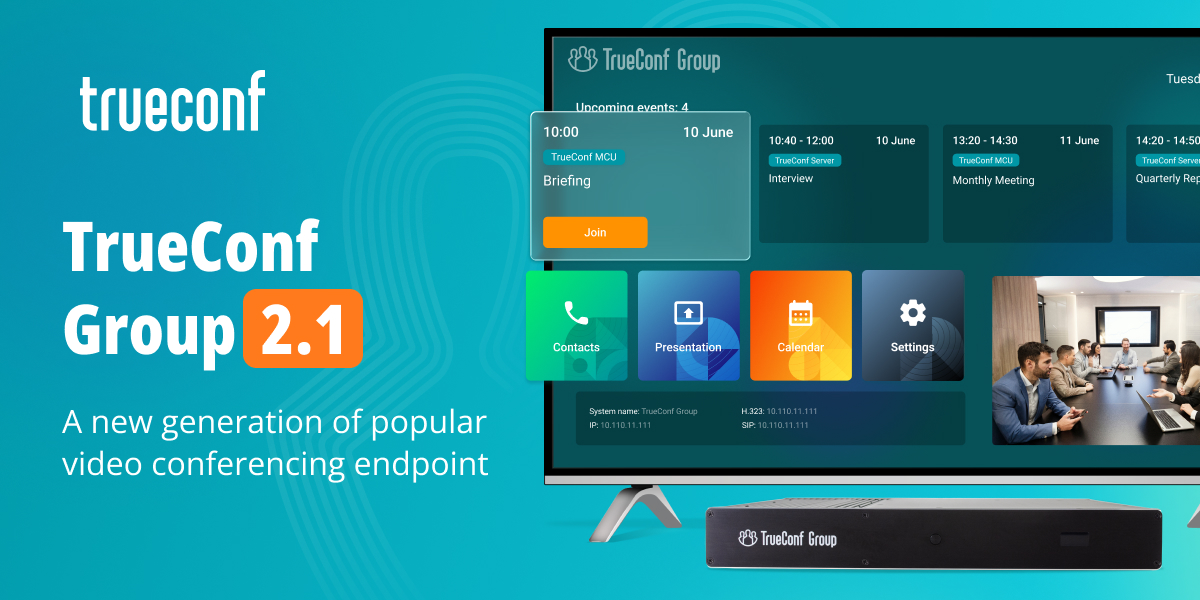
We are happy to release the second generation of TrueConf Group. We’ve completely reimagined what a video conferencing endpoint should be, and delivered a solution that sets new standards for video conferencing in meeting rooms.
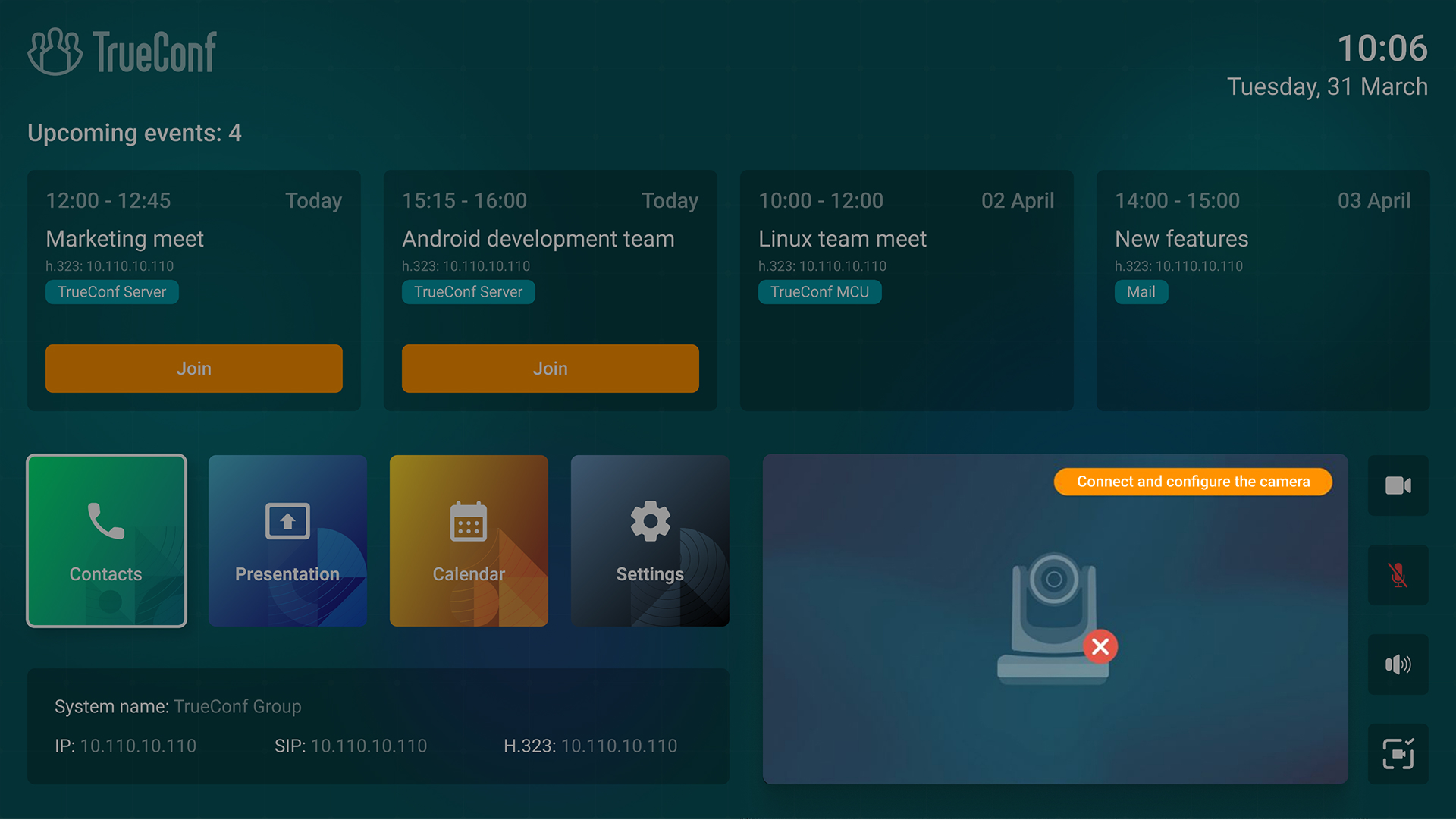
New TV interface
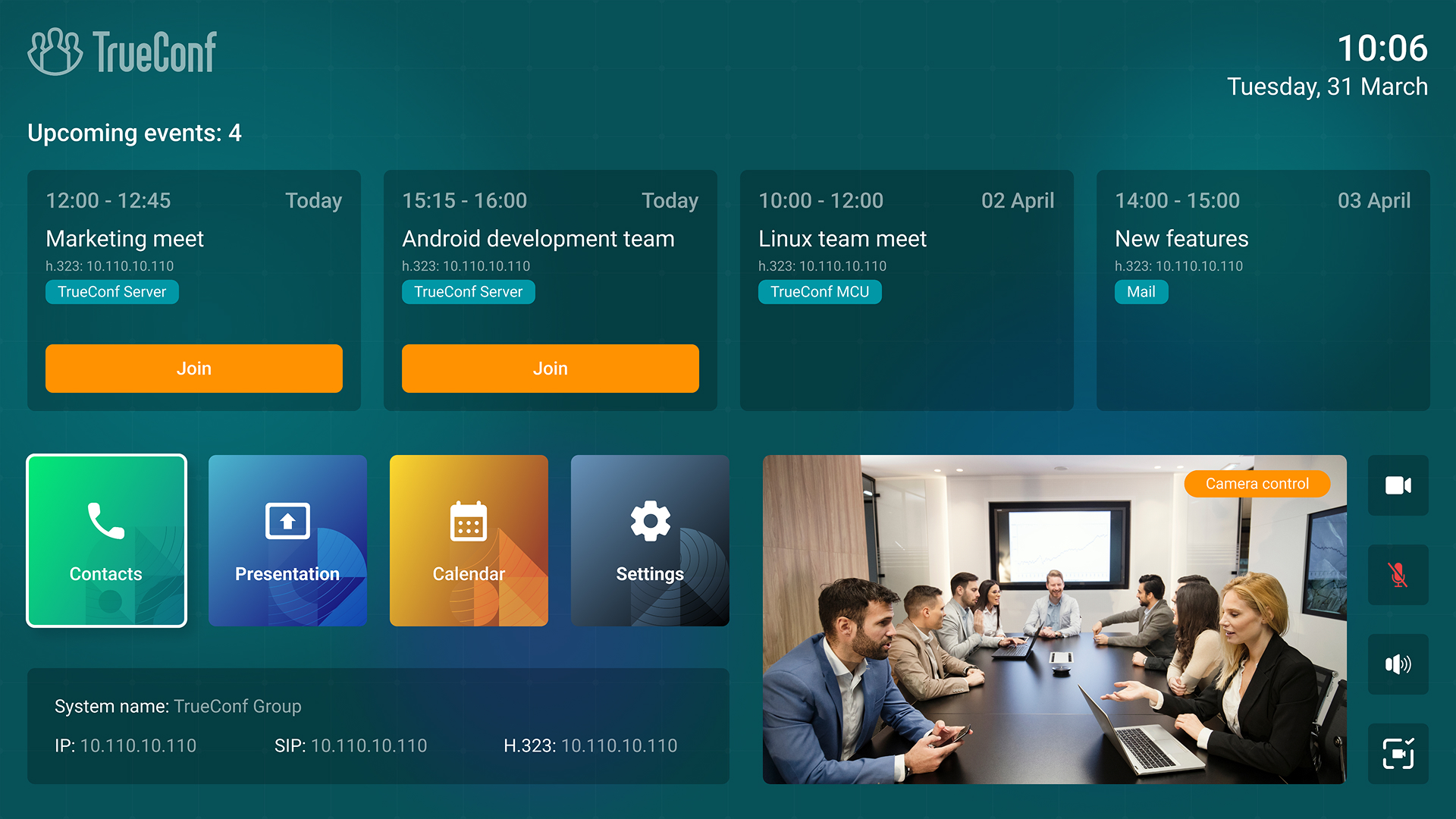
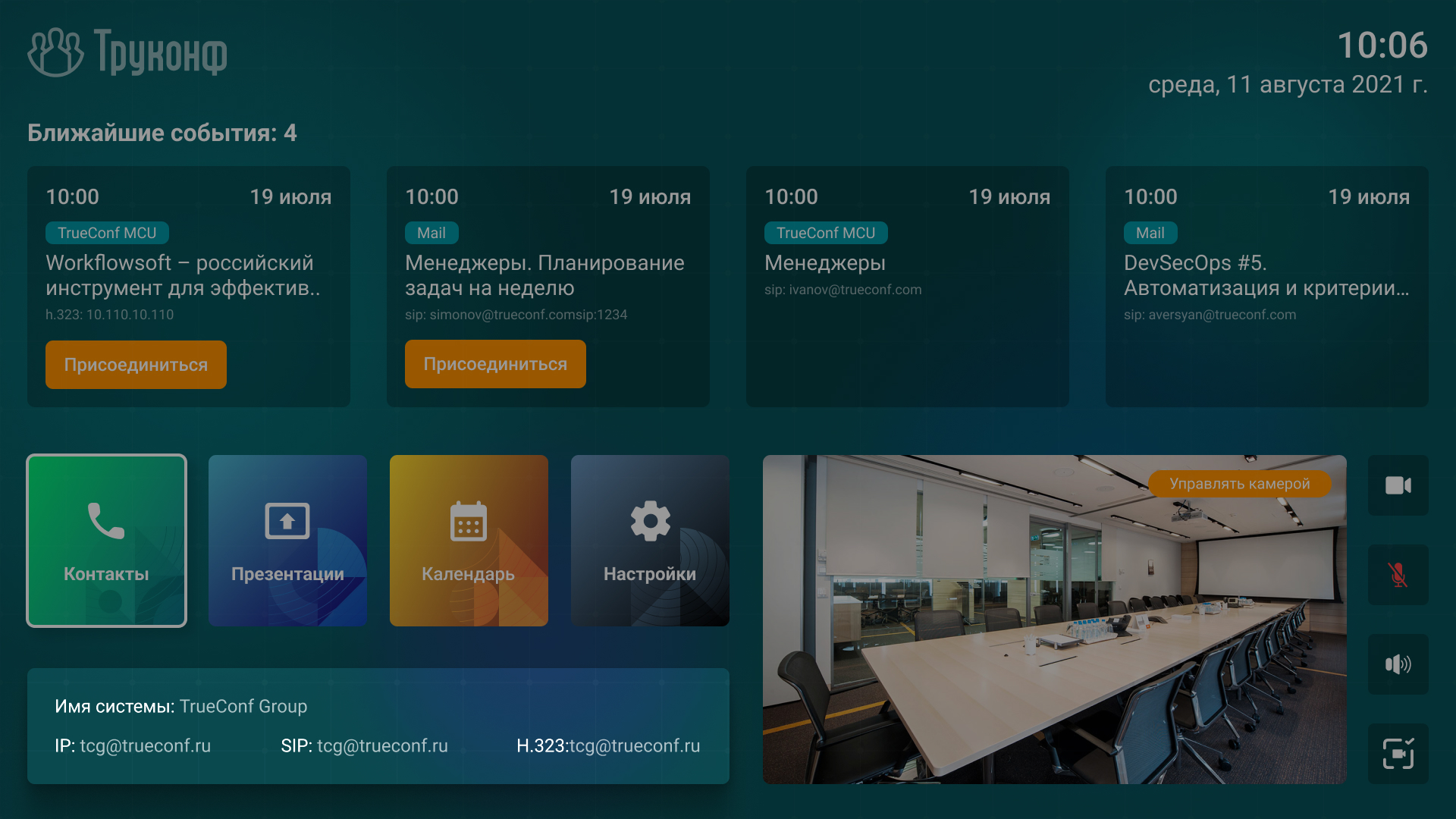
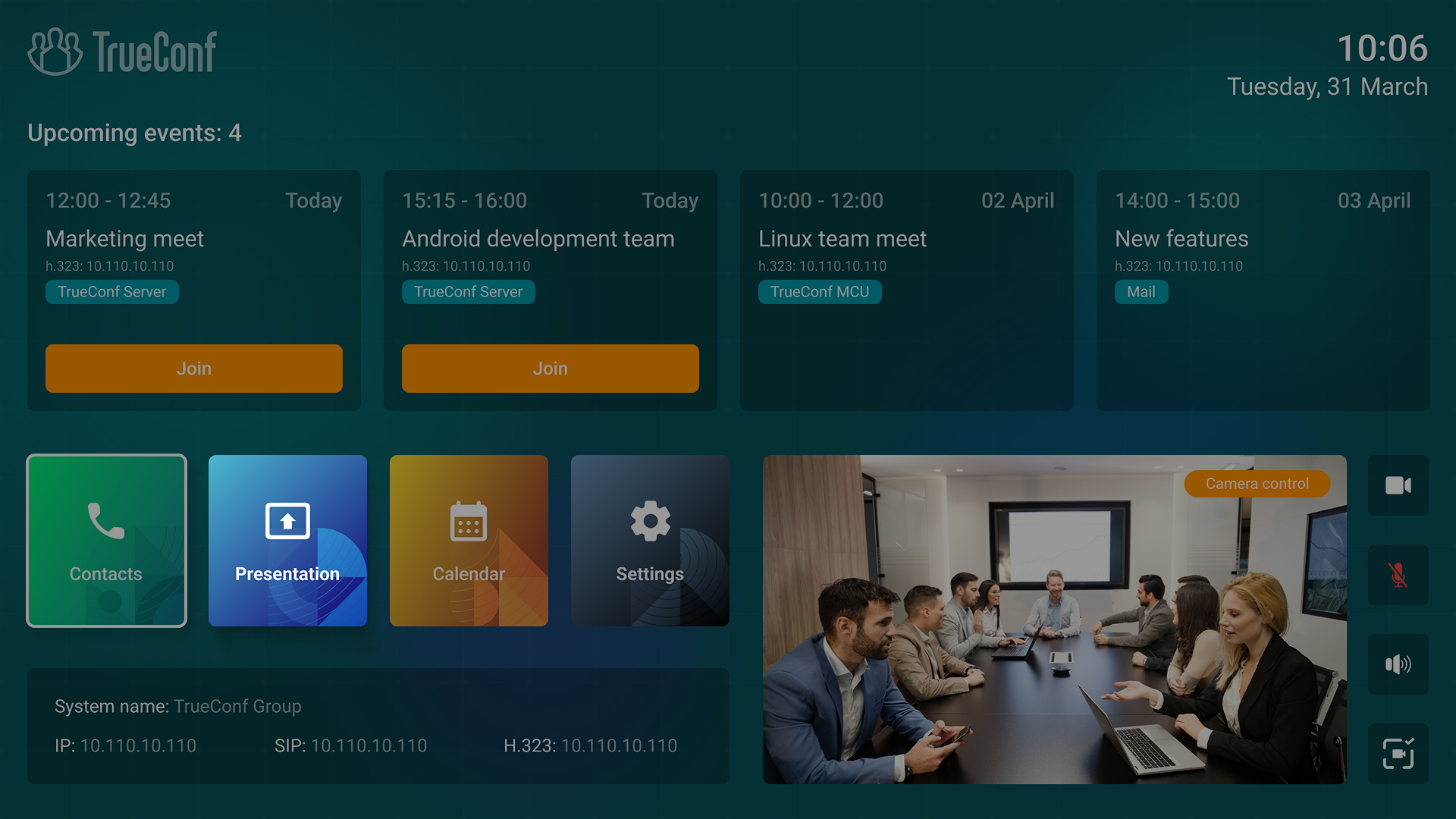
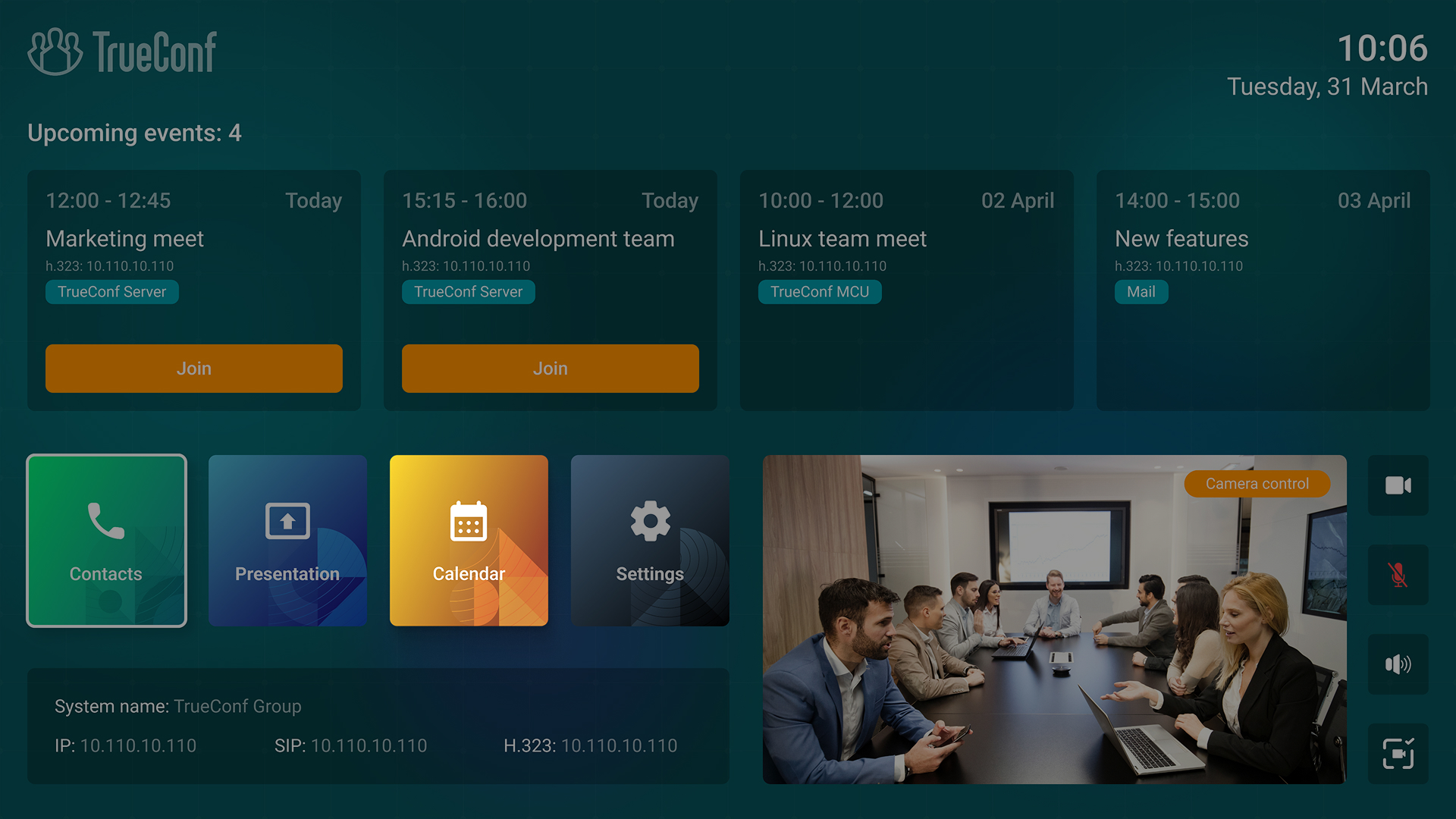
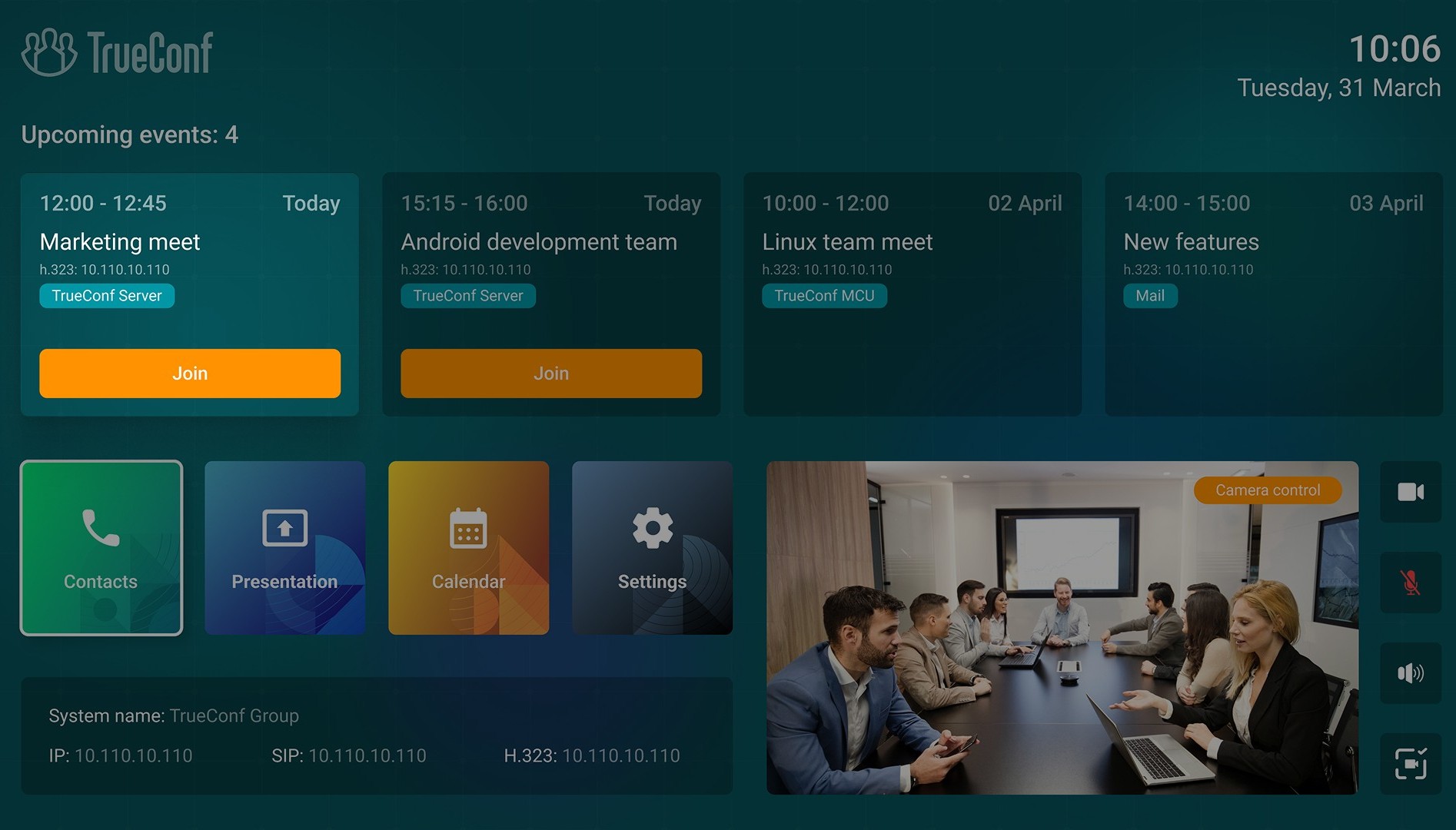
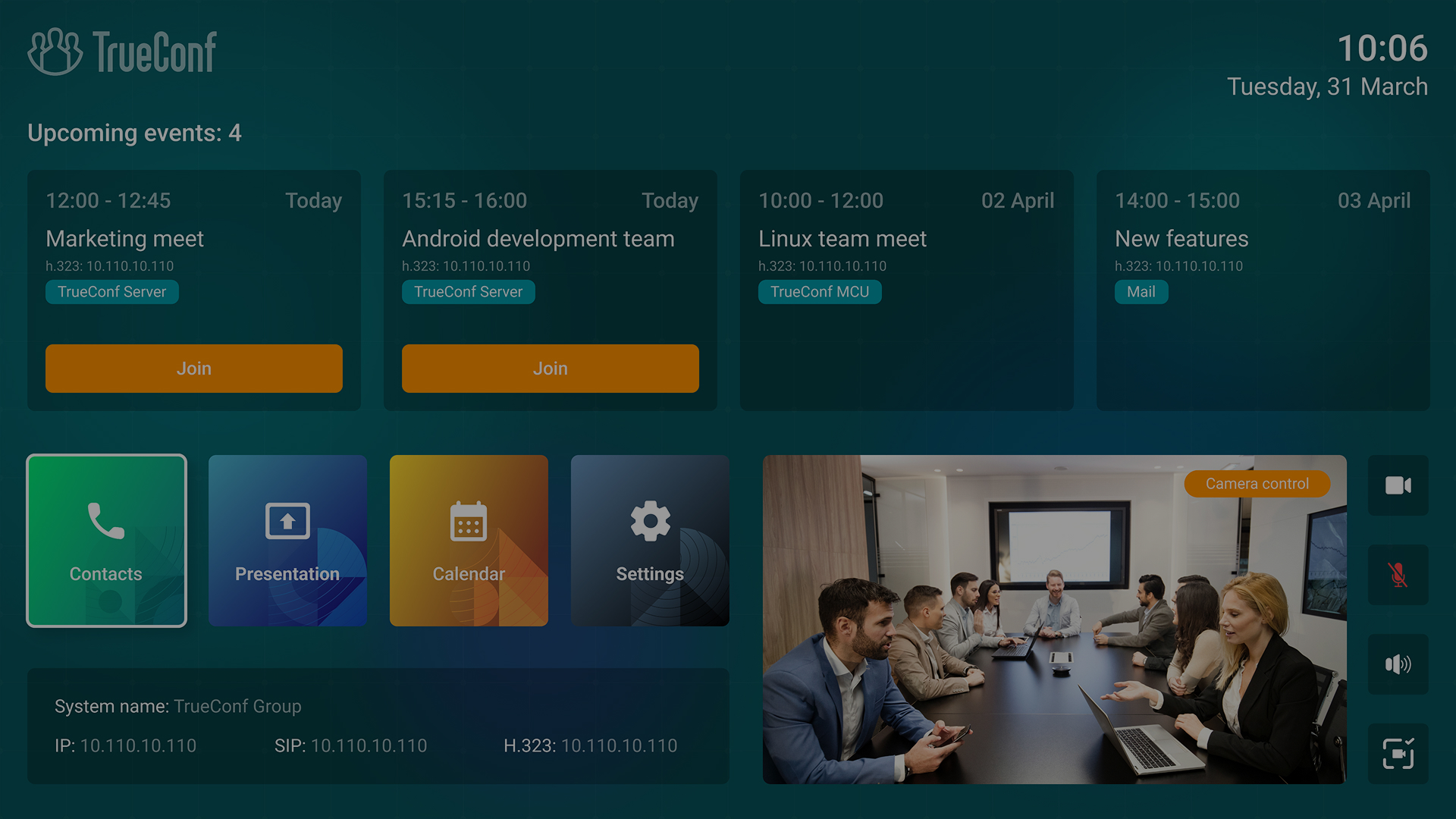
In TrueConf Group 2.0, we’ve redesigned the interface, bringing main menu sections, hardware control unit, upcoming events, and self-view window to the main TV screen.
Upcoming events
All upcoming conferences are displayed at the top of the main screen. Now you definitely won’t miss an important event, and the schedule will always be right in front of you.
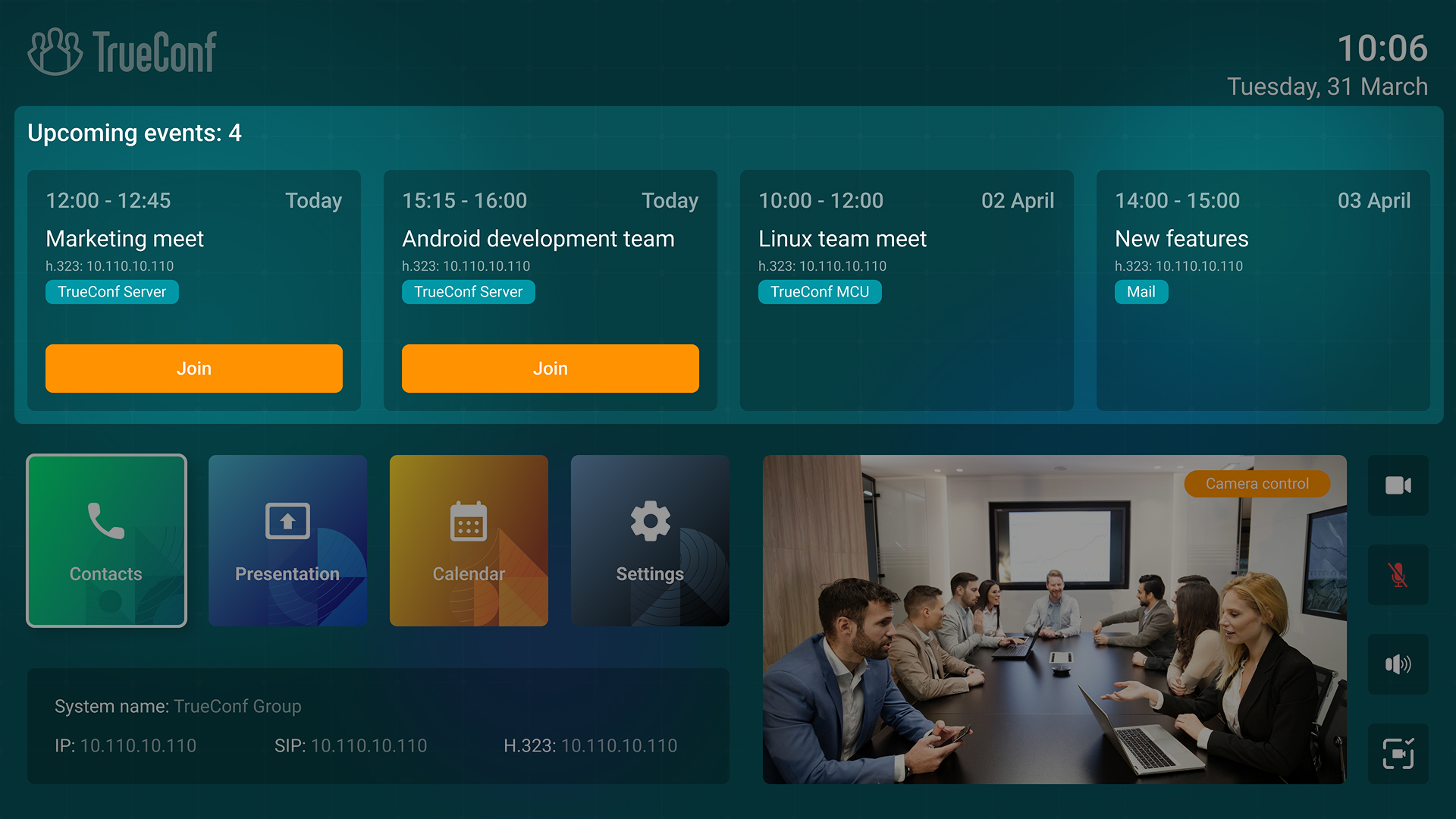
Events are displayed as convenient cards with:
- name
- date and time of the event
- video conferencing server (provided that the conference was created on TrueConf Server or TrueConf MCU)
- button to join a meeting if it has started.
To display upcoming conferences, TrueConf Group administrators need to set up email integration.
Contacts
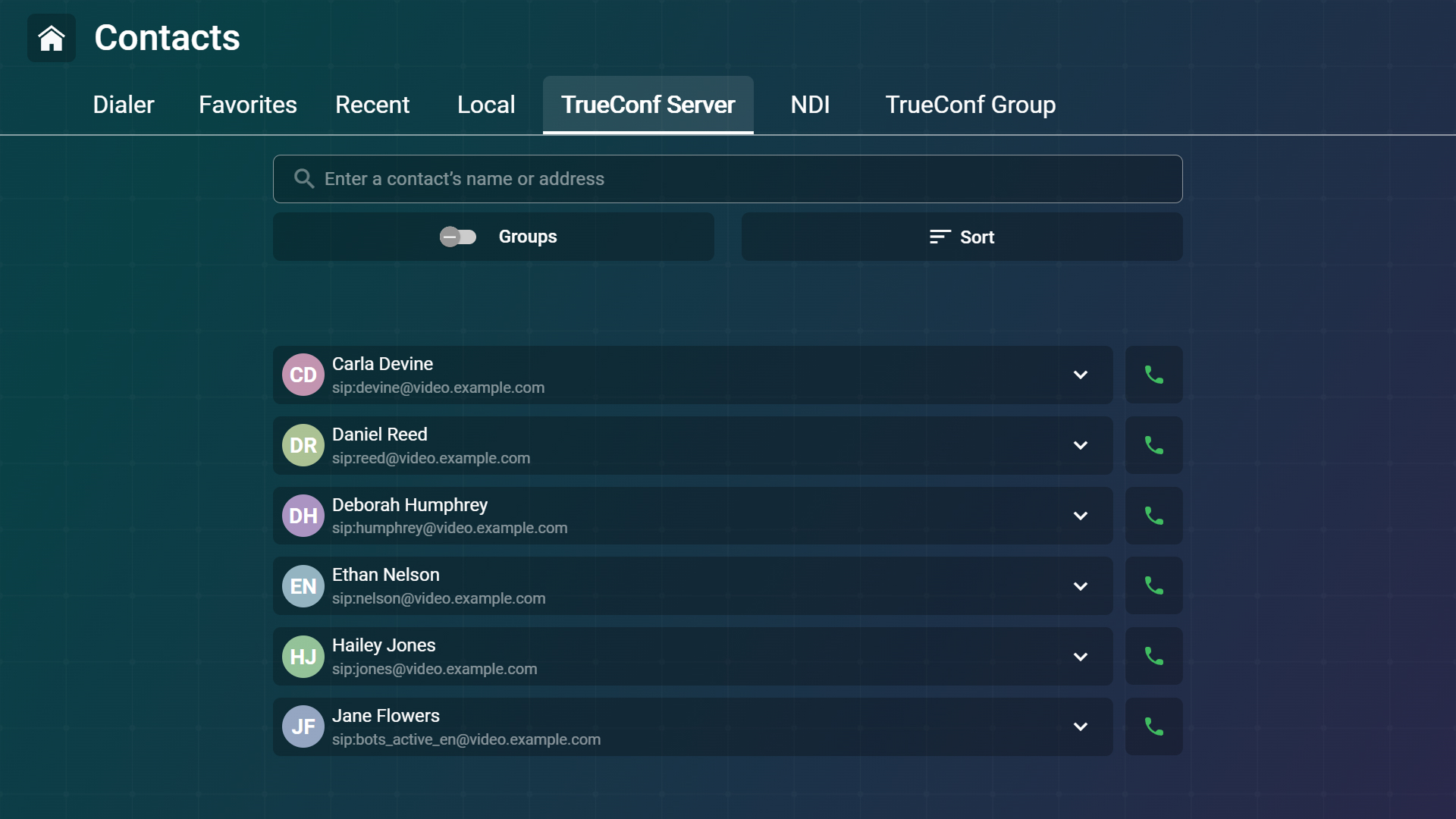
We’ve updated the Contacts section to work with the address book. They are now grouped by tabs:
- Favorites. Local contacts that are marked with the icon when creating or editing.
- Recent. Endpoint call history.
- Local contacts of the video conferencing endpoint.
- AD/LDAP. Contacts from LDAP directories.
- TrueConf Server. Contacts from TrueConf Server user’s address book (if the corresponding integration is configured).
- TrueConf MCU. Contacts from TrueConf MCU user’s address book (if the corresponding integration is configured).
- TrueConf Group. Other TrueConf Group video conferencing endpoints in the local network.
- TrueConf NDI. NDI sources in the local network.
Connection information
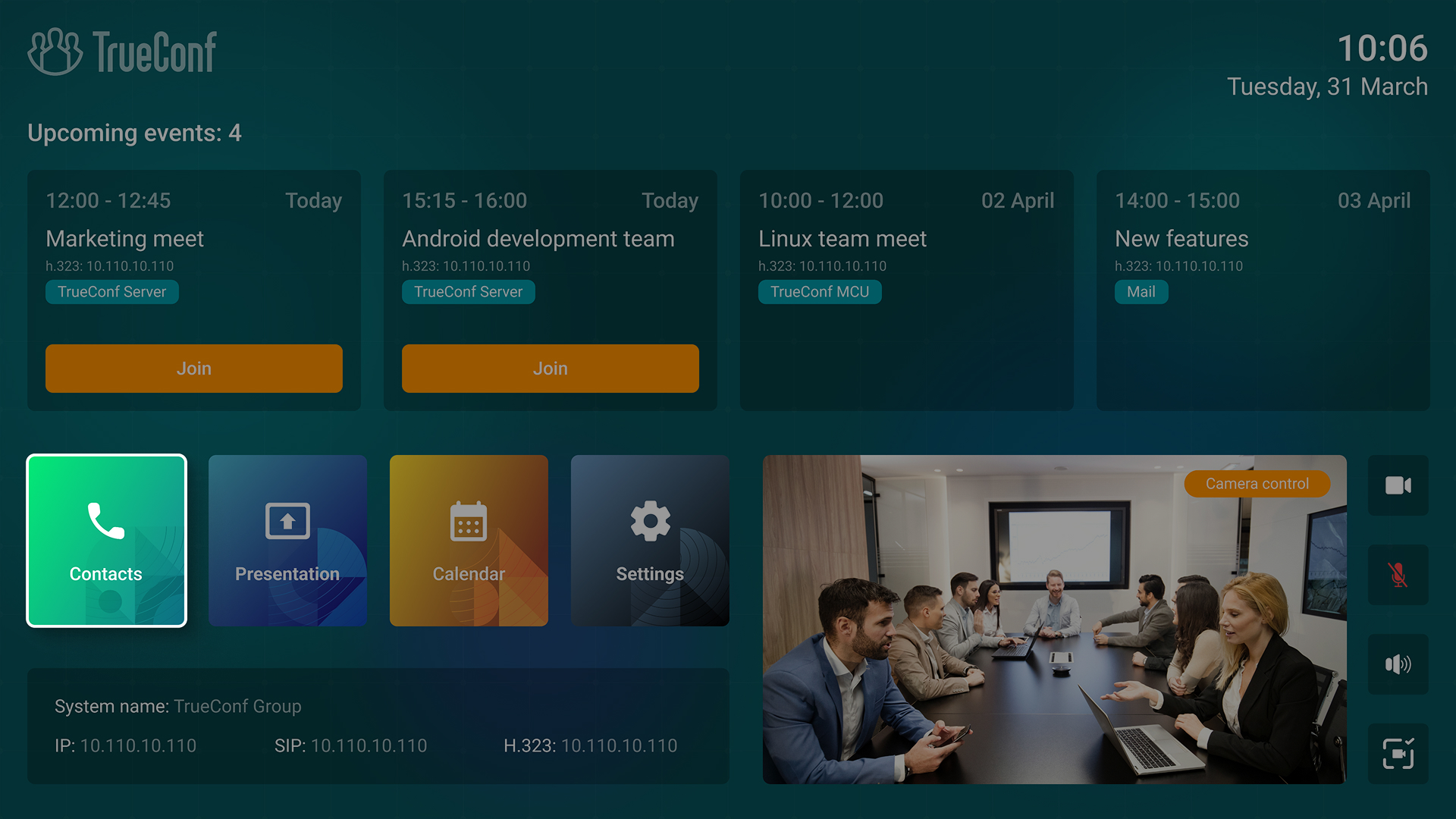
Connection status of the video conferencing endpoint now appears in the lower-left corner of the screen.
If TrueConf Group is successfully connected, its IP address will be displayed, otherwise the “Network unavailable” message will appear.
Working with presentations
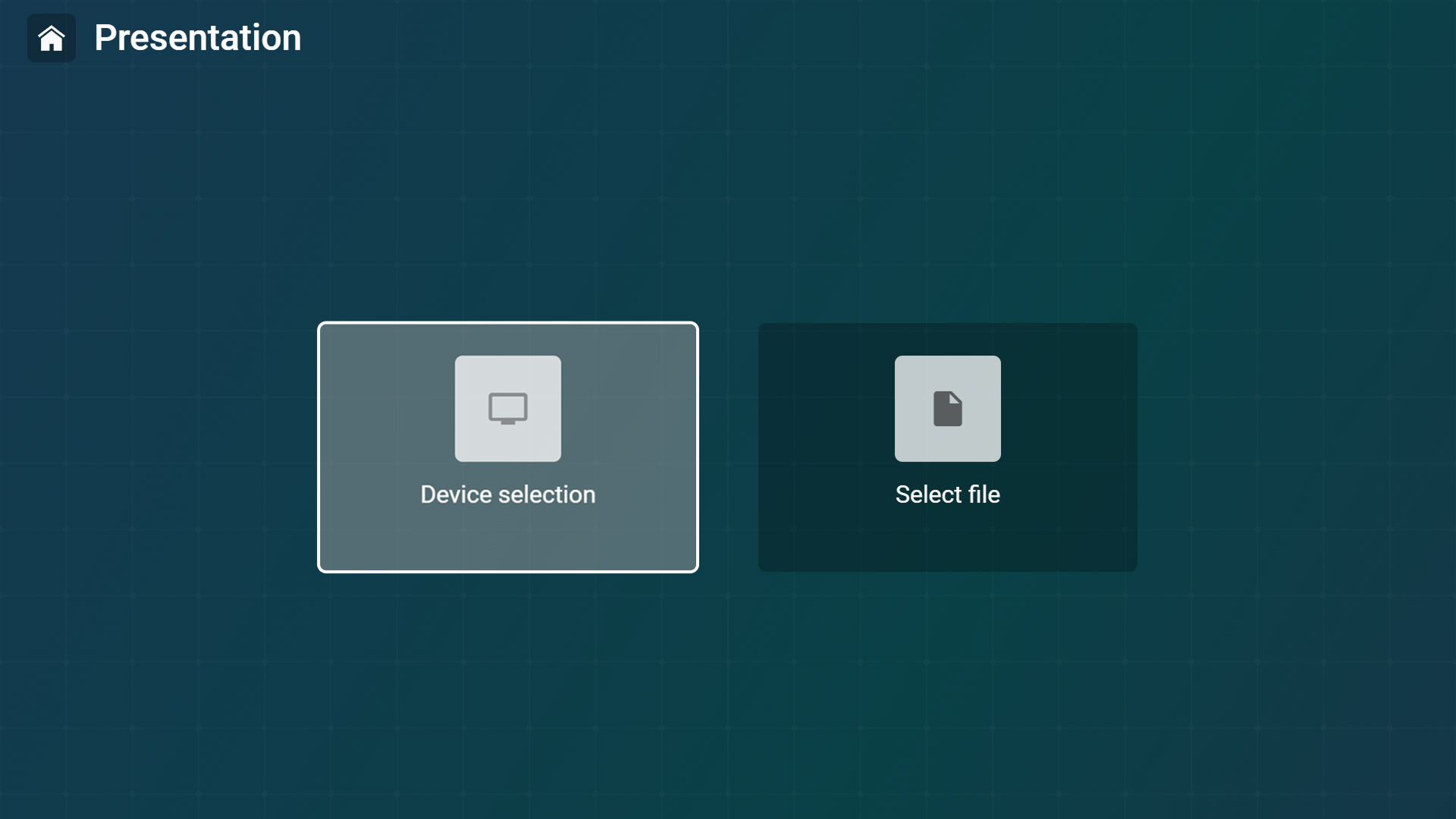
With TrueConf Group, users can share content during calls and conferences. The new version brings the Slideshow section to the main screen, allowing you to upload presentations before a conference starts or set up broadcasting from an external device.
Calendar
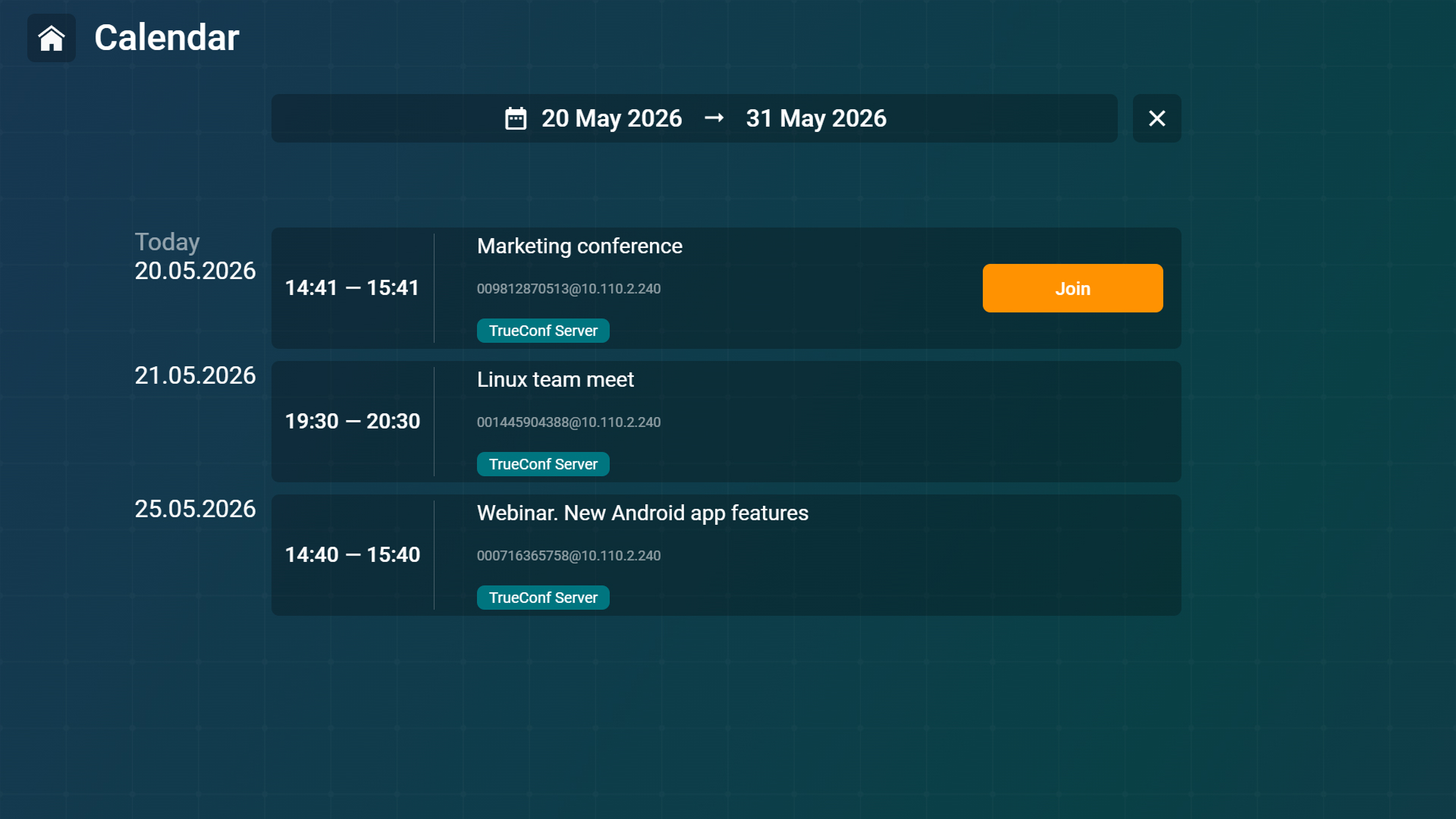
In addition to the upcoming events on the main screen, TrueConf Group users can also check all past and future meetings for the selected period in the Calendar section.
Integration with TrueConf Calendar Connector
In update 2.1, we’ve supported synchronizing calendar events with Microsoft® Exchange via TrueConf Server with configured integration with TrueConf Calendar Connector. Now all user conferences scheduled in Outlook and TrueConf Server are displayed on the endpoint in the meeting room marked TrueConf Server.
Additionally, information about calendar events can now be received via SSH API.
Tablet control
To control the endpoint in the meeting room, you can now use TrueConf Discovery application installed on a tablet. This app provides all the necessary features and its interface is optimized for touch controls
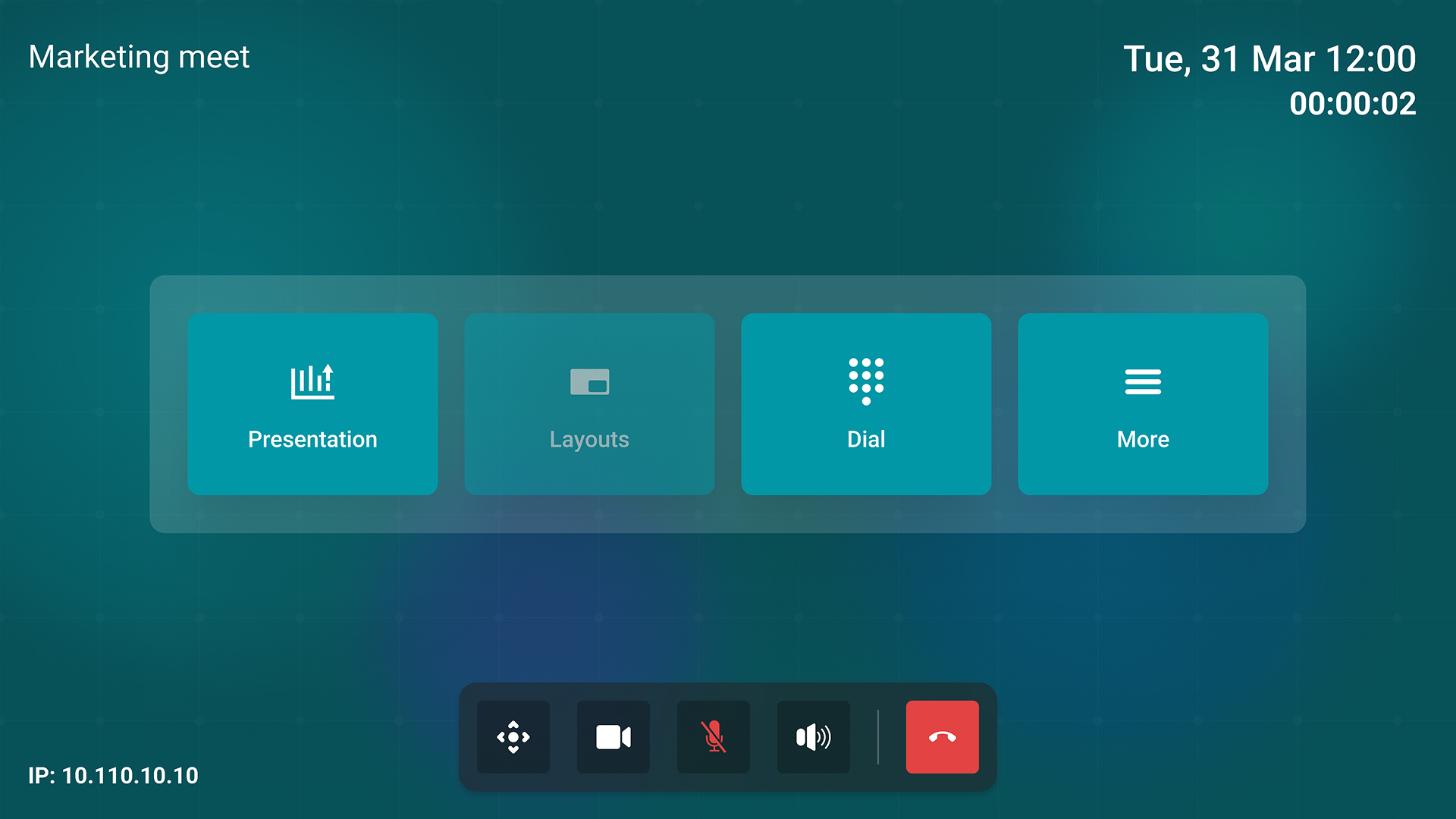
TrueConf Discovery application is pre-installed on tablets from TrueConf Group kits. You can request the installation file from TrueConf technical support specialists.
AI: Auto framing and face tracking
We’ve added an auto framing algorithm which detects people and focuses on them, removing empty unnecessary space, therefore remote participants will be displayed within a single frame.
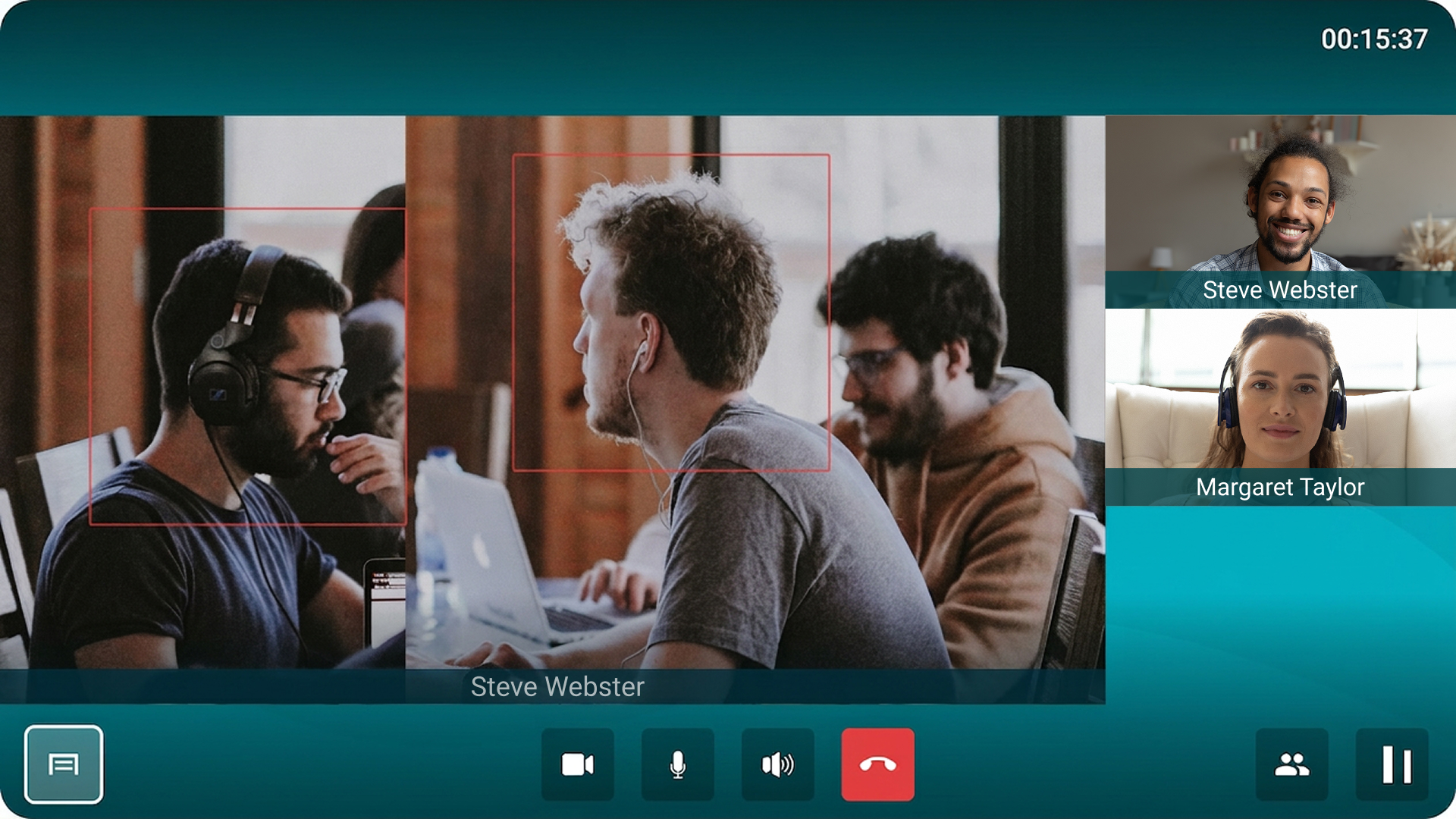
How to enable? Go to the Settings — Devices — Camera and activate the Auto framing and Face tracking options.
Automatic transfer of content to an additional screen
TrueConf Group users can use two screens simultaneously to automatically display different content on each of them. You can broadcast a conference to the main screen, and the second screen will display a presentation, your self-view, local video, or duplicate image from the main screen.
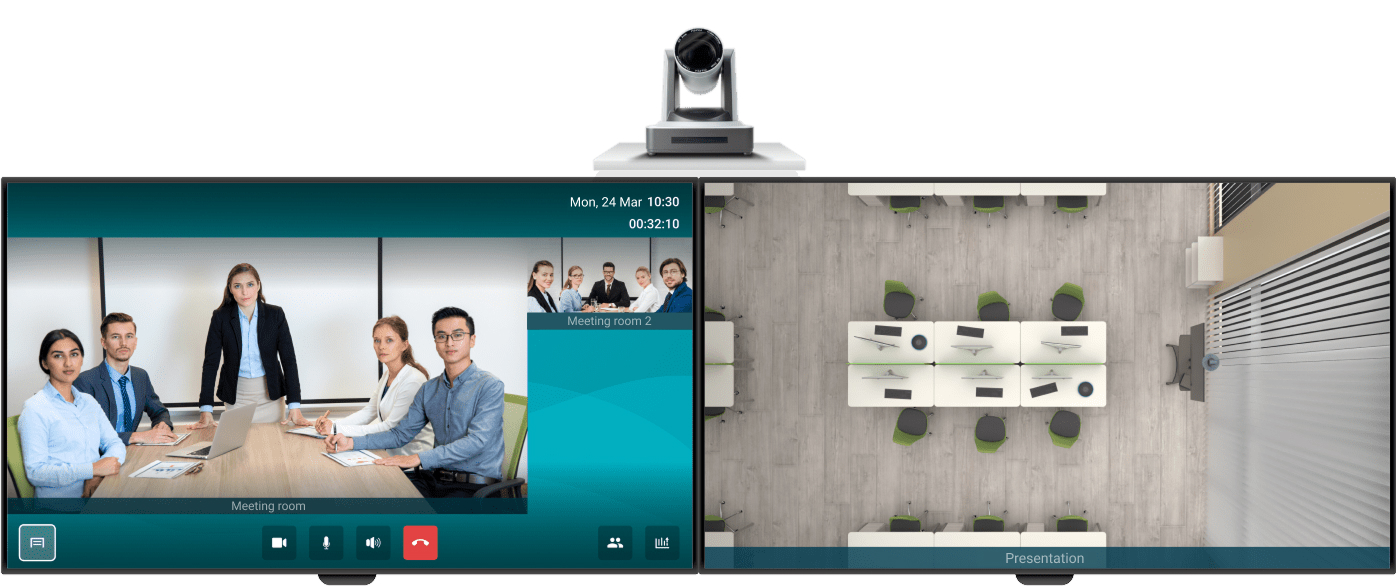
How to enable? The parameters of the second screen operation can be set in the Settings — Devices — Screen.
Updated self-view window
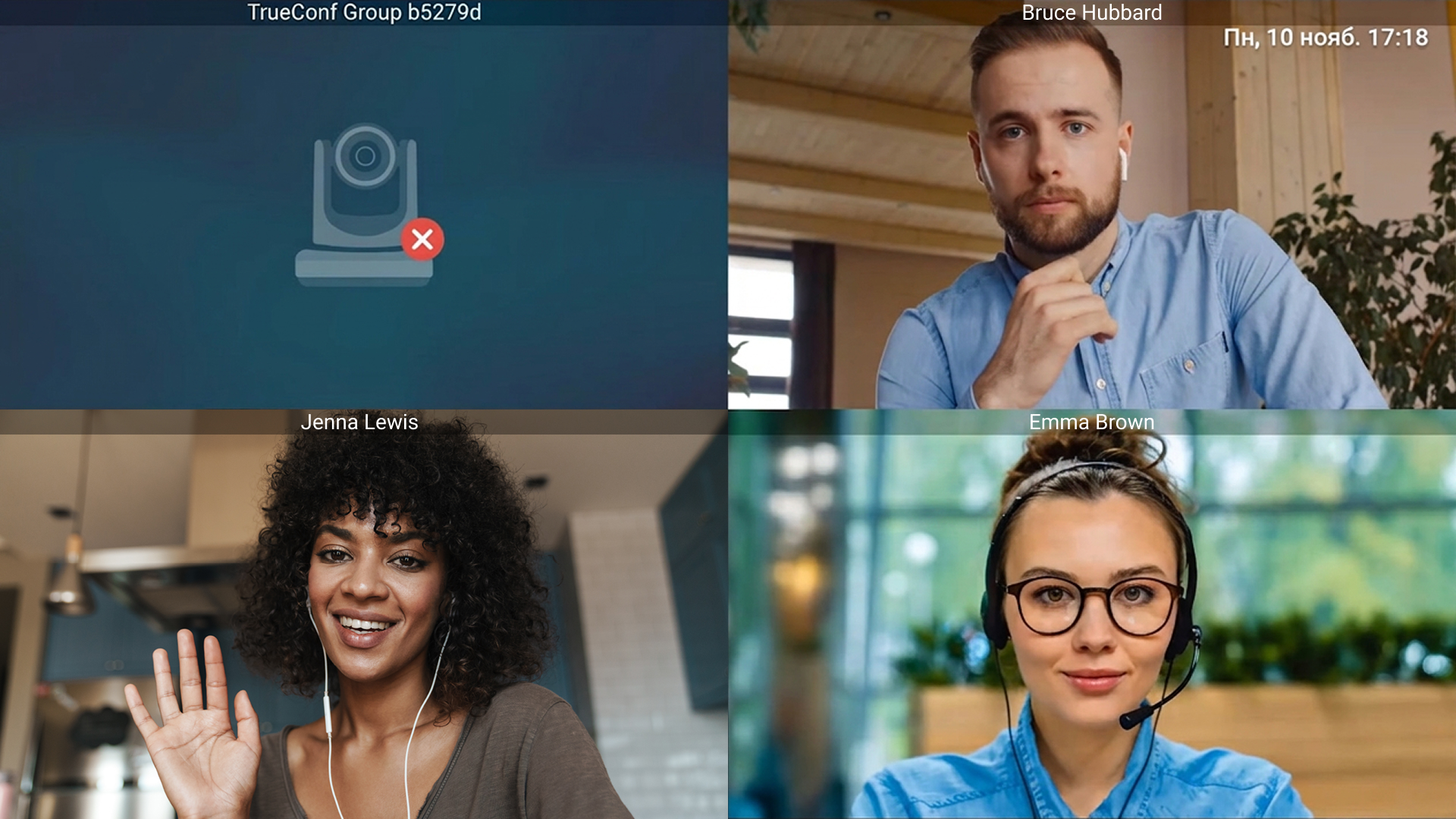
If the camera is disabled for the user of the video conferencing endpoint, a corresponding image is displayed on the main screen and during calls.
On the main TV screen, a notification “Control camera” or “Connect and configure camera” appears in the self-view, depending on whether the camera is connected to the endpoint.
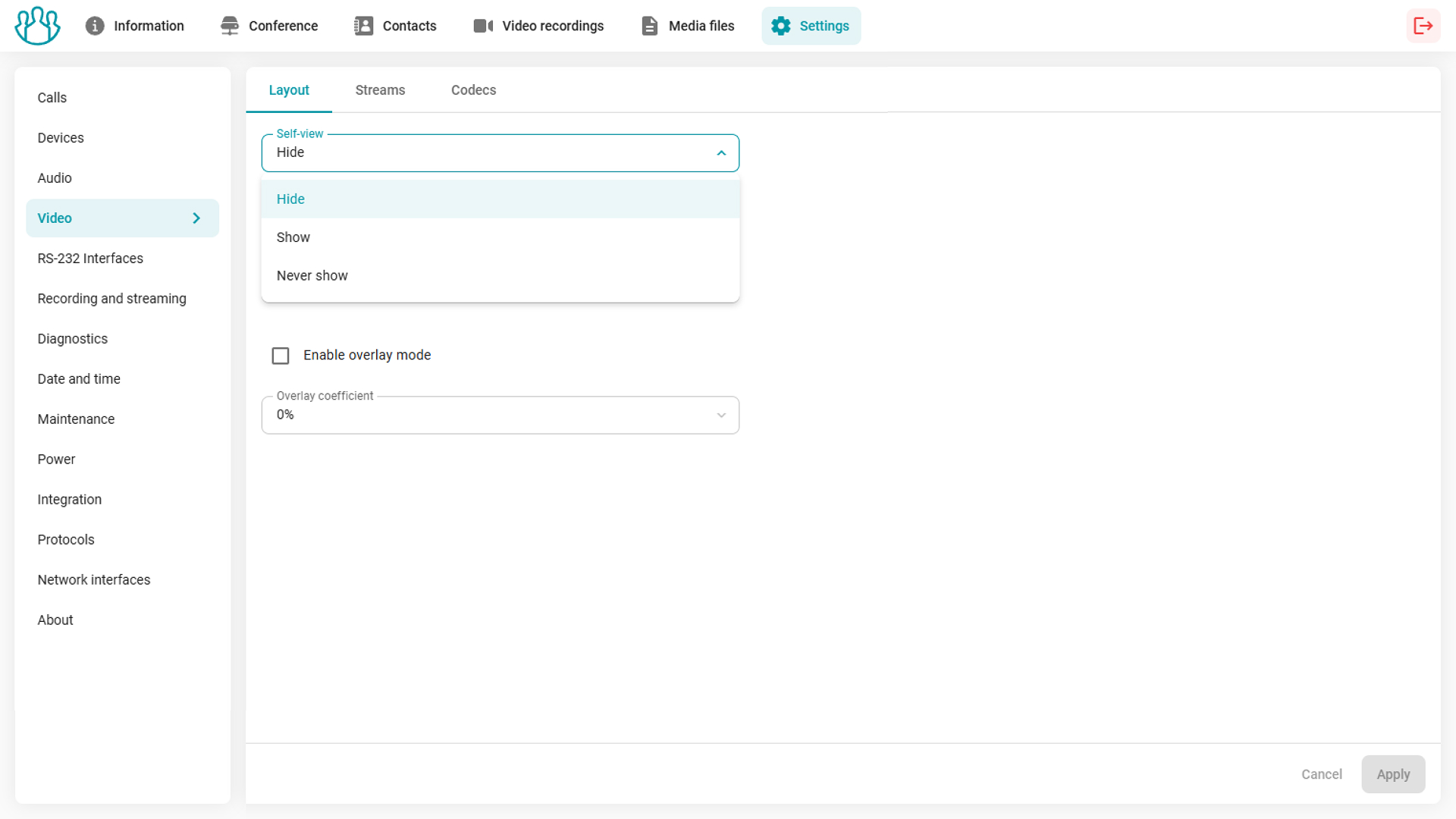
Hiding the self-view
In the layout settings, you can now configure displaying your self-view from the camera connected to the endpoint during a conference. It can be shown or not, or intelligently hidden — in this mode, your self-view will appear only while the PTZ camera is moving, making it easier to adjust the camera position.
Admin capabilities
Control panel interface
We’ve made significant changes to the control panel interface and the menu sections structure: a clear visual hierarchy and a minimalistic color palette will help you find necessary information and focus on work tasks.
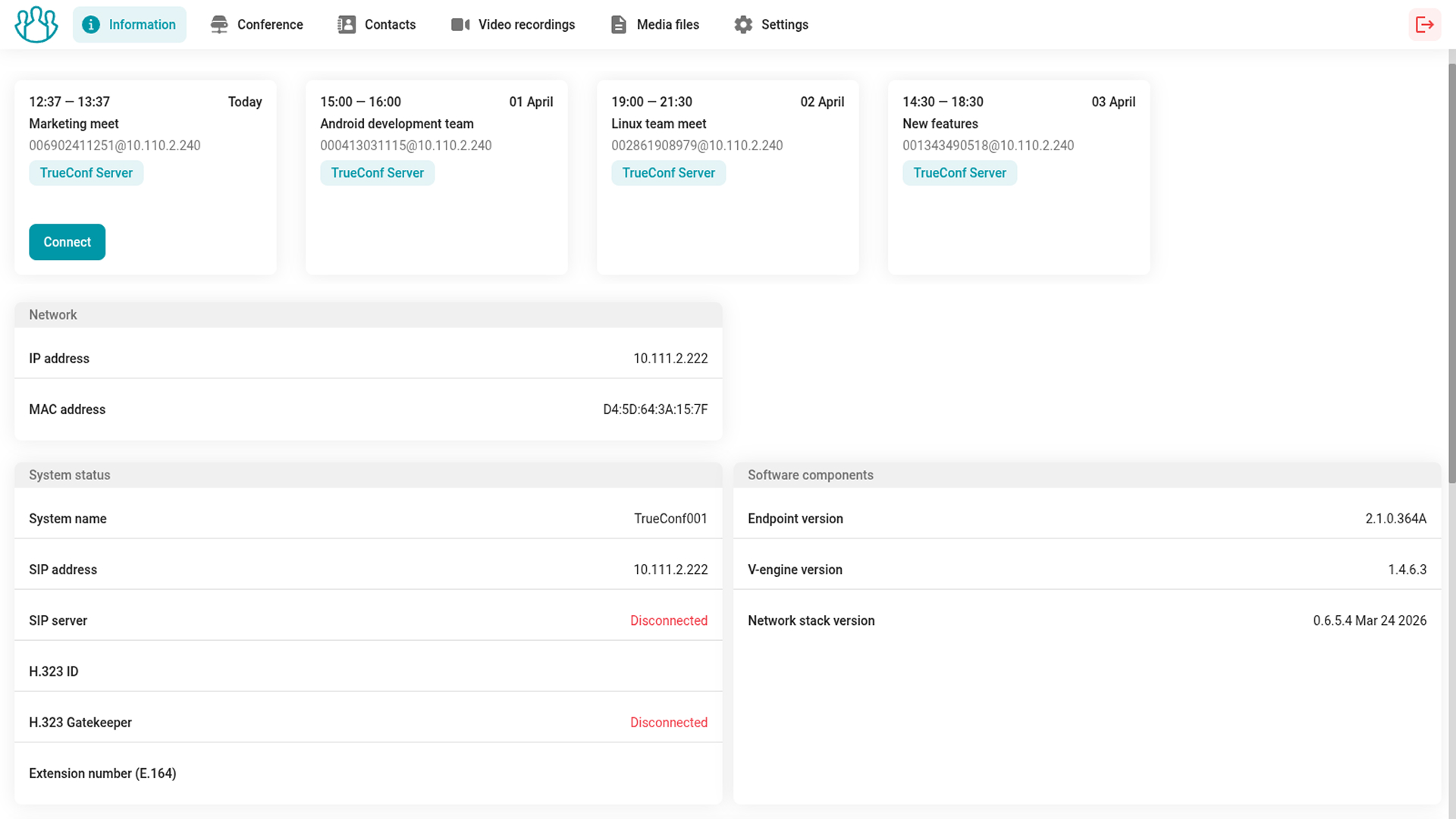
Information section
This section now displays information about the status of the system, network, software components, and the list of upcoming events. We have included everything you need for the operation and quick diagnosis of the video conferencing endpoint in this section.
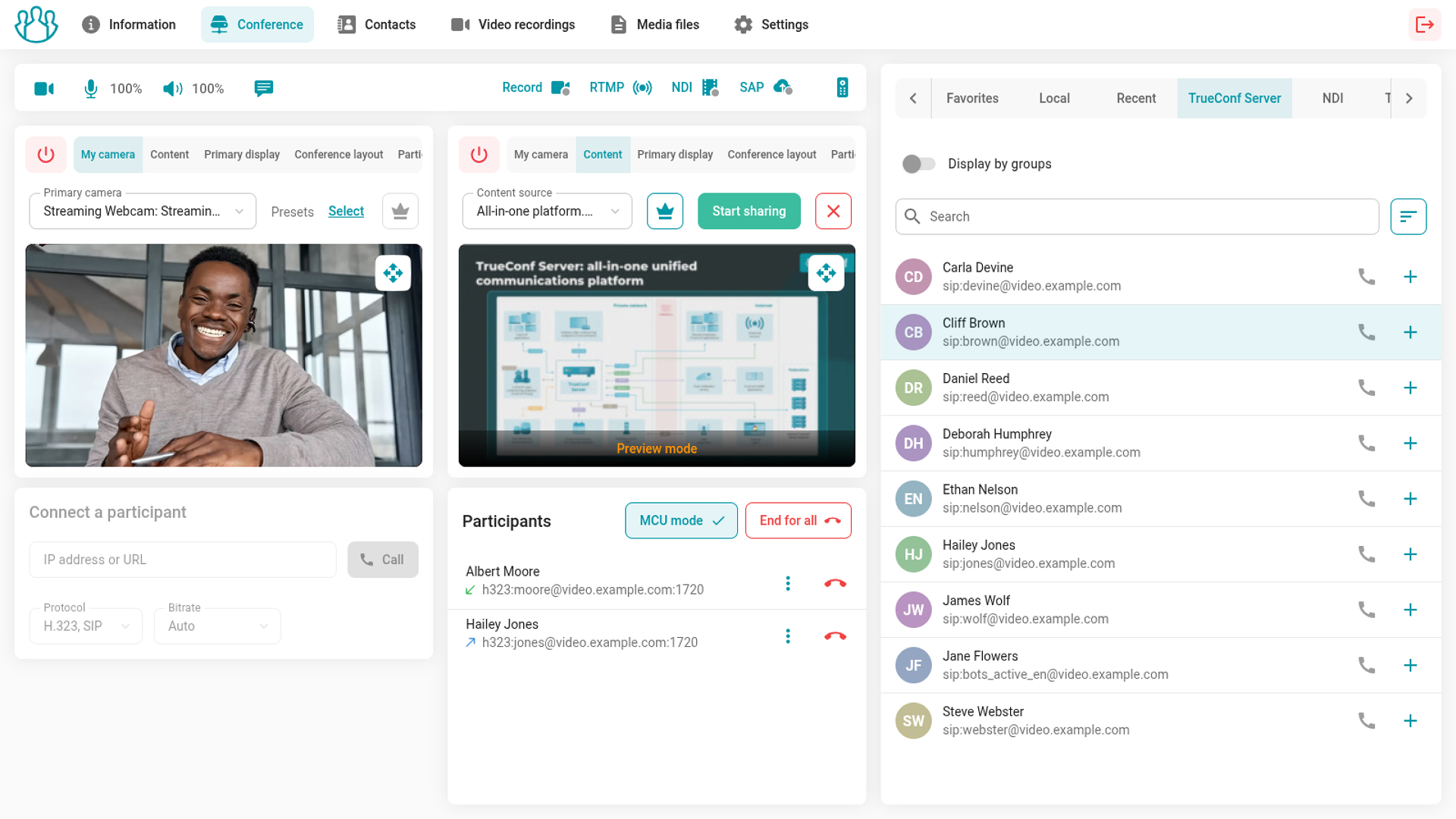
Conference section
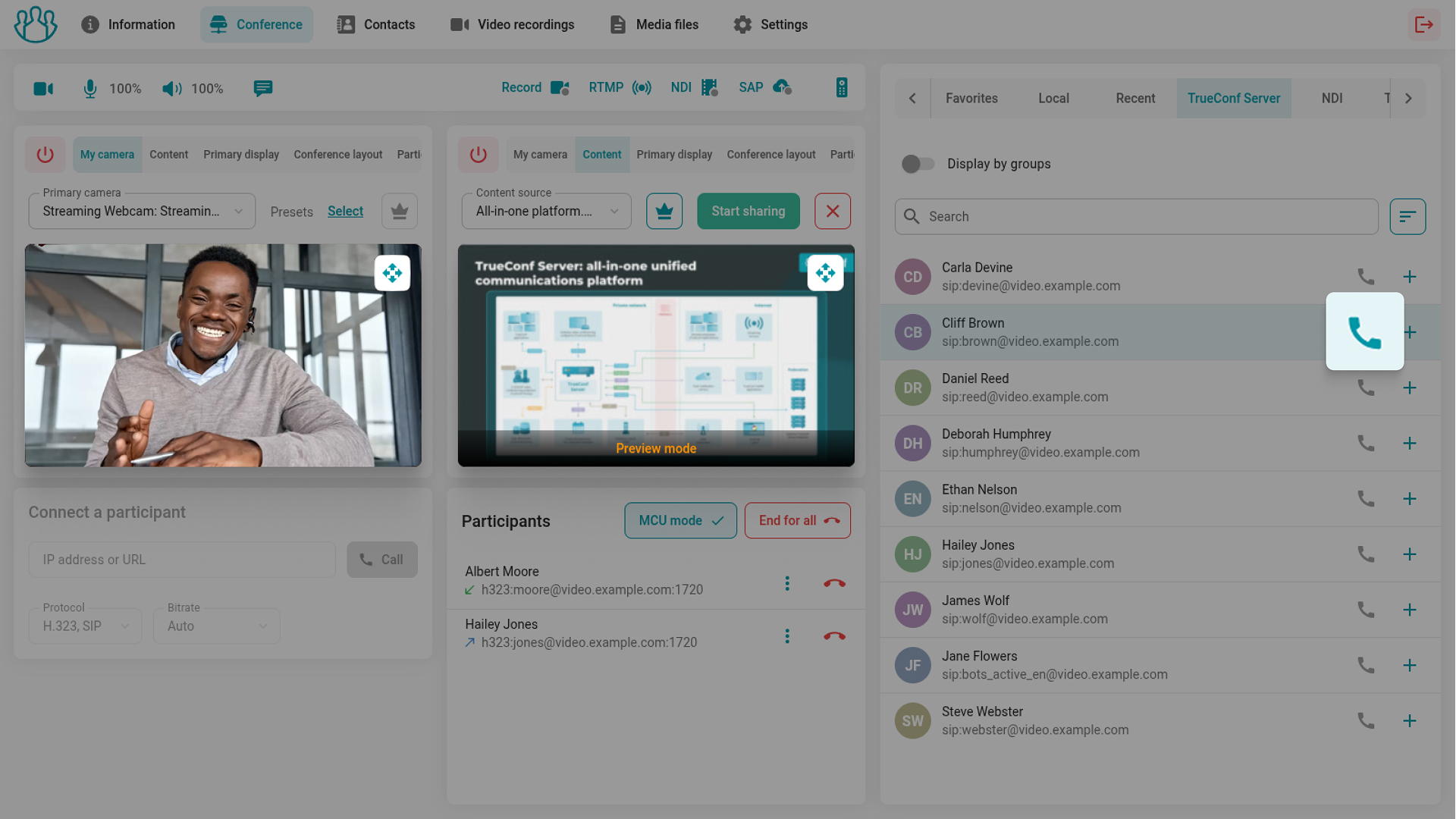
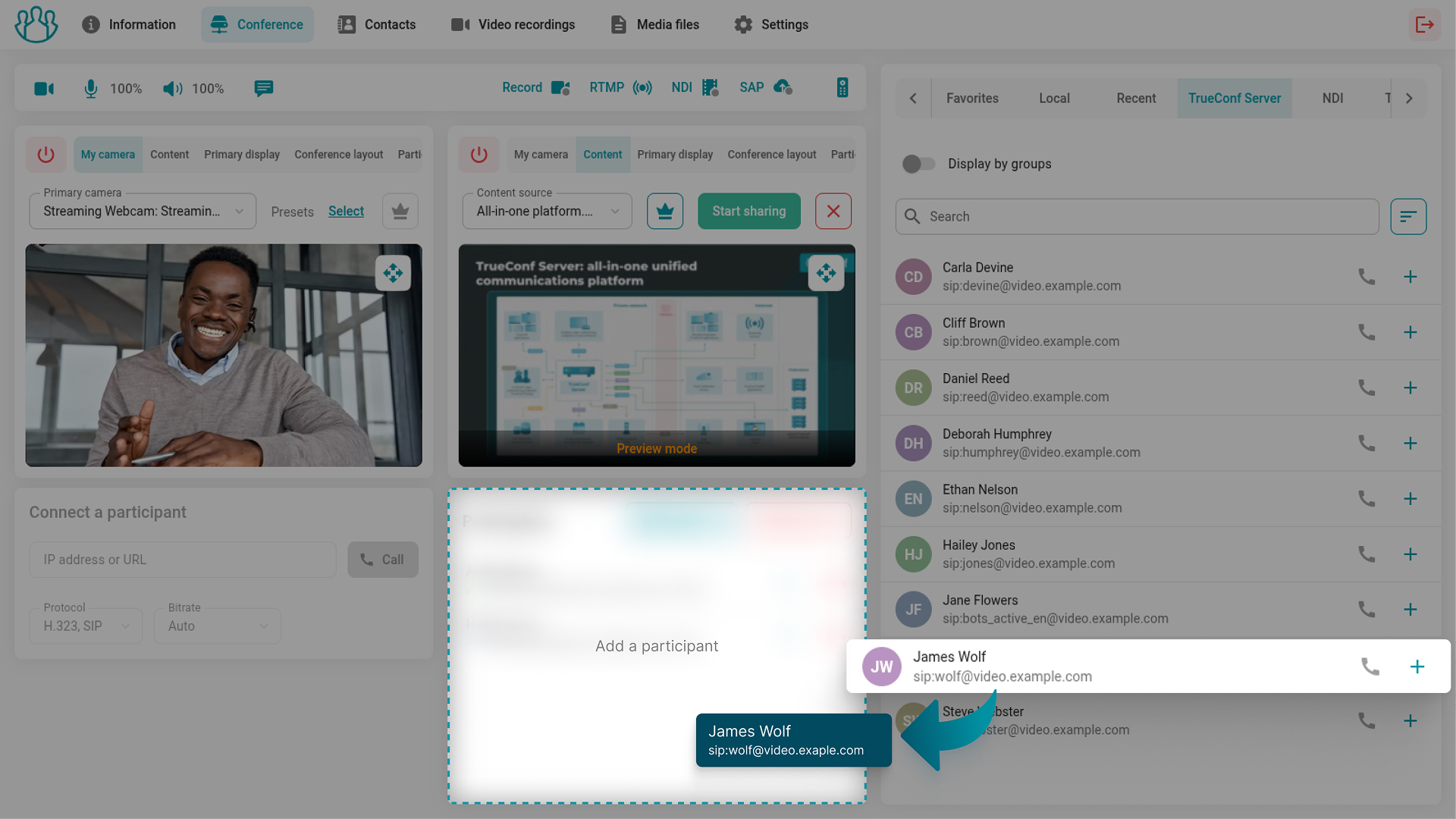
In TrueConf Group 2.0, it has become easier to manage ongoing calls: the contact panel is now located on the right side of the screen, allowing you to quickly make a call or add participants to a conference. Just click the button to the right of the participant or drag them to the window with the list of participants.
Working with files
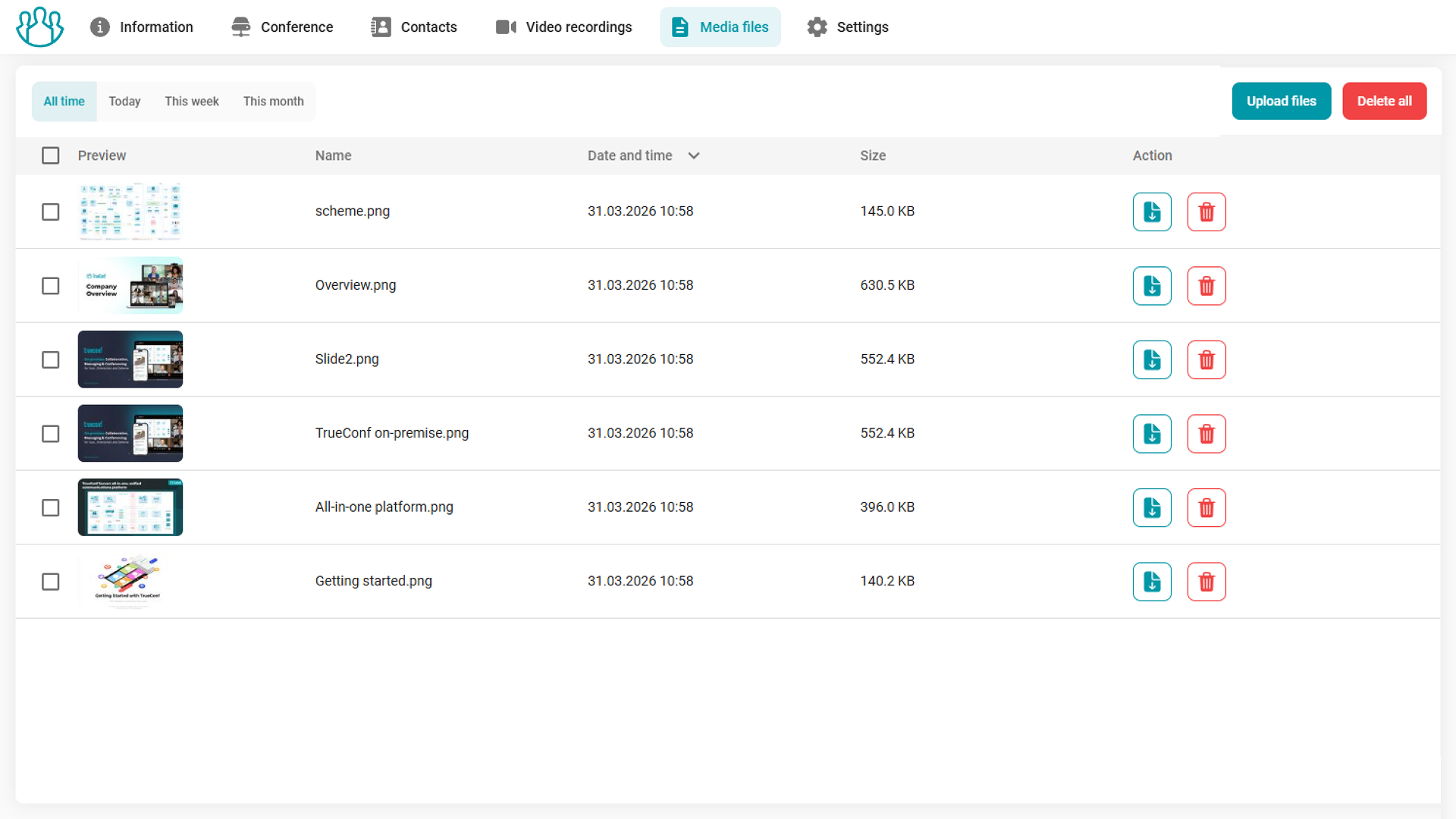
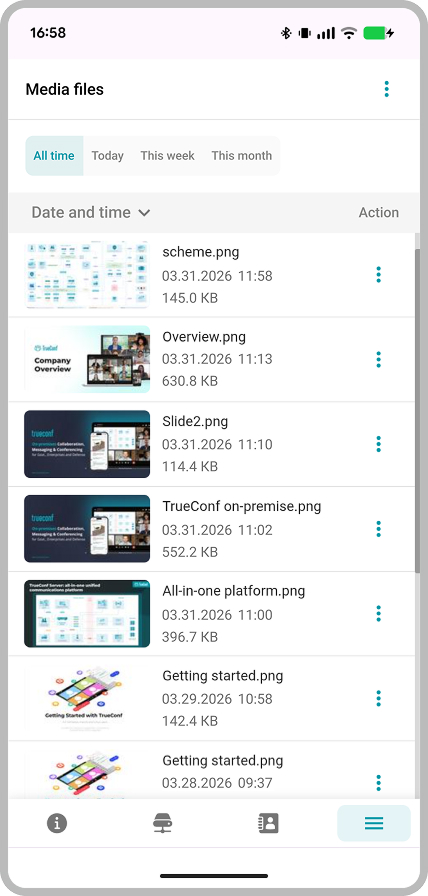
In TrueConf Group 2.0, we’ve added a special Media files section for managing uploaded images, video files, and slideshows. A preview is generated for videos and images, which is displayed in the corresponding column.
PIN-protected settings access
In order to increase security, administrators can restrict users’ access to the advanced settings of TrueConf Group video conferencing endpoint in the TV, web, and tablet interface using a PIN code.
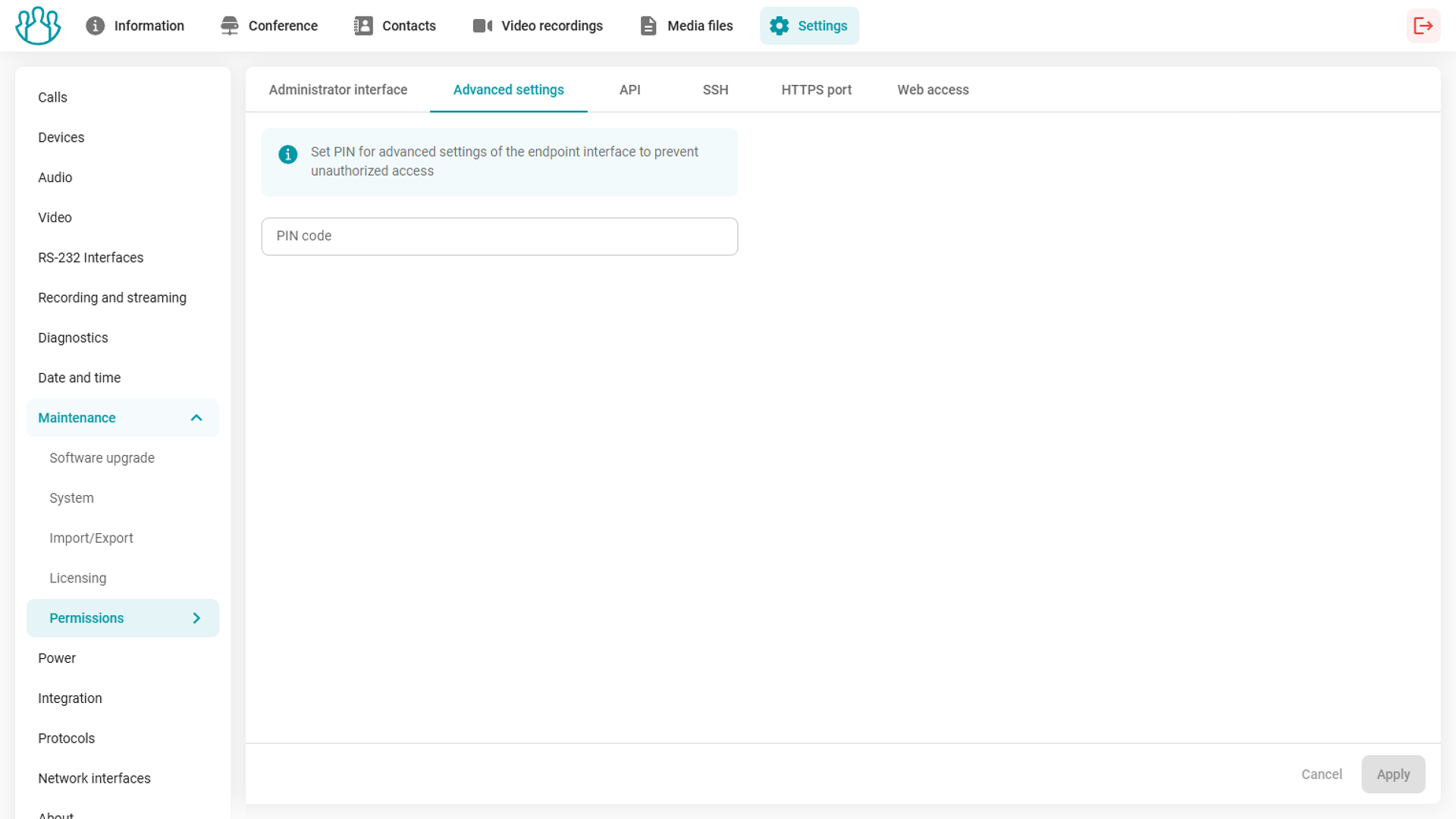
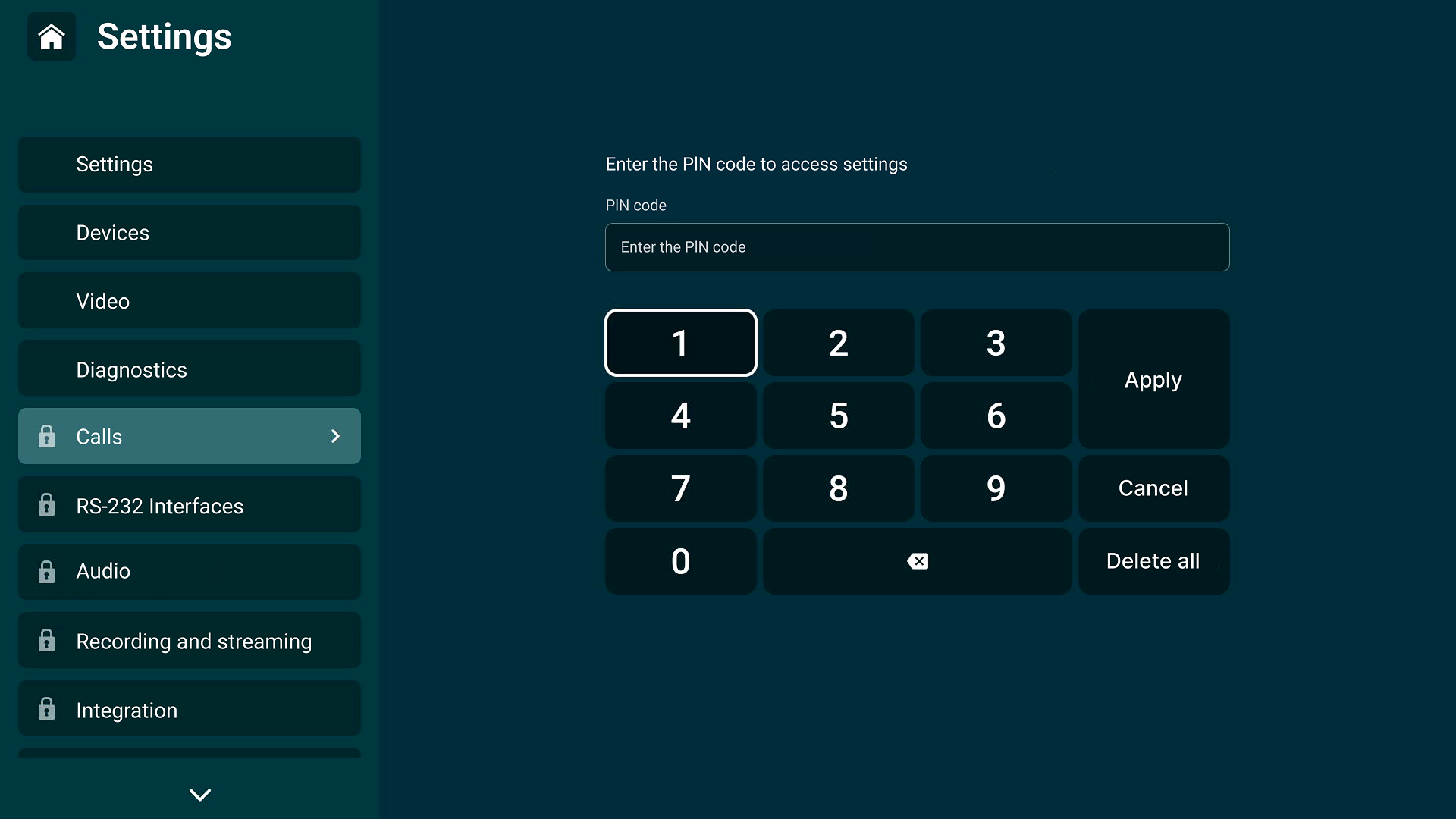
How to set up a PIN code? Go to the Settings — Administration — Accesses — Advanced settings on the endpoint’s web control panel.
In addition, the administrator of the video conferencing endpoint can restrict remote access to the web control panel in the corresponding section.
Adapting the web dashboard for mobile devices
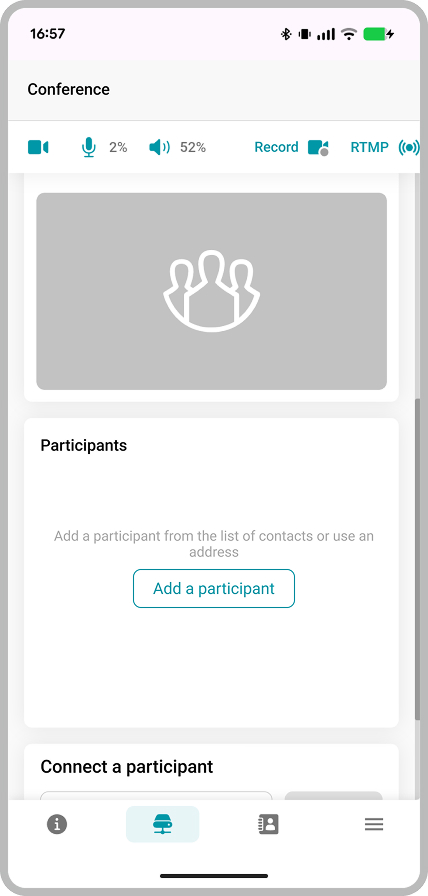
It has become much more convenient to administer TrueConf Group from tablets and smartphones, and the web panel interface automatically adapts to screens with different resolutions and aspect ratios.
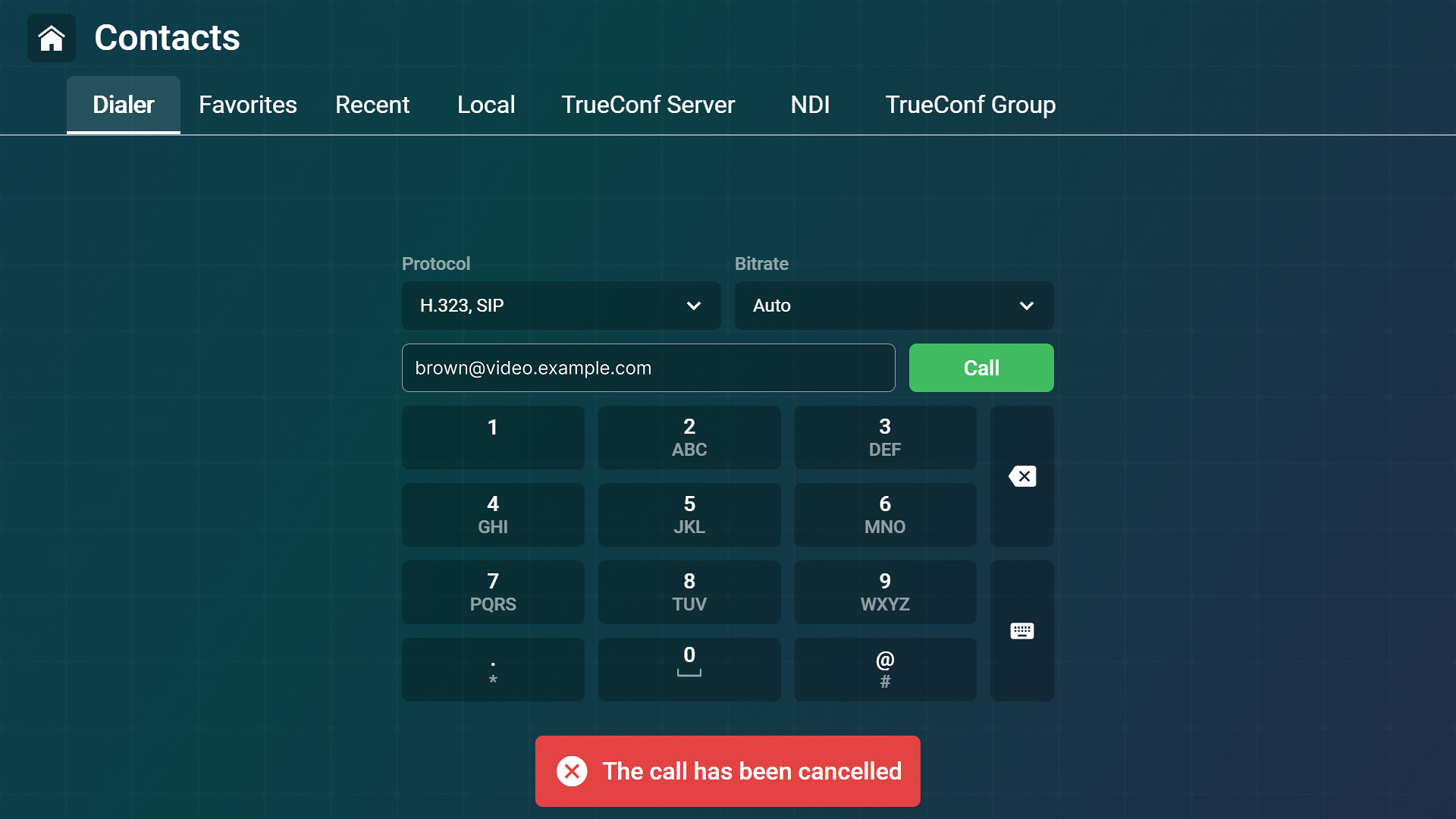
Notifications about the reason for unreturned calls
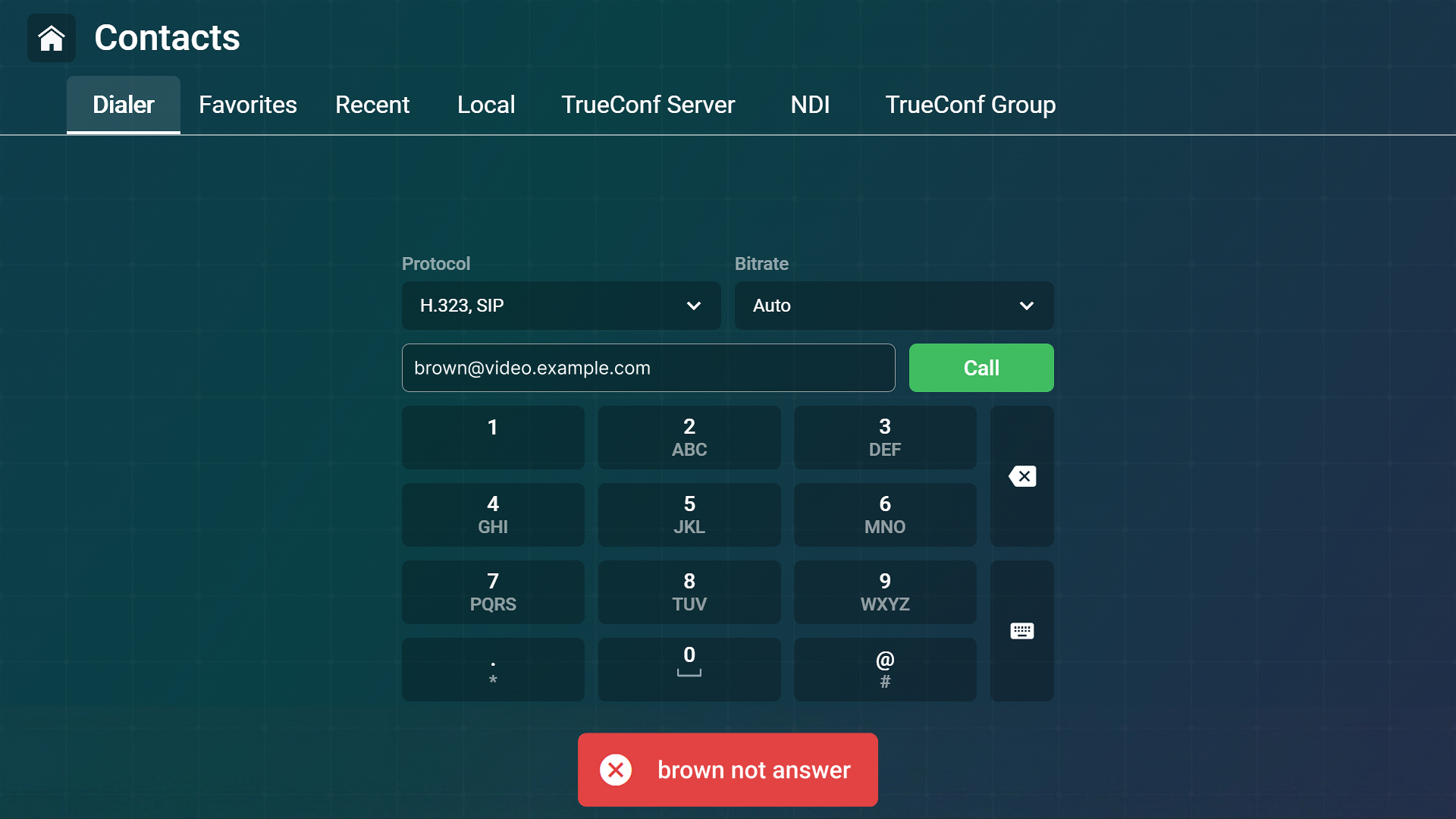
If a user cannot be reached, the endpoint now displays a notification indicating the reason:
- license restrictions
- restriction on receiving calls only from the address book
- acceptance of the second and subsequent calls
- the user rejected the call
- the user is busy
- the “Do not disturb” status is enabled.
Video conferencing endpoint control via REST and gRPC API
We’ve significantly expanded TrueConf Group management capabilities using API. Read more about TrueConf Group API in the documentation.
Advanced RS-232 port settings
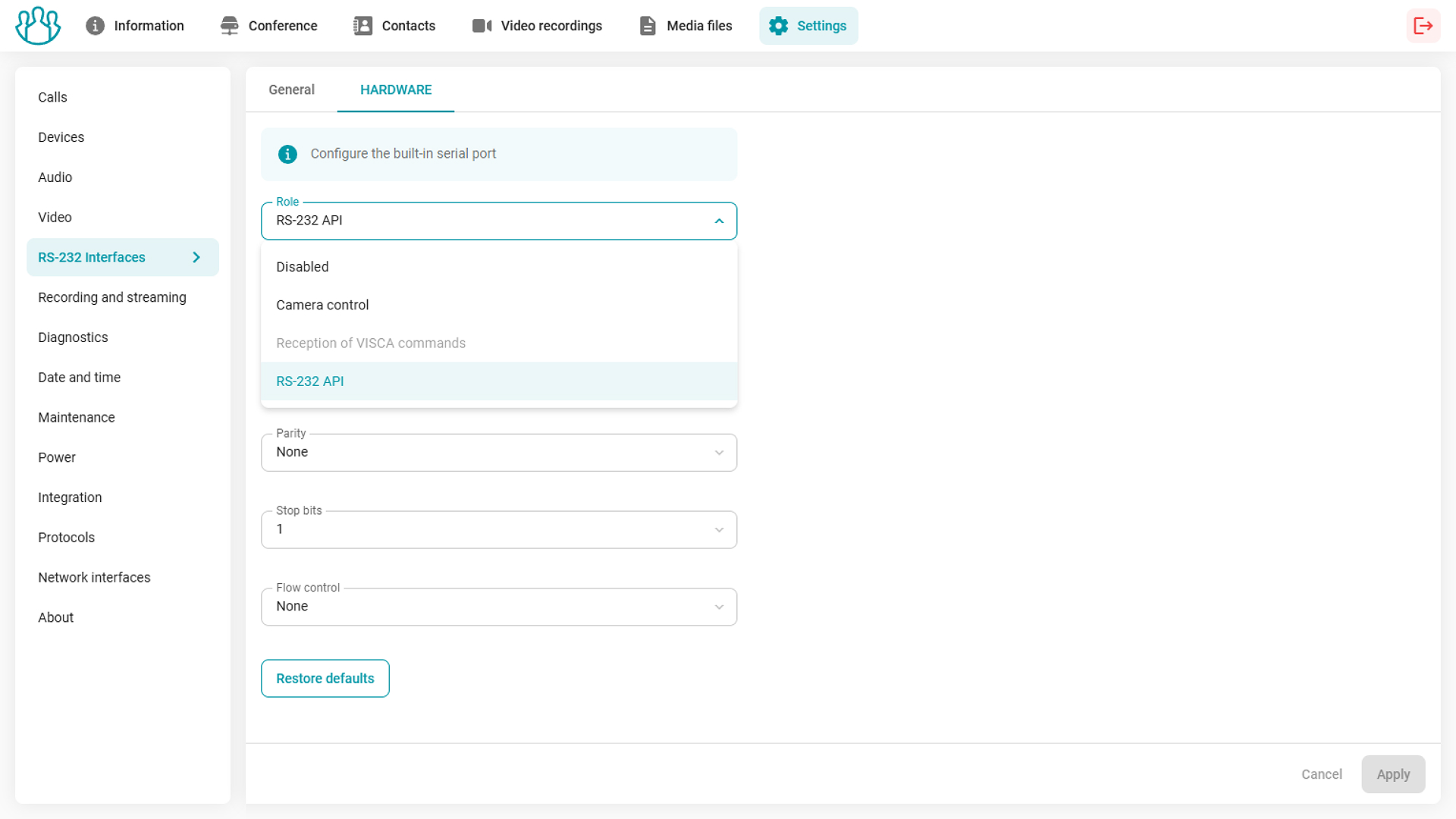
The endpoint administrator can now choose to assign an RS-232 port for camera control, for endpoint control via SSH (RS-232 API), or not use it at all. Additionally, in the Settings — RS-232 interfaces — Hardware section, you can not only select the port assignment, but also configure its operation parameters with greater flexibility.
Other changes and improvements
- Security updates for the first quarter of 2026
- You can now join a conference using an https://link
- We’ve added the ability to make calls to IP telephony using the #tel:, #sip:, and #h323: formats (if integrated with TrueConf Server)
- The call duration is now calculated from the moment of connection after dialing
- We’ve added input format hints for the port and address fields in SAP streaming settings
- The Gateway input field in the network interface settings is now optional
- Videos on external media are now sorted by folders with dates
- Virtual rooms (conferences without a schedule) created on TrueConf Server have been removed from the cards of upcoming events
- The quality of presentation sharing during a conference has been optimized
- We’ve improved compatibility with some Cisco endpoints
- The overall stability of the endpoint has been improved.
For a complete list of updates, check our changelog.

Maria Mihalyova
Date published: 26.05.2026
Maria Mihalyova
Date published: 26.05.2026
Follow us on social networks