
TrueConf Room 5.1: Setting Up an Additional Video Stream and Convenient Content Sharing from a Smartphone
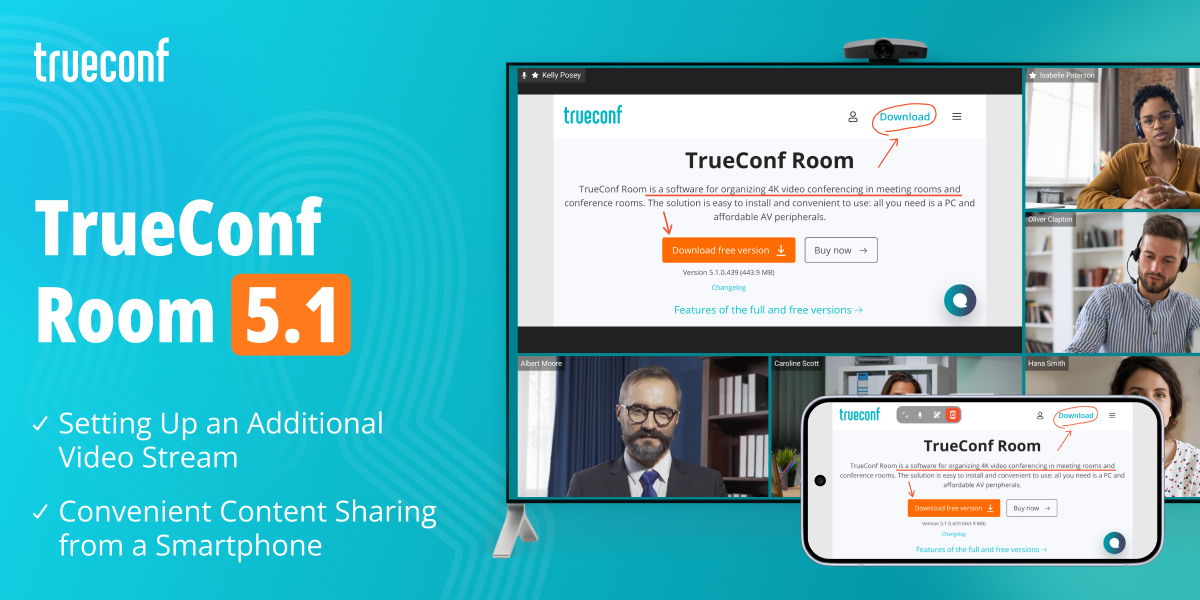
In the new version of our software video conferencing endpoint, we’ve focused on content-sharing scenarios in meeting rooms: we’ve simplified the setup of an additional video stream, added convenient content sharing from mobile devices, and expanded the interface configuration options.
Setting up an additional video stream
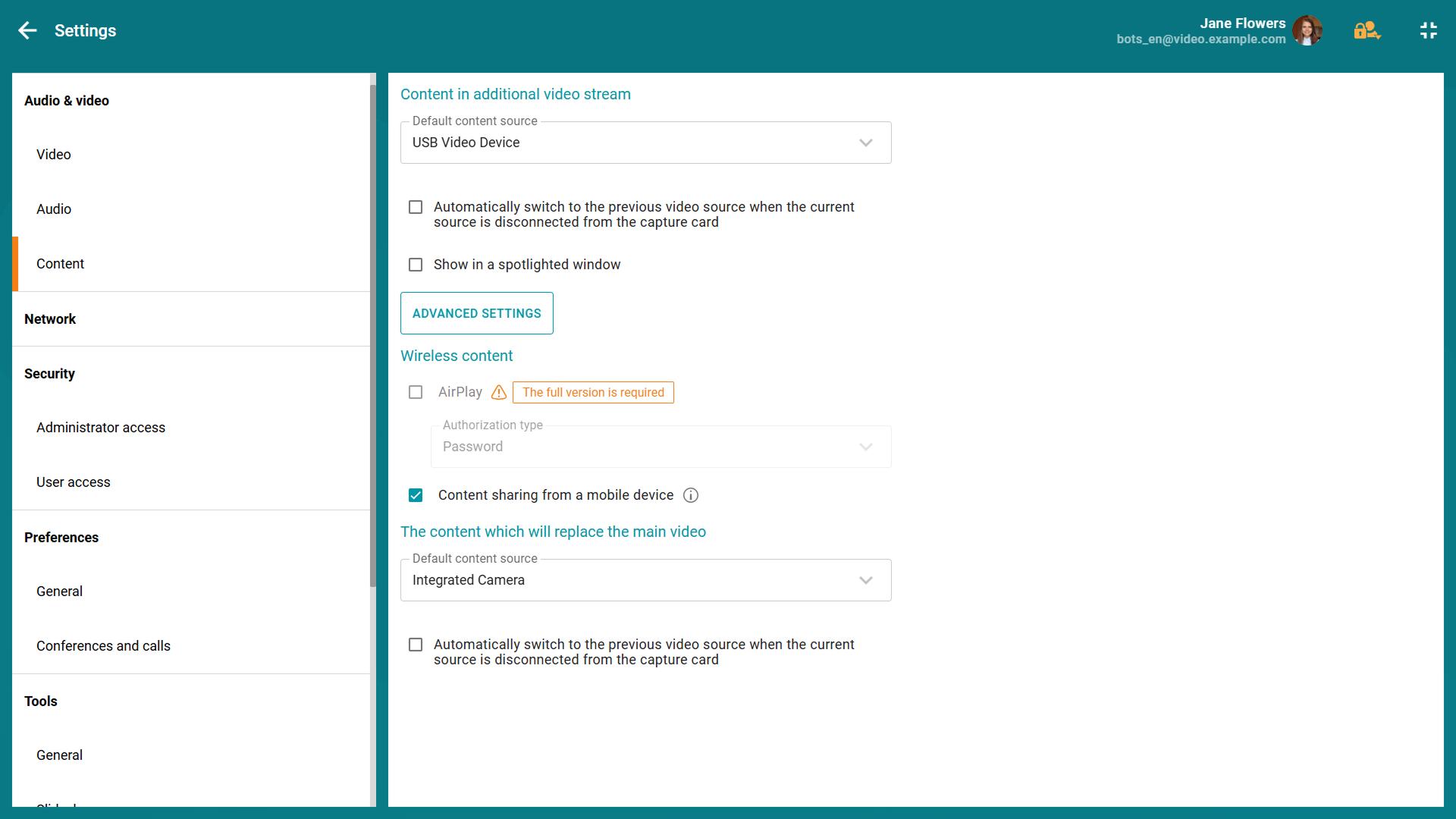
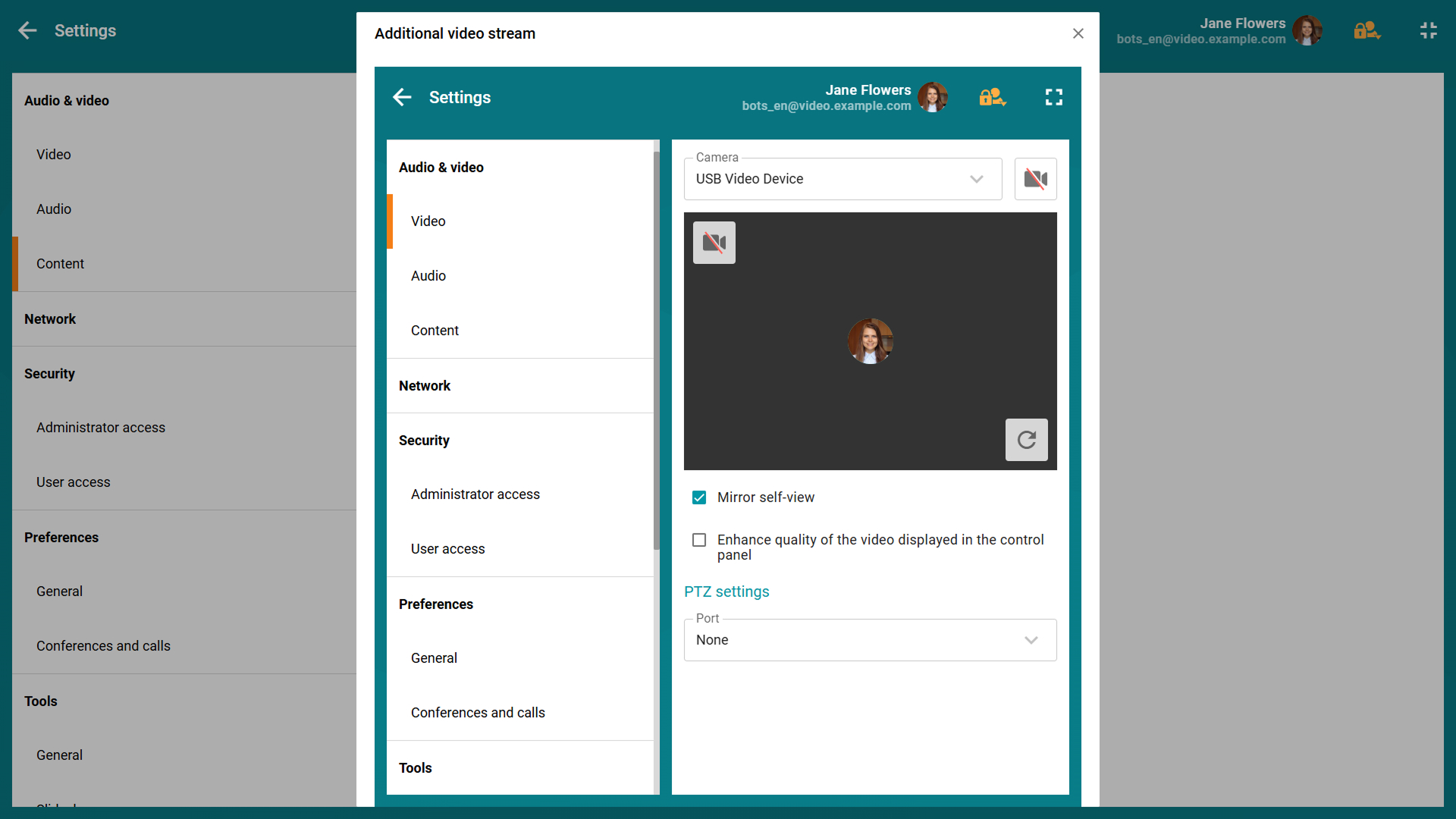
Earlier, in update 5.0, we introduced the capability to stream two video streams simultaneously. Now you can share content in an additional video stream directly in the user interface in the Settings — Content section of the TrueConf Room web control panel.
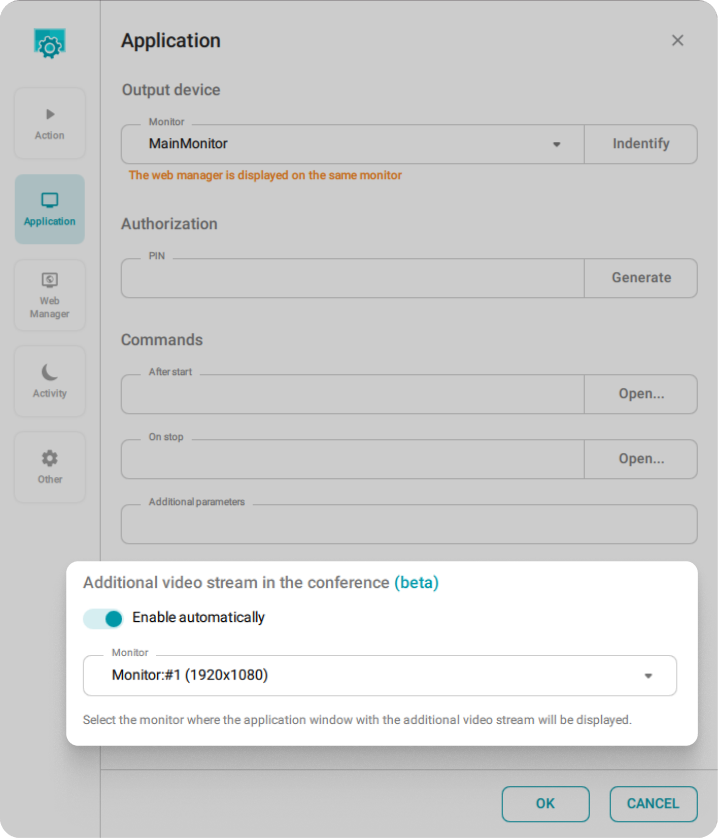
To use the second content stream, you need to enable it in the settings of the TrueConf Room Services add-in ( Settings application) in advance.
Convenient content sharing from mobile devices
Visitors to the meeting room can now join a running conference from mobile devices and share content from them. You just need to enable the corresponding option in the web conference control panel and scan the QR code. Once connected, a user can start sharing content right from their smartphone or tablet.
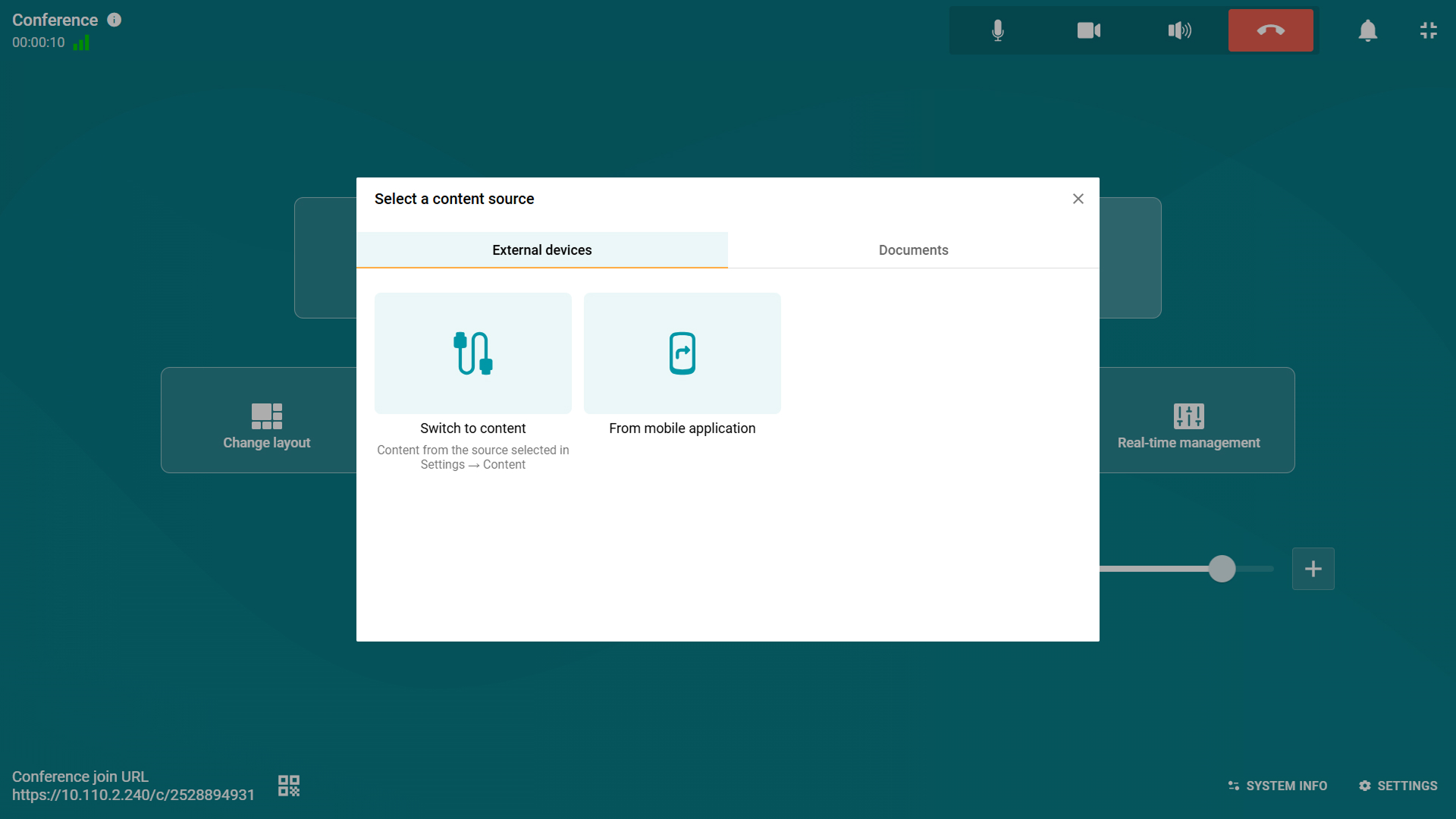
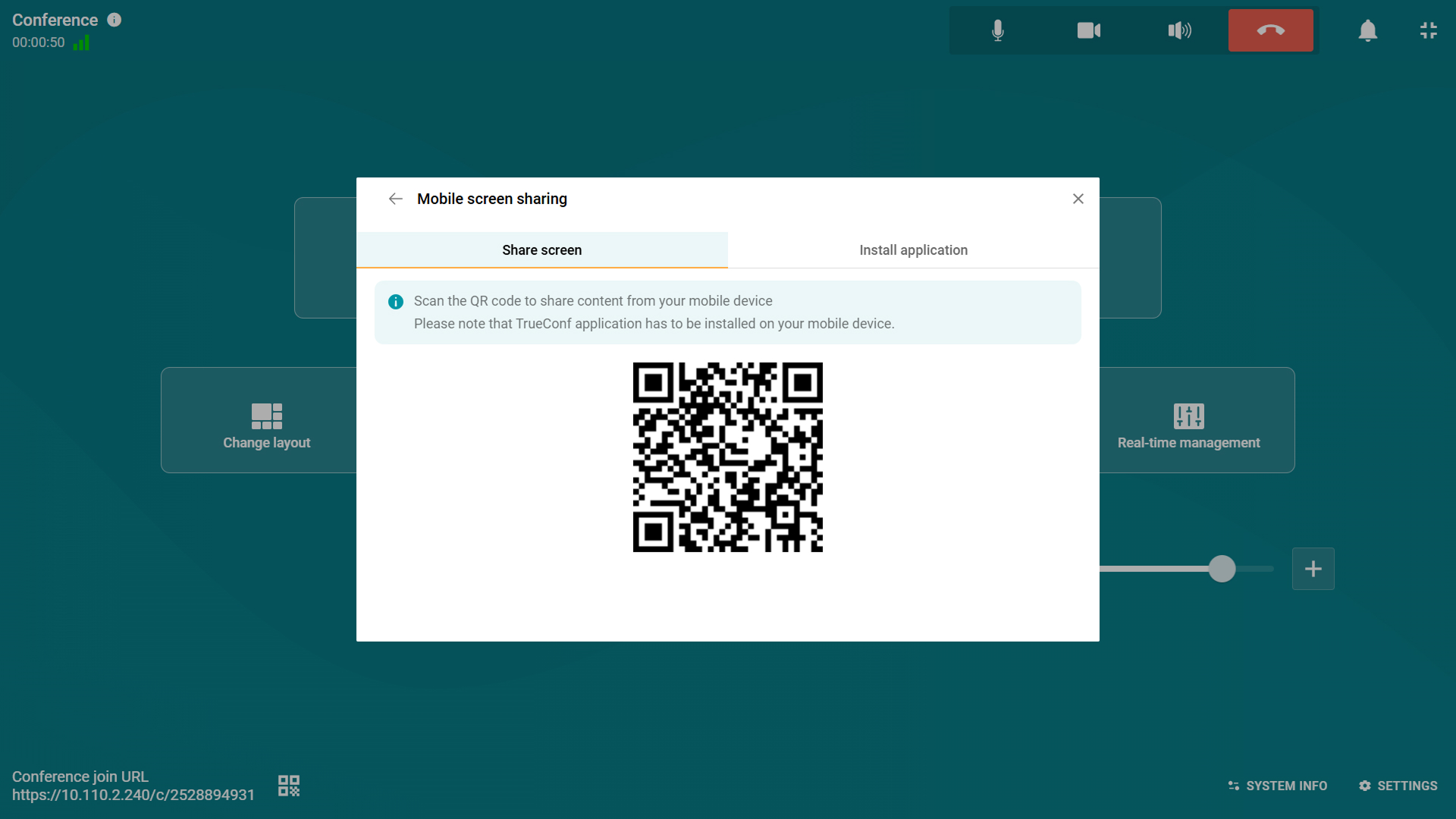
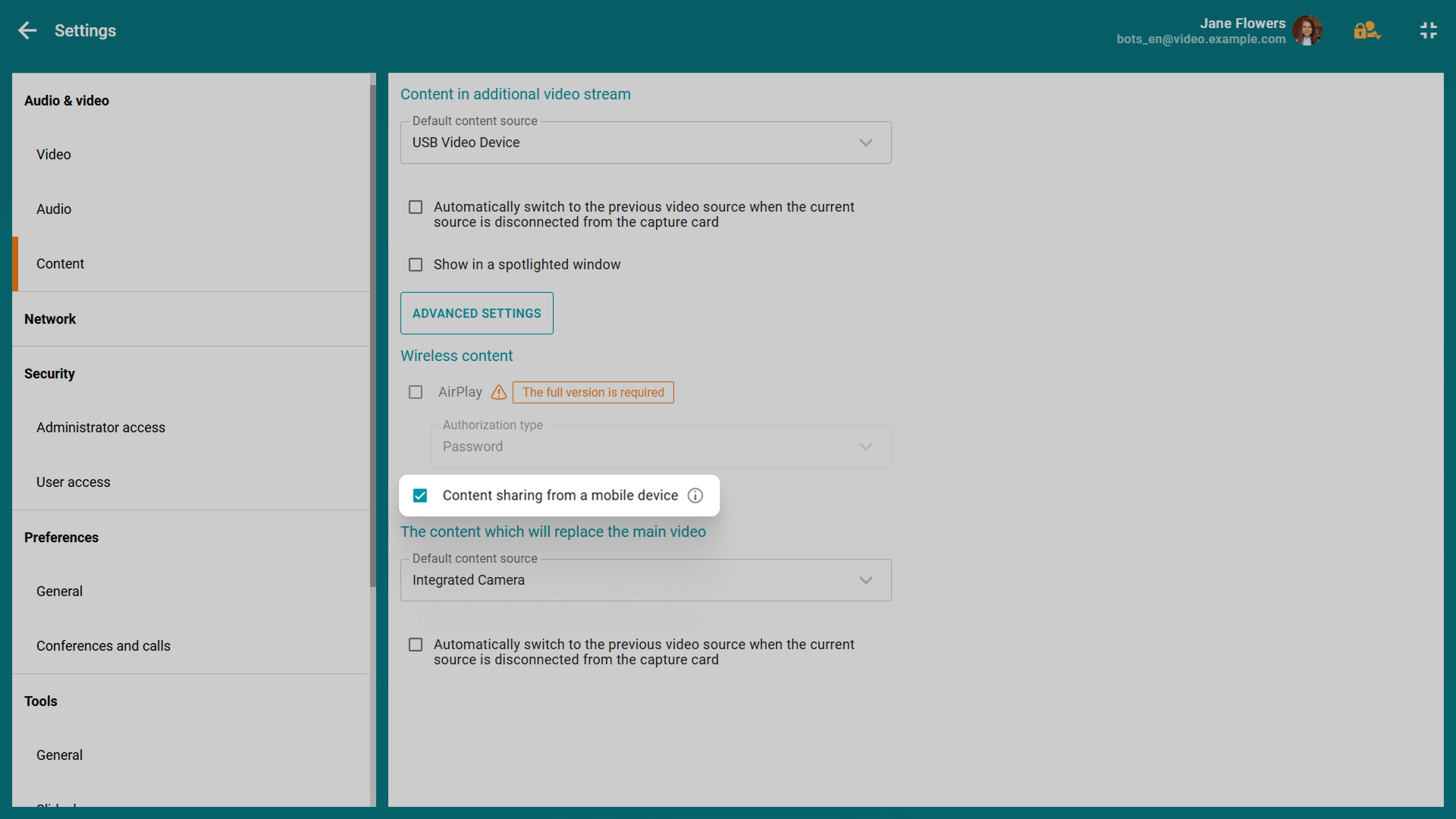
To use this feature, the “Сontent sharing from a mobile device” option should be enabled in the content settings of the web control panel.
The meeting room name on the main screen
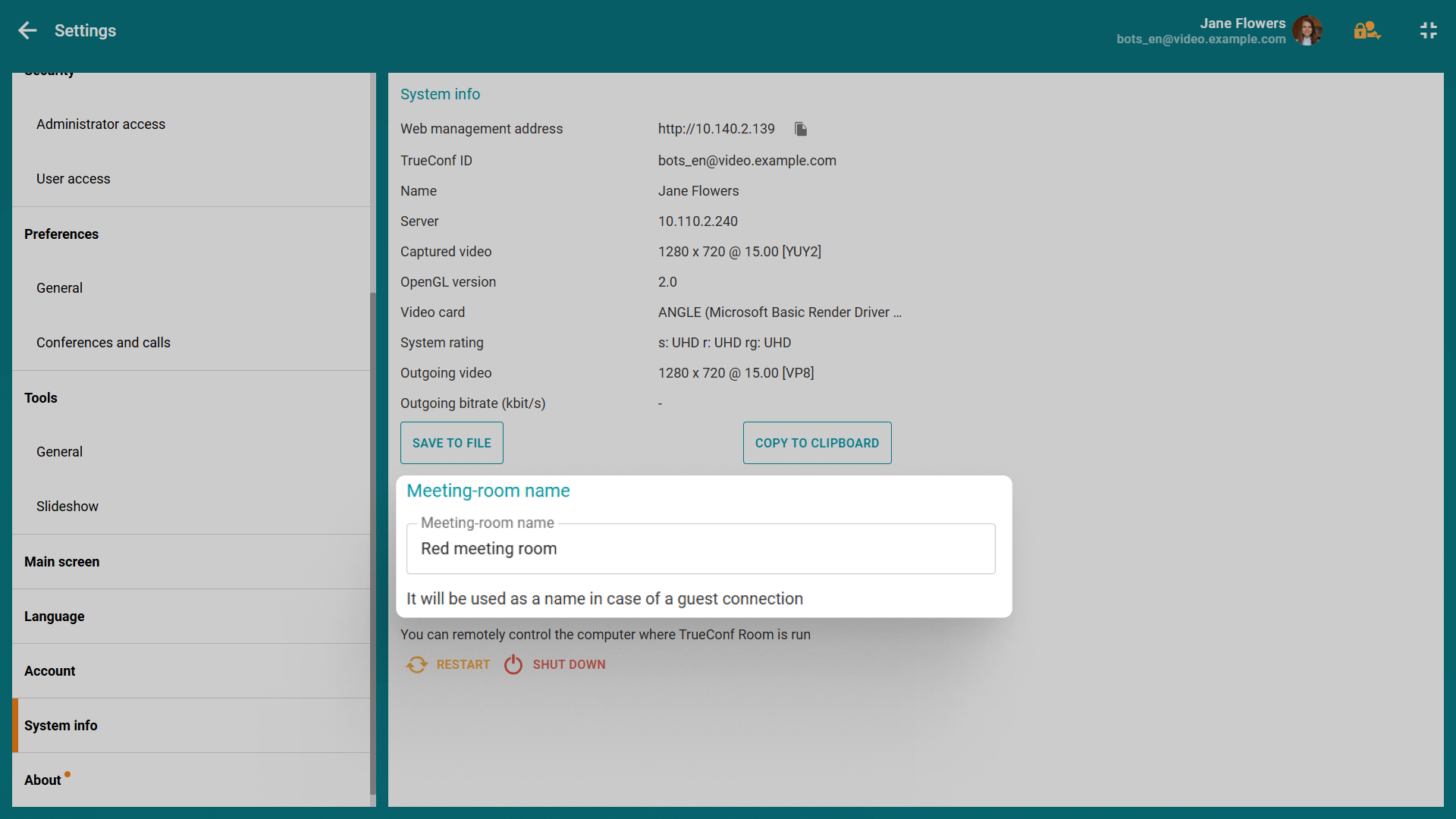
Now you can set the name of the meeting room where TrueConf Room is installed. The specified name will be displayed on the main screen of the TV connected to the video conferencing endpoint.
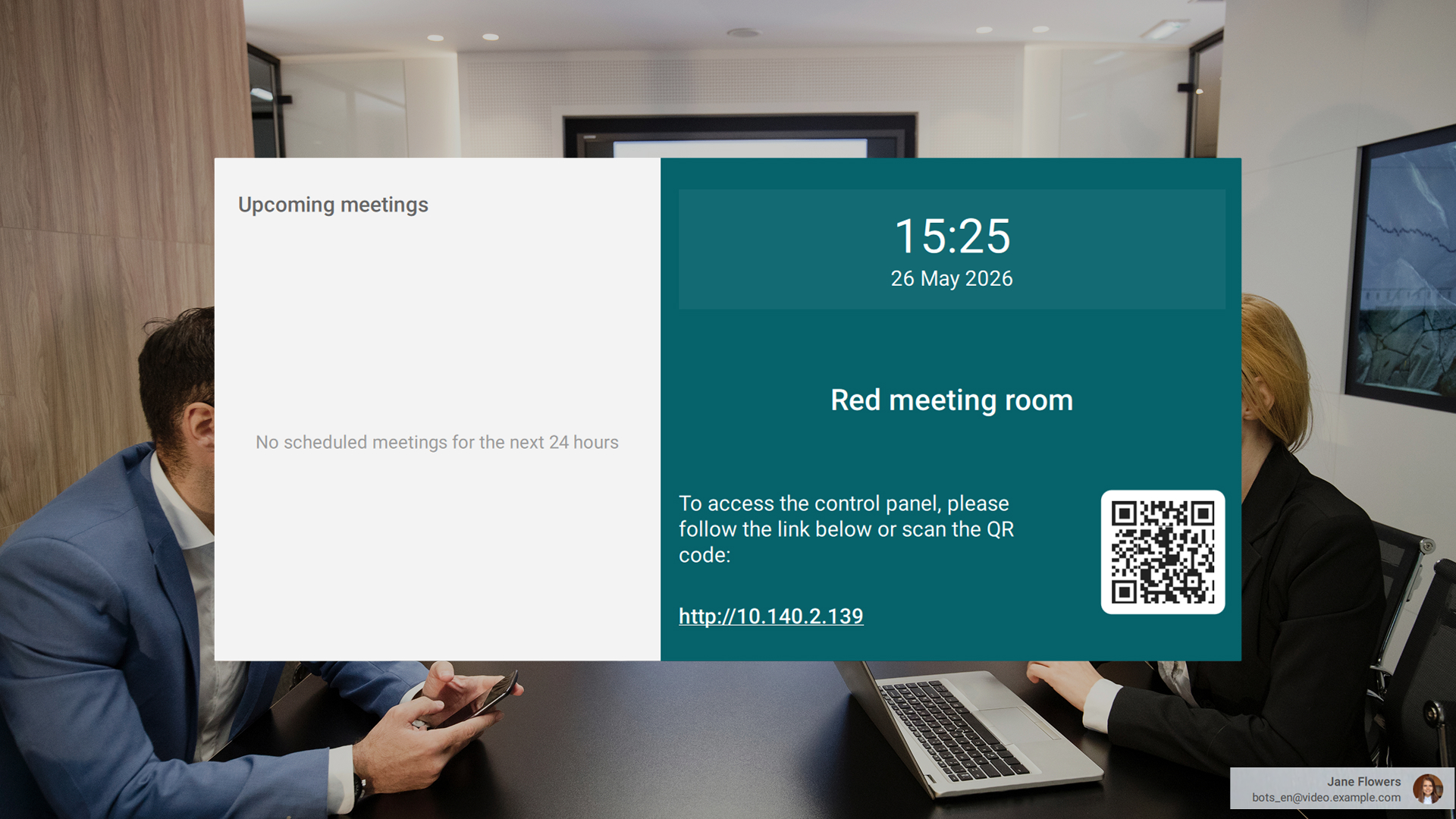
You can set the name of the meeting room in the “System info” section of the web control panel.
Other changes and improvements
- Version 5.5.1: We’ve fixed an issue due to which events from the corporate calendar might not be displayed when integration with TrueConf Calendar Connector is configured
-
A button for switching to full-screen mode
 has been added to the web control panel
- We’ve introduced a new launch parameter that allows you to set a custom conference layout even when receiving a layout from TrueConf Server
- We’ve fixed an issue due to which SSO authentication could sometimes fail
- We’ve fixed issues with displaying scheduled conferences on the TV and the main screen of the web interface
- The overall stability has been improved.

Maria Mihalyova
Date published: 29.05.2026
Maria Mihalyova
Date published: 29.05.2026
Follow us on social networks