
Terminal management via RS232 and API
Terminal management via RS232 and API
Terminal TrueConf Group allows control not only via the remote and web interface, but also through text commands (Command Line Interface) via the physical RS-232 port, using a USB to RS-232 adapter (for instance, if the built-in port is occupied by a PTZ camera), and remotely via the SSH protocol.
This feature also enables easy integration of TrueConf Group into meeting room control systems (e.g., TrueConf Coordinator), allowing you to add terminal control buttons to the tablet interface.
RS-232
You can use the RS-232 port or a USB to RS-232 adapter to send control commands to the terminal. To do this:
In the control panel, go to the RS-232 Interfaces section, and on the General tab, set a password for connecting to the RS-232 API, or leave it as default.
Connect the computer to the codec using an RS-232 cable.
Go to the HARDWARE tab (or USB 1 if using a USB - RS-232 adapter), select the RS-232 API option from the Role dropdown menu, and configure the port settings:
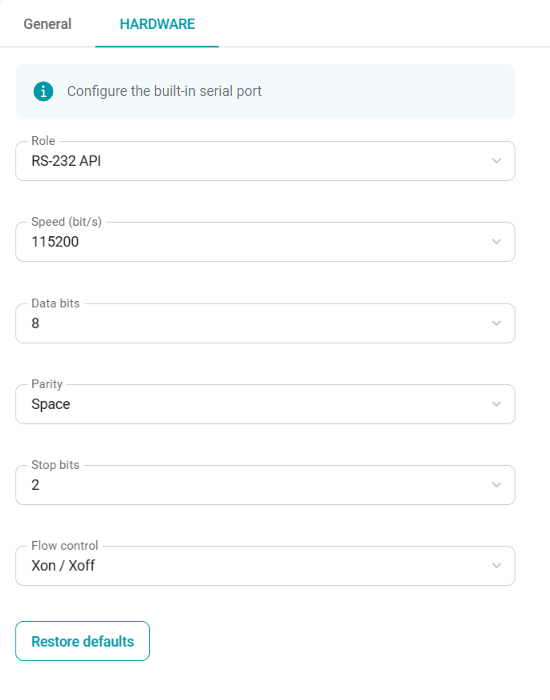
- Speed (bit/s) - the number of bits transmitted per second (bps) or the number of signal changes per second.
- Data bits - the number of bits that encode a single transmitted character (letters, numbers, etc.).
- Parity - A method for error detection in data transmission by adding an extra bit to each data unit.
- None - default value, no additional bit is added.
- Even The total number of 1 bits in each character is counted, and if necessary, an additional bit 1 or 0 is added to make the total number even.
- Odd - The number of 1s in each character is counted, and if necessary, an additional bit of 1 or 0 is added to make the total count odd.
- Mark - An extra bit 1 is added to each character.
- Space - an additional bit 0 is added to each character.
- Stop bit - An additional bit that indicates where one character ends and the next one begins. The more stop bits there are, the "longer the pause" between characters.
- Flow control - a type of data flow control that allows pausing and resuming data transmission when the receiving device is unable to process information in a timely manner.
- None - default value, flow control is disabled.
- Xon / Xoff - software control method where the device sends special characters Xoff (Ctrl+S, code 0x13) and Xon (Ctrl+Q, code 0x11).
- Hardware - a hardware control method that uses additional contacts in the connector. When controlled via RS-232, the device sends a signal through special contact No. 4 RTS (Request To Send) and No. 5 CTS (Clear To Send).
The methods for executing commands vary depending on the operating system:
For Windows OS, use a special program like PuTTY and similar ones.
For Linux OS, using the minicom utility.
SSH
How to connect
The ability to authenticate in CLI TrueConf Group via SSH is restricted by the terminal's operating system settings. After three failed login attempts (incorrect password entries), the connection is blocked. To remove the block, you need to restart the terminal or reboot its operating system.
Step 1. To connect to the terminal from the command line, you first need to set up an access key on the device from which you will be connecting to TrueConf Group:
In the control panel, go to section Settings → Maintenance → Permissions → SSH.
Click the Download new access key button.
Move the downloaded id_rsa key to the folder:
On Windows OS, the default path is:
C:\Users\Username\.sshIn Linux OS, the default is:
/Username/.ssh
Step 2. Now you need to connect using an SSH client. Use the login tcgsh:
Install (if you have not done it before) and run an SSH client; for example, you can use the OpenSSH package or any other. In many operating systems, it is available out of the box; for example, on Windows 10, you just need to run the following command:
ssh tcgsh@[group_ip]where
[group_ip]is the IP address of your endpoint.If a
WARNING: UNPROTECTED PRIVATE KEY FILE!error appears when connecting to the terminal, you need to change the access permissions for the id_rsa private key file. To do this, enter the commandchmod 600 id_rsain the directory of the private key.The CLI welcome text TrueConf Group will appear. You can now enter any supported commands:
user@linux:~$ ssh tcgsh@10.160.2.55
Last login: Thu Apr 23 17:46:26 2026 from 10.160.2.12
Welcome to TrueConf Group Management Shell 2.1.0.15
(tcg cli)
Commands sent to the terminal are case-insensitive. For example, you can enter the command as HELP, help, or Help.
To view the list of commands, type HELP.
To view information about the specific command [command], run [command] HELP.
The parameters (if they are present) have to be specified separated by a whitespace, for example, the command
CALLHISTORY 10will list 10 most recent entries from the call history.
Commands
ABOOK
Add a contact to the address book.
| Parameter | Description |
|---|---|
| ADD [NAME] [PROTO]:[ADDRESS] | Add a contact to the address book, where: NAME is the display name, PROTO is the protocol (sip, h323, rtsp, vnc, ndi), and ADDRESS is the address used for the call. Example command: ABOOK ADD ALEX sip:10.110.2.240 |
| DEL [NAME] | Delete the contact with the specified name |
ANSWER
Accept an incoming call
| Parameter | Description |
|---|---|
| VIDEO | Accept an incoming call if auto-answer is disabled. This can be checked in the control panel in the section. |
AUDIOCODEC
Enable or disable the audio codec.
| Parameter | Description |
|---|---|
| [CODEC] ON | Allow the use of audio codec [CODEC] |
| [CODEC] OFF | Disable the use of audio codec [CODEC] |
| [CODEC] GET | Get the current status of the codec [CODEC] |
| GET | Get the current status of all audio codecs |
See the list of all codecs supported by the terminal in the section "TrueConf Group Capabilities".
AUDIOMUTE
Microphone control.
| Parameter | Description |
|---|---|
| ON | Mute microphone |
| OFF | Enable microphone |
| GET | Get the current microphone status |
| REGISTER | Receive notifications about microphone status changes. If the terminal operator turns the microphone on or off, corresponding notifications will be displayed in the console. These messages will be received until they are disabled using the UNREGISTER command and will only be available in the current SSH connection session. |
| UNREGISTER | Disable microphone status change notifications |
AUTOANSWER
Settings for automatic call pick-up.
| Parameter | Description |
|---|---|
| YES | Automatic acceptance of the first incoming call. Similar to setting the parameter value. |
| NO | Disabling auto-answer for incoming calls. This is similar to setting a value for the parameter. |
| DND | Blocking incoming calls; all calls will be automatically declined. This is similar to setting the value in the section |
| GET | Get the current value of the auto-answer parameter |
CALLINFO
Get information about the current call
The command displays technical information about one or more active connections (in case of using the MCU function). The CallID parameter is required for call identification and is used in other commands. Example of how the command works:
TCG console>CALLINFO
Active calls:
CallID:"8"
       Direction:Outgoing
       Contact URI:"sip:222@example.com"
       User agent:"TrueConf Server 5.4.5.10072"
       Duration:230 sec
       Bitrate:"1008"
Audio in: Compression:"G.722.1C (32 kbit/s)", Bitrate:"32", Packets:"11304", Lost packets:"0", Loss rate:"0"%, Jitter:"30"
Audio out: Compression:"G.722.1C (48 kbit/s)", Bitrate:"48", Packets:"11301", Lost packets:"0", Loss rate:"0"%, Jitter:"10"
Video in: Codec:"H264", Bitrate:"960", Resolution:"1280x720", Frame rate:"27", Packets:"35495", Lost packets:"0", Lossrate:"0%", Jitter:"11%"
Video out: Codec:"H264", Bitrate:"960", Resolution:"1280x720", Frame rate:"30", Packets:"39959", Lost packets:"0", Lossrate:"0%", Jitter:"2%
CALLHISTORY
Get call history
| Parameter | Description |
|---|---|
| N | The number of recent calls to display, with the default being N=5. |
CAMERA
PTZ camera control
| Parameter | Description |
|---|---|
| LEFT, RIGHT, UP, DOWN | Rotate the camera to the left, right, up, or down accordingly. |
| ZOOM+, ZOOM- | Zoom in or out of the image |
| STOP | Stop camera movement |
| POSITION SAVE [n] | Save the current camera position (preset) as number [n] |
| POSITION LOAD [n] | Move the camera to position (preset) number [n]. |
| POSITION CLEAR [n] | Remove camera position (preset) with number [n]. |
You can verify the camera settings in the terminal control panel under section Settings → Devices → Camera.
CAMERAMUTE
Camera video stream control
| Parameter | Description |
|---|---|
| ON | Disable video stream from the camera |
| OFF | Enable video stream from the camera |
| GET | Get the current camera status |
| REGISTER | Subscribe to receive notifications for camera off/on events: relevant notifications will be displayed in the console. These messages will be received until they are disabled using the UNREGISTER command and only during the current SSH session. |
| UNREGISTER | Disable notifications about camera status changes |
CONTENT
Content display management. The content source must be selected in advance using the remote control or on the Conference control panel tab.
| Parameter | Description |
|---|---|
| GET | Display the current status of content sharing |
| PREVIEW | Enable content preview without sending it to the conference |
| REGISTER | Receive notifications about content sharing status changes from the terminal. |
| SHARE | Start streaming content to the conference |
| STOP | Stop content sharing |
CORETEMP
Get the endpoint CPU temperature.
Command and response example:
(tcg cli) CORETEMP
CPU temperature: +50.0°C
DIAL
Call to a user
| Parameter | Description |
|---|---|
| URI | Make an outgoing call to the specified URI. |
Then, depending on your actions, the following notifications will be displayed:
DTMF
Send a DTMF code CODE to the user with ID [CallID]. The code consists of digits and usually ends with #.
| Parameter | Description |
|---|---|
| [CallID] | Call ID for sending the command. If there is only one active connection with the terminal at the time of sending the command, this parameter can be omitted. |
| CODE | The sequence of DTMF symbols that should be sent to the subscriber. The special character P adds a 100 ms pause. |
When the code has been sent, the corresponding notification will be displayed, for example, the code 111# has been sent to the user with the ID 272:
(tcg cli) DTMF 272 111#
DTMF code passed successfully
HANGUP
End a call.
| Parameter | Description |
|---|---|
| VIDEO [CallID] | Terminate the connection with ID [CallID]. The call identifier value [CallID] is displayed when the connection is established, as shown in the Outgoing call notification example. |
| ALL | End all current connections |
Command result example:
TCG console>hangup video 266
Hangup the video call [266] passed
TCG console>
Hangup call [266]:
        Name:"Room"
        Contact URI:"h323:room@video.company.com:1720"
        Protocol:"H.323"
HOSTNAME
Get or set the system name.
| Parameter | Description |
|---|---|
| SET [NAME] | Set the system name. A corresponding message will then be displayed. |
| GET | Display the system name |
How to get the name or set a new one:
(tcg cli) hostname get
System hostname:"TrueConf Group"
(tcg cli) hostname set New name
Hostname "New name" set successfully
IP
Obtain the IP address TrueConf Group.
| Parameter | Description |
|---|---|
| ADDRESS | Display IP address |
| ROUTE | Display routing table |
The result of the IP ADDRESS command:
(tcg cli) ip address
1: lo: <LOOPBACK,UP,LOWER_UP> mtu 65536 qdisc noqueue state UNKNOWN group default qlen 1000
    link/loopback 00:00:00:00:00:00 brd 00:00:00:00:00:00
    inet 127.0.0.1/8 scope host lo
       valid_lft forever preferred_lft forever
2: eth0: <BROADCAST,MULTICAST,UP,LOWER_UP> mtu 1500 qdisc pfifo_fast state UP group default qlen 1000
    link/ether fc:34:97:67:62:5f brd ff:ff:ff:ff:ff:ff
    inet 10.160.2.55/22 brd 10.160.3.255 scope global noprefixroute dynamic eth0
       valid_lft 22589sec preferred_lft 22589sec
    inet6 fe80::d2c4:ad3a:e4f8:b569/64 scope link noprefixroute
       valid_lft forever preferred_lft forever
The result of the IP ROUTE command:
(tcg cli) ip route
default via 10.160.0.1 dev eth0 proto dhcp metric 100
10.160.0.0/22 dev eth0 proto kernel scope link src 10.160.2.55 metric 100
LAYOUT
Video layout management in group conferences using the MCU function or in a point-to-point call when self-view is displayed (i.e., a layout with 2 video windows). For more details on layouts, refer to the "Video Layout Management" section in the user documentation.
| Parameter | Description |
|---|---|
| EQUAL | Set a uniform video layout |
| TOP | Set the layout with the priority window on top |
| BOTTOM | Set the layout with the priority window at the bottom |
| LEFT | Set the layout with the priority window on the left |
| RIGHT | Set the video layout with the priority window on the right |
| AUTO | Set automatic video layout |
| GET | Get the current video layout type |
LISTDEVICE
Get the list of available audio and video devices connected to the endpoint.
| Parameter | Description |
|---|---|
| Without parameter | Display information about all audio/video devices |
| AUDIO | Retrieve the list of all audio devices connected to the terminal. |
| AUDIO CAPTURE | Obtain a list of all audio capture devices connected to the terminal |
| AUDIO RENDER | Retrieve the list of all audio playback devices connected to the terminal. |
| VIDEO | Obtain a list of all video devices connected to the terminal. |
| VIDEO CAPTURE | Retrieve the list of all image capture devices connected to the terminal. |
| VIDEO RENDER | Retrieve a list of all output devices (displays) connected to the terminal. |
| SERIAL | Retrieve the list of connected serial ports. This can be used to identify connected external USB-RS232 adapters. |
When using any of the commands, each device displays its identifier in the id parameter. This identifier is used when executing other equipment-related commands, such as selecting a device with SETDEVICE.
How to get the list of all audio and video devices:
(tcg cli) listdevice

Available audio capture devices:
         id="1", "Line in", active:False, default:False, level:100%, boost:0, aec:0, agc:False, noise suppressor:False
         id="2", "HDMI1", active:False, default:False, level:100%, boost:0, aec:0, agc:False, noise suppressor:False
         id="3", "HDMI2", active:False, default:False, level:100%, boost:0, aec:0, agc:False, noise suppressor:False
         id="4", "eMeet M2 [USB Audio]", active:True, default:False, level:100%, boost:0, aec:0, agc:False, noise suppressor:False
Available audio render devices:
         id="1": "Display port", active:False, default:False, level:86%
         id="2": "HDMI", active:False, default:False, level:52%
         id="3": "Line out", active:False, default:False, level:17%
         id="4": "eMeet M2 [USB Audio]", active:True, default:False, level:4%
         id="5": "All outputs", active:False, default:False, level:50%
Available video capture devices:
         id="1": "Clevermic 1212U/HD Camera", video:1280x720@60.01
         id="2": "HDMI1/MZ0380:RAW 00.00 12abf55f", video:1920x1080@0.0
         id="3": "HDMI2/MZ0380:RAW 01.00 12abf55f", video:1920x1080@0.0
         id="4": "USB/file", video:1920x1080@25.0
Available video render devices:
         id="1": "BenQ GL2460", port: HDMI", active:True
MULTIPOINT
Managing the MCU feature.
| Parameter | Description |
|---|---|
| ON | Enabling MCU Mode |
| OFF | Disabling the MCU feature |
| GET | Display the current status of the MCU function |
PROTOCOL
SIP and H.323 settings.
| Parameter | Description |
|---|---|
| PROTOCOL SIP [ON/OFF] | Enabling/disabling operation via SIP protocol |
| PROTOCOL H323 [ON/OFF] | Enable/disable operation via the H.323 protocol |
| PROTOCOL SIP SRTP [ON/OFF/MANDATORY] | Management of SRTP encryption usage in calls over the SIP protocol: ON — encryption is preferred but not mandatory; OFF — not used; MANDATORY — the terminal will not connect with subscribers who do not support SRTP. |
| PROTOCOL H323 H235 [ON/OFF/MANDATORY] | Managing the use of H.235 encryption for calls using the H.323 protocol: ON — encryption is preferred but not mandatory; OFF — encryption is not used; MANDATORY — the terminal will not connect with subscribers who do not support H.235. |
| PROTOCOL SIP GET | Display the current status of SIP protocol usage |
| PROTOCOL H323 GET | Display the current status of H.323 protocol usage. |
| PROTOCOL SIP SRTP GET | Display the current status of SRTP encryption usage for SIP calls. |
| PROTOCOL H323 H235 GET | Display the current status of H.235 encryption usage for H.323 protocol calls. |
It is impossible to disable both SIP and H.323 at the same time. If one of them is disabled, and a user tries to disable the second one, the former will be automatically activated.
REBOOT
Restart TrueConf Group.
The command is similar to pressing the Restart OS button in the Settings → Power → Power management section of the terminal control panel.
This command is executed right after being sent without any preliminary confirmation request (unlike a similar action in the control panel).
RCKEY
Send the code of the button on the remote control to execute the corresponding command as if the button were physically pressed.
| Parameter | Description |
|---|---|
| KEY | Remote control button code. Valid values: 0..9, *, #, HOME, BACK, MENU, OK, LEFT, RIGHT, UP, DOWN, DIAL, BACKSPACE, HANGUP, PC, FARNEAR, LAYOUT, ZOOM+, ZOOM-, VOL+, VOL-, POWER. |
Example of the command for zooming in the image from the PTZ camera connected to the endpoint:
(tcg cli) rckey zoom-
RCKEY passed successfully
SELFVIEW
Set the mode for displaying the self-view on the endpoint screen (this configuration will not affect the way in which the self-view will be displayed in the layout).
| Parameter | Description |
|---|---|
| ON | Display local video |
| OFF | Hide self-view video |
| TOGGLE | Switch local video |
| GET | Request local video status |
SETDEVICE
Select the device for capturing or playing media streams and content sharing.
The commands listed below use the DeviceId parameter, which is the device identifier. It can be obtained using the command LISTDEVICE.
| Parameter | Description |
|---|---|
| AUDIO CAPTURE [DeviceId] | Select the DeviceId device for audio capture. |
| AUDIO RENDER [DeviceId] | Select the DeviceId device for audio output. |
| VIDEO CAMERA [DeviceId] | Select the DeviceId device for capturing the main video stream (as a camera). |
| VIDEO PRESENTATION [DeviceId] | Select the DeviceId device for capturing an additional video stream (as content). |
| SETDEVICE VIDEO PRIMARY [DeviceId] | Select the display for showing the main video stream |
| SETDEVICE VIDEO SECONDARY [DeviceId] | Select a display to show the additional video stream. |
| VIDEODUAL ALL | Enable second display |
| VIDEODUAL OFF | Disable the second display |
| VIDEODUAL MIRROR | Mirroring the primary monitor's display on the second screen |
| VIDEODUAL PRESENTATION | Display an additional stream (shared content) on the second monitor. |
SHUTDOWN
Turn off TrueConf Group.
The command is similar to pressing the Shut down the endpoint button in the Settings → Power → Power management section of the terminal control panel.
This command is executed right after being sent without any preliminary confirmation request (unlike a similar action in the control panel).
SPEAKERMUTE
Audio playback settings.
| Parameter | Description |
|---|---|
| ON | Disable audio output |
| OFF | Enable audio output |
| GET | Request audio output status |
| REGISTER | Subscribe to receive notifications for audio output being turned on or off: relevant notifications will be displayed in the console. These messages will continue to be received until they are disabled using the UNREGISTER command and only during the current SSH connection session. |
| UNREGISTER | Disable notifications for audio output status changes |
VIDEOCODEC
Enable or disable the video codec.
| Parameter | Description |
|---|---|
| [CODEC] ON | Allow the use of video codec [CODEC] |
| [CODEC] OFF | Disable the use of video codec [CODEC] |
| [CODEC] GET | Get the current status of the codec [CODEC] |
| GET | Get the current status of all video codecs |
See the list of all codecs supported by the terminal in the section "TrueConf Group Capabilities".
VIDEOMIXER
Set the stream mixing mode for multipoint control unit (MCU).
| Parameter | Description |
|---|---|
| VIDEOLESSON | In the video lecture mode, participants can only see and hear the moderator, who is represented by the terminal. However, all participants can hear each other. |
| ALL | The "everyone on screen" mode, where all participants can see and hear each other |
| ACTIVESPEAKER | The voice activation mode allows everyone to see and hear each other, with the active speaker displayed in the priority window of the video layout. |
VOLUME
Volume settings
| Parameter | Description |
|---|---|
| UP | Increasing the volume level |
| DOWN | Lowering the volume level |
| GET | Display the current volume level (in percentage) in the console. |
| REGISTER | Subscribe to notifications for volume increase/decrease: the console will display event: volume up and event: volume down messages, respectively. These messages will be received until they are disabled with the UNREGISTER command, and only during the current SSH session. |
| UNREGISTER | Disable notifications for volume changes |
It is also possible to change the volume level with the commands RCKEY VOL+ and RCKEY VOL-.
WAKEON
Power management of TrueConf Group via LAN port using Wake-on-LAN (WoL) technology.
| Parameter | Description |
|---|---|
| [MODE] | WoL operating modes: p – wake on PHY; u – wake on unicast messages; m – wake on multicast messages; b – wake on broadcast messages; g – wake on MagicPacket messages. |
| OFF | Disabling WoL technology |
| GET | Get WoL status |
WHOAMI
Displaying information about TrueConf Group.
Command result example:
(tcg cli) whoami
Information about the system:
	Display Name:"TrueConf Group"
	Serial Number:"TCG01B9209863"
	License Type:"permanent"
	Software version:"1.1.0.470"
	IP address:"10.160.2.55"
	MAC:"FC:34:97:67:62:5F"
	SIP:"sip:10.160.2.55"
	H323:"h323:10.160.2.55"
	H323 Gatekeeper:""
	SIP Server:""
	H323 Name:""
	H323 Extension:""
	Display information:
	  Name:""
	  Connected:"True"
	  Active:"True"
	  Mode:"3840x2160@30.0 [30.0]"
Notifications
audiomute off
The microphone has been unmuted.
audiomute on
The microphone has been muted.
cameramute off
The camera has been turned on.
cameramute on
The camera has been turned off.
outgoing content stream started
TrueConf Group started content sharing as a second stream in a call or conference.outgoing content stream stopped
TrueConf Group stopped content sharing.Dial failed
The call has ended before it could be received (e.g., by timeout).
Hangup call
A notification upon the termination of a session with a specific subscriber. Pay attention to the ID [259], which is the call identifier [CallID] that also appears in the output of the CALLINFO, HANGUP commands, and in the Incoming call, Outgoing call notifications.
For example:
Hangup call [259]:
	Name:"Jhon Doe"
	Contact URI:"h323:doe@10.110.2.240:1720"
	Protocol:"H.323"
Incoming call
The notification displayed when:
An incoming call is made (in this case, the word
ringingwill also be included)An incoming call is answered (in this case, the word
confirmedwill be included).
Please note the ID [260] in the examples below—this is the call identifier [CallID]. This ID is also displayed in the output of the CALLINFO, HANGUP commands, and in the Outgoing call, Hangup call notifications.
Example of a notification about an incoming call that has not been answered yet:
Incoming call [260], ringing:
	Name:"Joe Smith"
	Contact URI:"h323:111@video.example.com:1720"
	Protocol:"H.323"
	User agent:"TrueConf Gateway 4.3"
An example of a notification displayed when a call is answered:
Incoming call [260] confirmed:
	Name:"Joe Smith"
	Contact URI:"h323:111@video.example.com:1720"
	Protocol:"H.323"
	User agent:"TrueConf Gateway 4.3"
Outgoing call
The notification displayed when:
When a call is made from the endpoint, the word
ringingwill be included;When a user answers a call from the endpoint, the word
confirmedwill be included.
Please note the ID [259] in the examples below – this represents the call identifier [CallID]. This ID is also displayed in the output of the CALLINFO, HANGUP commands, and in the notifications for Incoming call, Hangup call.
Example of a notification about an outgoing call that has not been answered yet:
Outgoing call [259], ringing:
	Name:"111"
	Contact URI:"h323:111@10.110.2.240:1720"
	Protocol:"H.323"
	User agent:""
An example of a notification displayed when a call is answered:
Outgoing call [259] confirmed:
	Name:"111"
	Contact URI:"h323:111@10.110.2.240:1720"
	Protocol:"H.323"
	User agent:"TrueConf Gateway 4.3"
speakermute off
The audio playback device has been turned on.
speakermute on
The audio playback device has been turned off.
REST API
TrueConf Group supports OAS3 — the OpenAPI version 3 specification.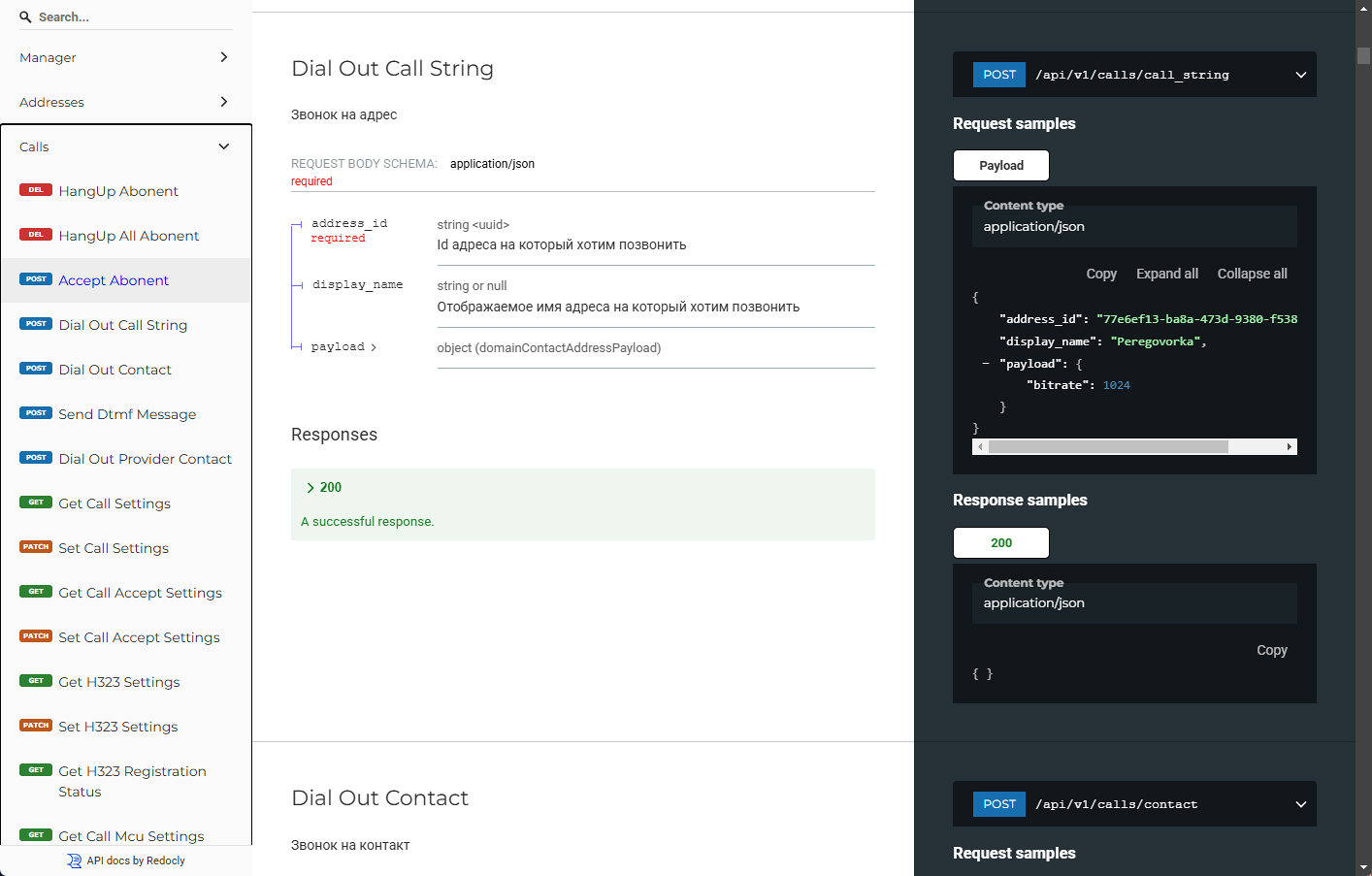
API Access
Go to the Settings → Maintenance → Permissions → API section to restrict API access:
Enter Username and Password.
Click Apply.
You can now connect to TrueConf Group via REST API using the provided credentials.
If you forgot your password, click Reset and enter new information.
Capabilities
With the API, you can:
view and edit the address book;
make calls;
control connected equipment;
configure;
manage network settings;
restart the OS, shut down or reboot the terminal;
configure time and NTP;
create SSH keys;
Configuring and managing a connected tablet;
and much more.
API Support
The REST API documentation is embedded in terminal TrueConf Group. To access it, go to https://{IP}/api/v1/doc, where {IP} is the terminal's IP address, for example, 10.110.2.220/api/v1/doc. The documentation is also available at https://developers.trueconf.com/group/api/.
If you have any questions regarding the product or API, you can ask them in our Telegram community.