
Meeting Room Equipment: Essential Devices, Top Solutions, and Setup Guide
Meeting room equipment includes video conferencing cameras, microphones, speakers, displays, conferencing computers, and connectivity systems that allow employees to collaborate in person and remotely. The right setup depends on room size, seating layout, acoustics, meeting software, and the organization’s IT infrastructure.
For a small huddle room, a display and USB video bar may be sufficient. A medium conference room may require expandable microphones and intelligent camera framing, while a large boardroom often needs separate cameras, ceiling microphones, professional audio processing, and centralized controls.
The most important rule
Choose equipment based on the room’s physical layout and communication requirements, not simply the number of seats. A camera that works well in a six-person square room may be unsuitable for a six-person room with a long conference table.
What Equipment Do You Need for a Meeting Room?
A functional video conferencing room typically requires seven core components. Some can be integrated into a single device, while others are selected separately for greater flexibility.
|
Equipment |
What it does |
Essential? |
|---|---|---|
|
Conference room display |
Shows remote participants, presentations, and shared content |
Yes |
|
Video conferencing camera |
Captures meeting participants |
Yes |
|
Microphones |
Transmit voices to remote attendees |
Yes |
|
Speakers |
Reproduce remote participants’ audio |
Yes |
|
Room computer or video endpoint |
Processes video and audio communication |
Yes, but may be built into a video bar |
|
Video conferencing software |
Connects participants and manages meetings |
Yes |
|
Connectivity equipment |
Connects AV devices, displays, and networks |
Yes |
|
Wireless presentation system |
Allows cable-free sharing from laptops |
Optional |
|
Room control panel |
Simplifies meeting controls |
Optional |
|
Room scheduling display |
Shows reservations and room availability |
Optional |
An all-in-one video bar can replace several separate devices in a small room. However, larger conference spaces generally benefit from dedicated audio and video components.
Before selecting individual products, determine whether the room will use a dedicated conferencing system or allow employees to connect their own laptops. This decision affects which cameras, microphones, and control devices are suitable.
Meeting Room Planner
Find Your Meeting Room Setup
Four quick questions. A recommended setup based on your answers.
Best Meeting Room Equipment by Category
The following eight solutions illustrate different approaches to building a modern conference room. They are selected for specific use cases rather than ranked by overall quality.
The products are not directly interchangeable: some provide complete conferencing hardware, while others address a particular requirement such as audio capture or wireless presentation.
1. Logitech MeetUp 2 — For Small Meeting Rooms
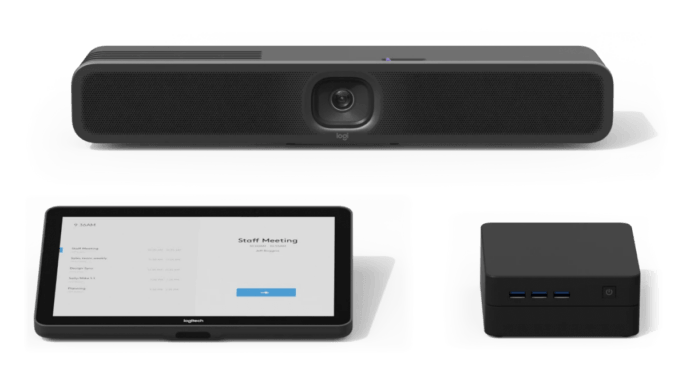
Best for: Huddle rooms and small conference rooms using laptops or dedicated room PCs.
Logitech MeetUp 2 is a USB video bar combining a camera, microphones, and speakers in a compact system. It is designed for small meeting spaces where employees either connect their own laptop or use a dedicated conferencing computer.
The device includes intelligent framing and audio processing features, reducing the need for separate peripherals. It can also be managed remotely through Logitech Sync, which is helpful for IT teams responsible for multiple meeting rooms.
Key advantages:
- Integrated camera, microphone array, and speakers.
- Suitable for BYOD and PC-based conferencing.
- Intelligent video framing and audio processing.
- Compact installation with fewer cables.
Limitations: MeetUp 2 is not designed to operate as a standalone conferencing appliance. It requires a compatible laptop or room computer to run meetings.
For organizations planning a modular software-based system, this distinction is useful: the video bar provides AV functionality while the conferencing application runs separately.
2. TrueConf Room — For Flexible, PC-Based Conference Rooms
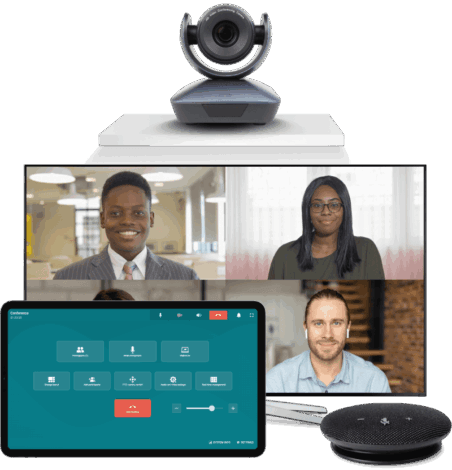
Best for: Organizations that want to build modular conferencing systems using standard AV peripherals and centrally managed communications infrastructure.
TrueConf Room is software that transforms a Windows or supported Linux computer into a dedicated video conferencing endpoint. Unlike integrated conferencing appliances, it allows organizations to combine compatible cameras, microphones, speakers, displays, and computing hardware according to room requirements.
A compact meeting room can use a USB camera and speakerphone, while a large boardroom can incorporate PTZ cameras and professional audio equipment.
TrueConf Room also supports browser-based meeting controls, camera switching, and integration with TrueConf Server. This allows organizations to connect meeting rooms with employee workstations, remote offices, and supported SIP/H.323 endpoints through a centrally deployed communications platform.
Key advantages:
- Windows and Linux deployment.
- Works with compatible USB cameras, PTZ cameras, and AV peripherals.
- Browser-based conference controls.
- Flexible hardware configurations.
- Integration with self-hosted TrueConf Server.
Limitations: A PC-based system requires organizations to select, configure, and maintain the computer and connected peripherals. Advanced audio installations may also require separate processing hardware and professional integration.
TrueConf Room is particularly relevant when hardware flexibility, infrastructure control, and interoperability are more important than purchasing a fixed all-in-one appliance.
3. Poly Studio X52 — For Medium-Sized Conference Rooms
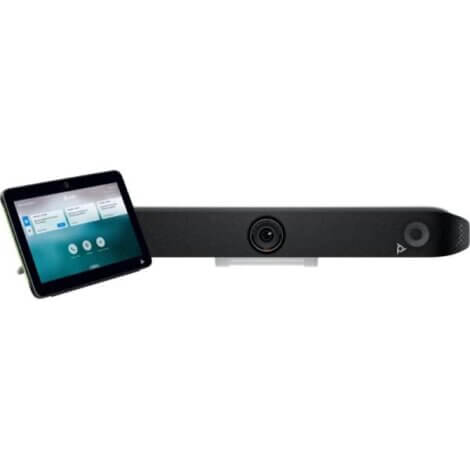
Best for: Organizations looking for a dedicated all-in-one conferencing appliance.
Poly Studio X52 integrates a 4K camera, microphones, speakers, and conferencing capabilities in one device. It supports intelligent framing through Poly DirectorAI and can operate in supported native meeting modes or USB device mode.
Its 95-degree horizontal field of view makes it suitable for many standard conference table configurations, although final suitability depends on the distance between participants and the device.
The system also supports content sharing and can connect to two displays, making it useful when organizations want to show remote participants and presentations separately.
Key advantages:
- Integrated conferencing hardware.
- 4K camera with intelligent framing.
- Dual-display connectivity.
- Support for major enterprise meeting platforms.
Limitations: Platform functionality and management options vary by operating mode. Organizations using conferencing software outside the device’s native ecosystem should verify USB mode and feature availability before purchasing.
4. Jabra PanaCast 50 — For Wide Meeting Rooms
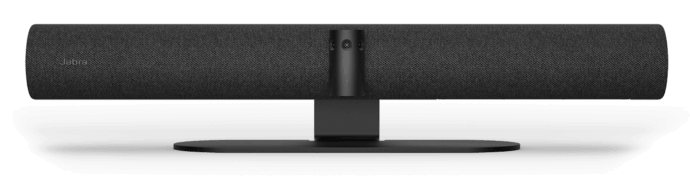
Best for: Rooms where participants sit close to a display or along a wide table.
Jabra PanaCast 50 uses three cameras to create a 180-degree panoramic view. This is particularly useful when conventional cameras struggle to include participants seated near the edges of the room.
The system also incorporates multiple microphones and speakers, reducing the number of separate audio devices required for a compact or medium-sized conference room.
Its intelligent video capabilities can help present room participants more clearly to remote attendees. Depending on the selected model, Jabra offers USB-connected configurations and dedicated video bar systems.
Key advantages:
- 180-degree panoramic horizontal field of view.
- Multi-camera image processing.
- Integrated conferencing audio.
- Suitable for wide seating arrangements.
Limitations: A panoramic camera is not necessarily the best choice for a long boardroom. Participants sitting far from the device may appear too small, even when everyone fits within the frame.
5. Yealink MeetingBar A30 — For Rooms Requiring Speaker Tracking
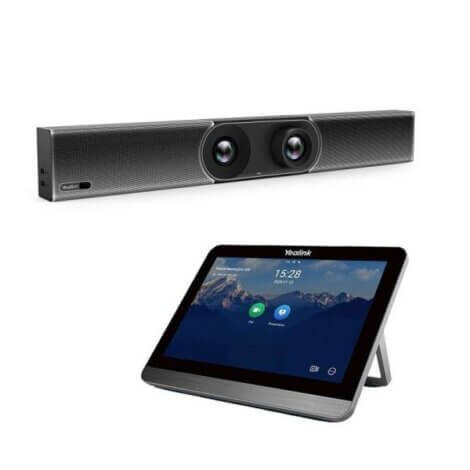
Best for: Medium conference rooms where discussions frequently switch between speakers.
Yealink MeetingBar A30 combines two cameras with an integrated microphone array and speakers. The dual-camera design supports wide-angle coverage and closer framing of participants.
Automatic framing and speaker tracking help remote attendees follow discussions without requiring someone to manually operate the camera.
The device also supports dual displays, making it a practical option for rooms that frequently use presentations alongside video meetings.
Key advantages:
- Dual-camera design.
- Automatic framing and speaker tracking.
- Integrated microphones and speakers.
- Dual-display support.
Limitations: Its integrated conferencing environment is primarily designed around supported platforms. Third-party software compatibility and the exact operating modes should be verified in advance.
6. Logitech Rally Plus — For Large Modular Meeting Rooms
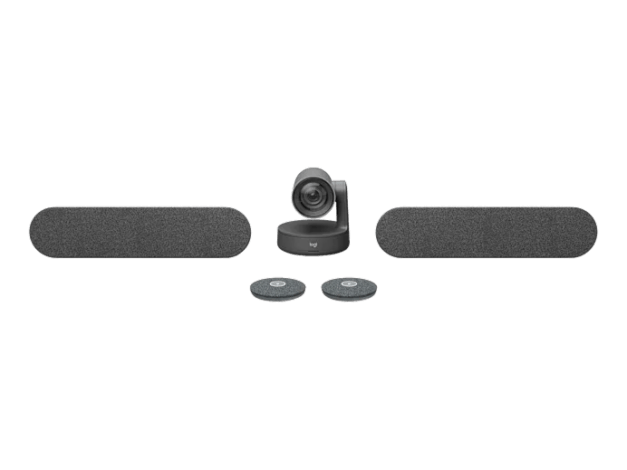
Best for: Large conference rooms that require separate cameras, microphones, and speakers.
Logitech Rally Plus is a modular video conferencing hardware system rather than a single video bar. Its separate PTZ camera, speakers, and expandable microphone system provide greater flexibility for different table lengths and seating arrangements.
The camera can use optical zoom to capture participants farther away without relying entirely on digital cropping. Additional microphone pods can extend audio coverage along longer conference tables.
This approach is useful when an organization wants to select conferencing software independently of the hardware.
Key advantages:
- Modular camera and audio architecture.
- PTZ camera with optical zoom.
- Expandable microphone coverage.
- Suitable for PC-based conferencing systems.
Limitations: Compared with an integrated video bar, the system requires more planning for device positioning, cabling, and installation.
It is particularly important to test microphone coverage and camera presets before commissioning the room.
7. Shure MXA920 — For Professional Conference Room Audio
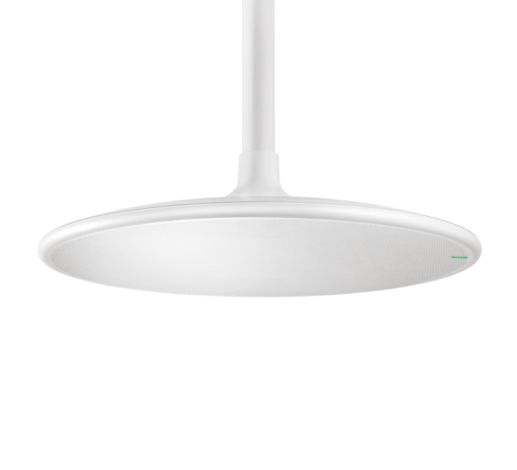
Best for: Boardrooms, executive meeting spaces, and rooms requiring ceiling-mounted microphone coverage.
Shure MXA920 is a ceiling array microphone designed to capture speech across defined areas of a room. It supports automatic coverage technology and networked audio connectivity through Dante and AES67.
The microphone can be integrated into professional audio systems that include digital signal processing, speakers, and conferencing computers.
Unlike a tabletop speakerphone, a ceiling array can provide a less intrusive installation and accommodate rooms where the seating arrangement changes.
Key advantages:
- Ceiling-mounted design.
- Configurable speech coverage.
- Networked professional audio.
- Integrated audio processing capabilities.
Limitations: MXA920 is not a complete conferencing solution. It requires an appropriately designed audio system and integration with the room’s conferencing hardware.
Ceiling height, room acoustics, mounting position, and speaker placement must be considered during installation.
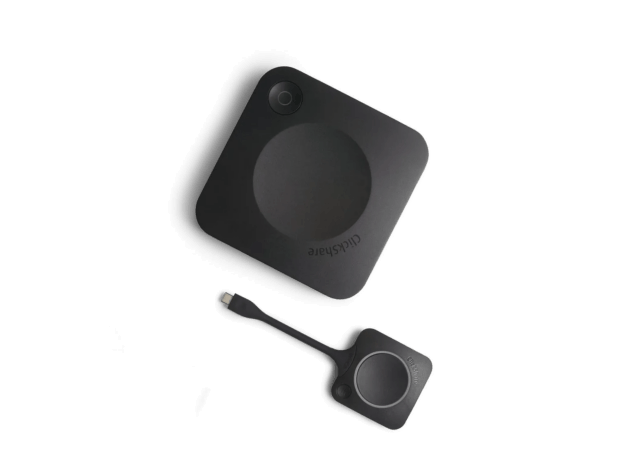
Best for: Shared meeting spaces where employees frequently bring their own laptops.
Barco ClickShare CX-20 enables wireless conferencing using compatible room cameras, microphones, speakers, and displays. Employees can access the room’s AV equipment from their laptop without repeatedly connecting multiple peripheral cables.
This approach can be useful for organizations that use several communication platforms or frequently host external participants who prefer their own devices.
Key advantages:
- Wireless access to supported room AV equipment.
- Useful for BYOD meeting environments.
- Reduces reliance on physical peripheral connections.
- Can support different conferencing applications.
Limitations: Wireless conferencing adds another integration layer. Compatibility with specific cameras, audio devices, operating systems, and security policies should be confirmed.
It is also unnecessary in rooms where employees consistently use a dedicated conferencing computer and can share content directly through the meeting application.
Meeting Room Equipment Setups by Room Size
Selecting equipment by room capacity is a useful starting point, but table dimensions, microphone distance, and camera positioning should determine the final configuration.
The following setups illustrate common arrangements for offices in the United States.
|
Room type |
Capacity |
Recommended equipment |
Example solution |
|---|---|---|---|
|
Huddle room |
2–4 |
43–55-inch display, video bar, laptop or mini PC |
Logitech MeetUp 2 |
|
Small conference room |
4–6 |
55–65-inch display, integrated AV, dedicated endpoint |
Poly Studio X52 |
|
Medium conference room |
6–12 |
65–86-inch display, intelligent camera, expandable audio |
Yealink MeetingBar A30 or modular PC system |
|
Large boardroom |
12–20 |
Dual displays, PTZ camera, distributed microphones, dedicated speakers |
Logitech Rally Plus or professional AV system |
|
Training room |
20+ |
Projector or large displays, multiple cameras, wireless microphones, audio processing |
Custom AV system with dedicated conferencing software |
These configurations are examples, not universal requirements. A long conference table may need more sophisticated audio equipment than a compact room with the same number of seats.
Huddle Room: 2–4 People
A huddle room should prioritize simplicity and rapid meeting startup. One display and a compact video bar are usually sufficient when participants sit close together.
A USB video bar connected to a dedicated mini PC can create a consistent meeting experience without requiring employees to reconnect peripherals.
If the organization primarily uses BYOD meetings, a shared camera and speakerphone may be more practical than maintaining a dedicated conferencing computer.
Small Conference Room: 4–6 People
Small conference rooms benefit from intelligent camera framing and reliable microphone pickup across the entire table.
An integrated video bar reduces cabling and installation complexity. However, organizations using a dedicated PC may prefer a USB-based system that allows the conferencing software to be selected independently.
The farthest seat should be tested before purchasing. If speech sounds distant or reverberant, consider a different microphone arrangement rather than simply increasing microphone gain.
Medium Conference Room: 6–12 People
Medium rooms often require more attention to camera framing and audio distribution.
A dedicated conference bar may work well for a compact rectangular table. For longer layouts, additional microphones or a modular system may be necessary.
Two displays can improve usability when participants need to see both remote colleagues and shared presentations.
An intelligent camera with speaker tracking can also help reduce the need for manual camera control during discussions.
Large Boardroom: 12–20 People
A large boardroom is usually better treated as an integrated AV project.
PTZ cameras, distributed microphones, dedicated speakers, and a DSP can provide more consistent coverage than relying on a single integrated video bar.
Camera presets may be configured for the entire table, individual speakers, and presentation areas.
Professional audio installation becomes particularly valuable when the room has reflective surfaces, high ceilings, or multiple speaker zones.
Training Room or Conference Hall: 20+ People
Training spaces differ from conventional boardrooms because presenters often move around, demonstrate material, or interact with an audience.
A practical setup may combine a presenter camera, wide-angle room camera, wireless microphone, distributed speakers, and a projector or large display.
Audience microphones may be required for questions.
If sessions are recorded or streamed, the conferencing system should support the necessary video and audio inputs and a suitable content-sharing workflow.
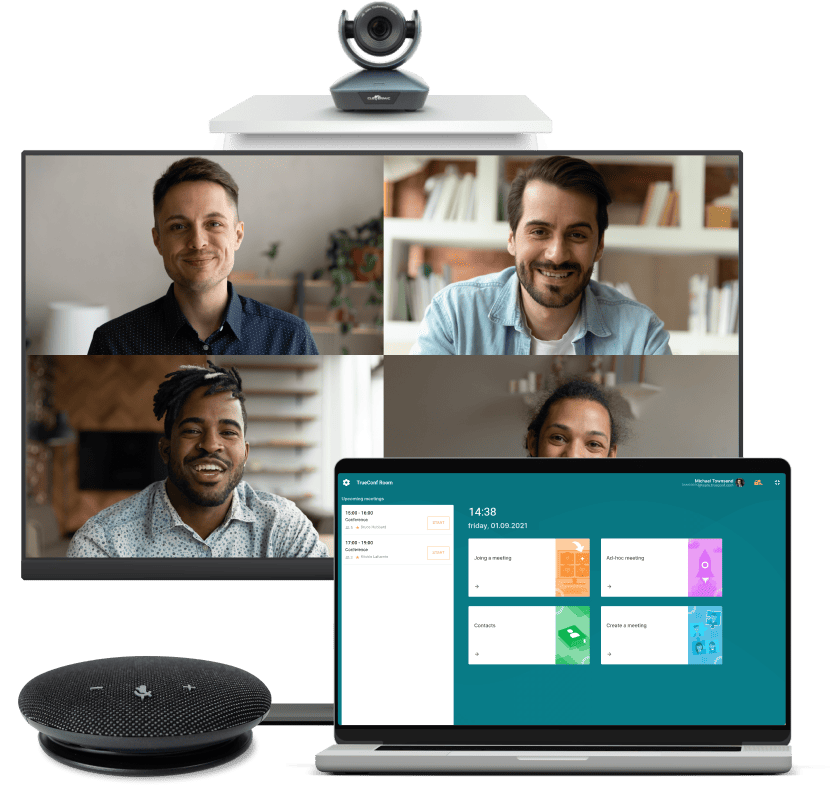
Turn a Windows or Linux PC into a flexible video
conferencing system using compatible AV equipment.
Manage meetings from any device.
TV, monitor, or projector.
USB, PTZ, and web cameras.
Microphones and speakerphones.
All-in-One vs. Modular Meeting Room Equipment
Most organizations choose between an integrated conferencing appliance and a modular PC-based setup.
|
Criteria |
All-in-one conferencing system |
Modular PC-based system |
|---|---|---|
|
Installation |
Usually simpler |
Requires component configuration |
|
Camera flexibility |
Limited by device design and supported peripherals |
Broad selection of compatible cameras |
|
Microphone expansion |
Model-dependent |
Can support distributed audio systems |
|
Conferencing software |
Dependent on supported operating modes |
Selected according to PC and software compatibility |
|
Hardware upgrades |
Some components may be difficult to replace individually |
Individual devices can often be upgraded |
|
Cable management |
Typically simpler |
Depends on system design |
|
IT maintenance |
Integrated device management |
Computer and peripheral management |
|
Best fit |
Standardized small and medium rooms |
Customized rooms and specialized enterprise installations |
An all-in-one appliance is often appropriate when an organization needs a straightforward installation, a consistent user experience, and limited hardware customization.
A modular system becomes more attractive when the room requires specialized cameras, distributed audio, or integration with existing enterprise communication infrastructure.
When a PC-Based Meeting Room Makes More Sense
A PC-based system separates the conferencing application from the cameras, microphones, and displays.
This architecture can reduce dependence on a single hardware configuration. It also makes it possible to standardize conferencing software across rooms of different sizes.
For example, TrueConf Room can run on a dedicated Windows or Linux computer connected to compatible AV equipment. Organizations can start with a simple USB setup and use more specialized cameras and audio systems in larger rooms.
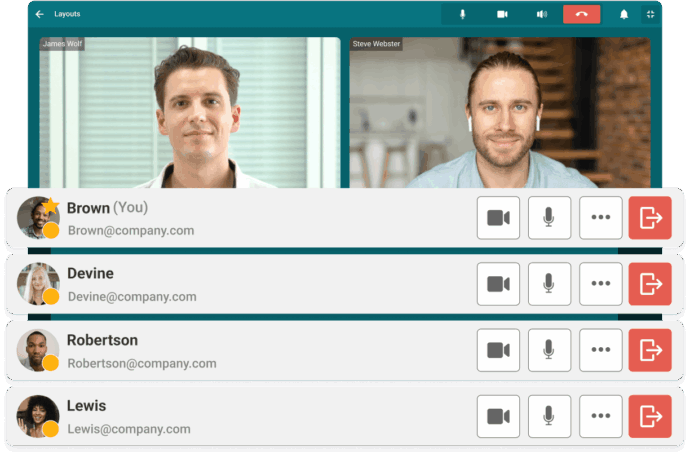
When connected to TrueConf Server, the room becomes part of an organization’s self-hosted communication infrastructure.
This approach can be useful for companies operating private networks, maintaining existing video conferencing endpoints, or requiring greater control over conferencing deployment.
However, compatibility must be checked at the device and feature level. A camera’s basic USB video output may work while advanced PTZ controls, microphone management, or proprietary processing features require additional support.
How to Choose the Right Conference Room Equipment
Choosing equipment should begin with a room assessment rather than a product catalog.
1. Measure Camera and Microphone Distances
The number of seats does not accurately describe every room’s technical requirements.
Measure the distance from the camera to the farthest participant and from each microphone to the people it must capture.
A wide-angle camera may work well in a compact room but make people appear too small at the opposite end of a long table.
Similarly, a microphone may capture distant participants but reproduce their voices with excessive room reflections.
When possible, test real audio and video performance from every seating position.
2. Evaluate Room Acoustics
Hard floors, glass walls, exposed ceilings, and large tables can increase reverberation.
Before purchasing additional microphones, evaluate whether acoustic treatment would improve speech clarity.
Ceiling microphones are not automatically superior to tabletop devices. Their performance depends on installation height, room geometry, background noise, and the surrounding audio system.
For larger rooms, professional acoustic assessment can help prevent expensive equipment changes after installation.
3. Match Equipment to Meeting Formats
Different rooms need different capabilities.
A client presentation room may prioritize large displays and dependable content sharing. A boardroom used for discussions needs consistent speech capture across a table.
A training room may require wireless microphones and multiple camera positions, while a workshop space may benefit from interactive displays and annotation tools.
Select equipment around recurring meeting activities rather than optional features that are unlikely to be used.
4. Verify Hardware and Software Compatibility
Compatibility should be evaluated before procurement, especially when combining devices from different manufacturers.
Check supported camera interfaces, microphone connections, audio processing requirements, operating systems, and conferencing software.
A USB connection does not guarantee that every camera function will be supported. Advanced framing, speaker tracking, and PTZ management may depend on specific drivers or software integrations.
Organizations with existing SIP/H.323 terminals should also verify interoperability before replacing working equipment.
5. Plan for Centralized IT Management
Shared meeting room systems require reliable maintenance and predictable access controls.
IT administrators should be able to update software, troubleshoot endpoints, configure devices, and monitor system availability.
For self-hosted conferencing infrastructure, network segmentation, authentication, endpoint protection, and software updates remain important.
A locally deployed communications server offers control over the hosting environment, but secure operation still depends on appropriate system administration.
Common Meeting Room Equipment Mistakes
Choosing a camera based only on resolution. A 4K camera cannot compensate for poor positioning, inadequate lighting, or an unsuitable viewing angle. Optical quality and room coverage are often more important than resolution alone.
Installing one microphone in a large room. Increasing microphone sensitivity does not resolve poor speech pickup from distant seats. Distributed microphones or a different placement strategy may be necessary.
Buying a display that is too small for shared documents. A screen that looks adequate for video calls may be difficult to read during spreadsheet or technical presentations. Test representative content from the farthest seat.
Ignoring connectivity during room design. USB bandwidth, cable length, HDMI routing, power availability, and network access can affect equipment compatibility. Confirm these requirements before installation.
Selecting equipment without considering maintenance. A modular system offers flexibility but also requires coordination across connected devices. An integrated appliance reduces some complexity but may create limitations when hardware needs replacement.
The most reliable installations begin with a clear room specification and finish with an acceptance test involving remote participants.
Meeting Room Installation Checklist
Before purchasing or installing equipment, confirm the following requirements.
- Measure the room and document the seating layout.
- Determine the maximum distance between participants and microphones.
- Select cameras that provide suitable coverage and framing.
- Test display readability from the farthest seat.
- Evaluate acoustics and background noise.
- Verify compatibility between cameras, audio devices, and conferencing software.
- Confirm USB, HDMI, Ethernet, and power requirements.
- Plan how users will start meetings and share content.
- Define device management and maintenance responsibilities.
- Conduct a test meeting with remote participants before accepting the installation.
The final test should include normal speaking volumes, presentations, multiple speakers, and participants seated at the edges of the room.
Frequently Asked Questions
What equipment is required for a conference room?
A conference room typically needs a display, camera, microphones, speakers, conferencing computer or endpoint, and video conferencing software. Smaller spaces can combine many of these functions in an integrated video bar, while larger rooms often benefit from separate AV components.
What is the best meeting room equipment for a small office?
A display and USB video bar are often sufficient for a small office meeting room. Devices such as Logitech MeetUp 2 provide integrated video and audio, while a dedicated PC or employee laptop runs the meeting application. The final choice depends on room dimensions and whether the organization prefers BYOD or a dedicated endpoint.
How much does it cost to equip a meeting room?
A basic huddle room may require approximately $3,000–$9,000 for a conventional installed system, while larger professionally integrated rooms can cost tens of thousands of dollars. Costs depend on displays, cameras, microphones, installation labor, control systems, and existing infrastructure.
Can I use a regular PC for video conferencing in a meeting room?
Yes. A dedicated Windows or Linux PC can be connected to compatible cameras, microphones, speakers, and displays. Software such as TrueConf Room turns the computer into a conferencing endpoint and provides meeting controls suitable for shared rooms.
Can conference room equipment work without internet access?
Some conferencing systems can operate over a private local network. For example, a properly configured TrueConf Server deployment can support internal video meetings without relying on public internet access. External participation depends on the organization’s network configuration and access policies.
Final Thoughts
The right meeting room equipment is determined by the space, its users, and the way meetings are conducted. Small rooms often benefit from integrated video bars, while large boardrooms may require modular cameras, distributed microphones, professional audio processing, and dedicated controls.
When comparing equipment, prioritize speech intelligibility, camera coverage, software compatibility, and maintenance requirements over specifications that do not materially improve everyday meetings.
For organizations that want to use standard AV equipment while retaining flexibility over conferencing software and infrastructure, TrueConf Room provides a PC-based approach that can scale from small meeting spaces to more complex enterprise rooms.
About the Author
Olga Afonina is a technology writer and industry expert specializing in video conferencing solutions and collaboration software. At TrueConf, she focuses on exploring the latest trends in collaboration technologies and providing businesses with practical insights into effective workplace communication. Drawing on her background in content development and industry research, Olga writes articles and reviews that help readers better understand the benefits of enterprise-grade communication.


Follow us on social networks